opomba,
Dostop do te strani zahteva pooblastilo. Poskusite se vpisati alispremeniti imenike.
Dostop do te strani zahteva pooblastilo. Poskusite lahko spremeniti imenike.
In this tutorial, you use PowerShell to submit a single Execute DAX Queries REST API request that contains multiple EVALUATE statements, then parse the multi-result-set Apache Arrow response. This pattern lets you retrieve several related result sets in one round trip from a PowerShell automation script.
Why submit multiple EVALUATE statements in one request
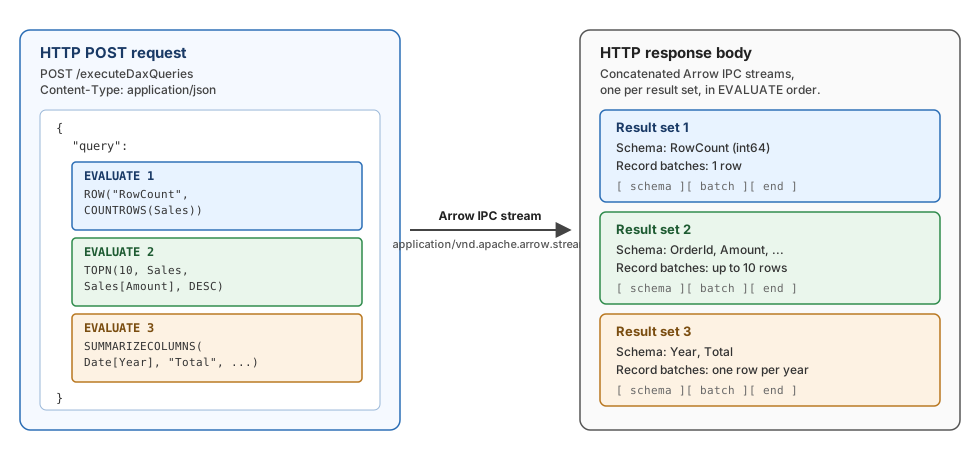
The Execute DAX Queries API accepts a single query string that can contain multiple EVALUATE statements. Each statement returns its own result set, and the response body is the concatenation of one Arrow IPC stream per EVALUATE statement in declaration order. Submitting related queries together avoids the per-request overhead of separate HTTP calls, including extra Microsoft Entra token validation and DAX engine initialization. Sending multiple EVALUATE statements in one request can also help to mitigate the impact of request throttling. Power BI limits callers to 120 query requests per minute per user for semantic model query operations.
What you build
In one PowerShell script, you:
- Acquire a Microsoft Entra access token.
- Build a request body whose
querycontains threeEVALUATEstatements. - Send the request and capture the raw Arrow IPC response stream.
- Parse the response into one result set per
EVALUATEstatement. - Display each result set as PowerShell objects.
Prerequisites
- PowerShell 7.4 or later. Windows PowerShell 5.1 isn't supported because the
Apache.Arrowpackage used in this tutorial conflicts with theSystem.Memoryassembly included in PowerShell 5.1. - A Power BI workspace on Premium or Fabric capacity with at least one semantic model.
- Build and Read permissions on the semantic model.
- The MicrosoftPowerBIMgmt module for authentication. The cmdlets use Microsoft's first-party Power BI client app, so you don't need to register your own app in Microsoft Entra.
- The Apache.Arrow and Apache.Arrow.Compression .NET libraries to deserialize the response. The Execute DAX Queries REST API compresses Arrow buffers with LZ4 frame compression, so
Apache.Arrow.Compressionand its dependencies (K4os.Compression.LZ4,K4os.Compression.LZ4.Streams,K4os.Hash.xxHash,ZstdSharp.Port) are required. The next step shows how to download them. - The following tenant settings enabled in the Power BI admin portal:
- Dataset Execute Queries REST API (under Developer settings).
- Allow XMLA endpoints and Analyze in Excel with on-premises semantic models (under Integration settings).
Install PowerShell 7.4 or later by using winget:
winget install --id Microsoft.PowerShell --source winget
After installation, launch the new shell with pwsh. Run the remaining commands in this tutorial from that session.
Install the MicrosoftPowerBIMgmt module. The -Force flag accepts the PowerShell Gallery untrusted-repository prompt.
Install-Module -Name MicrosoftPowerBIMgmt -Scope CurrentUser -Force
Download the required NuGet packages and extract their assemblies to C:\Tools\Apache.Arrow\. A .nupkg file is a ZIP archive, so Expand-Archive works directly on it. The loop selects the highest netX.0 target folder in each package so the assemblies stay compatible as the packages publish newer targets.
$dest = "C:\Tools\Apache.Arrow"
New-Item -ItemType Directory -Force -Path $dest | Out-Null

$packages = @(
    "Apache.Arrow",
    "Apache.Arrow.Compression",
    "K4os.Compression.LZ4",
    "K4os.Compression.LZ4.Streams",
    "K4os.Hash.xxHash",
    "ZstdSharp.Port"
)

foreach ($pkg in $packages) {
    $nupkg  = Join-Path $env:TEMP "$pkg.nupkg"
    $expand = Join-Path $env:TEMP $pkg
    if (Test-Path $expand) { Remove-Item $expand -Recurse -Force }

    Invoke-WebRequest -Uri "https://www.nuget.org/api/v2/package/$pkg" -OutFile $nupkg
    Expand-Archive -Path $nupkg -DestinationPath $expand -Force

    $libDirs = Get-ChildItem (Join-Path $expand "lib") -Directory
    $best = $libDirs | Where-Object { $_.Name -match "^net\d" } |
            Sort-Object Name -Descending | Select-Object -First 1
    if (-not $best) {
        $best = $libDirs | Sort-Object Name -Descending | Select-Object -First 1
    }

    Get-ChildItem (Join-Path $best.FullName "*.dll") |
        Copy-Item -Destination $dest -Force
}
1 - Authenticate
Sign in to the Power BI service interactively, then extract an access token. The Connect-PowerBIServiceAccount cmdlet doesn't require you to register your own app in Microsoft Entra.
Connect-PowerBIServiceAccount -WarningAction SilentlyContinue
$accessToken = (Get-PowerBIAccessToken).Authorization -replace '^Bearer\s+',''
2 - Build a request with multiple EVALUATE statements
Define the workspace and semantic model targets. Then build the request body. The query property is a single string that contains three EVALUATE statements separated by blank lines.
$groupId   = "YOUR_WORKSPACE_ID"
$datasetId = "YOUR_DATASET_ID"

$query = @"
EVALUATE
ROW("RowCount", COUNTROWS('Sales'))

EVALUATE
TOPN(10, 'Sales', 'Sales'[Amount], DESC)

EVALUATE
SUMMARIZECOLUMNS(
    'Date'[Year],
    "TotalSales", SUM('Sales'[Amount]))
"@

$body = @{
    query                  = $query
    resultsetRowcountLimit = 500000
} | ConvertTo-Json
3 - Send the request and capture the raw response stream
Send the POST request, and read the response body as a binary stream. Use HttpWebRequest rather than Invoke-RestMethod, Invoke-PowerBIRestMethod, or Invoke-WebRequest. The response is a binary Arrow IPC stream. The higher-level PowerShell cmdlets interpret response bodies as text, which corrupts binary content. HttpWebRequest returns the raw stream unmodified.
$url = "https://api.powerbi.com/v1.0/myorg/groups/$groupId" +
       "/datasets/$datasetId/executeDaxQueries"

$request = [System.Net.HttpWebRequest]::Create($url)
$request.Method      = "POST"
$request.ContentType = "application/json"
$request.Accept      = "application/vnd.apache.arrow.stream"
$request.Timeout     = 180000   # milliseconds
$request.Headers.Add("Authorization", "Bearer $accessToken")

$bodyBytes     = [System.Text.Encoding]::UTF8.GetBytes($body)
$requestStream = $request.GetRequestStream()
$requestStream.Write($bodyBytes, 0, $bodyBytes.Length)
$requestStream.Close()

$response       = $request.GetResponse()
$responseStream = $response.GetResponseStream()

# Buffer the response into memory so the parser can iterate over multiple Arrow IPC streams.
$memoryStream = New-Object System.IO.MemoryStream
$responseStream.CopyTo($memoryStream)
$responseStream.Close()
$response.Close()
$memoryStream.Position = 0
4 - Parse the multi-result-set response
The response body is the concatenation of one Apache Arrow IPC stream per EVALUATE statement. PowerShell doesn't ship with an Arrow parser, so this step loads the Apache.Arrow .NET library through a small inline C# helper added with Add-Type. Keeping the stream-loop logic in C# keeps the call site short and returns a list of result sets that your PowerShell script can iterate. The helper opens a new ArrowStreamReader after each end-of-stream marker, so the same loop handles any number of result sets in the response.
Add-Type -Path "C:\Tools\Apache.Arrow\Apache.Arrow.dll"
Add-Type -Path "C:\Tools\Apache.Arrow\Apache.Arrow.Compression.dll"

# Reference the full .NET reference set that ships with PowerShell 7 so the
# inline C# below can resolve BCL types such as List<T> and Dictionary<,>.
$refs  = Get-ChildItem "$PSHOME\ref\*.dll" | ForEach-Object FullName
$refs += Get-ChildItem "C:\Tools\Apache.Arrow\*.dll" | ForEach-Object FullName

Add-Type -ReferencedAssemblies $refs -IgnoreWarnings -WarningAction SilentlyContinue -TypeDefinition @"
using System;
using System.Collections.Generic;
using System.IO;
using Apache.Arrow;
using Apache.Arrow.Compression;
using Apache.Arrow.Ipc;

public class DaxResultSet
{
    public List<string> ColumnNames = new List<string>();
    public List<Dictionary<string, object>> Rows =
        new List<Dictionary<string, object>>();
}

public static class DaxMultiResultReader
{
    public static List<DaxResultSet> ReadAll(Stream stream)
    {
        var results = new List<DaxResultSet>();
        var codecFactory = new CompressionCodecFactory();
        while (stream.Position < stream.Length)
        {
            var rs = new DaxResultSet();
            bool gotSchema = false;
            using (var reader = new ArrowStreamReader(stream, codecFactory, leaveOpen: true))
            {
                RecordBatch batch;
                while ((batch = reader.ReadNextRecordBatch()) != null)
                {
                    using (batch)
                    {
                        if (!gotSchema)
                        {
                            foreach (var f in batch.Schema.FieldsList)
                                rs.ColumnNames.Add(f.Name);
                            gotSchema = true;
                        }
                        for (int r = 0; r < batch.Length; r++)
                        {
                            var row = new Dictionary<string, object>();
                            for (int c = 0; c < batch.ColumnCount; c++)
                                row[rs.ColumnNames[c]] = GetValue(batch.Column(c), r);
                            rs.Rows.Add(row);
                        }
                    }
                }
            }
            if (gotSchema) results.Add(rs);
        }
        return results;
    }

    private static object GetValue(IArrowArray a, int i)
    {
        if (a == null) return null;
        if (a is DictionaryArray da)
        {
            // Resolve the dictionary index, then look up the value in the dictionary.
            int dictIndex;
            switch (da.Indices)
            {
                case Int32Array idx32: if (idx32.IsNull(i)) return null; dictIndex = idx32.GetValue(i).Value;       break;
                case Int16Array idx16: if (idx16.IsNull(i)) return null; dictIndex = idx16.GetValue(i).Value;       break;
                case Int8Array  idx8:  if (idx8.IsNull(i))  return null; dictIndex = idx8.GetValue(i).Value;        break;
                case Int64Array idx64: if (idx64.IsNull(i)) return null; dictIndex = (int)idx64.GetValue(i).Value;  break;
                default: return da.Indices.ToString();
            }
            return GetValue(da.Dictionary, dictIndex);
        }
        if (a is StringArray sa)      return sa.GetString(i);
        if (a is BooleanArray ba)     return ba.IsNull(i) ? (object)null : ba.GetValue(i);
        if (a is Int64Array i64)      return i64.IsNull(i) ? (object)null : i64.GetValue(i);
        if (a is Int32Array i32)      return i32.IsNull(i) ? (object)null : i32.GetValue(i);
        if (a is DoubleArray d)       return d.IsNull(i)   ? (object)null : d.GetValue(i);
        if (a is Decimal128Array dec) return dec.GetValue(i);
        if (a is Date32Array d32)     return d32.GetDateTime(i);
        if (a is Date64Array d64)     return d64.GetDateTime(i);
        if (a is TimestampArray ts)   return ts.GetTimestamp(i);
        return a.ToString();
    }
}
"@

$results = [DaxMultiResultReader]::ReadAll($memoryStream)
Write-Host "Received $($results.Count) result sets."
5 - Work with each result set
Convert each result set to PSCustomObject rows. Now you can pipe the rows through Where-Object, Group-Object, Export-Csv, or any other PowerShell cmdlet.
function ConvertTo-PSObjectRows {
    param([Parameter(Mandatory)] $ResultSet)
    foreach ($row in $ResultSet.Rows) {
        $obj = [ordered]@{}
        foreach ($col in $ResultSet.ColumnNames) { $obj[$col] = $row[$col] }
        [PSCustomObject]$obj
    }
}

$rowCount    = ConvertTo-PSObjectRows -ResultSet $results[0]
$topProducts = ConvertTo-PSObjectRows -ResultSet $results[1]
$yearTotals  = ConvertTo-PSObjectRows -ResultSet $results[2]

$rowCount    | Format-Table
$topProducts | Format-Table
$yearTotals  | Format-Table
Each variable holds the rows from the corresponding EVALUATE statement, in the order the statements appear in the request.
Troubleshooting
- 401 Unauthorized — The cached token expired. Run
Connect-PowerBIServiceAccountagain to refresh it, then re-read$accessTokenfromGet-PowerBIAccessToken. - MSAL warnings during
Connect-PowerBIServiceAccount—MicrosoftPowerBIMgmtbundles an older MSAL.NET that emits internal trace messages (for example,SetAuthorityUri,TryNormalizeRealm,MsaDeviceOperationProvider is not available) at warning severity. They're safe to ignore as long as the cmdlet prints theEnvironment/TenantId/UserNameblock. To suppress them, pass-WarningAction SilentlyContinue. - HTTP 200 with an error result set — The HTTP request succeeded, but the Arrow stream carries an error. Inspect the schema metadata for
IsError=true, and readFaultCodeandFaultString. For details, see Best practices for the Execute DAX Queries REST API. Invoke-RestMethodreturns garbled text — Don't useInvoke-RestMethod,Invoke-PowerBIRestMethod, orInvoke-WebRequestwith this API. The response is binary; useHttpWebRequestas shown in step 3.Add-Typefails to loadApache.Arrow.dll— On Windows PowerShell 5.1, theApache.Arrowpackage conflicts with the in-boxSystem.Memoryassembly. Use PowerShell 7.4 or later.- No or fewer result sets returned than
EVALUATEstatements — Confirm that eachEVALUATEstatement is syntactically valid on its own. A single invalidEVALUATEcauses the API to return an error rather than a partial multi-result-set response.
Related content
- Understand the Execute DAX Queries API
- Get started with the Execute DAX Queries REST API
- Tutorial: Build a .NET mid-tier service with the Execute DAX Queries REST API
- Tutorial: High-volume Python extraction in Fabric notebooks
- Best practices for the Execute DAX Queries REST API
- Execute DAX Queries REST API reference