Белешка
Приступ овој страници захтева ауторизацију. Можете покушати да се пријавите или промените директоријуме.
Приступ овој страници захтева ауторизацију. Можете покушати да промените директоријуме.
Important
Azure Data Studio is retiring on February 28, 2026. We recommend that you use Visual Studio Code. For more information about migrating to Visual Studio Code, visit What's happening to Azure Data Studio?
This article describes three ways to get started with the SQL Database Projects extension:
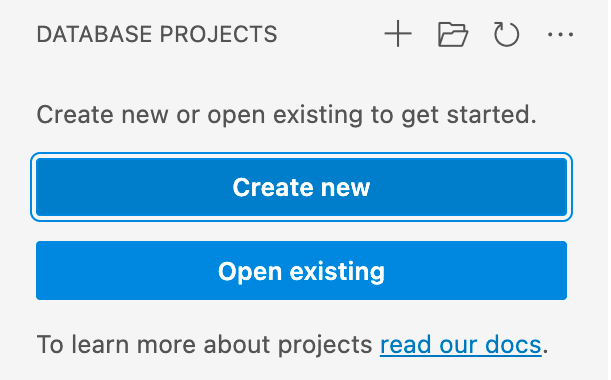
Create a new database project by going to the Database Projects view or by searching for Database Projects: New in the command palette.
Existing database projects can be opened via Database Projects: Open existing in the command palette.
Start from an existing database by using Database Projects: Create Project from Database from the command palette or by selecting Create Project from Database in the Connections view.
After you create or open a SQL project, you're ready to start developing with SQL projects. Some actions you might take are:
- Edit a table or other database objects.
- Build and publish the project.
- Use schema compare to visualize changes.
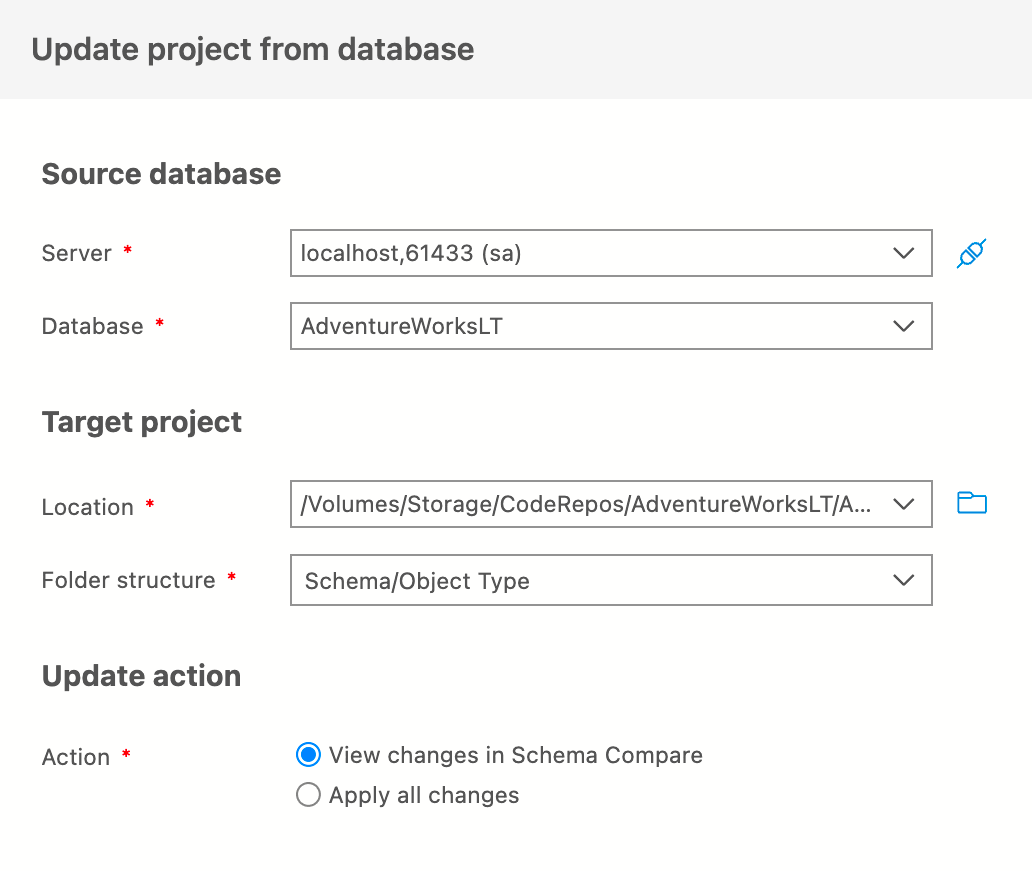
- Update the project from changes made to a database.
For in-depth information about SQL projects concepts and more tutorials, see SQL database projects.
Create an empty database project
In the Database Projects view, select the New Project button and enter a project name in the text input that appears. In the Select a Folder dialog, select a directory for the project's folder, .sqlproj file, and other contents.
The extension opens the empty project and makes it visible in the Database Projects view for editing.
Open an existing project
In the Database Projects view, select the Open Project button and open an existing .sqlproj file from the file picker that appears. Existing projects can originate from Visual Studio Code or Visual Studio SQL Server Data Tools.
The project opens and you can see its contents in the Database Projects view for editing.
Create a database project from an existing database
Instead of starting from an empty project, you can quickly populate a SQL Database Project with the existing objects from a database.
In Object Explorer
In the Connections view, connect to the SQL instance that contains the database to extract. Right-click on the database and select Create Project from Database from the context menu.
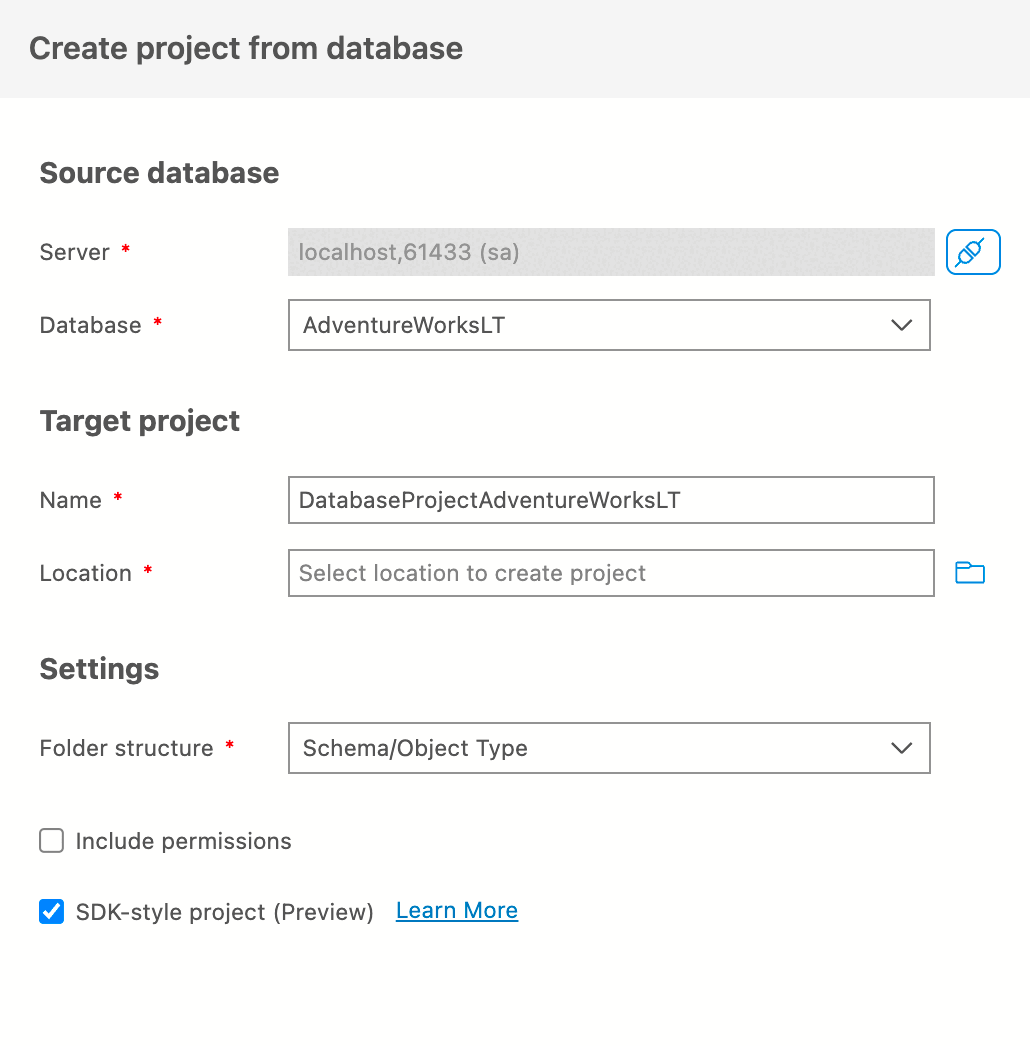
The folder structure setting is set to Schema/Object Type by default and offers different ways to automatically organize the existing objects when they're scripted out. The options for the folder structure setting are:
- File: a single file is created for all the objects.
- Flat: a single folder is created for all the objects, with each object in an individual file.
- Object Type: a folder is created per object type, and each object is scripted out to a file.
- Schema: a folder is created per schema, and each object is scripted out to a file.
- Schema/Object Type: a folder is created per schema, and within the folder, a folder is created per object type, with each object scripted out to a file.
In Database Projects view
In the Project view, select the Import Project from Database button and connect to a SQL instance. Once the connection is established, select a database from the list of available databases and set the name of the project.
Finally, select a folder structure for the extraction. The new project opens and contains SQL scripts for the contents of the selected database.
Further actions
Build and publish
You deploy the database project in the SQL Database Projects extension by building the project into a data-tier application file (dacpac) and publishing it to a supported platform. In the Database Projects view, right-click on a project and select Build to create a dacpac file and validate the SQL project. When you're ready to deploy your project to a database, right-click on the project again and select Publish to publish the dacpac to a database.
For more information, see the tutorial on creating and deploying a SQL project.
Schema compare
The SQL Database Projects extension works with Schema Compare. You can use it to compare the contents of a project to a dacpac, existing database, or another project. Use the resulting schema comparison to view and apply the differences from source to target.
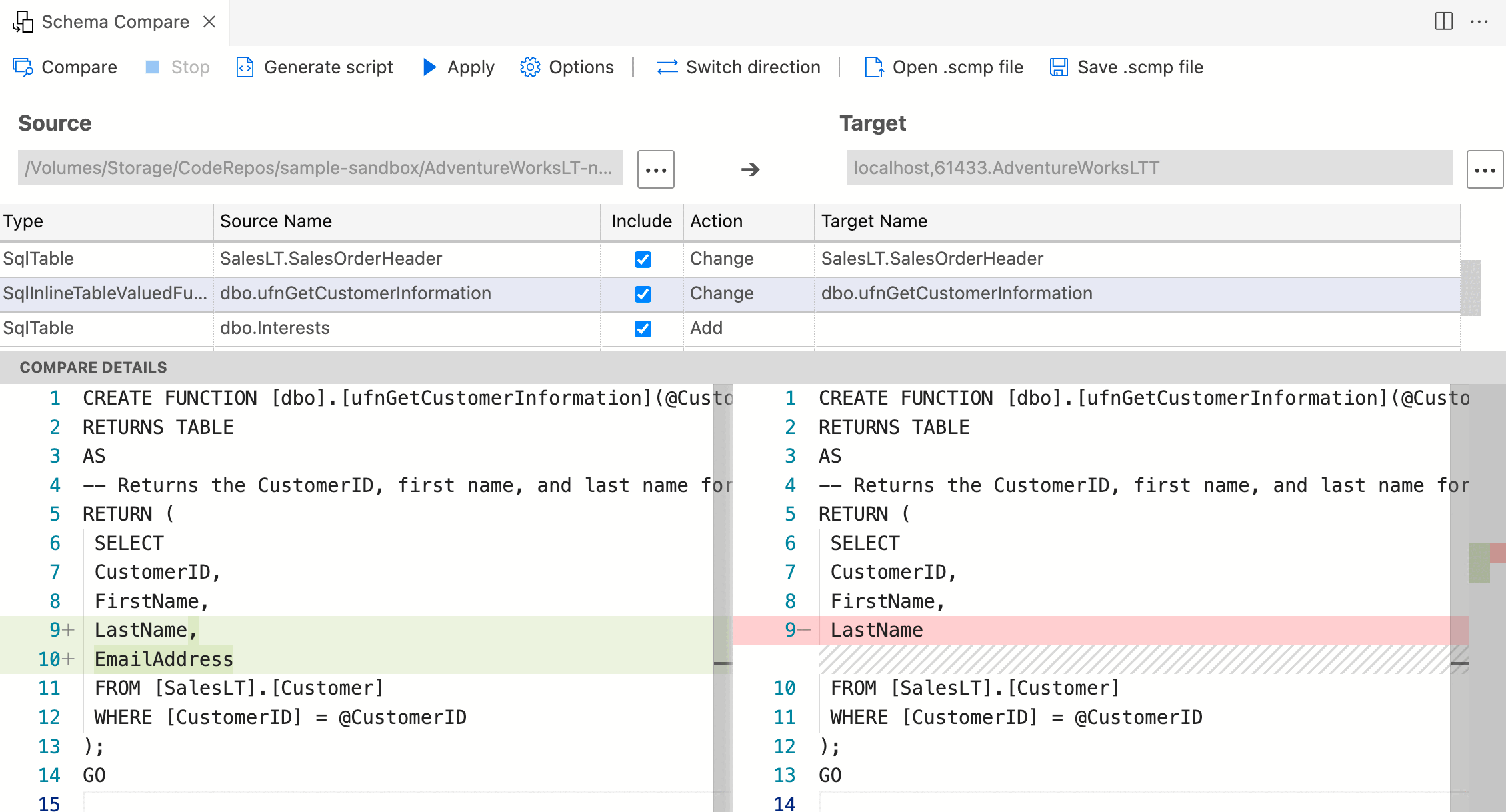
For more information about schema comparison and SQL projects, see the Schema comparison overview.
Update project from database
If you make changes to a database that you didn't make to the SQL project yet, you can update the SQL project from the state of the database. To update the project, select Update Project from Database from the context menu of a database in the Connections view or from the context menu of a SQL project in the Database Projects view. Keeping a SQL project up to date with changes in a database is one method of source control for database changes.