Not
Åtkomst till den här sidan kräver auktorisering. Du kan prova att logga in eller ändra kataloger.
Åtkomst till den här sidan kräver auktorisering. Du kan prova att ändra kataloger.
If you have an existing COM add-in or VSTO add-in, you can build nearly equivalent functionality in your Office Web Add-in, thereby enabling your solution to run on other platforms such as in Office on the web or on Mac. In this scenario, the two add-ins are called "equivalent" and you can use the manifest of the Office Web Add-in to control which add-in is available to users on Windows computers (or give users the choice).
Note
Because COM and VSTO add-ins can only be installed on Windows, this article refers to COM and VSTO add-ins collectively as "Windows-only" add-ins.
As a general rule, add-ins should be treated as equivalent only when the following conditions are met, but there may be exceptional scenarios where add-ins are that don't meet these conditions can be treated as equivalent.
- They're both created by the same developer, typically the entity specified in the
"developer"property of the unified manifest or the ProviderName element in the add-in only manifest. - They both are designed to be installed on the same Office application or applications, and they address the same workload with mainly overlapping functionality.
- They have identical, or highly similar, public names, and user interfaces including control names and icons.
Important
The equivalent add-in feature is supported by the following platform and applications. COM, VSTO, and XLL add-ins can't be installed on any other platform, so on those platforms the manifest markup that is discussed later in this article is ignored.
- Excel, Word, and PowerPoint on Windows (Version 1904 or later)
- Classic Outlook on Windows (Version 2102 or later) against a supported Exchange server version
Important
COM and VSTO add-ins aren't supported in the new Outlook on Windows. These add-ins are still supported in the classic Outlook on Windows desktop client. To learn more, see Develop Outlook add-ins for new Outlook on Windows.
Because the Windows-only add-in and the Office Add-in may not have exactly the same features, there are three scenarios you need to consider.
- Your Office Add-in does not provide all of the functionality that's available in the corresponding Windows-only add-in. In this scenario, you should configure the Office add-in to be hidden on any Windows computer on which the Windows-only add-in is installed.
- Your Office Add-in provides more and better functionality than the corresponding Windows-only add-in. In this scenario, you should configure the Office Add-in so that it detects the presence of the Windows-only add-in and hides it.
- Neither add-in would be regarded as better than the other by all your users. In this scenario, you should configure the Office Add-in to give each user on a Windows computer the choice of which add-in is hidden.
Obtain the name of the Windows-only add-in
Before you can configure the Office Add-in's manifest, you must first identify the name of the Windows-only add-in in the Windows Registry with these steps:
- Open Windows Registry Editor on any computer where the Windows-only add-in is installed.
- Go to HKEY_LOCAL_MACHINE\SOFTWARE\Microsoft\Office\<Office application>\Addins or HKEY_CURRENT_USER\SOFTWARE\Microsoft\Office\<Office application>\Addins, where <Office application> is Excel, Outlook, PowerPoint, or Word. For example, HKEY_LOCAL_MACHINE\SOFTWARE\Microsoft\Office\Excel\Addins.
- Copy the name of the registry key associated with the Windows-only add-in you need. Note that the names are case-sensitive.
Hide the Office Add-in
You can configure your Office Add-in so that when the equivalent Windows-only add-in is already installed on a user's computer, Office on Windows runs the Windows-only add-in instead of the Office Add-in. If the Windows-only add-in is ever uninstalled, Office will automatically activate the Office Add-in the next time the host Office application is started. If the Windows-only add-in is installed after the Office Add-in, then when the Office application is restarted, the Office Add-in will be hidden. For more information, see Behavior for users when the Office Add-in is hidden.
Configure the manifest
Important
Applies to Excel, Outlook, PowerPoint, and Word.
To enable compatibility between your Office Add-in and the Windows-only add-in, identify the equivalent Windows-only add-in in the manifest of your Office Add-in using the name that you obtained in the section Obtain the name of the Windows-only add-in. Then, Office on Windows will use the Windows-only add-in instead of the Office Add-in, if they're both installed. The configuration depends on the type of manifest that is being used.
The following example shows the portion of the manifest that specifies a Windows-only add-in as an equivalent add-in. The value of the "alternates.prefer.comAddin.progId" property identifies the Windows-only add-in.
Note
Although the property is called "comAddin", it actually refers to any Windows-only add-in, regardless of whether the add-in is COM or VSTO. Similarly, the term "progId" is usually associated with only COM add-ins, but in the manifest it refers to the name of the Windows-only add-in.
"extensions" [
  ...
  "alternates" [
    {
      "prefer": {
        "comAddin": {
          "progId": "ContosoAddin"
        }
      }
    }
  ]
]
Tip
If you're unable to specify the alternates.prefer property in the manifest of your Outlook web add-in, you must configure Group Policy instead. This only applies to Outlook. For guidance, see Configure the Group Policy setting for Outlook add-ins.
Tip
- For information about XLL UDF compatibility with an Excel add-in that contains custom functions, see Make your custom functions compatible with XLL user-defined functions.
- For Outlook only, an admin of a computer can specify an equivalent Windows-only add-in by using a Group Policy. For guidance, see Configure the Group Policy setting for Outlook add-ins.
Configure the Group Policy setting for Outlook add-ins
A user with administrator powers on their computer can configure a Windows-only add-in to be the equivalent of an Outlook add-in by using the Deactivate Outlook web add-ins whose equivalent COM or VSTO add-in is installed Group Policy setting on the computer. This can be achieved even when the manifest of the Outlook add-in doesn't have the equivalent add-in markup. Then, classic Outlook on Windows uses the Windows-only add-in instead of the Outlook add-in if they're both installed. The following are the steps to configure the policy.
Download the latest Administrative Templates tool, paying attention to the tool's Install Instructions.
Open the Local Group Policy Editor (gpedit.msc).
Navigate to User Configuration > Administrative Templates > Microsoft Outlook 2016 > Miscellaneous.
Select the setting Deactivate Outlook web add-ins whose equivalent COM or VSTO add-in is installed.
Open the link to edit the policy setting.
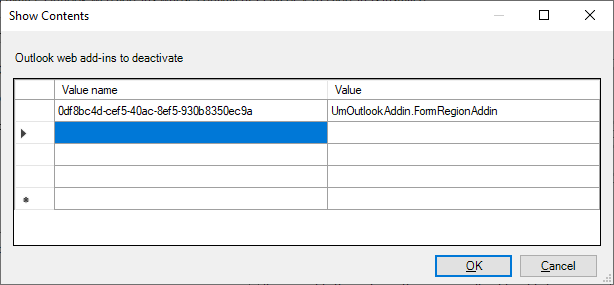
In the dialog Outlook web add-ins to deactivate:
- Set Value name to the ID of the Outlook add-in's manifest. In the add-in only manifest, use the value of the
<ID>element. In the unified manifest, use the value of theidproperty in the root of the manifest. Do not add curly braces{}around the entry. - Set Value to the name of the equivalent Windows-only add-in. See the section Obtain the name of the Windows-only add-in.
- Select OK to put the update into effect.
- Set Value name to the ID of the Outlook add-in's manifest. In the add-in only manifest, use the value of the
Behavior for users when the Office Add-in is hidden
When an equivalent Windows-only add-in is specified, Office on Windows won't display your Office Add-in's user interface (UI) if the equivalent Windows-only add-in is installed. But Office only hides the ribbon buttons of the Office Add-in and doesn't prevent installation. Therefore, your Office Add-in will still appear in the following locations within the UI.
- Under My add-ins.
- As an entry on the ribbon manager (Excel, Word, and PowerPoint only).
Note
Specifying an equivalent Windows-only add-in in the manifest has no effect on other platforms, like Office on the web or on Mac.
The following scenarios describe what happens depending on how the user acquires the Office Add-in.
Microsoft Marketplace acquisition of the Office Add-in
If a user acquires the Office Add-in from Microsoft Marketplace and the equivalent Windows-only add-in is already installed, then Office will:
- Install the Office Add-in.
- Hide the Office Add-in UI on the ribbon.
- Display a call-out for the user that points out the Windows-only add-in ribbon button.
Centralized deployment of the Office Add-in
If an admin deploys the Office Add-in to their tenant using centralized deployment, and the equivalent Windows-only add-in is already installed, the user must restart Office before they'll see any changes. After Office restarts, it will:
- Install the Office Add-in.
- Hide the Office Add-in UI on the ribbon.
- Display a call-out for the user that points out the Windows-only add-in ribbon button.
Document shared with the Office Add-in embedded
If a user has the Windows-only add-in installed, and then gets a shared document with the embedded Office Add-in, then when they open the document, Office will:
- Prompt the user to trust the Office Add-in.
- If trusted, the Office Add-in will install.
- Hide the Office Add-in UI on the ribbon.
Other Windows-only add-in behavior
Excel, PowerPoint, Word
If a user uninstalls the equivalent Windows-only add-in, then Office on Windows restores the Office Add-in UI.
After you specify an equivalent Windows-only add-in for your Office Add-in, Office stops processing updates for your Office Add-in. To acquire the latest updates for the Office Add-in, the user must first uninstall the Windows-only add-in.
Outlook
The Windows-only add-in must be connected when Outlook is started in order for the corresponding Outlook add-in to be disabled.
If the Windows-only add-in is then disconnected during a subsequent Outlook session, the Outlook add-in will likely remain disabled until Outlook is restarted.
Hide the Windows-only add-in
Note
The option described in this section has the following limitations.
- It's supported only for Excel, PowerPoint, and Word.
- The minimum Office version that supports the feature is subscription Office on Windows Version 2506 (Build 19029.20004).
Configure the manifest
The details to configure this feature depend on which type of manifest is being used by the Office Add-in.
To disable the Windows-only add-in, take the following steps.
- If it doesn't already exist, create an
"extensions.alternates.hide.windowsExtensions"property. - Add a child
effectproperty to thewindowsExtensionsproperty and set its value to disableWithNotification. - Add a child
"comAddin"property to thewindowsExtensionsproperty. - Add a child
progIdsarray property to thecomAddinproperty. - Add the names of all the Windows-only add-ins that you want to hide to the
progIdsarray. For information about how to obtain these names, see Obtain the name of the Windows-only add-in.
Note
The string "com" is in the name comAddin for historical reasons. In the manifest, the property refers to either COM or VSTO add-ins. Similarly, the term "progIds" is usually associated with only COM add-ins, but names of VSTO add-ins can also be included in the progIds array.
The following example shows how the JSON should look.
"extensions" [
  {
    ...
    "alternates": [
      {
        "hide": {
          "windowsExtensions": {
            "effect": "disableWithNotification",
            "comAddin": {
              "progIds": [
                "ContosoAddin"
              ]
            }
          }
        }
      }
    ]
  }
]
Behavior for users when the Windows-only add-in is hidden
When a Windows-only add-in is hidden, Office on Windows won't display its user interface (UI) if the equivalent Office Add-in is installed. A popup dialog notifies the user that this is happening. But Office only hides the Windows-only add-in and doesn't prevent installation.
Give the user the choice of which add-in to use
Note
The option described in this section has the following limitations.
- It's supported only for Excel, PowerPoint, and Word.
- The minimum Office version that supports the feature is subscription Office on Windows Version 2506 (Build 19029.20004).
Configure the manifest
The details to configure this feature depend on which type of manifest is being used by the Office Add-in.
To give the user a choice of which add-in to hide, take the following steps.
- If it doesn't already exist, create an
"extensions.alternates.hide.windowsExtensions"property. - Add a child
effectproperty to thewindowsExtensionsproperty and set its value to userOptionToDisable. - Add a child
"comAddin"property to thewindowsExtensionsproperty. - Add a child
progIdsarray property to thecomAddinproperty. - Add the names of all the equivalent Windows-only add-ins to the
progIdsarray. For information about how to obtain these names, see Obtain the name of the Windows-only add-in.
Note
The string "com" is in the name comAddin for historical reasons. In the manifest, the property refers to either COM or VSTO add-ins. Similarly, the term "progIds" is usually associated with only COM add-ins, but names of VSTO add-ins can also be included in the progIds array.
The following example shows how the JSON should look.
"extensions" [
  {
    ...
    "alternates": [
      {
        "hide": {
          "windowsExtensions": {
            "effect": "userOptionToDisable",
            "comAddin": {
              "progIds": [
                "ContosoAddin"
              ]
            }
          }
        }
      }
    ]
  }
]
Behavior for users when they have the choice of which add-in is hidden
If you configure the manifest to give the user the choice, then the user sees a dialog similar to the following when they install the Office Add-in. The Learn more link in the dialog points to the following help page that provides information to help the user make the decision: Resolve version conflicts for Office Add-ins.

If the user chooses Yes and Office successfully disables and hides the Windows-only add-in, then a dialog similar to the following opens that advises the user to restart the Office application.

If the user chooses Yes but Office can't disable the Windows-only add-in for any reason, then a dialog similar to the following opens that advises the user to manually disable the Windows-only add-in.

See also
Samarbeta med oss på GitHub
Källan för det här innehållet finns på GitHub, där du också kan skapa och granska problem och pull-begäranden. Mer information finns i vår deltagarguide.
Office Add-ins