Kommentar
Åtkomst till den här sidan kräver auktorisering. Du kan prova att logga in eller ändra kataloger.
Åtkomst till den här sidan kräver auktorisering. Du kan prova att ändra kataloger.
As sprawl and oversharing of SharePoint sites increase with exponential data growth, organizations need help with governing their data. Data access governance reports can help you govern access to SharePoint data. The reports let you discover sites that contain potentially overshared or sensitive content. You can use these reports to assess and apply the appropriate security and compliance policies.
What you need to create a data access governance report
License requirements
Your organization needs to have the right licenses and meet certain administrative permissions or roles to use the feature described in this article.
First, your organization must have one of the following base licenses:
- Office 365 E3, E5, or A5
- Microsoft 365 E1, E3, E5, or A5
Additionally, you need at least one of these licenses:
- Microsoft 365 Copilot license: At least one user in your organization must be assigned a Copilot license (this user doesn't need to be a SharePoint administrator).
- Microsoft SharePoint Advanced Management license: Available as a standalone purchase.
Administrator requirements
You must be a SharePoint administrator or have equivalent permissions.
Additional information
If your organization has a Copilot license and at least one person in your organization is assigned a Copilot license, SharePoint administrators automatically gain access to the SharePoint Advanced Management features needed for Copilot deployment.
For organizations without a Copilot license, you can use SharePoint Advanced Management features by purchasing a standalone SharePoint Advanced Management license.
The reports are currently unavailable for Gallatin, even if you have the required licenses.
How to access the Data access governance reports in the SharePoint admin center
Sign in to the SharePoint admin center with the SharePoint administrator credentials for your organization.
In the left pane, expand Reports and then select Data access governance.
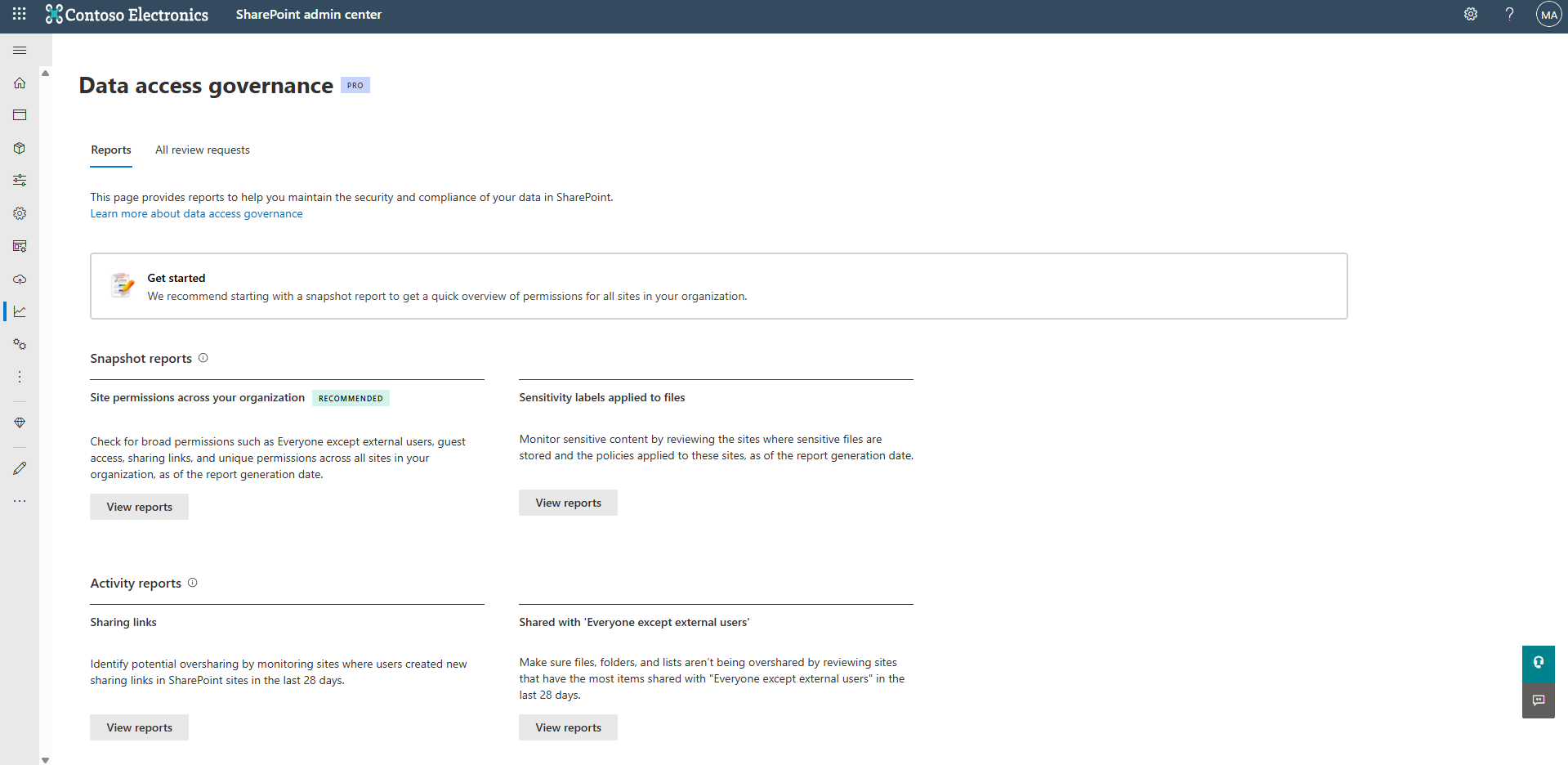
The following reports are currently available from the Data access governance landing page:
Note
IT administrators with Microsoft 365 E5 licensing can access Data access governance reporting, but can't view or use the other SharePoint Advanced Management features. The reports don't provide snapshot reports or remedial actions. Activity reports are available but can return only up to 10,000 sites.
What are snapshot reports?
Snapshot reports give you a snapshot of your organization's current status based on specific reporting criteria. These reports show data as of the date they were generated.
Currently, three types of snapshot reports are available:
- Site permissions report: Provides a comprehensive snapshot of the permission structure across all SharePoint and OneDrive sites. It helps you identify sites with the broadest user access, such as sites with thousands of users, external guests, or "Everyone except external users" permissions.
- Site permissions for users report: Lists all sites a specified user can access. Admins can use this report to determine whether the user can access the entire site or specific sections, granted directly to the user or indirectly through groups.
- Sensitivity label for files report: Identifies SharePoint sites containing files with specific sensitivity labels applied. You can use this report to verify that appropriate security policies are in place for your most sensitive content.
What are activity reports?
Activity reports help you track potential oversharing activities that occurred in the last 28 days. These reports focus on "recently active" sites where users created sharing links or shared content with large groups. For all activities tracked in activity reports, you can find corresponding "baseline" data in the snapshot reports.
Currently, two types of activity reports are available to help you identify potential oversharing:
- Sharing links reports: Identifies sites where users recently created the most sharing links (including "Anyone," "People in the organization," and "Specific people" links) to help you catch potential oversharing as it happens.
- Shared with 'Everyone except external users' reports: Tracks sites where content is shared with all internal users in your organization, helping you identify broad internal exposure that could lead to unintended data access.
Important
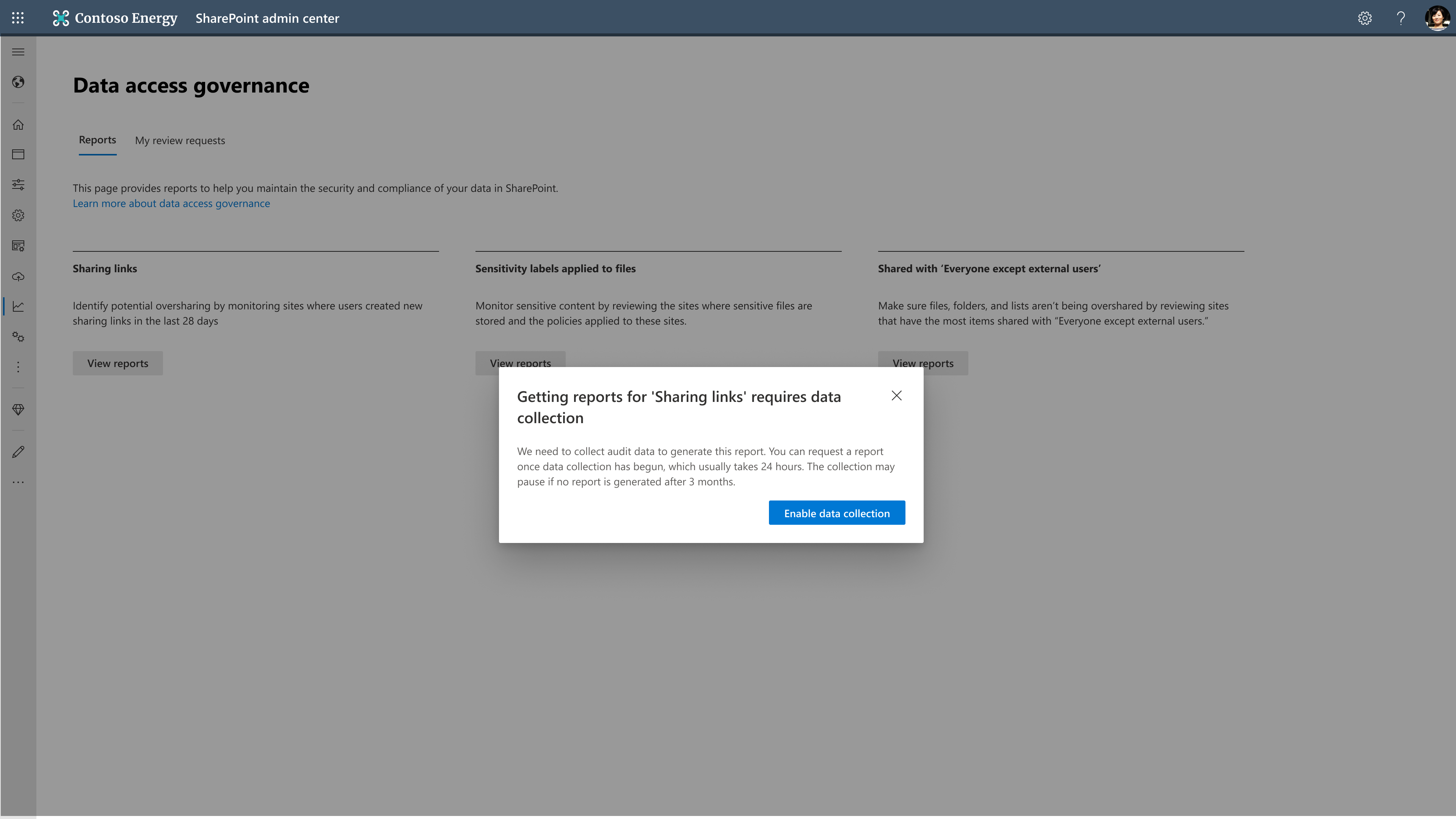
For organizations without SharePoint Advanced Management: You must enable data collection before you can generate activity reports. Here's what you need to know:
- After enabling data collection, the system starts collecting audit data
- Data is stored for 28 days
- Reports become available 24 hours after enabling collection
- Reports only contain data from when collection was enabled
- If no reports are generated for 3 months, data collection pauses and must be re-enabled
How do you use snapshot and activity reports?
As part of your governance strategy, combine both snapshot and activity reports to get a complete picture of your organization's data access landscape. Here's how to use them together effectively:
Start with snapshot reports: Run site permissions reports first to understand your baseline permission structure and identify sites with the broadest exposure. Run these reports quarterly to maintain a comprehensive view of your organization's data access.
Follow up with activity reports: Use sharing links and EEEU activity reports to monitor recent oversharing activities and catch emerging risks. Run these reports monthly to stay on top of ongoing sharing activities.
This combination ensures you have both a complete picture of your current state and visibility into ongoing sharing activities that could create new exposure risks.
What is the site permissions for your organization report?
The site permissions for your organization report is the first snapshot report that provides a comprehensive view of your organization's current permission structure across all SharePoint and OneDrive sites. This report analyzes every site to help you understand how broadly your data is exposed and identify potential oversharing risks. This snapshot approach helps you quickly assess your overall security posture and identify sites that need immediate attention.
Learn how to create and use the site permissions for your organization report.
What is the site permissions for users report?
The site permissions for users report is the next snapshot report that provides a comprehensive view into permissions of the specified users across all SharePoint and OneDrive sites. This report lists all sites a user can access and allows admins to determine whether they can access the entire site or specific sections, granted directly to the user or indirectly through groups. This approach helps you quickly assess your overall security posture and identify sites that need immediate attention.
Learn how to create and use the site permissions for users report.
What is the sensitivity labels for files report?
The sensitivity labels for files report is the other snapshot report that helps you control access to sensitive content across your organization. This report identifies sites containing files with sensitivity labels applied, allowing you to verify that appropriate security policies are applied.
Learn how to use the sensitivity labels for files report.
What is the sharing links report?
The sharing links report is one of two activity reports that helps you identify sites where users created the most new sharing links in the last 28 days.
Learn how to create and use the sharing links report.
What is the 'Everyone except external users' (EEEU) report?
EEEU is a built-in SharePoint group that automatically includes all internal users but excludes any external guests. The 'Everyone except external users' (EEEU) report is one of two activity reports that helps you identify sites where content is shared with your entire organization in the past 28 days. You can run the site permissions for your organization report first to understand your organization's current EEEU sharing status, then use this activity report to monitor ongoing EEEU sharing activities. See Monitor 'Everyone except external users' (EEEU) sharing with the EEEU activity report.
Limitations or known issues
- Reports might not work if you select nonpseudonymized report data for your organization. To change this setting, you must be a Global Administrator. Go to the Reports setting in the Microsoft 365 admin center and clear Display concealed user, group, and site names in all reports.
Remedial actions from Data access governance reports
After discovering potential oversharing through Data access governance reports, take several actions to address these risks. When deciding which actions to take, consider:
- The sensitivity of the exposed content
- The amount of content at risk
- The potential disruption to users and workflows
Available remediation options
For immediate action:
- Use Restricted access control (RAC) to limit access to a specific group.
- Review the 'Change history' report to identify recent permission changes that might have led to oversharing.
For collaborative remediation:
- Use the Site access review feature to request that site owners review and update permissions.
This approach ensures you can balance security needs with minimal disruption to your organization's productivity.