หมายเหตุ
การเข้าถึงหน้านี้ต้องได้รับการอนุญาต คุณสามารถลอง ลงชื่อเข้าใช้หรือเปลี่ยนไดเรกทอรีได้
การเข้าถึงหน้านี้ต้องได้รับการอนุญาต คุณสามารถลองเปลี่ยนไดเรกทอรีได้
Azure Databricks supports the binary file data source, which reads binary files and converts each file into a single record containing the file's raw content and metadata. It is commonly used to load unstructured data such as images, audio, or PDF files for downstream processing or ML inference. To read binary files, specify the data source format as binaryFile.
Prerequisites
Azure Databricks does not require additional configuration to use binary files.
Options
Use the .option() and .options() methods of DataFrameReader to configure the binary file data source. For a complete list of supported options, see Spark API options reference.
Output schema
The binary file data source produces a DataFrame with the following columns, plus any partition columns:
path (StringType): The path of the file.modificationTime (TimestampType): The modification time of the file. In some Hadoop FileSystem implementations, this parameter might be unavailable and the value would be set to a default value.length (LongType): The length of the file in bytes.content (BinaryType): The contents of the file.
Usage
The following examples demonstrate loading binary files using the Spark DataFrame API and SQL, filtering by file type, displaying image previews, and saving to a Delta table for improved read performance.
Read binary files
Use the Apache Spark DataFrame API to load binary files into a DataFrame for transformation, display, or downstream processing.
Python
df = spark.read.format("binaryFile").load("/Volumes/<catalog>/<schema>/<volume>/")
display(df)
Scala
val df = spark.read.format("binaryFile").load("/Volumes/<catalog>/<schema>/<volume>/")
df.show()
SQL
SELECT path, length, modificationTime FROM read_files(
  '/Volumes/<catalog>/<schema>/<volume>/images/',
  format => 'binaryFile'
)
Configure read options
To load files with paths matching a given glob pattern while keeping the behavior of partition discovery,
you can use the pathGlobFilter option. The following code reads all JPG files from the
input directory with partition discovery:
Python
df = spark.read.format("binaryFile").option("pathGlobFilter", "*.jpg").load("/Volumes/<catalog>/<schema>/<volume>/images/")
Scala
val df = spark.read.format("binaryFile").option("pathGlobFilter", "*.jpg").load("/Volumes/<catalog>/<schema>/<volume>/images/")
SQL
SELECT * FROM read_files(
  '/Volumes/<catalog>/<schema>/<volume>/images/',
  format => 'binaryFile',
  pathGlobFilter => '*.jpg'
)
If you want to ignore partition discovery and recursively search files under the input directory,
use the recursiveFileLookup option. This option searches through nested directories
even if their names do not follow a partition naming scheme like date=2019-07-01.
The following code reads all JPG files recursively from the input directory and ignores partition discovery:
Python
df = (spark.read.format("binaryFile")
  .option("pathGlobFilter", "*.jpg")
  .option("recursiveFileLookup", "true")
  .load("/Volumes/<catalog>/<schema>/<volume>/images/"))
Scala
val df = spark.read.format("binaryFile")
  .option("pathGlobFilter", "*.jpg")
  .option("recursiveFileLookup", "true")
  .load("/Volumes/<catalog>/<schema>/<volume>/images/")
SQL
SELECT * FROM read_files(
  '/Volumes/<catalog>/<schema>/<volume>/images/',
  format => 'binaryFile',
  pathGlobFilter => '*.jpg',
  recursiveFileLookup => true
)
Load and display images
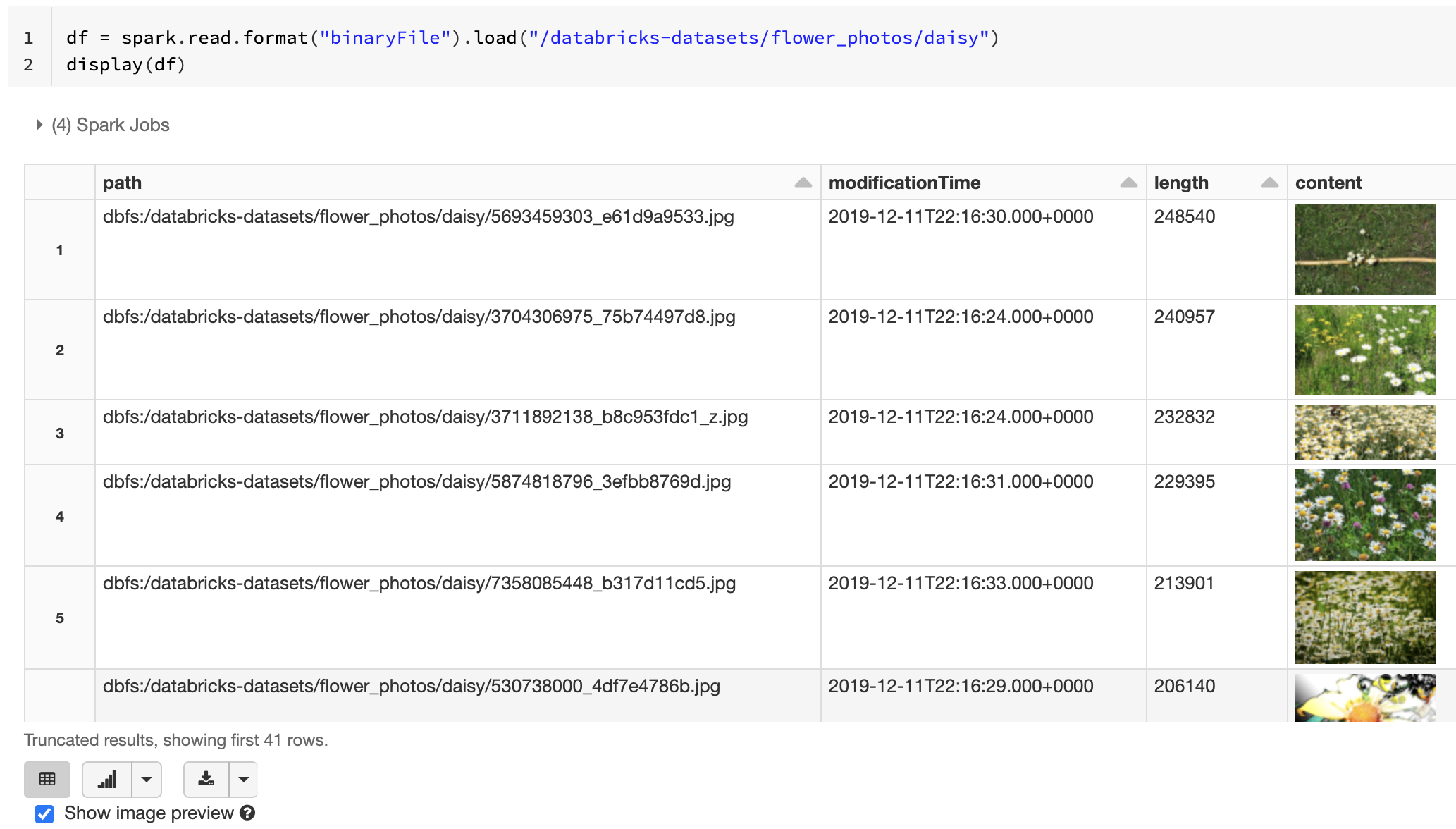
Databricks recommends that you use the binary file data source to load image data. The Databricks display function supports displaying image data loaded using the binary data source.
If all the loaded files have a file name with an image extension, image preview is automatically enabled:
Python
df = spark.read.format("binaryFile").load("/Volumes/<catalog>/<schema>/<volume>/images/")
display(df)    # image thumbnails are rendered in the "content" column
Scala
val df = spark.read.format("binaryFile").load("/Volumes/<catalog>/<schema>/<volume>/images/")
df.show()
SQL
SELECT * FROM read_files(
  '/Volumes/<catalog>/<schema>/<volume>/images/',
  format => 'binaryFile'
)
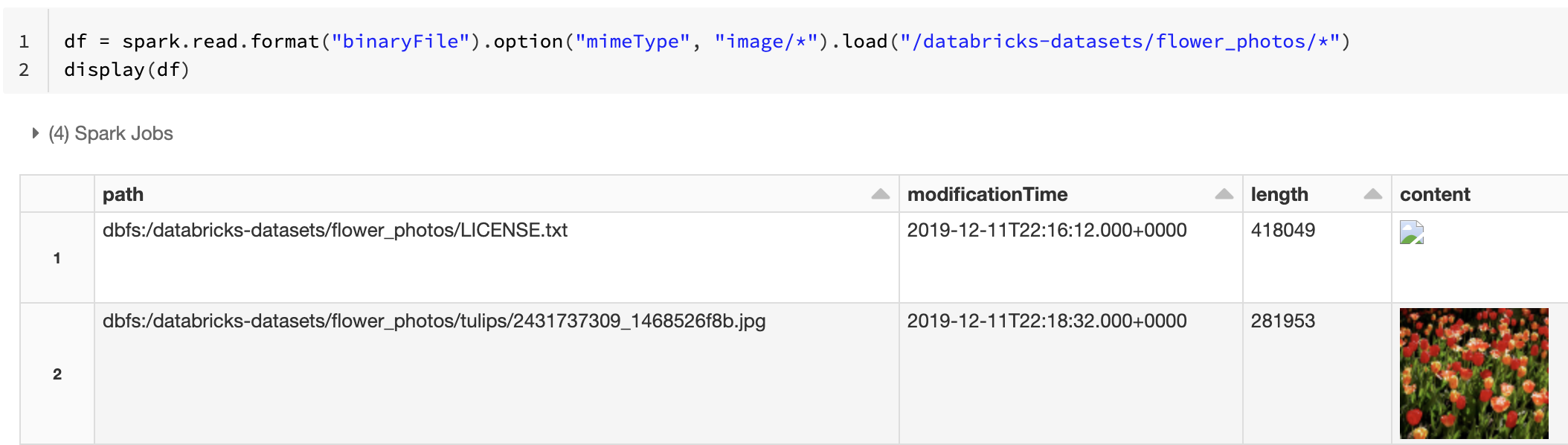
Alternatively, you can force the image preview functionality by using the mimeType option with a string value "image/*" to annotate the binary column. Images are decoded based on their format information in the binary content. Supported image types are bmp, gif, jpeg, and png. Unsupported files appear as a broken image icon.
Python
df = spark.read.format("binaryFile").option("mimeType", "image/*").load("/Volumes/<catalog>/<schema>/<volume>/images/")
display(df)
Scala
val df = spark.read.format("binaryFile").option("mimeType", "image/*").load("/Volumes/<catalog>/<schema>/<volume>/images/")
df.show()
SQL
SELECT * FROM read_files(
  '/Volumes/<catalog>/<schema>/<volume>/images/',
  format => 'binaryFile',
  mimeType => 'image/*'
)
See Reference solution for image applications for the recommended workflow to handle image data.
Save to Delta table
To improve read performance when you load data back, Azure Databricks recommends saving data loaded from binary files to a Delta table.
Python
df.write.format("delta").saveAsTable("<catalog>.<schema>.<table>")
Scala
df.write.format("delta").saveAsTable("<catalog>.<schema>.<table>")
Additional resources
- Read image files: If your workload requires structured image fields such as height, width, and channel data rather than raw bytes, the image data source provides a decoded schema.