หมายเหตุ
การเข้าถึงหน้านี้ต้องได้รับการอนุญาต คุณสามารถลอง ลงชื่อเข้าใช้หรือเปลี่ยนไดเรกทอรีได้
การเข้าถึงหน้านี้ต้องได้รับการอนุญาต คุณสามารถลองเปลี่ยนไดเรกทอรีได้
Container soft delete protects your containers from accidental deletion by keeping the deleted containers in the storage account for a specified period. During the retention period, you can restore a soft-deleted container and its contents to the container's state at the time it was deleted. After the retention period expires, the container and its contents are permanently deleted.
Recommended data protection configuration
Container soft delete is part of a comprehensive in-account data protection strategy. For optimal protection for your storage account, Microsoft recommends enabling the following data protection features:
Blob soft delete, to restore a blob, snapshot, or version that you deleted. To learn how to enable blob soft delete, see Enable and manage soft delete for blobs.
Container soft delete, to restore a container that you deleted. To learn how to enable container soft delete, see Enable and manage soft delete for containers.
For protection against broader data loss scenarios such as accidental account deletion or ransomware, consider enabling Azure Backup in addition to in-account features. To learn more about Microsoft's recommendations for data protection based on your workload, see Data protection overview.
Tip
To enable blob and container soft delete at scale, use the built-in Azure Policy Configure soft delete for blobs and containers on storage accounts.
How container soft delete works
When you enable container soft delete, specify a retention period for deleted containers between 1 and 365 days. The default retention period is seven days. Choose a minimum of seven days and increase the retention period as needed based on data volume and how long it might take to detect and respond to data‑loss events.
During the retention period, you can recover a deleted container by calling the Restore Container operation. When you restore a container, the container's blobs and any blob versions and snapshots are also restored.
Warning
Container soft delete can restore only whole containers and their contents at the time of deletion. To restore a deleted blob when its parent container isn't deleted, you must use blob soft delete or blob versioning. When you restore a container, you must restore it to its original name. If you use the original name to create a new container, you can't restore the soft-deleted container.
The following diagram shows how a deleted container can be restored when container soft delete is enabled:
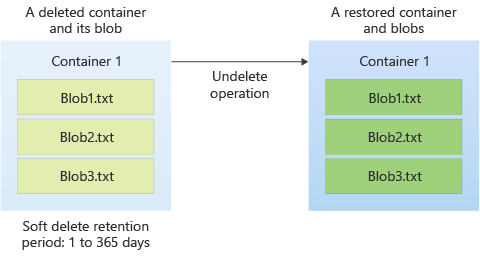
After the retention period expires, Azure Storage permanently deletes the container and you can't recover it. The clock for the retention period starts when the container is deleted. You can change the retention period at any time, but the new setting applies only to containers deleted after the update. Containers that are already deleted are permanently removed based on the retention period that was in effect when they were originally deleted.
Turning off container soft delete doesn't cause existing soft‑deleted containers to be permanently deleted. They are permanently deleted based on the retention period that applied at the time they were deleted.
Container soft delete is available for the following types of storage accounts:
- General-purpose v2 and v1 storage accounts
- Block blob storage accounts
- Blob storage accounts
Storage accounts with a hierarchical namespace enabled for use with Azure Data Lake Storage are also supported.
Version 2019-12-12 or higher of the Azure Storage REST API supports container soft delete.
The least privileged built-in role for restoring a soft-deleted container is Storage Blob Data Contributor.
Important
Container soft delete doesn't protect against the deletion of a storage account, but only against the deletion of containers in that account. To protect a storage account from deletion, configure a lock on the storage account resource. For more information about locking Azure Resource Manager resources, see Lock resources to prevent unexpected changes.
Workload considerations
Consider the following points before enabling container soft delete on existing accounts:
Enabling isn't retroactive: Container soft delete protects only containers you delete after you enable it. You can't recover containers deleted before you enabled it.
Containers restore only to their original name: You can restore a soft-deleted container only to the name it had when deleted. If you create a new container with that name, you must rename or delete it before restoring.
The shorter retention period takes precedence: Container soft delete and blob soft delete have independent retention periods. If blob soft delete retention is shorter than container soft delete retention, the blobs inside a restored container might already be permanently deleted before the container retention period expires. Align the two retention periods to avoid restoring a container with missing blobs.
Retention changes aren't retroactive: Changing the retention period applies only to containers deleted after the update. Containers already soft-deleted keep the retention period that was in effect when they were deleted.
Extending retention on an already soft-deleted container requires a re-delete: To apply a longer retention period to a container that's already soft-deleted, undelete it and delete it again with the new retention period in effect.
Disabling soft delete doesn't purge existing soft-deleted containers: When you disable container soft delete, the service doesn't immediately remove containers that are already soft-deleted. They persist and remain recoverable until their original retention period expires.
HNS accounts can't enumerate soft-deleted containers: On accounts with a hierarchical namespace, you can't list which containers are soft-deleted. Restoration requires knowing the exact original container name.
Blocks upgrading a flat-namespace account to a hierarchical namespace (ADLS): Migration to a hierarchical namespace is blocked while container soft delete is enabled. Disable it before migrating, then re-enable it after the migration completes.
Feature support
Support for this feature might be impacted by enabling Data Lake Storage Gen2, Network File System (NFS) 3.0 protocol, or the SSH File Transfer Protocol (SFTP). If you've enabled any of these capabilities, see Blob Storage feature support in Azure Storage accounts to assess support for this feature.
Pricing and billing
There's no extra charge to enable container soft delete. You pay for data in soft-deleted containers at the same rate as active data.
To minimize costs, set the shortest retention period that gives your team enough time to detect and recover from accidental deletion. Microsoft recommends a minimum of seven days, but you should adjust this value based on your workload data volume and requirements.
Monitoring and troubleshooting
Monitor container deletion events by using Azure Monitor activity logs. To view soft-deleted containers in the Azure portal, enable Show deleted containers in the Storage browser. Programmatically, use the List Containers operation with include=deleted.
My soft-deleted container isn't visible: Soft-deleted containers are hidden by default. In the Azure portal, enable Show deleted containers in the Storage browser. Via the API, call List Containers with
include=deleted. If the container still doesn't appear, confirm that container soft delete was enabled before the container was deleted and that the retention period hasn't elapsed.I can't restore my container because the name is taken: You created a new container with the same name after the original was deleted. You can only restore a container to its original name, so rename or delete the conflicting container first, and then restore.
I can't find my soft-deleted container in an HNS account: Accounts with a hierarchical namespace don't support enumerating soft-deleted containers. Restoration requires the exact original container name.
My upgrade to a hierarchical namespace (ADLS) is blocked: Container soft delete blocks migration to a hierarchical namespace. Disable container soft delete, perform the migration, and then re-enable it after the migration completes.
I need to restore multiple containers at once: Bulk restoration isn't available in the Azure portal. Use Azure PowerShell or the Azure CLI to script restoration across multiple containers.
I need to disable soft delete at scale after enabling too broadly: Reference Enable soft delete for containers for instructions on disabling soft delete using various tools.