หมายเหตุ
การเข้าถึงหน้านี้ต้องได้รับการอนุญาต คุณสามารถลอง ลงชื่อเข้าใช้หรือเปลี่ยนไดเรกทอรีได้
การเข้าถึงหน้านี้ต้องได้รับการอนุญาต คุณสามารถลองเปลี่ยนไดเรกทอรีได้
The update cellular data plan action lets you remotely activate an eSIM cellular plan on supported iOS/iPadOS devices, making it easier to manage connectivity for users without physical SIM cards. You can also activate eSIMs on one or more supported Android Enterprise devices and remove an eSIM from a single supported Android Enterprise device.
Prerequisites
 Device platform requirements
This action supports the following platforms:
- iOS/iPadOS
 Roles requirements
To run this action, at a minimum, use an account that has one of the following roles:
- Help Desk Operator
- School Administrator
- Custom role that includes:
- The permission Remote tasks/Update cellular data plan
- Permissions that provide visibility into and access to managed devices in Intune (for example, Organization/Read, Managed devices/Read)
Android Enterprise eSIM actions support corporate-owned devices only. Personally owned devices with a work profile (BYOD) aren't supported.
| Action | Corporate-owned fully managed (COBO) | Corporate-owned dedicated (COSU) | Corporate-owned work profile (COPE) |
|---|---|---|---|
| Activate an eSIM on one device | Android 15 or later | Android 15 or later | Android 15 or later |
| Activate eSIMs on multiple devices | Android 15 or later | Android 15 or later | Android 15 or later |
| Remove an eSIM from one device | Android 15 or later | Android 15 or later | Android 17 or later |
The devices must support eSIM. Get the activation code or activation server URL from your carrier before you activate an eSIM. For bulk activation, we recommend using Google's literal $url$ format for the carrier activation server URL.
To remove an eSIM, its ICCID must be available in the device hardware inventory. Use the ICCID to identify the eSIM that you want to remove.
To use an eSIM device action, at a minimum, use an account that has one of the following roles:
- Help Desk Operator
- School Administrator
- Custom role that includes:
- Remote tasks/Update cellular data plan to activate one or more eSIMs
- Remote tasks/Remove eSIM to remove an eSIM
- Permissions that provide visibility into and access to managed devices in Intune (for example, Organization/Read, Managed devices/Read)
Update the cellular data plan from the Intune admin center
- In the Microsoft Intune admin center, select Devices > All devices.
- From the devices list, select a device.
- At the top of the device overview pane, find the row of action icons. Select Update cellular data plan.
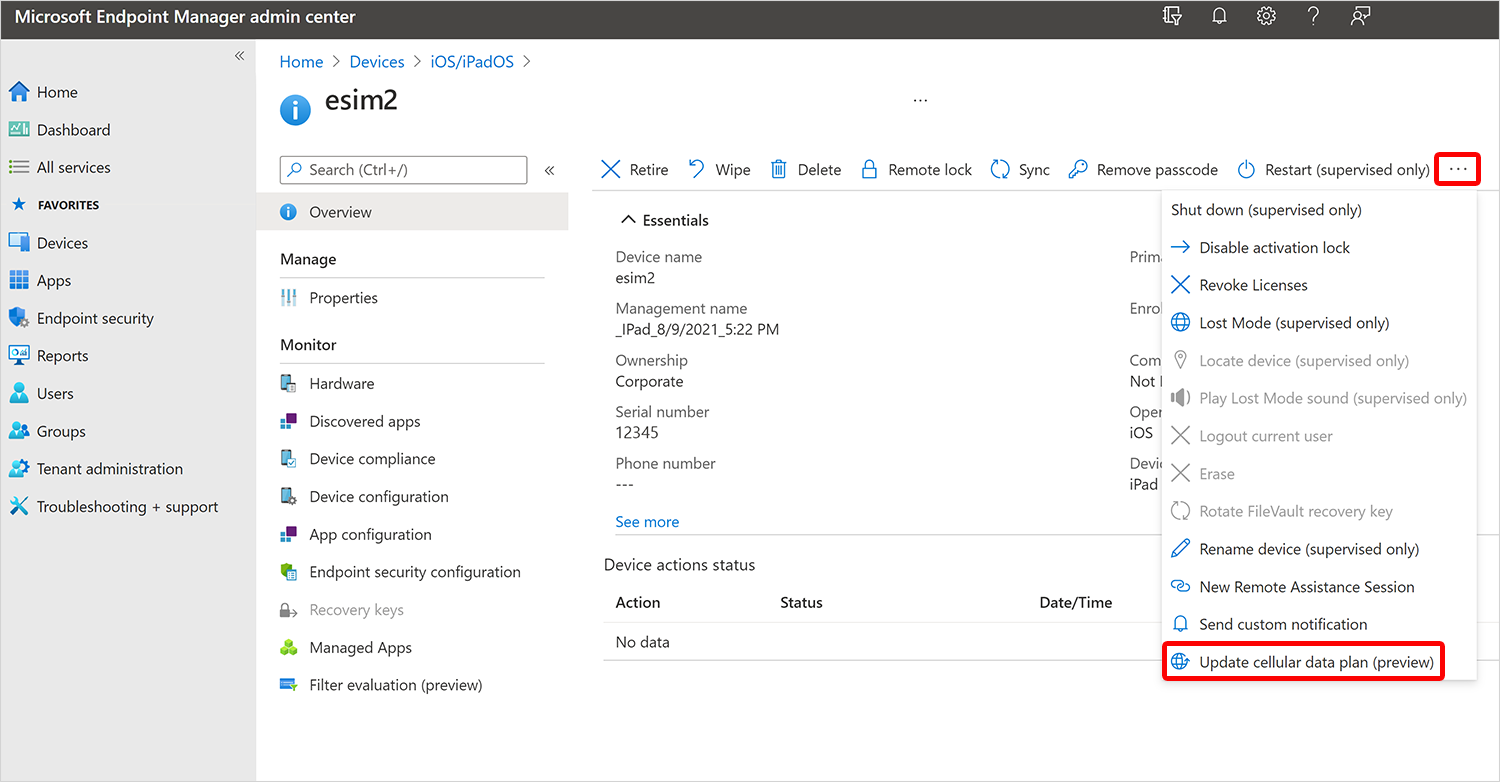
- Enter the activation server URL for your mobile carrier and select Update cellular plan.
Activate an eSIM on one Android Enterprise device
The single-device action is available only in the new device view.
- In the Microsoft Intune admin center, select Devices > All devices.
- Set Preview new device view to On, and then select a supported Android Enterprise device.
- At the top of the device overview pane, select Activate eSIM.
- Enter the carrier-provided activation code, and confirm the action.
Intune sends the activation request without first blocking it based on reported eSIM slot capacity. If Google can't complete the activation, Intune surfaces the error returned by Google.
Activate eSIMs on multiple Android Enterprise devices
Use a bulk device action to activate eSIMs on up to 100 supported devices with the same carrier activation server URL.
Note
Bulk eSIM activation is available only in the updated bulk device actions experience. It isn't available in the legacy experience.
- In the Microsoft Intune admin center, select Devices > All devices > Bulk device actions.
- On the Basics page, select Android for the operating system and Activate eSIM for the device action.
- In Enter carrier activation server URL, enter the URL provided by your carrier. We recommend using Google's literal
$url$format. Select Next. - On the Devices page, select up to 100 supported corporate-owned Android Enterprise devices. Select Next.
- On the Review + create page, review the action, and then select Create.
Remove an eSIM from one Android Enterprise device
Removal depends on the ICCID reported in device inventory, and the single-device action is available only in the new device view.
- In the Microsoft Intune admin center, select Devices > All devices.
- Set Preview new device view to On, and then select a supported Android Enterprise device.
- In the device inventory, find and copy the ICCID for the eSIM that you want to remove. If the ICCID isn't available in inventory, you can't submit the removal action.
- At the top of the device overview pane, select Remove eSIM.
- Enter the ICCID, and confirm the action.
User experience
When you select the Update cellular data plan action, the device receives a command to activate the eSIM cellular data plan. The user experience on the device is as follows:
- Cellular data starts working.
- The active cellular data plan is listed in the cellular section of the Settings app on the device.
For more information about devices that support eSIM, see the Apple support article Using Dual SIM with an eSIM.
User experience
When you activate an eSIM on a supported corporate-owned Android Enterprise device, the eSIM is downloaded and activated automatically. A bulk activation uses the same carrier activation server URL for all selected devices. When you remove an eSIM, the device removes the eSIM identified by the ICCID that you entered.
Reference links
- Microsoft Graph API: activateDeviceEsim action