หมายเหตุ
การเข้าถึงหน้านี้ต้องได้รับการอนุญาต คุณสามารถลอง ลงชื่อเข้าใช้หรือเปลี่ยนไดเรกทอรีได้
การเข้าถึงหน้านี้ต้องได้รับการอนุญาต คุณสามารถลองเปลี่ยนไดเรกทอรีได้
Microsoft Teams Rooms lets people turn room video on or off, select a camera, adjust its view, and use automatic framing. This article explains these controls on Teams Rooms on Windows and Teams Rooms on Android, with platform-specific requirements noted where they differ.
The available controls depend on the room device, camera, firmware, and Teams Rooms software. Use a currently supported Teams Rooms app version and the latest production firmware supported by the manufacturer for your device and camera configuration.
Open Camera settings
During a meeting, select the dropdown arrow next to the camera icon on the room console to open the camera controls.
Selecting the camera icon itself turns room video on or off instead of opening the settings dialog.
The following screenshot shows Camera settings on Teams Rooms on Windows. The appearance and available options can differ on Android devices.
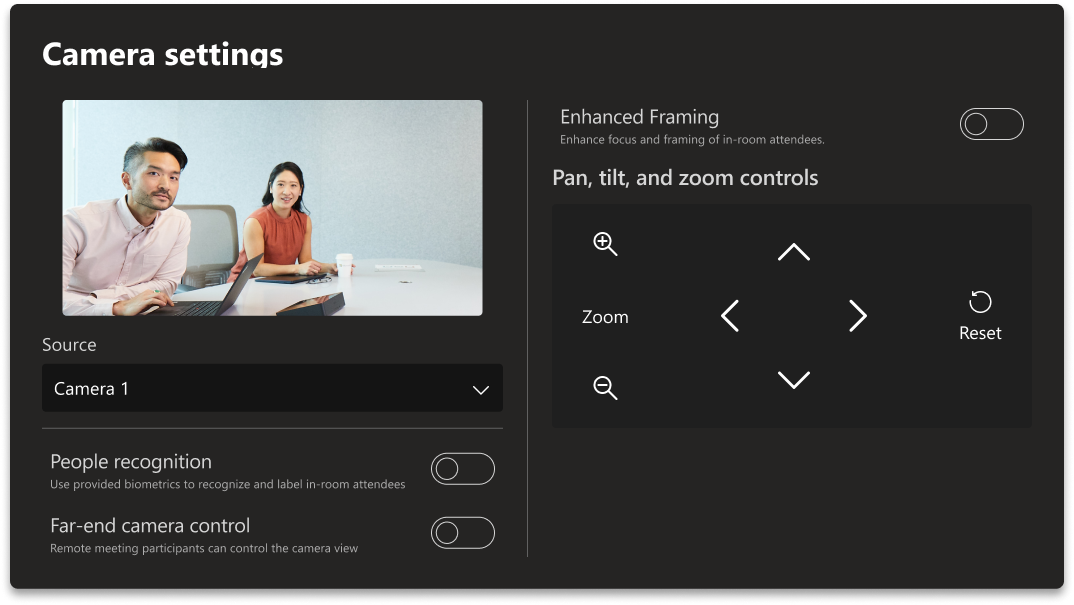
On Windows, select anywhere outside the dialog to close it. The dialog also closes after a short period of inactivity.
Switch between in-room cameras
When the device offers more than one camera source, people in the room can choose which camera sends video:
- Open Camera settings on the room console.
- Under Source, select the camera to use.
Available sources depend on the device and camera configuration. On Teams Rooms on Windows, the selected camera remains in use for the remainder of the meeting unless someone changes it.
Switching the selected camera is different from sending multiple camera feeds simultaneously. For that experience, see Use multiple cameras simultaneously.
Use automatic framing
Enhanced framing automatically adjusts the view of people in the room. Depending on the camera and platform, available modes can include IntelliFrame, Active speaker, or Group framing.
Use the Enhanced framing toggle, where available, to turn automatic framing on or off. To adjust the camera yourself, turn Enhanced framing off and use the local PTZ controls.
- Teams Rooms on Windows: Automatic framing can be provided by a compatible camera or Cloud IntelliFrame.
- Teams Rooms on Android: Available framing modes depend on the device's camera integration and firmware.
For setup instructions and details about framing experiences, see:
Local pan, tilt, and zoom controls
Local PTZ lets people adjust the selected room camera from the console. For example, people can change the view from a conference table to a whiteboard.
A camera can adjust its view by moving physically, changing the image digitally, or combining physical movement with digital zoom.
Availability and requirements
The following releases introduced native local PTZ controls:
| Platform | Local PTZ introduction |
|---|---|
| Teams Rooms on Windows | App version 5.7.112.0, released September 2026. Feature enablement is separate from app installation. |
| Teams Rooms on Android | App version 1449/1.0.96.2025126202, released May 2025. Availability depends on the device's camera integration and firmware. |
These versions identify when the feature was introduced. Continue to use a currently supported release rather than installing an older introduction version.
Android smart camera controls, including camera-framing options, were introduced separately in 1449/1.0.96.2023062301 (June 2023). See Teams Rooms release notes for feature and licensing details.
Important
Feature enablement for local PTZ on Teams Rooms on Windows is planned for October 2026. Installing a supported app version doesn't by itself mean that the controls are available on every Windows device. For current information, see Teams Rooms release notes.
On both platforms, local PTZ must be available on the device, permitted by the room configuration, and supported by the selected camera's integration with Teams Rooms. Automatic framing must be off before manual controls are used.
On Windows, Multiple camera view must also be off.
Which cameras support local PTZ controls
Native Teams Rooms controls depend on the operations made available by the camera and its device integration. A manufacturer's application or remote control can use functions that aren't exposed to Teams Rooms.
Teams Rooms on Windows: A camera qualifies for local PTZ when it is on the Cloud IntelliFrame default-enabled camera list or reports its automatic-framing state to Teams Rooms. This lets Teams Rooms avoid conflicts between manual control and automatic framing. The Cloud IntelliFrame list is used as an eligibility reference; Cloud IntelliFrame doesn't need to be turned on to use local PTZ.
Teams Rooms on Android: Availability depends on the PTZ capabilities exposed through the device's camera integration and supported firmware. The Windows Cloud IntelliFrame-list eligibility rule isn't an Android requirement.
These requirements determine whether controls can be offered. The camera's control method determines which adjustments and Reset operations work.
Use local PTZ controls
- Open Camera settings on the room console and select the intended camera under Source.
- If Enhanced framing is shown and is on, turn it off.
- On Windows, make sure Multiple camera view is off.
- Use the available directional and zoom controls to adjust the camera view.
- To return supported adjustments to their defaults, select Reset. See Understand Reset behavior.
With digital crop PTZ, zooming in may be necessary before pan or tilt changes the view. This creates a smaller view that can move within the captured image. Zooming first isn't an inherent requirement for mechanical pan and tilt.
On Windows, the native Camera settings dialog doesn't provide controls to save or recall camera presets.
Understand Reset behavior
Reset returns supported camera-view adjustments to their default values. It doesn't perform a factory reset or restore a camera position recorded when the meeting began.
Which adjustments reset depends on the platform, camera integration, and control method.
Teams Rooms on Windows
The following behavior is expected when the camera supports the relevant operations and the applicable Teams Rooms software updates are available and enabled.
| Control method | How it works | Expected Reset behavior |
|---|---|---|
| Digital PTZ | Changes the image view electronically without moving the camera. | Resets digital pan, tilt, and zoom adjustments. |
| Hardware PTZ with absolute positioning | Lets software address specific physical pan and tilt positions. Zoom can be optical or digital. | Resets physical pan and tilt and the zoom adjustment. |
| Hardware PTZ with relative-only pan and tilt | Moves the camera from its current position without providing absolute pan and tilt positioning to Teams Rooms. | Resets zoom; physical pan and tilt remain at their adjusted positions. |
All three methods can be operated manually. “Manual PTZ” isn't a separate camera type.
A camera's stored presets or Home button don't by themselves establish that Teams Rooms can use absolute positioning. Similarly, digital zoom alone doesn't establish digital pan and tilt.
Some cameras using absolute positioning can reset zoom without resetting pan or tilt when the applicable Reset update isn't available or enabled. Updating Teams Rooms doesn't add absolute positioning to a camera that provides only relative hardware control.
Teams Rooms on Android
Select Reset to return the camera view to the default supported by the device's camera integration. The adjustments that reset and the resulting view depend on the camera and firmware.
The Windows behavior table above describes the Windows implementation. For Android model-specific Reset behavior, refer to the device manufacturer's camera-control documentation.
For Android console instructions, see Microsoft Teams Rooms on Android.
Camera behavior after a meeting
The current local PTZ feature on Teams Rooms on Windows doesn't automatically invoke PTZ Reset when a meeting ends. Camera-position changes can therefore persist after the meeting. Select Reset when you want to return supported adjustments to their defaults.
A camera's own return-to-home behavior or restoration of automatic framing is separate from local PTZ Reset. Post-meeting behavior on Android depends on the device's camera integration and firmware.
Use multiple cameras simultaneously
On Teams Rooms on Windows, Multiple camera view lets the room send up to four supported single-stream USB camera feeds for remote participants to view simultaneously. This differs from switching the selected camera under Source, which changes the camera sending video.
Multiple camera view requires a Teams Rooms Pro license and a supported device and camera configuration. Local PTZ controls aren't available while multiple camera view is active.
For setup instructions, supported configurations, and the remote-participant experience, see Multiple camera view.
Manage room camera settings
Administrators can manage supported device settings in the Teams Rooms Pro Management portal. The settings available depend on the platform and device.
For Teams Rooms on Windows, documented camera settings include default camera selection, Cloud IntelliFrame, and multiple camera view.
For configuration instructions and the current list of remotely managed settings, see:
Troubleshoot camera controls
When local PTZ controls aren't shown
| What you see | What to check |
|---|---|
| No local PTZ controls in Camera settings | Confirm the selected camera, supported app version, feature availability, and whether local PTZ has been disabled for the room. Turn off Enhanced framing if shown and enabled. On Windows, also turn off Multiple camera view. Review the platform requirements in Which cameras support local PTZ controls. |
| Controls appear for one camera but not another | Confirm the selected Source. Ask the device or camera manufacturer whether the exact model and firmware support native Teams Rooms PTZ on the room's platform. |
| Enhanced framing isn't shown | Framing options vary by device and camera. On Windows, the absence of an OEM-provided framing control doesn't by itself exclude a camera that qualifies through the Cloud IntelliFrame list. Review the camera requirements rather than treating the missing toggle as a definitive support result. |
| Controls disappear after a configuration change | Review the selected camera and changed settings, including automatic framing and, on Windows, multiple camera view. |
When local PTZ controls don't work as expected
| What you see | What to do |
|---|---|
| A control appears, but the camera doesn't respond | Confirm the selected Source. Ask the manufacturer whether the installed firmware supports the affected operation through native Teams Rooms controls on Windows or Android, rather than only through the manufacturer's application. |
| Digital pan or tilt doesn't change the view | If the camera uses digital crop PTZ and is at its widest view, zoom in before using the directional controls. |
| Reset changes zoom but not pan or tilt | On Windows, this is expected for relative-only hardware pan and tilt. For absolute hardware positioning, check applicable Teams Rooms updates and firmware. On Android, confirm the device's supported Reset behavior. See Understand Reset behavior. |
| Reset returns the camera to an unexpected or inconsistent view | Confirm the default Reset behavior supported by the camera's Teams Rooms integration and the manufacturer's firmware requirements. A saved OEM preset or Home position isn't necessarily the same as the default used by Teams Rooms. |
If expected controls remain unavailable or an operation still doesn't work with the manufacturer's recommended firmware and supported Teams Rooms software, contact Microsoft Support.
When reporting an issue, include the room device and camera models, firmware, Teams Rooms platform and app version, affected control, reproduction steps, and relevant diagnostic logs. State whether the controls are missing or appear but don't work as expected.
Related articles
- Teams Rooms release notes
- Microsoft Teams Rooms on Android
- Multiple camera view
- Content cameras
- Cloud IntelliFrame
- Multi-Stream IntelliFrame
- Managing settings for Teams devices
- Device settings available for remote management
- Teams Rooms and Devices feature comparison
- Known issues with Teams Rooms on Windows