หมายเหตุ
การเข้าถึงหน้านี้ต้องได้รับการอนุญาต คุณสามารถลอง ลงชื่อเข้าใช้หรือเปลี่ยนไดเรกทอรีได้
การเข้าถึงหน้านี้ต้องได้รับการอนุญาต คุณสามารถลองเปลี่ยนไดเรกทอรีได้
The Azure Data Studio Migration feature in the MSSQL extension for Visual Studio Code helps you transition from Azure Data Studio to the MSSQL extension by importing existing connections, connection groups, and settings. This feature ensures a familiar and productive experience when you move to Visual Studio Code.
Tip
Azure Data Studio Migration is currently in preview and might change based on feedback. Join our community at GitHub Discussions to share ideas or report issues.
Features
Azure Data Studio Migration enables you to:
- Import saved database connections and connection groups from Azure Data Studio.
- Migrate supported editor and SQL-related settings.
- Install Azure Data Studio-style key bindings through the MSSQL Database Management Keymap companion extension.
Import connections and settings
Open the Azure Data Studio Migration dialog from the Command Palette or from the changelog notification.
Select or browse to your Azure Data Studio settings file.
Choose the items to import:
- Connection groups: Select which connection groups to bring over. Groups keep their names and color assignments.
- Connections: Select individual connections to import. Connections keep server, database, and authentication metadata.
- Settings and key bindings: Import supported editor and SQL-related settings from Azure Data Studio.
If prompted, install the MSSQL Database Management Keymap extension to apply Azure Data Studio-style key bindings.
Select Import selected to migrate the chosen items.
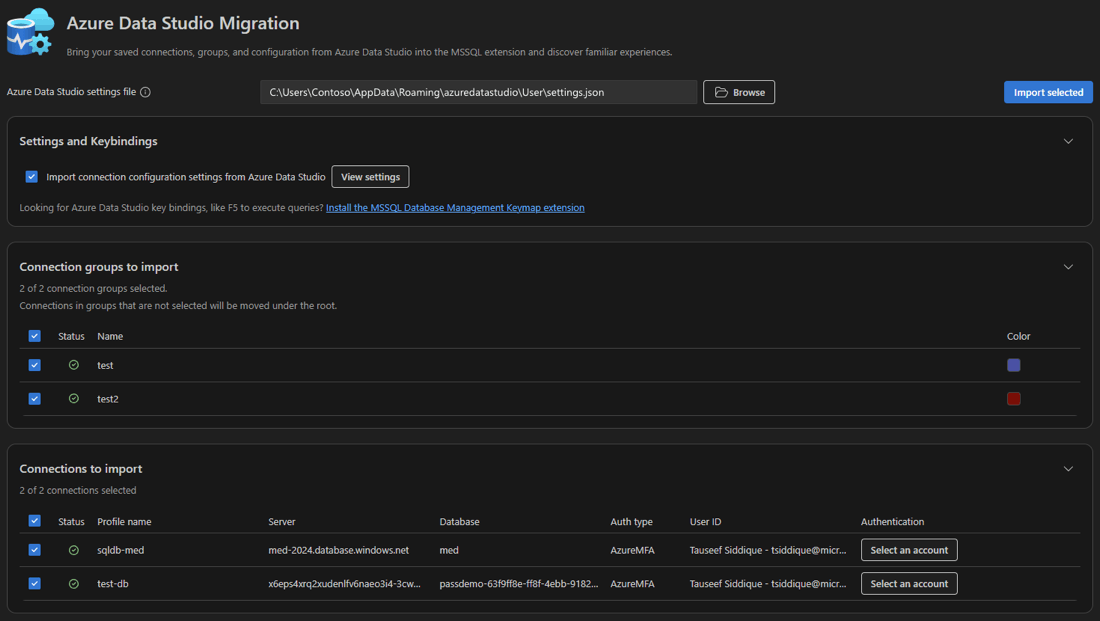
Imported connections appear in the Connections view, organized by their original connection groups.
MSSQL Database Management key map
The MSSQL Database Management Keymap is a companion extension that provides Azure Data Studio key bindings for common database management tasks. Install it from the migration dialog or directly from the Visual Studio Code Marketplace.
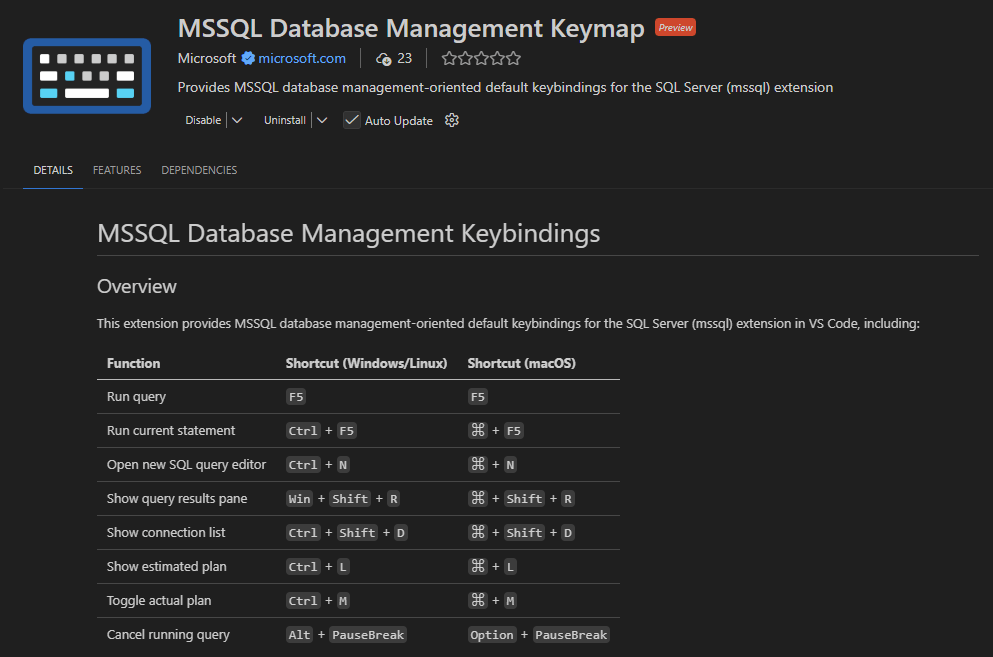
The extension provides the following key bindings:
| Function | Windows / Linux | macOS |
|---|---|---|
| Run query | F5 | F5 |
| Run current statement | Ctrl+F5 | Cmd+F5 |
| Open new SQL query editor | Ctrl+N | Cmd+N |
| Show query results pane | Win+Shift+R | Cmd+Shift+R |
| Show connection list | Ctrl+Shift+D | Cmd+Shift+D |
| Show estimated plan | Ctrl+L | Cmd+L |
| Toggle actual plan | Ctrl+M | Cmd+M |
| Cancel running query | Alt+Break | Option+Break |
Note
This key map doesn't include user-customized key bindings from Azure Data Studio. You need to manually configure custom key bindings in the MSSQL keyboard preferences settings, accessible from the Command Palette. This extension overrides some default Visual Studio Code shortcuts for database management scenarios.
Feedback and support
If you have ideas, feedback, or want to engage with the community, join the discussion at https://aka.ms/vscode-mssql-discussions. To report a bug, visit https://aka.ms/vscode-mssql-bug. To request a new feature, go to https://aka.ms/vscode-mssql-feature-request.