หมายเหตุ
การเข้าถึงหน้านี้ต้องได้รับการอนุญาต คุณสามารถลอง ลงชื่อเข้าใช้หรือเปลี่ยนไดเรกทอรีได้
การเข้าถึงหน้านี้ต้องได้รับการอนุญาต คุณสามารถลองเปลี่ยนไดเรกทอรีได้
In this tutorial, you deploy a data-driven Python web app to Azure App Service that uses the Azure Database for PostgreSQL relational database service. To use Azure Managed Redis, follow the Azure Developer CLI steps. Azure App Service supports Python in a Linux server environment. This article uses Django. Alternatives include Flask or the FastAPI tutorial.
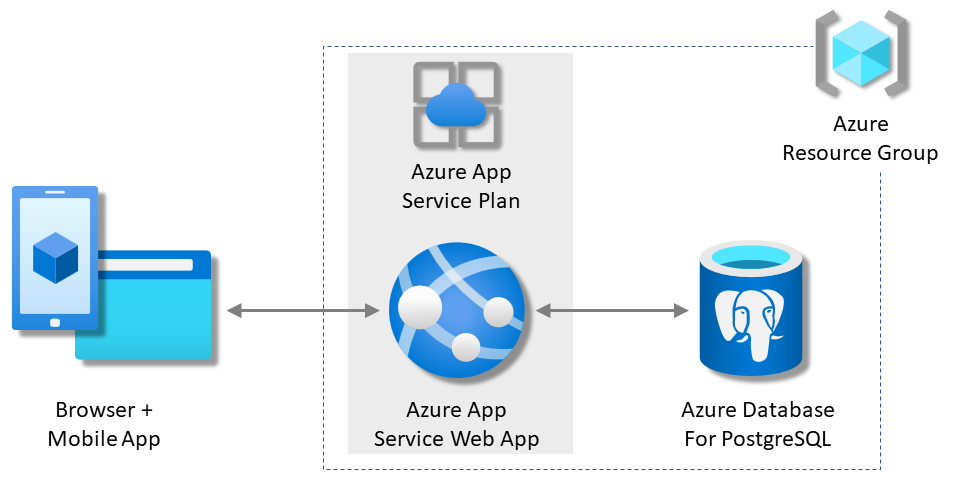
In this tutorial, you learn how to:
- Create a secure-by-default App Service and PostgreSQL architecture.
- Secure connection secrets using a managed identity and Key Vault references.
- Deploy a sample Python app to App Service from a GitHub repository.
- Access App Service connection strings and app settings in the application code.
- Make updates and redeploy the application code.
- Generate database schema by running database migrations.
- Stream diagnostic logs from Azure.
- Manage the app in the Azure portal.
- Provision the same architecture and deploy by using Azure Developer CLI.
- Optimize your development workflow with GitHub Codespaces and GitHub Copilot.
Prerequisites
- An Azure account with an active subscription. If you don't have an Azure account, you can create one for free.
- A GitHub account. You can also get one for free.
- Knowledge of Python with Django development.
- (Optional) To try GitHub Copilot, a GitHub Copilot account. A 30-day free trial is available.
In this tutorial, you learn how to:
- Create a secure-by-default App Service, PostgreSQL, and Azure Managed Redis architecture.
- Secure connection secrets by using a managed identity and Key Vault references.
- Deploy a sample Python app to App Service from a GitHub repository.
- Access App Service connection strings and app settings in the application code.
- Make updates and redeploy the application code.
- Generate database schema by running database migrations.
- Stream diagnostic logs from Azure.
- Manage the app in the Azure portal.
- Provision the same architecture and deploy by using Azure Developer CLI.
- Optimize your development workflow with GitHub Codespaces and GitHub Copilot.
Prerequisites
- An Azure account with an active subscription. If you don't have an Azure account, you can create one for free.
- Azure Developer CLI installed. You can follow the steps with the Azure Cloud Shell because it already has Azure Developer CLI installed.
- Knowledge of Python with Django development.
- (Optional) To try GitHub Copilot, a GitHub Copilot account. A 30-day free trial is available.
Skip to the end
If you just want to see the sample app in this tutorial running in Azure, run the following commands in the Azure Cloud Shell, and follow the prompt:
mkdir msdocs-django-postgresql-sample-app
cd msdocs-django-postgresql-sample-app
azd init --template msdocs-django-postgresql-sample-app
azd up
Run the sample
As a starting point, set up a sample data-driven app. For your convenience, the sample repository, includes a dev container configuration. The dev container has everything you need to develop an application, including the database, cache, and all environment variables that the sample application needs. The dev container can run in a GitHub codespace, so you can run the sample on any computer with a web browser.
Note
If you follow along with this tutorial with your own app, look at the requirements.txt file description in README.md to see what packages you need.
Step 1: In a new browser window:
- Sign in to your GitHub account.
- Navigate to https://github.com/Azure-Samples/msdocs-django-postgresql-sample-app/fork.
- Unselect Copy the main branch only. You want all the branches.
- Select Create fork.

Step 2: In the GitHub fork:
- Select main > starter-no-infra for the starter branch. This branch contains just the sample project and no Azure-related files or configuration.
- Select Code > Create codespace on starter-no-infra.
The codespace takes a few minutes to set up. It runs
pip install -r requirements.txtfor your repository. The provided .env file already contains a dummySECRET_KEYvariable that Django needs to run locally.

Step 3: In the codespace terminal:
- Run database migrations with
python manage.py migrate. - Run the app with
python manage.py runserver. - When you see the notification
Your application running on port 8000 is available., select Open in Browser. You should see the sample application in a new browser tab. To stop the application, typeCtrl+C.

Tip
You can ask GitHub Copilot about this repository. For example:
- @workspace What does this project do?
- @workspace What does the .devcontainer folder do?
Having issues? Check the Troubleshooting section.
Create App Service and database
In this step, create the Azure resources. This tutorial creates a set of secure-by-default resources that include App Service and Azure Database for PostgreSQL. For the creation process, specify:
- The Name for the web app. It's used as part of the DNS name for your app.
- The Region to run the app physically in the world. It's also part of the DNS name for your app.
- The Runtime stack for the app. You select the version of Python to use for your app.
- The Hosting plan for the app. The pricing tier includes the set of features and scaling capacity for your app.
- The Resource Group for the app. A resource group lets you group all the Azure resources needed for the application in a logical container.
Sign in to the Azure portal. Follow these steps to create your Azure App Service resources.
Step 1: In the Azure portal:
- At the top of the Azure portal, in the search box, enter web app database.
- Under the Marketplace heading, select the item labeled Web App + Database. You can also navigate to Create Web app directly.
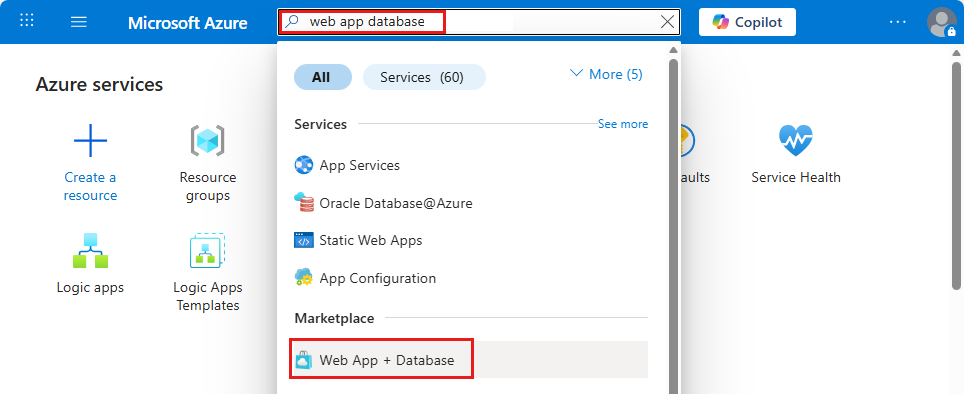
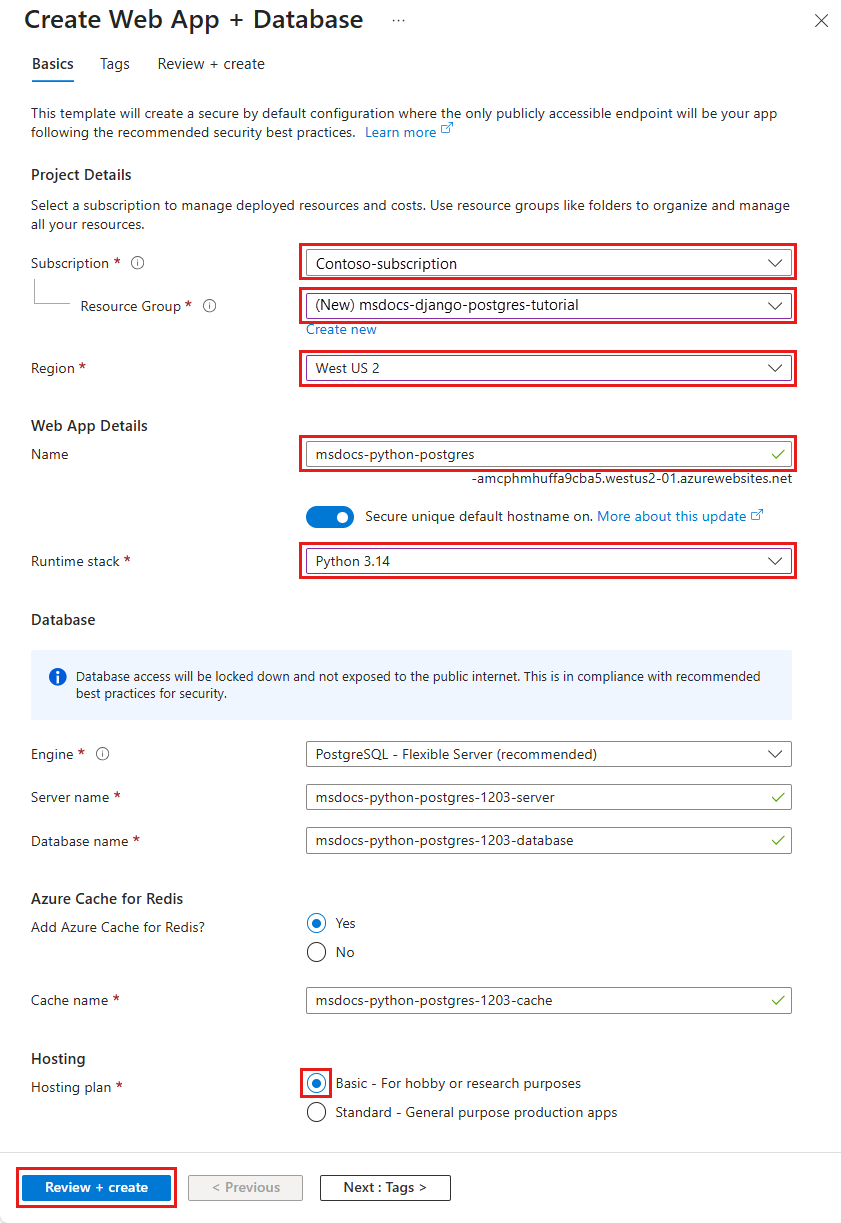
Step 2: In the Create Web App + Database page, fill out the form as follows.
- Resource Group: Select Create new and enter msdocs-django-postgres-tutorial.
- Region: Any Azure region near you.
- Name: msdocs-python-postgres-XYZ.
- Runtime stack: Python 3.14.
- Database: PostgreSQL - Flexible Server is selected by default as the database engine. The server name and database name are also set by default to appropriate values.
- Don't select Create an Azure Cache for Redis.
- Hosting plan: Basic. When you're ready, you can scale up to a production pricing tier.
- Select Review + create.
- After validation completes, select Create.
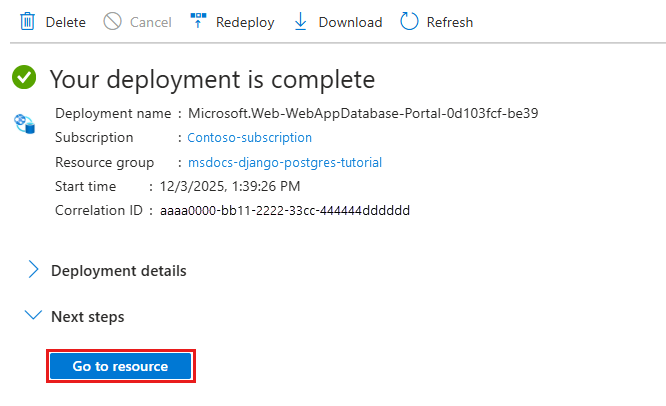
Step 3: The deployment takes a few minutes to complete. After deployment completes, select Go to resource. Deployment creates the following resources:
- Resource group: The container for all the created resources.
- App Service plan: Defines the compute resources for App Service. This instance is a Linux plan in the Basic tier.
- App Service: Represents your app and runs in the App Service plan.
- Virtual network: Integrated with the App Service app and isolates back-end network traffic.
- Private endpoint: Access endpoint for the database in the virtual network.
- Network interfaces: Private IP addresses, one for each of the private endpoints.
- Azure Database for PostgreSQL flexible server: Accessible only from within the virtual network. Deployment creates a database and a user on the server.
- Private DNS zones: Enables DNS resolution of the database server in the virtual network.
Secure connection secrets and add SECRET_KEY
The deployment process generates the connectivity variables for you as app settings. The security best practice is to keep secrets out of App Service completely. Move your secrets to a key vault and change your app setting to Key Vault references with the help of Service Connectors.
Step 1: Retrieve the existing connection string
- In the left menu of the App Service page, select Settings > Environment variables.
- Select AZURE_POSTGRESQL_CONNECTIONSTRING.
- In Add/Edit application setting, in the Value field, find the password= part at the end of the string.
- Copy the password string after password= for use later.
This app setting lets you connect to the Postgres database behind private endpoints. The secrets are saved directly in the App Service app, which isn't the best approach. You'll change this configuration. You also add a
SECRET_KEYsetting, which your Django app requires.

Step 2: Create a key vault for secure management of secrets
- In the top search bar, enter key vault, then select Marketplace > Key Vault.
- In Resource Group, select msdocs-python-postgres-tutorial.
- In Key vault name, enter a name that consists of only letters and numbers.
- In Region, select the same location as the resource group.

Step 3: Secure the key vault with a Private Endpoint
- Select the Networking tab.
- Unselect Enable public access.
- Select Create a private endpoint.
- In Resource Group, select msdocs-python-postgres-tutorial.
- In the dialog, in Location, select the same location as your App Service app.
- In Name, type msdocs-python-postgres-XYZVaultEndpoint.
- In Virtual network, select msdocs-python-postgres-XYZVnet.
- In Subnet, msdocs-python-postgres-XYZSubnet.
- Select OK.
- Select Review + create, then select Create. Wait for the key vault deployment to finish. You should see Your deployment is complete.

Step 4: Configure the PostgreSQL connector
- In the top search bar, enter msdocs-python-postgres, then select your App Service resource msdocs-python-postgres-XYZ.
- In the App Service page, in the left menu, select Settings > Service Connector. There are already two connectors, which the app creation process created for you.
- Select checkbox next to the PostgreSQL connector, then select Edit.
- In Client type, select Django. The Django client type in the PostgreSQL service connector gives you database variables in separate settings instead of one connection string. The separate variables are easier for you to use in Django's database settings.
- Select Authentication.
- In Password, paste the password you copied earlier.
- Select Store Secret in Key Vault.
- Under Key Vault Connection, select Create new. This action opens a Create connection dialog on top of the edit dialog.

Step 5: Establish the Key Vault connection
- In the Create connection dialog for the Key Vault connection, in Key Vault, select the key vault you created earlier.
- Select Review + Create.
- When validation completes, select Create.

Step 6: Finalize the PostgreSQL connector settings
- You're back in the edit dialog for defaultConnector. Under Authentication, wait for the key vault connector to be created. The Key Vault Connection dropdown list automatically selects it.
- Select Next: Networking.
- Select Save. Wait until the Update succeeded notification appears.

Step 7: Verify the Key Vault integration
- From the left menu, select Settings > Environment variables again.
- Next to AZURE_POSTGRESQL_PASSWORD, select Show value. The value should be
@Microsoft.KeyVault(...), which means that it's a key vault reference because the secret is now managed in the key vault. - To verify the Redis connection string, select Show value next to AZURE_REDIS_CONNECTIONSTRING.

Step 8: The sample application reads the SECRET_KEY environment variable to set the required SECRET_KEY setting. You create it as an app setting in this step.
- In the App settings tab, select Add.
- Set Name to SECRET_KEY.
- Set Value to a long random string.
- Select Apply, then Apply again, then Confirm.

To summarize, the process for securing your connection secrets involved:
- Retrieving the connection secrets from the App Service app's environment variables.
- Creating a key vault.
- Creating a Key Vault connection with the system-assigned managed identity.
- Updating the service connectors to store the secrets in the key vault.
Note
Ideally, the SECRET_KEY app setting should be configured as a key vault reference too, which is a multi-step process. For more information, see How do I change the SECRET_KEY app setting to a Key Vault reference?
Having issues? Check the Troubleshooting section.
Deploy sample code
In this section, configure GitHub deployment using GitHub Actions. It's one of many ways to deploy to App Service. It's a great way to have continuous integration in your deployment process. By default, every git push to your GitHub repository kicks off the build and deploy action.
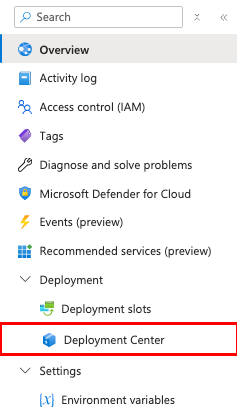
Step 1: In the left menu, select Deployment > Deployment Center.
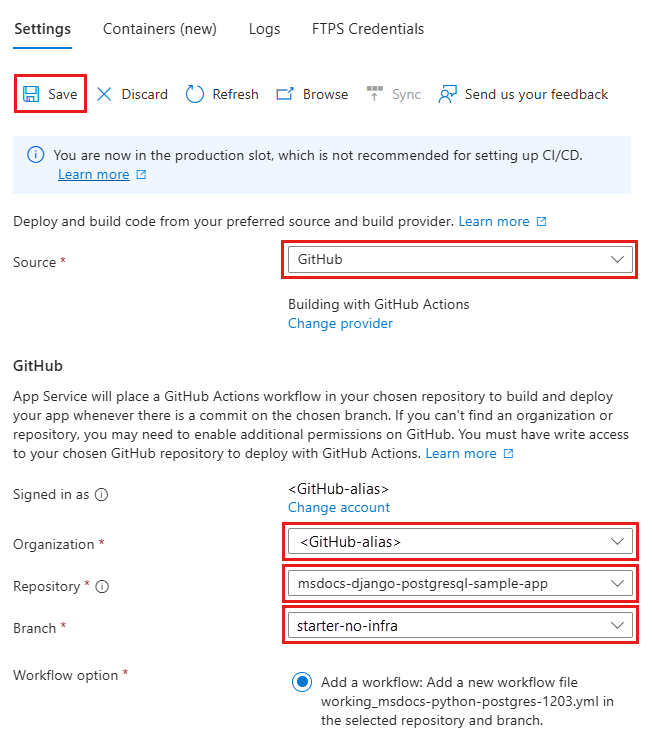
Step 2: In the Deployment Center page:
- In Source, select GitHub. By default, GitHub Actions is selected as the build provider.
- Sign in to your GitHub account and follow the prompt to authorize Azure.
- In Organization, select your account.
- In Repository, select msdocs-django-postgresql-sample-app.
- In Branch, select starter-no-infra. This branch is the same one that you worked in with your sample app, without any Azure-related files or configuration.
- For Authentication type, select User-assigned identity.
- In the top menu, select Save.
App Service commits a workflow file into the GitHub repository in the
.github/workflowsdirectory. By default, the deployment center creates a user-assigned identity for the workflow to authenticate using Microsoft Entra (OIDC authentication). For other authentication options, see Deploy to App Service using GitHub Actions.
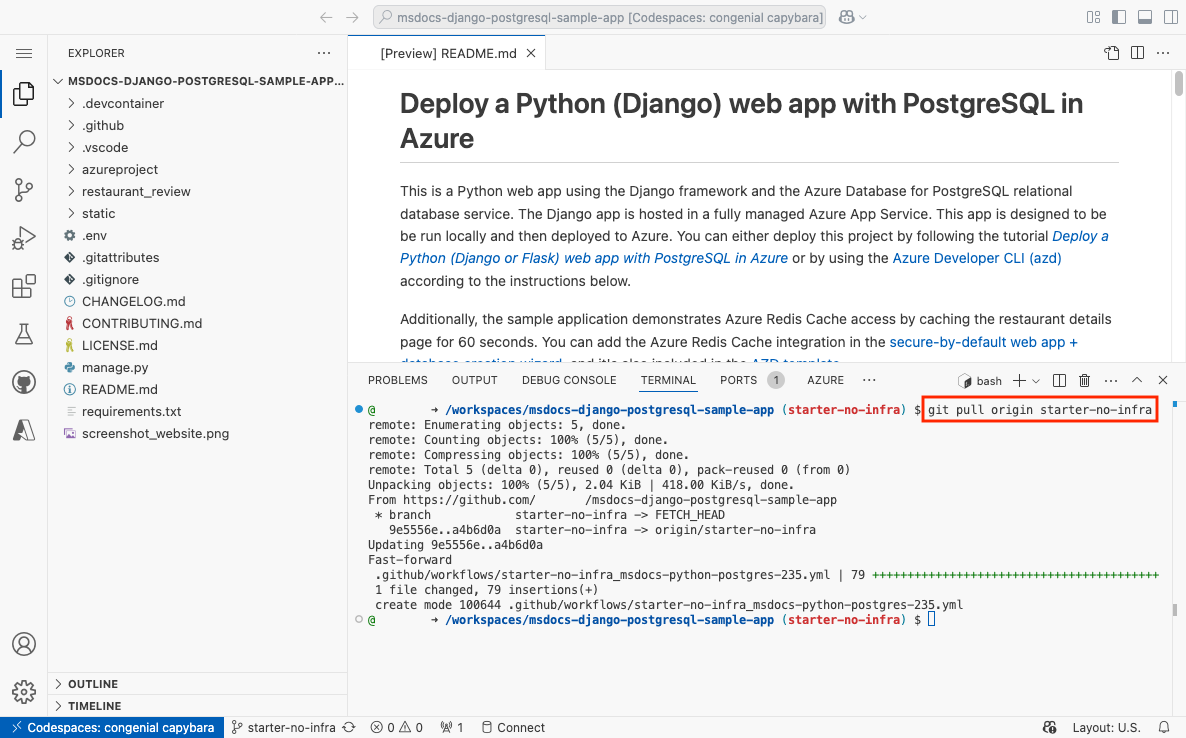
Step 3: Back in the GitHub codespace of your sample fork, run git pull origin starter-no-infra.
This command pulls the newly committed workflow file into your codespace.
Step 4 (Option 1: with GitHub Copilot):
- Start a new chat session by selecting the Chat view, then selecting +.
- Ask, "@workspace How does the app connect to the database and redis?" Copilot might give you some explanation about how the settings are configured in azureproject/development.py and azureproject/production.py.
- Ask, "@workspace In production mode, my app is running in an App Service web app, which uses Azure Service Connector to connect to a PostgreSQL flexible server using the Django client type. What are the environment variable names I need to use?" Copilot might give you a code suggestion similar to the one in the Option 2: without GitHub Copilot steps following and even tell you to make the change in the azureproject/production.py file.
- Open azureproject/production.py in the explorer and add the code suggestion. GitHub Copilot doesn't give you the same response every time. Responses aren't always correct. You might need to ask more questions to fine-tune its response. For tips, see What can I do with GitHub Copilot in my codespace?.

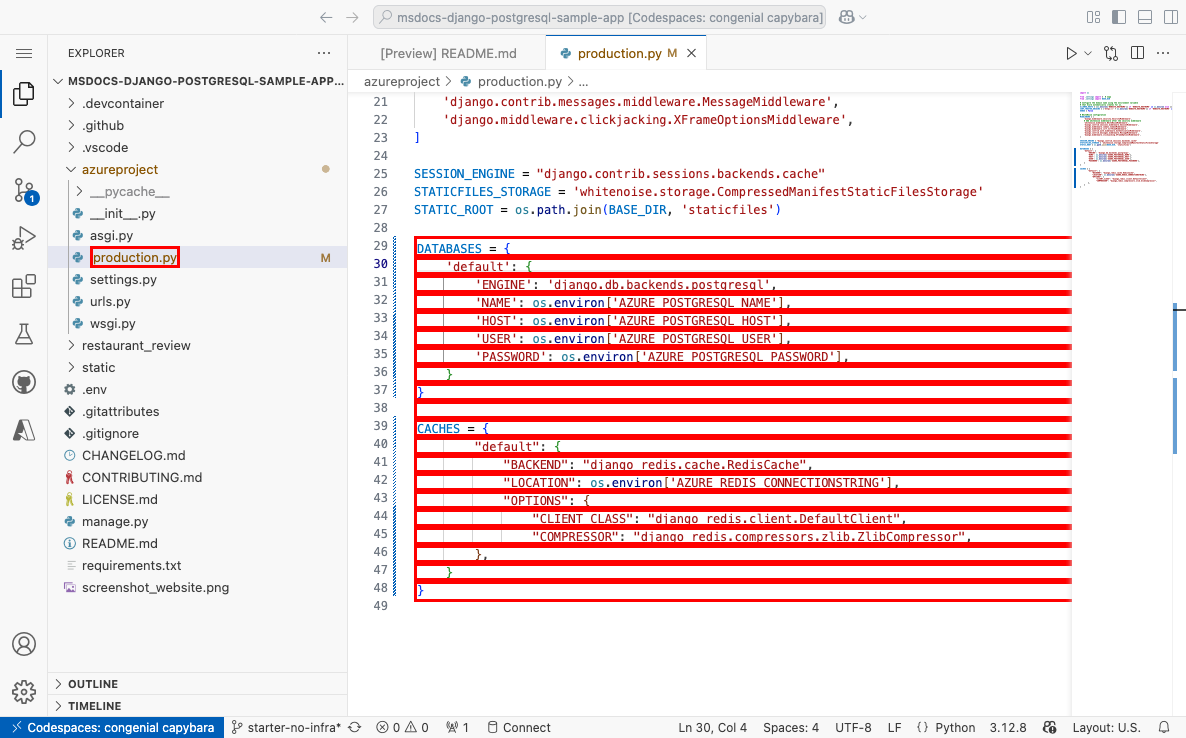
Step 4 (Option 2: without GitHub Copilot):
- Open azureproject/production.py in the explorer.
- Find the commented code (lines 29-48) and uncomment it.
This code creates PostgreSQL and Redis connections by using
AZURE_POSTGRESQL_USER,AZURE_POSTGRESQL_PASSWORD,AZURE_POSTGRESQL_HOST,AZURE_POSTGRESQL_NAME, andAZURE_REDIS_CONNECTIONSTRING.
Step 5:
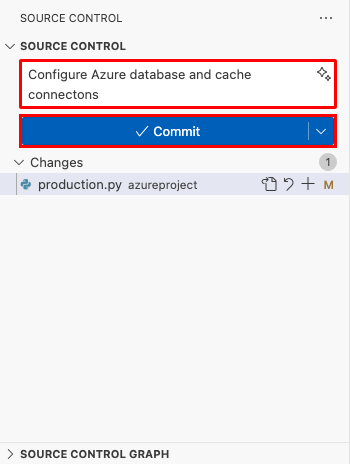
- Select the Source Control extension.
- In the text box, type a commit message like
Configure Azure database connection. Or, select and let GitHub Copilot generate a commit message for you.
 - Select Commit, then confirm with Yes.
- Select Sync changes 1, then confirm with OK.
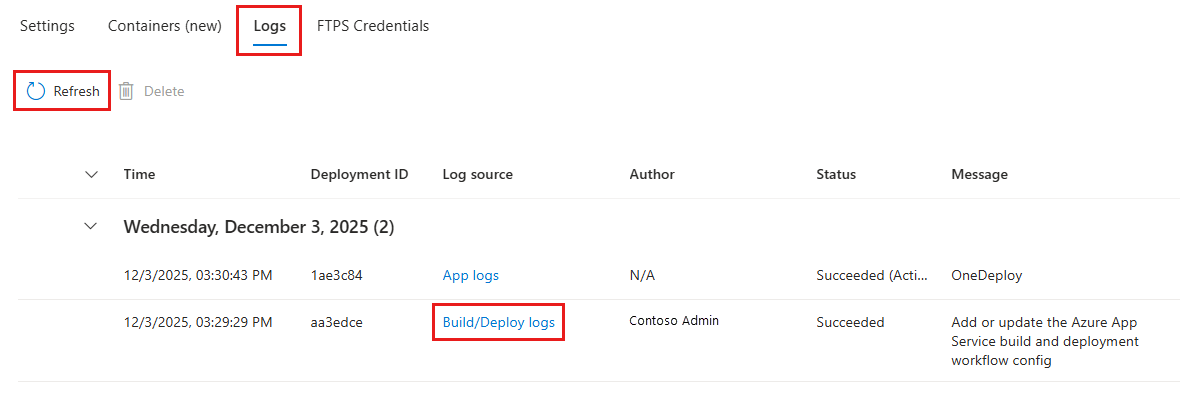
Step 6: Back in Deployment Center in the Azure portal:
- Select Logs, then select Refresh to see the new deployment run.
- In the log item for the deployment run, select the Build/Deploy Logs entry with the latest timestamp.
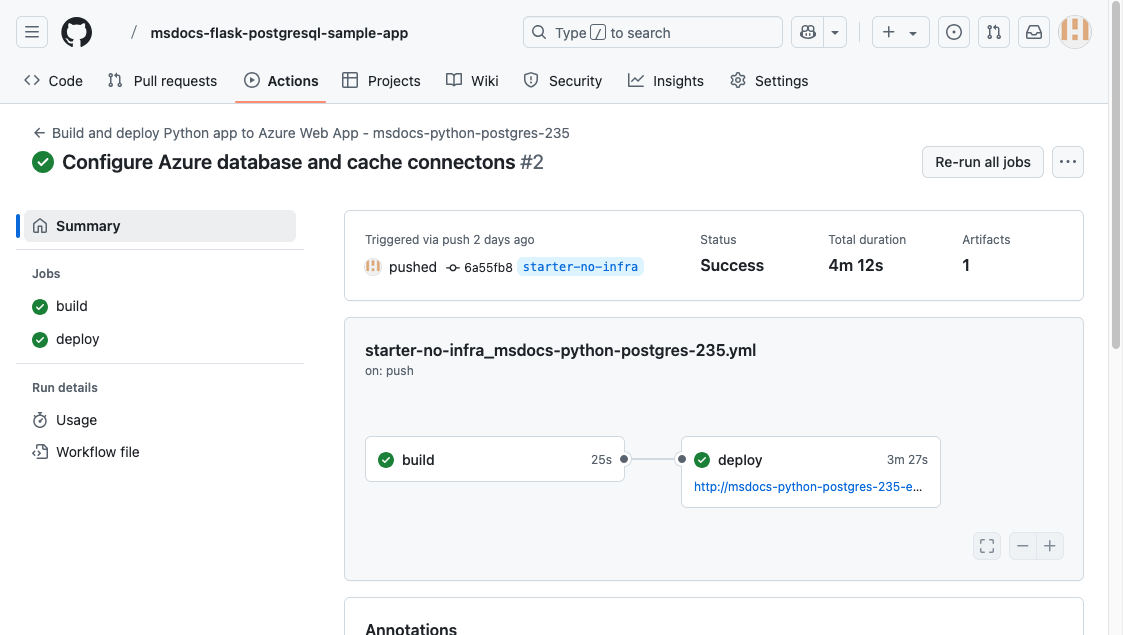
Step 7: You're taken to your GitHub repository. The GitHub action is running. The workflow file defines two separate stages, build and deploy. Wait for the GitHub run to show a status of Success. It takes about 5 minutes.
Having issues? Check the Troubleshooting guide.
Generate database schema
With the PostgreSQL database protected by the virtual network, the easiest way to run Django database migrations is in an SSH session with the Linux container in App Service.
For a detached CLI alternative, see Run commands without an interactive session. Run shared database migrations on one instance and verify completion separately; request acceptance doesn't confirm success. Keep the following interactive steps when you need immediate output.
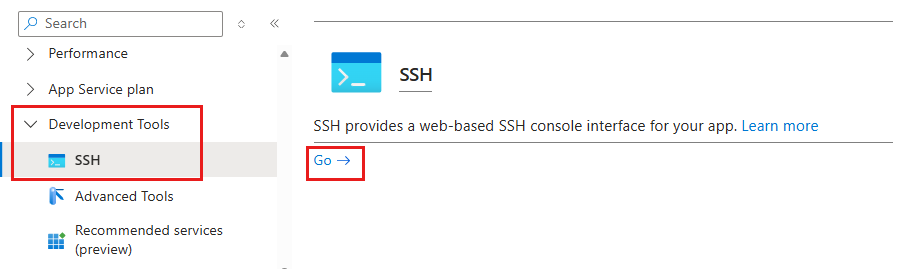
Step 1: Back in the App Service page, in the left menu:
- Select Development Tools > SSH.
- Select Go.
Step 2: In the SSH session, run python manage.py migrate. If it succeeds, App Service is connecting successfully to the database.
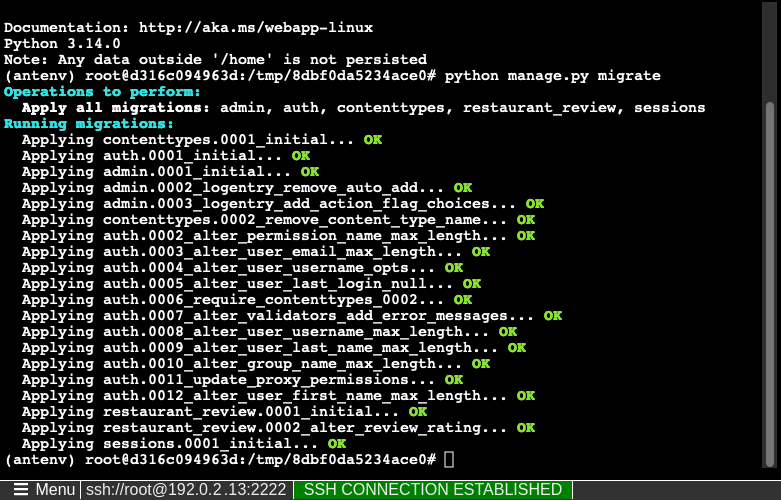
Tip
In the SSH session, only changes to files in /home can persist beyond app restarts. Changes outside of /home aren't persisted.
The SSH session is useful for running common python manage.py commands, such as user creation with the python manage.py createsuperuser. For more information, see django django-admin and manage.py. Use the superuser account to access the /admin portion of the web site.
Having issues? Check the Troubleshooting section.
Browse to the app
Step 1: In the App Service page:
- From the left menu, select Overview.
- Select the URL of your app.

Step 2: Add a few restaurants to the list. Congratulations! You're running a web app in Azure App Service, with secure connectivity to Azure Database for PostgreSQL.

Stream diagnostic logs
Azure App Service captures all console logs to help you diagnose issues with your application. The sample app includes print() statements to demonstrate this capability.
def index(request):
    print('Request for index page received')
    restaurants = Restaurant.objects.annotate(avg_rating=Avg('review__rating')).annotate(review_count=Count('review'))
    lastViewedRestaurant = request.session.get("lastViewedRestaurant", False)
Step 1: In the App Service page:
- From the left menu, select Monitoring > App Service logs.
- Under Application logging, select File System.
- In the top menu, select Save.

Step 2: From the left menu, select Log stream. You see the logs for your app, including platform logs and logs from inside the container.

For more information about logging in Python apps, see setting up Azure Monitor for your Python application.
Clean up resources
When you're finished, you can delete all of the resources from your Azure subscription by deleting the resource group.
Step 1: In the search bar at the top of the Azure portal:
- Enter the resource group name.
- Select the resource group.

Step 2: In the resource group page, select Delete resource group.

Step 3:
- To confirm your deletion, enter the resource group name.
- Select Delete.

Create Azure resources and deploy a sample app
In this section, create the Azure resources and deploy a sample app to App Service on Linux. The steps in this tutorial create a set of secure-by-default resources that include App Service, Azure Database for PostgreSQL, and Azure Managed Redis.
The dev container already has the Azure Developer CLI (AZD).
From the repository root, run
azd init.azd init --template python-app-service-postgresql-infraWhen prompted, give the following answers:
Question Answer The current directory is not empty. Would you like to initialize a project here in '<your-directory>'? Y What would you like to do with these files? Keep my existing files unchanged Enter a new environment name Type a unique name. The AZD template uses this name as part of the DNS name of your web app in Azure ( <app-name>-<hash>.azurewebsites.net). Alphanumeric characters and hyphens are allowed.Sign into Azure by running the
azd auth logincommand and following the prompt:azd auth loginCreate the necessary Azure resources with the
azd provisioncommand. Follow the prompt to select the desired subscription and location for the Azure resources.azd provisionThe
azd provisioncommand takes about 15 minutes to complete. The Redis cache takes the most time. Later, modify your code to work with App Service and deploy the changes withazd deploy. While it's running, the command provides messages about the provisioning and deployment process. The output includes a link to the deployment in Azure.This AZD template contains files (azure.yaml and the infra directory) that generate a secure-by-default architecture with the following Azure resources:
- Resource group: The container for all the created resources.
- App Service plan: Defines the compute resources for App Service. It creates a Linux plan in the Basic tier.
- App Service: Represents your app and runs in the App Service plan.
- Virtual network: Integrated with the App Service app and isolates back-end network traffic.
- Private endpoints: Access endpoints for the key vault and the Redis cache in the virtual network.
- Network interfaces: Private IP addresses, one for each of the private endpoints.
- Azure Database for PostgreSQL flexible server: Accessible only from in the virtual network. It creates a database and a user on the server.
- Private DNS zone: Enables DNS resolution of the PostgreSQL server in the virtual network.
- Log Analytics workspace: Acts as the target container for your app to ship its logs, where you can also query the logs.
- Azure Managed Redis: Accessible only from behind its private endpoint.
- Key vault: Accessible only from behind its private endpoint. Used to manage secrets for the App Service app.
After the command finishes creating resources and deploying the application code the first time, the deployed sample app doesn't work yet. You must make small changes to make it connect to the database in Azure.
Having issues? Check the Troubleshooting section.
Use the database connection string
The AZD template you use generated the connectivity variables for you as app settings. It outputs them to the terminal. App settings are one way to keep connection secrets out of your code repository.
In the AZD output, find the settings
AZURE_POSTGRESQL_USER,AZURE_POSTGRESQL_PASSWORD,AZURE_POSTGRESQL_HOST,AZURE_POSTGRESQL_NAME, andAZURE_REDIS_CONNECTIONSTRING. To keep secrets safe, only the setting names are displayed. They look like this in the AZD output:App Service app has the following connection settings: - AZURE_POSTGRESQL_NAME - AZURE_POSTGRESQL_HOST - AZURE_POSTGRESQL_USER - AZURE_POSTGRESQL_PASSWORD - AZURE_REDIS_CONNECTIONSTRING - AZURE_KEYVAULT_RESOURCEENDPOINT - AZURE_KEYVAULT_SCOPEFor your convenience, the AZD template shows you the direct link to the app's app settings page. Find the link and open it in a new browser tab.
Having issues? Check the Troubleshooting section.
Modify sample code and redeploy
In the GitHub codespace, start a new chat session by selecting the Chat view, then selecting +.
Ask, "@workspace How does the app connect to the database?" Copilot might give you some explanation about how the connection settings are configured in azureproject/development.py and azureproject/production.py.
Ask, "@workspace In production mode, my app is running in an App Service web app, which uses Azure Service Connector to connect to a PostgreSQL flexible server using the Django client type. What are the environment variable names I need to use?" Copilot might give you a code suggestion similar to the one in the Option 2: without GitHub Copilot steps following and even tell you to make the change in the azureproject/production.py file.
Open azureproject/production.py in the explorer and add the code suggestion.
GitHub Copilot doesn't give you the same response every time. Responses aren't always correct. You might need to ask more questions to fine-tune its response. For tips, see What can I do with GitHub Copilot in my codespace?.
In the terminal, run
azd deploy.azd deploy
Having issues? Check the Troubleshooting section.
Generate database schema
With the PostgreSQL database protected by the virtual network, the easiest way to run Django database migrations is in an SSH session with the Linux container in App Service.
For a detached CLI alternative, see Run commands without an interactive session. Run shared database migrations on one instance and verify completion separately; request acceptance doesn't confirm success. Keep the following interactive steps when you need immediate output.
In the AZD output, find the URL for the SSH session and navigate to it in the browser. It looks like this in the output:
Open SSH session to App Service container at: <URL>In the SSH session, run
python manage.py migrate. If the command succeeds, App Service is connecting successfully to the database.
Note
Only changes to files in
/homecan persist beyond app restarts. Changes outside of/homearen't persisted.
Having issues? Check the Troubleshooting section.
Browse to the app
In the AZD output, find the URL of your app and navigate to it in the browser. The URL looks like this in the AZD output:
Deploying services (azd deploy)

  (✓) Done: Deploying service web
  - Endpoint: <URL>
Add a few restaurants to the list.
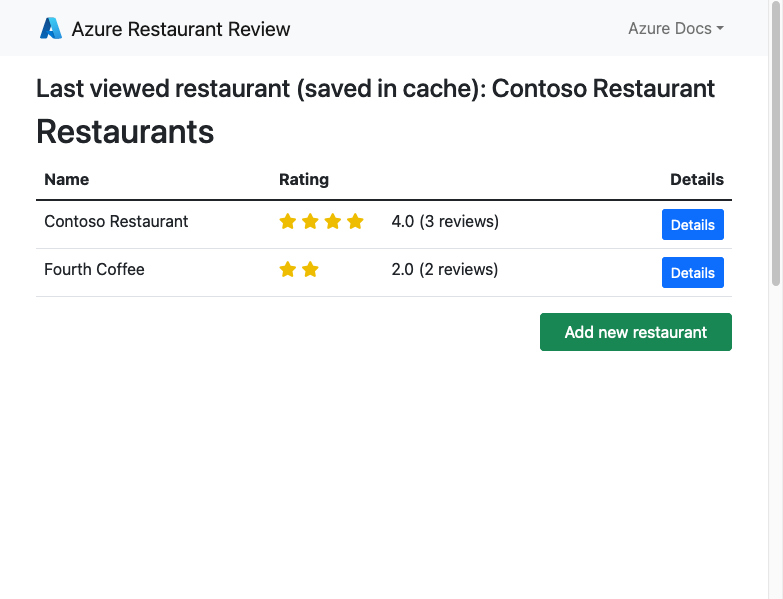
Congratulations! You're running a web app in Azure App Service, with secure connectivity to Azure Database for PostgreSQL.
Having issues? Check the Troubleshooting section.
Stream diagnostic logs
Azure App Service can capture console logs to help you diagnose issues with your application. For convenience, the AZD template already enables logging to the local file system and is shipping the logs to a Log Analytics workspace.
The sample application includes print() statements to demonstrate this capability, as shown in the following snippet.
def index(request):
    print('Request for index page received')
    restaurants = Restaurant.objects.annotate(avg_rating=Avg('review__rating')).annotate(review_count=Count('review'))
    lastViewedRestaurant = request.session.get("lastViewedRestaurant", False)
In the AZD output, find the link to stream App Service logs and navigate to it in the browser.
Stream App Service logs at: <URL>
Learn more about logging in Python apps in the series on setting up Azure Monitor for your Python application.
Having issues? Check the Troubleshooting section.
Clean up resources
To delete all Azure resources in the current deployment environment, run azd down and follow the prompts.
azd down
Troubleshooting
Here are issues you might encounter while trying to work through this tutorial and steps to resolve them.
I can't connect to the SSH session
If you can't connect to the SSH session, then the app itself fails to start. Check the diagnostic logs for details. For example, if you see an error like KeyError: 'AZURE_POSTGRESQL_HOST', it might mean that the environment variable is missing. You might have removed the app setting.
I get an error when running database migrations
If you encounter any errors related to connecting to the database, check if the app settings (AZURE_POSTGRESQL_USER, AZURE_POSTGRESQL_PASSWORD, AZURE_POSTGRESQL_HOST, and AZURE_POSTGRESQL_NAME) were changed or deleted. Without that connection string, the migrate command can't communicate with the database.
Frequently asked questions
- How much does this setup cost?
- How do I connect to the PostgreSQL server that's secured behind the virtual network with other tools?
- How does local app development work with GitHub Actions?
- How is the Django sample configured to run on Azure App Service?
- How do I change the SECRET_KEY app setting to a Key Vault reference?
- How do I debug errors during the GitHub Actions deployment?
- I don't have permissions to create a user-assigned identity
- What can I do with GitHub Copilot in my codespace?
- How much does this setup cost?
- How do I connect to the PostgreSQL server that's secured behind the virtual network with other tools?
- How does local app development work with GitHub Actions?
- How is the Django sample configured to run on Azure App Service?
- How do I debug errors during the GitHub Actions deployment?
- I don't have permissions to create a user-assigned identity
- What can I do with GitHub Copilot in my codespace?
How much does this setup cost?
Pricing for the created resources is as follows:
- The App Service plan is created in Basic tier and can be scaled up or down. See App Service pricing.
- The PostgreSQL flexible server is created in the lowest burstable tier Standard_B1ms, with the minimum storage size, which can be scaled up or down. See Azure Database for PostgreSQL pricing.
- The virtual network doesn't incur a charge unless you configure extra functionality, such as peering. See Azure Virtual Network pricing.
- The private DNS zone incurs a small charge. See Azure DNS pricing.
How do I connect to the PostgreSQL server that's secured behind the virtual network with other tools?
- For basic access from a command-line tool, you can run
psqlfrom the app's SSH session. - To connect from a desktop tool, your machine must be within the virtual network. For example, it could be an Azure virtual machine that's connected to one of the subnets, or a machine in an on-premises network that has a site-to-site VPN connection with the Azure virtual network.
- You can also integrate Azure Cloud Shell with the virtual network.
How does local app development work with GitHub Actions?
Using the autogenerated workflow file from App Service as an example, each git push kicks off a new build and deployment run. From a local clone of the GitHub repository, you make the desired updates and push to GitHub. For example:
git add .
git commit -m "<some-message>"
git push origin main
How is the Django sample configured to run on Azure App Service?
The Django sample application configures settings in the azureproject/production.py file so that it can run in Azure App Service. These changes are common to deploying Django to production, and not specific to App Service.
Django validates the HTTP_HOST header in incoming requests. The sample code uses the
WEBSITE_HOSTNAMEenvironment variable in App Service to add the app's domain name to Django's ALLOWED_HOSTS setting.# Configure the domain name using the environment variable # that Azure automatically creates for us. ALLOWED_HOSTS = [os.environ['WEBSITE_HOSTNAME']] if 'WEBSITE_HOSTNAME' in os.environ else []Django doesn't support serving static files in production. For this tutorial, you use WhiteNoise to enable serving the files. The WhiteNoise package was already installed with requirements.txt, and its middleware is added to the list.
# WhiteNoise configuration
MIDDLEWARE = [
    'django.middleware.security.SecurityMiddleware',
    # Add whitenoise middleware after the security middleware
    'whitenoise.middleware.WhiteNoiseMiddleware',
Then the static file settings are configured according to the Django documentation.
SESSION_ENGINE = "django.contrib.sessions.backends.cache"
STATICFILES_STORAGE = 'whitenoise.storage.CompressedManifestStaticFilesStorage'
For more information, see Production settings for Django apps.
How do I change the SECRET_KEY app setting to a Key Vault reference?
From the Azure portal steps described, you can change SECRET_KEY to a Key Vault reference by running the following Azure CLI commands in the cloud shell:
# Change the following variables to match your environment
SUBSCRIPTION_ID=<subscription-id>
RESOURCE_GROUP=<resource-group-name>
KEY_VAULT_NAME=<key-vault-name>
APP_SERVICE_NAME=<app-name>
SECRET_NAME=djangoSecretKey

# Set the subscription ID
az account set --subscription $SUBSCRIPTION_ID

# Assign 'Key Vault Secrets Officer' role to your user at the scope of the key vault
az role assignment create \
  --assignee $(az ad signed-in-user show --query id -o tsv) \
  --role $(az role definition list --name "Key Vault Secrets Officer" --query "[].id" -o tsv) \
  --scope $(az keyvault show --name $KEY_VAULT_NAME --resource-group $RESOURCE_GROUP --query id --output tsv)

# Add the secret to the key vault
az keyvault secret set \
  --vault-name $KEY_VAULT_NAME \
  --name $SECRET_NAME \
  --value $(python -c 'import secrets; print(secrets.token_hex())')

# Add Key Vault reference to the App Service configuration
az webapp config appsettings set \
  --resource-group $RESOURCE_GROUP \
  --name $APP_SERVICE_NAME \
  --settings "SECRET_KEY=@Microsoft.KeyVault(SecretUri=https://$KEY_VAULT_NAME.vault.azure.net/secrets/$SECRET_NAME)"
You can also do the same thing in the portal. For more information, see:
How do I debug errors during the GitHub Actions deployment?
If a step fails in the autogenerated GitHub workflow file, try modifying the failed command to generate more verbose output. For example, you can get more output from the python command by adding the -d option. Commit and push your changes to trigger another deployment to App Service.
I don't have permissions to create a user-assigned identity
See Set up GitHub Actions deployment from the Deployment Center.
What can I do with GitHub Copilot in my codespace?
The GitHub Copilot chat view was already there for you when you created the codespace. For your convenience, we include the GitHub Copilot chat extension in the container definition (see .devcontainer/devcontainer.json). However, you need a GitHub Copilot account (30-day free trial available).
A few tips for you when you talk to GitHub Copilot:
- In a single chat session, the questions and answers build on each other and you can adjust your questions to fine-tune the answer you get.
- By default, GitHub Copilot doesn't have access to any file in your repository. To ask questions about a file, open the file in the editor first.
- To let GitHub Copilot have access to all of the files in the repository when preparing its answers, begin your question with
@workspace. For more information, see Use the @workspace agent. - In the chat session, GitHub Copilot can suggest changes and (with
@workspace) even where to make the changes, but it's not allowed to make the changes for you. It's up to you to add the suggested changes and test it.
Related content
Advance to the next tutorial to learn how to secure your app with a custom domain and certificate.
Or, learn how App Service runs a Python app: