หมายเหตุ
การเข้าถึงหน้านี้ต้องได้รับการอนุญาต คุณสามารถลอง ลงชื่อเข้าใช้หรือเปลี่ยนไดเรกทอรีได้
การเข้าถึงหน้านี้ต้องได้รับการอนุญาต คุณสามารถลองเปลี่ยนไดเรกทอรีได้
Microsoft Defender for Cloud can collect activity logs from Google Cloud Platform (GCP) by ingesting Cloud Logging data through Pub/Sub. These logs provide activity context used by Cloud Infrastructure Entitlement Management (CIEM) in Defender for Cloud, including risk-based recommendations and attack path analysis across your Google Cloud environments.
GCP Cloud Logging ingestion is available for individual GCP projects and for GCP organizations that use centralized logging. Learn more about the Google Cloud resource hierarchy.
How GCP logging ingestion works
When GCP Cloud Logging ingestion is enabled, Defender for Cloud retrieves activity logs from Google Cloud and processes them to identify identity- and permission-related activity.
Google Cloud records activity logs (including Admin Activity and Data Access logs) in Cloud Logging. Logs are exported to the configured Pub/Sub topic using a Cloud Logging sink. The Pub/Sub subscription streams log messages to Defender for Cloud when new logs arrive.
Defender for Cloud pulls activity events from Pub/Sub and processes them to generate identity and permission insights. Access between GCP and Defender for Cloud is secured using Google Cloud IAM roles and service accounts to support least-privilege access.
Optionally, if IAM Recommender is enabled in your GCP environment, Defender for Cloud leverages its insights to enhance the accuracy of CIEM recommendations by identifying inactive and over-privileged roles.
Historical data hydration
When GCP Cloud Logging ingestion is enabled, Defender for Cloud performs a one-time historical data collection process (hydration).
As part of the onboarding workflow:
- A dedicated storage bucket is created in the GCP environment.
- Defender for Cloud retrieves up to 90 days of available historical Cloud Audit Logs using Google Cloud copy activity.
- The historical data is processed to generate identity and permission insights.
This process enables CIEM recommendations and attack path analysis to use historical activity data immediately after onboarding.
After hydration completes, ongoing activity logs continue to be ingested through Pub/Sub streaming.
Prerequisites
Before enabling GCP Cloud Logging ingestion with Pub/Sub, ensure that your GCP environment has:
An existing GCP connector configured in Microsoft Defender for Cloud.
Access to the GCP project or organization where logs are generated.
Permissions to create or manage Cloud Logging sinks.
Permissions to create and manage Pub/Sub topics and subscriptions.
IAM permissions to create or manage service accounts and assign required roles.
If using an existing Pub/Sub subscription, access to the existing Cloud Logging sink and Pub/Sub resources, and that these resources align with your organization’s log retention and Pub/Sub configuration.
Configure GCP Cloud Logging ingestion
To configure GCP Cloud Logging:
Sign in to the Azure portal.
Search for and select Microsoft Defender for Cloud.
Go to Environment settings.
Select the relevant GCP connector.
Select Settings under the Monitoring coverage column.
Toggle the switches to On selecting one of the following methods:
Create a new GCP Cloud Logging configuration and provide a Pub/Sub subscription name.
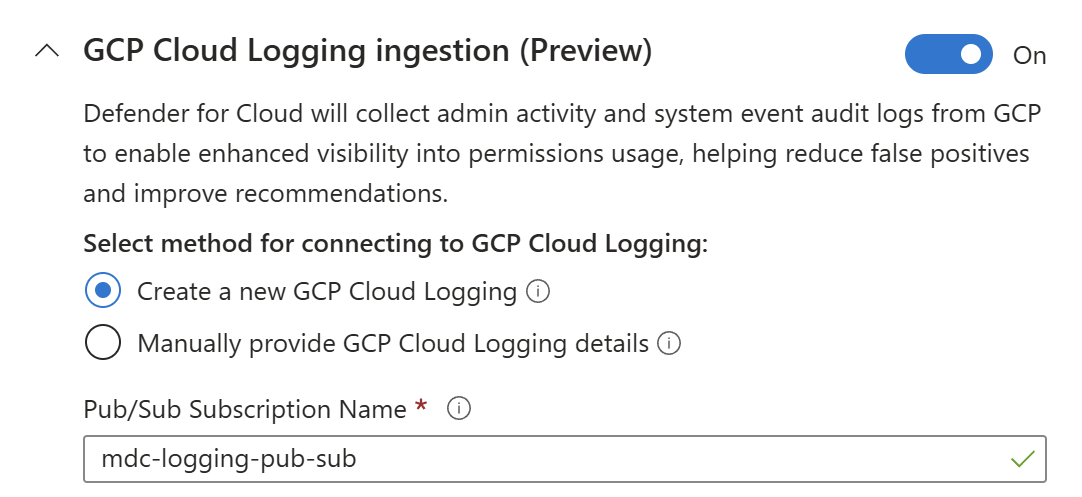
Important
Selecting this option will incur additional cost. Learn more about GCP Cloud Logging pricing
Use your existing Cloud Logging configuration by manually providing your existing Pub/Sub subscription name.
Important
If you use an existing Cloud Logging sink, ensure that the sink filter exports Cloud Audit Logs (such as Admin Activity and Data Access log types) to the specified Pub/Sub topic.
If the required Cloud Audit log types aren't included in the filter, ingestion won't provide full identity and permission activity coverage.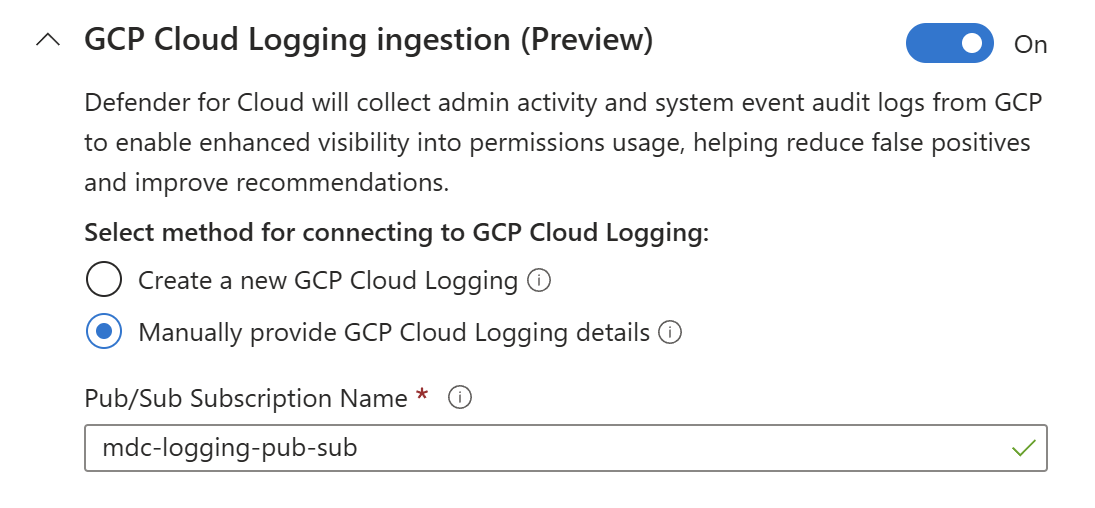
Select Save.
Continue from step 8 of the Connect your GCP project instructions.
Review and generate the GCP connector to complete log ingestion onboarding into Defender for Cloud.
