หมายเหตุ
การเข้าถึงหน้านี้ต้องได้รับการอนุญาต คุณสามารถลอง ลงชื่อเข้าใช้หรือเปลี่ยนไดเรกทอรีได้
การเข้าถึงหน้านี้ต้องได้รับการอนุญาต คุณสามารถลองเปลี่ยนไดเรกทอรีได้
This article shows you how to register the Azure Skills marketplace, install the plugins you need, authenticate to your Azure account, and verify the installation. The marketplace includes the core Azure Skills plugin and specialized plugins for focused Azure scenarios.
Prerequisites
Make sure you have:
- Node.js Long Term Support (LTS): Download from nodejs.org or use a version manager like nvm.
- Azure account: Create a free account if you don't have one.
- An AI assistant: GitHub Copilot CLI, Claude Code, or another compatible platform.
- Azure CLI (recommended for local development): Simplifies authentication. Install Azure CLI. Environment variables or managed identity can be used as alternatives in CI/CD pipelines.
Note
Azure Skills uses the same authentication as Azure MCP Server. If you already authenticated for Azure MCP Server, Azure Skills uses those credentials.
Authenticate to Azure
Azure Skills needs credentials to access your Azure resources. Choose the method that fits your use case.
This method is the easiest for local development and testing.
Install Azure CLI:
- Visit the Azure CLI installation guide.
- Or use a package manager:
brew install azure-cli(macOS),apt-get install azure-cli(Linux).
Sign in to Azure:
az loginA browser window opens. Sign in by using your Azure account credentials.
Verify authentication:
az account showYou see your subscription details in the terminal. Azure Skills detects this authentication.
Install Azure Skills plugins
Choose the installation method for your AI assistant.
Add the Azure Skills marketplace. You only need to register it once:
/plugin marketplace add microsoft/azure-skills
Install the core Azure Skills plugin. This plugin is the recommended starting point for broad Azure workflows and skill discovery:
/plugin install azure@azure-skills
Update the plugin:
/plugin update azure@azure-skills
The core plugin includes discover-azure-skills. If your task isn't covered by a currently installed skill, describe the Azure task in Copilot CLI. The discovery skill searches the catalog, recommends matching skills, identifies their owning plugins, and provides installation guidance.
Install a specialized plugin directly
Install a specialized plugin when you already know which focused capabilities you need:
/plugin install <plugin-name>@azure-skills
| Plugin | Install command | Focus |
|---|---|---|
| Azure Cost | /plugin install azure-cost@azure-skills |
Cost analysis, estimation, optimization, and governance. |
| Azure Kusto Graph | /plugin install azure-kusto-graph-skills@azure-skills |
Kusto graph analysis, IRQL pipelines, and graph visualization. |
| Azure Local | /plugin install azure-local-skills@azure-skills |
Standard and multi-rack Azure Local workflows. |
| Foundry IQ | /plugin install foundry-iq-skills@azure-skills |
Foundry IQ knowledge-base creation, retrieval, and agent connections. |
Installing the core plugin doesn't install these specialized plugins. Review the Azure plugin catalog for plugin-specific capabilities and prerequisites.
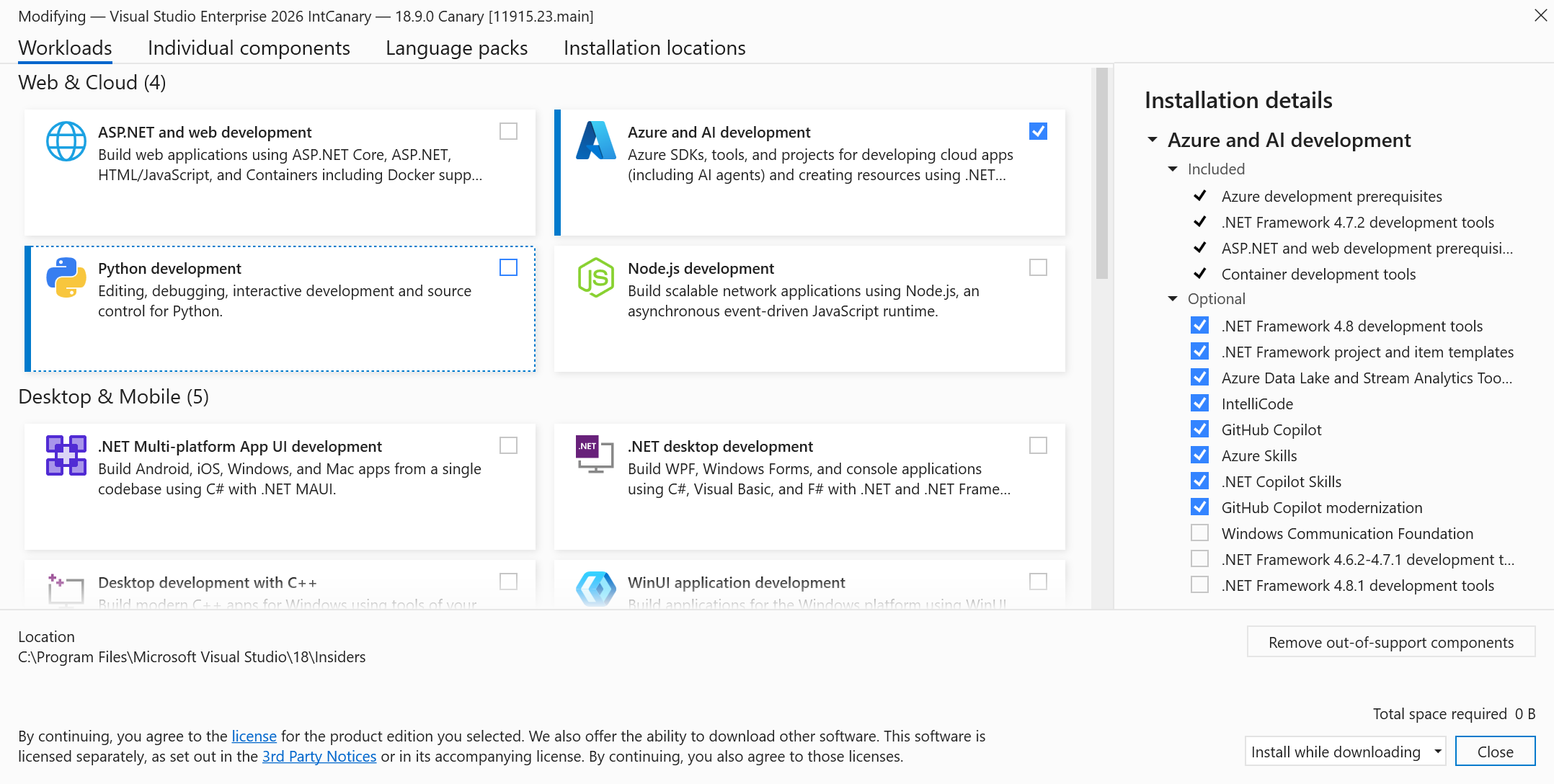
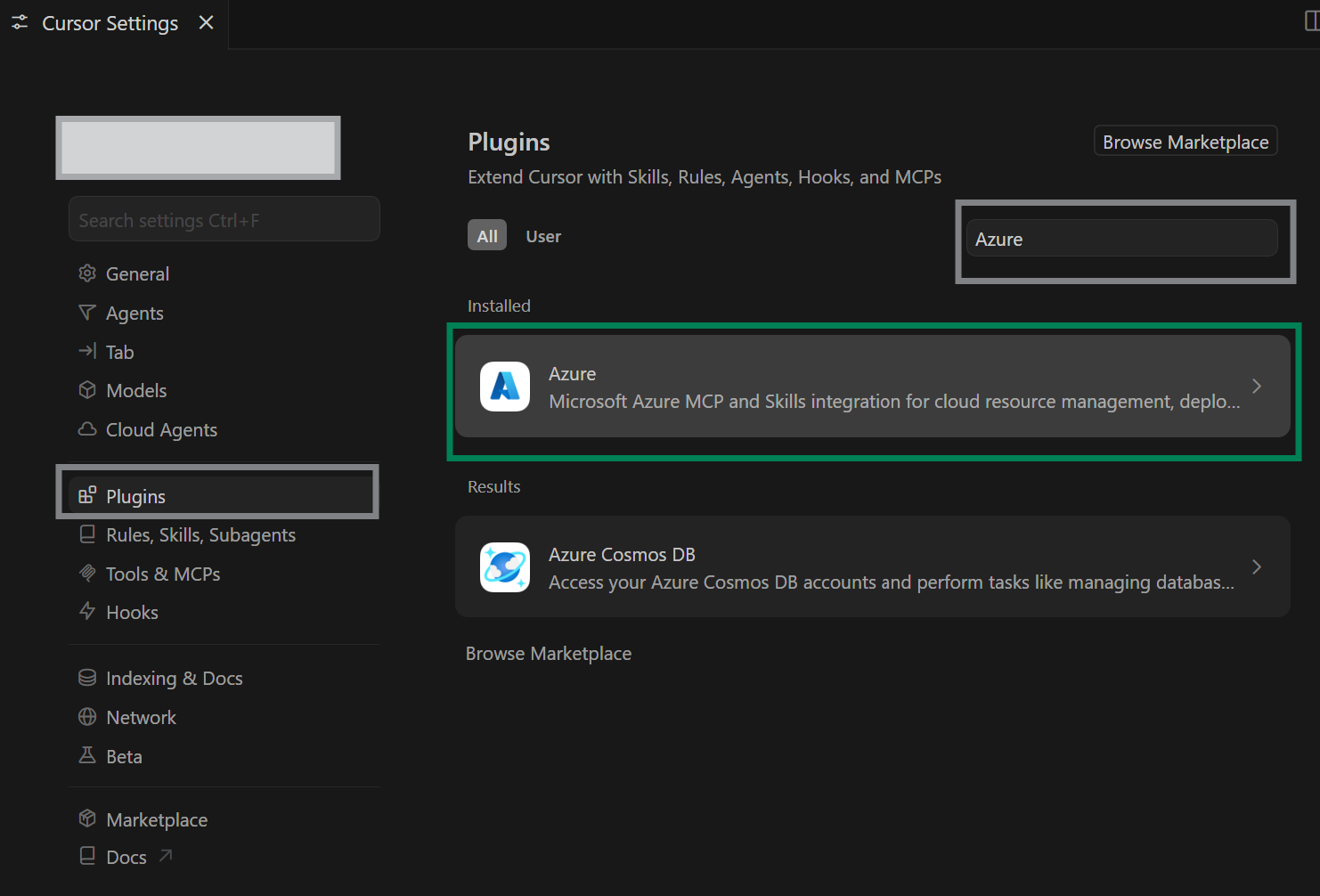
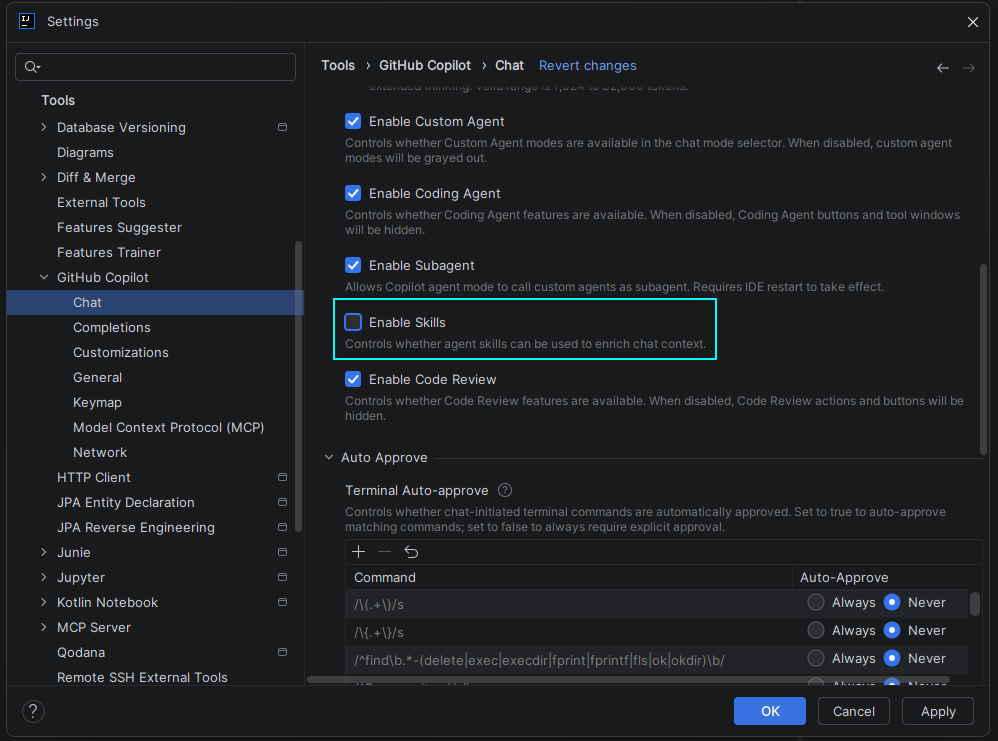

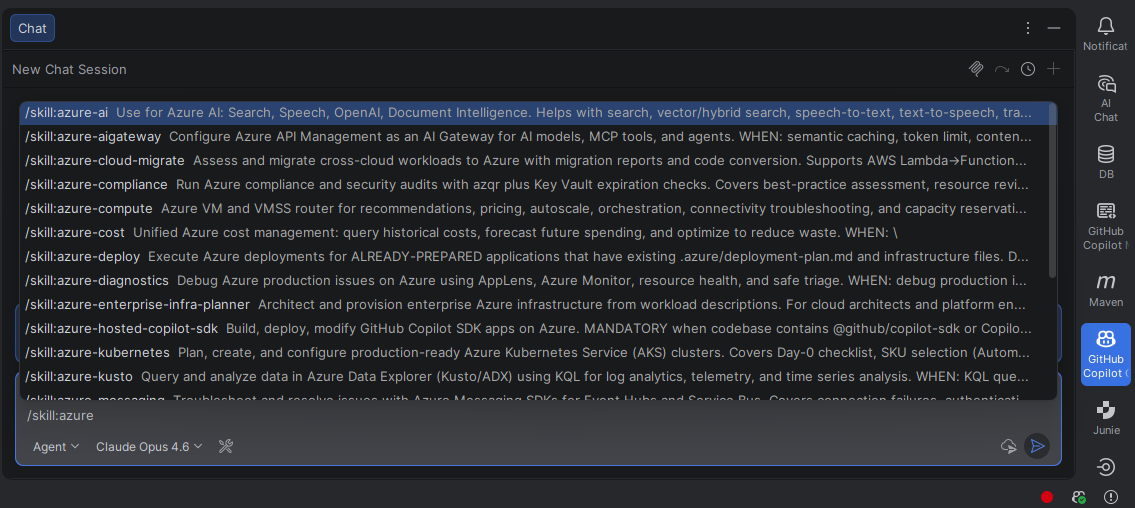
For the current plugin list and installation options, see the Azure plugin catalog and the Azure Skills repository.
Verify installation
After installation, confirm Azure Skills is ready to use.
List installed plugins:
/plugin listThe output includes
azure@azure-skillsand any specialized plugins you installed.Test with a quick command:
/ask List my Azure subscriptionsYour AI assistant queries your Azure account and displays your subscriptions.
Try Azure Skills
After you install and verify Azure Skills, try these prompts in your AI assistant's chat window:
Prepare a deployment plan for your project:
Analyze my project structure and prepare a deployment plan for deploying to Azure. What infrastructure do I need and how should I set it up?
Expected response: The assistant analyzes your codebase and generates infrastructure-as-code templates. It creates a deployment plan at .azure/plan.md and asks for your approval.
Diagnose an Azure resource health issue:
I'm getting errors from my Azure App Service. What's wrong and how do I fix it?
Expected response: The assistant inspects your app service, checks logs, and reviews recent deployments. It identifies problems and provides remediation steps.
Set up monitoring and observability:
Configure monitoring and alerting for my application. Which Application Insights features should I enable? What metrics should I track?
Expected response: The assistant proposes a monitoring strategy and generates instrumentation code. It configures Azure Alerts for critical metrics tailored to your app stack.
Supported AI assistants
You can use Azure Skills across these platforms:
- GitHub Copilot CLI: Full integration with GitHub Copilot tools
- Claude Code: Through the Model Context Protocol (MCP)
- Other MCP-compatible AI assistants: Any tool that supports MCP
For a complete list of tools that support Azure integration, see Azure MCP Server supported tools.
Configuration options
Telemetry
By default, Azure Skills collect usage telemetry to improve the service.
To disable telemetry:
export AZURE_MCP_COLLECT_TELEMETRY=false
Troubleshooting
"Authentication failed" error
Problem: Your AI assistant can't authenticate to Azure.
Solutions:
- Azure CLI: Run
az loginagain and ensure you're authenticated. - Environment variables: Verify
AZURE_TENANT_ID,AZURE_CLIENT_ID, andAZURE_CLIENT_SECRETare set correctly. - Managed identity: Confirm your Azure resource has an assigned managed identity.
"Plugin not found" error
Problem: An Azure Skills plugin isn't installed or recognized.
Solutions:
- To register the marketplace, run
/plugin marketplace add microsoft/azure-skills. - To install the core plugin, run
/plugin install azure@azure-skills. - To install a specialized plugin, run
/plugin install <plugin-name>@azure-skills. - Restart your AI assistant.
- Verify Node.js is installed.
"Insufficient permissions" error
Problem: Your Azure account doesn't have the required permissions.
Solutions:
- Check your Azure role-based access control (RBAC) role assignments.
- Request more roles from your Azure administrator.
- Use a different subscription where you have higher permissions.
"Invalid subscription" error
Problem: Azure Skills can't find or access your specified subscription.
Solutions:
- To see available subscriptions, run
az account list. - Verify the subscription ID or name is correct.
- Check that your credentials have access to the subscription.