หมายเหตุ
การเข้าถึงหน้านี้ต้องได้รับการอนุญาต คุณสามารถลอง ลงชื่อเข้าใช้หรือเปลี่ยนไดเรกทอรีได้
การเข้าถึงหน้านี้ต้องได้รับการอนุญาต คุณสามารถลองเปลี่ยนไดเรกทอรีได้
Get help connecting to Azure DocumentDB, one step at a time. Connection Diagnostics in the DocumentDB extension for Visual Studio Code checks your connection, suggests what to try next, and creates a detailed report you can share with support.
You can also follow the manual connectivity checks without installing the extension, or look up a service error in the error-code reference.
Diagnose connectivity with Visual Studio Code
Connection Diagnostics (extension version 1.1.0 and later) runs a series of checks in order and shows where a connection stops, with details and suggested next steps. Use it to narrow down the problem before you change settings or contact support.
| Built-in Check | What it can uncover |
|---|---|
| Diagnosis setup | Shows where the checks run and which operating system and versions are in use, so you can spot differences from the environment where your app fails. |
| Connection settings | Reviews the connection string, its options, and stored credentials for configuration problems. |
| Server address (DNS) | Looks up SRV and TXT records for mongodb+srv:// connections and resolves each host name. Reveals failed lookups and conflicting answers, for example from a VPN or private DNS. |
| Network connection (TCP) | Tests whether each host accepts a connection on its port. A failure can point to an unreachable endpoint, a blocked port, or a routing problem. |
| Secure connection (TLS) | Tests the TLS handshake and server certificate, revealing negotiation and certificate errors. |
| Server greeting (hello) | Checks the server's first reply, before any credentials are sent. Helps separate a server problem from a sign-in problem. |
| Authentication | Signs in with your chosen authentication method to reveal rejected credentials or sign-in failures. |
| Database access | Pings the server, lists your roles, and checks whether you can see databases. Helps separate a successful sign-in from missing permissions. |
Run connection diagnostics
- Install the extension in Visual Studio Code.
- Find your cluster with Service Discovery, or add it with a connection string. The connection doesn't need to work yet.
- Open the cluster's context menu and select Diagnose Connection. If a connection attempt fails, you can also select Diagnose connection under the cluster.
- Expand any step to see its details and suggested next steps. Fix what you find, then select Re-run.
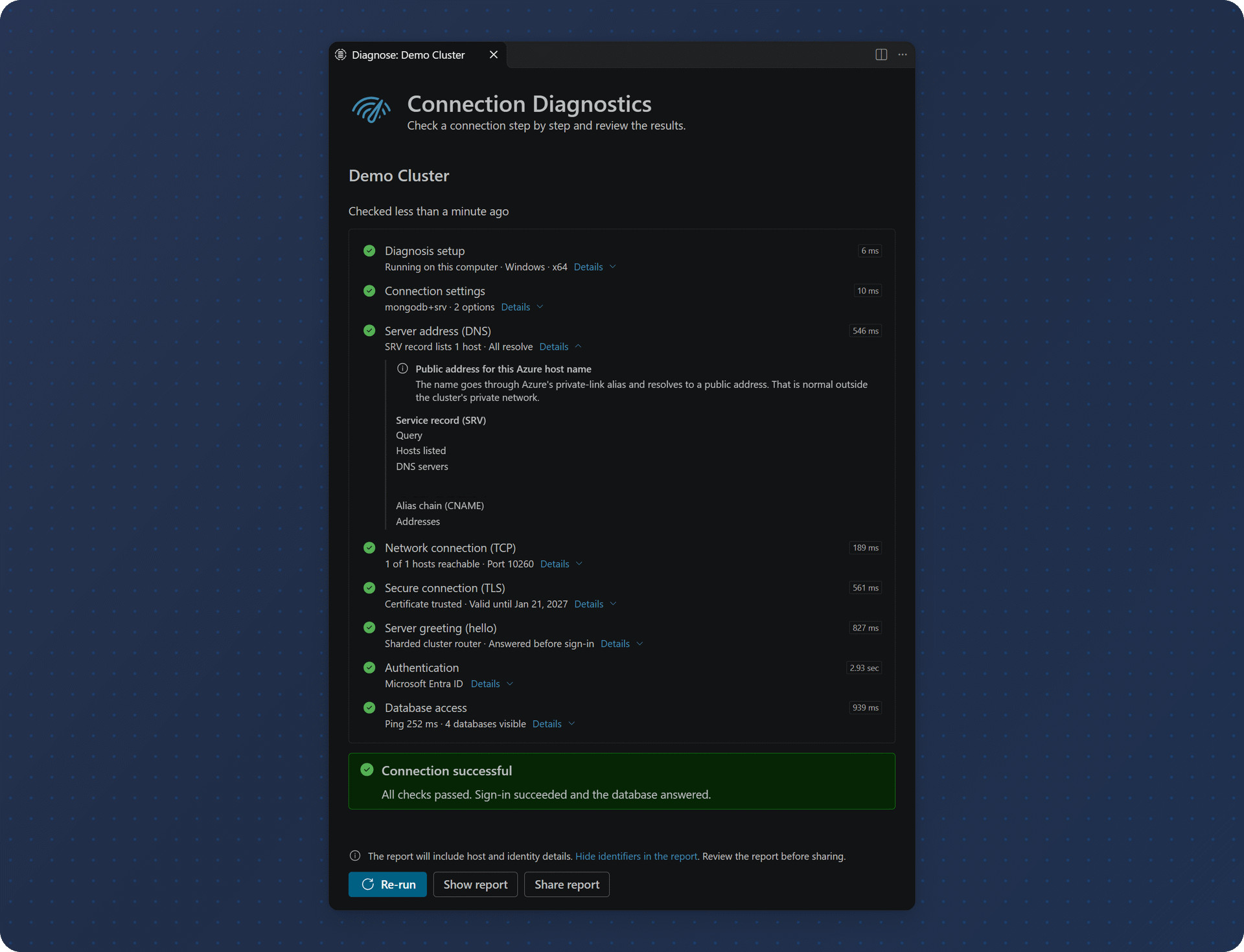
Diagnostics uses your available credentials without asking you to sign in. If you see Connection not tested, connect to the cluster normally, then select Re-run.
Checks run where the extension runs, including a remote development machine. If your app runs elsewhere, test from there too. Diagnostics doesn't change settings or check Azure firewall rules or cluster health. Treat firewall hints as suggestions, not confirmed causes.
Share a diagnostic report with support
When the checks finish, select Show report to preview a detailed Markdown report. To share it, select Share report, then choose:
- Copy report to clipboard to copy the Markdown report.
- Save report to file to save a Markdown or JSON report.
Important
Reports never include passwords or tokens, but they do include host names, addresses, user and account names, tenant IDs, and database names. Before you share a report, select Hide identifiers in the report to replace these values with placeholders, then review the report.
The extension doesn't upload reports. Attach the report to your support request yourself. For more about each check and report option, see Connection Diagnostics in the extension user manual.
Troubleshoot connectivity without the extension
Use these checks if you can't install the extension or want to confirm a diagnostic finding. Run them from the machine where your app fails, because its DNS and network access can differ from your development computer.
Connection times out
A timeout can occur when the cluster's network settings don't allow access from your client. For production deployments, use private endpoints and verify that the application can reach the private network.
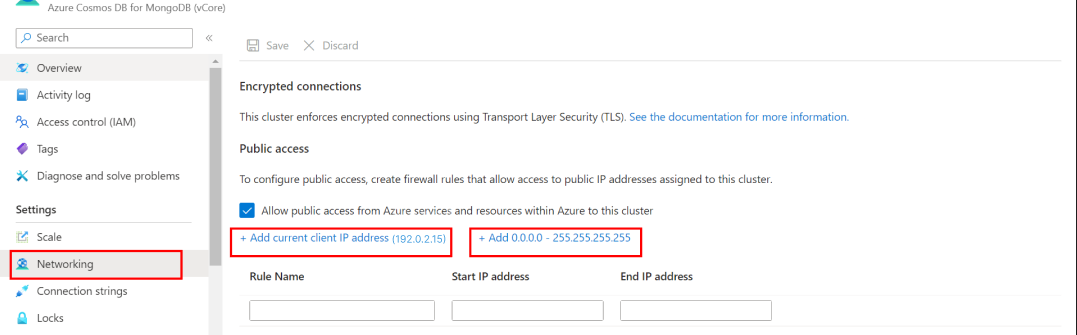
If you use public access, open the cluster's Networking page in the Azure portal. Confirm that public network access is enabled, and add firewall rules for your client's IP address or range, including clients outside Azure. Don't open access to all IP addresses to work around a timeout. For more information, see Network security.
Resolve DNSClient.DnsResponseException errors
DNS or socket errors can stop your app from finding or reaching the cluster. Check DNS and TCP separately: a successful DNS lookup doesn't mean the connection, TLS handshake, or sign-in will succeed.
Check DNS resolution
On Windows, use nslookup, even if PsPing doesn't work. nslookup is also available on most Linux and macOS systems.
For a mongodb+srv:// connection, replace <cluster-hostname> with the host name from your connection string, without the protocol, credentials, or query parameters:
nslookup -type=SRV "_mongodb._tcp.<cluster-hostname>"
nslookup -type=TXT "<cluster-hostname>"
The SRV response lists the target host names and ports. Check that each target resolves to an IP address:
nslookup "<target-hostname>"
If a lookup fails, check your DNS server, VPN, and private DNS settings. For private endpoints, see Test DNS resolution.
Test TCP connectivity
On Linux or macOS, use nc (netcat) to check whether the target accepts a TCP connection:
nc -vz -w 10 "<target-hostname>" 10260
On Windows, use PowerShell:
Test-NetConnection -ComputerName "<target-hostname>" -Port 10260
These examples use port 10260. Use the host names and ports from your SRV response, and test each target.
If the test fails, a client or network firewall might be blocking the connection. Check outbound network rules, the cluster's firewall rules, and private endpoint routing. If you still can't connect, open a support request.
Verify your connection string
Copy the connection string from your cluster's Connection strings page in the Azure portal, and keep its mongodb+srv:// protocol. Don't add prefixes such as c. to the host name or change the endpoint in any other way. To connect, see Connect with a connection string for the extension, or Connect using MongoDB Shell.
If connectivity issues persist, collect application or client-side driver logs and include them in a support request. Remove passwords and tokens, and review host and identity details before sharing logs.
Error codes
This table lists error codes that Azure DocumentDB returns to help you identify and resolve issues. These error codes are also useful for troubleshooting issues by using diagnostic logs.
| Error code | Error name |
|---|---|
| 1 | InternalError |
| 2 | BadValue |
| 5 | GraphContainsCycle |
| 9 | FailedToParse |
| 14 | TypeMismatch |
| 15 | Overflow |
| 20 | IllegalOperation |
| 23 | AlreadyInitialized |
| 26 | NamespaceNotFound |
| 27 | IndexNotFound |
| 28 | PathNotViable |
| 31 | RoleNotFound |
| 34 | CannotBackfillArray |
| 40 | ConflictingUpdateOperators |
| 43 | CursorNotFound |
| 48 | NamespaceExists |
| 52 | DollarPrefixedFieldName |
| 53 | CanNotBeTypeArray |
| 54 | NotSingleValueField |
| 56 | EmptyFieldName |
| 57 | DottedFieldName |
| 61 | ShardKeyNotFound |
| 66 | ImmutableField |
| 67 | CannotCreateIndex |
| 68 | IndexAlreadyExists |
| 72 | InvalidOptions |
| 73 | InvalidNamespace |
| 85 | IndexOptionsConflict |
| 86 | IndexKeySpecsConflict |
| 111 | NotExactValueField |
| 115 | CommandNotSupported |
| 118 | NamespaceNotSharded |
| 146 | ExceededMemoryLimit |
| 159 | DurationOverflow |
| 165 | ViewDepthLimitExceeded |
| 166 | CommandNotSupportedOnView |
| 167 | OptionNotSupportedOnView |
| 181 | AmbiguousIndexKeyPattern |
| 197 | InvalidIndexSpecificationOption |
| 224 | QueryFeatureNotAllowed |
| 232 | MaxSubPipelineDepthExceeded |
| 241 | ConversionFailure |
| 263 | OperationNotSupportedInTransaction |
| 276 | IndexBuildAborted |
| 291 | UnableToFindIndex |
| 361 | CollectionUUIDMismatch |
| 10334 | BsonObjectTooLarge |
| 11000 | DuplicateKey |
| 12587 | BackgroundOperationInProgressForNamespace |
| 13113 | MergeStageNoMatchingDocument |
| 13297 | DbAlreadyExists |