หมายเหตุ
การเข้าถึงหน้านี้ต้องได้รับการอนุญาต คุณสามารถลอง ลงชื่อเข้าใช้หรือเปลี่ยนไดเรกทอรีได้
การเข้าถึงหน้านี้ต้องได้รับการอนุญาต คุณสามารถลองเปลี่ยนไดเรกทอรีได้
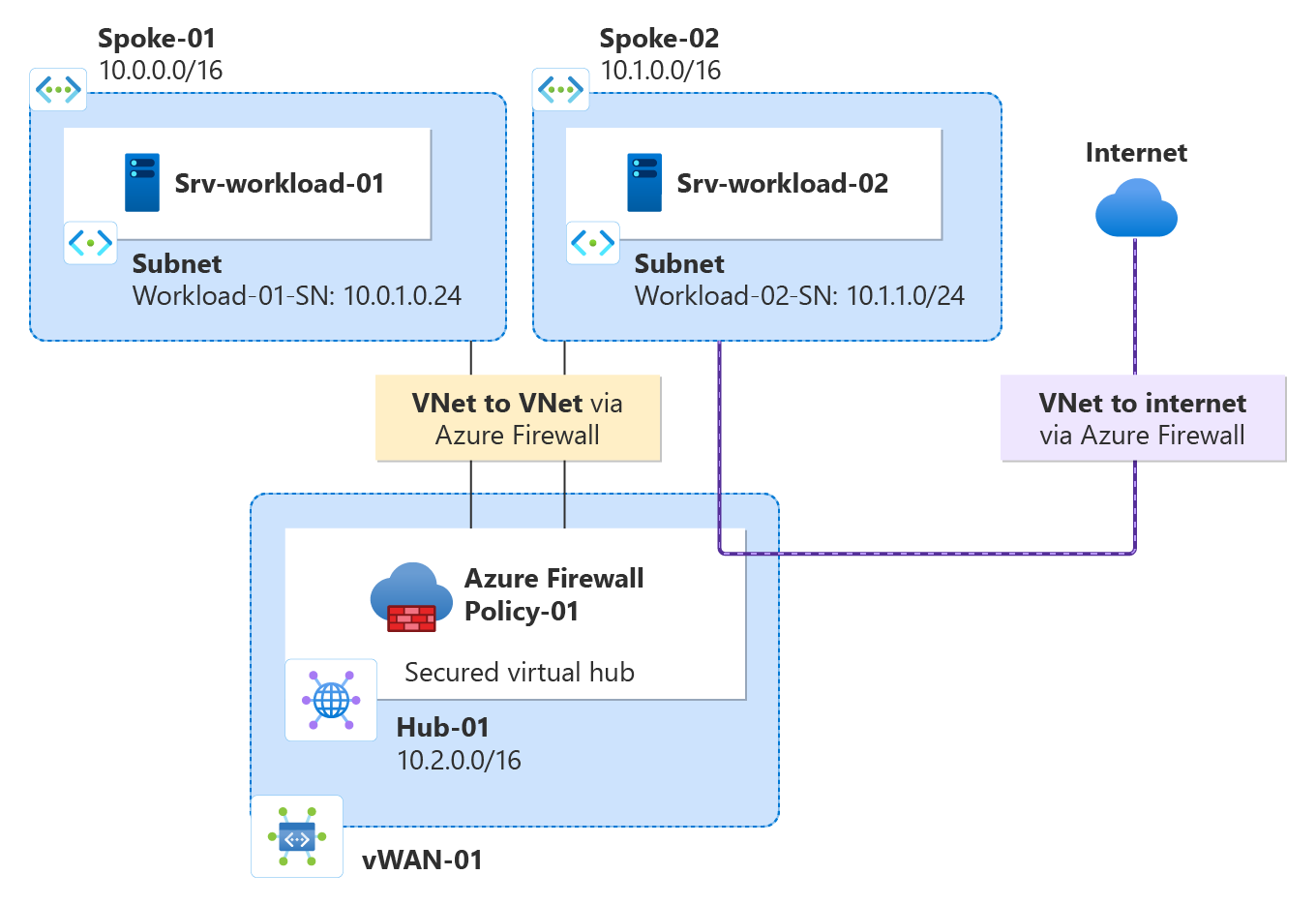
Using Azure Firewall Manager, you can create secured virtual hubs to secure your cloud network traffic destined to private IP addresses, Azure PaaS, and the Internet. Traffic routing to the firewall is automated, so there's no need to create user-defined routes (UDRs).
Firewall Manager also supports a hub virtual network architecture. For a comparison of the secured virtual hub and hub virtual network architecture types, see What are the Azure Firewall Manager architecture options?
In this tutorial, you learn how to:
- Create the spoke virtual network
- Create a secured virtual hub
- Connect the hub and spoke virtual networks
- Route traffic to your hub
- Deploy the servers
- Create a firewall policy and secure your hub
- Test the firewall
Important
The procedure in this tutorial uses Azure Firewall Manager to create a new Azure Virtual WAN secured hub. You can use Firewall Manager to upgrade an existing hub, but you can't configure Azure Availability Zones for Azure Firewall. It's also possible to convert an existing hub to a secured hub using the Azure portal, as described in Configure Azure Firewall in a Virtual WAN hub. But like Azure Firewall Manager, you can't configure Availability Zones. To upgrade an existing hub and specify Availability Zones for Azure Firewall (recommended), you must follow the upgrade procedure in Tutorial: Secure your virtual hub using Azure PowerShell.
Prerequisites
If you don't have an Azure subscription, create a free account before you begin.
Create a hub and spoke architecture
First, create spoke virtual networks where you can place your servers.
Create two spoke virtual networks and subnets
The two virtual networks each have a workload server in them and are protected by the firewall.
From the Azure portal home page, select Create a resource.
Search for Virtual network, select it, and select Create.
Create a virtual network with the following settings:
Setting Value Subscription Select your subscription Resource group Select Create new, and type fw-manager-rg for the name and select OK Virtual network name Spoke-01 Region East US Select Next, then select Next.
In the Networking tab, create subnets with the following settings:
Setting Value Add IPv4 address space 10.0.0.0/16 (default) Subnets Workload subnet Name Workload-01-SN Starting address 10.0.1.0/24 Bastion subnet Name AzureBastionSubnet Starting address 10.0.2.0/26 Select Save, Review + create, then select Create.
Repeat this procedure to create another similar virtual network in the fw-manager-rg resource group:
| Setting | Value |
|---|---|
| Name | Spoke-02 |
| Address space | 10.1.0.0/16 |
| Subnet name | Workload-02-SN |
| Starting address | 10.1.1.0/24 |
Create the secured virtual hub
Create your secured virtual hub using Firewall Manager.
From the Azure portal home page, in the search box, type Network Security and select it under Services.
Under Secure your resources, select Virtual hubs.
On Network Security | Virtual hubs, select Create new secured virtual hub.
On the Create new secured virtual hub page, enter the following information:
Setting Value Subscription Select your subscription. Resource group Select fw-manager-rg Region East US Secured virtual hub name Hub-01 Hub address space 10.2.0.0/16 Select New vWAN.
Setting Value New virtual WAN name Vwan-01 Type Standard Include VPN gateway to enable Trusted Security Partners Leave the check box cleared. Select Next: Azure Firewall.
Accept the default Azure Firewall Enabled setting.
For Azure Firewall tier, select Standard.
Select the desired combination of Availability Zones.
Important
A Virtual WAN is a collection of hubs and services made available inside the hub. You can deploy as many Virtual WANs as you need. In a Virtual WAN hub, there are multiple services like VPN, ExpressRoute, and so on. Each of these services is automatically deployed across Availability Zones except Azure Firewall, if the region supports Availability Zones. To align with Azure Virtual WAN resiliency, you should select all available Availability Zones.
Type 1 in the Specify number of Public IP addresses text box or associate an existing public IP address (preview) with this firewall.
Under Firewall Policy ensure the Default Deny Policy is selected. You refine your settings later in this article.
Select Next: Security Partner Provider.
Accept the default Trusted Security Partner Disabled setting, and select Next: Review + create.
Select Create.
Note
It may take up to 30 minutes to create a secured virtual hub.
You can find the firewall public IP address after the deployment completes.
- Open Network Security.
- Under secure your resources, select Virtual hubs.
- Select hub-01.
- Select AzureFirewall_Hub-01.
- Note the public IP address to use later.
Connect the hub and spoke virtual networks
Now you can peer the hub and spoke virtual networks.
Select the fw-manager-rg resource group, then select the Vwan-01 virtual WAN.
Under Connectivity, select Virtual network connections.
Setting Value Connection name hub-spoke-01 Hubs Hub-01 Resource group fw-manager-rg Virtual network Spoke-01 Select Create.
Repeat the previous steps to connect the Spoke-02 virtual network with the following settings:
Setting Value Connection name hub-spoke-02 Hubs Hub-01 Resource group fw-manager-rg Virtual network Spoke-02
Deploy the servers
On the Azure portal, select Create a resource.
Search for Ubuntu Server 22.04 LTS and select it.
Select Create > Virtual machine.
Enter these values for the virtual machine:
Setting Value Resource group fw-manager-rg Virtual machine name Srv-workload-01 Region (US) East US Image Ubuntu Server 22.04 LTS - x64 Gen2 Authentication type SSH public key Username azureuser SSH public key source Generate new key pair Key pair name srv-workload-01_key Under Inbound port rules, for Public inbound ports, select None.
Accept the other defaults and select Next: Disks.
Accept the disk defaults and select Next: Networking.
Select Spoke-01 for the virtual network and select Workload-01-SN for the subnet.
For Public IP, select None.
Accept the other defaults and select Next: Management.
Select Next:Monitoring.
Select Disable to disable boot diagnostics.
Accept the other defaults and select Review + create.
Review the settings on the summary page, and then select Create.
When prompted, download and save the private key file (for example, srv-workload-01_key.pem).
Use the information in the following table to configure another virtual machine named Srv-Workload-02. The rest of the configuration is the same as the Srv-workload-01 virtual machine, but use a different key pair name such as srv-workload-02_key.
| Setting | Value |
|---|---|
| Virtual network | Spoke-02 |
| Subnet | Workload-02-SN |
After the servers are deployed, select a server resource, and in Networking note the private IP address for each server.
Install Nginx on the servers
After the virtual machines are deployed, install Nginx on both servers to verify web connectivity later.
In the Azure portal, navigate to the Srv-workload-01 virtual machine.
Select Run command > RunShellScript.
Run the following command:
sudo apt-get update && sudo apt-get install -y nginx && echo '<h1>Srv-workload-01</h1>' | sudo tee /var/www/html/index.htmlRepeat the same steps for Srv-workload-02, replacing the hostname in the echo command:
sudo apt-get update && sudo apt-get install -y nginx && echo '<h1>Srv-workload-02</h1>' | sudo tee /var/www/html/index.html
Deploy Azure Bastion
Deploy Azure Bastion in the Spoke-01 virtual network to securely connect to the virtual machines.
In the Azure portal, search for Bastions and select it.
Select Create.
Configure the Bastion with the following settings:
Setting Value Subscription Select your subscription Resource group fw-manager-rg Name Bastion-01 Region East US Tier Developer Virtual network Spoke-01 Subnet AzureBastionSubnet (10.0.2.0/26) Select Review + create, then select Create.
Note
Azure Bastion deployment can take approximately 10 minutes to complete.
Create a firewall policy and secure your hub
A firewall policy defines collections of rules to direct traffic on one or more Secured virtual hubs. You create your firewall policy and then secure your hub.
In Network Security, under Firewall Manager, select Azure Firewall Policies.
Select Create.
For Resource group, select fw-manager-rg.
Under Policy details, for the Name type Policy-01 and for Region select East US.
For Policy tier, select Standard.
Select Next: DNS Settings.
Select Next: TLS Inspection.
Select Next : Rules.
On the Rules tab, select Add a rule collection.
On the Add a rule collection page, enter the following information.
Setting Value Name App-RC-01 Rule collection type Application Priority 100 Rule collection action Allow Rule Name Allow-msft Source type IP address Source * Protocol http,https Destination type FQDN Destination *.microsoft.com Select Add.
Add a Network rule to allow SSH and HTTP traffic between the spoke virtual networks.
Select Add a rule collection and enter the following information.
Setting Value Name vnet-access Rule collection type Network Priority 100 Rule collection action Allow Rule Name Allow-SSH-HTTP Source type IP address Source 10.0.0.0/16,10.1.0.0/16 Protocol TCP Destination Ports 22,80 Destination Type IP Address Destination 10.0.0.0/16,10.1.0.0/16 Select Add, then select Next: IDPS.
On the IDPS page, select Next: Threat Intelligence
In the Threat Intelligence page, accept defaults and select Review and Create:
Review to confirm your selection and then select Create.
Associate policy
Associate the firewall policy with the hub.
- In Network Security, under Firewall Manager, select Azure Firewall Policies.
- Select the check box for Policy-01.
- Select Manage associations, Associate hubs.
- Select hub-01.
- Select Add.
Route traffic to your hub
Now you must ensure that network traffic gets routed through your firewall.
In Network security, under Secure your resources, select Virtual Hubs.
Select Hub-01.
Under Settings, select Security configuration.
Under Internet traffic, select Azure Firewall.
Under Private traffic, select Send via Azure Firewall.
Note
If you're using public IP address ranges for private networks in a virtual network or an on-premises branch, you need to explicitly specify these IP address prefixes. Select the Private Traffic Prefixes section and then add them alongside the RFC1918 address prefixes.
Under Inter-hub, select Enabled to enable the Virtual WAN routing intent feature. Routing intent is the mechanism through which you can configure Virtual WAN to route branch-to-branch (on-premises to on-premises) traffic via Azure Firewall deployed in the Virtual WAN Hub. For more information regarding prerequisites and considerations associated with the routing intent feature, see Routing Intent documentation.
Select Save.
Select OK on the Warning dialog.
Select OK on the Migrate to use inter-hub dialog.
Note
It takes a few minutes to update the route tables.
Verify that the two connections show Azure Firewall secures both Internet and private traffic.
Test the firewall
To test the firewall rules, use Azure Bastion to connect to Srv-Workload-01 and verify both the application and network rules are working.
Test the application rule
Now, test the firewall rules to confirm that it works as expected.
In the Azure portal, navigate to the Srv-workload-01 virtual machine.
Select Connect > Connect via Bastion.
Provide the username azureuser and upload the private key
.pemfile that you downloaded when you created the VM.Select Connect to open an SSH session.
In the SSH session, run the following command to test access to Microsoft:
curl https://www.microsoft.comYou should see HTML content returned, confirming access is allowed.
Test access to Google (which should be blocked):
curl https://www.google.comThe request should timeout or fail, showing the firewall is blocking this site.
So now you verified that the firewall application rule is working:
- You can browse to the one allowed FQDN, but not to any others.
Test the network rule
Now test the network rule by connecting from Srv-Workload-01 to Srv-Workload-02 using HTTP.
Test HTTP connectivity to the Nginx web server on Srv-Workload-02:
curl http://<Srv-Workload-02-private-IP>You should see the status returned by the web server.
Clean up resources
When you’re done testing your firewall resources, delete the fw-manager-rg resource group to delete all firewall-related resources.