หมายเหตุ
การเข้าถึงหน้านี้ต้องได้รับการอนุญาต คุณสามารถลอง ลงชื่อเข้าใช้หรือเปลี่ยนไดเรกทอรีได้
การเข้าถึงหน้านี้ต้องได้รับการอนุญาต คุณสามารถลองเปลี่ยนไดเรกทอรีได้
Google Workspace lets your users share documents across your organization and with partners. However, it can also expose sensitive data to external users or make it public through shared links. These risks can come from malicious actors or from employees who are unaware of the danger. Google Workspace also has a large third-party app ecosystem. These apps can put your organization at risk from malicious apps or apps with too many permissions.
When you connect Google Workspace to Defender for Cloud Apps, you get better visibility into user activity. You also get threat detection through machine learning, data protection alerts (such as external sharing), automated remediation controls, and detection of threats from third-party apps.
Main threats to your Google Workspace environment
Connecting Google Workspace to Defender for Cloud Apps helps you address the following threats:
- Compromised accounts and insider threats
- Data leakage
- Insufficient security awareness
- Malicious third-party apps and Google add-ons
- Malware
- Ransomware
- Unmanaged bring your own device (BYOD)
How Defender for Cloud Apps helps to protect your environment
Use Defender for Cloud Apps with Google Workspace to:
- Detect cloud threats, compromised accounts, and malicious insiders
- Discover, classify, label, and protect sensitive data in the cloud
- Discover and manage OAuth apps in your environment
- Enforce DLP and compliance policies for cloud data
- Limit shared data exposure and enforce collaboration policies
- Use the audit trail of activities for investigations
SaaS security posture management for Google Workspace
Connect Google Workspace to get security tips in Microsoft Secure Score. After you connect, select Recommended actions in Secure Score. Then filter by Product = Google Workspace to see the results.
Google Workspace supports a security recommendation to Enable MFA enforcement.
For more information, see:
Control Google Workspace with built-in policies and policy templates
You can use the following built-in policy templates to detect and notify you about potential threats:
Important
File policies retire on January 6, 2027. To maintain file-based data protection for this app, migrate to Microsoft Purview DLP or auto-labeling policies.
| Type | Name |
|---|---|
| Built-in anomaly detection policy | Activity from anonymous IP addresses Activity from infrequent country Activity from suspicious IP addresses Impossible travel Activity performed by terminated user (requires Microsoft Entra ID as IdP) Malware detection Multiple failed login attempts Unusual administrative activities |
| Activity policy template | Logon from a risky IP address |
| File policy template | Detect a file shared with an unauthorized domain Detect a file shared with personal email addresses Detect files with PII/PCI/PHI |
For more information about creating policies, see Create a policy.
Automate governance controls
In addition to monitoring for potential threats, you can apply and automate the following Google Workspace governance actions to remediate detected threats:
| Type | Action |
|---|---|
| Data governance | - Apply Microsoft Purview Information Protection sensitivity label - Grant read permission to domain - Make a file/folder in Google Drive private - Reduce public access to file/folder - Remove a collaborator from a file - Remove Microsoft Purview Information Protection sensitivity label - Remove external collaborators on file/folder - Remove file editor's ability to share - Remove public access to file/folder - Require user to reset password to Google - Send DLP violation digest to file owners - Send DLP violation to last file editor - Transfer file ownership - Trash file |
| User governance | - Suspend user - Notify user on alert (via Microsoft Entra ID) - Require user to sign in again (via Microsoft Entra ID) - Suspend user (via Microsoft Entra ID) |
| OAuth app governance | - Revoke OAuth app permission |
For more information about remediating threats from apps, see Governing connected apps.
Protect Google Workspace in real time
Review our best practices for securing and collaborating with external users and blocking and protecting the download of sensitive data to unmanaged or risky devices.
Connect Google Workspace to Microsoft Defender for Cloud Apps
The following instructions describe how to connect Microsoft Defender for Cloud Apps to your existing Google Workspace account using the connector APIs. This connection gives you visibility into and control over Google Workspace use.
The following Google Workspace connector setup steps must be completed by a Google Workspace admin. For detailed information about the configuration steps in Google Workspace, see the Google Workspace documentation. Develop on Google Workspace |Google for Developers
Note
Defender for Cloud Apps doesn’t display file download activities for Google Workspace.
Configure Google Workspace
As a Google Workspace Super Admin, perform these steps to prepare your environment.
Sign in to the Google Workspace as a Super Admin.
Create a new project named Defender for Cloud Apps.
Copy the Project number. You'll need it later.
Enable the following APIs:
- Admin SDK API
- Google Drive API
Create Credentials for a service account with the following details:
Name: Defender for Cloud Apps
Description: API connector from Defender for Cloud Apps to a Google workspace account.
Grant this service account access to the project.
Copy the following information of the service account. You'll need it later
- Client ID
Create a new key. Download and save the file and the password required to use the file.
In the API controls, add a new Client ID in the Domain Wide Delegation, using the Client ID you copied above.
Add the following authorizations. Enter the following list of required scopes (copy the text and paste it in the OAuth Scopes box):
https://www.googleapis.com/auth/admin.reports.audit.readonly,https://www.googleapis.com/auth/admin.reports.usage.readonly,https://www.googleapis.com/auth/drive,https://www.googleapis.com/auth/drive.appdata,https://www.googleapis.com/auth/drive.apps.readonly,https://www.googleapis.com/auth/drive.file,https://www.googleapis.com/auth/drive.metadata.readonly,https://www.googleapis.com/auth/drive.readonly,https://www.googleapis.com/auth/drive.scripts,https://www.googleapis.com/auth/admin.directory.user.readonly,https://www.googleapis.com/auth/admin.directory.user.security,https://www.googleapis.com/auth/admin.directory.user.alias,https://www.googleapis.com/auth/admin.directory.orgunit,https://www.googleapis.com/auth/admin.directory.notifications,https://www.googleapis.com/auth/admin.directory.group.member,https://www.googleapis.com/auth/admin.directory.group,https://www.googleapis.com/auth/admin.directory.device.mobile.action,https://www.googleapis.com/auth/admin.directory.device.mobile,https://www.googleapis.com/auth/admin.directory.user
In the Google admin console, enable the service status for Google Drive for the Super Admin user that will be used for the connector. We recommend that you enable the service status for all users.
Configure Defender for Cloud Apps
Perform the following steps in Defender for Cloud Apps to complete the Google Workspace connection:
In the Microsoft Defender Portal, select Settings. Then choose Cloud Apps. Under Connected apps, select App Connectors.
Select +Connect an app and then select Google Workspace from the list of apps.
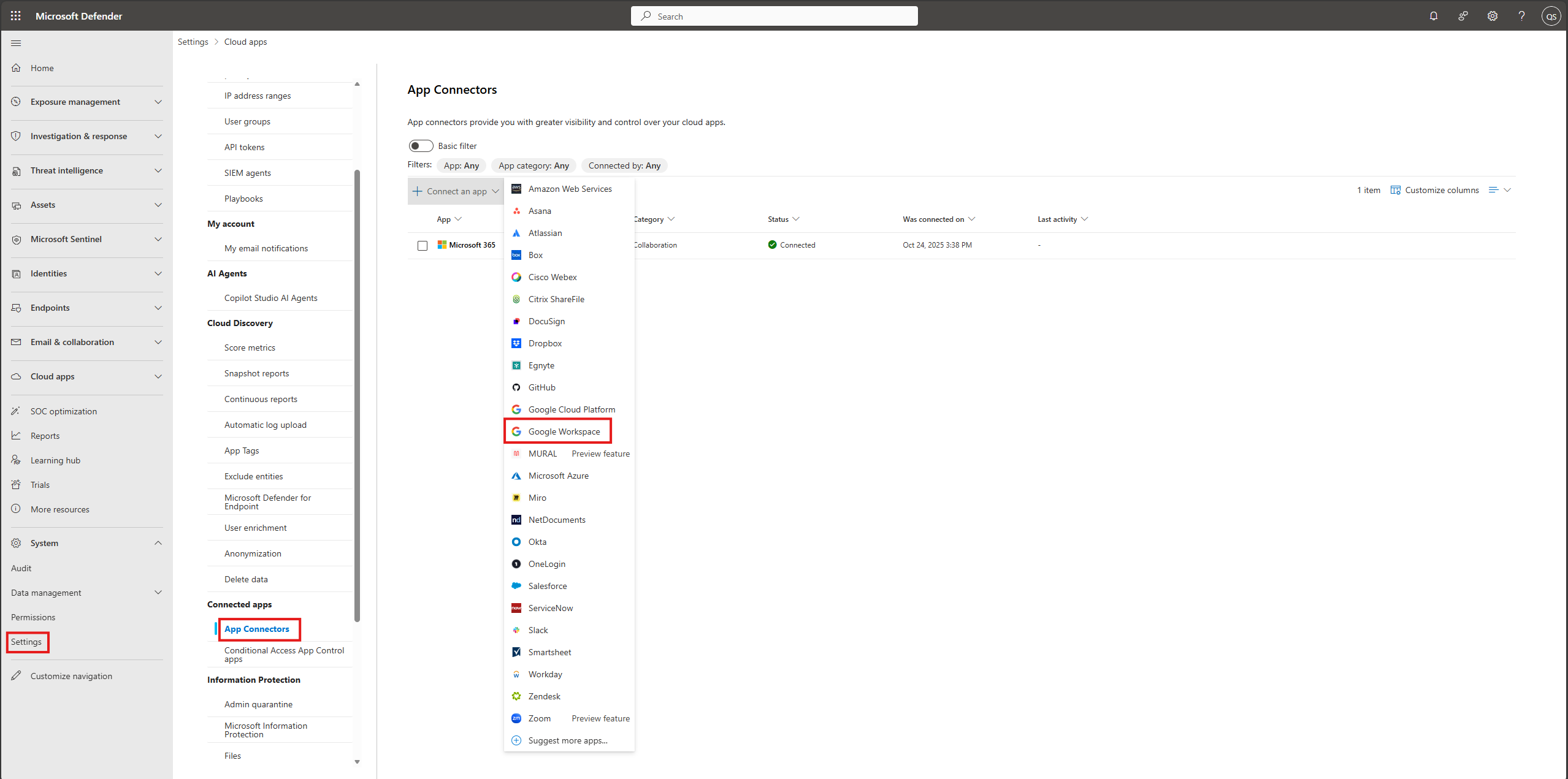
To provide the Google Workspace connection details, under App connectors, do one of the following depending on whether your organization already has a connected GCP instance:
For a Google Workspace organization that already has a connected GCP instance
- In the list of connectors, at the end of row in which the GCP instance appears, select the three dots and then select Connect Google Workspace instance.
For a Google Workspace organization that does not already have a connected GCP instance
- In the Connected apps page, select +Connect an app, and then select Google Workspace.
In the Instance name window, give your connector a name. Then select Next.
In the Add Google key window, enter the service account ID, project number, P12 certificate, and Super Admin email address:
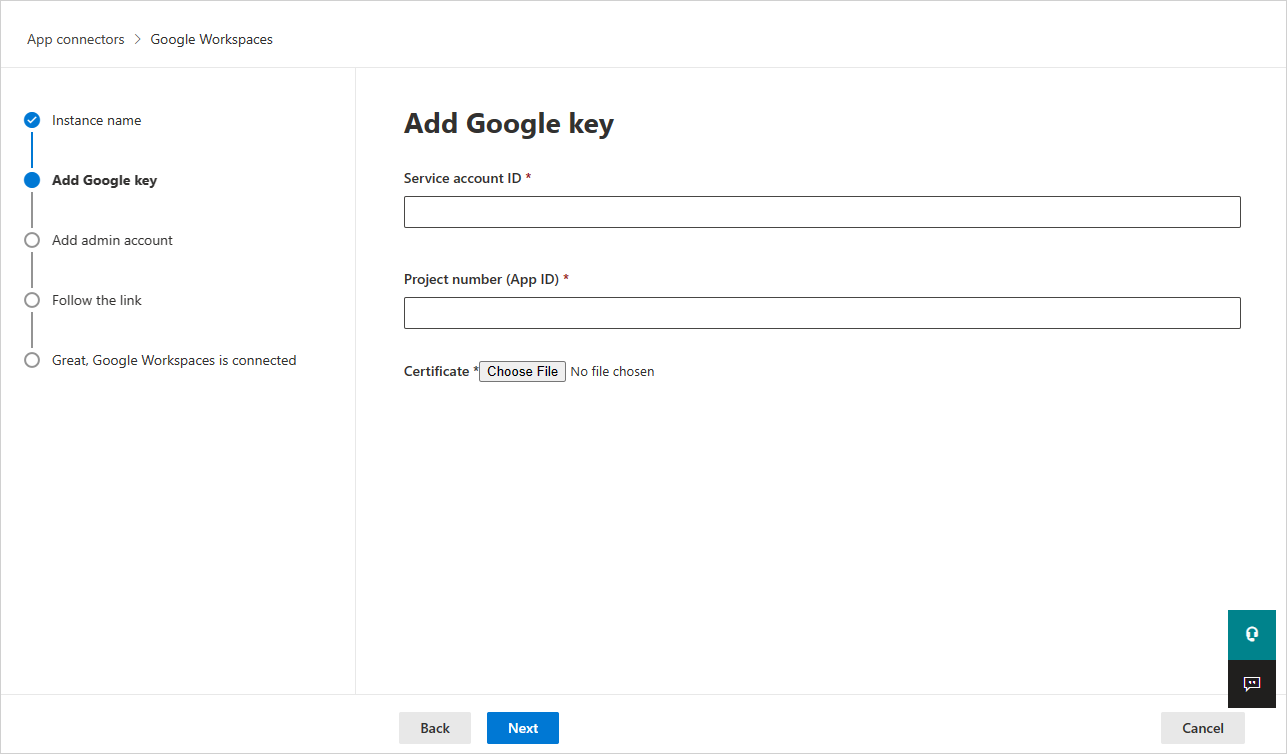
Enter the Service account ID, the Email that you copied earlier.
Enter the Project number (App ID) that you copied earlier.
Upload the P12 Certificate file that you saved earlier.
Enter the email address of your Google Workspace Super Admin.
Deploying with an account that isn't a Google Workspace Super Admin will lead to failure in the API test and doesn't allow Defender for Cloud Apps to correctly function. We request specific scopes so even as Super Admin, Defender for Cloud Apps is still limited.
If you have a Google Workspace Business or Enterprise account, select the check box. For information about which features are available in Defender for Cloud Apps for Google Workspace Business or Enterprise, see Enable instant visibility, protection, and governance actions for your apps.
Select Connect Google Workspaces.
In the Microsoft Defender Portal, select Settings. Then choose Cloud Apps. Under Connected apps, select App Connectors. Make sure the status of the connected App Connector is Connected.
After connecting Google Workspace, you'll receive events for seven days prior to connection.
After connecting Google Workspace, Defender for Cloud Apps performs a full scan. Depending on how many files and users you have, completing the full scan can take a while. To enable near real-time scanning, files on which activity is detected are moved to the beginning of the scan queue. For example, a file that is edited, updated, or shared is scanned right away. Near real-time scanning doesn't apply to files that aren't inherently modified. For example, files that are viewed, previewed, printed, or exported are scanned during the regular scan.
SaaS Security Posture Management (SSPM) data (Preview) is shown in the Microsoft Defender Portal on the Secure Score page. For more information, see Security posture management for SaaS apps.
If you have any problems connecting the app, see Troubleshooting App Connectors.