หมายเหตุ
การเข้าถึงหน้านี้ต้องได้รับการอนุญาต คุณสามารถลอง ลงชื่อเข้าใช้หรือเปลี่ยนไดเรกทอรีได้
การเข้าถึงหน้านี้ต้องได้รับการอนุญาต คุณสามารถลองเปลี่ยนไดเรกทอรีได้
Microsoft Defender for Cloud Apps enables you to scope your deployment. Scoping allows you to select certain user groups to be monitored for apps or excluded from monitoring.
Note
Scoped deployment doesn't reduce the number of files, OAuth applications, or user accounts that are scanned. It only reduces the number of user activities based on the selected user group.
Note
As Microsoft Defender moves toward a fully unified identity platform, some Defender for Cloud Apps data pipelines remain separate. Scoped deployment uses a separate data pipeline that isn't yet integrated with the Identity inventory. Correlations defined in the Identity inventory don't affect scoped deployment. For a full list of affected features, see Enable Identity inventory integration.
Include or exclude user groups
You might not want to use Microsoft Defender for Cloud Apps for all the users in your organization. Scoping is especially useful when you want to limit your deployment because of license restrictions. You might also need to limit because of compliance regulations requiring you not monitor users from certain countries/regions. For example, use scoped deployment to only monitor US-based employees. Alternatively, you can avoid showing any activities for your users based in Germany.
To scope your deployment, you must first import user groups to Microsoft Defender for Cloud Apps. By default, you'll see the following groups:
Application user group - A built-in group that you can use to see activities performed by Microsoft 365 and Microsoft Entra applications.
External users group - All users who aren't members of any of the managed domains you configured for your organization.
Setting an include rule automatically excludes all groups not within the included group. For example, if you set a rule to include all members of the US-office groups, any groups not included in the US-office groups won't be monitored.
Excluded user groups override included user groups. If you include the user group UK-employees but exclude Marketing, Microsoft Defender for Cloud Apps doesn't monitor marketing members from the UK even if they're members of the UK-employees group.
In the Microsoft Defender portal, select Settings. Then choose Cloud Apps. Under System, select Scoped deployment and privacy.
To scope your deployment to include or exclude specific groups, import user groups into Microsoft Defender for Cloud Apps.
To set specific groups to be monitored by Microsoft Defender for Cloud Apps, in the Include tab, select +Add rule.
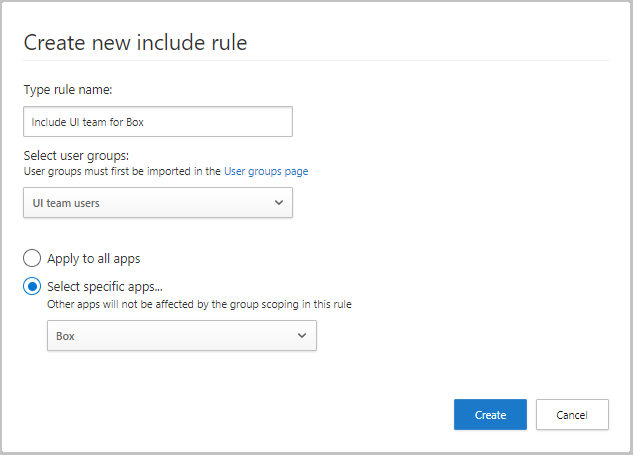
In the Create new include rule dialog, complete the following steps:
- Under Type rule name, enter a descriptive name for the rule.
- Under Select user groups, select all the groups you want to monitor using Microsoft Defender for Cloud Apps.
- Select whether you want to apply this rule to all connected apps or only to Specific apps. If you select Specific apps, the rule will only affect monitoring of the apps you select. For example, if you select the group UI team users and Box, Defender for Cloud Apps will only monitor Box activity for users in your UI team users group and for all other apps, Defender for Cloud Apps will monitor all activities for all users.
- Under Type rule name, enter a descriptive name for the rule.
To set specific groups to be excluded from monitoring, in the Exclude tab, select +Add rule.
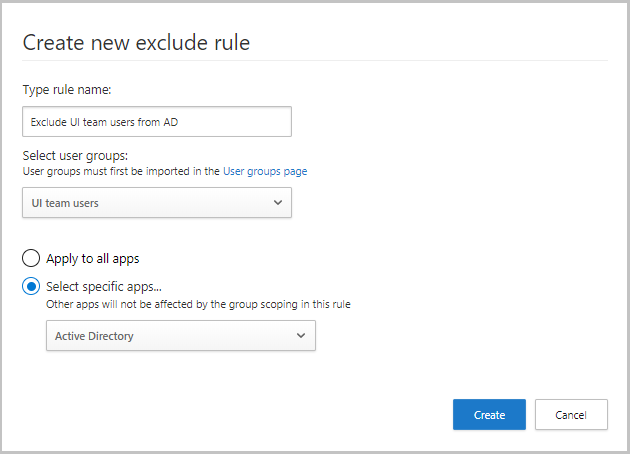
In the Create new Exclude rule dialog, set the following parameters:
Under Type rule name, enter a descriptive name for the rule.
Under Select user groups, select all the groups you don't want Microsoft Defender for Cloud Apps to monitor.
- Select whether you want to apply this rule to all connected apps or only to Specific apps. If you select Specific apps, Microsoft Defender for Cloud Apps stops monitoring the group you selected only for the apps you select. If you select the group UI team users and Active Directory, Microsoft Defender for Cloud Apps monitors all user activity except Active Directory activities that are performed by UI team users.
Example results for include and exclude rules
The include and exclude rules you create work together to scope the overall monitoring that Microsoft Defender for Cloud Apps performs. Here's an example of include and exclude rules you can create, and the final result of what Microsoft Defender for Cloud Apps monitors after the example include and exclude rules are applied.
If you create the following rules:
- Exclude user group "Germany all users"
- Include for user group "Global sales" only Microsoft 365 activities
- Include for user group "Sales managers" only Power BI activities
- Salesforce is connected to Microsoft Defender for Cloud Apps and no rules are set for it
The following user activities are monitored:
| User | Group membership | Activities monitored |
|---|---|---|
| Adriana | Germany all users Global sales Sales managers |
None |
| Alain | Global sales | Microsoft 365 and all subapps except Power BI |
| Cornel | Global sales Sales managers |
Microsoft 365 and all subapps |
| Raymond | Sales managers | Power BI only |
Note
The group scoping in the example include and exclude rules doesn't affect other apps. In the example, for Salesforce, the monitoring includes all activities for all user groups.
Verify your scoped deployment
After you configure scoped deployment, check for new events in the Activity log or the CloudAppEvents table.
If no new events appear, or events from excluded accounts appear, the scoped user accounts might not be correctly correlated with the application’s account identifiers. This issue can occur when one application uses a UPN as the account ID and another application uses a different account ID format or a non‑UPN value. To resolve this account-correlation issue, create an additional scoped deployment group for the app whose account ID format differs from the other connected apps.