หมายเหตุ
การเข้าถึงหน้านี้ต้องได้รับการอนุญาต คุณสามารถลอง ลงชื่อเข้าใช้หรือเปลี่ยนไดเรกทอรีได้
การเข้าถึงหน้านี้ต้องได้รับการอนุญาต คุณสามารถลองเปลี่ยนไดเรกทอรีได้
Microsoft Defender for Endpoint supports down-level operating systems, providing advanced attack detection and investigation capabilities on supported Windows versions.
To onboard down-level Windows client endpoints to the Defender for endpoint security solution:
Use the Defender deployment tool if the down-level Windows client is running one of the following operating systems:
- Windows 7 SP1 Pro
- Windows 7 SP1 Enterprise
- Windows Server 2008 R2 SP1
The Defender deployment tool will install the appropriate Defender endpoint security solution. For more information about this solution, see Use the Defender deployment tool to deploy Defender endpoint security. If your devices have already been onboarded previously using the Microsoft Monitoring Agent (MMA), you can use this tool to perform an upgrade.
Install and configure Microsoft Monitoring Agent (MMA) if your down-level Windows client is running Windows 8.1 or Windows 8.1 Pro.
Tip
After onboarding the device, you can choose to run a detection test to verify that it's properly onboarded to the service. For more information, see Run a detection test on a newly onboarded Defender for Endpoint endpoint.
Use the Defender deployment tool to deploy Defender endpoint security
A Microsoft Defender for endpoint security solution is available for Windows 7 SP1 and Windows Server 2008 R2 SP1 devices. The solution provides advanced protection capabilities and improved functionality for those devices compared to other solutions. The following table outlines the solution's currently supported functionality.
| Feature | Functionality |
|---|---|
| Advanced Hunting | Hunt across events with Kusto Query Language |
| Antivirus in Passive Mode | Allows for coexistence with non-Microsoft anti-malware solutions. |
| Custom file indicators | Allow, block, quarantine files based on hash or certificate information |
| Device and file response capabilities | Isolate device, block and get files, collect investigation packages, run antivirus scan Note: other response capabilities aren't supported |
| Next-generation protection | Defender Antivirus with real-time behavior monitoring, cloud-delivered, and definition-based malware blocking and remediation. Scheduled and manually triggered scans. Note: Network Protection, Attack Surface Reduction Rules, Controlled Folder Access, and related functionality including IP and URL indicators aren't supported. |
| Operating system and software vulnerability assessments | Defender Vulnerability Management provides insights into vulnerabilities for Windows and installed software. Note: The following functionality isn't available for Windows 7 SP1 and Windows Server 2008 R2: - Security configuration assessment - "Pending reboot" experience - Premium capabilities: security baseline assessment, browser extensions, certificate and application blocking |
| Security Settings Management | Policy enforcement for Defender Antivirus capabilities. Note that only settings for available features will take effect. |
| Sense detection sensor | Rich detection events for use in device timeline, hunting, and to generate alerts based on indicators of compromise and attack. |
| Attack Disruption: contain device/IP | Automated attack disruption to shut down attacks leveraging lateral movement. |
| (Automatic) updates | Regular updates for anti-malware and detection components. |
The solution can be downloaded and installed using the Defender deployment tool, a lightweight, self-updating application that streamlines onboarding for all Windows versions supported by Defender for Endpoint. The deployment tool takes care of prerequisites, automates migrations from older solutions, and removes the need for complex onboarding scripts, separate downloads, and manual installations. For information about the tool and how to use it, see Deploy Microsoft Defender endpoint security to Windows devices using the Defender deployment tool.
Install and configure Microsoft Monitoring Agent (Windows 8.1 only)
It's recommended to onboard down-level Windows clients via MMA and SCEP only if the client is running Windows 8.1 or 8.1 Pro. For all other Windows operating systems, use the Defender deployment tool.
Before you begin
Review the following details to verify minimum system requirements:
Install the February 2018 monthly update rollup - Direct download link from the Windows Update catalog is available here
Install the March 12, 2019 (or later) Servicing stack update - Direct download link from the Windows Update catalog is available here
Install the Update for customer experience and diagnostic telemetry
Install Microsoft .NET Framework 4.5.2 or later
Note
Installation of .NET 4.5 might require you to restart your computer after installation.
Meet the Azure Log Analytics agent minimum system requirements. For more information, see Collect data from computers in your environment with Log Analytics
Installation steps
Download the agent setup file: Windows 64-bit agent or Windows 32-bit agent.
Note
Due to the deprecation of SHA-1 support by the MMA agent, the MMA agent needs to be version 10.20.18029 or newer.
Obtain the workspace ID:
- In the Defender for Endpoint navigation pane, select Settings > Device management > Onboarding.
- Select the operating system.
- Copy the workspace ID and workspace key.
Using the Workspace ID and Workspace key choose any of the following installation methods to install the agent:
Manually install the agent using setup.
On the Agent Setup Options page, select Connect the agent to Azure Log Analytics (OMS)
Note
If you're a US Government customer, under "Azure Cloud", you need to choose "Azure US Government" if using the setup wizard, or if using a command line or a script - set the "OPINSIGHTS_WORKSPACE_AZURE_CLOUD_TYPE" parameter to 1.
If you're using a proxy to connect to the Internet see the Configure proxy and Internet connectivity settings section.
Once completed, you should see onboarded endpoints in the portal within an hour.
Configure and update System Center Endpoint Protection clients
Defender for Endpoint integrates with System Center Endpoint Protection to provide visibility to malware detections and to stop propagation of an attack in your organization by banning potentially malicious files or suspected malware.
The following steps are required to enable this integration:
- Install the January 2017 anti-malware platform update for Endpoint Protection clients
- Configure the SCEP client Cloud Protection Service membership to the Advanced setting
- Configure your network to allow connections to the Microsoft Defender Antivirus cloud. For more information, see Configure and validate Microsoft Defender Antivirus network connections
Configure proxy and Internet connectivity settings
If your servers need to use a proxy to communicate with Defender for Endpoint, use one of the following methods to configure the MMA to use the proxy server:
If a proxy or firewall is in use, ensure that servers can access all of the Microsoft Defender for Endpoint service URLs directly and without SSL interception. For more information, see enable access to Microsoft Defender for Endpoint service URLs. Use of SSL interception prevents the system from communicating with the Defender for Endpoint service.
Once completed, you should see onboarded Windows servers in the portal within an hour.
Offboard endpoints
You have two options to offboard Windows endpoints from the service:
- Uninstall the MMA agent
- Remove the Defender for Endpoint workspace configuration
Note
Offboarding causes the Windows endpoint to stop sending sensor data to the portal but data from the endpoint, including reference to any alerts it has had will be retained for up to six months.
Option 1: Uninstall the MMA agent
To offboard the Windows endpoint, you can uninstall the MMA agent or detach it from reporting to your Defender for Endpoint workspace. After offboarding the agent, the endpoint will no longer send sensor data to Defender for Endpoint. For more information, see To disable an agent.
Option 2: Remove the Defender for Endpoint workspace configuration
You can use either of the following methods:
- Remove the Defender for Endpoint workspace configuration from the MMA agent
- Run a PowerShell command to remove the configuration
Remove the Defender for Endpoint workspace configuration from the MMA agent
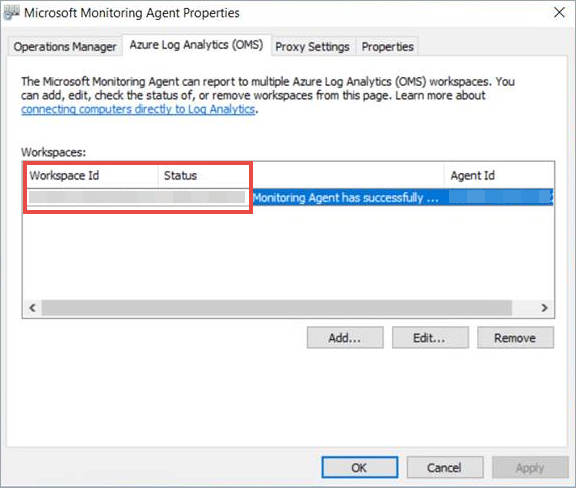
In the Microsoft Monitoring Agent Properties, select the Azure Log Analytics (OMS) tab.
Select the Defender for Endpoint workspace, and select Remove.
Run a PowerShell command to remove the configuration
Get your Workspace ID:
- In the navigation pane, select Settings > Onboarding.
- Select the relevant operating system and get your Workspace ID.
Open an elevated PowerShell and run the following command. Use the Workspace ID you obtained and replacing
WorkspaceID:$AgentCfg = New-Object -ComObject AgentConfigManager.MgmtSvcCfg # Remove OMS Workspace $AgentCfg.RemoveCloudWorkspace("WorkspaceID") # Reload the configuration and apply changes $AgentCfg.ReloadConfiguration()