หมายเหตุ
การเข้าถึงหน้านี้ต้องได้รับการอนุญาต คุณสามารถลอง ลงชื่อเข้าใช้หรือเปลี่ยนไดเรกทอรีได้
การเข้าถึงหน้านี้ต้องได้รับการอนุญาต คุณสามารถลองเปลี่ยนไดเรกทอรีได้
The Conditional Access Optimization Agent for Microsoft Entra includes a phased rollout capability that helps organizations deploy new Conditional Access policies safely and efficiently. This Microsoft Security Copilot feature in Microsoft Entra enables administrators to introduce policies gradually, monitor their impact, and minimize disruptions. This phased rollout capability provides gradual deployment of new policies to minimize the chance of widespread disruption to end users and reduce the need for manual analysis and planning, saving weeks of effort. As with all aspects of the Conditional Access Optimization Agent, administrators retain full control of the policy changes, such as group selection, rollout pacing, and deployment. Clear reasoning for the rollout plan is also provided to maintain transparency.
This article explains how the phased rollout process works, outlines prerequisites, and describes the built-in safeguards that help ensure a smooth deployment.
Prerequisites
- You must have at least the Microsoft Entra ID P1 license.
- You must have available security compute units (SCU).
- Conditional Access Administrator and Security Administrator roles can modify phased rollout settings.
- Tenants must have at least five defined groups that are currently used in Conditional Access policies for the agent to generate a phased rollout plan.
How it works
Any report-only policy that applies to all users is eligible for a phased rollout. The agent can suggest a phased rollout plan for policies it creates, or administrators can apply phased rollout to any existing report-only policy that targets all users. The agent analyzes sign-in data and existing policies to define a phased rollout plan.
Because there are five distinct phases to a rollout plan, you must have at least five groups for the rollout plan to apply. To determine which groups to use, the agent looks at groups that were previously or are currently used in Conditional Access policies. The agent looks at those groups to see how other Conditional Access policies affected them, to gauge potential impact. The agent looks at the size of the groups and then uses all these factors to assign the groups to the phases starting with the low impact groups and ending with the higher impact groups.
There are three steps in the phased rollout process:
- Agent identifies a report-only policy for phased rollout
- Administrator reviews, edits, and accepts the rollout plan
- Administrator executes the approved rollout plan
You can review the groups included in each phase and make changes before and during the phased rollout. When the first phase starts, a new policy is created and turned on for the groups included in the first phase. The original report-only mode policy remains intact.
Agent identifies a report-only policy for phased rollout
The agent can suggest a phased rollout plan when it creates new policies or to existing report-only policies that target all users. The rollout plans include five phases, starting with small, low-risk groups and progressing to larger, high-risk groups.
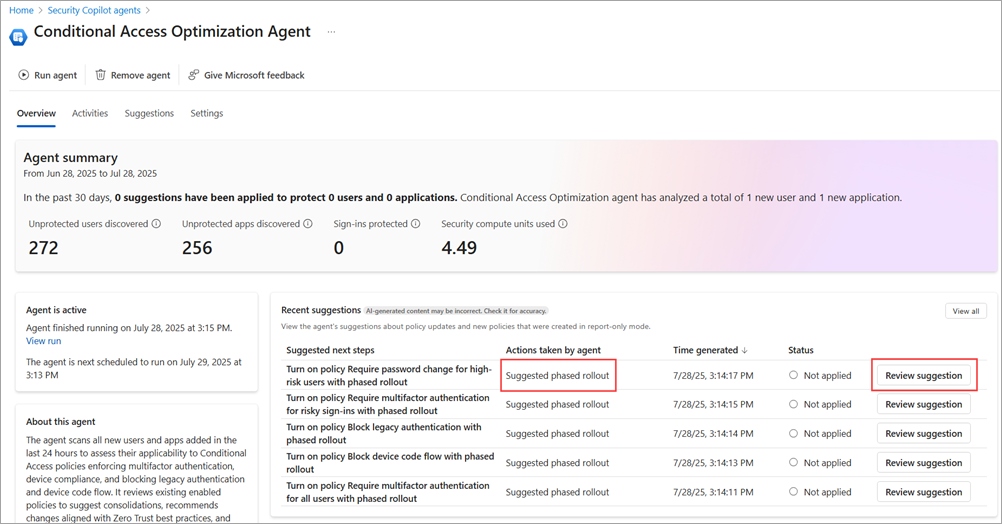
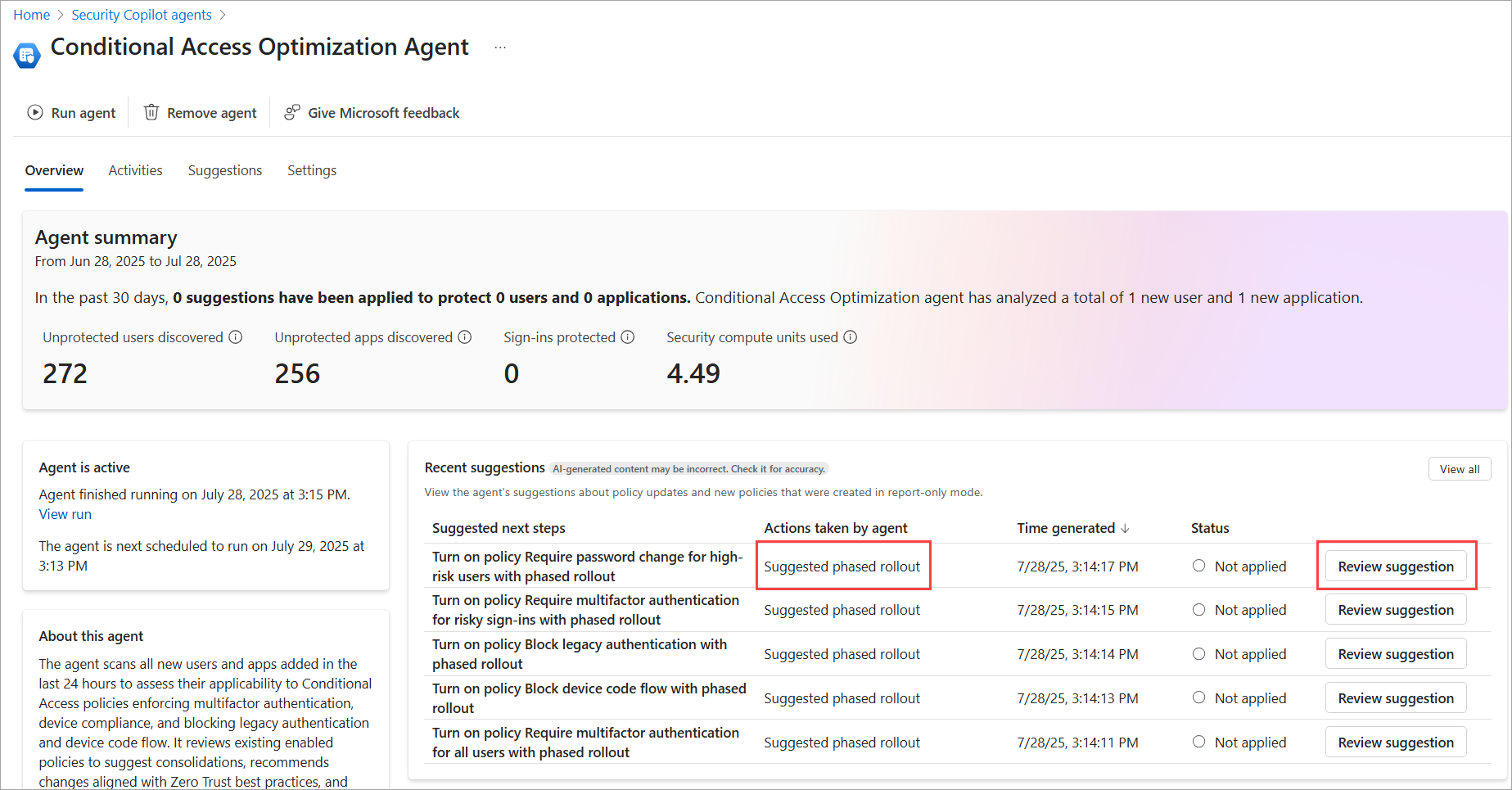
For agent-created policies, look for Suggested phased rollout in the Actions taken by agent column in the list of suggestions.
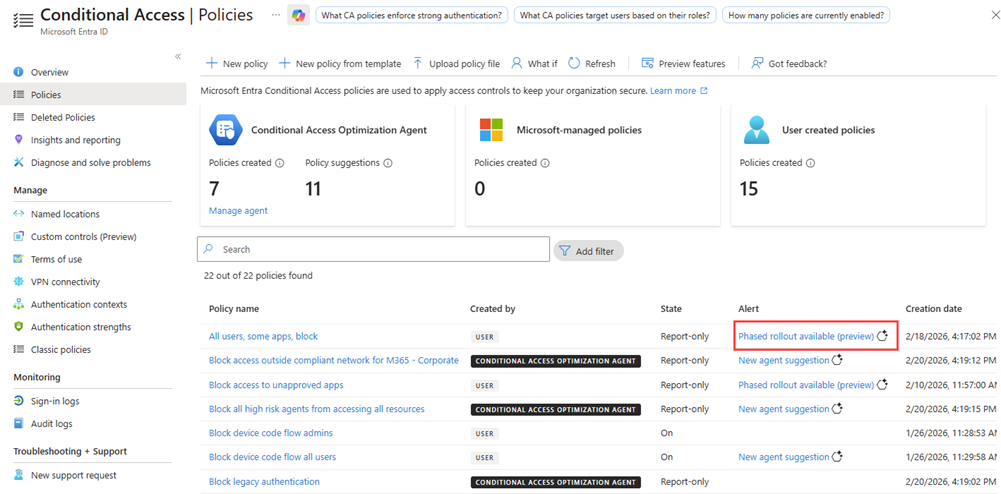
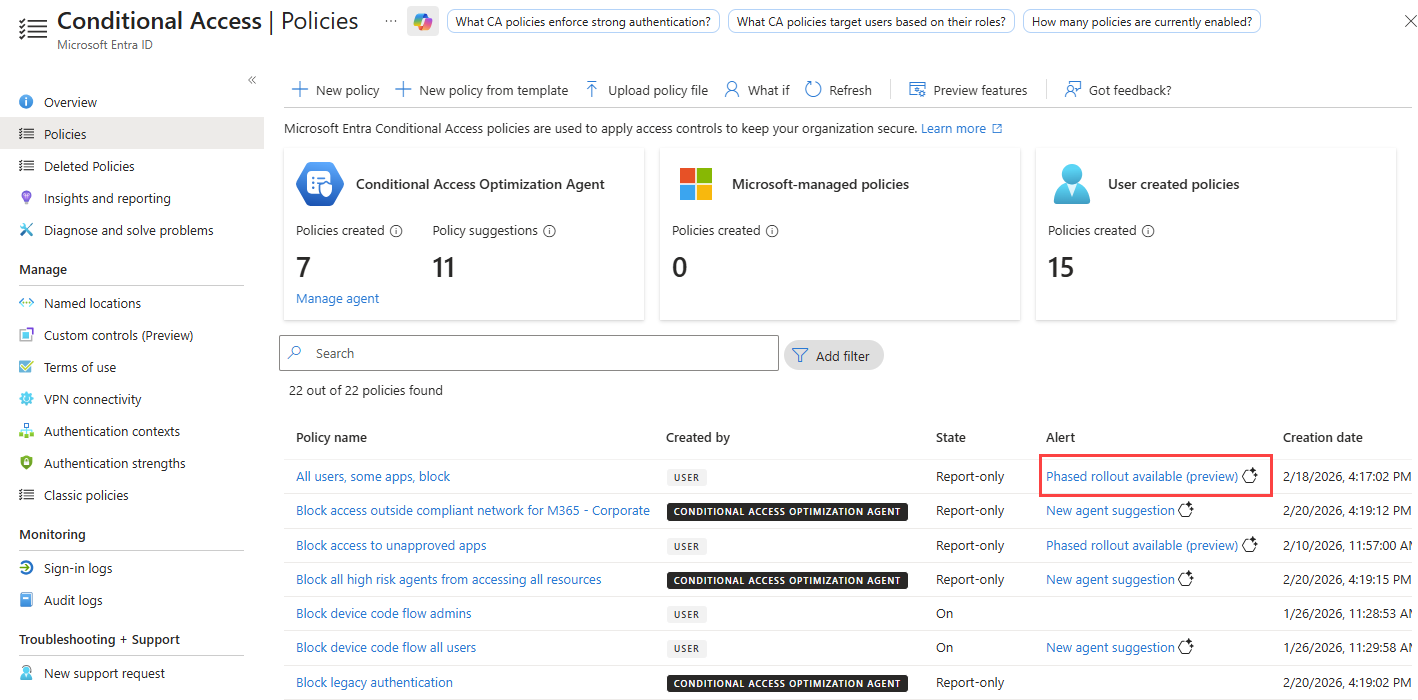
For existing report-only policies, look for Phased rollout available (preview) in the Conditional Access - Policies page.
Administrator reviews, edits, and accepts the rollout plan
Administrators need to review the details of the plan, including the groups included in each phase, the timing of each phase, and how the plan is executed.
Sign in to the Microsoft Entra admin center as at least a Security Administrator.
Browse to Conditional Access Optimization Agent or Conditional Access - Policies and select a policy with the phased rollout suggestion.
- From the Conditional Access - Policies page, select Generate plan from the panel that opens.
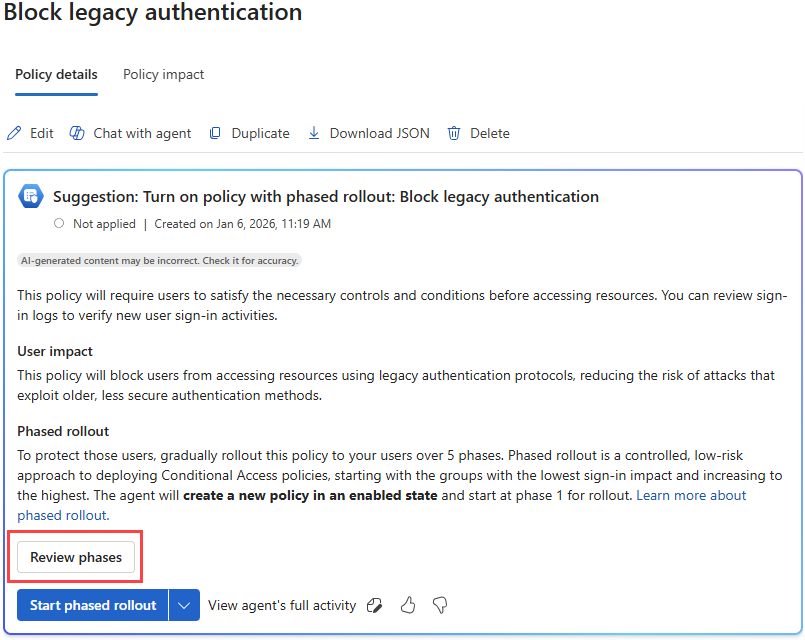
From the Conditional Access Optimization Agent policy details page or after the plan is generated, select Review phases.
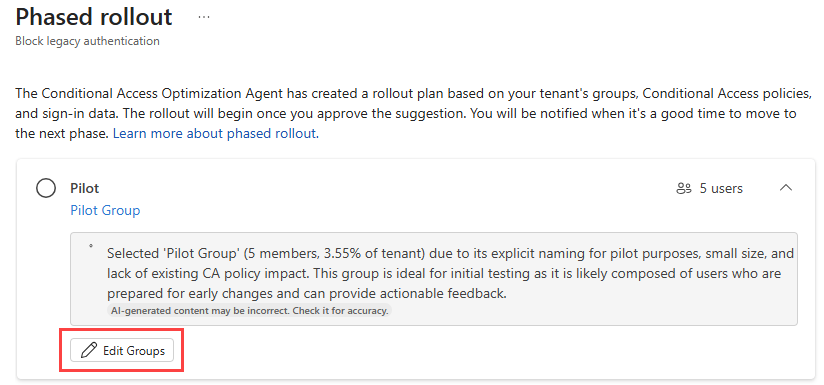
Select Edit Groups to edit the groups included in the phase.
Select the Start phased rollout button from either the policy details panel or the phased rollout details page. The agent creates the new policy in report-only mode.
Tip
You can pause rollout, or mark the rollout complete at any time.
Administrator executes the approved rollout plan
Once you start a phased rollout, the agent helps you progress. The phased rollout suggestion is present throughout the rollout process and can show no action needed, suggest progressing to the next phase, or suggest rolling back. The guidance appears in both the Conditional Access Optimization Agent suggestion list and the Conditional Access - Policies list. Both policies indicate that the phased rollout deployment is in progress.
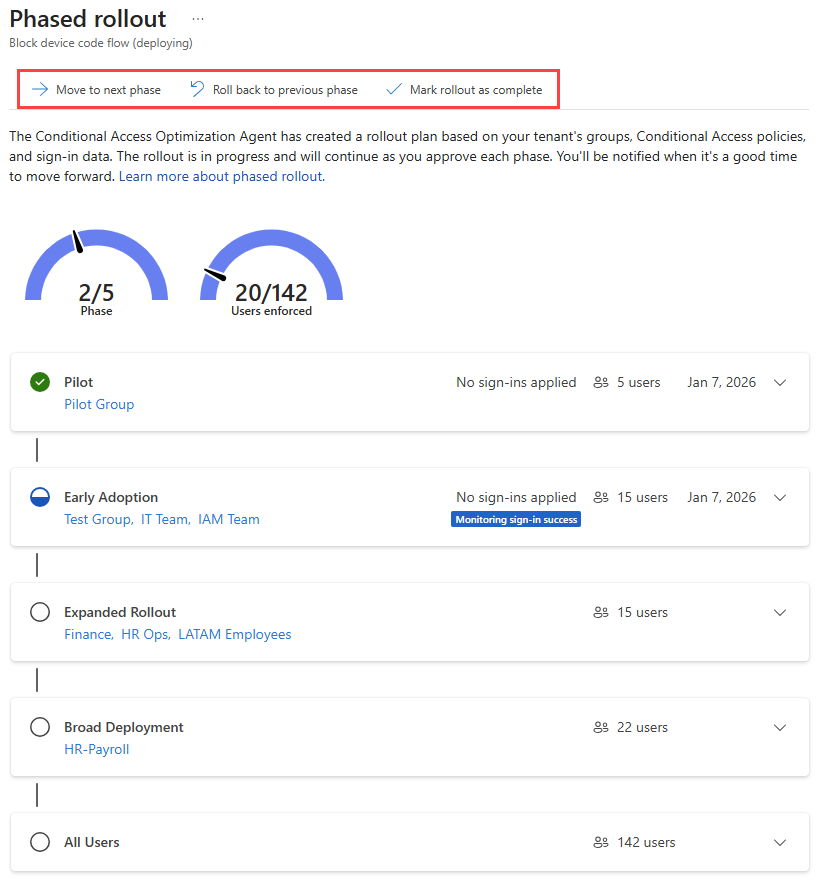
You're provided several options to manage the phased rollout during deployment. During each phase, the agent monitors activity related to the policy to make sure there's no errors or issues. You can adjust the groups for phases that haven't started yet. Moving between phases or completing the deployment is done using the buttons at the top of the page.
Select Move to next phase to advance each phase of the rollout.
Select Roll back to previous phase to cancel the current phase and return to the previous phase.
Select Mark rollout as complete to apply the new policy to all groups and complete the deployment.
Select Move to next phase to advance each phase of the rollout.
Select Roll back to previous phase to cancel the current phase and return to the previous phase.
Select Mark rollout as complete to apply the new policy to all groups and complete the deployment.
Built-in safeguards
Once the phased rollout begins, you can't update the policy's grant controls. If changes are made to the grant controls, the phased rollout is canceled. If more than 10% of sign-ins are blocked by the new policy during any phase, the rollout is immediately paused. The administrator is notified so the details can be reviewed and potentially modified.
Frequently asked questions
How does the phased rollout capability work?
After selecting the groups that each phase applies to, the agent creates a duplicate Conditional Access policy that only includes the group of the first phase. The original Conditional Access policy persists in report-only mode and targets all users, so you can continue to collect data. When the deployment advances to the next phase, the batch of groups is added to the enabled Conditional Access policy. The agent monitors how each stage affects the sign-ins associated with this policy. If the success rate drops below 90%, the phased rollout stops and the enabled policy is placed back into report-only mode. You can then review the logs to determine why sign-ins were failing before attempting the phased rollout again.
Do I have to turn on phased rollout?
The phased rollout capability is turned on by default. To turn it off, go to the Settings tab on the Conditional Access Optimization Agent page. Under Phased rollout, switch the toggle to Off.