หมายเหตุ
การเข้าถึงหน้านี้ต้องได้รับการอนุญาต คุณสามารถลอง ลงชื่อเข้าใช้หรือเปลี่ยนไดเรกทอรีได้
การเข้าถึงหน้านี้ต้องได้รับการอนุญาต คุณสามารถลองเปลี่ยนไดเรกทอรีได้
บทความนี้อธิบายวิธีการเพิ่มการเก็บข้อมูลการเปลี่ยนแปลงฐานข้อมูล PostgreSQL (CDC) เป็นแหล่งเหตุการณ์ใน Fabric Real-Time hub
ตัวเชื่อมต่อแหล่งข้อมูล PostgreSQL Change Data Capture (CDC) สําหรับเหตุการณ์สตรีมของ Microsoft Fabric ช่วยให้คุณสามารถจับภาพสแนปช็อตของข้อมูลปัจจุบันในฐานข้อมูล PostgreSQL ได้ ตัวเชื่อมต่อจะตรวจสอบและบันทึกการเปลี่ยนแปลงระดับแถวในอนาคตใดก็ตามในข้อมูลนี้
Prerequisites
เข้าถึงพื้นที่ทํางานในโหมดสิทธิ์การใช้งาน Fabric capacity (หรือ) โหมดสิทธิ์การใช้งานรุ่นทดลองใช้ที่มีสิทธิ์ผู้สนับสนุนหรือสูงกว่า
การเข้าถึงของผู้ใช้ที่ลงทะเบียนในฐานข้อมูล PostgreSQL
CDC ที่เปิดใช้งานในฐานข้อมูล PostgreSQL
ถ้าคุณมีฐานข้อมูล Azure สําหรับ PostgreSQL ให้ทําตามขั้นตอนในส่วนถัดไปเพื่อเปิดใช้งาน CDC สําหรับข้อมูลโดยละเอียด โปรดดู การจําลองแบบตรรกะและการกําหนดรหัสตรรกะ - ฐานข้อมูล Azure สําหรับ PostgreSQL - เซิร์ฟเวอร์แบบยืดหยุ่น
สําหรับฐานข้อมูล PostgreSQL อื่น ๆ ดู ตัวเชื่อมต่อ Debezium สําหรับ PostgreSQL :: คู่มือ Debezium
Note
ไม่รองรับ CDC หลายตาราง
เปิดใช้งาน CDC ในฐานข้อมูล Azure ของคุณสําหรับ PostgreSQL
เมื่อต้องการเปิดใช้งาน CDC ในฐานข้อมูล Azure สําหรับ PostgreSQL ของคุณ ให้ทําตามขั้นตอนเหล่านี้ตามชนิดการปรับใช้ของคุณ
ฐานข้อมูล Azure สําหรับเซิร์ฟเวอร์เดี่ยว PostgreSQL
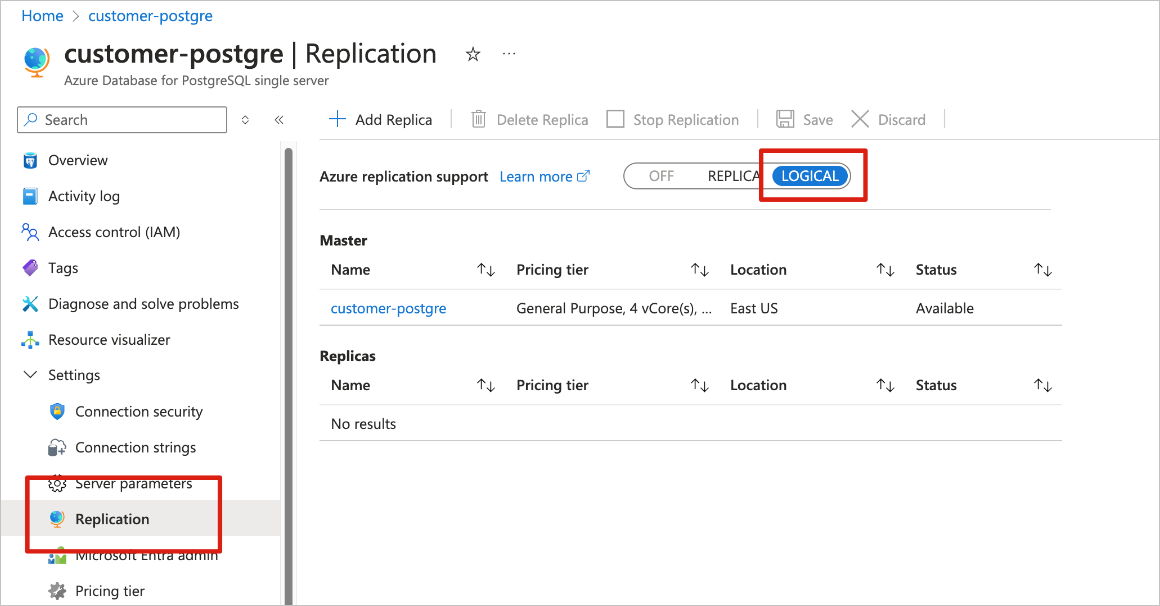
Go to the Replication page on the Azure portal.
Change the replication rule to Logical.
ฐานข้อมูล Azure สําหรับเซิร์ฟเวอร์ที่ยืดหยุ่น PostgreSQL
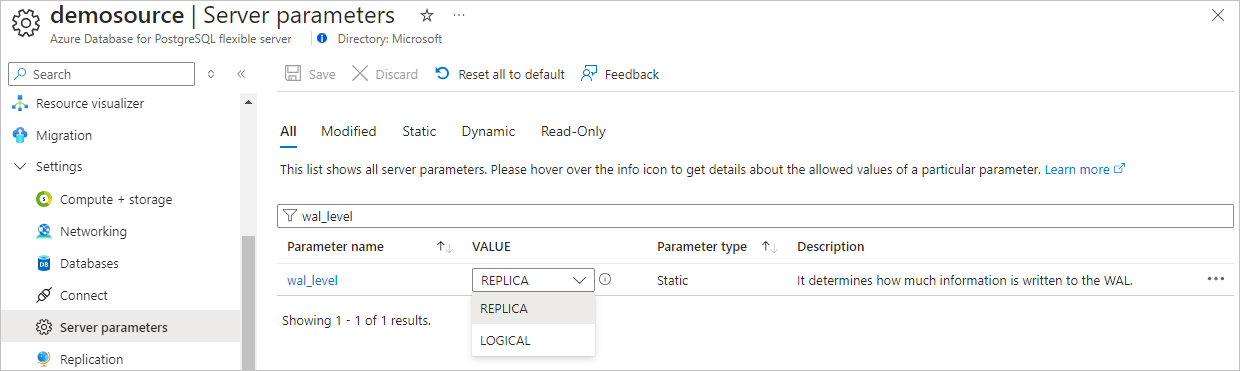
On your Azure Database for PostgreSQL flexible server page in the Azure portal, select Server parameters in the navigation menu.
On the Server parameters page:
Set wal_level to logical.
Update the max_worker_processes to at least 16.
บันทึกการเปลี่ยนแปลงและเริ่มเซิร์ฟเวอร์ใหม่
ยืนยันว่าฐานข้อมูล Azure ของคุณสําหรับอินสแตนซ์เซิร์ฟเวอร์ที่ยืดหยุ่น PostgreSQL อนุญาตปริมาณการใช้งานเครือข่ายสาธารณะ
ให้สิทธิ์การจําลองแบบแก่ผู้ใช้ที่เป็นผู้ดูแลระบบ โดยการเรียกใช้คําสั่ง SQL ต่อไปนี้
ALTER ROLE <admin user> WITH REPLICATION;
รับเหตุการณ์จากฐานข้อมูล Azure สําหรับ PostgreSQL CDC
คุณสามารถรับเหตุการณ์จากฐานข้อมูล Azure สําหรับ PostgreSQL CDC ลงในฮับเรียลไทม์ ด้วยหนึ่งในวิธีต่อไปนี้:
หน้าแหล่งข้อมูล
Sign in to Microsoft Fabric.
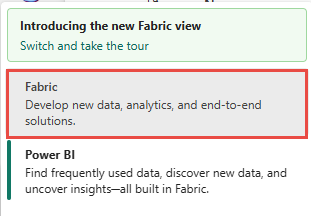
If you see Power BI at the bottom-left of the page, switch to the Fabric workload by selecting Power BI and then by selecting Fabric.
Select Real-Time on the left navigation bar.
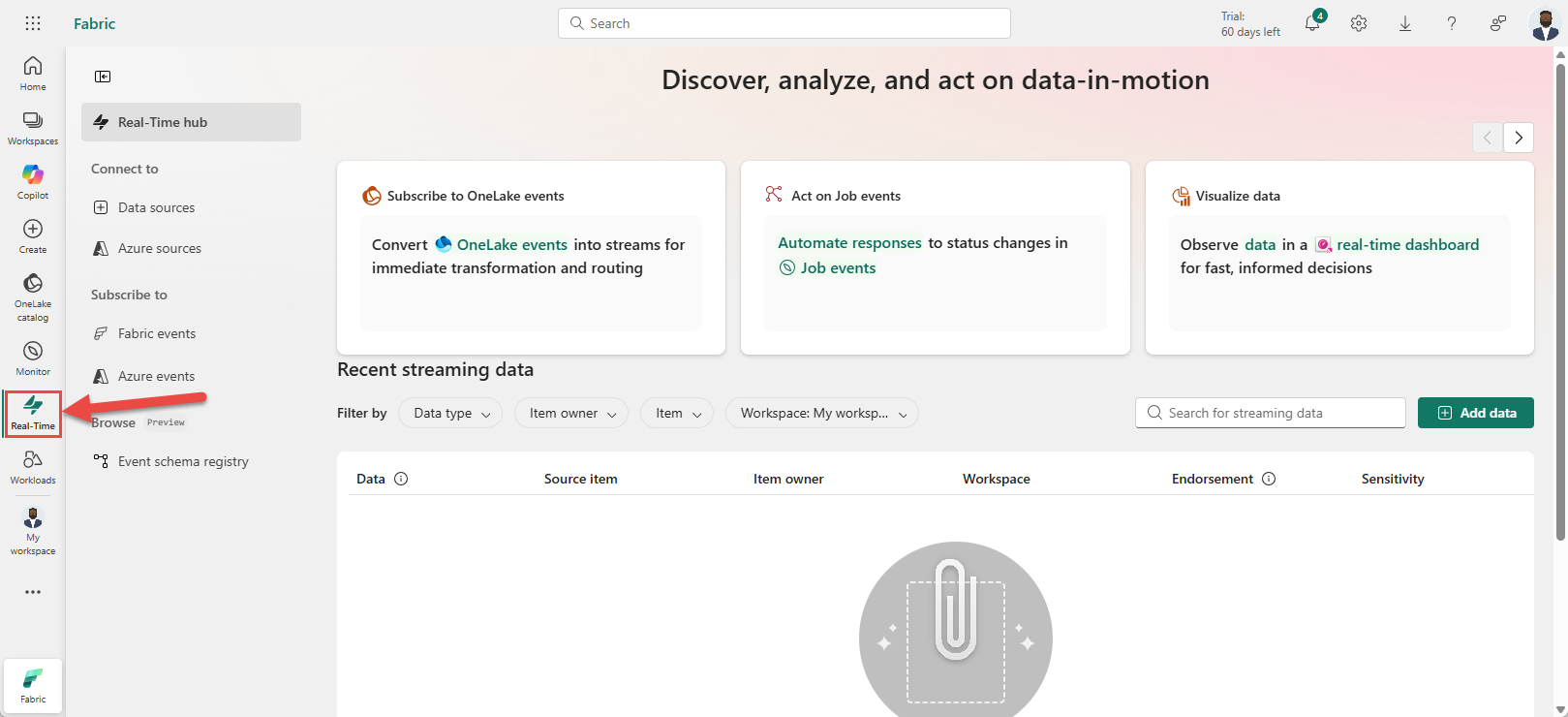
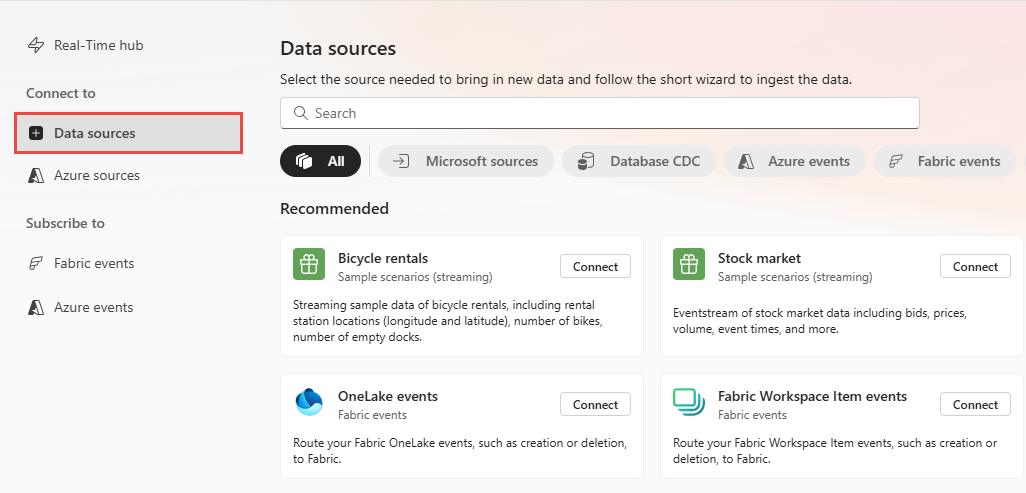
On the Real-Time hub page, select + Data sources under Connect to on the left navigation menu.
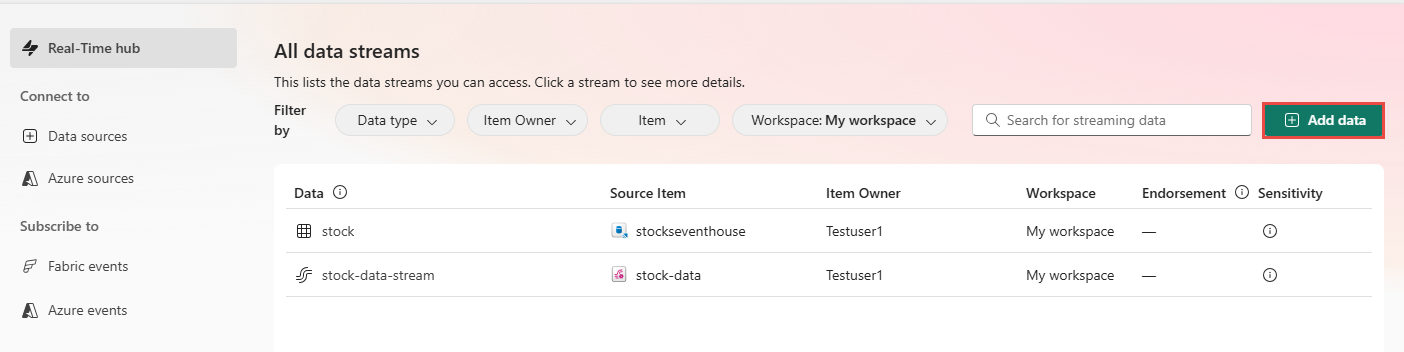
You can also get to the Data sources page from the Real-Time hub page by selecting the + Add data button in the top-right corner.
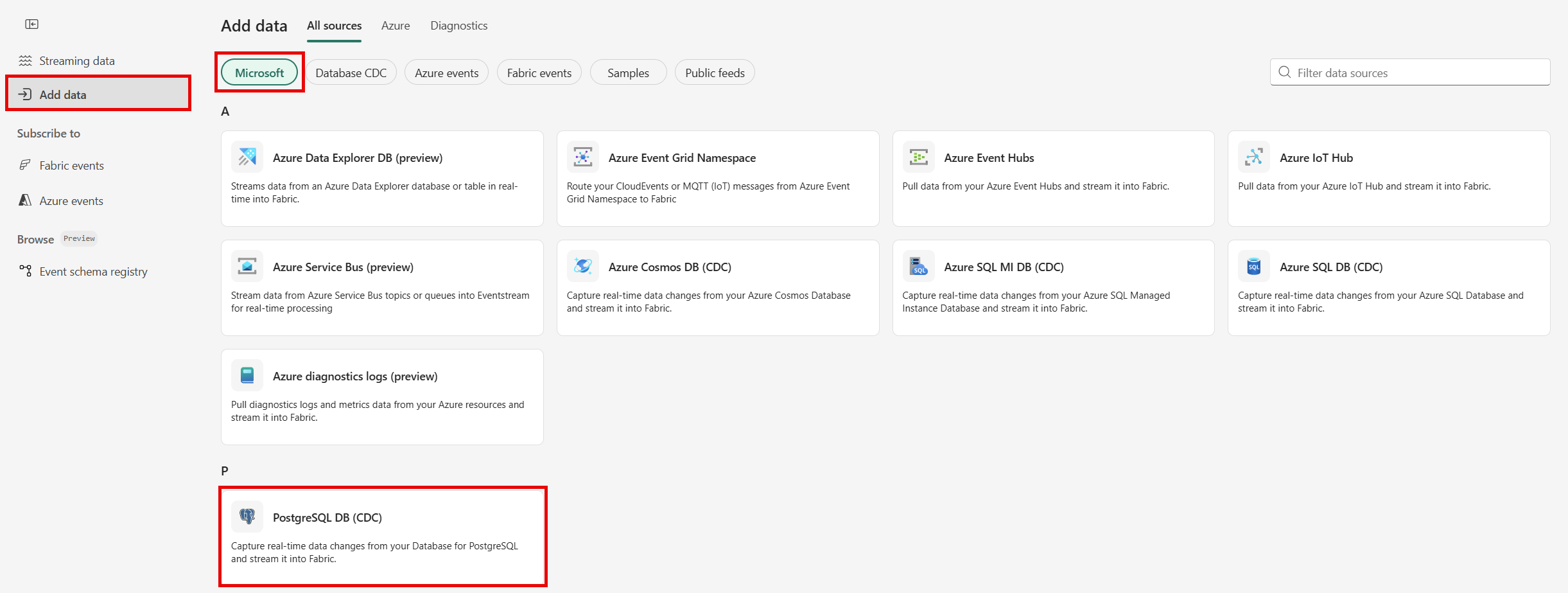
On the Data sources page, select Microsoft sources category at the top, and then select Connect on the Azure DB for PostgreSQL (CDC) tile.
ใช้คําแนะนําจากเพิ่มฐานข้อมูล PostgreSQL CDC เป็นส่วนแหล่งที่มา
หน้าแหล่งที่มาของ Microsoft
In Real-Time hub, select Microsoft sources.
In the Source drop-down list, select PostgreSQL (CDC).
For Subscription, select an Azure subscription that has the resource group with your PostgreSQL Database account.
For Resource group, select a resource group that has the database.
For Region, select a location where your database is located.
Now, move the mouse over the name of the PostgreSQL Database CDC source that you want to connect to Real-Time hub in the list of databases, and select the Connect button, or select ... (ellipsis), and then select the Connect button.
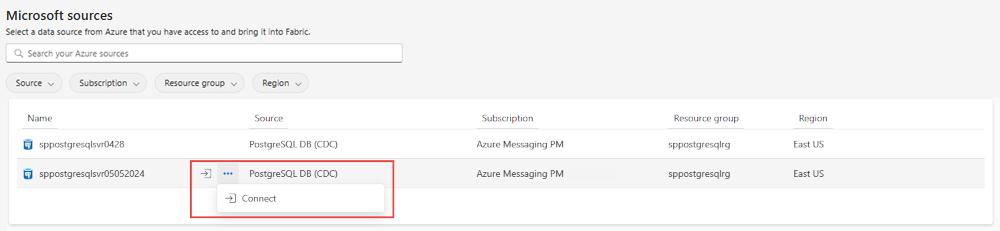
หากต้องการกําหนดค่าข้อมูลการเชื่อมต่อ ให้ใช้ขั้นตอนจากเพิ่มฐานข้อมูล Azure สําหรับ PostgreSQL CDC เป็นส่วนต้นทาง
เพิ่มฐานข้อมูล Azure สําหรับ PostgreSQL CDC เป็นแหล่งข้อมูล
On the Connect page, select New connection.
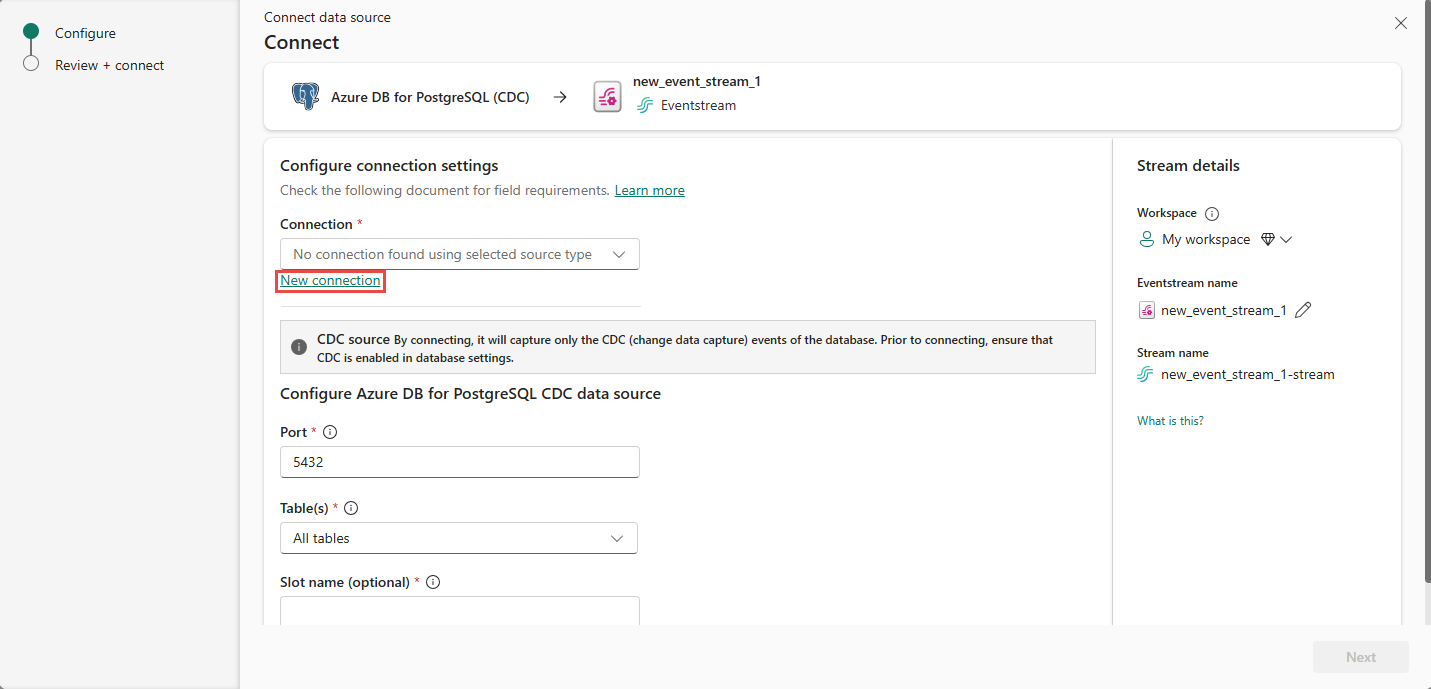
If you have an existing connection to your Azure Database for PostgreSQL CDC source, you can select it from the Connection drop-down list, and move on to configuring port and tables.
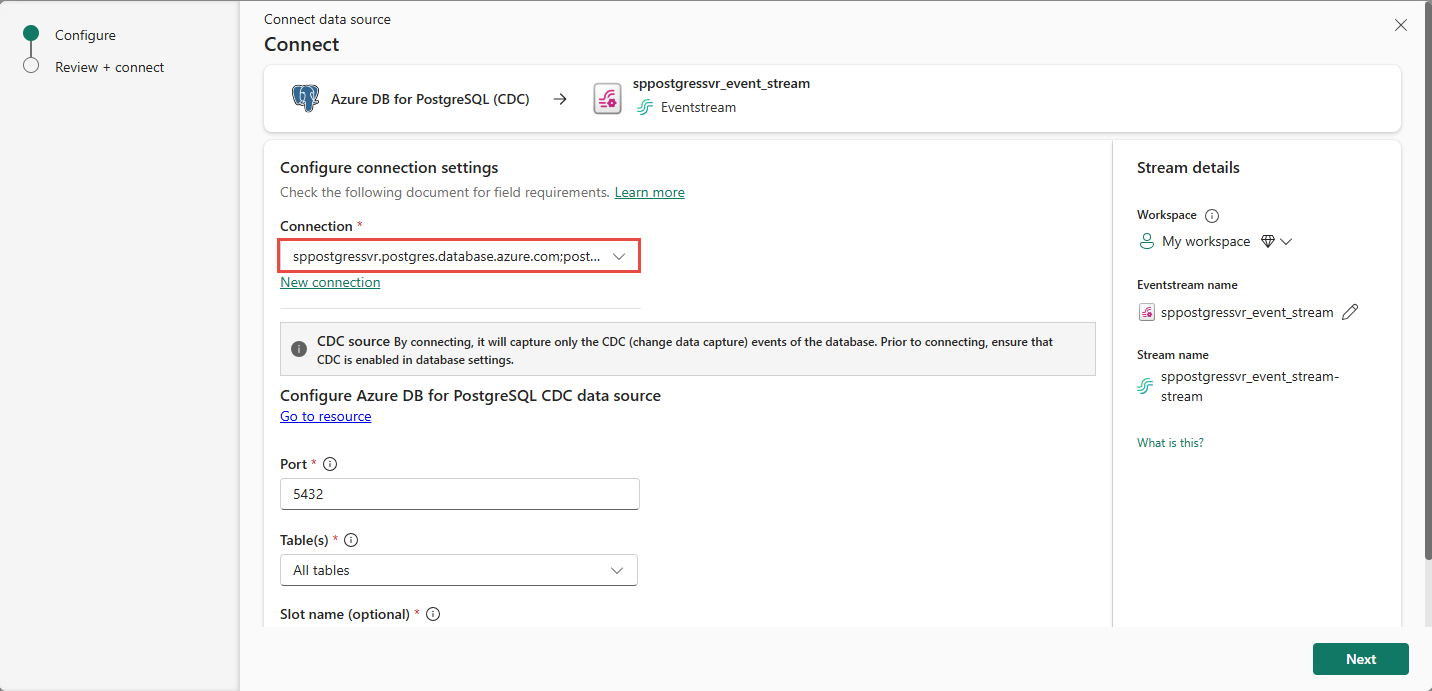
In the Connection settings section, enter the following information.
Server: The server address of your PostgreSQL database, for example my-pgsql-server.postgres.database.azure.com.
Database: The database name, for example my_database.
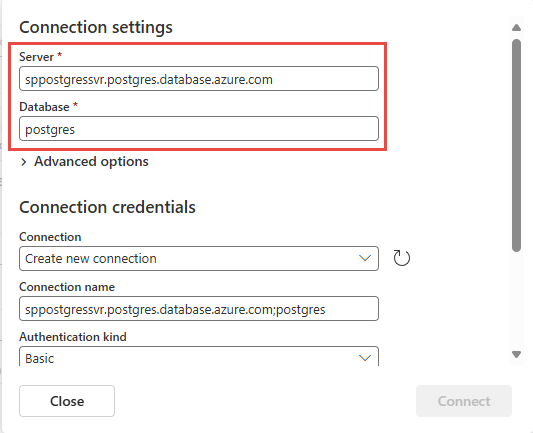
Scroll down, and in the Connection credentials section, follow these steps.
For Connection name, enter a name for the connection.
For Authentication kind, select Basic.
Note
Currently, Fabric eventstreams supports only Basic authentication.
Enter Username and Password for the database.
Select Connect.
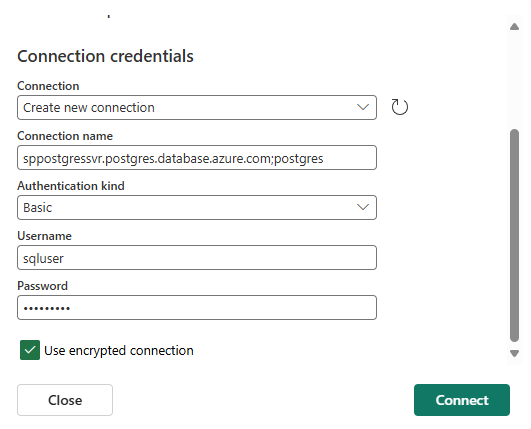
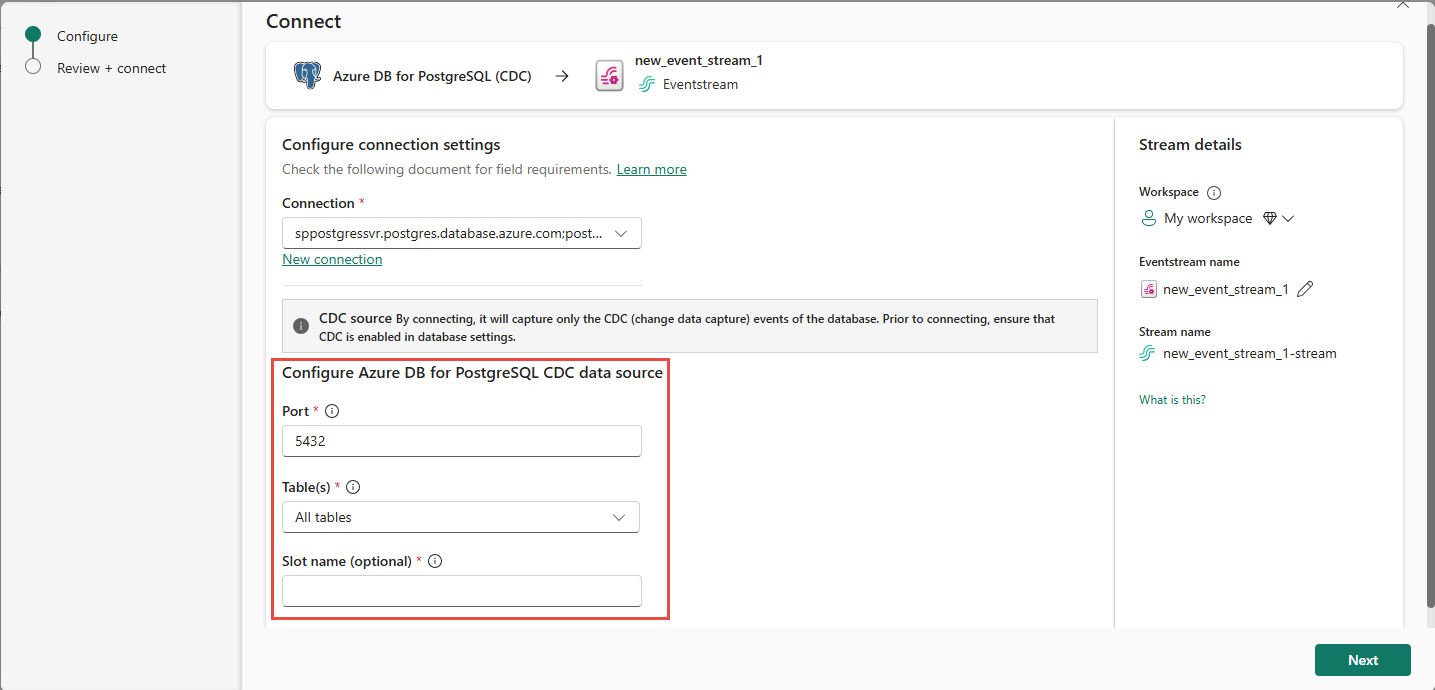
Now, on the Connect page, do these steps:
For table, Enter a table name.
For Port, enter the port number or leave the default value: 5432.
For eventstream name, enter a name for the eventstream. ตัวช่วยสร้างจะสร้างเหตุการณ์สตรีมด้วย CDC ฐานข้อมูล PostgreSQL ที่เลือกเป็นแหล่งข้อมูล
The Stream name is automatically generated for you by appending -stream to the name of the eventstream. คุณเห็นสตรีมนี้บนหน้า สตรีม ข้อมูลทั้งหมดเมื่อตัวช่วยสร้างเสร็จสิ้น
Select Next at the bottom of the page.
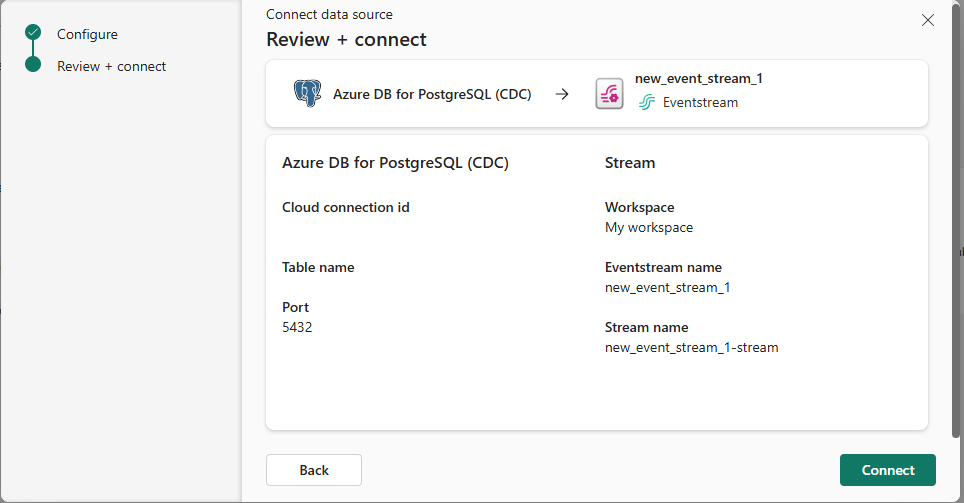
บนหน้า ตรวจสอบ + เชื่อมต่อ ให้ตรวจสอบสรุป จากนั้นเลือก เชื่อมต่อ
ดูรายละเอียดสตรีมข้อมูล
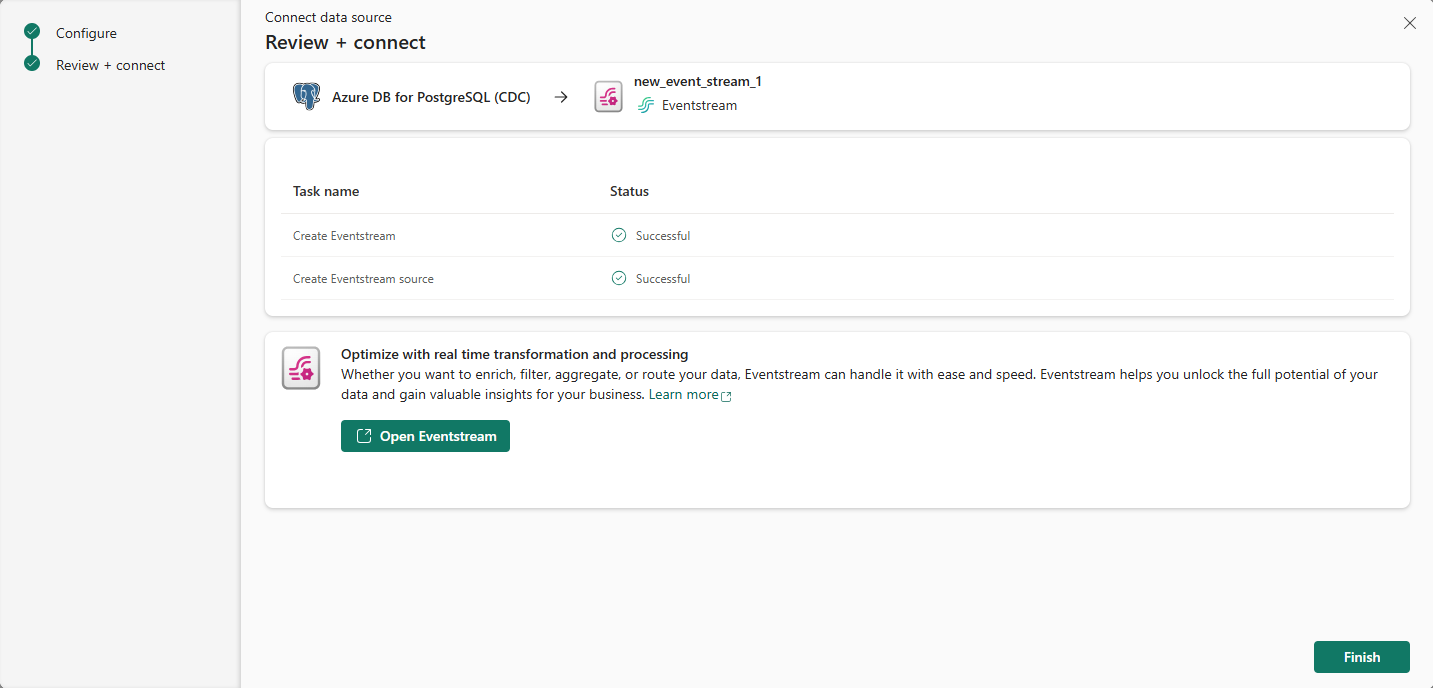
บนหน้า ตรวจสอบ + เชื่อมต่อ ถ้าคุณเลือก เปิดเหตุการณ์ สตรีมตัวช่วยสร้างจะเปิดเหตุการณ์ที่สร้างขึ้นให้คุณด้วย CDC ฐานข้อมูล PostgreSQL ที่เลือกเป็นแหล่งข้อมูล To close the wizard, select Finish at the bottom of the page.
คุณควรเห็นสตรีมในส่วนข้อมูลการสตรีมล่าสุดของโฮมเพจฮับReal-Time สําหรับขั้นตอนโดยละเอียด ดูรายละเอียดของสตรีมข้อมูลใน Fabric Real-Time hub
Related content
หากต้องการเรียนรู้เกี่ยวกับการใช้สตรีมข้อมูล โปรดดูบทความต่อไปนี้: