หมายเหตุ
การเข้าถึงหน้านี้ต้องได้รับการอนุญาต คุณสามารถลอง ลงชื่อเข้าใช้หรือเปลี่ยนไดเรกทอรีได้
การเข้าถึงหน้านี้ต้องได้รับการอนุญาต คุณสามารถลองเปลี่ยนไดเรกทอรีได้
As an admin, you can pin the Microsoft Copilot app to the Windows 11 taskbar on Intune-managed devices. This action gives users quick access to Copilot features such as Chat, Search, and Agents. The setting is off by default.
Before you begin
To configure Copilot taskbar pinning in the Microsoft 365 admin center, you need to be assigned the Intune Administrator role.
Note
If your devices are on premise and domain managed, use Group Policy to pin Copilot app to the taskbar. For mor information, see Pin Microsoft Copilot to the Windows taskbar using Group Policy.
Install the Microsoft Copilot app
Microsoft Copilot is a standalone application that provides access to Chat, Search, Agents (if enabled), Notebooks, and Create.
Install the Microsoft Copilot app before you configure this policy. For more information, see the Deployment overview for the Microsoft Copilot app If the app isn't installed for the users in the tenant, this policy has no effect.
Configure Copilot app pinning policy
Sign in to the Microsoft 365 admin center.
Go to Copilot > Settings > View all.
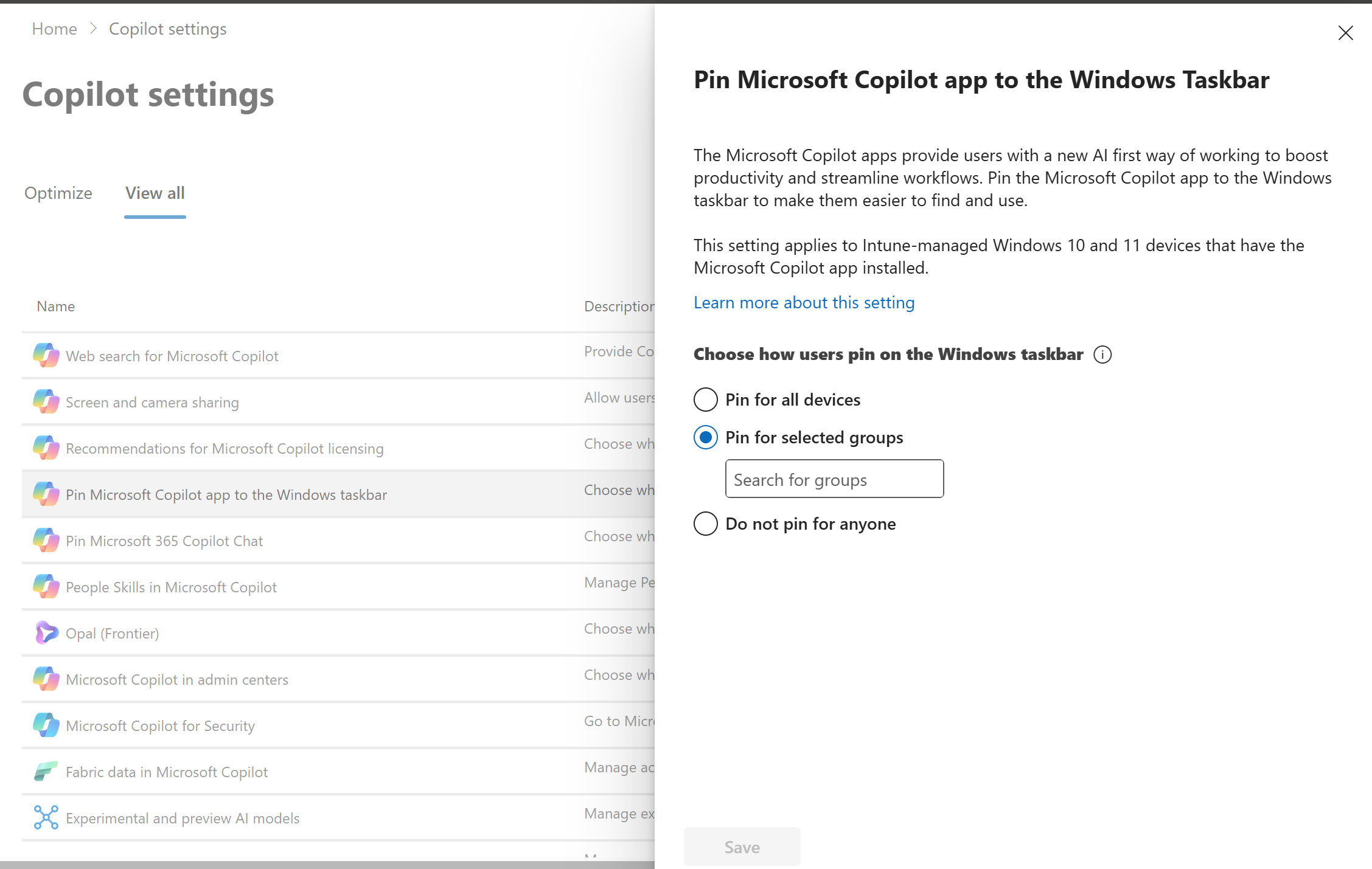
Select Pin Microsoft Copilot to the Windows taskbar.
Choose one of the following options and then select Save:
Pin for all devices
Select this option to automatically pin Microsoft Copilot app to the Windows taskbar for all devices in the tenant. When you enable this setting, the Copilot app appears to the right of other apps that are already pinned on the taskbar. The user isn't notified when this action is applied on the device.
If the user previously pinned the app to their taskbar, this policy doesn't change their configuration. The user can manually unpin the app from the taskbar. Their preference is respected during future policy refreshes on the following versions of Windows 11 or later:

Pin for selected groups Use the group picker to select one or more existing user groups. The Microsoft Copilot app is pinned to the taskbar on devices used by members of those groups. Use this option to roll out the app in phases—from a pilot or champions group to broader groups—or to target departments, leadership teams, or Copilot-licensed users.

Do not pin for anyone This is the default setting: Managed policy stops pinning Microsoft Copilot app to the Windows taskbar. Users can still pin these apps manually. You can change these settings at any time.
On devices running Windows 11 or later, changes take up to eight hours to apply and don't require a restart. Changes to devices running older versions of Windows take up to 48 hours to apply and might require a restart.