หมายเหตุ
การเข้าถึงหน้านี้ต้องได้รับการอนุญาต คุณสามารถลอง ลงชื่อเข้าใช้หรือเปลี่ยนไดเรกทอรีได้
การเข้าถึงหน้านี้ต้องได้รับการอนุญาต คุณสามารถลองเปลี่ยนไดเรกทอรีได้
This article covers how to invoke and dismiss dialogs (formerly known as task modules) using the Teams SDK (Teams AI Library). In the Teams SDK, dialogs are invoked from Adaptive Card actions using the TaskFetchAction and handled through dialog open and submit events on the App class.
The event registration varies by language:
- TypeScript:
app.on('dialog.open', ...)andapp.on('dialog.submit', ...) - C#:
teamsApp.OnTaskFetch(...)andteamsApp.OnTaskSubmit(...) - Python:
@app.on_dialog_openand@app.on_dialog_submit
The dialog content can be an Adaptive Card or a URL-based webpage.
Dialogs can also be invoked through other approaches depending on your app architecture:
- From tabs using the TeamsJS client library. See Use dialogs in tabs.
- From bots using Bot Framework or deep links. See Use dialogs with bots.
- From a deep link URL. See Deep link to open a dialog.
For migration guidance from Bot Framework to the Teams SDK, see Migrate from BotBuilder.
The following table summarizes how dialogs work in the Teams SDK:
| Step | Dialog with Adaptive Card | Dialog with webpage URL |
|---|---|---|
| Trigger the dialog | 1. Send an Adaptive Card with a TaskFetchAction button to the user. The action's value data specifies the type of dialog to open. 2. When the user selects the button, Teams sends a task fetch invoke to your app. |
1. Send an Adaptive Card with a TaskFetchAction button to the user. 2. When the user selects the button, Teams sends a task fetch invoke to your app. |
| Handle the dialog open event | 3. In your dialog open handler, return a task module continue response containing dialog metadata (title, dimensions, and the Adaptive Card to display). In C#, use TaskInfo with a ContinueTask wrapper. In TypeScript, use CardTaskModuleTaskInfo. In Python, use CardTaskModuleTaskInfo within a TaskModuleContinueResponse. |
3. In your dialog open handler, return a task module continue response containing dialog metadata with a url property pointing to the webpage. The URL domain must be in the validDomains array in your app manifest. In C#, use TaskInfo. In TypeScript, use UrlTaskModuleTaskInfo. In Python, use UrlTaskModuleTaskInfo within a TaskModuleContinueResponse. |
| Handle the dialog submission | 4. When the user presses an Action.Submit button, Teams sends a task submit invoke to your app with the form data. 5. You can respond by: • Doing nothing (task completed) • Displaying a message (C#: MessageTask, TypeScript/Python: TaskModuleMessageResponse) • Chaining to another dialog (C#: ContinueTask, TypeScript/Python: TaskModuleContinueResponse) |
4. The webpage calls the Teams JS client library to submit data back. Teams sends a task submit invoke to your app with the result. |
The next section describes the dialog metadata that defines the content and appearance of a dialog.
Dialog metadata
The dialog metadata defines the content and appearance of a dialog. Each language uses its own types to represent this metadata:
- C#:
TaskInfo(fromMicrosoft.Teams.Api.TaskModules) - TypeScript:
CardTaskModuleTaskInfoorUrlTaskModuleTaskInfo(from@microsoft/teams.api) - Python:
CardTaskModuleTaskInfoorUrlTaskModuleTaskInfo(frommicrosoft_teams.api)
The following table lists the common properties across all languages:
| Attribute | Type | Description |
|---|---|---|
title |
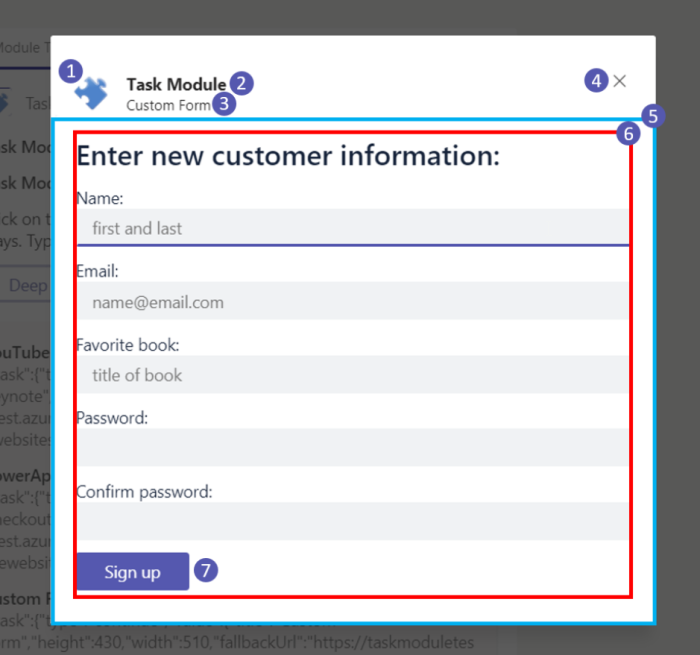
string | This attribute appears below the app name and to the right of the app icon. |
height |
number or string | This attribute can be a number representing the dialog's height in pixels, or small, medium, or large. In C#, use Union<int, Size>. |
width |
number or string | This attribute can be a number representing the dialog's width in pixels, or small, medium, or large. In C#, use Union<int, Size>. |
url |
string | The URL of the page loaded as an <iframe> inside the dialog. The URL's domain must be in the app's validDomains array in your app manifest. Use UrlTaskModuleTaskInfo in TypeScript/Python, or set the Url property on TaskInfo in C#. |
card |
Attachment | The Adaptive Card to display in the dialog. In C#, set the Card property on TaskInfo with an Attachment. In TypeScript, use cardAttachment() with CardTaskModuleTaskInfo. In Python, use card_attachment(AdaptiveCardAttachment(...)) with CardTaskModuleTaskInfo. |
Note
The dialog feature requires that the domains of any URLs you want to load are included in the validDomains array in your app's manifest.
The next section specifies dialog sizing that enables the user to set the height and width of the dialog.
Dialog sizing
The values of width and height set the height and width of the dialog in pixels. Depending on the size of the Teams window and screen resolution, these values might be reduced proportionally while maintaining aspect ratio.
If width and height are small, medium, or large, the size of the red rectangle in the following image is a proportion of the available space, 20%, 50%, and 60% for width and 20%, 50%, and 66% for height:
The next section provides examples of triggering and handling dialogs using the Teams SDK.
Trigger a dialog with TaskFetchAction
To open a dialog, send an Adaptive Card with a TaskFetchAction button. When the user selects the button, Teams sends a task fetch invoke to your app. Each button's value data specifies the type of dialog to open (for example, { "data": "AdaptiveCard" }).
using Microsoft.Teams.Api.Activities;
using Microsoft.Teams.Cards;

teamsApp.OnMessage(async (context) =>
{
    var card = new AdaptiveCard
    {
        Body = new List<CardElement>
        {
            new TextBlock("Task Module Invocation from Adaptive Card")
            {
                Weight = TextWeight.Bolder,
                Size = TextSize.Large
            }
        },
        Actions = new List<Action>
        {
            new TaskFetchAction(new Dictionary<string, object?> { { "data", "AdaptiveCard" } })
            { Title = "Adaptive Card" },
            new TaskFetchAction(new Dictionary<string, object?> { { "data", "CustomForm" } })
            { Title = "Custom Form" },
            new TaskFetchAction(new Dictionary<string, object?> { { "data", "MultiStep" } })
            { Title = "Multi-step Form" }
        }
    };

    await context.Send(new MessageActivity
    {
        Attachments = new List<Attachment>
        {
            new Attachment
            {
                ContentType = new ContentType("application/vnd.microsoft.card.adaptive"),
                Content = card
            }
        }
    });
});
Handle the dialog open event
When Teams sends a task fetch invoke, your app returns the dialog content. The content can be an Adaptive Card or a webpage URL. In C#, wrap the dialog metadata in a ContinueTask response. In TypeScript, return a TaskModuleResponse with type: 'continue'. In Python, return an InvokeResponse containing a TaskModuleContinueResponse.
using System.Text.Json;
using Microsoft.Teams.Api.TaskModules;
using Microsoft.Teams.Cards;
using Microsoft.Teams.Common;

teamsApp.OnTaskFetch(async (context) =>
{
    var activity = context.Activity;
    var json = JsonSerializer.Deserialize<JsonElement>(JsonSerializer.Serialize(activity));
    var data = json.GetProperty("value").GetProperty("data").GetProperty("data").GetString();

    TaskInfo taskInfo;

    if (data == "CustomForm")
    {
        taskInfo = new TaskInfo
        {
            Title = "Custom Form",
            Width = new Union<int, Size>(510),
            Height = new Union<int, Size>(450),
            Url = $"{botEndpoint}/customform",
            FallbackUrl = $"{botEndpoint}/customform"
        };
    }
    else if (data == "MultiStep")
    {
        var step1Card = new AdaptiveCard
        {
            Body = new List<CardElement>
            {
                new TextBlock("Step 1 of 2 - Your Name") { Size = TextSize.Large, Weight = TextWeight.Bolder },
                new TextInput { Id = "name", Label = "Name", Placeholder = "Enter your name", IsRequired = true }
            },
            Actions = new List<Action>
            {
                new SubmitAction().WithTitle("Next").WithData(
                    new Union<string, SubmitActionData>(new SubmitActionData
                    {
                        NonSchemaProperties = new Dictionary<string, object?> { { "submissiontype", "multi_step_1" } }
                    }))
            }
        };

        taskInfo = new TaskInfo
        {
            Title = "Multi-step Form",
            Width = new Union<int, Size>(400),
            Height = new Union<int, Size>(300),
            Card = new Attachment
            {
                ContentType = new ContentType("application/vnd.microsoft.card.adaptive"),
                Content = step1Card
            }
        };
    }
    else
    {
        var dialogCard = new AdaptiveCard
        {
            Body = new List<CardElement>
            {
                new TextBlock("Enter Text Here") { Weight = TextWeight.Bolder },
                new TextInput { Id = "usertext", Placeholder = "add some text and submit", IsMultiline = true }
            },
            Actions = new List<Action> { new SubmitAction { Title = "Submit" } }
        };

        taskInfo = new TaskInfo
        {
            Title = "Adaptive Card: Inputs",
            Width = new Union<int, Size>(400),
            Height = new Union<int, Size>(200),
            Card = new Attachment
            {
                ContentType = new ContentType("application/vnd.microsoft.card.adaptive"),
                Content = dialogCard
            }
        };
    }

    return new Response(new ContinueTask(taskInfo));
});
Handle the dialog submission
When a user presses Action.Submit in a dialog, Teams sends a task submit invoke to your app. You can respond by completing the task, showing a message, or opening another dialog (for example, to chain multi-step forms).
using System.Text.Json;
using Microsoft.Teams.Api.TaskModules;
using Microsoft.Teams.Cards;
using Microsoft.Teams.Common;

teamsApp.OnTaskSubmit(async (context) =>
{
    var activity = context.Activity;
    var json = JsonSerializer.Deserialize<JsonElement>(JsonSerializer.Serialize(activity));
    var submitData = JsonSerializer.Deserialize<Dictionary<string, object>>(
        json.GetProperty("value").GetProperty("data").GetRawText());
    var submissionType = submitData?.GetValueOrDefault("submissiontype")?.ToString();

    if (submissionType == "multi_step_1")
    {
        var name = submitData["name"]?.ToString();
        var step2Card = new AdaptiveCard
        {
            Body = new List<CardElement>
            {
                new TextBlock("Step 2 of 2 - Your Email") { Size = TextSize.Large, Weight = TextWeight.Bolder },
                new TextInput { Id = "email", Label = "Email", Placeholder = "Enter your email", IsRequired = true }
            },
            Actions = new List<Action>
            {
                new SubmitAction().WithTitle("Submit").WithData(
                    new Union<string, SubmitActionData>(new SubmitActionData
                    {
                        NonSchemaProperties = new Dictionary<string, object?>
                        {
                            { "submissiontype", "multi_step_2" },
                            { "name", name! }
                        }
                    }))
            }
        };

        var taskInfo = new TaskInfo
        {
            Title = "Multi-step Form: Step 2",
            Width = new Union<int, Size>(400),
            Height = new Union<int, Size>(300),
            Card = new Attachment
            {
                ContentType = new ContentType("application/vnd.microsoft.card.adaptive"),
                Content = step2Card
            }
        };

        return new Response(new ContinueTask(taskInfo));
    }

    if (submissionType == "multi_step_2")
    {
        await context.Send($"Hi {submitData["name"]}, thanks for submitting! Your email is {submitData["email"]}");
        return new Response(new MessageTask("Multi-step form completed!"));
    }

    var usertext = submitData?.GetValueOrDefault("usertext")?.ToString();
    await context.Send($"You submitted: {usertext}");
    return new Response(new MessageTask("Thanks for submitting!"));
});
Keyboard and accessibility guidelines
For URL-based dialogs that load HTML content, ensure keyboard accessibility:
- Use the tabindex attribute in your HTML tags to control which elements can be focused and to define sequential keyboard navigation with the Tab and Shift-Tab keys.
- Handle the Esc key appropriately in the JavaScript for your dialog page.
Microsoft Teams ensures that keyboard navigation works properly from the dialog header into your HTML and vice-versa.
Code sample
| Sample name | Description | .NET | Node.js | Python |
|---|---|---|---|---|
| Bot task modules | This sample app demonstrates how to use dialogs (referred as task modules in TeamsJS v1.x) using the Teams AI SDK. | View | View | View |
Next step
See also
ทํางานร่วมกับเราใน GitHub
แหล่งที่มาสำหรับเนื้อหานี้สามารถพบได้บน GitHub ซึ่งคุณยังสามารถสร้างและตรวจสอบปัญหาและคำขอดึงข้อมูลได้ สำหรับข้อมูลเพิ่มเติม ให้ดูคู่มือผู้สนับสนุนของเรา
Platform Docs