หมายเหตุ
การเข้าถึงหน้านี้ต้องได้รับการอนุญาต คุณสามารถลอง ลงชื่อเข้าใช้หรือเปลี่ยนไดเรกทอรีได้
การเข้าถึงหน้านี้ต้องได้รับการอนุญาต คุณสามารถลองเปลี่ยนไดเรกทอรีได้
Applies to:  SQL Server
Azure SQL Database
Azure SQL Managed Instance
Azure Synapse Analytics
SQL Server
Azure SQL Database
Azure SQL Managed Instance
Azure Synapse Analytics
Overview
SQL Bindings for Visual Studio Code lets you develop Azure Functions with Azure SQL bindings. For more information, see Create Azure Functions with the SQL Bindings extension for Visual Studio Code. To install the extension, see SQL Bindings extension for Visual Studio Code.
Command Palette
Run the MS SQL: Create Azure Function with SQL Binding command from the command palette to create a new function with a SQL binding.

The extension prompts you to select the object type to insert (Input binding) or upsert into (Output binding), either a table or view.

Then, the extension prompts you to select a connection profile to use for the Azure Function or create a connection profile.

After you select or create a connection profile, the extension prompts you to select the database from the selected connection to use for the Azure Function.
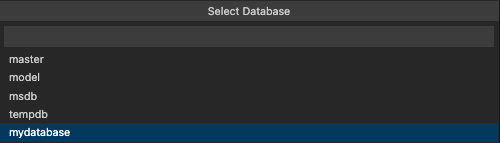
After you select a database, the extension prompts you to select a table or view to use, or to enter a table or view to query or upsert into. This prompt is based on the object type you selected earlier.
Note
Azure Function with SQL Binding from a view is only supported for Input bindings.
Prompt for Table:
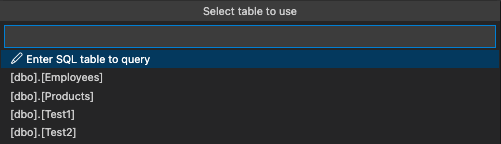
Prompt for View:

The extension then prompts you to enter the function name to use for the Azure Function.

If you already have connection strings stored in the local.settings.json file, the extension prompts you to select the connection string to use for the Azure Function or create a new connection string.

If you select Create new local app setting, the extension prompts you to enter the connection string name and value.

If you're creating the Azure Function with SQL Binding to an existing Azure Function project, the extension prompts you whether you want to include the password for the connection string in the local.settings.json file.

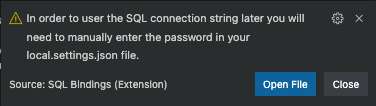
If you select Yes, the password is saved to the local.settings.json file. If you select No, the extension warns you that the password isn't saved to the local.settings.json file (shown in this example), and you need to manually add the password to this file later.
The extension then prompts you to provide the namespace for the Azure Function.

If you're creating a brand new Azure Function project with SQL binding, the extension prompts whether you want to include the password for the connection string in the local.settings.json file.
A progress notification appears to indicate that the Azure Function is complete.

After you create the Azure Function, the extension generates code for either an Input or Output binding. For more information, see Generated code for Azure functions with SQL bindings.
Open an Azure Function
Open the C# Azure Function in an editor. Then, run the MS SQL: Add SQL Binding command from the command palette to add a SQL binding to an existing function.

The extension prompts you to select an Azure function in the current file to add the SQL binding to.

If you're creating an Azure Function with SQL binding from a table, the extension prompts you to select the binding type to use. Choose either an Input (retrieves data from a database) or Output (saves data to a database) binding.
If you already have connection strings stored in the local.settings.json file, the extension prompts you to select the connection string to use for the Azure Function or create a new connection string.
If you select Create new local app setting, the extension prompts you to enter the connection string name and value.
The extension then prompts you to select a connection string method to select a connection profile or enter a connection string to use for the SQL binding.

If you decide to select a connection profile, the extension prompts you to select the database from the selected connection to use for the Azure Function.
Once you select a database, the extension prompts you to select a table to use, or to enter a table or view to query or upsert into.
Prompt for Table:
The extension then prompts you whether you want to include the password for the connection string in the local.settings.json file.
If you select Yes, the password is saved to the local.settings.json file. If you select No, the extension warns you that the password isn't saved to the local.settings.json file (shown in this example), and you need to manually add the password to this file later.
After you create the Azure Function, the extension generates code for either an Input or Output binding. For more information, see Generated code for Azure functions with SQL bindings.