หมายเหตุ
การเข้าถึงหน้านี้ต้องได้รับการอนุญาต คุณสามารถลอง ลงชื่อเข้าใช้หรือเปลี่ยนไดเรกทอรีได้
การเข้าถึงหน้านี้ต้องได้รับการอนุญาต คุณสามารถลองเปลี่ยนไดเรกทอรีได้
This tutorial introduces you to the prebuilt Transact-SQL (T-SQL) templates that are available in SQL Server Management Studio (SSMS). In this article, you learn how to:
Prerequisites
To complete this tutorial, you need SQL Server Management Studio and access to a SQL Server.
Use Template Browser
In this section, you learn how to locate and use Template Browser.
Open SQL Server Management Studio.
In the View menu, select Template Browser (Ctrl+Alt+T):

You can see recently used templates at the bottom of the template browser.
Expand the node you're interested in. Right-click the template, and then select Open:

You can also double-click the template name to open it.
A new query window opens. The T-SQL script is already populated.
Modify the template to suit your needs, and then select Execute to run the query:


Edit an existing template
You can also edit existing templates in Template Browser.
In Template Browser, go to the template you want to work with.
Right-click the template, and then select Edit:
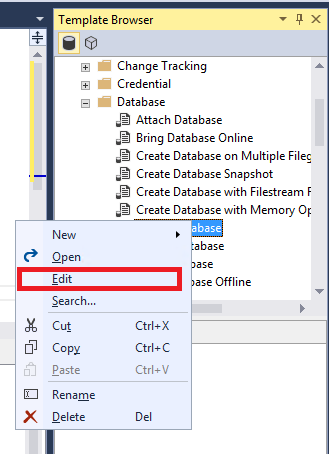
In the query window that opens, make the changes that you want to make.
To save the template, select File > Save (Ctrl+S).
Close the query window.
Reopen the template. Your edits should appear.
Locate templates on disk
When a template is open, you can locate the templates that are on disk.
In Template Browser, select a template, and then select Edit.
Right-click Query Title, and then select Open Containing Folder.
The explorer should open where the templates are stored on disk:


Create a new template
You can also create a new template in Template Browser. The following steps show you how to create a new folder, and then create a new template in that folder. You can also use these steps to create a custom template in an existing folder.
Open Template Browser.
Right-click SQL Server Templates, and then select New > Folder.
Name this folder Custom Templates:

Right-click the newly created Custom Templates folder, and then select New > Template. Enter a name for your template:

Right-click the template you created, and then select Edit. The New Query Window opens.
Enter the T-SQL text that you want to save.
In the File menu, select Save.
Close the existing query window, and then open your new custom template.