Exercise - Loops
Loops enable you to repeat blocks of actions until specific conditions are met. They can perform certain tasks on large amounts of data.
In this exercise, you apply loop actions to perform certain actions over multiple iterations and access the elements of a list.
Before starting, create two empty folders named PDF and DOCX inside the My Documents folder.
Deploy two Get special folder actions to retrieve the Desktop and Documents folder paths, respectively:
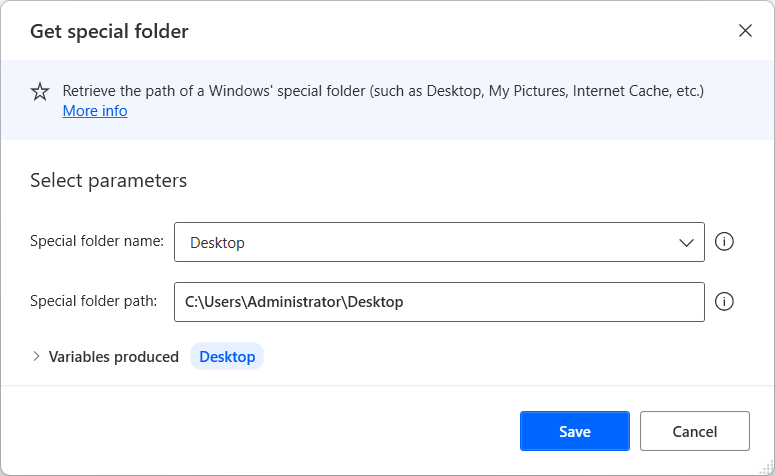
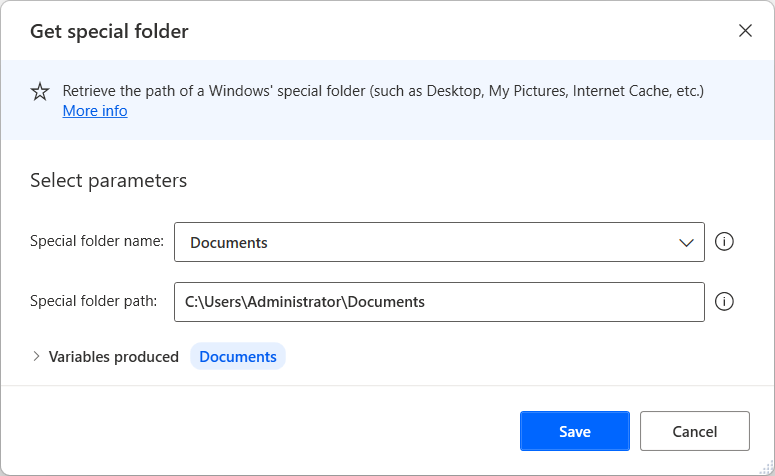
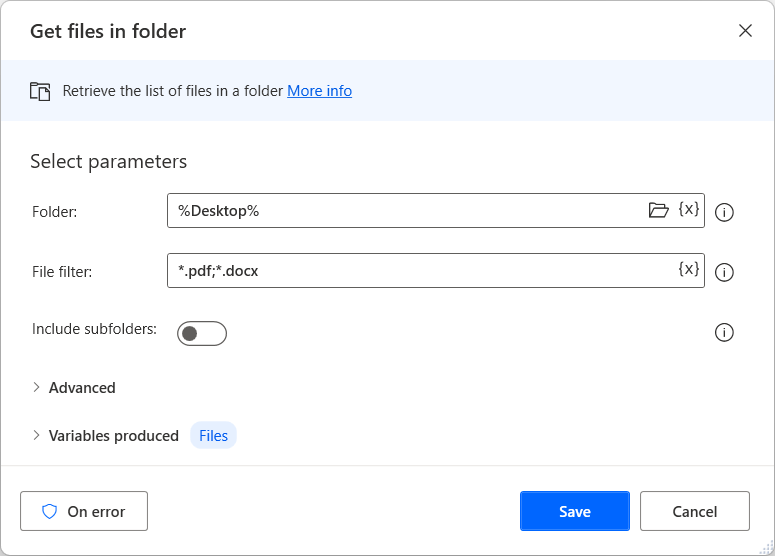
Use the Get files in folder action to retrieve all .pdf and .docx files from the desktop folder:
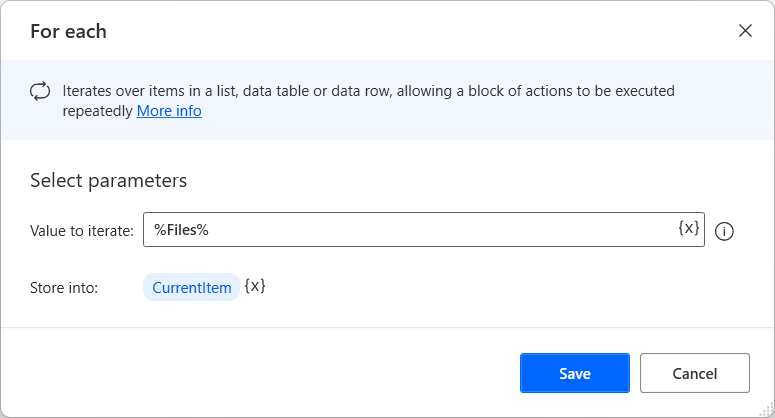
Add a For each loop to loop through the list of retrieved files. The loop iterates through each one of the retrieved files, storing it in the %CurrentItem% variable:
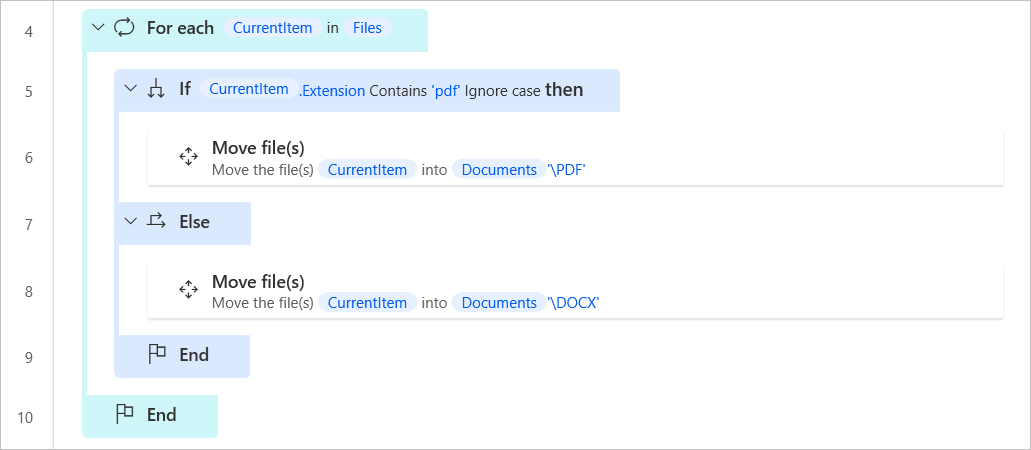
Within the loop, use the If and Else actions to determine whether the current file is a .pdf or a .docx file, and move it to the appropriate subfolder inside the Documents folder:
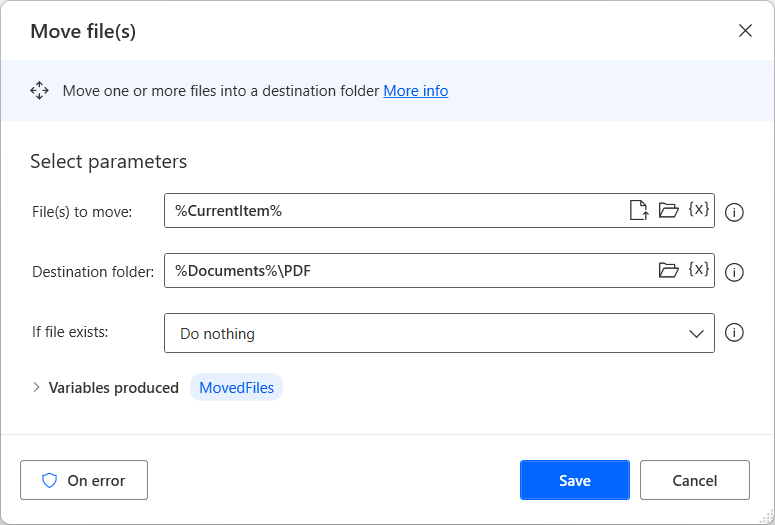
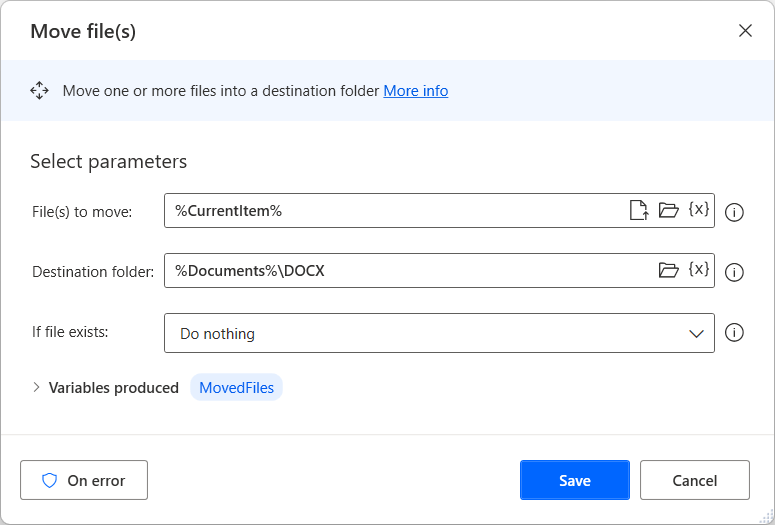
Configure the two Move file(s) actions as presented in the following screenshots:
Note
To populate the Destination path field of the Move file(s) actions, use a combination of variables and literal values. For more information about variable concatenation and manipulation, see the Handle variables in Power Automate desktop app module.
As before, retrieve all the .txt files from the desktop folder. To achieve this functionality, add a Get files in folder action outside the previously created loop.
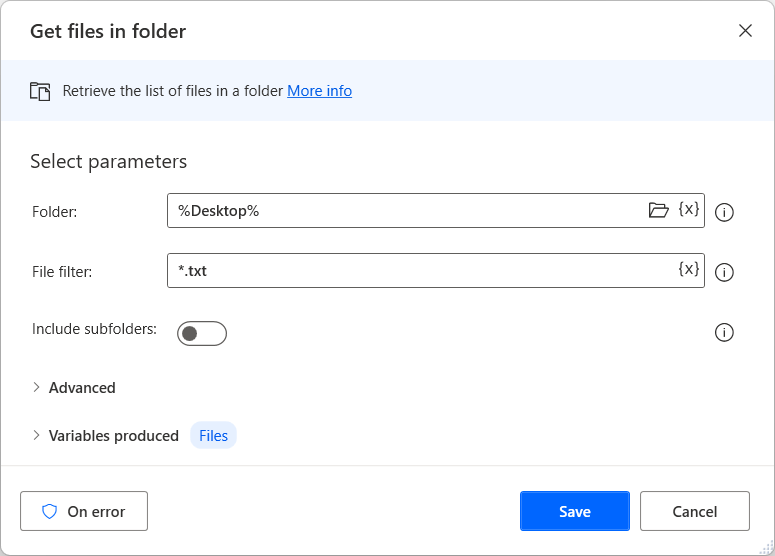
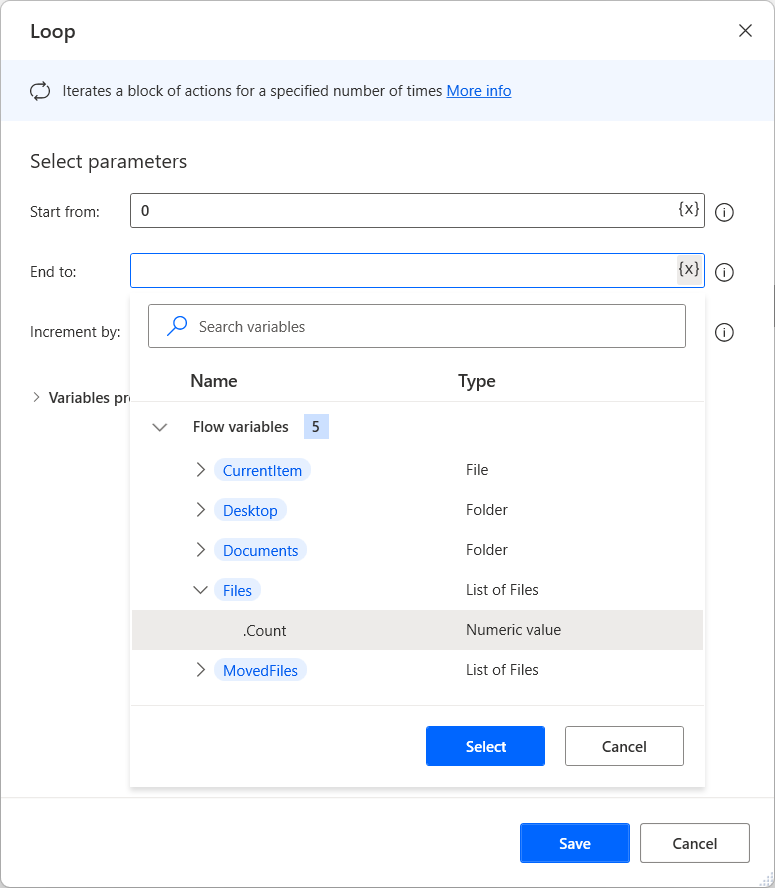
This time, instead of using a For each loop to cycle through each of the retrieved files, add a loop action to make use of the loop index. The loop starts at 0 and ends after the number of iterations is equal to the number of files retrieved. To achieve this condition, use the list variable’s count property:
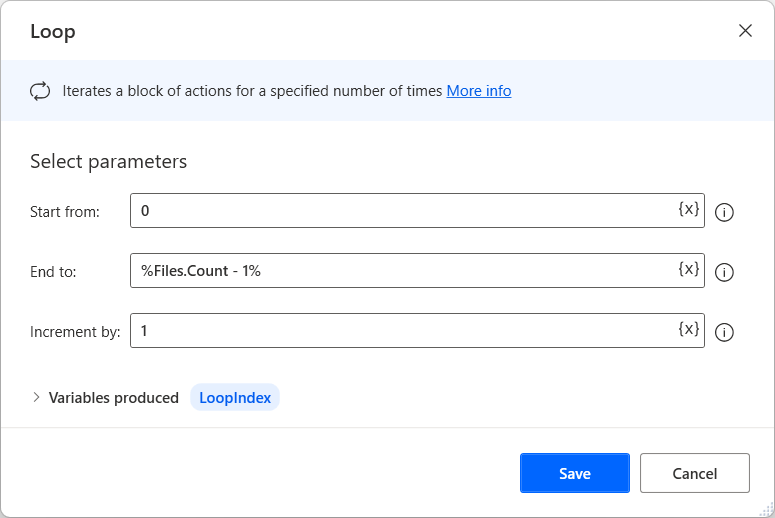
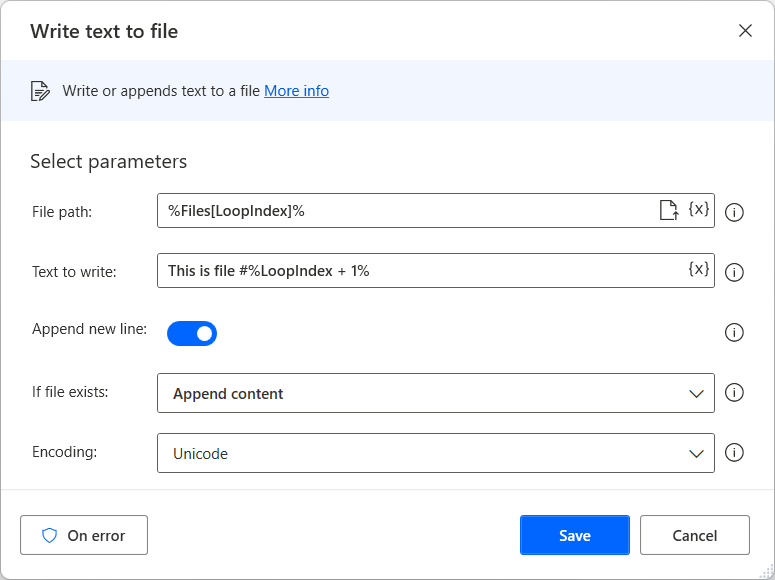
Within the loop, add a Write text to file action to add the file index number to the contents of the .txt file. Since the Loop action only increases the loop index, retrieve the file by using the %Files% variable and the loop index. To start counting the files from one and not zero, add one to the index number.