Work with agent scripts
Service reps who work in customer support centers need to adapt to change quickly. Products and services are continually being modified or updated. Accordingly, as those changes occur, processes and procedures need to be updated or modified as well. Even after they have been rigorously trained, errors and delays in service delivery occur due to a lack of guidance in real-time customer scenarios. These issues lead to lower productivity and negatively affect customer satisfaction levels. To avoid errors and ensure that processes are adhered to, service representatives need guidance.
Agent scripts provide guidance to service reps about what to do when they get a customer issue. Scripts ensure that only accurate, company-endorsed information is being shared, while also safeguarding the organization regarding issues of legal compliance. Agent scripts help organizations to be unified, accurate, and effective, while also being faster and more efficient in terms of customer handling.
Agent scripts reduce human errors that can occur in the process because service reps know which actions they need to perform next while they interact with a customer. This feature helps them adhere to business processes while also helping them provide quick resolutions for the issue (low average handling time) and improve customer satisfaction.
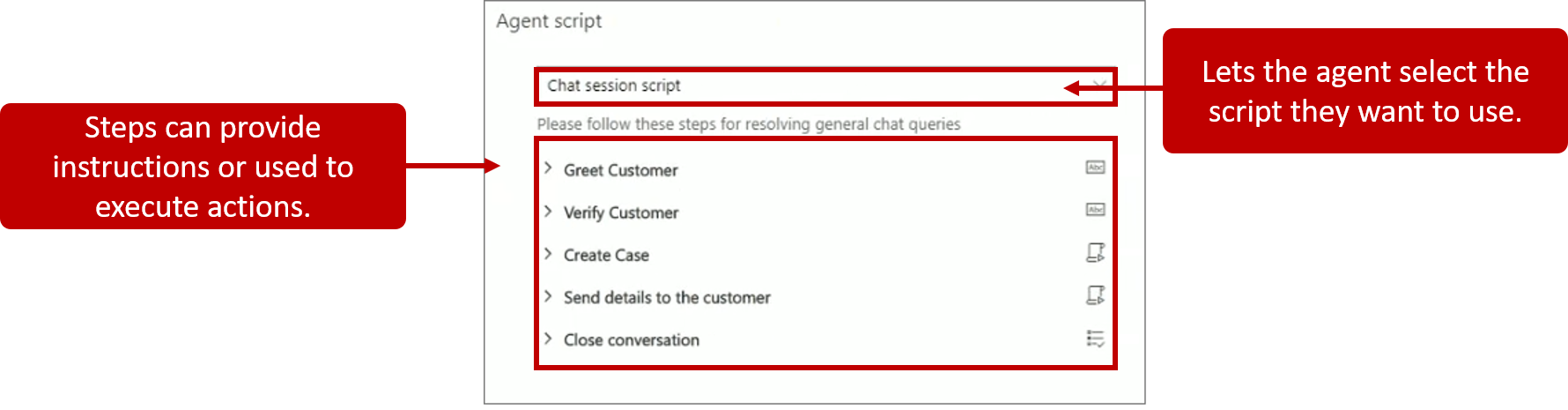
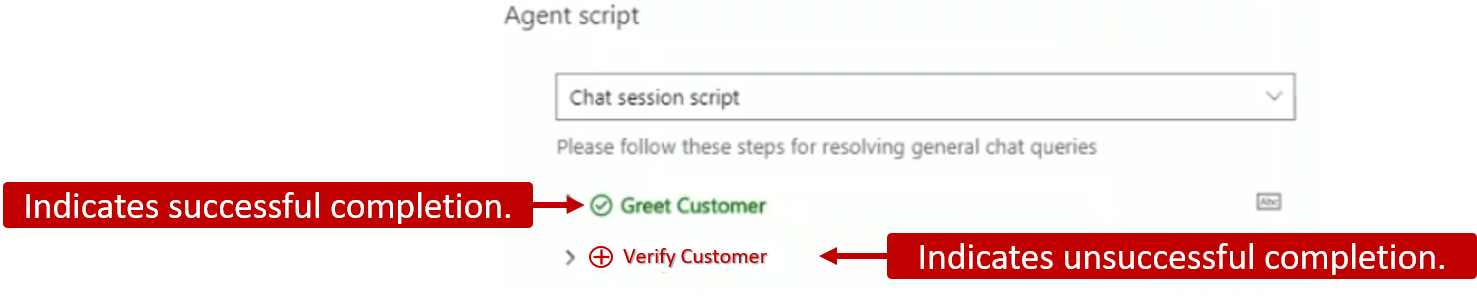
Agent scripts consist of a series of steps. Each step is identified with an actionable icon that helps implement that step. As service reps expand a step, they are provided with a short description that defines what the step does and provides an icon that they can select to perform the step's action. As they complete the steps, the script tracks the implementation status of the step and notes it. Steps that are completed successfully are indicated with a green tick icon. Steps that have errors are indicated with a red cross icon. Steps can be run again as needed. Whether you see a green tick, or a red cross icon is based on the last time that the step was run.
Work with scripts
After the service representative accepts an incoming conversation notification, such as a chat, and a new session starts, the agent script displays. The following image shows an example of an agent script that contains five steps.
The script begins with a text message that guides the service rep through greeting the customer and then ends by taking the service rep to a closing script.
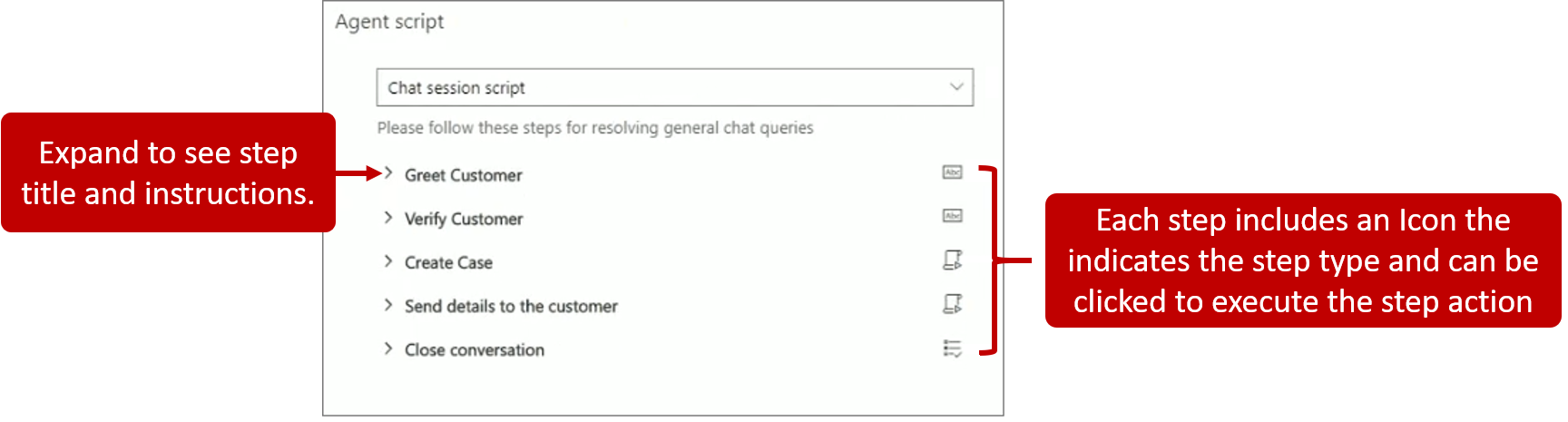
The following table explains each step in more detail.
| Step | Title | Instruction | Icon | Action |
|---|---|---|---|---|
| Text instruction | Greet Customer | Greet the customer with a welcome message from the quick reply repository | Mark as Done | After the service rep has greeted the customer, they should select the icon to show the step as completed. |
| Text instruction | Verify Customer | Use either of the following options to verify the customer Kenny: 1. Date of birth, 2. Email ID, 3. Zip code, 4. Mobile phone number | Mark as Done | After the service rep has verified the appropriate data, they should select the icon to show the step as completed. |
| Macro | Create Case | Triggers a create case form with customer context | Run | When you select the run macro icon, the system opens a case form in a new application tab panel. |
| Macro | Send Details | Opens an email to send details to the customer | Run | When you select the run macro icon, the system opens a draft email so you can send an email to the linked customer. |
| Agent script | Close Conversation | Follow these steps to close a conversation | View | When you select the view icon, the system loads another agent script from the current agent script. In this sample, another agent script is the Close Conversation script. |
Define agent scripts
Users with administrative rights can create agent scripts under Agent experience heading in the Customer Service admin center application. Select Productivity, and then choose Manage next to Agent Scripts.
On the new Agent script page, specify the following information:
Name - Provides a name for the agent script.
Unique Name: A unique identifier in the
<prefix>_<name>format. Example: greet_scriptImportant
For the Unique Name, the prefix can only be alphanumeric, and its length must be between three to eight characters. An underscore must be there between the prefix and name.
Language - Defines the language that is associated with the script.
Description - Describes the agent script.
After you have created the script, define the steps that will be presented to the service rep. For example, a step might represent a message that they should read or an automated action that can be run.
Three types of steps are available inside an agent script:
Text instructions - Provide guidance on actions to perform. For example, a text instruction might advise the representative on how to greet the customer or might represent a closing statement that can be used to end the conversation. In the user interface, service reps can note when they have completed the step based on the instructions.
Macro - Instructions that inform the system of how to complete a task. For example, a macro might be configured to generate a case record. When a service rep selects the Run icon, the system performs the macro.
Agent script - Loads another agent script from the current agent script. The newly loaded script replaces the current script in the Agent script menu.
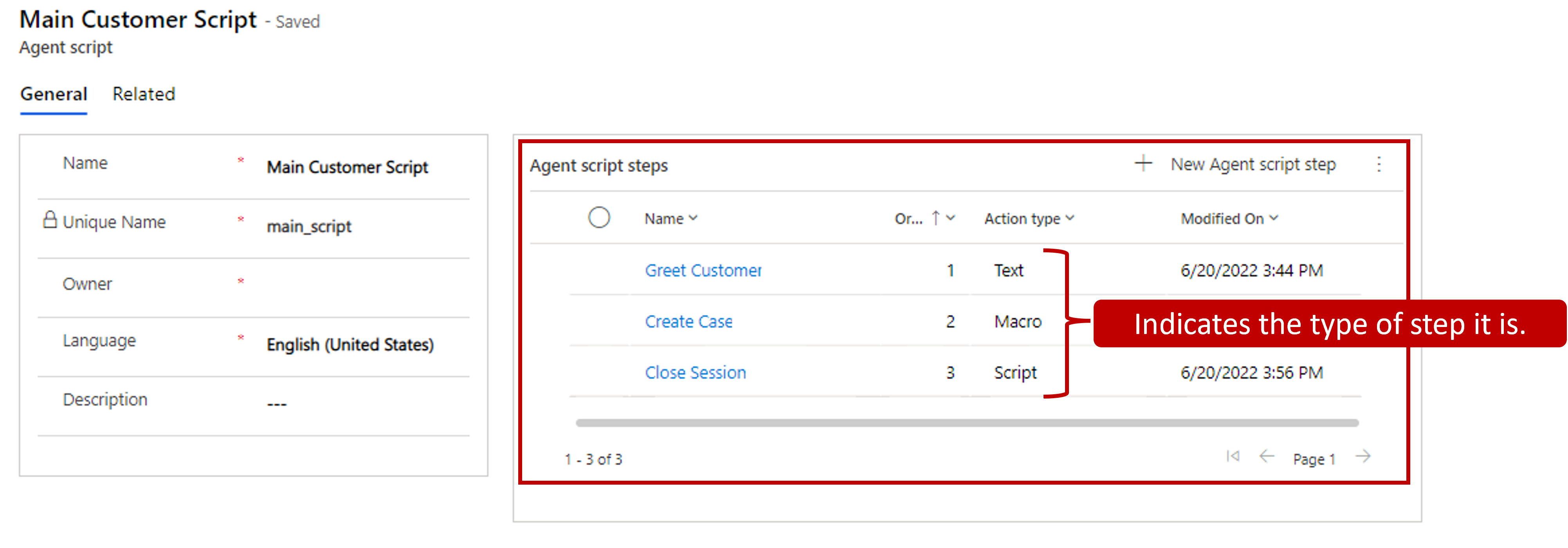
The following image shows an example that represents each of the three different script types that are available.
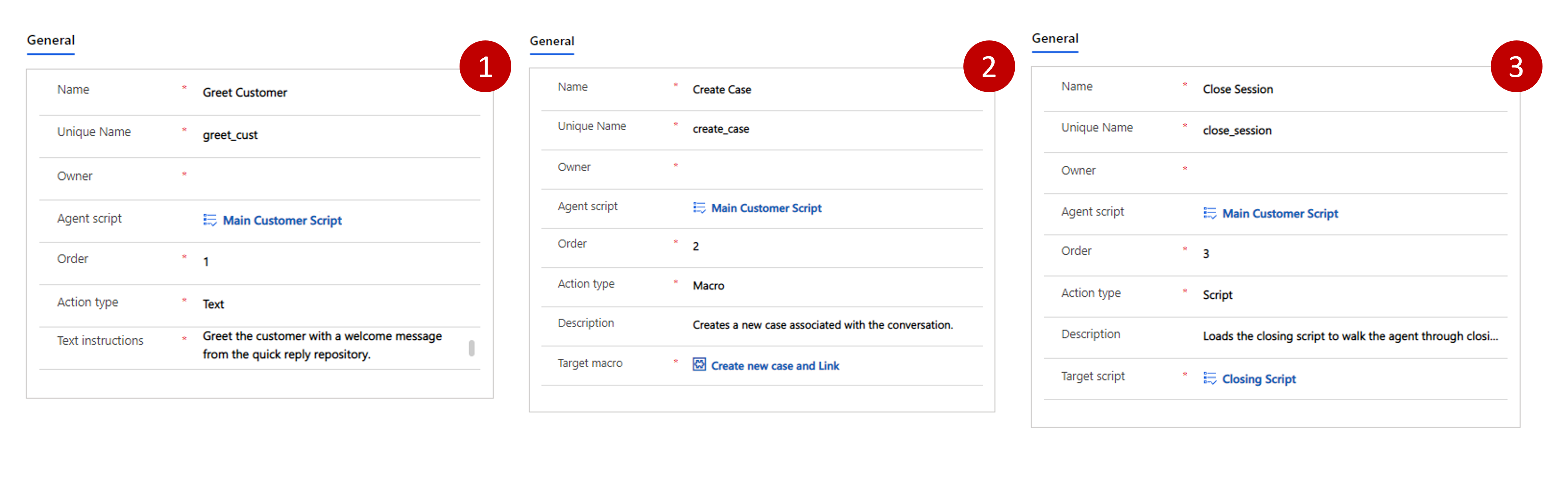
Greet Customer - Text instruction step type that are presented to the service rep first. The Text instructions field indicates to the service rep what they should do.
Create Case - Macro step type that creates a new case record and links it to the current conversation.
- Close session - Script step type that loads a different agent script that is designed to take the service rep through the process of completing a conversation with a customer.
Each script step includes an Order field that indicates the order in which the step should be presented to a service script. Steps are visible in the order that they are presented to service representatives from the Agent script step section. The action type that is associated with each step is displayed in the Action type field.
Associate an agent script with a session template
After you have completed the agent script, you should associate it with a session template. This action ensures that the agent script loads for service representatives based on the type of session that they've opened. For example, if your organization has different processes for SMS conversations from what is used for chat conversations, you would attach the necessary agent scripts to the appropriate SMS or chat session templates.
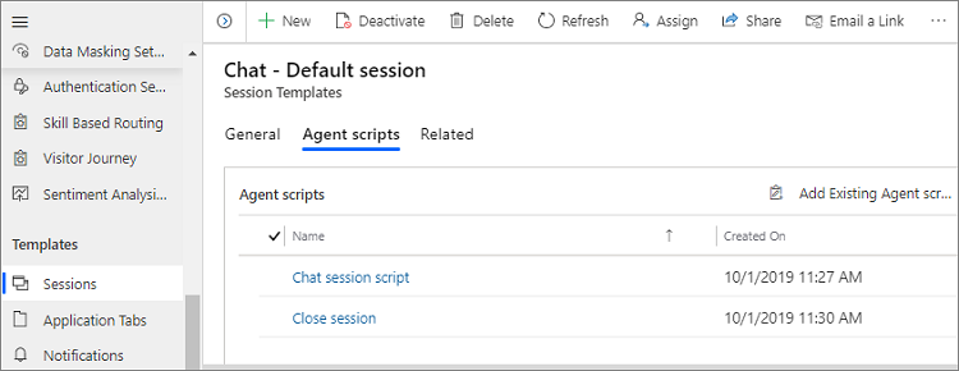
To access existing or create new session templates, from the Workspaces section, select Manage next to Session templates. In the Agent scripts section of a session template, use the Add Existing Agent script option to define which scripts should be available for this session type.
For more information, see Guide agents with scripts.
For information, see Set the default agent script for agents.