หมายเหตุ
การเข้าถึงหน้านี้ต้องได้รับการอนุญาต คุณสามารถลอง ลงชื่อเข้าใช้หรือเปลี่ยนไดเรกทอรีได้
การเข้าถึงหน้านี้ต้องได้รับการอนุญาต คุณสามารถลองเปลี่ยนไดเรกทอรีได้
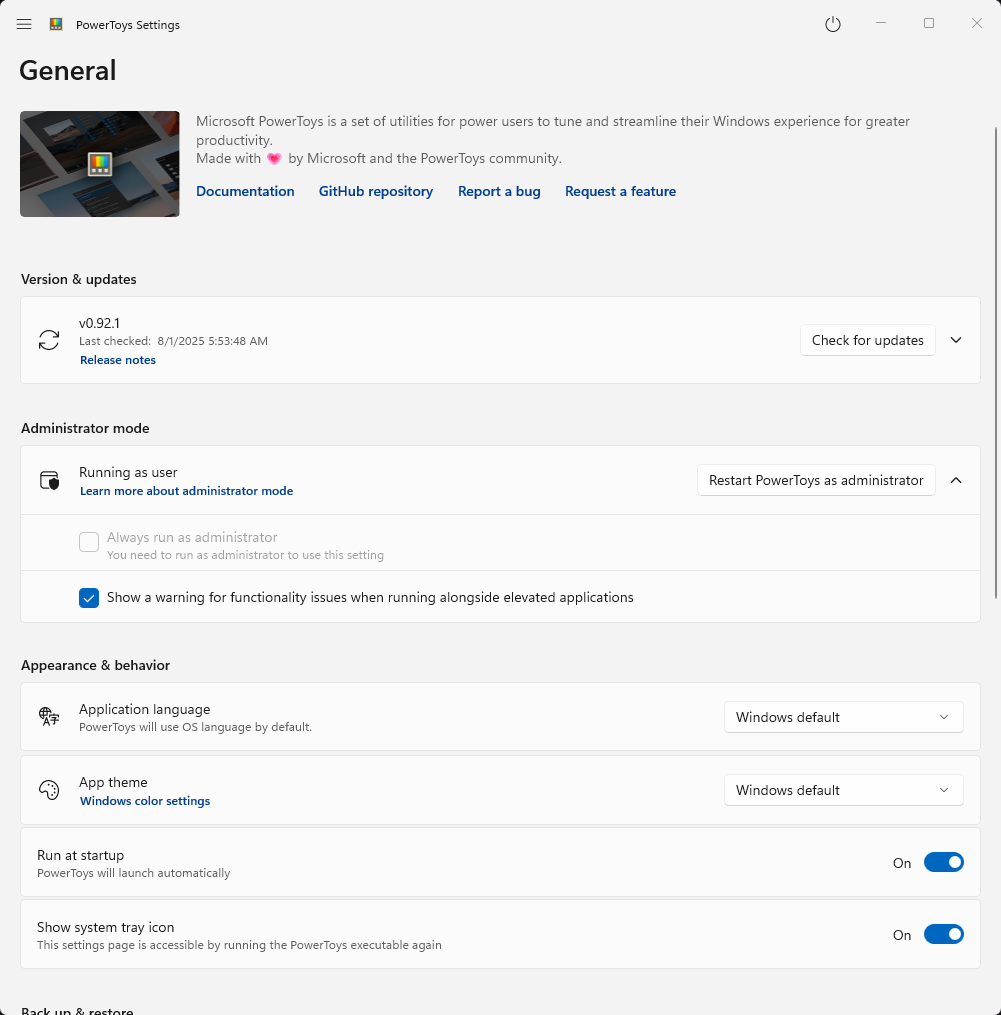
The General settings section of Microsoft PowerToys allows you to configure essential app behaviors including updates, administrator permissions, appearance themes, and startup options. These settings help you customize your PowerToys experience to match your Windows workflow preferences.
Version & updates
Here you can check for new updates, and if one is available, you can download and install it. The update status surface shows progress while PowerToys checks for, downloads, and installs an update. It also indicates when an update is ready to install or when an error needs your attention.
| Setting | Description |
|---|---|
| Download updates automatically | When enabled, PowerToys automatically downloads available updates in the background. New installations have this enabled by default. |
| Show new updates as toast notifications | When enabled, displays a Windows toast notification when a new update is available. |
| Show what's new after updates | When enabled, displays a "What's New" dialog after updates are applied so you can see the latest changes. |
To choose between generally available releases and nightly prerelease builds, see PowerToys update channels.
When an automatic update is applied, PowerToys restarts itself and shows a toast confirming the new version is running. Your settings.json and other configuration files are backed up before each update, and PowerToys restores them automatically if it detects corruption after the update.
Settings search
Use the search bar at the top of the settings window to quickly find specific settings or features within PowerToys. You can type keywords related to the setting you're looking for, and the results will filter in real-time as you type.
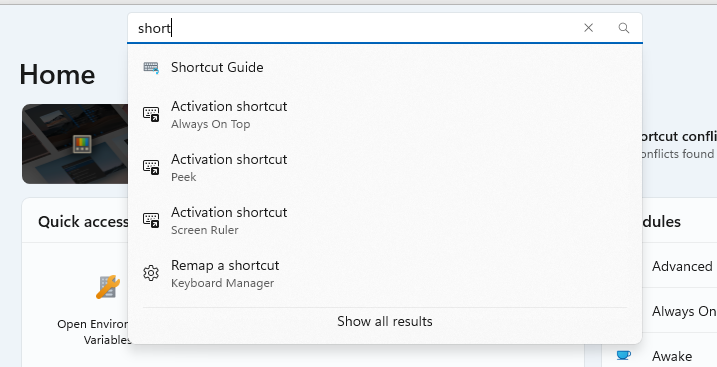
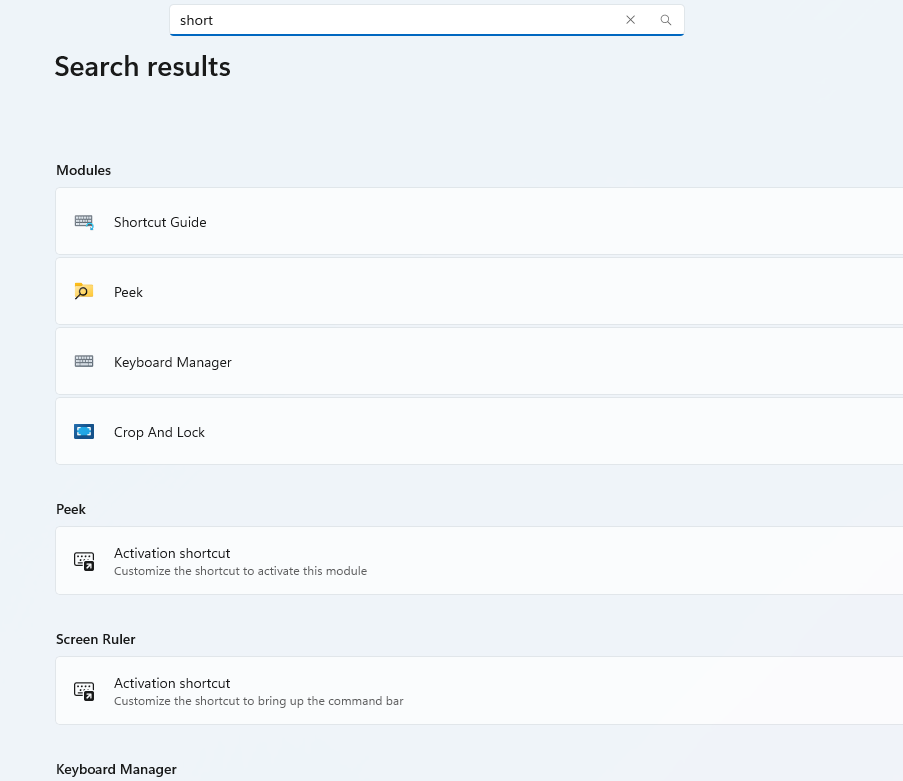
Select the desired setting from the filtered results to jump directly to it, or you can press Enter or select Show all results to see all results for the current search.
Shortcut conflict detection
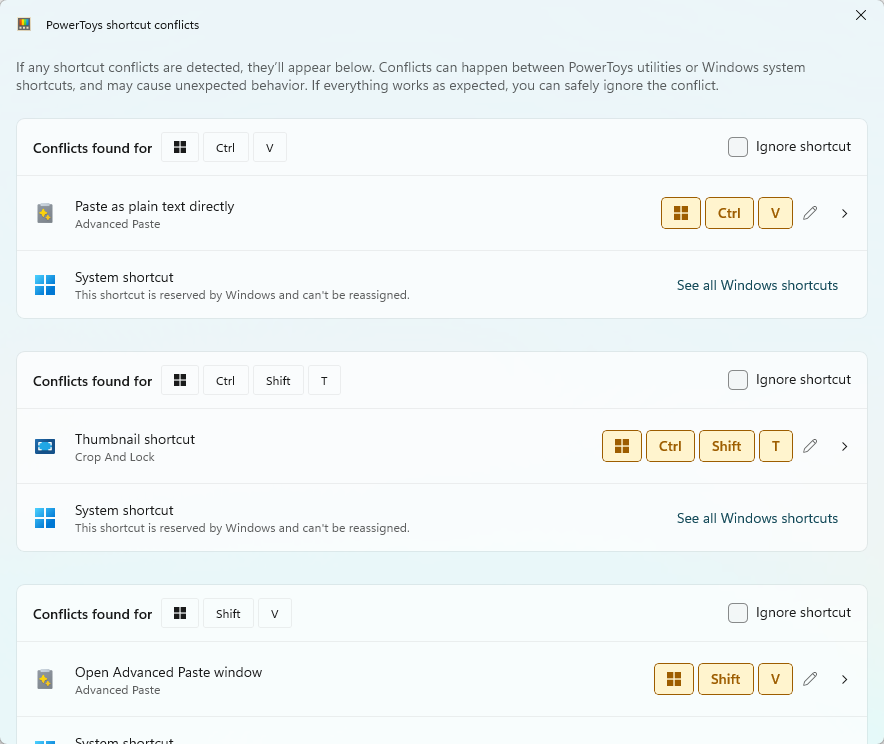
PowerToys includes a feature to detect shortcut conflicts. If you have multiple PowerToys modules that use the same keyboard shortcut, the conflict detection feature will alert you so you can resolve the issue. When the PowerToys shortcut conflicts window appears, you can view all conflicting shortcuts. From this window, you can reassign shortcuts to resolve conflicts, choose to ignore specific conflicts, or remove shortcuts entirely.
Administrator mode
PowerToys can run in administrator mode for enhanced capabilities. Read more about the administrator mode in the PowerToys running with administrator permissions section of the documentation.
| Setting | Description |
|---|---|
| Warnings for elevated apps | When enabled, shows warnings when an elevated (administrator) application may interfere with PowerToys utilities. This helps you understand when certain features might not work as expected due to Windows security boundaries between elevated and non-elevated processes. |
Appearance & behavior
Application language
PowerToys will use the language of your Windows installation. If you want to change the language, you can select a different one from the dropdown menu. The change will take effect after you restart PowerToys. Supported languages: Arabic (Saudi Arabia), Chinese (simplified), Chinese (traditional), Czech, Dutch, English, French, German, Hebrew, Hungarian, Italian, Japanese, Korean, Persian, Polish, Portuguese, Portuguese (Brazil), Russian, Spanish, Swedish Turkish, Ukrainian.
App theme
Here you can set the theme of the PowerToys settings app and the PowerToys flyout: Dark, Light, or Windows default.
Run at startup
If activated, PowerToys will start automatically when you log in to Windows.
Show system tray icon
When activated, PowerToys shows an icon in the system tray area of the taskbar. You can use this icon to open the PowerToys settings app or the PowerToys flyout.
| Setting | Description |
|---|---|
| Show theme-adaptive system tray icon | When enabled, the system tray icon uses a monochrome icon that adapts to your current Windows theme (light or dark) for a more consistent appearance. |
Quick Access flyout
The Quick Access flyout provides a shortcut to toggle PowerToys utilities on or off without opening the full Settings window.
| Setting | Description |
|---|---|
| Enable Quick Access | Enable or disable the Quick Access flyout. |
| Quick Access shortcut | Set the keyboard shortcut to open the Quick Access flyout. |
Back up & restore
Set a location where you want to save your PowerToys settings. You can also restore your settings from an existing backup.
Command-line tools
PowerToys includes command-line tools that you can use in scripts and terminals. The installer adds the bin folder of the PowerToys installation folder to your PATH environment variable, so you can run these tools from any terminal without typing the full path. For per-user installations, PowerToys updates the user PATH; for machine-wide installations, it updates the system PATH. Open a new terminal window after you install PowerToys to pick up the change.
| Command | Description |
|---|---|
PowerToys.Settings.CLI.exe |
View and change which PowerToys utilities are enabled. For more information, see Settings CLI. |
PowerToys.AdvancedPaste.CLI.exe |
Run Advanced Paste actions, such as converting clipboard content to plain text, Markdown, or JSON, without opening the Advanced Paste window. |
PowerToys.FancyZones.CLI.exe |
Command-line interface for FancyZones. For more information, see FancyZones command-line reference. |
PowerToys.FileLocksmith.CLI.exe |
Command-line interface for File Locksmith. For more information, see File Locksmith command-line reference. |
PowerToys.ImageResizer.CLI.exe |
Command-line interface for Image Resizer. For more information, see Image Resizer command-line reference. |
PowerToys.LightSwitch.CLI.exe |
Check the Light Switch state, switch between light and dark themes, and turn scheduling on or off. Light Switch must be enabled. |
PowerToys.PowerDisplay.CLI.exe |
Command-line interface for Power Display. For more information, see Power Display command-line interface. |
Each command forwards its arguments to the matching tool in the PowerToys installation folder. Run a command with --help to see the options that it supports.
Settings CLI
Use the Settings CLI to check which utilities are enabled and to enable or disable utilities without opening the Settings app. The Settings CLI only changes whether a utility is enabled; it doesn't change a utility's other settings.
| Command | Description |
|---|---|
list |
Lists all PowerToys utilities and whether each one is enabled. |
status <module> |
Shows whether one utility is enabled. |
enable <module> |
Enables a utility. |
disable <module> |
Disables a utility. |
Add --json to the list and status commands to get JSON output for scripts. The output shows the effective enabled state, including any state that's set by Group Policy. Use --help to show usage information and --version to show the version.
Utilities are identified by their internal module names, such as FancyZones, AlwaysOnTop, MouseButtonLock, or PowerLauncher for PowerToys Run. Run list to see the names that you can use.
You can run list and status while PowerToys is running. To use enable or disable, exit PowerToys first. The new state is saved and applied the next time PowerToys starts. You can't change the state of a utility that's configured by Group Policy.
# Show the enabled state of every utility as JSON
PowerToys.Settings.CLI.exe list --json

# Check whether FancyZones is enabled
PowerToys.Settings.CLI.exe status FancyZones

# Exit PowerToys, then disable Always On Top
PowerToys.Settings.CLI.exe disable AlwaysOnTop
The command returns exit code 0 when it succeeds and 1 when it fails.
Experimentation
Will activate experimentation with new features on Windows Insider builds, if available.
Diagnostics & feedback
Here you can enable or disable the collection of diagnostic data, which helps the PowerToys team to improve the app. You can also generate a bug report package and view your diagnostic data.
When you generate a bug report, PowerToys shows the collection progress and result. After the package is ready, you can open the generated ZIP file or create a prefilled GitHub issue to send the report to the PowerToys team.
Application compatibility
Some applications may cause issues with PowerToys. In some cases, we can't work around these incompatibilities.
Applications that impact PowerToys on system startup/restart
| Application | Issue | Description |
|---|---|---|
| TaskbarX | #9959 | Causes PowerToys not to work until manually closed and restarted. Also causes the system tray icon not to appear. |
Install PowerToys
This utility is part of the Microsoft PowerToys utilities for power users. It provides a set of useful utilities to tune and streamline your Windows experience for greater productivity. To install PowerToys, see Installing PowerToys.
ทํางานร่วมกับเราใน GitHub
แหล่งที่มาสำหรับเนื้อหานี้สามารถพบได้บน GitHub ซึ่งคุณยังสามารถสร้างและตรวจสอบปัญหาและคำขอดึงข้อมูลได้ สำหรับข้อมูลเพิ่มเติม ให้ดูคู่มือผู้สนับสนุนของเรา

Windows developer