Нотатка
Доступ до цієї сторінки потребує авторизації. Можна спробувати ввійти або змінити каталоги.
Доступ до цієї сторінки потребує авторизації. Можна спробувати змінити каталоги.
GitHub Copilot is an AI assistant in SQL Server Management Studio (SSMS).
GitHub Copilot helps you write Transact-SQL (T-SQL) faster and more accurately by suggesting queries, edits, answers, and administrator tasks directly in your SSMS environment.
In this article, you learn how to use GitHub Copilot and make the most of its features in SSMS.
Open GitHub Copilot
GitHub Copilot requires SQL Server Management Studio 22 or a later version. Update to the latest version of SSMS to access the latest updates and features.
Open SSMS and connect to a server or database in the query editor window.
Select the GitHub Copilot badge in the upper right corner of SSMS, and select Open Chat Window to Sign In.
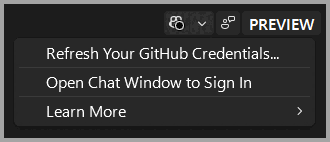
If GitHub Copilot isn't installed, select Install Copilot from the GitHub Copilot badge, or open the Visual Studio Installer and modify your SSMS installation to add the AI Assistance workload. For more information, see Install GitHub Copilot in SQL Server Management Studio.
In the Chat window, sign in with your existing GitHub account or select Sign up for Copilot Free. Follow the prompts in your browser to complete the sign-in or sign-up process.
Once the process is complete, return to SSMS to start using Copilot.
Use GitHub Copilot
After you sign in, use the Chat window to interact with your database using natural language. You can ask general questions about SQL, questions specific to a database, or get assistance writing or editing T-SQL.
Chat: Use the Chat window or inline chat to ask questions about your database, get T-SQL help, and generate code. For more information, see Use the GitHub Copilot Chat experience in SQL Server Management Studio.
Code Completions: As you write T-SQL, Copilot provides suggestions directly in the editor. Copilot suggests both new code (shown as gray text) and edits to existing code. For more information, see Use Completions in SQL Server Management Studio.
Next Edit Suggestions: Copilot anticipates your next edit based on recent changes and suggests revisions in context. For more information, see Use Next Edit Suggestions in SQL Server Management Studio.
Database instructions: Store business rules and context directly in your database so Copilot can generate more accurate responses. For more information, see Use database instructions with GitHub Copilot in SQL Server Management Studio.
To review Copilot features at any time, select GitHub Copilot Walkthrough from the GitHub Copilot badge in the upper right corner of SSMS.
Support
Support for GitHub Copilot Chat is provided by GitHub.
To learn more about Copilot's security, privacy, compliance, and transparency, see the GitHub Copilot Trust Center FAQ and Responsible use of GitHub Copilot features.