Нотатка
Доступ до цієї сторінки потребує авторизації. Можна спробувати ввійти або змінити каталоги.
Доступ до цієї сторінки потребує авторизації. Можна спробувати змінити каталоги.
For an Adaptive Card widget, define the UI and interactions with an Adaptive Cards JSON template and, optionally, a separate JSON data payload. This article walks you through a counting-widget template with data binding and conditional layout. Windows widgets can also display HTML from a URL; for that content format, see Web widget providers.
A counting widget
The example in this article is a simple counting widget that displays an integer value and allows the user to increment the value by clicking on a button in the widget's UI. This example template uses data binding to automatically update the UI based on the data context.
Apps need to implement a widget provider to generate and update the widget template and/or data and pass them to the widget host. The article Implement a widget provider in a win32 app provides step-by-step guidance for implementing the widget provider for the counting widget that we will generate in the steps below.
The Adaptive Cards Designer
The Adaptive Cards Designer is an online tool for editing card JSON and previewing its layout and data binding. Open the Designer to work on the template.
Important
The Designer uses its own renderer and host options. Don't assume that features it offers are supported by the Widgets Board, or that it supplies Windows-specific $host values. This walkthrough doesn't depend on a host preset or a host-data editor. Test the final template in a Windows widget provider for each supported size and theme.
The images below illustrate the card's layout, not the current Designer interface.
Start with a blank card
The Card payload editor contains the JSON definition of the card. Replace its contents with this blank card:
{
    "type": "AdaptiveCard",
    "$schema": "http://adaptivecards.io/schemas/adaptive-card.json",
    "version": "1.6",
    "body": []
}
The Sample data editor contains an optional JSON data context. For information about binding that data to the template, see Adaptive Cards Template Language.
Windows widget host properties
The Widgets Board supplies host properties at runtime. Reference them through $host in template expressions, such as ${$host.widgetSize}. These properties are separate from your provider's data payload; adding a widgetSize field to the sample data doesn't set $host.widgetSize.
| Property | Value | Description |
|---|---|---|
| host.widgetSize | "small", "medium", or "large" | The size of the pinned widget. |
| host.hostTheme | "light" or "dark" | The current theme of the device on which the Widgets Board is displayed. |
| host.isSettingsPayload | true or false | When this value is true, the user has clicked on the Customize widget button in the widget context menu. You can use this property value to display customization settings UI elements. This is an alternative method to using IWidgetProvider2.OnCustomizationRequested to alter the JSON payload in the widget provider app. For more information, see Implementing widget customization. |
| host.isHeaderSupported | true or false | When this value is true, header customization is supported. For more information, see isHeaderSupported. |
| host.isHeader | true or false | When this value is true, the host is requesting a payload specifically for rendering of the widget header. |
| host.isWebSupported | true or false | When this value is false, the host does not currently support loading a widget's web content. When this occurs, web widgets will display the fallback JSON payload supplied by the widget provider, but this value can be use to further customize the content. For more information, see Web widget providers |
| host.isUserContextAuthenticated | true or false | When this value is false, the only action that is supported is Action.OpenUrl. The value of isUserContextAuthenticated can be used to adjust widget content appropriately, given the interactivity limitations. |
The counting widget uses four TextBlock elements and one Action.Execute action for its button.
Add TextBlock elements
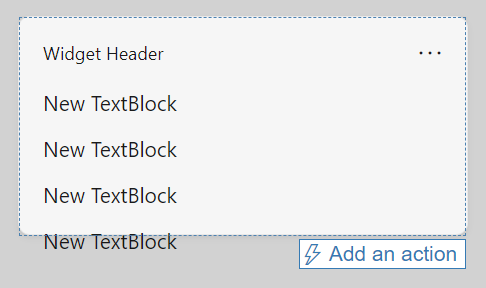
Add four TextBlock elements from the Designer's element palette, or add them directly in the card JSON. Before conditional layout is applied, the card has four lines of text, as illustrated below.
Implementing conditional layout
In the Card payload editor, replace the body array with the following fragment:
"body": [
    {
        "type": "TextBlock",
        "text": "You have clicked the button ${count} times"
    },
    {
        "type": "TextBlock",
        "text": "Rendering only if medium",
        "$when": "${$host.widgetSize==\"medium\"}"
    },
    {
        "type": "TextBlock",
        "text": "Rendering only if small",
        "$when": "${$host.widgetSize==\"small\"}"
    },
    {
        "type": "TextBlock",
        "text": "Rendering only if large",
        "$when": "${$host.widgetSize==\"large\"}"
    }
]
In the Adaptive Cards Template Language, the $when property specifies that the containing element is displayed when the associated value evaluates to true. If the value evaluates to false, the containing element is not displayed. In the body element in our example, one of the three TextBlock elements will be shown, and the other two hidden, depending on the value of the $host.widgetSize property. For more information about the conditionals supported in Adaptive Cards, see Conditional layout with $when.
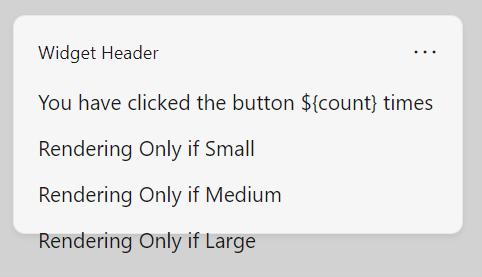
Without evaluating the template expressions, the card shows all four text blocks:
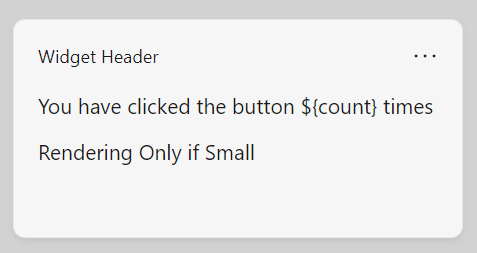
When the Widgets Board evaluates the template with $host.widgetSize set to "small", only the small-size text block appears alongside the count:
After integrating the template with your provider, resize the pinned widget in the Widgets Board and check that the matching text block appears. Declare each size you want to test in the widget provider manifest. A generic Designer preview without Windows host data can't verify these conditions.
Bind to the data context
The example uses a data property named count, referenced by ${count} in the first TextBlock. At runtime, the provider sends the data payload to the widget host. At design time, enter the following JSON in the Sample data editor and enable the Designer's preview to check the count binding. This sample data doesn't supply the separate Windows host properties.
{"count": "2"}
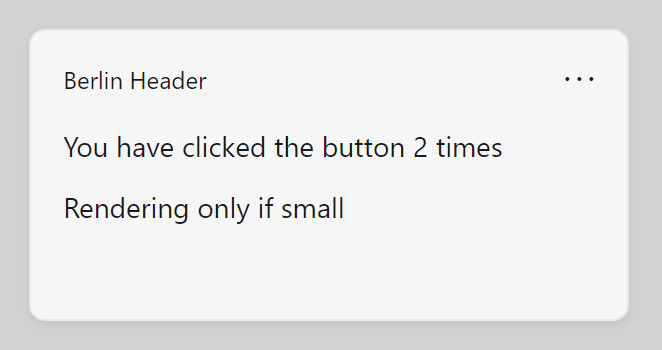
With {"count": "2"} as the sample data, template expansion replaces ${count} with 2 in the first TextBlock. Check this binding in the Designer after enabling preview. Check the separate $host.widgetSize conditions in the Widgets Board, as described above.
Add a button
The next step is to add a button to our widget. In the widget host, when the user clicks the button, the host will make a request to the widget provider. For this example, the widget provider will increment the count value and return an updated data payload. Because this operation requires a widget provider, you won't be able to view this behavior in the Adaptive Cards Designer, but you can still use the designer to adjust the layout of your button within your UI.
With Adaptive Cards, interactive elements are defined with action elements. Add the following block of JSON directly after the body element in the card payload editor. Be sure to add a comma after the closing bracket (]) of the body element or the designer will report a formatting error.
,
"actions": [
    {
        "type": "Action.Execute",
        "title": "Increment",
        "verb": "inc"
    }
]
The type property selects Action.Execute, which the widget host forwards to your provider's OnActionInvoked callback. Use Action.OpenUrl for URL navigation instead; it doesn't invoke that provider callback. The title supplies the button text, and verb is the app-defined operation the provider handles. When $host.isUserContextAuthenticated is false, don't offer Action.Execute interactions; only Action.OpenUrl is supported.
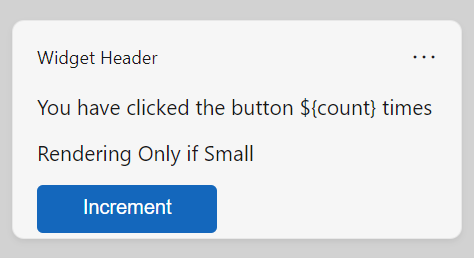
The complete widget template
The following code listing shows the final template for the counting-widget interaction. Its Action.Execute button requires an authenticated user context. Validate it in the Widgets Board with your provider; the Designer doesn't run your provider's increment handler.
{
    "type": "AdaptiveCard",
    "$schema": "http://adaptivecards.io/schemas/adaptive-card.json",
    "version": "1.6",
    "body": [
    {
      "type": "TextBlock",
      "text": "You have clicked the button ${count} times"
    },
    {
      "type": "TextBlock",
       "text": "Rendering Only if Small",
      "$when": "${$host.widgetSize==\"small\"}"
    },
    {
      "type": "TextBlock",
      "text": "Rendering Only if Medium",
      "$when": "${$host.widgetSize==\"medium\"}"
    },
    {
      "type": "TextBlock",
      "text": "Rendering Only if Large",
      "$when": "${$host.widgetSize==\"large\"}"
    }
    ],
   "actions": [
    {
      "type": "Action.Execute",
      "title": "Increment",
      "verb": "inc"
    }
  ]
}
Settings payload example
The following code listing shows a simple example of a JSON payload that uses the host.isSettingsPayload property to display different content when the user has clicked the Customize widget button.
{
    "type": "AdaptiveCard",
    "body": [
    {
        "type": "Container",
        "items":[
            {
                "type": "TextBlock",
                "text": "Content payload",
                "$when": "${!$host.isSettingsPayload}"
            }
        ]
    },
    {
        "type": "Container",
        "items":[
            {
                "type": "TextBlock",
                "text": "Settings payload",
                "$when": "${$host.isSettingsPayload}"
            }
        ]
    }
],
"actions": [
    {
        "type": "Action.Execute",
        "title": "Increment",
        "verb": "inc",
        "$when": "${!$host.isSettingsPayload}"
    },
    {
        "type": "Action.Execute",
        "title": "Update Setting",
        "verb": "setting",
        "$when": "${$host.isSettingsPayload}"
    }
],
    "$schema": "http://adaptivecards.io/schemas/adaptive-card.json",
    "version": "1.6"
}
Співпраця з нами на GitHub
Джерело цього вмісту можна знайти на GitHub, де також можна створювати й переглядати запитання та запити на внесення змін. Докладні відомості наведено в нашому посібнику для співавторів.

Windows developer