Lưu ý
Cần có ủy quyền mới truy nhập được vào trang này. Bạn có thể thử đăng nhập hoặc thay đổi thư mục.
Cần có ủy quyền mới truy nhập được vào trang này. Bạn có thể thử thay đổi thư mục.
Connecting to a container's console is useful when you want to troubleshoot your application inside a container. Azure Container Apps allows you to connect to a container's console using the Azure portal or Azure CLI.
Note
Azure Container Apps platform offers a debug console to help you troubleshoot your applications if your applications use containers that only include your application and its runtime dependencies, or a "distroless" image.
Azure portal
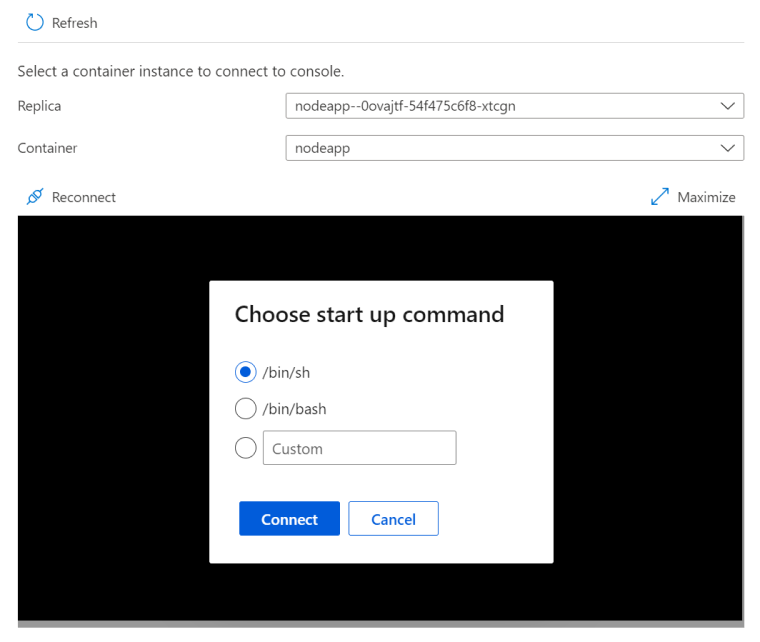
To connect to a container's console in the Azure portal, follow these steps.
- In the Azure portal, select Console in the Monitoring menu group from your container app page.
- Select the revision, replica, and container you want to connect to.
- Choose to access your console via bash, sh, or a custom executable. If you choose a custom executable, it must be available in the container.
Azure CLI
To connect to a container console, Use the az containerapp exec command. To exit the console, select Ctrl-D.
For example, connect to a container console in a container app with a single container using the following command. Replace the <PLACEHOLDERS> with your container app's values.
az containerapp exec \
  --name <CONTAINER_APP_NAME> \
  --resource-group <RESOURCE_GROUP>
To connect to a container console in a container app with multiple revisions, replicas, and containers include the following parameters in the az containerapp exec command.
| Argument | Description |
|---|---|
--revision |
The revision names of the container to connect to. |
--replica |
The replica name of the container to connect to. |
--container |
The container name of the container to connect to. |
You can get the revision names with the az containerapp revision list command. Replace the <PLACEHOLDERS> with your container app's values.
az containerapp revision list \
  --name <CONTAINER_APP_NAME> \
  --resource-group <RESOURCE_GROUP> \
  --query "[].name"
Use the az containerapp replica list command to get the replica and container names. Replace the <PLACEHOLDERS> with your container app's values.
az containerapp replica list \
  --name <CONTAINER_APP_NAME> \
  --resource-group <RESOURCE_GROUP> \
  --revision <REVISION_NAME> \
  --query "[].{Containers:properties.containers[].name, Name:name}"
Connect to the container console with the az containerapp exec command. Replace the <PLACEHOLDERS> with your container app's values.
az containerapp exec \
  --name <CONTAINER_APP_NAME> \
  --resource-group <RESOURCE_GROUP> \
  --revision <REVISION_NAME> \
  --replica <REPLICA_NAME> \
  --container <CONTAINER_NAME>