Lưu ý
Cần có ủy quyền mới truy nhập được vào trang này. Bạn có thể thử đăng nhập hoặc thay đổi thư mục.
Cần có ủy quyền mới truy nhập được vào trang này. Bạn có thể thử thay đổi thư mục.
APPLIES TO:  Power BI service for business users
  Power BI service for designers & developers
Power BI Desktop
Requires Pro or Premium license
Power BI service for designers & developers
Power BI Desktop
Requires Pro or Premium license
Add comments to Power BI dashboards, reports, and individual visuals to collaborate with colleagues. You can @mention colleagues to notify them, and they receive an email or push notification with a link to the comment.
Note
Commenting requires a Power BI Pro or Premium Per User (PPU) license, or the content must reside in a Premium (or Fabric F64+) capacity. See Power BI license types.
How comments capture context
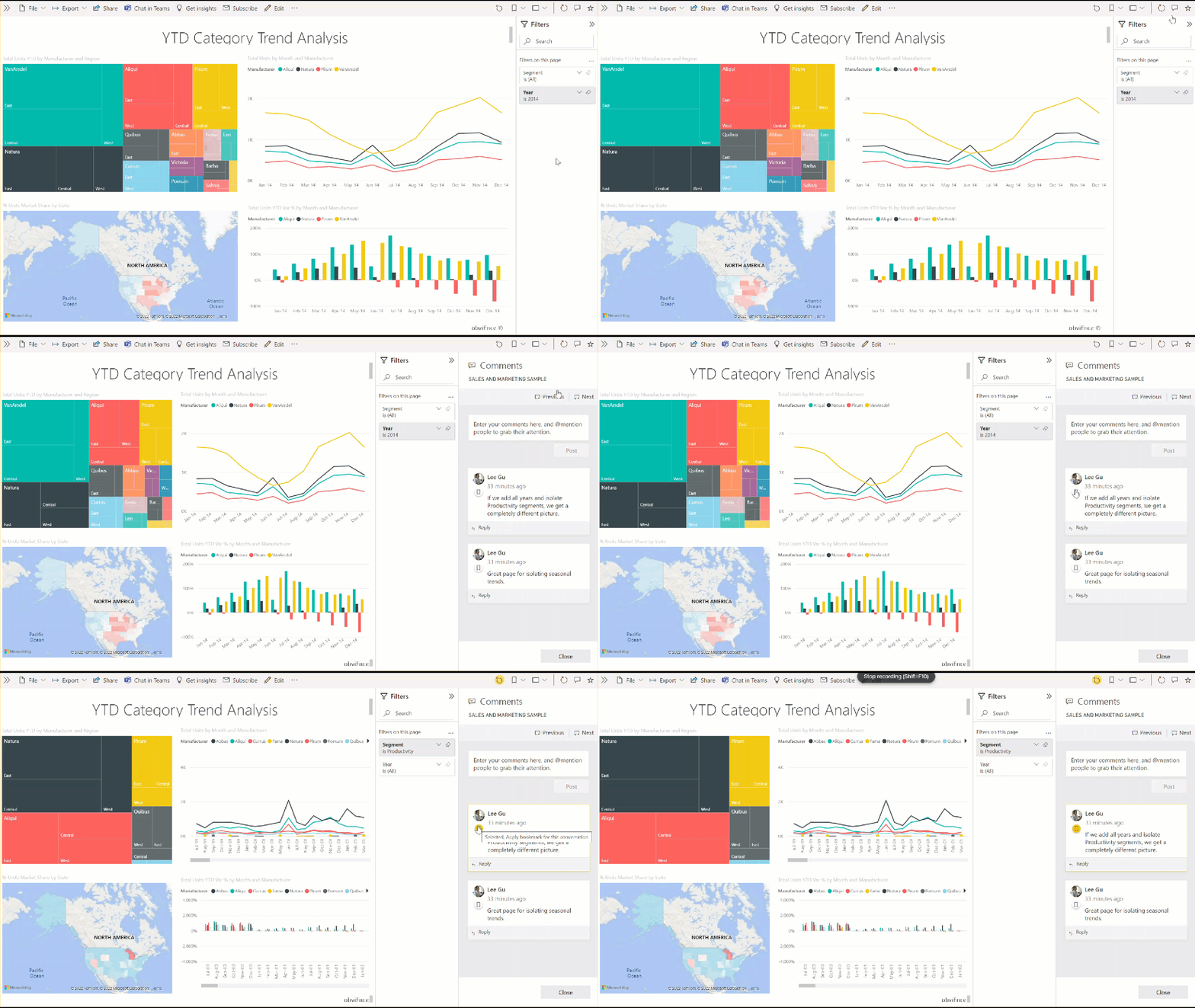
When you add a comment to a report, Power BI captures the current filter and slicer values as a bookmark. When someone selects the comment, the report restores those filter settings so they see exactly what you saw.
Note
Bookmarks are captured only for the first comment in a thread, not for replies.
Add a comment
- Select the Comment icon in the menu bar to open the Comments pane.
- Type your comment and select Post.
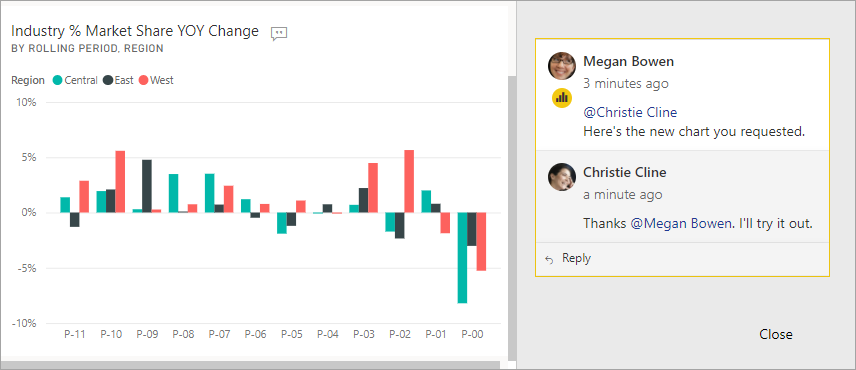
To comment on a specific visual, hover over it, select More options (...) > Add a comment. A chart icon  indicates comments tied to a specific visual.
Use @ followed by a colleague's name to notify them directly.
Considerations and limitations
- Characters per comment: 2,000 (including @mentions and spaces)
- Conversations per dashboard or report: 100
- Comments per conversation: 1,000
- Paginated reports: General comments only (not on individual visuals)
Report owners can turn off comments in File > Settings.