Lưu ý
Cần có ủy quyền mới truy nhập được vào trang này. Bạn có thể thử đăng nhập hoặc thay đổi thư mục.
Cần có ủy quyền mới truy nhập được vào trang này. Bạn có thể thử thay đổi thư mục.
Org apps are Power BI workspace apps rebuilt for Fabric as a new item type. By using org apps as items, you can create multiple org apps per workspace. You can manage org apps the same way you manage any other item type. You can create a new org app, manage access, and share the org app. All the things you find familiar and easy about managing other items, such as reports, are all familiar with org apps as items.
Note
What are org apps? Org apps are a Microsoft Fabric item type that content creators use to package content for consumers in their organization.
Org apps can include:
- Power BI reports
- Paginated reports
- Fabric notebooks
- Maps
- Real-time dashboards
The previous version of apps, Power BI apps, are often referred to as workspace apps to differentiate them from org apps.
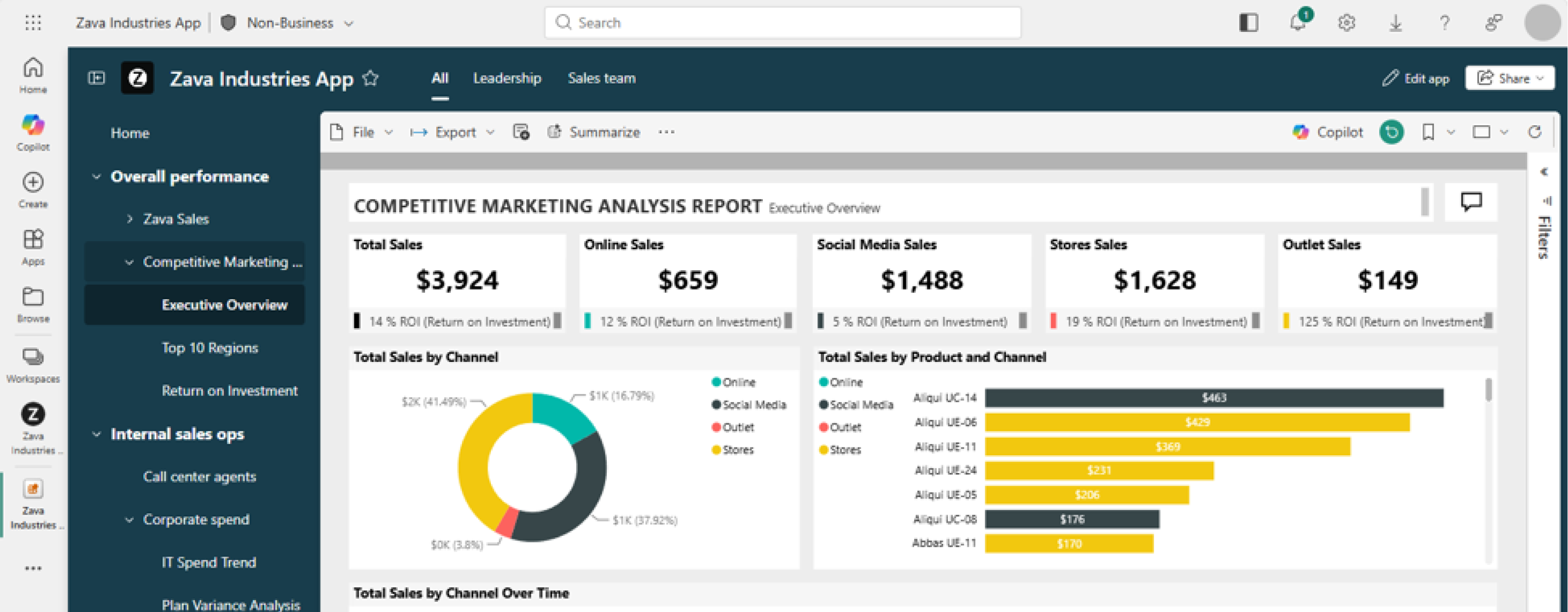
Power BI workspace apps are a great way for content creators, like report authors, to craft secure, customized data experiences for colleagues and consumers. By using org apps as items, you can create as many org apps as you need to support different teams and scenarios. You can customize each app with theme colors, navigation, and landing experiences. You can also use audiences to tailor what different groups see and access within a single org app.
Prerequisites for creating org app items
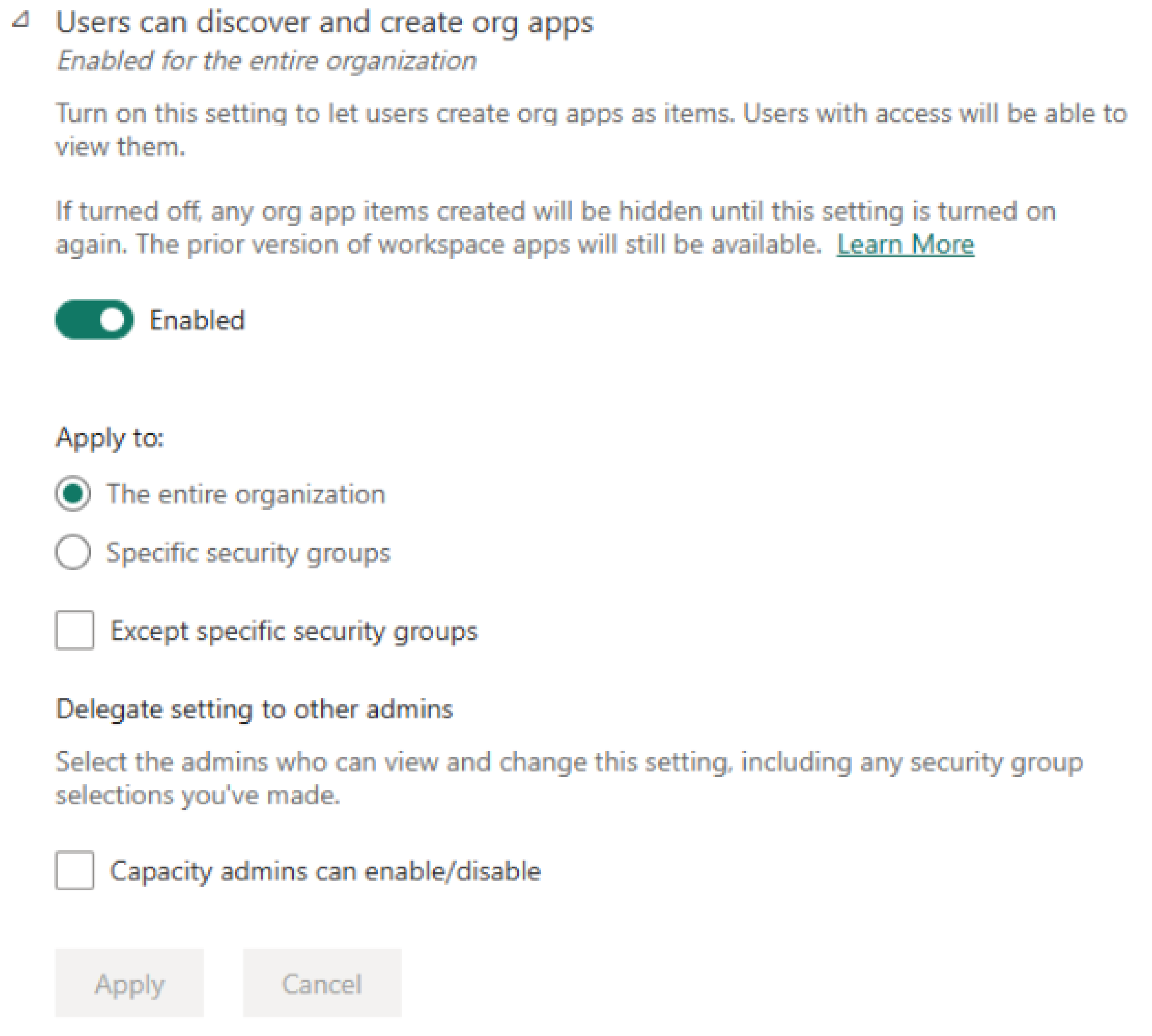
To configure org app creation at the tenant level, you must be a Microsoft Fabric administrator. In Settings > Admin portal > Tenant settings, use the Users can discover and create org apps setting. Administrators can use security group inclusion and exclusion settings to control who can or can't create org apps.
Workspace type set to Pro, Fabric trial, or capacity
To create an org app item, a workspace must be in a specific workspace type: Pro, Fabric trial, Premium capacity, or Fabric capacity. To configure a workspace type:
- Create or open the workspace where you want to create org app items.
- Select workspace settings.
- Depending on your tenant, select the Premium tab or License info tab.
- Select Edit to change the workspace type.
- Select Pro, Trial, Premium capacity, or Fabric capacity (depending on what your tenant administrator configured).
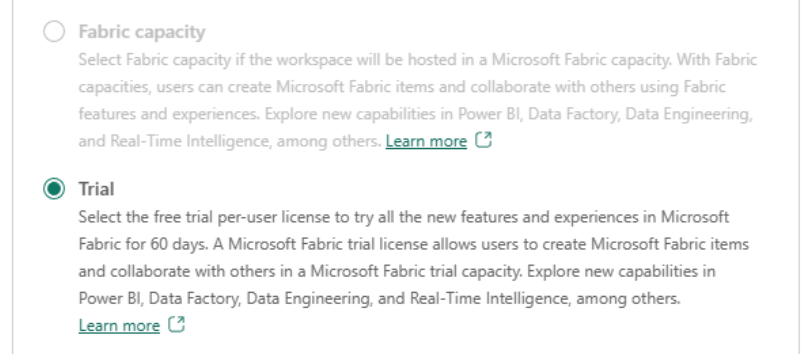
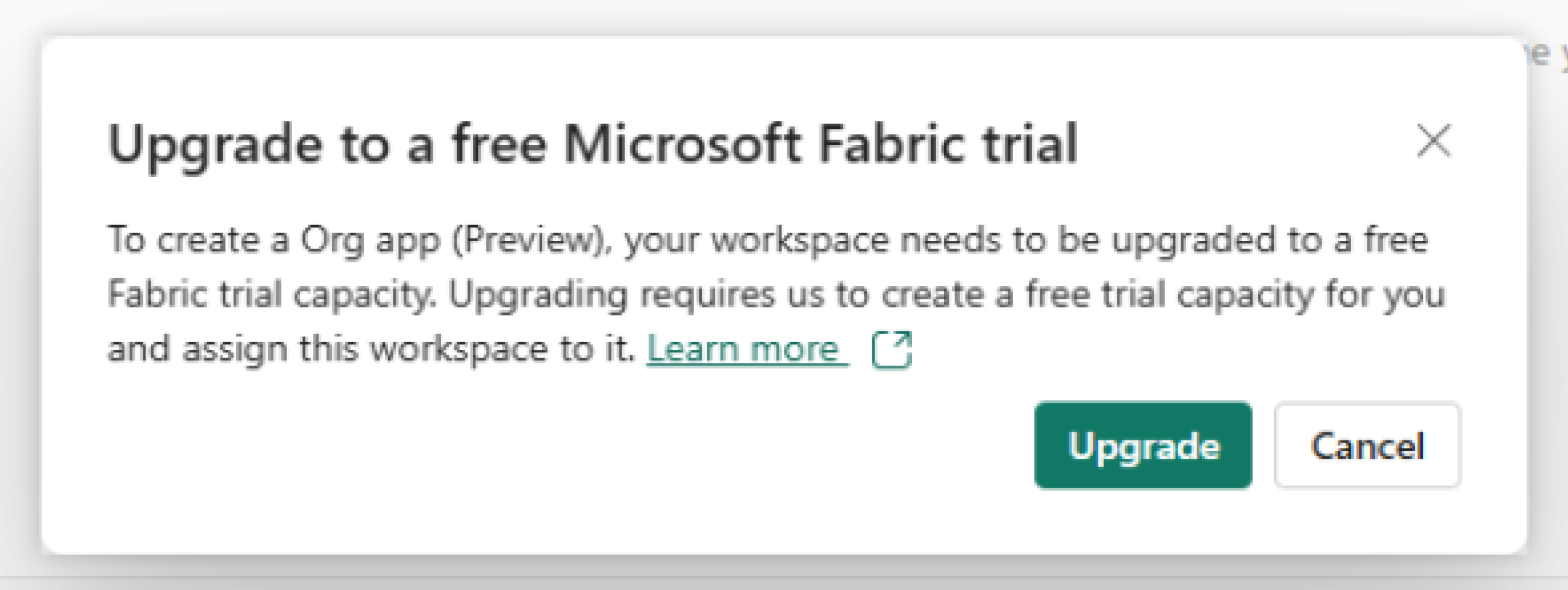
When Microsoft tenant administrators turn on Fabric trials, users who create an org app are prompted to start a trial.
Workspace roles for creating an org app item
Users in the workspace with an admin, member, or contributor role can create org app items.
Access-management changes have stricter requirements. Users need write and reshare permissions when they add or remove items from an org app, or when they make any other change that affects access management. These permissions are required on:
- The included items.
- The underlying items that org apps propagate access to or revoke access from.
For reports and paginated reports, this requirement includes underlying semantic models in the same workspace as the org app and in different workspaces.
In practice, these permissions are typically available only to workspace admins and members. Contributors can make org app updates that don't affect access management. For more information, see org app access management and workspace roles in Microsoft Fabric. Workspace viewers can't create org app items.
See also Contributors and access management.
How org app items work, and how they're different from workspace apps
By using org app items, you can create multiple org apps per workspace.
By using org app items, you can package up items from the same workspace and share them with others in your organization who don't have access to the workspace.
After you create an org app item, you can include Power BI reports, paginated reports, Fabric notebooks, maps, and real-time dashboards in the org app. These items are referred to as included items.
When you give users access to the org app item, at a minimum they gain read access to the included items as well. For Power BI reports in an org app, users gain read access to the semantic models associated with the report. Even if a semantic model is in a different workspace, users gain access to that model.
Key ways that org app items are different from workspace apps (also known as Power BI apps)
| Capability | Org app items | Workspace apps |
|---|---|---|
| Number of apps per workspace | You can create multiple org app items per workspace. | You can create only one app per workspace. Audiences control who sees content. |
| Content versioning and visibility | Included items aren't versioned copies. They stay as original items in the same workspace. After you select Save, changes are immediately visible to org app viewers. | Items are versioned in the app. Users don't see changes until you publish an app update. |
| Direct access to included items | If users have access to the org app, they can view included items outside the org app when they have a direct link. | Users can't view items outside the app unless they have separate access to the source item. |
| Paginated report model access | Access to a paginated report in an org app automatically grants access to its semantic model. | Access to a paginated report doesn't automatically grant semantic model access. App authors manage model access manually. |
| Cross-workspace model access | Access to a report or paginated report can automatically grant access to a semantic model in another workspace. | App authors manage access to semantic models in other workspaces manually. |
| Sharing by users with reshare permission | Users with share permission on the org app item can share the org app. | Only specific workspace roles can manage access and share the app. |
| Audiences and audience items | Audiences are child items under an org app item. You can manage audience access without entering org app edit mode. | Audiences aren't represented as child items in the workspace list. |
| Audience management scope | You can manage access at the org app level across multiple audiences, or manage a single audience from its own child item. | Audience-related management is tied to the app model and publish flow. |
| How users discover and open apps | Users don't need to install an org app. It appears in item lists, such as Recent on Home. | Users install the app to see it in app lists. |
| Revoking org app access | When a user is removed from an org app, org-app-based access to included items and related semantic models is automatically revoked. Other non-org-app access remains. | Removing a user from the app doesn't automatically remove semantic model access. Authors manage model revocation manually. |
Workspace apps continue to work alongside org app items
If you configure and publish a workspace app, org app items don't affect how your workspace app works. You can continue to use workspace apps alongside org app items.
Create and manage workspace apps at the workspace level:

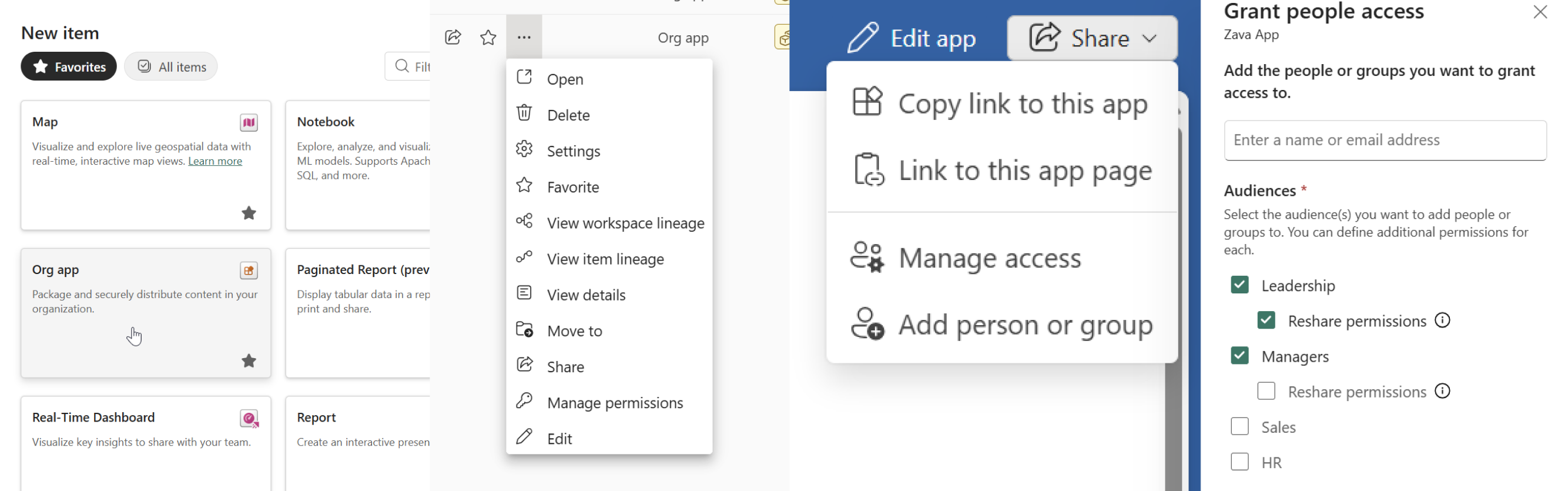
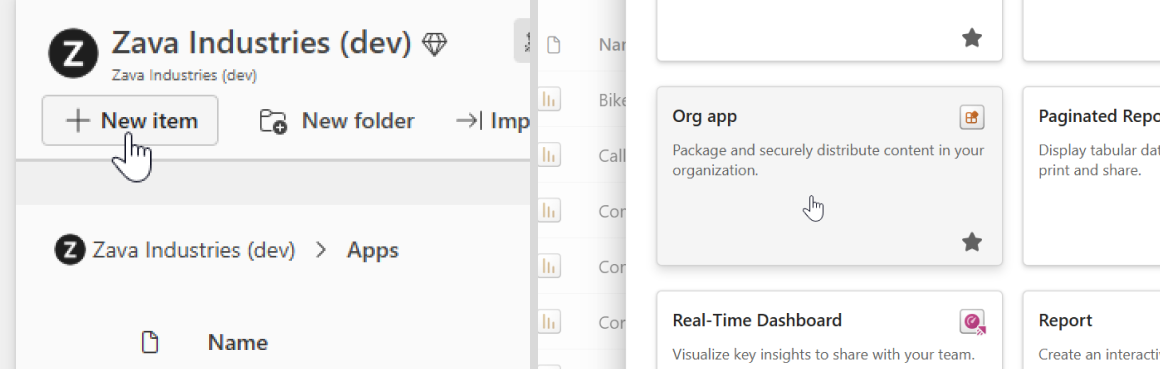
Create and manage org app items from the New menu and workspace list:
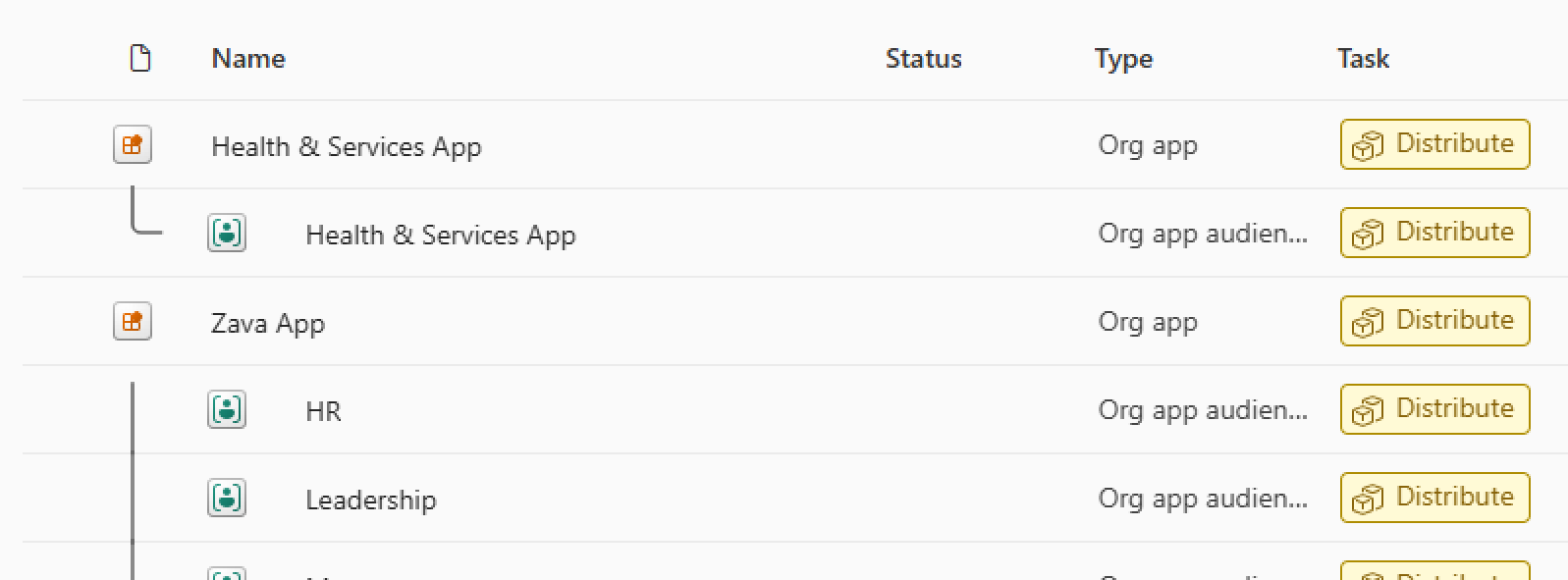
Org app items appear in your workspace list:
How to create and share an org app
Create a new org app item and add content
From a shared workspace with the right workspace type, select New > Org app.
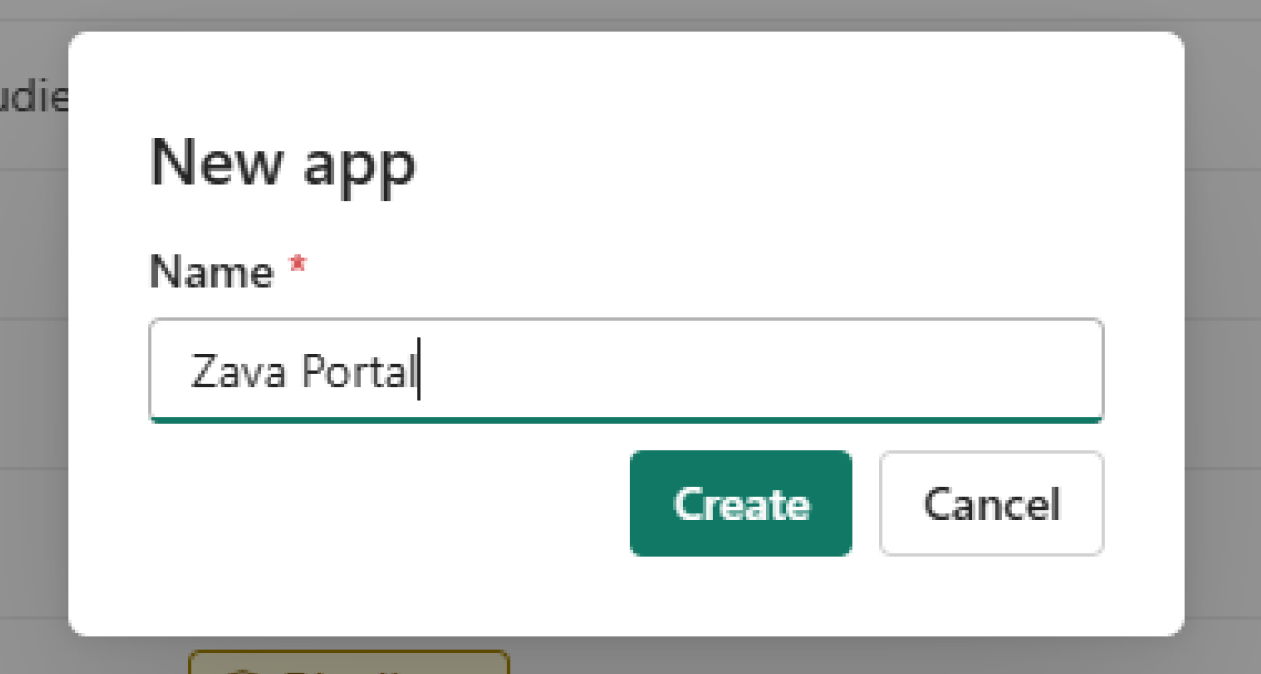
Enter a name for your app.
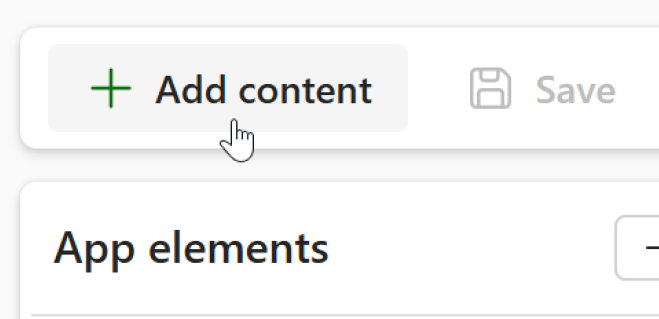
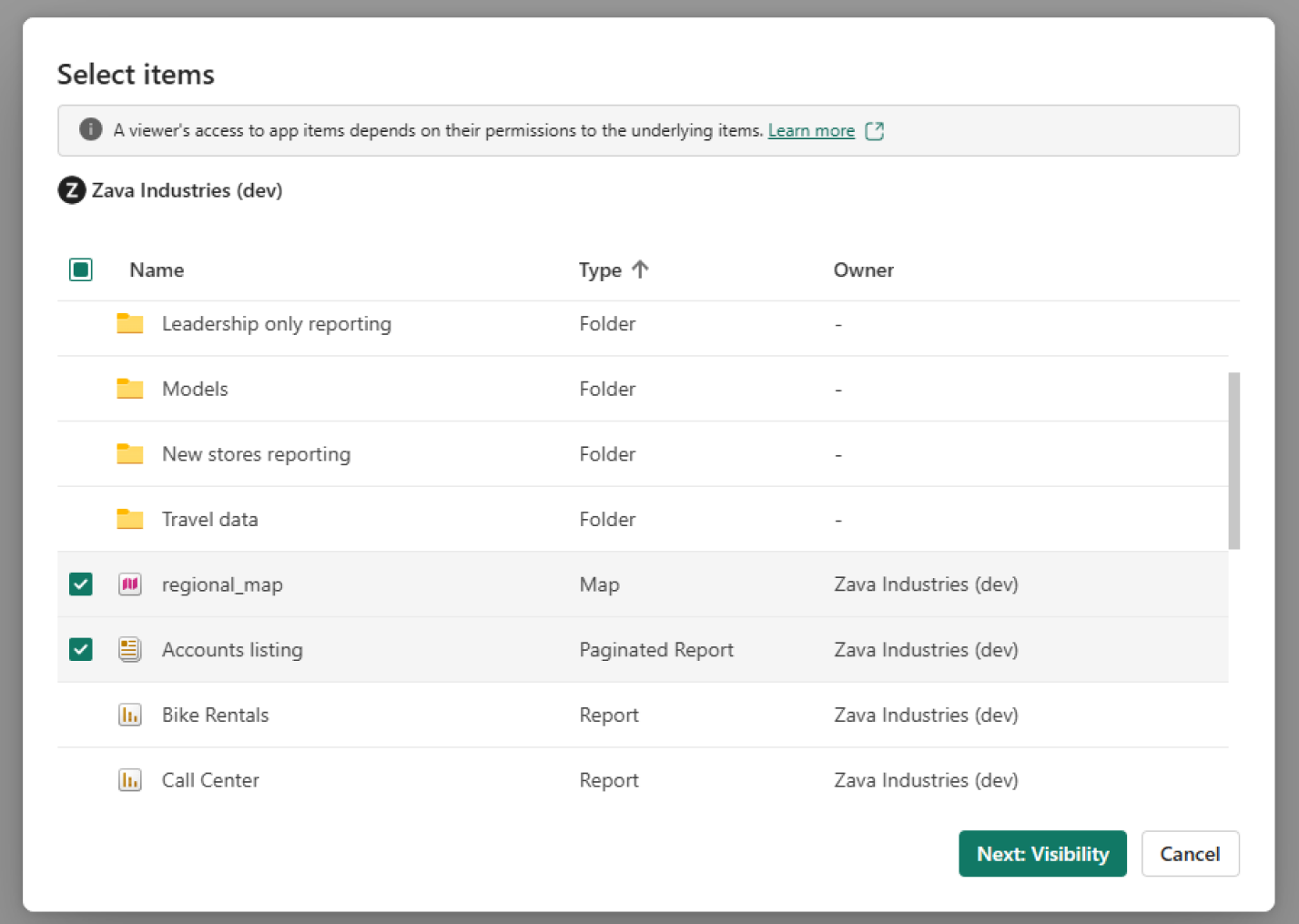
Select Add content, select org app-supported items from your workspace, and then select Add to app.
If your org app uses audiences, item visibility behavior depends on how many audiences exist. For details, see Audience behavior when adding or deleting.
Screenshot of workspace item picker:
Add more elements to your org app and arrange the navigation
You can add more elements to your org app, such as links and an overview page that lists everything in your org app. You can also arrange the navigation as you like by creating sections and reordering elements.
For audience-specific visibility, use Manage audiences. For details, see Control item visibility per audience.
Add links to your org app navigation from Add > Link.
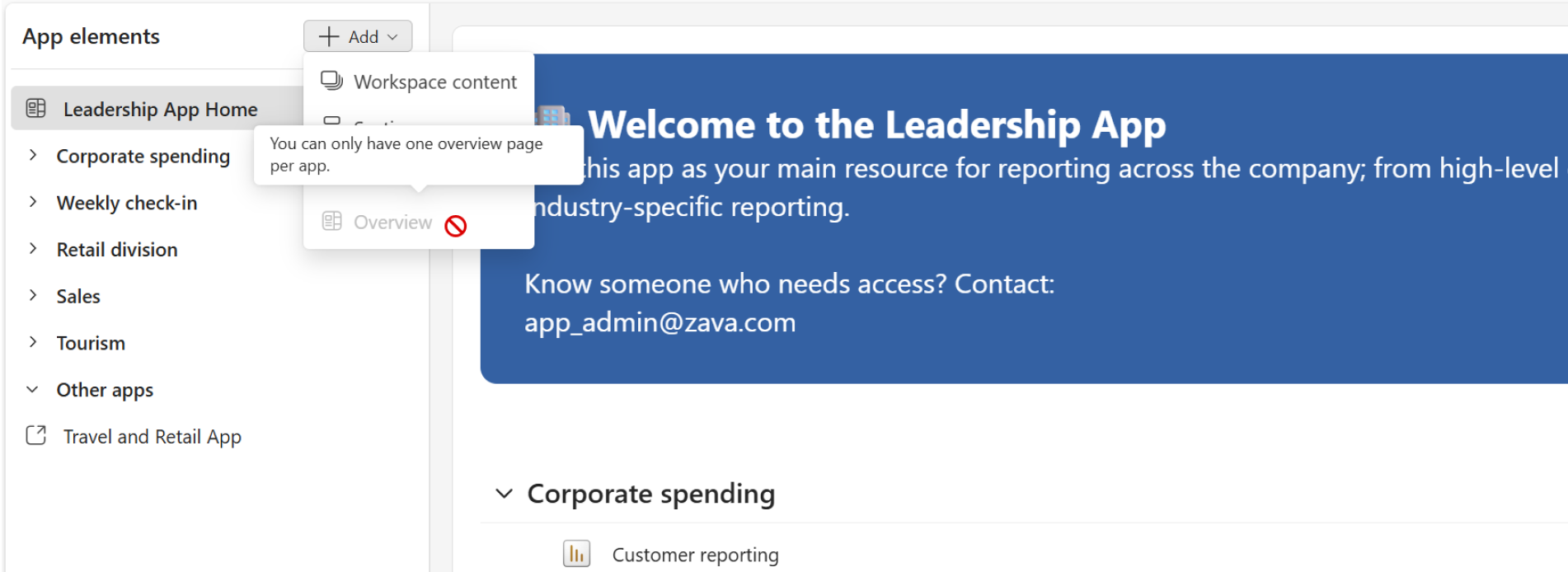
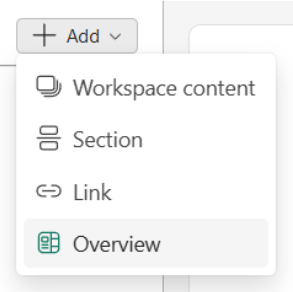
Add an overview page to your org app that lists everything added to your org app. Select Add > Overview. You can have one overview page in an org app.
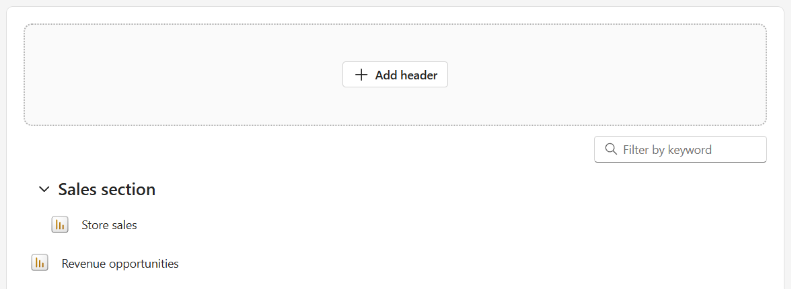
After you add the overview page, you can add a custom header by selecting Add header.
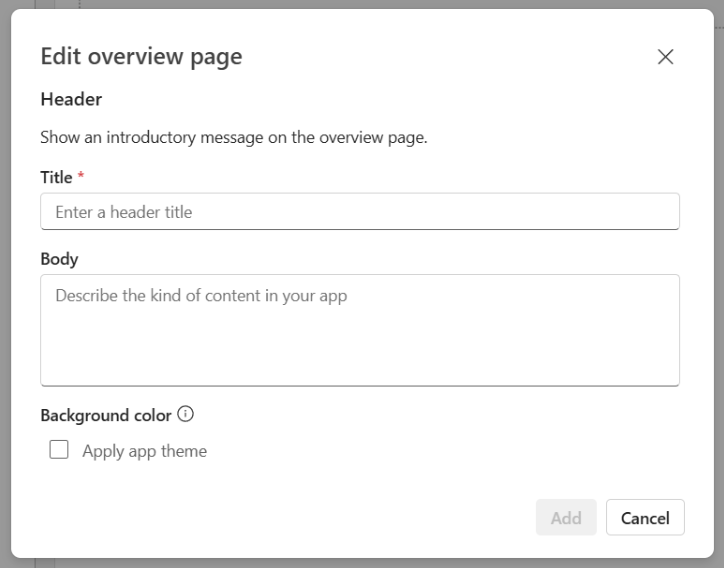
Enter a header title and body, and choose whether to apply the org app theme color as the header’s background color.
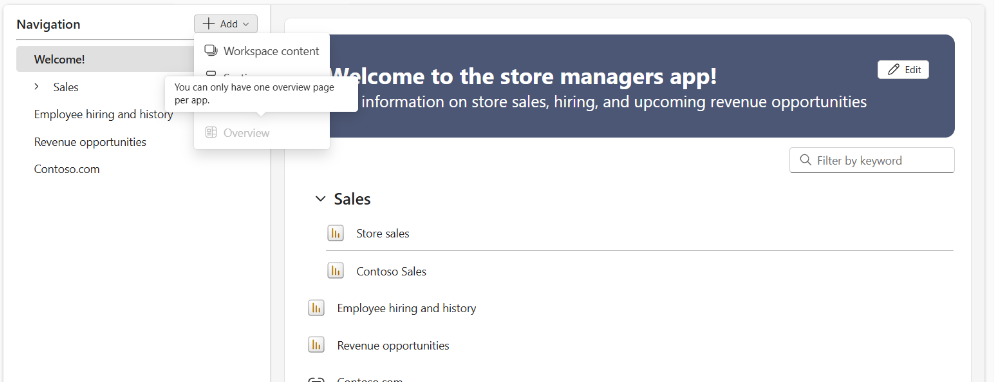
You can add only one overview page to an org app:
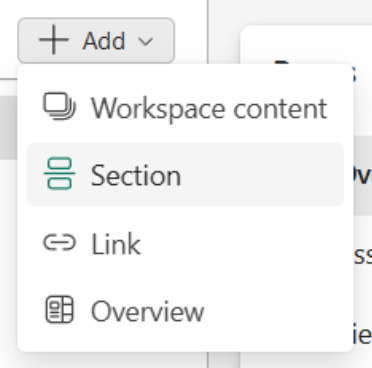
Organize your navigation by adding sections from Add > Section and naming the section.
Move elements to a section by selecting ... > Move to section.
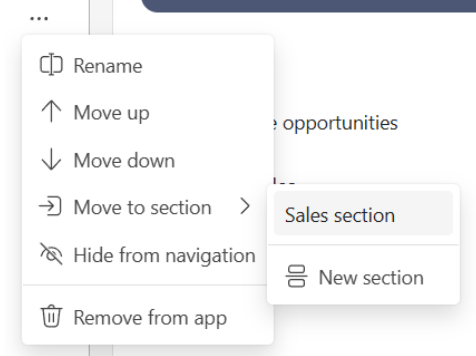
To change how elements appear in your org app navigation, rename any element added to your org app by hovering over an element and selecting ... > Rename.
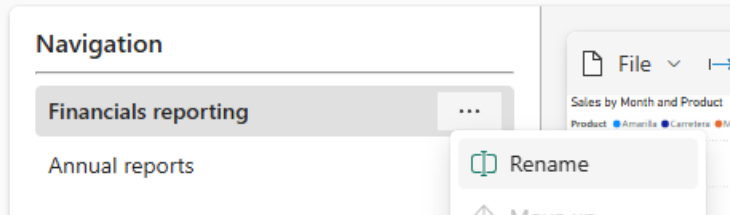
To change the order of elements in your app navigation, reorder elements by selecting ... > and then Move up or Move down.
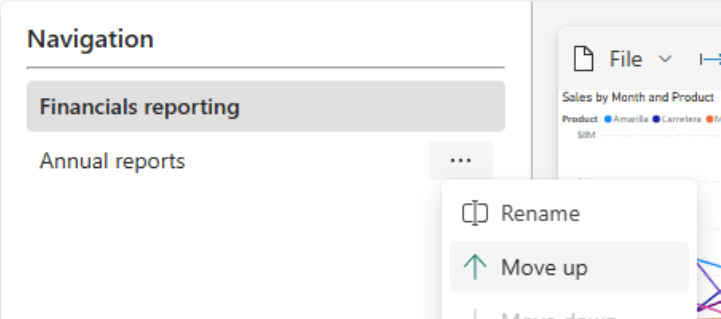
The first element in your navigation is the landing experience for your org app.
Adjust the settings for your org app
From Settings, change the name, description, and endorsement level.
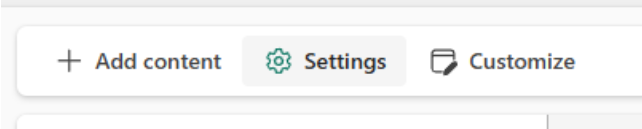
From the About tab, rename your org app, add a description, and see the details of who the owner and creator of the org app are, plus the last time the item was modified.
Changes you make from this pane instantly apply to the org app.
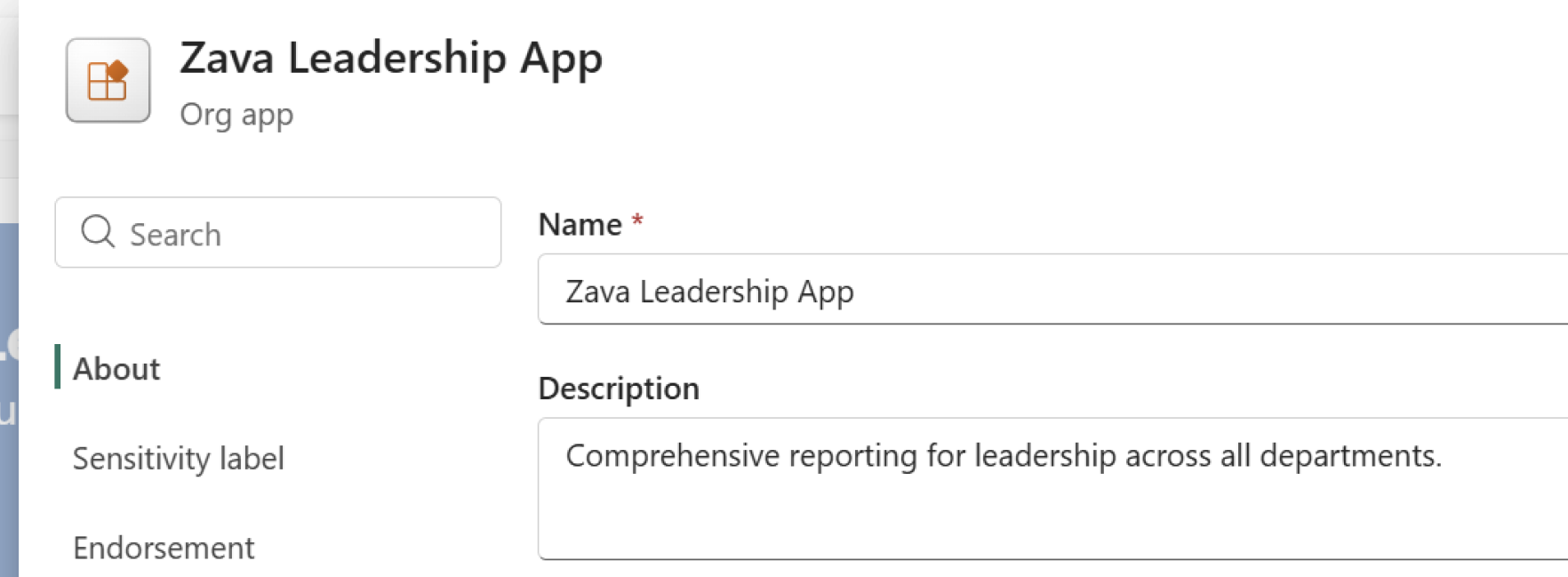
To set the endorsement level on your org app item, view the Endorsement tab. If you have permissions, you can make changes to the endorsement level. The endorsement level you set on the org app item is unique to the org app item, not the included items you add to the org app.
Customizing your org app
To change the app image (icon) or theme (color), select Customize.
Audience tab display options are also configured from Customize. For those settings, see Audience tabs for consumers.

From the Branding tab, upload your own image as the app icon and select a custom color for your org app. The icon and colors you select customize the org app experience your consumers see once you save the org app.
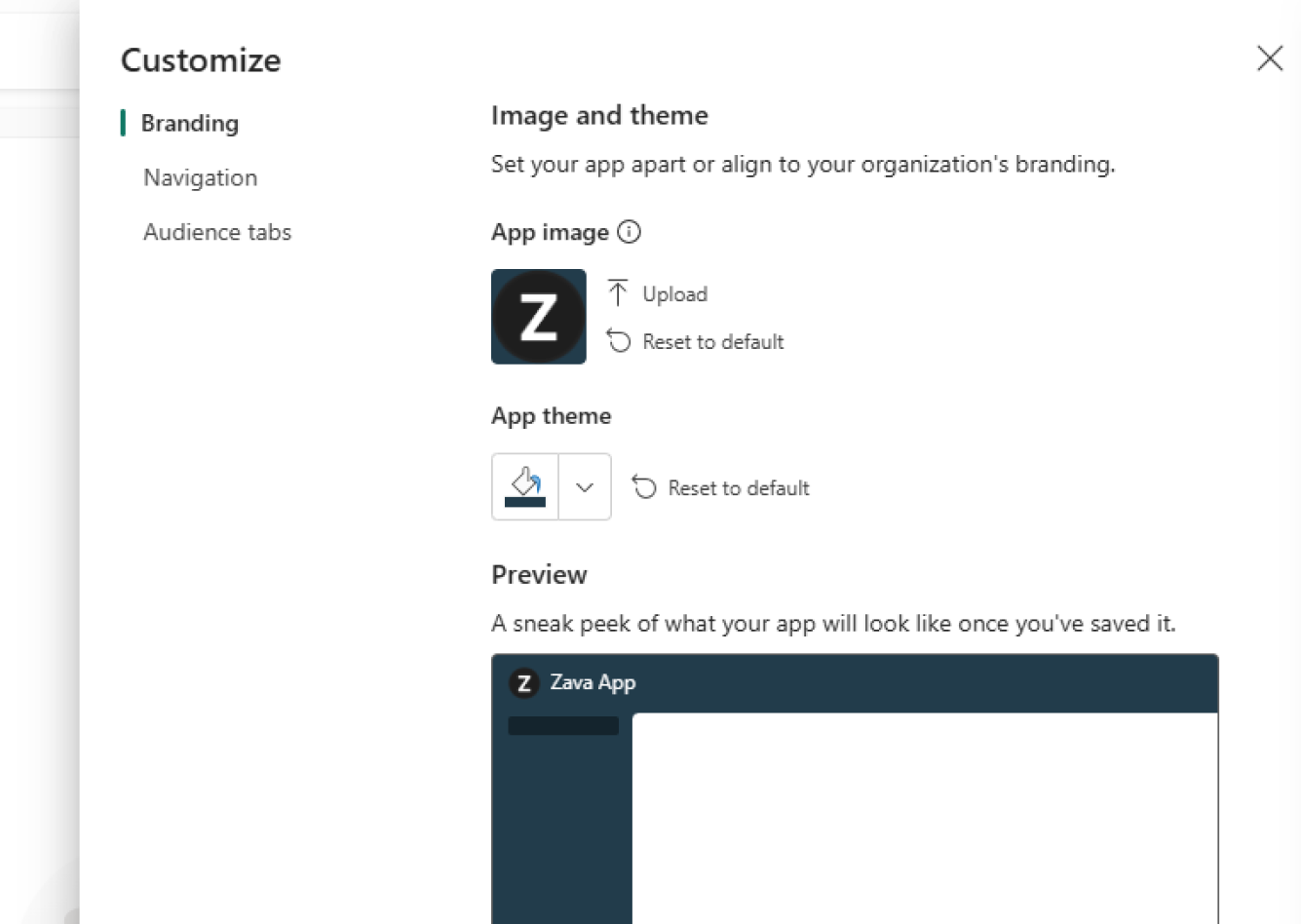
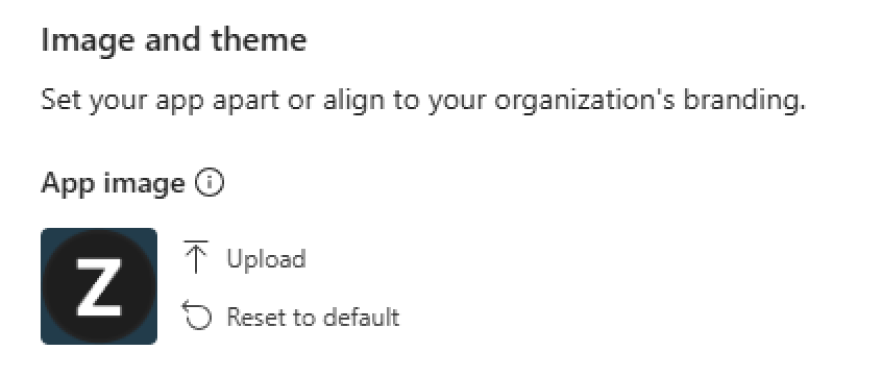
To add a custom app image, select Upload. Upload a .jpg or .png file of up to 45 KB. If you need to remove the app image you uploaded, select Reset to default.
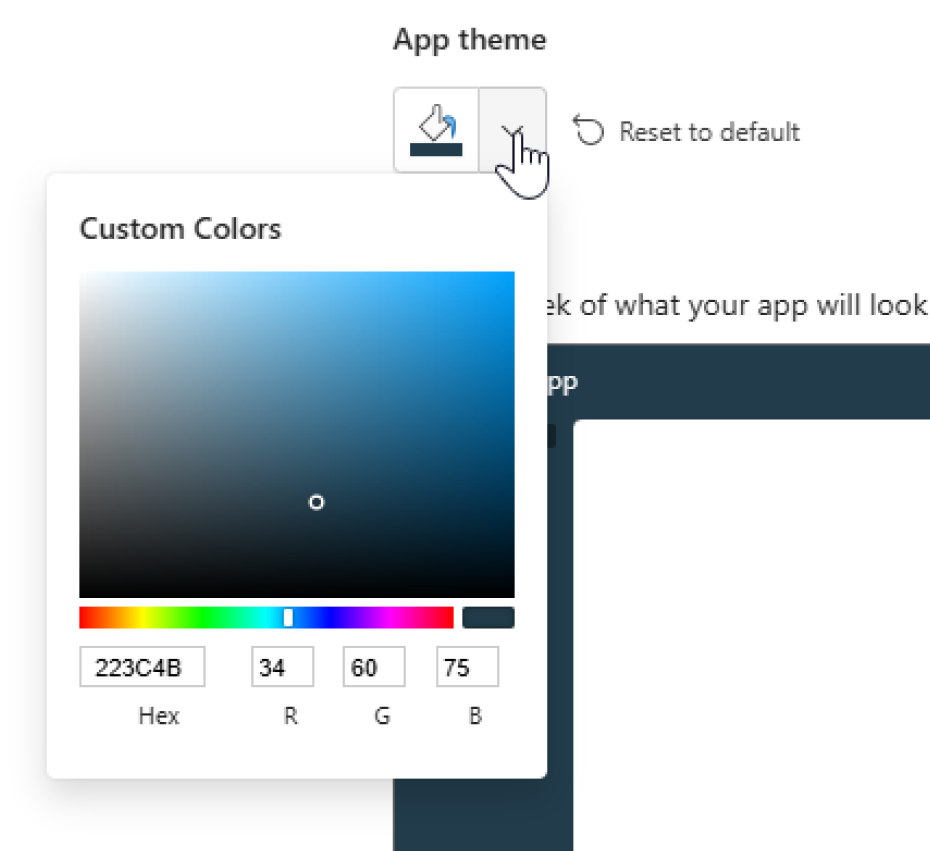
To add a custom color to your app, select the down arrow to open the color picker. Use the color picker to select any color or enter a hexadecimal or RGB value for a color of your choice.
As you make image and theme selections, a sneak peek preview gives you a sense of what your org app looks like for consumers once saved.
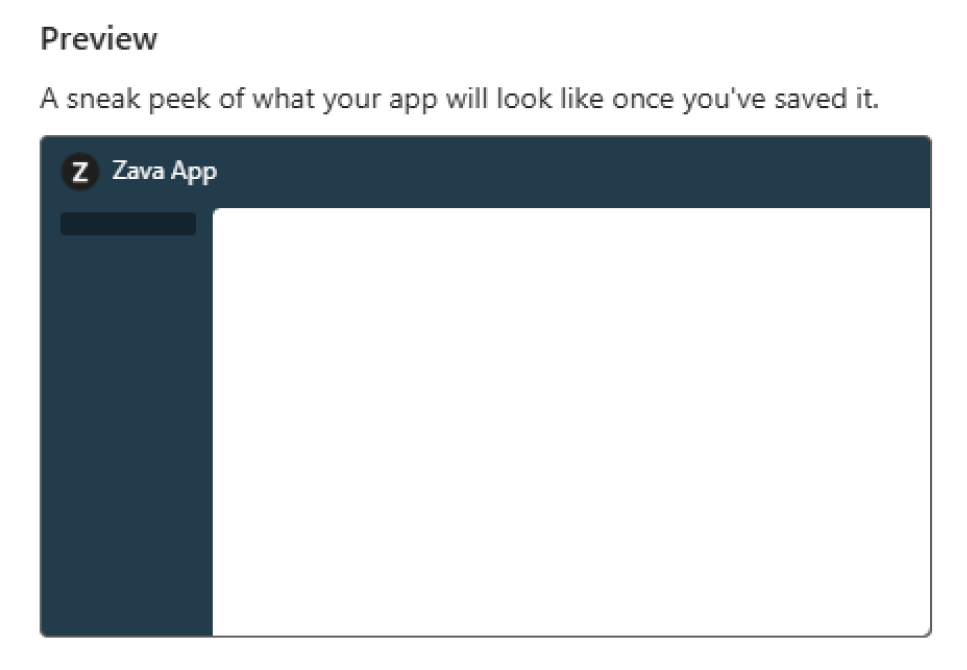
Before closing the pane, select Apply. Your changes aren't available or visible to consumers until you save your org app.
Preview your org app before saving changes
To see what your org app looks like for consumers, select Preview app.
A preview of your org app is shown. Select Close preview to make more changes or save your changes.
Preview is for users with workspace access. Because these users have a workspace role, the preview reflects that broader level of access across audiences.
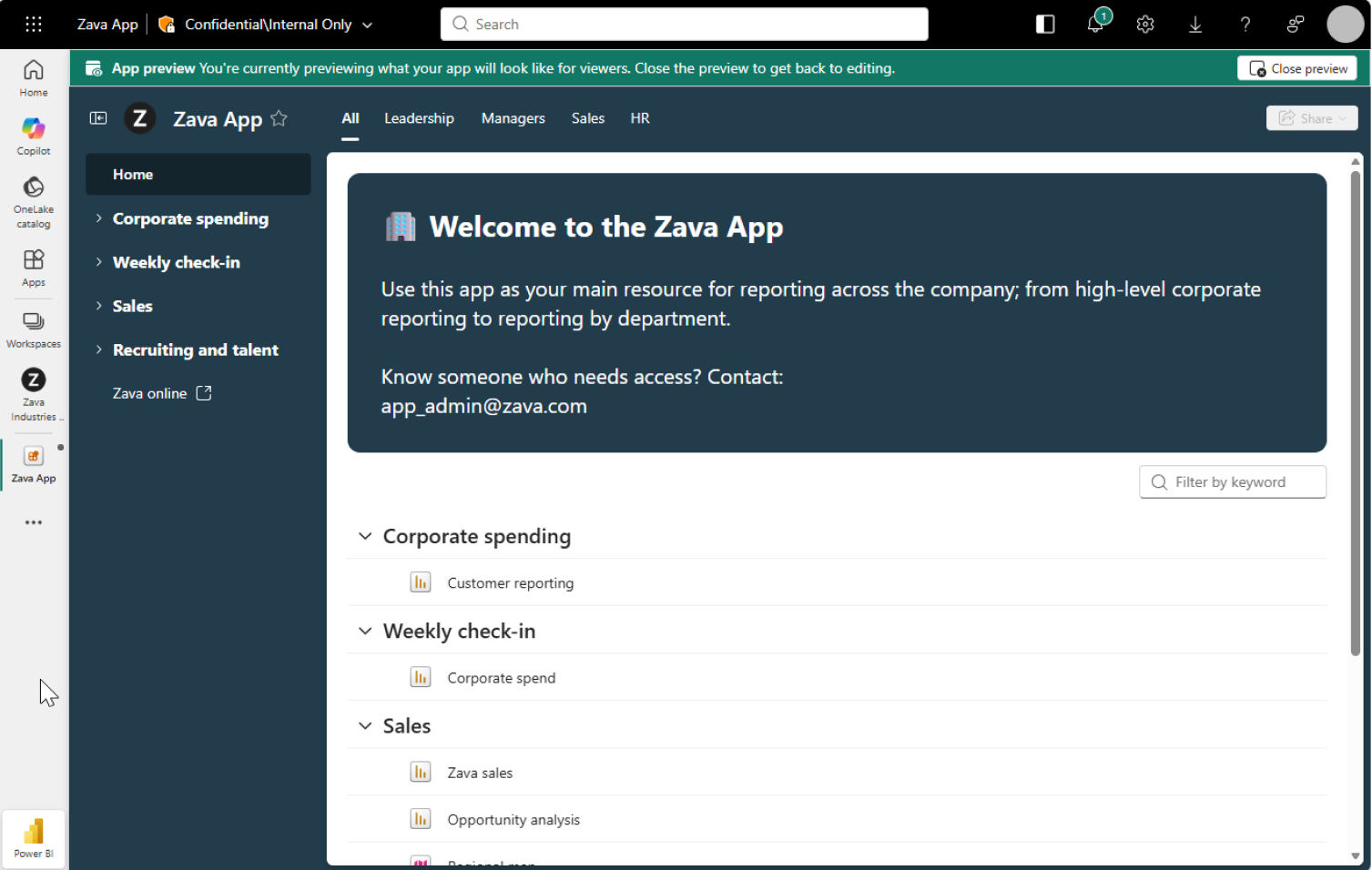
Saving, viewing, and sharing your org app with others
After you add content, adjust the navigation, review settings, and customize your org app, save and share it with others.
Saving and viewing your org app
When you're ready, select Save.
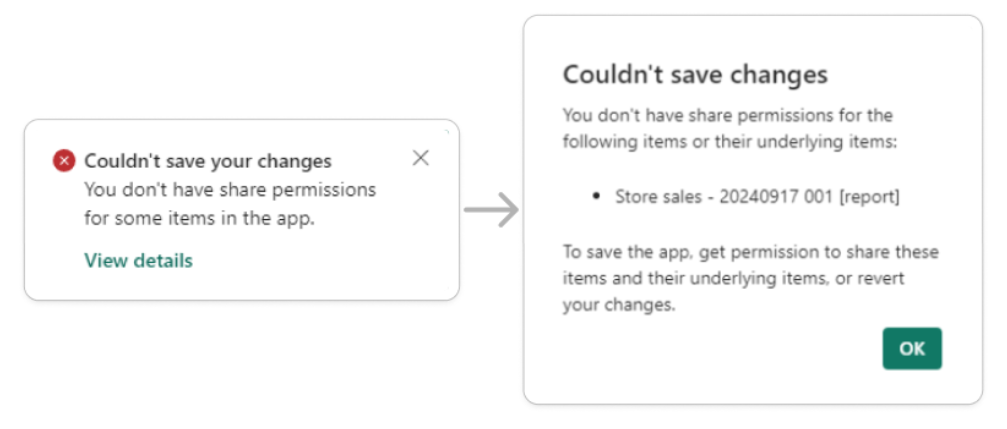
If you see a warning that you can't save changes because you don't have share permissions, see managing org app permissions.
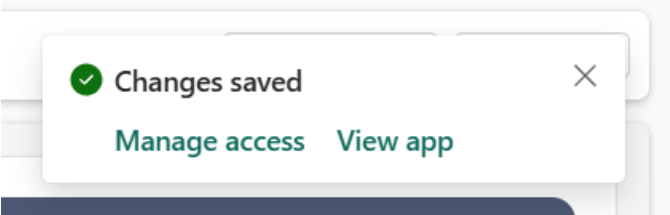
To view your published org app, select View app from the confirmation dialog that appears:
Or, visit the workspace where you saved your org app item and select the org app you want to view:
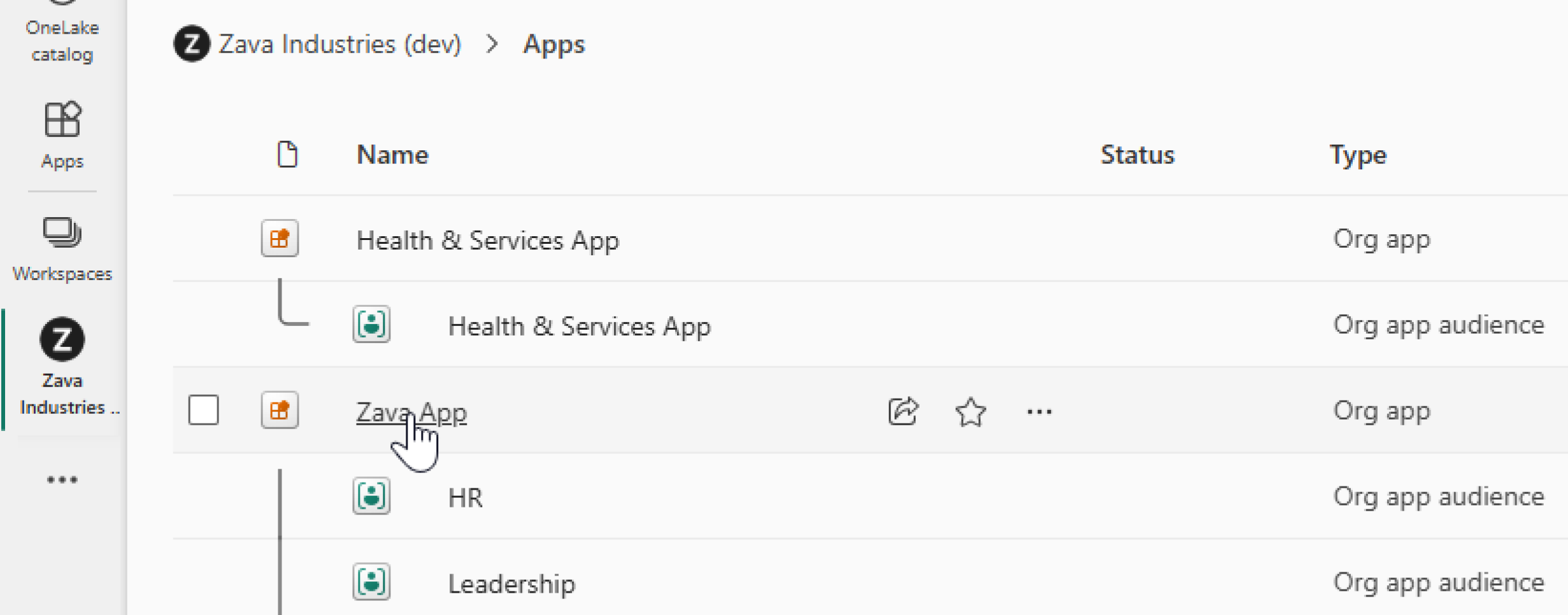
If you select an audience child item from the workspace list, Power BI opens the org app experience (the same as selecting the org app item). Deep-linking directly to the selected audience isn't currently supported.
Granting others access to and sharing your org app
You have several ways to share your published org app.
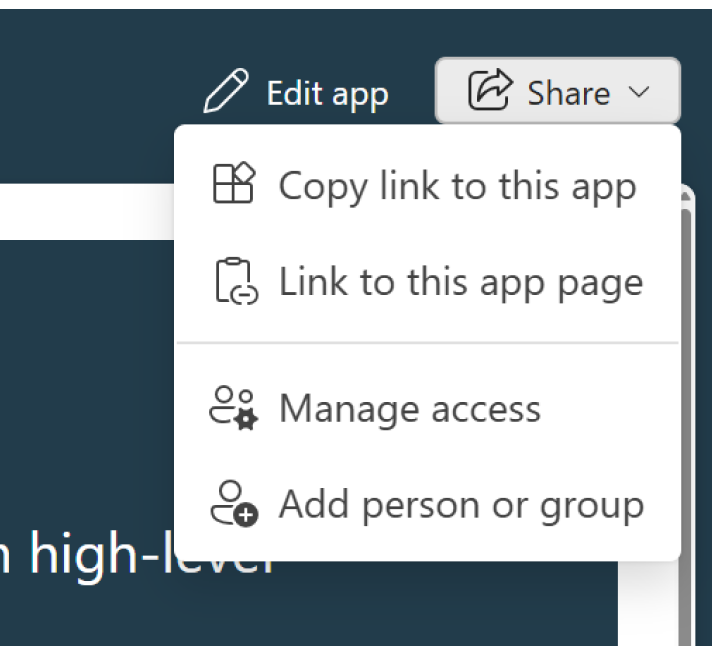
Select Share to see several options:
- Copy link to this app
- Link to this app page
- Manage access
- Add person or group
For org apps with audiences, sharing is audience-aware:
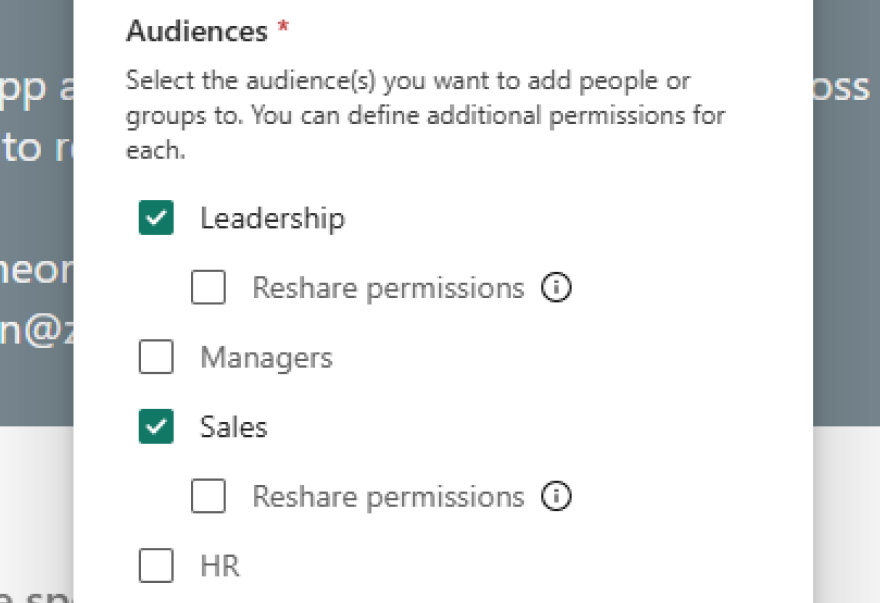
- In org app-level sharing, you can choose which audiences to add recipients to.
- You can optionally assign reshare permission for selected audiences.
- In audience child item sharing, sharing is scoped to that single audience.
For detailed audience behavior, see Add users and groups to audiences.
To share with users who already have access to the org app:
- Select Copy link to this app to share the org app item. Users who use the link you send must already have access. Users who use the link land on the first item in your org app.
- Select Link to this app page and users go directly to the item you have in view when copying the link.
To share with users who don't have access to the org app, manage access to the org app item the same way you manage access for any other item, like reports.
Select Share > Add person or group to add users from your organization in the modal displayed, without leaving your app:
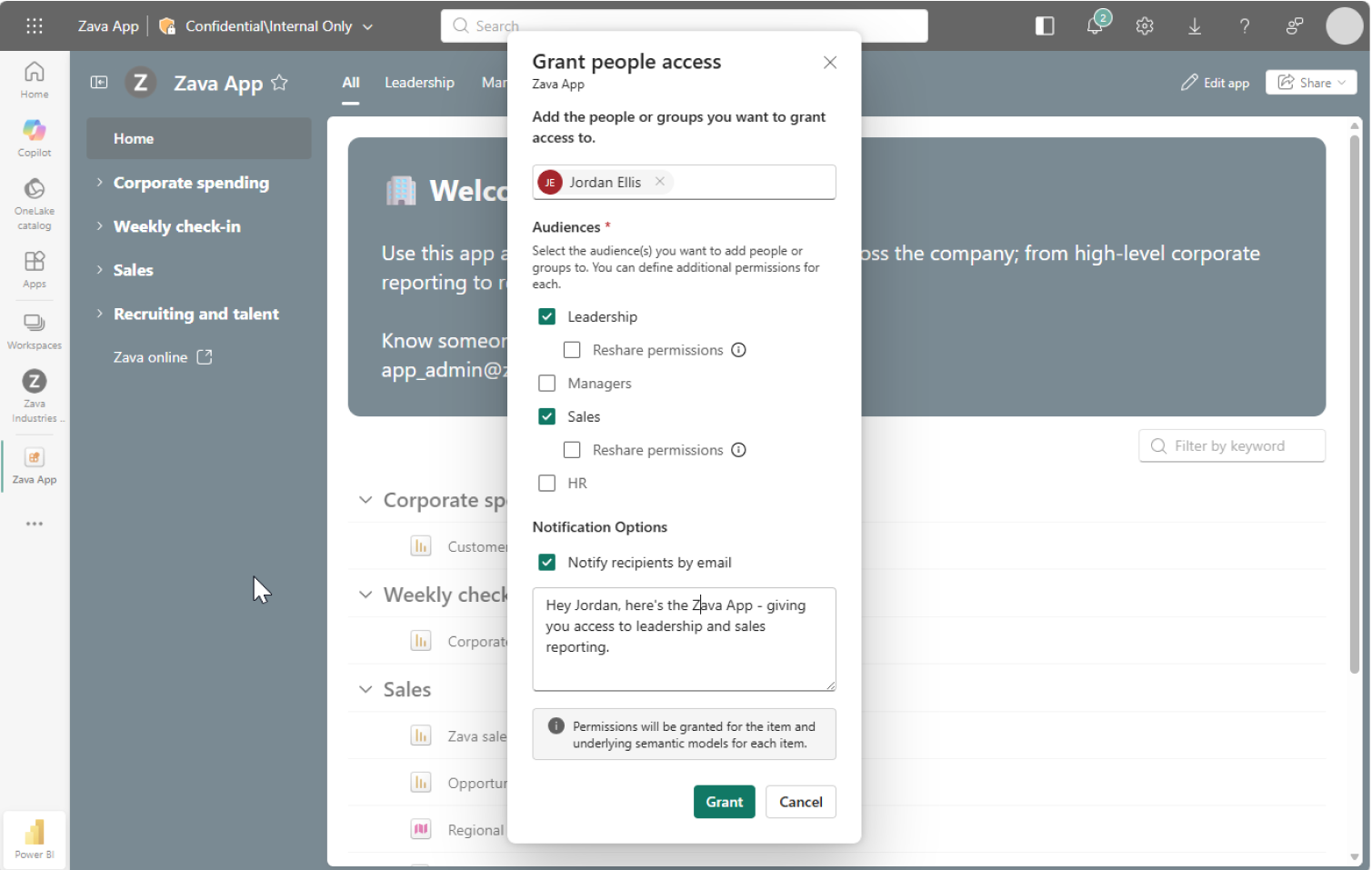
In the modal, you can select audiences for new recipients, optionally grant reshare permission (when available), and notify recipients by email with an optional message.
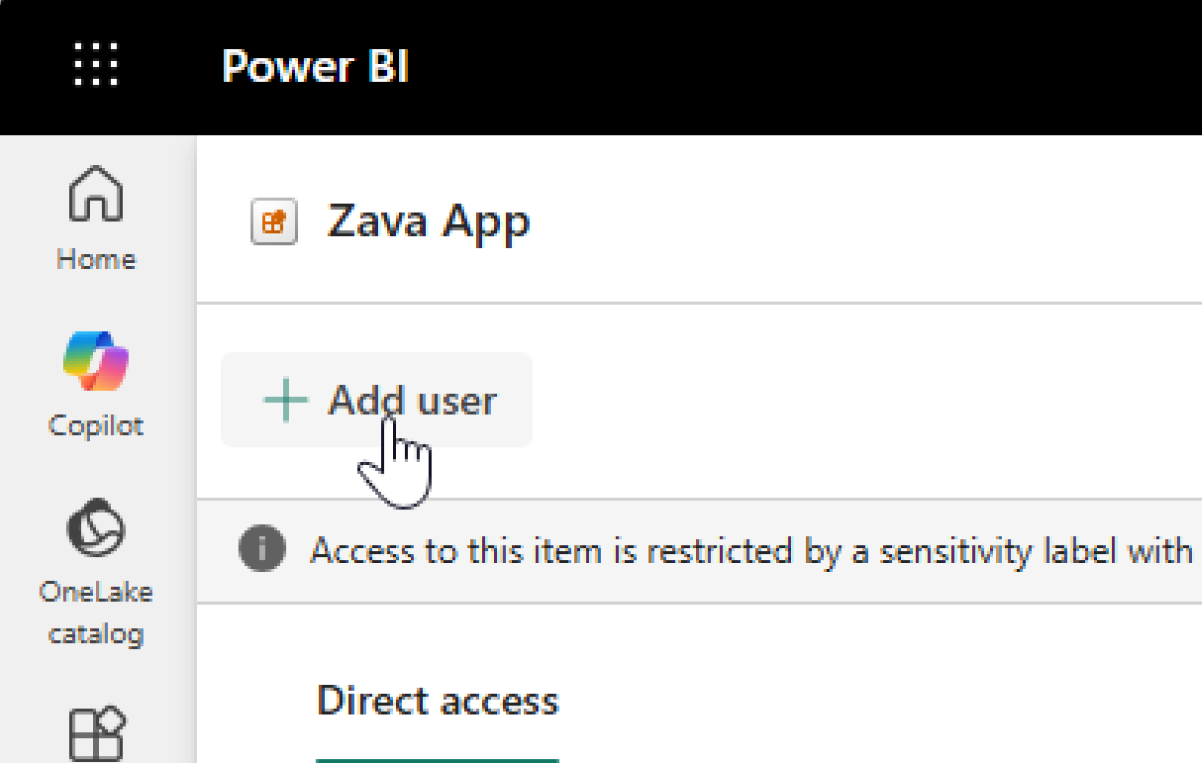
For the full access management experience, select Share > Manage access to see the full access management page with users who have access to the org app and an opportunity to add new users. To add a new user, select Add user and the same modal is displayed.
Remember, when you give a user access to an org app item, they automatically get access to:
- Items included in the org app from the same workspace.
- The semantic models reports source from in the same workspace and different workspaces.
If you add or remove items from an org app, or make any other access-management change, you need write and reshare permissions. You need these permissions on:
- The items you explicitly include.
- The underlying items that the org app propagates access to or revokes access from.
For reports and paginated reports, this requirement includes underlying semantic models in the same workspace as the org app and in different workspaces. In practice, these permissions are typically available only to workspace admins and members.
Managing org app permissions, like removing users
Managing permissions on an org app item is similar to managing permissions for any other item, like Power BI reports.
For org apps with audiences, there are two management scopes:
- Org app-level permissions management for cross-audience management.
- Audience child item permissions management for a single audience.
For more audiences context, see Add users and groups to audiences.
First, view the access management screen:
- From the org app, select Share > Manage access.
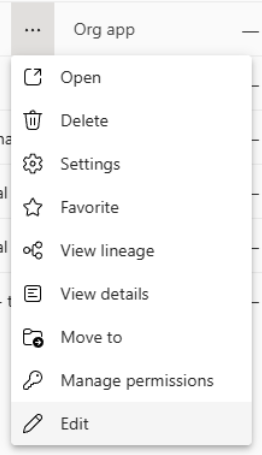
- From the workspace, select ... > Manage permissions.
When you manage permissions from the org app level, you can review and update access across audiences. When you manage permissions from an audience child item, changes apply only to that audience.
Screenshot of the "more" menu on an org app item:
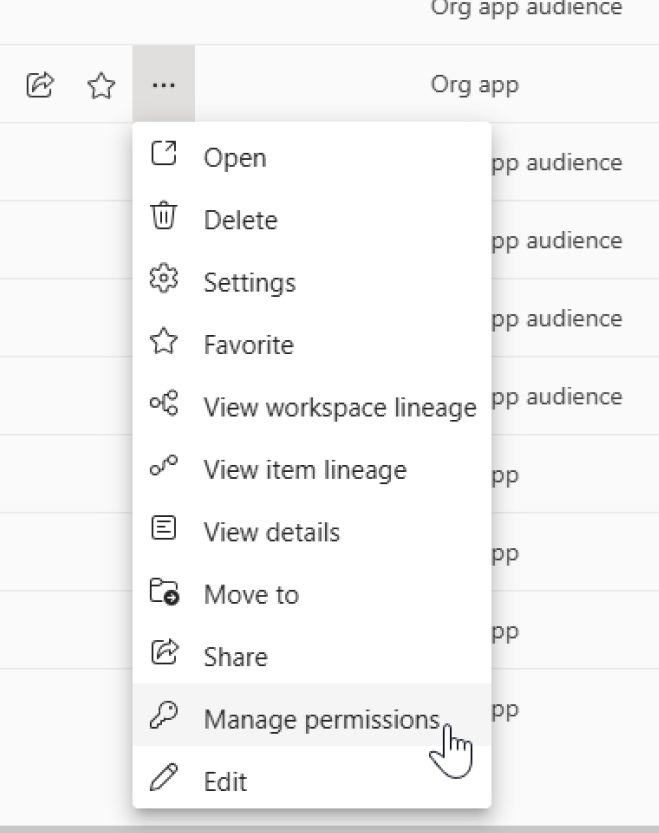
By default, users granted access to an org app get read permissions for the org app item, included items, and underlying items.
Want to grant extra permissions to a user? Use Manage access to update audience access and reshare permissions for that user. You can also remove the user's access:
From the user or group contextual menu on Manage permissions, select Manage access or Remove access:
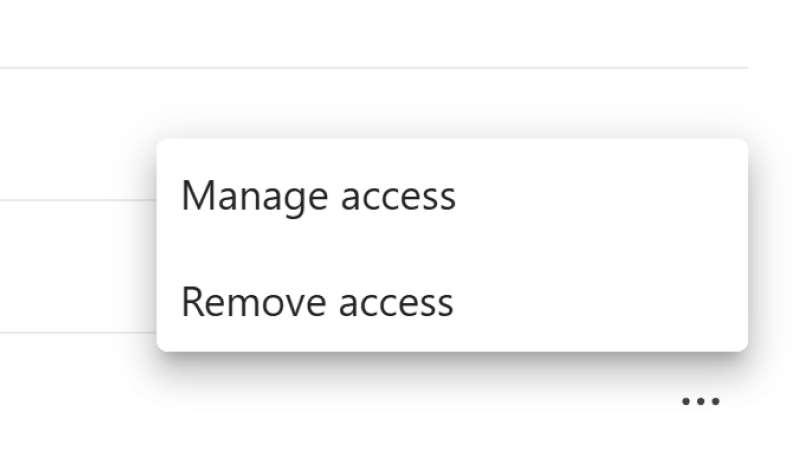
After you select Manage access, the Manage access pane opens:
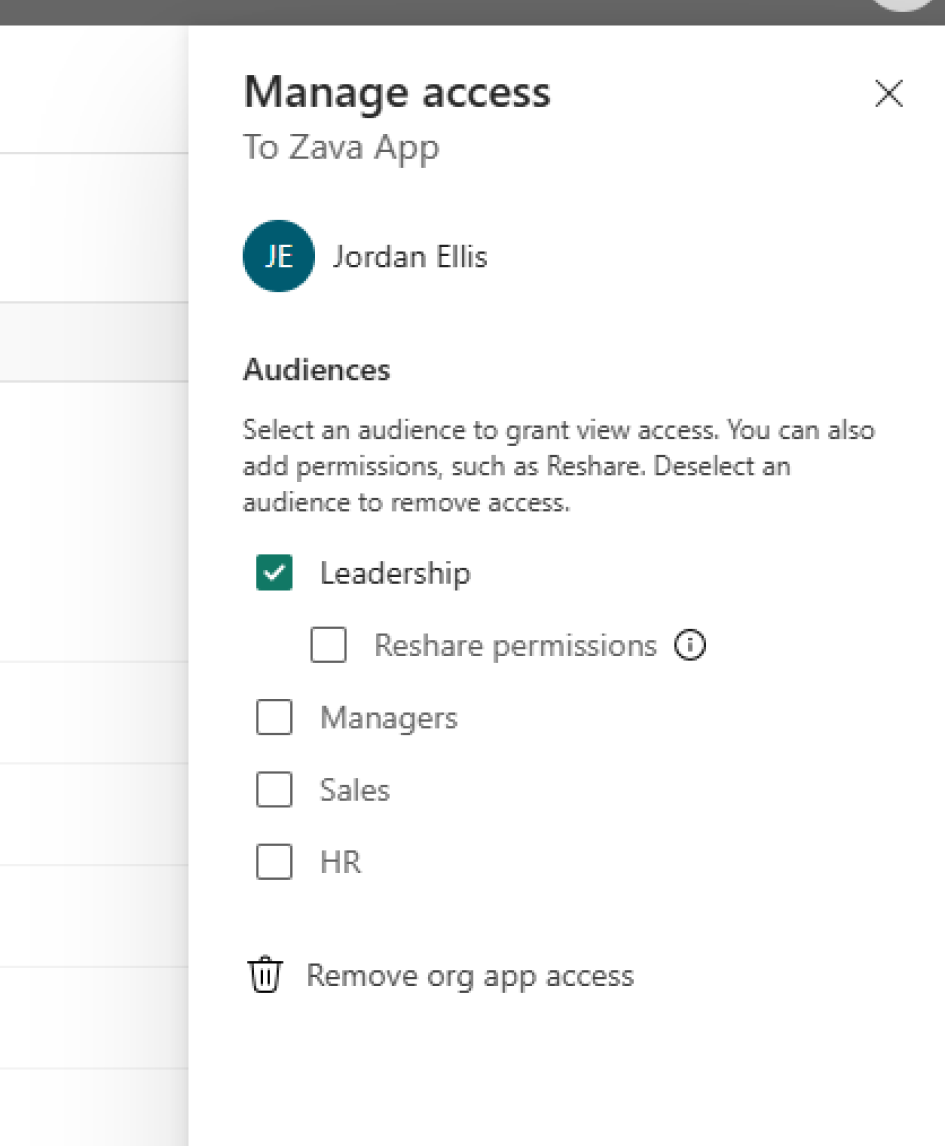
- Manage access lets you grant or remove access for specific audiences. For audiences you grant, you can also optionally select Reshare permissions.
- Remove access removes that user's access to the org app item, the included report items, and the semantic model items that reports in the org app source from. Unique to new org app items, access to the underlying semantic model items is removed when a user loses access to an org app. However, if a user has another form of access to an item, such as a semantic model, they maintain access to that item. Only their org app-based access is removed.
Note
There are select cases where your org app doesn't automatically propagate or revoke access to items the org app is dependent on. Access propagation: For example, a report with a paginated report visual, also known as a report definition language (RDL) visual, is dependent on a paginated report item. Org apps don't propagate access to underlying paginated reports at this time. If your org app consumers have a broken view in an org app, consider all the items your consumers need access to, grant necessary access, and have your consumers view the org app again.
Here are the items an org app propagates and revokes access to:
- The org app item itself
- Included Power BI report and paginated report items
- The underlying semantic model for a report or paginated report item (for a model in the same workspace or separate workspace)
- Included Fabric notebook, map, or real-time dashboard items
- Included Power BI report and paginated report items
Refer to the list for included items and underlying items org apps propagate and revoke access to. There are underlying item scenarios, like the RDL visual scenario noted, where org apps don't propagate or revoke access. Other scenarios include Fabric sources like lakehouses and data warehouses. For those scenarios, manage access on those underlying sources directly.
Note
Access drift can occur for underlying items. For example, you can have the required permissions on a cross-workspace semantic model when you add a report to an org app, and later lose the permissions needed to revoke access.
In this access-drift scenario, you might still be able to remove the included report from the org app. You might also still be able to hide the report from an audience. However, related access records on the underlying semantic model can remain until someone with the required permissions removes them.
If this access-drift scenario occurs, coordinate with the semantic model owner or another authorized user to review and remove lingering records from Manage permissions > Access via related items on the semantic model.
Insufficient permissions when managing an org app
Org app items automatically manage access for included items and underlying items. You don't need to independently manage access for each item. Your org app works as expected for your consumers, without broken views in the org app.
Org apps check whether a user has the required permissions to add or remove items from an org app and to add, modify, or remove user access.
For access-management-related changes, the user must have write and reshare permissions on:
- The org app item.
- The included items.
- The underlying items that org apps propagate access to or revoke access from.
For reports and paginated reports, this requirement includes underlying semantic models in the same workspace as the org app and in different workspaces.
In practice, these permissions are typically available only to workspace admins and members. Otherwise, the update or access-management action fails.
Screenshot of a save scenario where a user doesn't have permissions to manage access on included or underlying items.
Screenshot of a share scenario where a user doesn't have permissions to manage access on included or underlying items.
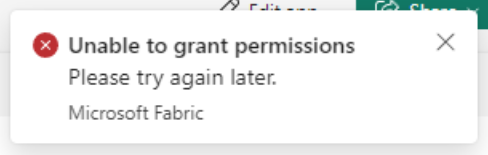
If you encounter these messages, ask for write and reshare permissions on items associated with the org app. Or ask someone with these permissions to make changes or manage access for you.
Contributors and access management
Workspace contributors can create org app items and make edits that don't affect access management. The Power BI apps setting that allows contributors to manage and share apps doesn't apply to org apps.
The workspace setting Workspace settings > Power BI > General > Organization apps > Secure update > Allow contributors to update the app applies to workspace apps only. It doesn't apply to org apps.
For org apps, changes that add or remove included items, or otherwise change access propagation or revocation, require write and reshare permissions on the included items and underlying items.
Contributors who don't have these permissions might see messages covered in the section, Insufficient permissions when managing an org app. If a user doesn't have permissions to reshare the included items or semantic models associated with the org app, the update or share fails.
In practice, these permissions are typically available only to workspace admins and members. When expecting contributors to make access-management-related updates, consider a different workspace role for the user. Or grant them the necessary permissions on the required items. For role details, see workspace roles in Microsoft Fabric.
How to edit an org app
Users with Admin or Member permissions can edit an org app when the update adds or removes items, or otherwise changes access management. Contributors can edit an org app when the update doesn't affect access management. Start from either of these places:
- workspace list > edit
- viewing the org app > edit
From the workspace list, find the org app you want to edit. Select the more menu ... > Edit.
While viewing an org app, select Edit app.

When you're in the edit view for the org app, you can add content, change the navigation structure, adjust settings, and customize your app.
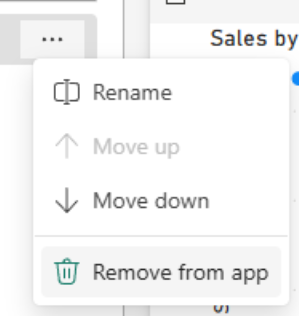
If you want to remove items from an app, hover over the item you want to remove and select the more menu ... > Remove from app.
When you finish making changes, select Save.
If you remove items from your app, all users who have access to the org app item automatically lose their org app-based access to the removed items and their associated semantic models.
Use audiences in org apps
Audiences let you tailor one org app for multiple groups. You can control what each audience sees while managing access from the same org app.
Important
Audiences are available only in new org apps. To use audiences, create a new org app.
Open audience management
In org app authoring, select Manage audiences.
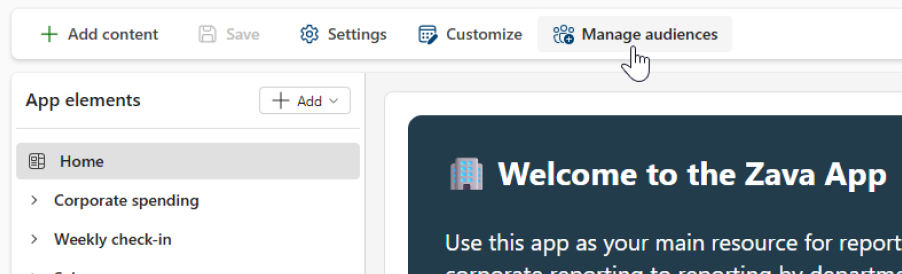
From the audience management view, you can:
- Create a new audience.
- Show or hide items for each audience.
- Rename, move, duplicate, configure item access settings, or delete an audience.
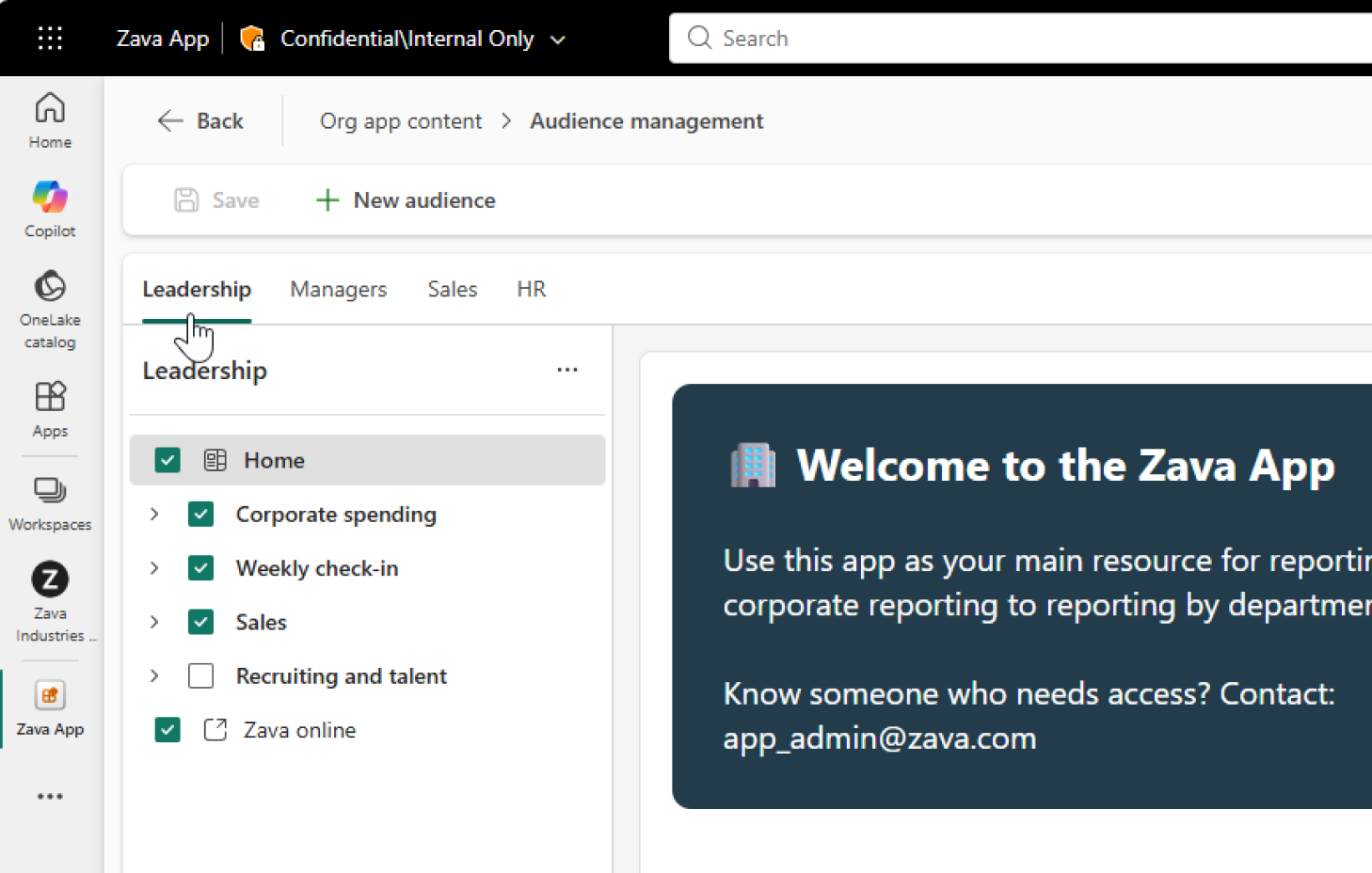
Create and manage audiences
To add an audience, select New audience.
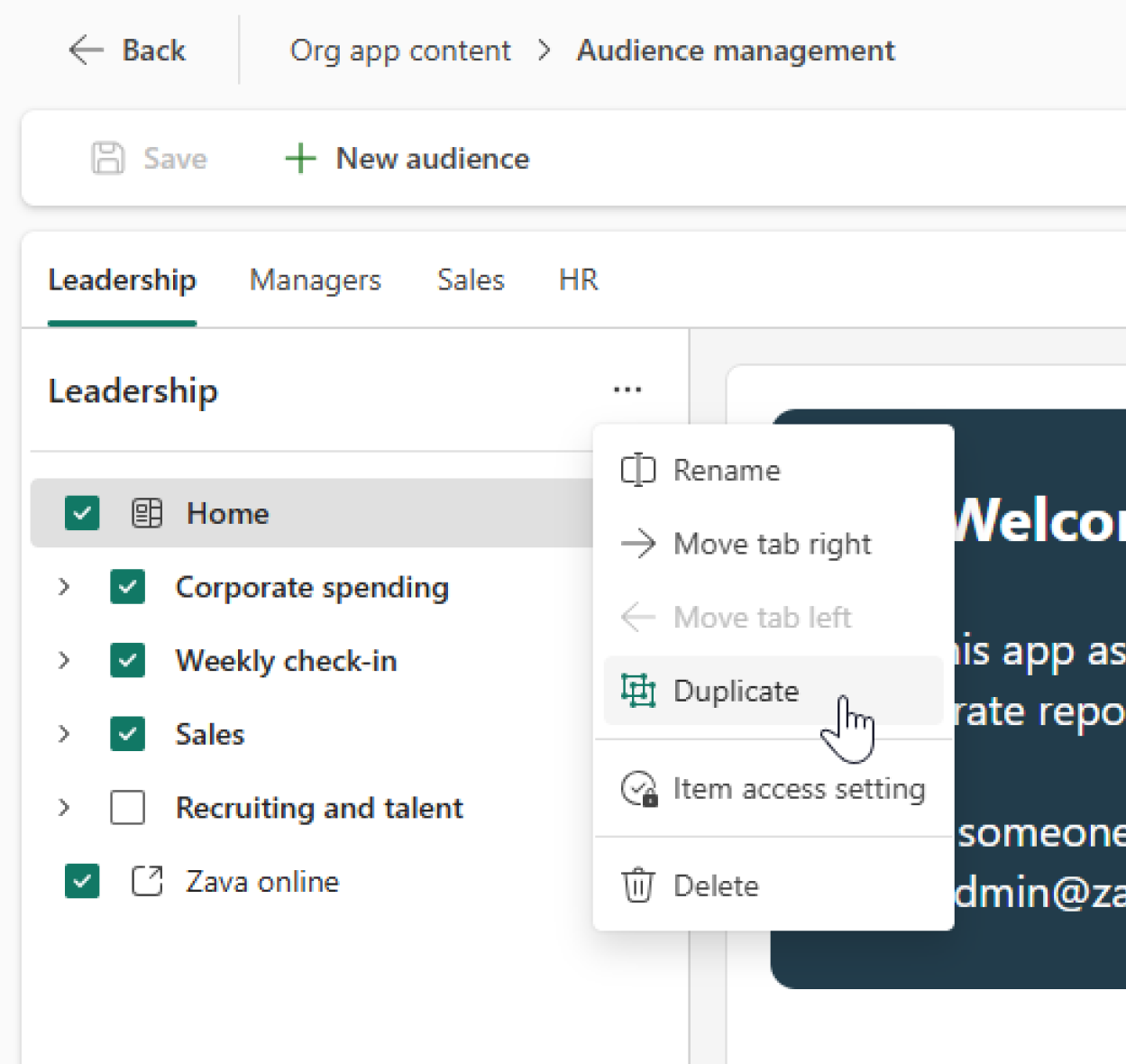
Audience actions are available from the audience tab context menu (...):
- Rename
- Move tab right
- Move tab left
- Duplicate
- Item access setting
- Delete
When you duplicate an audience, item visibility settings are copied. Audience membership isn't copied.
Control item visibility per audience
In audience management, each item has a checkbox for each audience.
- Checked: the audience can see the item in navigation.
- Unchecked: the audience doesn't see the item in navigation.
By default, this visibility setting also drives access management for org app-managed items.
- Showing an item can propagate access.
- Hiding an item can revoke access.
The same permission rules apply here as other access-management changes in org apps. In practice, these updates typically require permissions available to workspace admins and members.
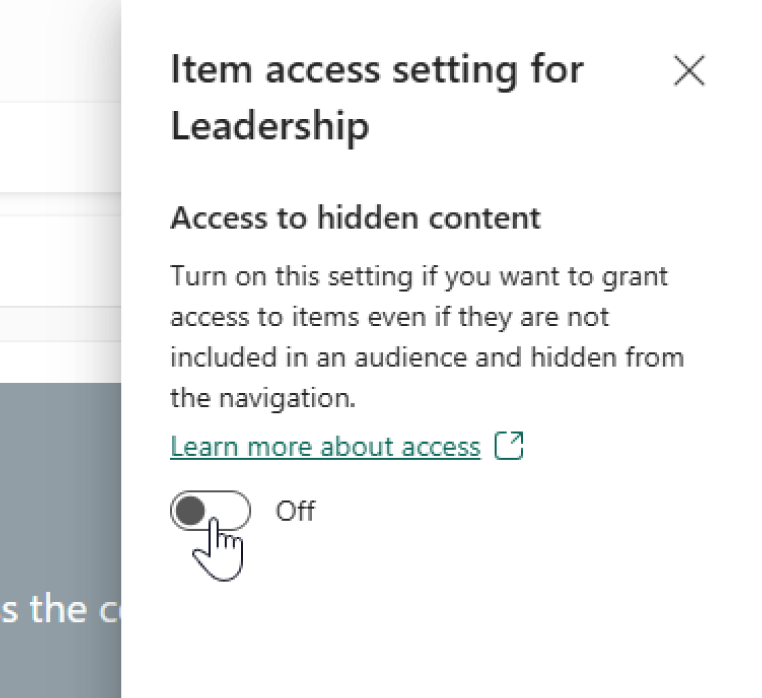
Item access setting for hidden content
Each audience has an Item access setting option with Access to hidden content.
When this setting is On for an audience, users in that org app can still get access to items even when those items are hidden in audience navigation.
In practice, the hidden-content access setting has a broad effect. If this setting is turned on for even one audience, users who have access to at least one audience can access all items included in the org app.
Use this setting when you want audiences to shape navigation, but you don't want hidden items to restrict access.
Note
This setting doesn't change known dependency exceptions where org apps don't currently propagate access (for example, scenarios already called out in this article).
Add users and groups to audiences
You can add users or groups to audiences from share and access-management entry points.
From org app-level sharing, select one or more audiences for the new recipients. You can also optionally assign reshare permission per selected audience.
From an audience child item share experience, sharing is scoped to that single audience.
Audience tabs for consumers
In Customize > Audience tabs, you can control how audience tabs appear in the consumption experience.
By default, org apps show the All tab and audience-specific tabs.
Audience tabs aren't currently supported in the Power BI mobile apps.
If a user belongs to only one audience, audience tabs aren't shown.
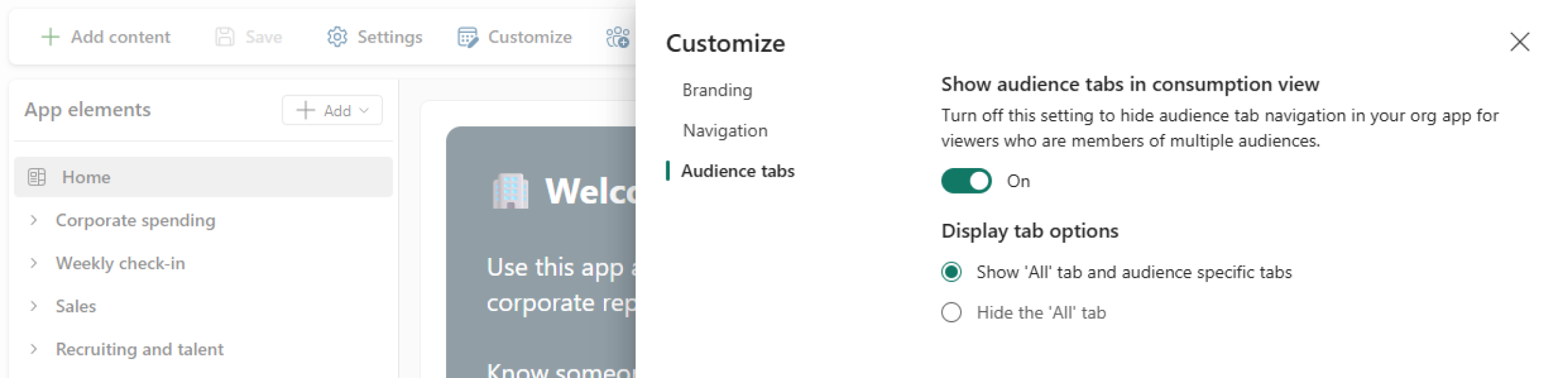
If an overview page is visible for a specific audience, the overview page only shows content available in that audience view. In the All tab, the overview page shows all content the user can access across their audiences.
Audience behavior when adding or deleting
When you add a new item to an org app:
- If there's one audience, then the new item is visible in that audience by default.
- If there are multiple audiences, you're prompted to choose where the new item is visible.
An org app must always have at least one audience. If you delete the last audience, a new audience is created automatically.
Use unique names for audiences. If a name conflicts with another audience name in the workspace (including recently deleted names), rename the audience with a unique value.
How to delete an org app
To delete an org app, go to the workspace where the org app is located. Select the more menu on the org app item you want to delete, and then select ... > Delete.
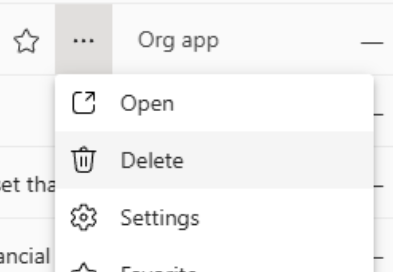
The org app is deleted. Users who had access to the org app lose their access to items that were included in the org app and the associated semantic models.
Org app consumer experience
Viewing or returning to org apps
Users receive an email notification when an org app is shared.
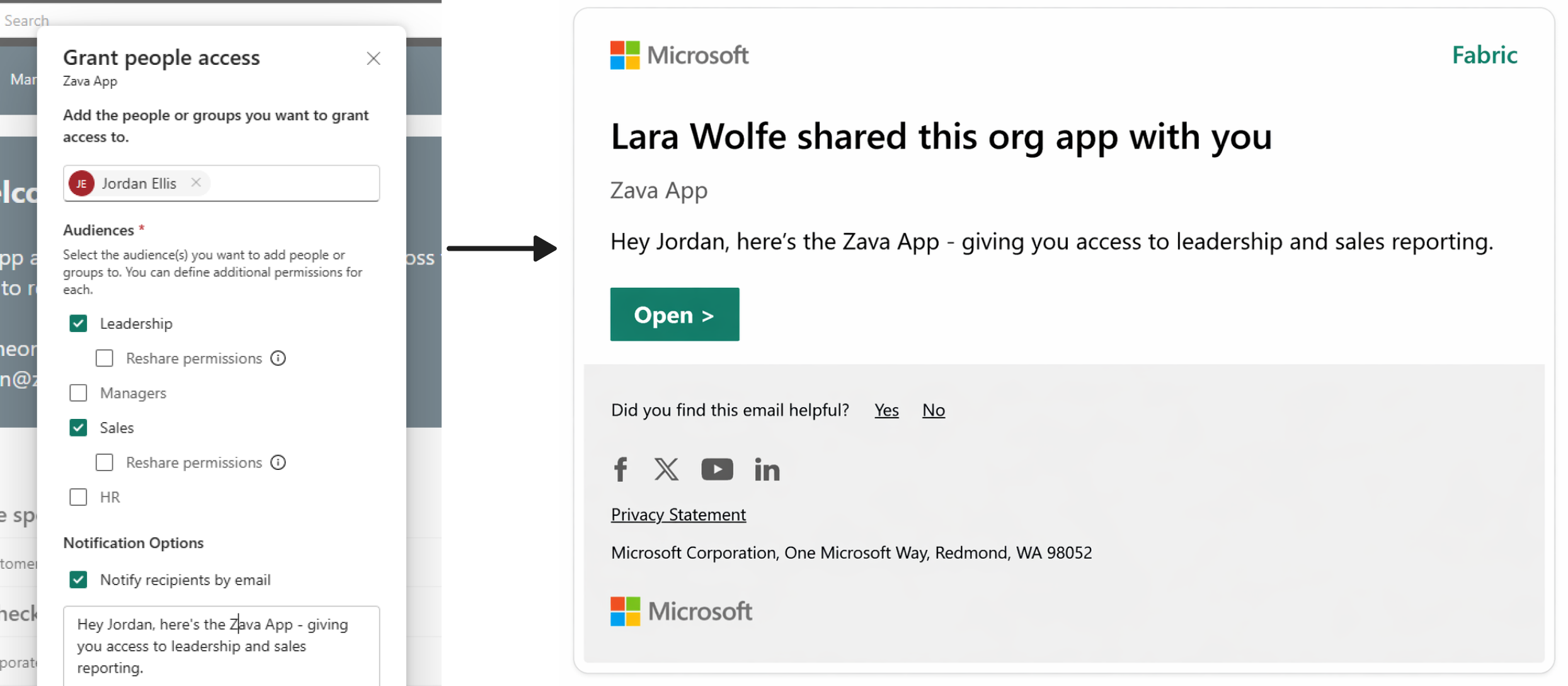
Users can grant others access to an org app and then choose to share a link.
Users with access to org apps can find their org apps listed in a few places:
- Home > Recents – if they viewed the org app recently.
- Home > Favorites – if they favorited the org app.
- OneLake Catalog – if they have access to the org app item.
- Apps – org app items a user has access to are listed with Power BI apps the user installed.
In list views, org app items are labeled as "org app" while Power BI apps are labeled as "app."
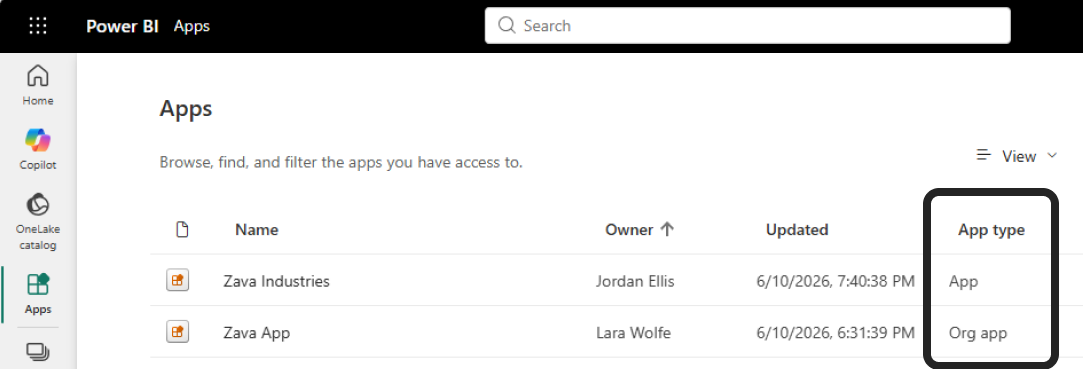
Org app consumers without permissions to edit the org app can view, favorite, and share the org app. If a consumer doesn't have share permissions, they can only share links with users who already have access.
Only users with workspace access can see audience child items in workspace experiences. Users who only have org app access see the org app item in consumer experiences such as Home, OneLake Catalog, and Apps. Audience membership and author-configured audience visibility shape their in-app view.
Subscriptions for reports in org apps
Consumers can create email subscriptions for Power BI reports directly from within org apps. Subscriptions allow users to receive scheduled email updates with a snapshot and link to the report, similar to subscriptions created elsewhere in the Power BI service.
However, subscriptions created from reports in org apps have some differences compared to subscriptions created directly on reports.
Considerations for subscriptions in org apps
- Subscriptions created from reports in org apps are tied to the underlying report, not the org app itself.
- When users manage or edit an existing subscription, Power BI takes them to the report outside of the org app experience.
- Subscription emails link to the report directly, not to the report within the org app.
- Creating a subscription from an org app doesn't fully support capturing a personalized report state, such as applied filters or "Include my changes."
- Some subscription management actions aren't available directly within the org app experience and must be completed from the report or subscription management page.
- Subscriptions are currently supported only for Power BI reports. Other item types in org apps, such as paginated reports, aren't supported.
For more information about subscriptions, including scheduling and configuration options, see Email subscriptions for reports.
Considerations and limitations for org apps
Some report capabilities available in workspace apps aren't supported in org apps. For example:
- Org apps don't support all report toolbar capabilities available in workspace apps, such as comments.
- Org apps support email subscriptions for Power BI reports. However, subscriptions in org apps have some differences compared to subscriptions created directly on reports. See Subscriptions for reports in org apps. Subscriptions aren't supported for paginated reports in org apps. Dashboards and scorecards aren't eligible items for inclusion in org apps, so subscriptions don't apply to them.
- Audience tabs aren't currently supported in Power BI mobile apps.
- Loading org apps in the Power BI personal app for Microsoft Teams isn't currently supported. If a user selects an org app from a list in the Teams personal app, or selects an org app link in Teams, the org app opens in a browser.
- In org apps, the Fabric or Power BI navigation sidebar remains visible by default, unlike in workspace apps. To create a focused, distraction‑free experience, select Focus mode in the global header. Focus mode collapses both the navigation sidebar and the object explorer to maximize the available viewing area.