Lưu ý
Cần có ủy quyền mới truy nhập được vào trang này. Bạn có thể thử đăng nhập hoặc thay đổi thư mục.
Cần có ủy quyền mới truy nhập được vào trang này. Bạn có thể thử thay đổi thư mục.
This article shows you how to connect to a Windows VM in your lab.
Connect to a Windows VM
Sign in to the Azure portal.
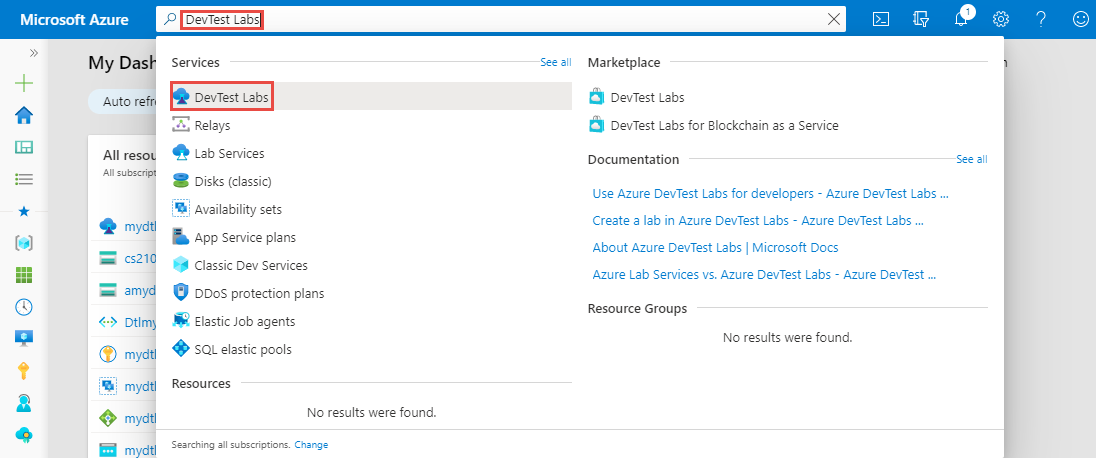
In the search bar, search for and select DevTest Labs.
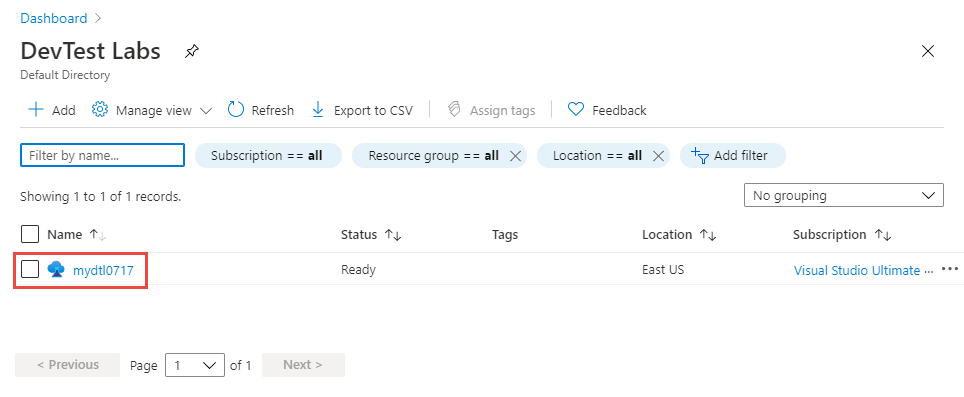
From the list of labs, select your lab.
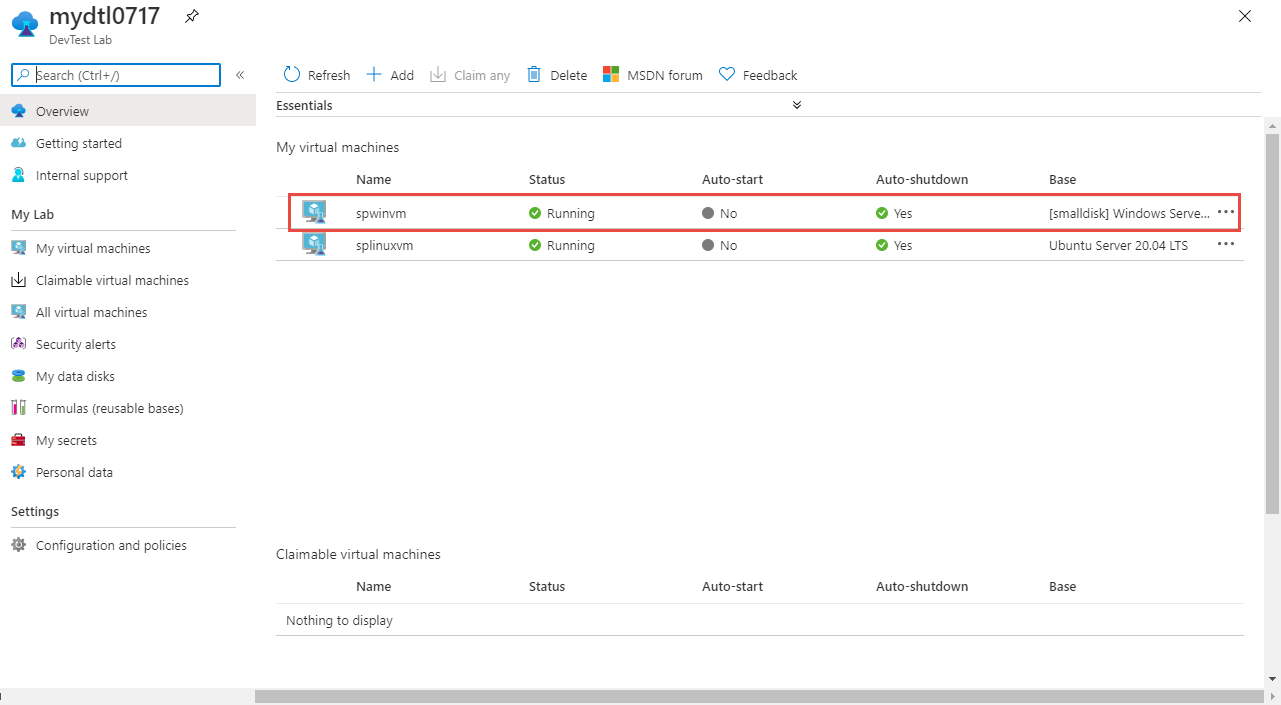
On the home page for your lab, select your Windows VM from the My virtual machines list.
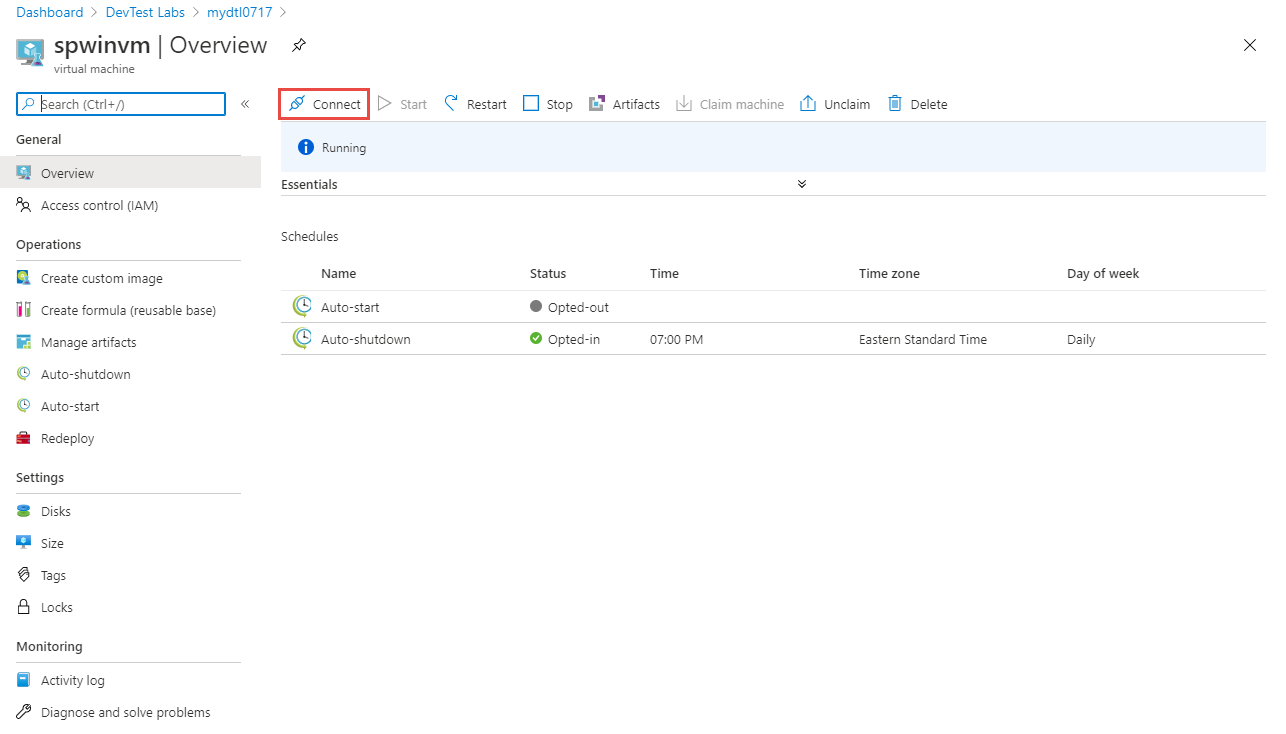
On the Virtual machine page for your VM, select Connect on the toolbar. If the VM is stopped, select Start first to start the VM.
If you're using the Edge browser, you see the link to the downloaded RDP file at the bottom of the browser.
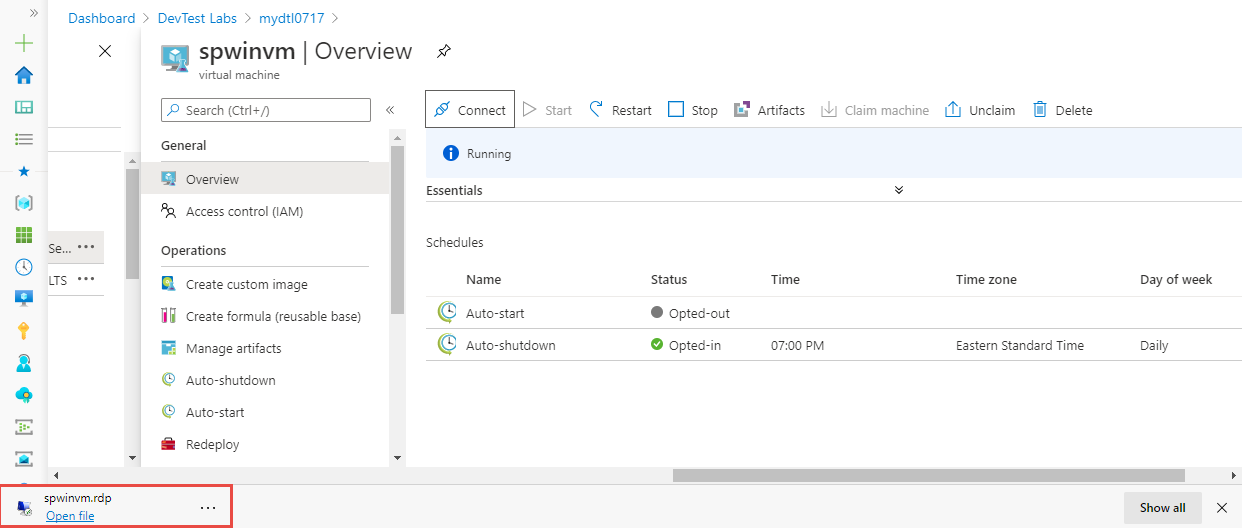
Open the RDP file, and enter your VM credentials that you typed when creating the VM. You should be connected to the Windows VM now.