Lưu ý
Cần có ủy quyền mới truy nhập được vào trang này. Bạn có thể thử đăng nhập hoặc thay đổi thư mục.
Cần có ủy quyền mới truy nhập được vào trang này. Bạn có thể thử thay đổi thư mục.
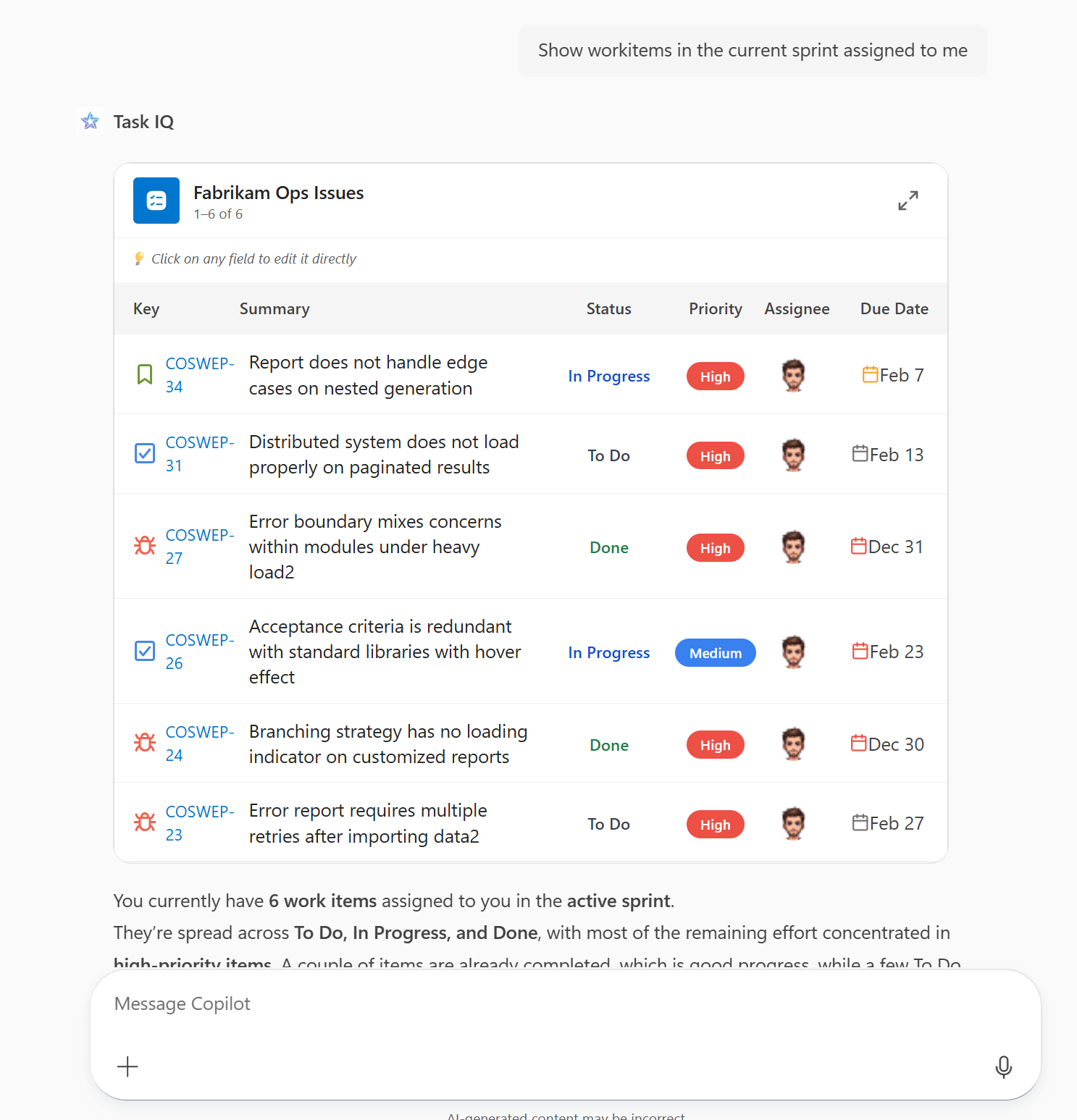
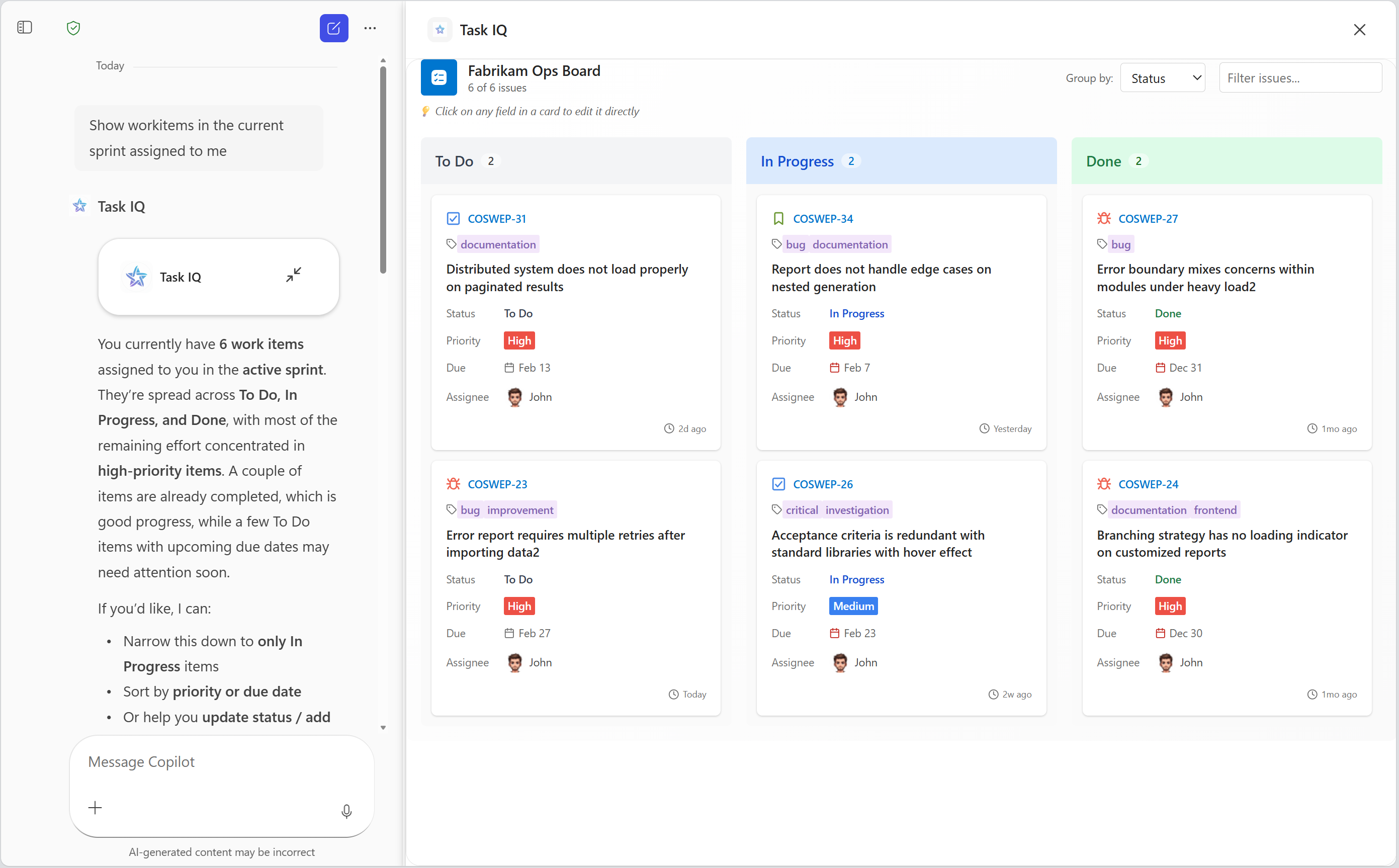
MCP apps are interactive UI widgets that run inside Microsoft 365 Copilot, powered by Model Context Protocol (MCP) servers. They allow declarative agents to go beyond text responses and deliver rich, actionable experiences directly in the Copilot chat. You can add MCP apps to your declarative agents by adding an MCP server-based plugin whose tools return interactive UI. Microsoft 365 Copilot supports UI widgets created using the following methods.
- MCP Apps - an extension to MCP that enables MCP servers to deliver interactive user interfaces to hosts.
- OpenAI Apps SDK - tools to build ChatGPT apps based on the MCP Apps standard with extra ChatGPT functionality.
For example MCP server plugins, see MCP based interactive UI samples for Microsoft 365 Copilot on GitHub.
For details on which MCP Apps or OpenAI Apps SDK capabilities are supported, see Supported MCP Apps capabilities in Copilot.
Prerequisites for MCP apps
- Requirements specified in Requirements for Copilot extensibility options
- A remote MCP server that provides UI widgets or that you can modify to implement UI widgets
- A tool to view MCP server responses, such as MCP Inspector
- Visual Studio Code
- Microsoft 365 Agents Toolkit (version 6.12.0 or later)
MCP server requirements for MCP apps
- Authentication - Copilot supports OAuth 2.1 and Microsoft Entra single sign-on (SSO). For development purposes, Copilot supports anonymous authentication by using the None option in Agents Toolkit. For more information about authentication, see Configure authentication for API plugins in agents.
- Allowed URLs - Both your MCP server and your identity provider must allow the following URLs.
- Widget host URL for CORS - Copilot renders widget UI under an MCP server-specific host with the following URL:
{hashed-mcp-domain}.widget-renderer.usercontent.microsoft.com, where{hashed-mcp-domain}is the SHA-256 hash of your MCP server's domain. You can use the Widget Host URL Generator to generate the host URL based on your MCP server URL. - OAuth 2.1 redirect URIs:
https://teams.microsoft.com/api/platform/v1.0/oAuthRedirectfor Copilothttps://vscode.dev/redirectfor Visual Studio Code to fetch tools by using the Agents Toolkit
- Microsoft Entra SSO redirect URIs:
https://teams.microsoft.com/api/platform/v1.0/oAuthConsentRedirectfor Copilot- Visual Studio Code doesn't currently support SSO for fetching tools
- Widget host URL for CORS - Copilot renders widget UI under an MCP server-specific host with the following URL:
- UI widgets - Implement UI widgets according to the MCP Apps or OpenAI Apps SDK requirements.
Best practices for MCP apps in Copilot
User experience design
For more information about UX design best practices, see User experience guidelines for MCP apps in declarative agents for Microsoft 365 Copilot.
Verify API availability
Not all window.openai.* APIs are available on every platform or host. Unsupported APIs are undefined. Always check API availability and provide a fallback if the API is unavailable.
Examples
This simple pattern avoids runtime errors by checking before calling the API.
if (window.openai.callTool) {
  const result = await window.openai.callTool({ name: 'myTool', params: {} });
} else {
  // Handle unsupported case — show fallback UI, skip the feature, etc.
}
In this example, a button to enter fullscreen mode is rendered only if the host supports the requestDisplayMode API.
function FullScreenButton() {
  // Don't render the button if the host doesn't support it
  if (!window.openai.requestDisplayMode) {
    return null;
  }

  return (
    <button onClick={() => window.openai.requestDisplayMode({ mode: 'fullscreen' })}>
      Enter Fullscreen
    </button>
  );
}
Alternatively, your widget can check availability of all APIs that it uses at startup and enable or disable features accordingly.
interface PlatformCapabilities {
  canCallTools: boolean;
  canChangeDisplayMode: boolean;
  canSendMessages: boolean;
}

function detectCapabilities(): PlatformCapabilities {
  return {
    canCallTools: !!window.openai.callTool,
    canChangeDisplayMode: !!window.openai.requestDisplayMode,
    canSendMessages: !!window.openai.sendMessage,
  };
}

// Use at widget startup
const capabilities = detectCapabilities();

if (!capabilities.canCallTools) {
  // Show a reduced-functionality experience
}
Create and sideload the agent
Creating a declarative agent from an MCP server, configuring authentication, and sideloading it are the same whether or not the server returns UI widgets. For the full walkthrough, see Build a plugin for a declarative agent from an MCP server.
Keep the following MCP apps considerations in mind as you follow that walkthrough:
- Your MCP server must return UI widgets according to the MCP Apps or OpenAI Apps SDK requirements. See MCP server requirements for MCP apps.
- By default, the agent uses dynamic tool discovery and resolves your server's tools - including tools that return UI widgets - at runtime, so you don't need to add tools manually. If you pin a fixed set of tools instead, be sure to include at least one tool that returns a UI widget.
- If your MCP server is still in development and doesn't implement authentication, select None as the authentication type. Add authentication before you deploy to production.
Test the agent
- Open your browser and go to https://m365.cloud.microsoft/chat.
- Select your agent in the left-hand sidebar. If you don't see your agent, select All agents.
- Ask the agent to do something that invokes your MCP server.
- Allow the agent to connect to the MCP server when prompted.
- Confirm that the agent renders the UI widget.
If the widget doesn't appear or behave as expected, see Troubleshoot MCP apps in Microsoft 365 Copilot.
Supported MCP Apps capabilities in Copilot
Microsoft 365 Copilot supports the following capabilities.
Component bridge
| OpenAI Apps SDK | MCP Apps equivalent | Supported? |
|---|---|---|
window.openai.toolInput |
app.ontoolinput |
✅ |
window.openai.toolOutput |
app.ontoolresult |
✅ |
window.openai.toolResponseMetadata |
app.ontoolresult → params._meta |
✅ |
window.openai.widgetState |
— | ✅ |
window.openai.setWidgetState(state) |
Not directly available. Use alternative mechanisms including app.updateModelContext() |
✅ |
window.openai.callTool(name, args) |
app.callServerTool({ name, arguments }) |
✅ |
window.openai.sendFollowUpMessage({ prompt }) |
app.sendMessage({ ... }) |
✅ |
window.openai.uploadFile(file) |
— | ❌ |
window.openai.getFileDownloadUrl({ fileId }) |
— | ❌ |
window.openai.requestDisplayMode(...) |
app.requestDisplayMode({ mode }) |
✅ (full screen only) |
window.openai.requestModal(...) |
— | ❌ |
window.openai.notifyIntrinsicHeight(...) |
app.sendSizeChanged({ width, height }) |
✅ |
window.openai.openExternal({ href }) |
app.openLink({ url }) |
✅ |
window.openai.setOpenInAppUrl({ href }) |
— | ✅ |
window.openai.theme |
app.getHostContext()?.theme |
✅ |
window.openai.displayMode |
app.getHostContext()?.displayMode |
✅ |
window.openai.maxHeight |
app.getHostContext()?.viewport?.maxHeight |
✅ |
window.openai.safeArea |
app.getHostContext()?.safeAreaInsets |
✅ |
window.openai.view |
— | ✅ |
window.openai.userAgent |
app.getHostContext()?.userAgent |
✅ |
window.openai.locale |
app.getHostContext()?.locale |
✅ |
| — | app.ontoolinputpartial |
❌ |
| — | app.ontoolcancelled |
❌ |
| — | app.getHostContext()?.availableDisplayModes |
❌ |
| — | app.getHostContext()?.toolInfo |
❌ |
| — | app.onhostcontextchanged |
❌ |
| — | app.onteardown |
❌ |
| — | app.sendLog({ level, data }) |
❌ |
| — | app.getHostVersion() |
❌ |
| — | app.getHostCapabilities() |
✅ |
Tool descriptor _meta fields
| OpenAI Apps SDK | MCP Apps equivalent | Supported? |
|---|---|---|
_meta["openai/outputTemplate"] |
_meta.ui.resourceUri |
✅ |
_meta["openai/widgetAccessible"] |
_meta.ui.visibility (string[]) |
❌ |
_meta["openai/visibility"] |
_meta.ui.visibility (string[]) |
✅ |
_meta["openai/toolInvocation/invoking"] |
— | ❌ |
_meta["openai/toolInvocation/invoked"] |
— | ❌ |
_meta["openai/fileParams"] |
— | ❌ |
_meta["securitySchemes"] |
— | ❌ |
Tool descriptor annotations
| OpenAI Apps SDK | MCP Apps equivalent | Supported? |
|---|---|---|
readOnlyHint |
readOnlyHint |
✅ |
destructiveHint |
destructiveHint |
❌ |
openWorldHint |
openWorldHint |
❌ |
idempotentHint |
idempotentHint |
❌ |
Component resource _meta fields
| OpenAI Apps SDK | MCP Apps equivalent | Supported? |
|---|---|---|
_meta["openai/widgetDescription"] |
— | ❌ |
_meta["openai/widgetPrefersBorder"] |
_meta.ui.prefersBorder |
❌ |
_meta["openai/widgetCSP"] |
_meta.ui.csp |
✅ |
_meta["openai/widgetDomain"] |
_meta.ui.domain |
❌ |
| — | _meta.ui.permissions |
❌ |
Properties in CSP object
| OpenAI Apps SDK | MCP Apps equivalent | Supported? |
|---|---|---|
connect_domains |
connectDomains |
✅ |
resource_domains |
resourceDomains |
✅ |
frame_domains |
frameDomains |
❌ |
redirect_domains |
— | ❌ |
| — | baseUriDomains |
❌ |
Host-provided tool result _meta fields
| OpenAI Apps SDK | MCP Apps equivalent | Supported? |
|---|---|---|
_meta["openai/widgetSessionId"] |
— | ❌ |
Client-provided _meta fields
| OpenAI Apps SDK | MCP Apps equivalent | Supported? |
|---|---|---|
_meta["openai/locale"] |
_meta["openai/locale"] |
✅ |
_meta["openai/userAgent"] |
_meta["openai/userAgent"] |
✅ |
_meta["openai/userLocation"] |
_meta["openai/userLocation"] |
✅ |
_meta["openai/subject"] |
— | ❌ |
Frequently asked questions about MCP apps in Copilot
What are MCP apps?
MCP apps are interactive UI widgets delivered by MCP servers that render directly inside Microsoft 365 Copilot. They extend declarative agents beyond text-only responses, enabling rich experiences like data visualizations, forms, and task management interfaces.
What is the difference between MCP Apps and OpenAI Apps SDK?
MCP Apps is an open extension to the MCP standard that enables MCP servers to deliver interactive UIs to any compatible host. The OpenAI Apps SDK builds on the MCP Apps standard and adds extra functionality specific to ChatGPT. Microsoft 365 Copilot supports both, though not all capabilities are available. See Supported MCP Apps capabilities in Copilot for details.
Can I use MCP apps without authentication during development?
Yes. Anonymous authentication is supported for development purposes. However, you need to add authentication before deploying to production. OAuth 2.1 and Microsoft Entra single sign-on (SSO) are the supported authentication methods. For details, see Configure authentication for API plugins in agents.