Note
Access to this page requires authorization. You can try signing in or changing directories.
Access to this page requires authorization. You can try changing directories.
Introduction
Microsoft will send an email notification to the online services manager (OSM) listed on the Volume Licensing (VL) enrollment when the first order for a service is placed under an enrollment. The subject line of the email will read "Sign in or register to start using your new subscription.” The OSM should be the person in your organization who administers services, such as an IT administrator or network administrator. The Online Reservation function is available to the following roles in the MAC:
MAC administrator
Online administrator (OLA)
OSM with the manage reservation permission
OSM change prior to activation
If there's an issue in receiving the activation email, you have these options:
- If there’s no OSM in the enrollment, the email will go to the notices contact (NTC).
- To request the activation email to be sent again to the same email address, contact MAC Support.
If the email address is incorrect or needs to be updated, you can choose from the following options:
If the OSM email address had a typo or is different in MAC from the one on VL Central R&A, you can contact MAC Support to update the OSM in eMSL, which will then flow to MAC and VL Central R&A. (See Change to OSM email address.) Include your request for the activation email to be retriggered after the contact update.
If the OSM needs to be replaced with another person and the other person has the same domain, contact MAC Support, and Support will update the OSM in eMSL, which will then flow to MAC and VL Central R&A. (See Change to OSM email address.) Include your request for the activation email to be retriggered after the contact update.
Redirect customers to their partner to change the OSM contact details via the contact information change request (CICR) process. If the activation email needs to be retriggered, log a ticket with MAC Support.
Change to OSM email address
Contact MAC Support to amend the OSM email address only in the following scenarios:
- Correction of an email address:
- There are data entry errors or typos.
- VL Central R&A shows the correct data, but MAC doesn’t show the same data. For example, there’s missing data in MAC (replication issue).
- Replacement of an email address:
- An email address has been replaced with another.
Note: The old and new email addresses need to have the same email domain.
MAC Support will update the data in eMSL directly, then this change will flow to VL Central R&A and MAC. The partner doesn’t need to change anything directly in MAC. For all other changes to the OSM email, the CICR process needs to be followed. (See CICR for more information.)
Resources:
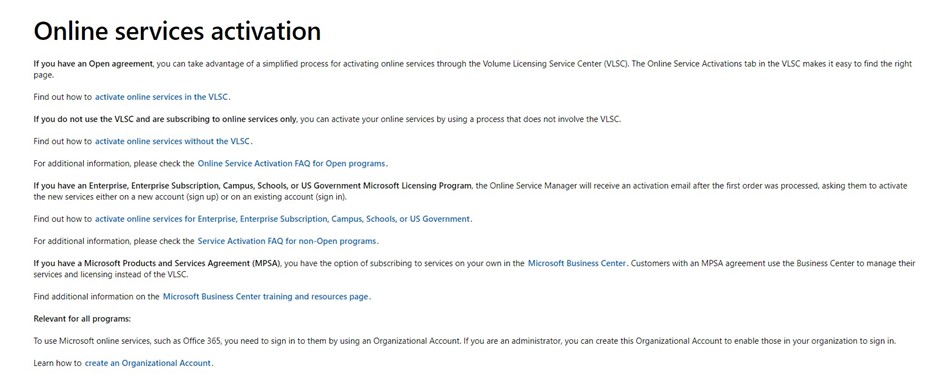
- Additional activation MAC training and resources. You’ll find these links on the online services activation tab. If you have an Enterprise, Enterprise Subscription, Campus, Schools, or US Government Microsoft licensing program, the OSM will receive an activation email after the first order is processed, asking them to activate the new services either on a new account (sign up) or on an existing account (sign in).
- Find out how to activate online services for Enterprise, Enterprise Subscription, Campus, Schools, or US Government.
- For more information, check the frequently asked questions on non-Open service activation. Contact MAC Support to amend the OSM email address only in the following scenarios:
CICR
Submit a CICR via eAgreements or Volume Licensing Contract Manager (VLCM). Update contacts via VLCM CICR where CICRs are done automatically (no touch) for all contract-level contacts such as PRI NTC and OSM, except bill-to contacts, which require manual CICR via the Call Logging Tool (CLT), and OLA, which can be added or removed via MAC. Updates are then reflected in eMSL, VL Central R&A, and MAC, and take approximately 24 hours. Nothing else needs to be updated in MAC. If the activation email needs to be retriggered, log a ticket with the Support Center.
Go to Additional process for partners: CICR to learn more about the process.
For manual CICR, download the form from VL Central R&A. Go to Form > Contract Information Change Request, then submit to the Regional Operations Center (OSC) via CLT. All contacts can be submitted manually, but VLCM is the preferred option for every contact except the bill-to one. This type of contact currently isn’t supported because of system limitations and needs the CICR form to be submitted to OSC via CLT.
Note: The OSM isn’t the Azure administrator. The NTC is the Azure administrator and recipient of the Azure activation email. If you want the OSM to receive both the Azure and OLS activation emails, you need to set the person as both NTC and OSM. Alternatively, the NTC can go to the Azure Enterprise Agreement (EA) portal and add the OSM as an administrator. After the first EA admin activates the enrollment, they can add new admins in the EA portal. For details, see Azure EA portal administration.
Submit a CICR via eAgreements or Volume Licensing Contract Manager (VLCM). Update contacts via VLCM CICR where CICRs are done automatically (no touch) for all contract-level contacts such as PRI NTC and OSM, except bill-to contacts, which require manual CICR via the Call Logging Tool (CLT), and OLA, which can be added or removed via MAC. Updates are then reflected in eMSL, VL Central R&A, and MAC, and take approximately 24 hours. Nothing else needs to be updated in MAC. If the activation email needs to be retriggered, log a ticket with the Support Center.
Go to Additional process for partners: CICR to learn more about the process.
For manual CICR, download the form from VL Central R&A. Go to Form > Contract Information Change Request, then submit to the Regional Operations Center (OSC) via CLT. All contacts can be submitted manually, but VLCM is the preferred option for every contact except the bill-to one. This type of contact currently isn’t supported because of system limitations and needs the CICR form to be submitted to OSC via CLT.
Note: The OSM isn’t the Azure administrator. The NTC is the Azure administrator and recipient of the Azure activation email. If you want the OSM to receive both the Azure and OLS activation emails, you need to set the person as both NTC and OSM. Alternatively, the NTC can go to the Azure Enterprise Agreement (EA) portal and add the OSM as an administrator. After the first EA admin activates the enrollment, they can add new admins in the EA portal. For details, see Azure EA portal administration.
FAQ
How can I avoid incorrectly activating services on the wrong account?
Before you select the activation link, ensure that you’re signed off from any existing Microsoft service accounts. Next, open the link in an incognito or InPrivate browser window to ensure that you’re not already signed in to any other Microsoft service accounts.
What should I do if the licenses got activated on the wrong account?
Contact Support, which will work with you to remap your licenses to the correct account.
Does the activation link expire?
Yes, the activation link expires six months from the original purchase date. Contact Support to get the activation link reactivated.
Reasons for not receiving the activation email
There are various reasons why you might not have received the service activation email:
- The enrollment has on-premises products only.
- The activation email was sent to a different contact. Verify if the details for the OSM subscription contact are correct.
- The activation email was blocked or went into your junk mail folder.
- The enrollment is already associated with an online account. If the service is already activated from a previous order, all additional licenses are automatically associated with the same account, and no further activation emails will be sent.
- The order usage date is in the future. Orders can be submitted prior to the licensed usage period, but service activation emails might not be sent until 24 hours from the usage start date.
- The listed email address for the OSM is the email address on record for the global administrator or billing administrator on an existing service account. In this case, all licenses are automatically assigned to the existing account, and no activation email is sent.
- No order or reservation was placed. Check with your licensed software reseller (LSP) to make sure that your order was placed. If it was placed, the licenses should be visible in the MAC tool License Summary tab.
Note: For more details, review the FAQ in the MAC tool. You can also refer to this FAQ on service activation.
Resources and support
- You can find more information about OLS activation on the MAC Training and Resources page.
- Visit the overview of the MAC along with comprehensive FAQs.
- If you need assistance, you can find the contact information of the MAC Support Center for your region.
- You can find more information about OLS activation on the MAC Training and Resources page.
- Visit the overview of the MAC along with comprehensive FAQs.
- If you need assistance, you can find the contact information of the MAC Support Center for your region.