✔️ 适用于: 使用 Microsoft.Storage 资源提供程序创建的经典 SMB 和 NFS 文件共享
✔️ 适用于:使用 Microsoft.FileShares 资源提供程序创建的文件共享
本文介绍如何使用 Azure 门户、Azure PowerShell和Azure CLI来调整Azure 文件存储文件共享的大小、成本和性能特征。 对于使用 Microsoft.Storage 资源提供程序的经典文件共享,与使用 Microsoft.FileShares 创建的文件共享,其过程有所不同。
创建经典文件共享之后,可能需要调整共享的配置(已配置模型)或访问层(按需付费模型)。 以下部分介绍如何调整共享的相关属性。
预配 v2 计费模型
创建预配的 v2 经典文件共享后,可以更改文件共享的一个或全部三个预配数量。 可以根据需要动态纵向扩展或减少预配的存储、IOPS 和吞吐量。 但是,自上次增加数量以来,只能在 24 小时后减少预配数量。 预配更改后,存储、IOPS 和吞吐量更改将在几分钟内生效。
请按照以下步骤更新文件共享的配置。
转到存储帐户。 在服务菜单中的 “数据存储”下,选择 “经典文件共享”。
在文件共享列表中,选择要更改其预配设置的文件共享。
在文件共享概述中,选择“更改大小和性能”。
“ 大小与性能 ”弹出对话框有以下选项:
选择 保存 以应用配置更改。
使用 Update-AzRmStorageShare cmdlet 修改预配的 v2 文件共享。 将变量 $resourceGroupName、$storageAccountName、$shareName、$provisionedThroughputMibPerSec、$provisionedIops 和 $provisionedStorageGib 的值替换为您希望用于文件共享的值。
# The path to the file share resource to be modified.
$resourceGroupName = "<my-resource-group>"
$storageAccountName = "<my-storage-account-name>"
$shareName = "<name-of-the-file-share>"
# The provisioning desired on the file share. Delete the parameters if no
# change is desired.
$provisionedStorageGib = 10240
$provisionedIops = 10000
$provisionedThroughputMibPerSec = 2048
# Update the file share provisioning.
Update-AzRmStorageShare `
        -ResourceGroupName $resourceGroupName `
        -AccountName $storageAccountName `
        -ShareName $shareName `
        -QuotaGiB $provisionedStorageGib `
        -ProvisionedIops $provisionedIops `
        -ProvisionedBandwidthMibps $provisionedThroughputMibPerSec
$f = Get-AzRmStorageShare -ResourceGroupName $resourceGroupName -AccountName $storageAccountName -ShareName $shareName
$f | fl
使用 az storage share-rm update 命令修改已预配的 v2 文件共享。 将变量 resourceGroupName、storageAccountName、fileShareName、provisionedStorageGib、provisionedIops 和 provisionedThroughputMibPerSec 的值替换为您希望用于文件共享的值。
# The path to the file share resource to be modified.
resourceGroupName="<resource-group>"
storageAccountName="<storage-account>"
fileShareName="<file-share>"

# The provisioning desired on the file share. Delete the parameters if no
# change is desired.
provisionedStorageGib=10240
provisionedIops=10000
provisionedThroughputMibPerSec=2048

# Update the file share provisioning.
az storage share-rm update \
        --resource-group $resourceGroupName \
        --name $fileShareName \
        --storage-account $storageAccountName \
        --quota $provisionedStorageGib \
        --provisioned-iops $provisionedIops \
        --provisioned-bandwidth-mibps $provisionedThroughputMibPerSec
预配 v1 计费模型
创建预配 v1 文件共享后,可以更改文件共享的预配存储大小。 当您更改已分配的存储大小时,已分配的 IOPS 和已分配的吞吐量也会随之改变。 只能在上一次存储扩容操作完成 24 小时后,才可以减少已预配的存储。 预配更改后,存储、IOPS 和吞吐量更改将在几分钟内生效。 有关详细信息,请参阅预配 v1 预配详细信息。
请按照以下步骤更新文件共享的配置。
转到存储帐户。 在服务菜单中的 “数据存储”下,选择 “经典文件共享”。
在文件共享列表中,选择要更改其预配设置的文件共享。
在文件共享概述中,选择“更改大小和性能”。
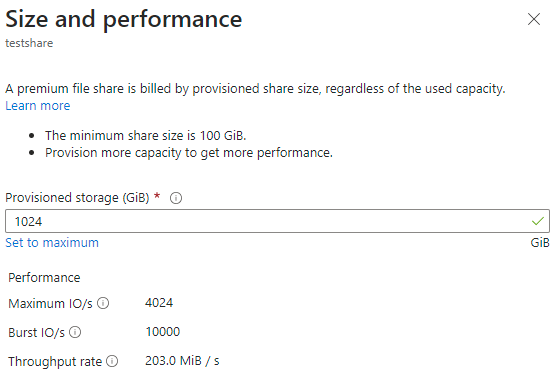
“大小和性能”对话框具有单个选项“预配存储”(GiB)。 如果需要的 IOPS 或吞吐量超过给定预配的存储量,可以增加预配的存储容量以获取额外的 IOPS 和吞吐量。
选择 保存 以应用配置更改。
注释
您可以使用 PowerShell 和 CLI 来启用或禁用付费突发功能。 付费突发是预配 v1 计费模型的一项高级功能。 启用付费突发前,请参阅预配 v1 付费突发。
可以使用 Update-AzRmStorageShare cmdlet 修改预配 v1 文件共享。 将变量$resourceGroupName$storageAccountName$fileShareName的值替换为文件共享的值。 在文件共享上将 $provisionedStorageGib、$paidBurstingEnabled、$paidBurstingMaxIops 和 $paidBurstingMaxThroughputMibPerSec 设置为非空值$null。 付费突发是预配 v1 模型的一项高级功能。 启用前,请参阅预配 v1 付费突发。
# The path to the file share resource to be modified.
$resourceGroupName = "<resource-group>"
$storageAccountName = "<storage-account>"
$fileShareName = "<file-share>"
# The provisioning desired on the file share. Set to $null to keep at the
# current level of provisioning.
$provisionedStorageGib = 10240
# Paid bursting settings.
$paidBurstingEnabled = $null # Set to $true or $false.
$paidBurstingMaxIops = $null # Set to an integer value.
$paidBurstingMaxThroughputMibPerSec = $null # Set to an integer value.
# Configure parameter object for splatting.
$params = @{
    ResourceGroupName = $resourceGroupName;
    StorageAccountName = $storageAccountName;
    Name = $fileShareName;
}
if ($null -ne $provisionedStorageGib) {
    $params += @{ QuotaGiB = $provisionedStorageGib }
}
if ($null -ne $paidBurstingEnabled) {
    $params += @{ PaidBurstingEnabled = $paidBurstingEnabled }
}
if ($null -ne $paidBurstingMaxIops) {
    $params += @{ PaidBurstingMaxIops = $paidBurstingMaxIops }
}
if ($null -ne $paidBurstingMaxThroughputMibPerSec) {
    $params += @{
        PaidBurstingMaxBandwidthMibps = $paidBurstingMaxThroughputMibPerSec
    }
}
# Update the file share provisioning.
Update-AzRmStorageShare @params
可以使用命令修改预配的 v1 文件共享 az storage share-rm update 。 将变量resourceGroupNamestorageAccountNamefileShareNameprovisionedStorageGib的值替换为文件共享所需的值。
# The path to the file share resource to be modified.
resourceGroupName="<resource-group>"
storageAccountName="<storage-account>"
fileShareName="<file-share>"

# The provisioning desired on the file share.
provisionedStorageGib=10240

# Update the file share provisioning.
az storage share-rm update \
        --resource-group $resourceGroupName \
        --storage-account $storageAccountName \
        --name $fileShareName \
        --quota $provisionedStorageGib
若要切换付费突发,请使用 --paid-bursting-enabled 参数。 付费突发是预配 v1 模型的一项高级功能。 启用前,请参阅预配 v1 付费突发。 可以选择使用 --paid-bursting-max-iops 和 --paid-bursting-max-bandwidth-mibps 标志来设置允许的付费突发上限,以实现成本控制目的。 将变量resourceGroupNamestorageAccountNamefileShareName的值替换为文件共享所需的值。
resourceGroupName="<resource-group>"
storageAccountName="<storage-account>"
fileShareName="<file-share>"

az storage share-rm update \
        --resource-group $resourceGroupName \
        --storage-account $storageAccountName \
        --name $fileShareName \
        --paid-bursting-enabled true
按使用量付费计费模式
创建即用即付文件共享后,可能需要更改两个属性:
访问层:文件共享的访问层决定了存储与 IOPS 和吞吐量成本(以事务形式)的比例。 有三个访问层:事务优化层、热层和冷层。 更改 Azure 文件共享的层需要将其迁移到新访问层,这会产生交易成本。 有关详细信息,请参阅在访问层之间切换。
配额:配额是对文件共享大小的限制。 配额属性用于预配的 v2 和预配的 v1 模型,以表示“预配的存储容量”。 但是,在即用即付模型中,配额对计费没有直接影响。 你可能想要修改此属性,主要有两个原因:一是你使用配额来限制文件共享的增长,以便在即用即付模式下控制已用存储容量和事务成本;二是你的存储帐户创建于大文件共享功能推出之前,而该功能使文件共享能够增长到超过 5 TiB。 即用即付文件共享的最大文件共享大小为 100 TiB。
若要使用 Azure 门户更新文件共享的访问层,请执行以下步骤:
转到存储帐户。 在服务菜单中的 “数据存储”下,选择 “经典文件共享”。
在文件共享列表中,选择要为其更改访问层的文件共享。
在文件共享概述中,选择“更改层”。
从提供的下拉列表中选择所需的访问层。
选择“应用”以保存访问层更改。
若要使用 Azure 门户更新文件共享的配额,请执行以下步骤:
转到存储帐户。 在服务菜单中的 “数据存储”下,选择 “经典文件共享”。
在文件共享列表中,选择要为其更改配额的文件共享。
在文件共享概述中,选择“编辑配额”。
在 “编辑配额 ”弹出窗口中,输入所需的共享最大大小,或选择“ 设置为最大值”。 将共享大小设为最大不会产生任何额外费用。
选择“确定”,保存配额更改。 新配额会在几分钟内生效。
你也可以使用 Azure PowerShell Update-AzRmStorageShare cmdlet 来更改按用量付费文件共享的访问权限层级和配额设置。 将变量 $resourceGroupName、$storageAccountName、$fileShareName、$accessTier 和 $quotaGib 的值替换为您的文件共享所需的值。
# The path to the file share resource to be modified.
$resourceGroupName = "<resource-group>"
$storageAccountName = "<storage-account>"
$fileShareName = "<file-share>"
# The settings to be changed on the file share. Set to $null to skip setting.
$accessTier = "Cool"
$quotaGib = $null
# Construct a parameters hash table for cmdlet splatting.
$updateParams = @{
    ResourceGroupName = $resourceGroupName
    StorageAccountName = $storageAccountName
    Name = $fileShareName
}
if ($null -ne $accessTier) { $updateParams += @{ AccessTier = $accessTier } }
if ($null -ne $quotaGib) { $updateParams += @{ QuotaGiB = $quotaGib } }
# Update the file share
Update-AzRmStorageShare @updateParams
还可以使用 Azure CLI az storage share-rm update 命令更改即用即付文件共享的访问层和配额设置。 将变量 resourceGroupName、storageAccountName、fileShareName、accessTier 和 quotaGib 的值替换为您的文件共享所需的值。
# The path to the file share resource to be modified.
resourceGroupName="<resource-group>"
storageAccountName="<storage-account>"
fileShareName="<file-share>"

# The settings to be changed on the file share. Set to the empty string to skip
# setting.
accessTier="Cool"
quotaGib=""

command="az storage share-rm update --resource-group $resourceGroupName"
command="$command --storage-account $storageAccountName --name $fileShareName"

if [ ! -z "${accessTier}" ]; then
    command="$command --access-tier $accessTier"
fi

if [ ! -z "${quotaGib}" ]; then
    command="$command --quota $quotaGib"
fi

# Update file share (command is in variable)
$command
使用 Microsoft.FileShares 资源提供程序创建文件共享后,你可以更改预配的存储容量、IOPS 和吞吐量。 你可以根据需求变化动态调整规模,但只有在上次增加24小时后才能减少已配置的数量。
请按照以下步骤,使用 Azure 门户更改文件共享 (Microsoft.FileShares) 的大小和性能。 可以根据需求的变化动态缩放存储量、IOPS 和吞吐量。 但是,自上次增加数量以来,只能在 24 小时后减少预配数量。 预配更改后,存储、IOPS 和吞吐量更改将在几分钟内生效。
选择要修改的文件共享。
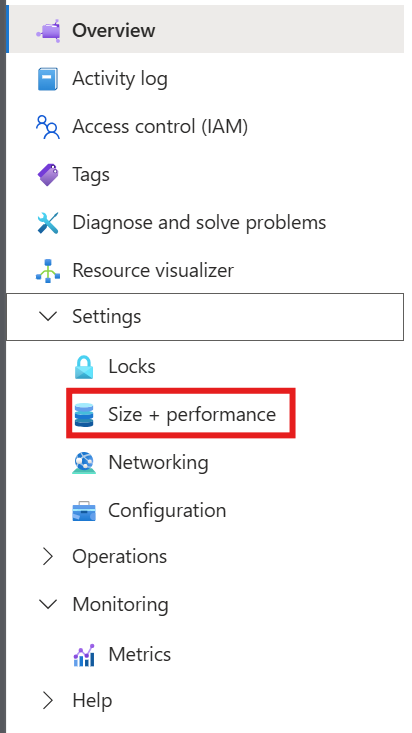
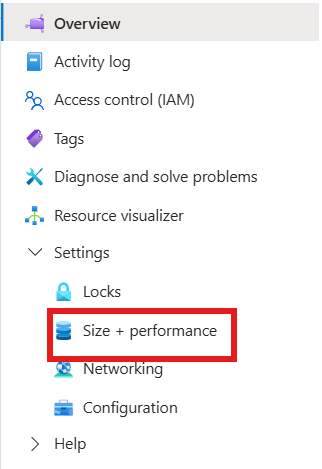
从上下文菜单中,选择“设置”。
选择“大小 + 性能”。
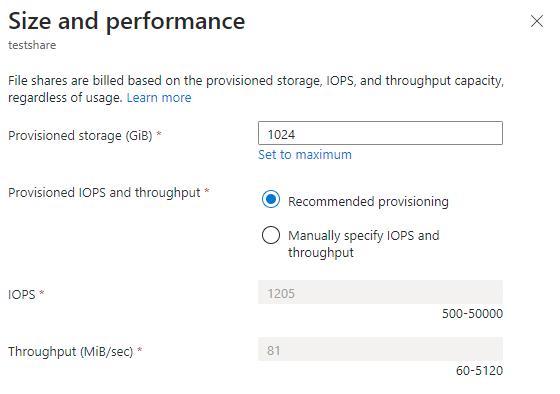
“大小和性能”弹出包含以下选项:
预配容量(GiB):在共享上预配的存储量。
预配的 IOPS 和吞吐量:用于在 “建议预配 ”和 “手动指定 IOPS”和“吞吐量”之间进行选择的一组单选按钮。 如果您的共享的 IOPS 和吞吐量达到针对所预配存储容量的建议水平,则会选中 建议的预配设置;否则,会选中 手动指定 IOPS 和吞吐量。 可以在这两个选项之间切换以更改共享预配。
IOPS:如果选择“手动指定 IOPS 和吞吐量”,则可在此文本框更改针对此文件共享配置的 IOPS 量。
吞吐量(MiB/秒):如果选择“手动指定 IOPS 和吞吐量”,则可在此文本框更改要针对此文件共享配置的吞吐量。
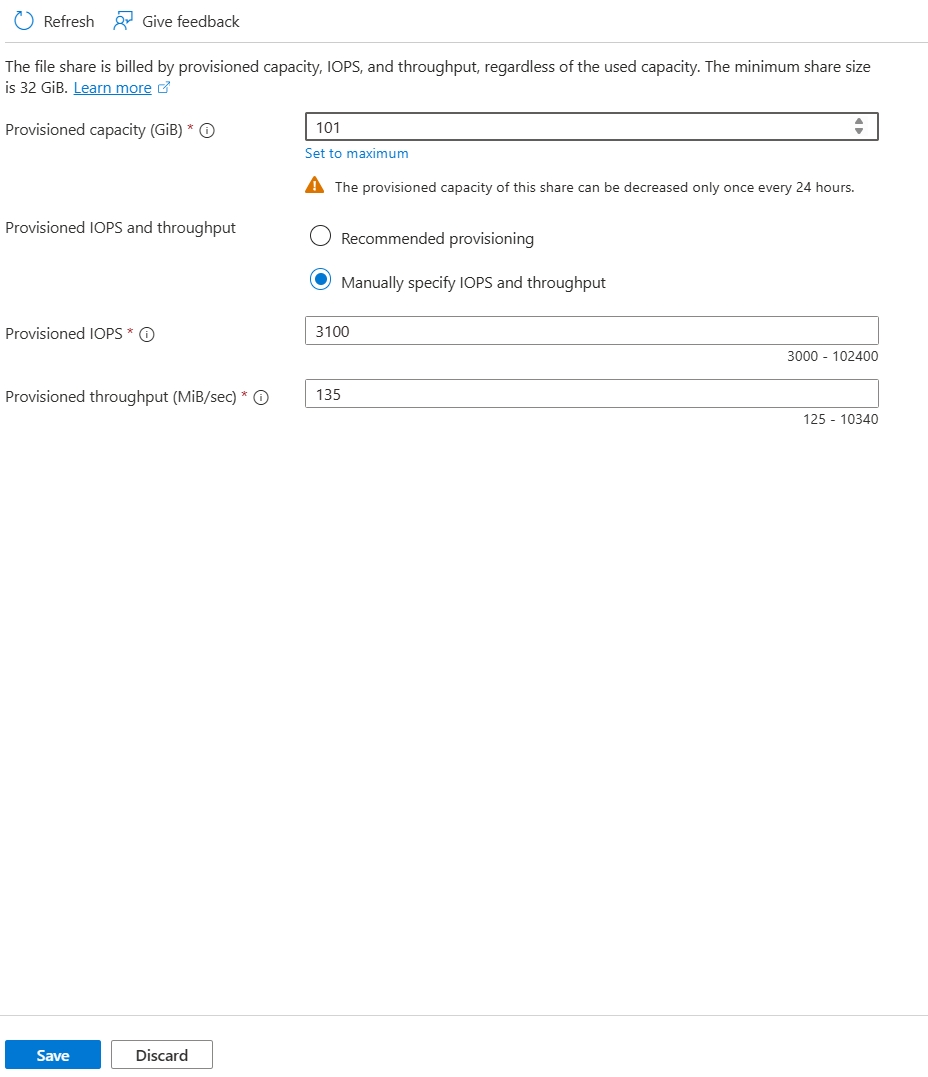
选择“保存”。
若要使用 Azure PowerShell 更改文件共享(Microsoft.FileShares)的大小和性能,请使用以下命令。 将变量替换为预期值。
# To learn more about the Az.FileShare module, see https://www.powershellgallery.com/packages/Az.FileShare/1.0.0
Install-Module -Name Az.FileShare -Repository PSGallery -RequiredVersion 1.0.0

$resourceGroup = "<resource-group>"
$shareName = "<file-share-name>"

# The following is an example to modify the file share setting. Edit the command to tailor it to your needs.
Update-AzFileShare `
    -ResourceName $shareName `
    -ResourceGroupName $resourceGroup `
    -RootSquash RootSquash `
    -EncryptionInTransitRequired Enabled `
    -ProvisionedIoPerSec 5001 `
    -ProvisionedStorageGiB 101 `
    -ProvisionedThroughputMiBPerSec 126 `
    -PublicNetworkAccess Disabled `
    -Tag @{tag1="value1"}
Get-AzFileShare -ResourceGroupName $resourceGroup -ResourceName $shareName
若要使用 Azure CLI 更改文件共享(Microsoft.FileShares)的大小和性能,请使用以下命令。
# Install the fileshare extension
az extension add --name fileshare

# Specify your values
shareName="<your-file-share-name>"
resourceGroup="<your-resource-group-name>"

# Update the file share. Uncomment and set only the parameters you want to change.
az fileshare update --name $shareName --resource-group $resourceGroup
# --provisioned-storage-gib 2048 \
# --provisioned-iops 3000 \
# --provisioned-throughput-mib 125 \
# --root-squash RootSquash \
# --encryption-in-transit-required Enabled \
# --public-network-access Disabled \
# --allowed-subnets <subnet-resource-id> \
# --tags tag1=value1
要检查文件共享信息:
az fileshare show --name $shareName --resource-group $resourceGroup
删除经典文件共享
你可能想要删除未使用的或过时的文件共享。 可以在保留期内 启用软删除 的存储帐户中恢复文件共享。
按照以下步骤,通过 Azure 门户删除经典文件共享。
转到存储帐户。 在服务菜单中的 “数据存储”下,选择 “经典文件共享”。
在文件共享列表中,选择要删除的文件共享的“...”。
从上下文菜单中选择“删除共享”。
“删除”弹出窗口包含有关删除文件共享的原因的调查。 你可以跳过此步骤,但 Microsoft 非常重视你对 Azure 文件存储 的任何反馈,尤其是当你遇到某些功能无法正常工作的问题时。
输入文件共享名称以确认删除,然后选择“删除”。
还可以使用 Azure PowerShell Remove-AzRmStorageShare cmdlet 删除文件共享。 将变量$resourceGroupName$storageAccountName$fileShareName的值替换为文件共享的值。
# The path to the file share resource to be deleted.
$resourceGroupName = "<resource-group>"
$storageAccountName = "<storage-account>"
$fileShareName = "<file-share>"
# Remove the file share
Remove-AzRmStorageShare `
        -ResourceGroupName $resourceGroupName `
        -StorageAccountName $storageAccountName `
        -Name $fileShareName
还可以使用 Azure CLI az storage share-rm delete 命令删除文件共享。 将变量resourceGroupNamestorageAccountNamefileShareName的值替换为文件共享的值。
resourceGroupName="<resource-group>"
storageAccountName="<storage-account>"
fileShareName="<file-share>"

az storage share-rm delete \
    --resource-group $resourceGroupName \
    --storage-account $storageAccountName \
    --name $fileShareName
删除文件共享 (Microsoft.FileShares)
在删除通过 Microsoft.FileShares 资源提供程序创建的文件共享之前,请确保先删除或断开与其关联的专用终结点。 如果专用终结点仍然存在,文件共享删除将失败。
若要使用 Azure 门户删除文件共享 (Microsoft.FileShares),请按照以下步骤操作。
转到文件共享。
从上下文菜单中选择“删除”。
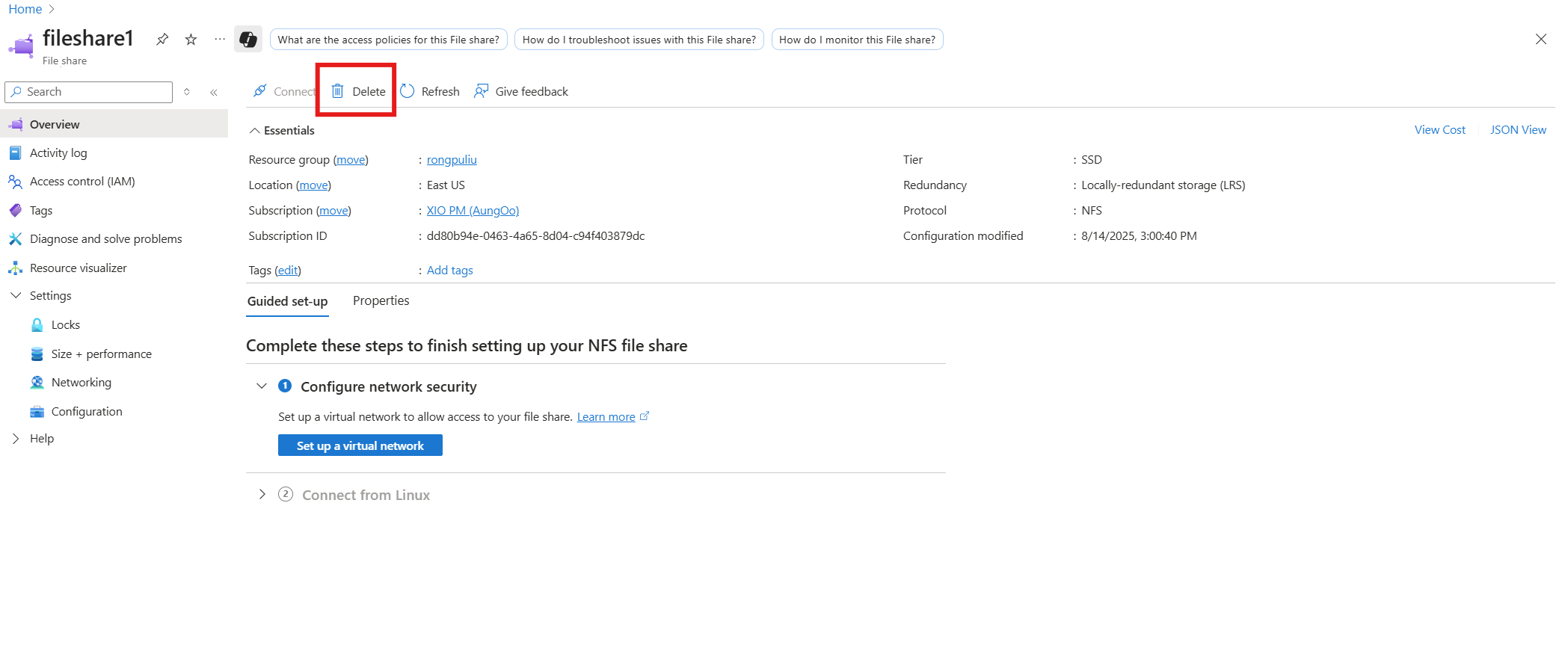
“删除”弹出窗口包含有关删除文件共享的原因的调查。 你可以跳过这项调查,但产品团队感谢你提供的任何反馈,尤其是当你遇到某些功能无法正常使用时。 如果你的文件共享中有依赖资源,比如快照,删除过程也会删除这些快照,且该操作无法恢复。 如果文件共享具有关联的资源(如专用终结点),门户将帮助你删除它们,然后才能删除文件共享。
输入文件共享名称以确认删除,然后选择“删除”。
若要使用 Azure PowerShell 删除文件共享 (Microsoft.FileShares),请运行以下命令。 将变量替换为你的值。
# To learn more about the Az.FileShare module, see https://www.powershellgallery.com/packages/Az.FileShare/1.0.0
Install-Module -Name Az.FileShare -Repository PSGallery -RequiredVersion 1.0.0

$resourceGroup = "<resource-group>"
$shareName = "<file-share-name>"

Remove-AzFileShare -ResourceName $shareName -ResourceGroupName $resourceGroup
要使用 Azure CLI 删除文件共享(Microsoft.FileShares),请运行以下命令。
# Install the fileshare extension
az extension add --name fileshare

# Delete the file share
az fileshare delete --name <file-share-name> --resource-group <your-resource-group-name> -y
后续步骤