你当前正在访问 Microsoft Azure Global Edition 技术文档网站。 如果需要访问由世纪互联运营的 Microsoft Azure 中国技术文档网站,请访问 https://docs.azure.cn。
在本教程中,你将使用 Azure DocumentDB 和 OpenAI 生成 AI 驱动的广告生成器,以创建动态的个性化广告内容。 应用程序使用矢量相似性搜索来将库存项目与广告主题匹配,然后使用 GPT-4 和 DALL-E 3 通过名为 Heelie 的 AI 助手生成引人注目的广告文案和图像。
应用程序的工作原理是使用 OpenAI 嵌入生成清单说明的矢量嵌入,后者捕获产品说明的语义含义。 这些向量存储在 Azure DocumentDB 中并编制索引,可实现强大的矢量相似性搜索。 当需要生成广告时,应用程序会向量化广告主题,通过矢量搜索查找最匹配的清单项。 然后,它使用检索增强生成(RAG)过程将顶级匹配发送到 OpenAI,后者制作引人注目的广告内容,包括醒目的标语和逼真的图像。
在本教程中,你将:
- 使用所需的包设置 Python 环境
- 配置 Azure OpenAI 和 Azure DocumentDB 客户端
- 从产品说明创建矢量嵌入
- 设置带有矢量索引的 Azure DocumentDB 数据库
- 实现矢量相似性搜索以查找相关产品
- 使用 GPT-4 和 DALL-E 3 生成广告内容
- 使用 Gradio 生成交互式 Web 界面
如果没有 Azure 订阅,请在开始之前创建一个免费帐户。
先决条件
Azure 订阅服务
- 如果没有 Azure 订阅,请创建 一个免费帐户
现有的 Azure DocumentDB 群集
- 如果没有群集,请 创建新群集
-
text-embedding-ada-002嵌入模型已部署gpt-4完成模型已部署
Python 3.12 或更高版本
获取示例数据
在本教程中,将使用包含产品说明和预计算矢量嵌入的鞋类产品的数据集。 示例数据包含应用程序用来演示矢量相似性搜索和广告生成的清单信息。
从 GitHub 存储库下载示例数据文件:
curl -o data/shoes_with_vectors.json https://raw.githubusercontent.com/jayanta-mondal/ignite-demo/main/data/shoes_with_vectors.json在项目目录中创建一个
data文件夹,并将该文件保存到shoes_with_vectors.json其中。 该文件包含产品信息,包括启用语义搜索功能的名称、说明、价格和矢量嵌入。
设置 Python 环境
使用必要的包设置 Python 环境,并将 Azure 客户端配置为对 OpenAI API 和 Azure 服务的请求进行身份验证。
打开终端并安装所需的 Python 包:
pip install numpy
pip install openai==1.2.3
pip install pymongo
pip install python-dotenv
pip install azure-core
pip install azure-cosmos
pip install tenacity
pip install gradio
验证 OpenAI 包安装:
pip show openai为项目创建新的 Python 文件(例如
ad_generator.py)。添加以下代码以导入所需的库并配置 Azure OpenAI 客户端:
import json
import time
import openai

from dotenv import dotenv_values
from openai import AzureOpenAI

# Configure the API to use Azure as the provider
openai.api_type = "azure"
openai.api_key = "<AZURE_OPENAI_API_KEY>"  # Replace with your actual Azure OpenAI API key
openai.api_base = "https://<OPENAI_ACCOUNT_NAME>.openai.azure.com/"  # Replace with your OpenAI account name
openai.api_version = "2023-06-01-preview"

# Initialize the AzureOpenAI client with your API key, version, and endpoint
client = AzureOpenAI(
    api_key=openai.api_key,
    api_version=openai.api_version,
    azure_endpoint=openai.api_base
)
将占位符值替换为实际的 Azure OpenAI 凭据:
-
<AZURE_OPENAI_API_KEY>:先决条件中的 Azure OpenAI API 密钥 -
<OPENAI_ACCOUNT_NAME>:Azure OpenAI 账户名称
-
创建矢量嵌入
从产品说明创建矢量嵌入,以计算机可以理解和处理的形式捕获其语义含义。 下图演示了解决方案体系结构:

通过将以下函数添加到 Python 文件,使用 Azure OpenAI 创建矢量嵌入:
import openai

def generate_embeddings(text):
    try:
        response = client.embeddings.create(
            input=text, model="text-embedding-ada-002")
        embeddings = response.data[0].embedding
        return embeddings
    except Exception as e:
        print(f"An error occurred: {e}")
        return None
此函数采用文本输入,并使用
client.embeddings.create该方法生成矢量嵌入。 模型text-embedding-ada-002将文本转换为捕获语义含义的高维向量。使用示例产品说明测试嵌入函数:
embeddings = generate_embeddings("Shoes for San Francisco summer")

if embeddings is not None:
    print(embeddings)
如果成功,该函数将输出生成的嵌入;否则,它会通过打印错误消息来处理异常。
连接到 Azure DocumentDB
建立与 Azure DocumentDB 的连接,以在支持矢量相似性搜索的数据库中存储和索引嵌入内容。
添加以下代码以与 Azure DocumentDB 群集建立连接:
import pymongo

# Replace <username>, <password>, and <cluster-name> with your actual credentials
mongo_conn = "mongodb+srv://<username>:<password>@<cluster-name>.mongocluster.cosmos.azure.com/?tls=true&authMechanism=SCRAM-SHA-256&retrywrites=false&maxIdleTimeMS=120000"
mongo_client = pymongo.MongoClient(mongo_conn)
将占位符值替换为先决条件中的实际 MongoDB 凭据:
-
<username>:MongoDB 用户名 -
<password>:MongoDB 密码 -
<cluster-name>:vCore 群集名称
-
创建数据库和集合
通过在 Azure DocumentDB 实例中创建数据库和集合来存储广告数据和产品清单。
添加以下代码以创建数据库和集合:
DATABASE_NAME = "AdgenDatabase"
COLLECTION_NAME = "AdgenCollection"

mongo_client.drop_database(DATABASE_NAME)
db = mongo_client[DATABASE_NAME]
collection = db[COLLECTION_NAME]

if COLLECTION_NAME not in db.list_collection_names():
    # Creates a unsharded collection that uses the database's shared throughput
    db.create_collection(COLLECTION_NAME)
    print("Created collection '{}'.\n".format(COLLECTION_NAME))
else:
    print("Using collection: '{}'.\n".format(COLLECTION_NAME))
此代码定义数据库和集合名称,删除任何具有相同名称的现有数据库进行干净设置,创建新的数据库和集合,并打印确认消息。
创建矢量索引
创建矢量索引,以便在集合中实现高效的矢量相似性搜索。 Azure DocumentDB 支持不同类型的 矢量索引:倒排文件索引(IVF)和分层可导航小型世界(HNSW)。
根据群集层选择索引算法:
- IVF:适用于所有群集层的默认算法,使用近似近邻 (ANN) 方法
- HNSW:基于图形的结构,准确性更高,仅在 M40 群集层和更高层上可用
若要创建 IVF 索引,请运行以下命令:
db.runCommand({
  'createIndexes': 'AdgenCollection',
  'indexes': [
    {
      'name': 'vectorSearchIndex',
      'key': {
        "contentVector": "cosmosSearch"
      },
      'cosmosSearchOptions': {
        'kind': 'vector-ivf',
        'numLists': 1,
        'similarity': 'COS',
        'dimensions': 1536
      }
    }
  ]
});
(可选)如果使用 M40 群集层或更高层,可以改为创建 HNSW 索引:
db.runCommand({
    "createIndexes": "AdgenCollection",
    "indexes": [
        {
            "name": "VectorSearchIndex",
            "key": {
                "contentVector": "cosmosSearch"
            },
            "cosmosSearchOptions": {
                "kind": "vector-hnsw",
                "m": 16,
                "efConstruction": 64,
                "similarity": "COS",
                "dimensions": 1536
            }
        }
    ]
})
重要
每个矢量属性只能创建一个索引。 如果要更改索引类型(例如,从 IVF 更改为 HNSW),必须先删除索引,然后再创建新索引。
加载清单数据
将库存数据(包括产品说明及其相应的矢量嵌入)插入到集合中。
添加以下代码以加载数据并将其插入到集合中:
data_file = open(file="./data/shoes_with_vectors.json", mode="r")
data = json.load(data_file)
data_file.close()

result = collection.insert_many(data)

print(f"Number of data points added: {len(result.inserted_ids)}")
此代码将打开 JSON 文件,加载数据,使用
insert_many()将所有文档插入集合中,并打印添加的文档数。
实现矢量搜索
使用矢量搜索基于查询查找最相关的项。 创建的矢量索引可在数据集中启用语义搜索。
添加以下函数以执行矢量相似性搜索:
def vector_search(query, num_results=3):

    query_vector = generate_embeddings(query)

    embeddings_list = []
    pipeline = [
        {
            '$search': {
                "cosmosSearch": {
                    "vector": query_vector,
                    "numLists": 1,
                    "path": "contentVector",
                    "k": num_results
                },
                "returnStoredSource": True }},
        {'$project': { 'similarityScore': { '$meta': 'searchScore' }, 'document' : '$$ROOT' } }
    ]
    results = collection.aggregate(pipeline)
    return results
此函数为搜索查询生成矢量嵌入,创建一个聚合管道,该管道使用 Azure DocumentDB
$search的功能,根据矢量相似性查找最接近的匹配项,并返回具有相似性分数的结果。使用示例查询测试矢量搜索函数:
query = "Shoes for Seattle sweater weather"
results = vector_search(query, 3)

print("\nResults:\n")
for result in results:
    print(f"Similarity Score: {result['similarityScore']}")
    print(f"Title: {result['document']['name']}")
    print(f"Price: {result['document']['price']}")
    print(f"Material: {result['document']['material']}")
    print(f"Image: {result['document']['img_url']}")
    print(f"Purchase: {result['document']['purchase_url']}\n")
此代码执行矢量搜索,并显示前三个匹配产品及其相似性分数和详细信息。
生成广告内容
将所有组件结合在一起,利用 OpenAI 的 GPT-4 生成文本,并使用 DALL-E 3 生成图像,以制作吸引人的广告。
添加以下函数以使用 GPT-4 生成引人注目的广告标题:
from openai import OpenAI

def generate_ad_title(ad_topic):
    system_prompt = '''
    You are Heelie, an intelligent assistant for generating witty and captivating taglines for online advertisements.
        - The ad campaign taglines that you generate are short and typically under 100 characters.
    '''

    user_prompt = f'''Generate a catchy, witty, and short sentence (less than 100 characters)
                    for an advertisement for selling shoes for {ad_topic}'''
    messages=[
        {"role": "system", "content": system_prompt},
        {"role": "user", "content": user_prompt},
    ]

    response = client.chat.completions.create(
        model="gpt-4",
        messages=messages
    )

    return response.choices[0].message.content
添加以下函数以使用 DALL-E 3 生成广告图像:
def generate_ad_image(ad_topic):
    daliClient = OpenAI(
        api_key="<DALI_API_KEY>"
    )

    image_prompt = f'''
        Generate a photorealistic image of an ad campaign for selling {ad_topic}.
        The image should be clean, with the item being sold in the foreground with an easily identifiable landmark of the city in the background.
        The image should also try to depict the weather of the location for the time of the year mentioned.
        The image should not have any generated text overlay.
    '''

    response = daliClient.images.generate(
        model="dall-e-3",
        prompt= image_prompt,
        size="1024x1024",
        quality="standard",
        n=1,
        )

    return response.data[0].url
用你的OpenAI API密钥替换
<DALI_API_KEY>。添加以下函数以将所有元素合并成一个完整的 HTML 广告:
def render_html_page(ad_topic):

    # Find the matching shoes from the inventory
    results = vector_search(ad_topic, 4)

    ad_header = generate_ad_title(ad_topic)
    ad_image_url = generate_ad_image(ad_topic)


    with open('./data/ad-start.html', 'r', encoding='utf-8') as html_file:
        html_content = html_file.read()

    html_content += f'''<header>
            <h1>{ad_header}</h1>
        </header>'''

    html_content += f'''
            <section class="ad">
            <img src="{ad_image_url}" alt="Base Ad Image" class="ad-image">
        </section>'''

    for result in results:
        html_content += f'''
        <section class="product">
            <img src="{result['document']['img_url']}" alt="{result['document']['name']}" class="product-image">
            <div class="product-details">
                <h3 class="product-title" color="gray">{result['document']['name']}</h2>
                <p class="product-price">{"$"+str(result['document']['price'])}</p>
                <p class="product-description">{result['document']['description']}</p>
                <a href="{result['document']['purchase_url']}" class="buy-now-button">Buy Now</a>
            </div>
        </section>
        '''

    html_content += '''</article>
                    </body>
                    </html>'''

    return html_content
此函数执行矢量搜索以查找匹配的产品、使用 GPT-4 生成广告标题、使用 DALL-E 3 生成广告图像,并将所有内容与产品列表合并到 HTML 页面中。
生成交互式接口
创建交互式 Web 界面,允许用户输入广告主题并动态生成和显示生成的广告。
添加以下代码以创建 Web 界面:
import gradio as gr

css = """
    button { background-color: purple; color: red; }
    <style>
    </style>
"""

with gr.Blocks(css=css, theme=gr.themes.Default(spacing_size=gr.themes.sizes.spacing_sm, radius_size="none")) as demo:
    subject = gr.Textbox(placeholder="Ad Keywords", label="Prompt for Heelie!!")
    btn = gr.Button("Generate Ad")
    output_html = gr.HTML(label="Generated Ad HTML")

    btn.click(render_html_page, [subject], output_html)

    btn = gr.Button("Copy HTML")

if __name__ == "__main__":
    demo.launch()
保存 Python 文件(例如
ad_generator.py)。从终端运行应用程序:
python ad_generator.py打开 Web 浏览器并导航到终端中显示的 URL(通常是
http://localhost:7860)。输入广告关键字,然后选择“ 生成广告 ”以查看 AI 生成的广告。
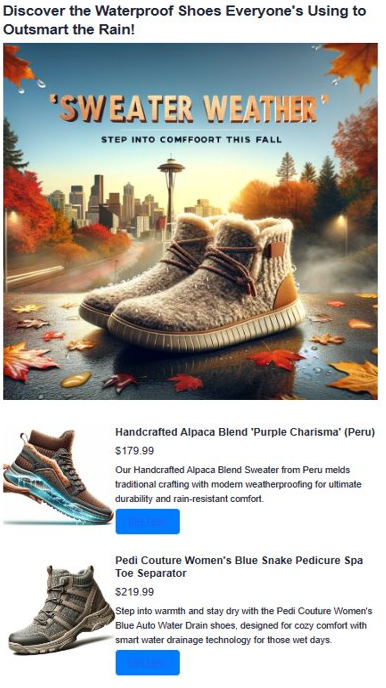
观察生成的广告。 生成的广告将矢量搜索结果与 AI 生成的内容相结合,以创建令人信服的个性化广告。 应用会为你创建多个项目。 首先,它使用 AI 创建一个引人注目的标语。 然后,它使用DALL-E 3创建一个真实的广告图像。 它还使用矢量搜索查找与主题匹配的产品。 最后,它显示完整的产品详细信息,其中包含图像、说明和购买链接。
清理资源
如果专门为本教程创建了资源,并且不再需要它们,请将其删除以避免产生费用。
通过在 Azure 门户中导航到 Azure DocumentDB 资源,选择 数据资源管理器,右键单击
AdgenDatabase并选择 “删除数据库”来删除 Azure DocumentDB 数据库。(可选)如果您仅为本教程创建了这些部署,您可以通过在 Azure 门户中导航到您的 Azure OpenAI 资源,选择 模型部署,然后删除 GPT-4 和文本嵌入-ada-002 部署,来删除 Azure OpenAI 部署。
(可选)如果为本教程创建了专用资源组,请删除整个资源组以删除所有关联的资源。