你当前正在访问 Microsoft Azure Global Edition 技术文档网站。 如果需要访问由世纪互联运营的 Microsoft Azure 中国技术文档网站,请访问 https://docs.azure.cn。
在本快速入门中,你将使用 Python 连接到 Azure HorizonDB 实例。 然后使用 SQL 语句在 macOS、Ubuntu Linux 和 Windows 平台的数据库中查询、插入、更新和删除数据。
本文中的步骤包括 PostgreSQL 身份验证。
PostgreSQL 身份验证使用 PostgreSQL 中存储的帐户,需要自行管理密码轮换。
本文假设你熟悉如何使用 Python 进行开发,但不熟悉如何使用 Azure HorizonDB。
先决条件
- 拥有有效订阅的 Azure 帐户。 免费创建帐户。
- Azure HorizonDB 群集。 若要创建 Azure HorizonDB 群集,请参阅 创建 Azure HorizonDB 群集。
- Python 3.8+。
- 最新 pip 包安装程序。
为客户端工作站添加防火墙规则
- 如果使用
Public 访问(允许的 IP 地址) ,则可以将本地 IP 地址添加到群集上的防火墙规则列表中。 请参阅 Azure HorizonDB 网络。
准备开发环境
更改为要运行代码并创建和激活虚拟环境的文件夹。 虚拟环境是一个独立的目录,专用于特定版本的 Python 和该应用程序所需的其他软件包。
运行以下命令来创建并激活一个虚拟环境:
py -3 -m venv .venv
.venv\Scripts\activate
安装 Python 库
安装运行代码示例所需的 Python 库。
安装 psycopg 模块,它可以连接和查询 PostgreSQL 数据库。
# Recommended: install the binary wheel that bundles a compatible libpq wrapper (Windows/macOS)
python -m pip install "psycopg[binary]"

# Linux alternative (if you prefer building against system libpq):
sudo apt-get update
sudo apt-get install -y libpq-dev build-essential python3-dev
python -m pip install psycopg
添加身份验证代码
在本部分中,将身份验证代码添加到工作目录,并使用群集实例执行身份验证和授权所需的任何其他步骤。
在添加身份验证代码之前,请确保已安装每个示例所需的包。
所需包(本文中的示例):
- 密码示例:
psycopg(建议:python -m pip install "psycopg[binary]")
可选:使用这些条目创建一个 requirements.txt,并使用 python -m pip install -r requirements.txt 进行安装,以实现可重复安装。
将以下代码复制到编辑器中,并将其保存到名为 的文件中。 该
make_conninfo函数生成 PostgreSQL 连接字符串 并转义参数值。import os from psycopg.conninfo import make_conninfo def get_connection_uri(): return make_conninfo( host=os.environ["DBHOST"], dbname=os.environ["DBNAME"], user=os.environ["DBUSER"], password=os.environ["DBPASSWORD"], sslmode=os.environ["SSLMODE"], )获取数据库连接信息。
使用Azure portal:
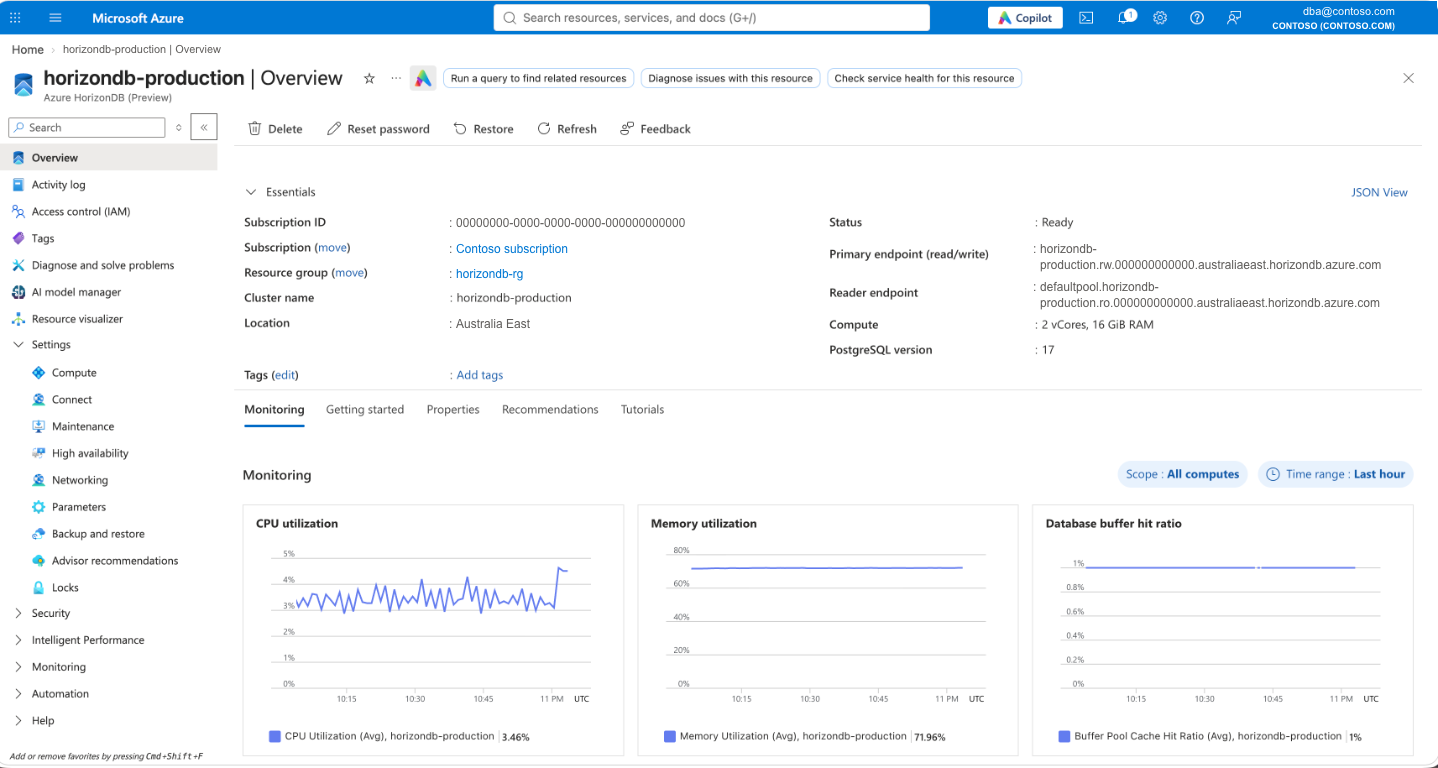
在Azure门户中的左侧菜单中,选择“所有资源,然后搜索已创建的群集。
选择群集名称。
在资源菜单中,选择“概述”。 将鼠标悬停在显示为 主终结点的值(可读/写)上,然后选择“ 复制到剪贴板 ”按钮。
设置连接环境变量。 对于
DBHOST,请使用从 Azure 门户中复制的主终结点主机名。 对于DBNAME,请使用现有数据库,例如postgres。 将占位符替换为你的实际值:set "DBHOST=<primary-endpoint-hostname>" set "DBNAME=<database-name>" set "DBUSER=<username>" set "DBPASSWORD=<password>" set "SSLMODE=require"
如何运行 Python 示例
对于本文中的每个代码示例:
在文本编辑器中创建新的文件。
将代码示例添加到文件。
将文件保存在具有 .py 扩展名的项目文件夹(如 postgres-insert.py)中 。 对于 Windows,确保在保存文件时选择 UTF-8 编码。
在项目文件夹中键入
python后接文件名,例如python postgres-insert.py。
创建表并插入数据
下面的代码示例使用 psycopg.connect 函数连接到 Azure HorizonDB 群集,并使用 SQL INSERT 语句加载数据。
cursor.execute 函数对数据库执行 SQL 查询。
import psycopg
from get_conn import get_connection_uri

conn_string = get_connection_uri()

conn = psycopg.connect(conn_string)
print("Connection established")
cursor = conn.cursor()

# Drop previous table of same name if one exists
cursor.execute("DROP TABLE IF EXISTS inventory;")
print("Finished dropping table (if existed)")

# Create a table
cursor.execute("CREATE TABLE inventory (id serial PRIMARY KEY, name VARCHAR(50), quantity INTEGER);")
print("Finished creating table")

# Insert some data into the table
cursor.execute("INSERT INTO inventory (name, quantity) VALUES (%s, %s);", ("banana", 150))
cursor.execute("INSERT INTO inventory (name, quantity) VALUES (%s, %s);", ("orange", 154))
cursor.execute("INSERT INTO inventory (name, quantity) VALUES (%s, %s);", ("apple", 100))
print("Inserted 3 rows of data")

# Clean up
conn.commit()
cursor.close()
conn.close()
如果代码成功运行,则会生成以下输出:
Connection established
Finished dropping table (if existed)
Finished creating table
Inserted 3 rows of data
读取数据
下面的代码示例连接到 Azure HorizonDB 群集,并使用 cursor.execute 和 SQL SELECT 语句读取数据。 此函数可接受查询,并返回可使用 cursor.fetchall() 循环访问的结果集。
import psycopg
from get_conn import get_connection_uri

conn_string = get_connection_uri()

conn = psycopg.connect(conn_string)
print("Connection established")
cursor = conn.cursor()

# Fetch all rows from table
cursor.execute("SELECT * FROM inventory;")
rows = cursor.fetchall()

# Print all rows
for row in rows:
    print("Data row = (%s, %s, %s)" %(str(row[0]), str(row[1]), str(row[2])))

# Cleanup
conn.commit()
cursor.close()
conn.close()
如果代码成功运行,则会生成以下输出:
Connection established
Data row = (1, banana, 150)
Data row = (2, orange, 154)
Data row = (3, apple, 100)
更新数据
下面的代码示例连接到 Azure HorizonDB 群集,并使用 cursor.execute 和 SQL UPDATE 语句更新数据。
import psycopg
from get_conn import get_connection_uri

conn_string = get_connection_uri()

conn = psycopg.connect(conn_string)
print("Connection established")
cursor = conn.cursor()

# Update a data row in the table
cursor.execute("UPDATE inventory SET quantity = %s WHERE name = %s;", (200, "banana"))
print("Updated 1 row of data")

# Cleanup
conn.commit()
cursor.close()
conn.close()
删除数据
下面的代码示例连接到 Azure HorizonDB 群集,并使用 cursor.execute 和 SQL DELETE 语句删除之前插入的清单项。
import psycopg
from get_conn import get_connection_uri

conn_string = get_connection_uri()

conn = psycopg.connect(conn_string)
print("Connection established")
cursor = conn.cursor()

# Delete data row from table
cursor.execute("DELETE FROM inventory WHERE name = %s;", ("orange",))
print("Deleted 1 row of data")

# Cleanup
conn.commit()
cursor.close()
conn.close()