本文适用于:✔️ .NET Core 3.1 SDK 及更高版本
在本教程中,您将学习如何调试 CPU 过度使用的情况。 使用提供的示例 ASP.NET Core Web 应用 源代码存储库,可以有意造成死锁。 端点将停止响应并出现线程积累。 你将了解如何使用不同的工具来诊断此情况,并利用多个关键的诊断数据。
在本教程中,你将:
- 调查高 CPU 使用率
- 使用 dotnet-counters 确定 CPU 使用率
- 使用 dotnet-trace 生成跟踪
- 在 PerfView 中分析性能
- 诊断并解决 CPU 使用率过高的问题
先决条件
本教程使用:
- .NET Core 3.1 SDK 或更高版本。
- 使用示例调试目标触发该场景。
- 用于列出进程并生成配置文件的 dotnet-trace。
- dotnet-counters用于监视 CPU 使用率。
CPU 计数器
在尝试本教程之前,请安装最新版本的 dotnet-counters:
dotnet tool install --global dotnet-counters
如果应用运行的 .NET 版本低于 .NET 9,则 dotnet-counters 的输出 UI 将略有不同:有关详细信息,请参阅 dotnet-counters 。
在尝试收集诊断数据之前,需要观察 CPU 使用率过高的情况。 使用项目根目录中的以下命令运行 示例应用程序 。
dotnet run
若要检查当前的 CPU 使用率,请使用 dotnet-counters 工具命令:
dotnet-counters monitor -n DiagnosticScenarios --showDeltas
输出应类似于以下内容:
Press p to pause, r to resume, q to quit.
    Status: Running

Name                                                            Current Value      Last Delta
[System.Runtime]
    dotnet.assembly.count ({assembly})                               111               0
    dotnet.gc.collections ({collection})
        gc.heap.generation
        ------------------
        gen0                                                           8               0
        gen1                                                           1               0
        gen2                                                           0               0
    dotnet.gc.heap.total_allocated (By)                        4,042,656          24,512
    dotnet.gc.last_collection.heap.fragmentation.size (By)
        gc.heap.generation
        ------------------
        gen0                                                     801,728               0
        gen1                                                       6,048               0
        gen2                                                           0               0
        loh                                                            0               0
        poh                                                            0               0
    dotnet.gc.last_collection.heap.size (By)
        gc.heap.generation
        ------------------
        gen0                                                     811,512               0
        gen1                                                     562,024               0
        gen2                                                   1,095,056               0
        loh                                                       98,384               0
        poh                                                       24,528               0
    dotnet.gc.last_collection.memory.committed_size (By)       5,623,808               0
    dotnet.gc.pause.time (s)                                           0.019           0
    dotnet.jit.compilation.time (s)                                    0.582           0
    dotnet.jit.compiled_il.size (By)                             138,895               0
    dotnet.jit.compiled_methods ({method})                         1,470               0
    dotnet.monitor.lock_contentions ({contention})                     4               0
    dotnet.process.cpu.count ({cpu})                                  22               0
    dotnet.process.cpu.time (s)
        cpu.mode
        --------
        system                                                         0.109           0
        user                                                           0.453           0
    dotnet.process.memory.working_set (By)                    65,515,520               0
    dotnet.thread_pool.queue.length ({work_item})                      0               0
    dotnet.thread_pool.thread.count ({thread})                         0               0
    dotnet.thread_pool.work_item.count ({work_item})                   6               0
    dotnet.timer.count ({timer})                                       0               0
专注于 Last Delta 的值 dotnet.process.cpu.time,这些值指示 CPU 在刷新周期中(当前默认设置为 1 秒)的活跃时间(以秒为单位)。 在 Web 应用启动后运行时,CPU 完全没有被消耗,并且这些变化量都是 0。 导航到 api/diagscenario/highcpu 路由,并将 60000 作为路由参数。
https://localhost:5001/api/diagscenario/highcpu/60000
现在,重新运行 dotnet-counters 命令。
dotnet-counters monitor -n DiagnosticScenarios --showDeltas
应会看到 CPU 使用率增加,如下所示(具体取决于主机,预期 CPU 使用率不同):
Press p to pause, r to resume, q to quit.
    Status: Running

Name                                                            Current Value      Last Delta
[System.Runtime]
    dotnet.assembly.count ({assembly})                               111               0
    dotnet.gc.collections ({collection})
        gc.heap.generation
        ------------------
        gen0                                                           8               0
        gen1                                                           1               0
        gen2                                                           0               0
    dotnet.gc.heap.total_allocated (By)                        4,042,656          24,512
    dotnet.gc.last_collection.heap.fragmentation.size (By)
        gc.heap.generation
        ------------------
        gen0                                                     801,728               0
        gen1                                                       6,048               0
        gen2                                                           0               0
        loh                                                            0               0
        poh                                                            0               0
    dotnet.gc.last_collection.heap.size (By)
        gc.heap.generation
        ------------------
        gen0                                                     811,512               0
        gen1                                                     562,024               0
        gen2                                                   1,095,056               0
        loh                                                       98,384               0
        poh                                                       24,528               0
    dotnet.gc.last_collection.memory.committed_size (By)       5,623,808               0
    dotnet.gc.pause.time (s)                                           0.019           0
    dotnet.jit.compilation.time (s)                                    0.582           0
    dotnet.jit.compiled_il.size (By)                             138,895               0
    dotnet.jit.compiled_methods ({method})                         1,470               0
    dotnet.monitor.lock_contentions ({contention})                     4               0
    dotnet.process.cpu.count ({cpu})                                  22               0
    dotnet.process.cpu.time (s)
        cpu.mode
        --------
        system                                                         0.344           0.013
        user                                                          14.203           0.963
    dotnet.process.memory.working_set (By)                    65,515,520               0
    dotnet.thread_pool.queue.length ({work_item})                      0               0
    dotnet.thread_pool.thread.count ({thread})                         0               0
    dotnet.thread_pool.work_item.count ({work_item})                   6               0
    dotnet.timer.count ({timer})                                       0               0
在整个请求期间,CPU 使用率将保持在增加的水平。
小窍门
若要直观显示更高的 CPU 使用率,可以在多个浏览器选项卡中同时练习此终结点。
此时,可以放心地说 CPU 运行高于预期。 确定问题的影响是查找原因的关键。 除了诊断工具之外,我们还将使用 CPU 使用率较高的效果来找出问题的原因。
使用性能分析器工具分析高 CPU
分析 CPU 使用率较高的应用时,请使用探查器来了解代码正在执行的操作。
dotnet-trace collect 适用于所有操作系统,但安全点偏差和仅限托管的调用堆栈将它限制为比适用于 Windows 或 Linux 的 perf 的 ETW 等内核感知分析器更为一般的信息。 根据操作系统和 .NET 版本,改进的分析功能可能可用-请参阅以下特定于平台的选项卡,获取详细的指导。
使用 dotnet-trace collect-linux (.NET 10+)
在 .NET 10 及更高版本中,dotnet-trace collect-linux 是在 Linux 上推荐使用的分析方法。 它将 EventPipe 与 OS 级别perf_events相结合,生成包含托管调用堆栈和本机调用堆栈的单个统一跟踪,而无需重启进程。 这需要根权限和 Linux 内核 6.4+,以及CONFIG_USER_EVENTS=y. 有关完整要求,请参阅 collect-linux 先决条件 。
确保 示例调试目标 配置为面向 .NET 10 或更高版本,然后运行此目标应用程序并再次测试高 CPU 使用率的终结点(https://localhost:5001/api/diagscenario/highcpu/60000)。 在 1 分钟请求中运行时,运行 dotnet-trace collect-linux 以捕获计算机范围的跟踪:
sudo dotnet-trace collect-linux
让它运行大约 20-30 秒,然后按 Ctrl+C 或 Enter 停止集合。 结果是包含 .nettrace 托管调用堆栈和本机调用堆栈的文件。
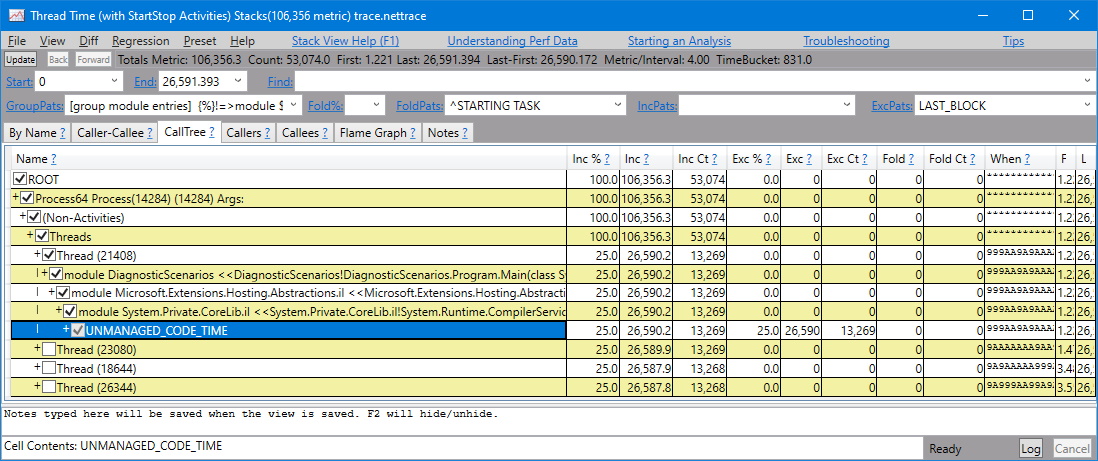
使用.nettrace打开PerfView,并使用CPU Stacks视图来识别消耗最多CPU时间的方法。
有关解析跟踪中的本机运行时符号的信息,请参阅 获取本机运行时帧的符号。
使用 perf
该工具 perf 还可用于生成 .NET Core 应用配置文件。 退出 示例调试目标 的上一个实例。
设置DOTNET_PerfMapEnabled环境变量,使 .NET 应用在map目录中创建/tmp文件。 此 map 文件用于 perf 按名称将 CPU 地址映射到 JIT 生成的函数。 有关详细信息,请参阅 导出性能映射和 JIT 转储。
在同一终端会话中运行 示例调试目标 。
export DOTNET_PerfMapEnabled=1
dotnet run
再次调用高 CPU 使用的 API 端点(https://localhost:5001/api/diagscenario/highcpu/60000)。 在 1 分钟请求中运行时,请使用进程 ID 运行 perf 命令:
sudo perf record -p 2266 -g
该 perf 命令启动性能收集过程。 让它运行大约 20-30 秒,然后按 Ctrl+C 退出收集过程。 可以使用同一 perf 命令查看跟踪的输出。
sudo perf report -f
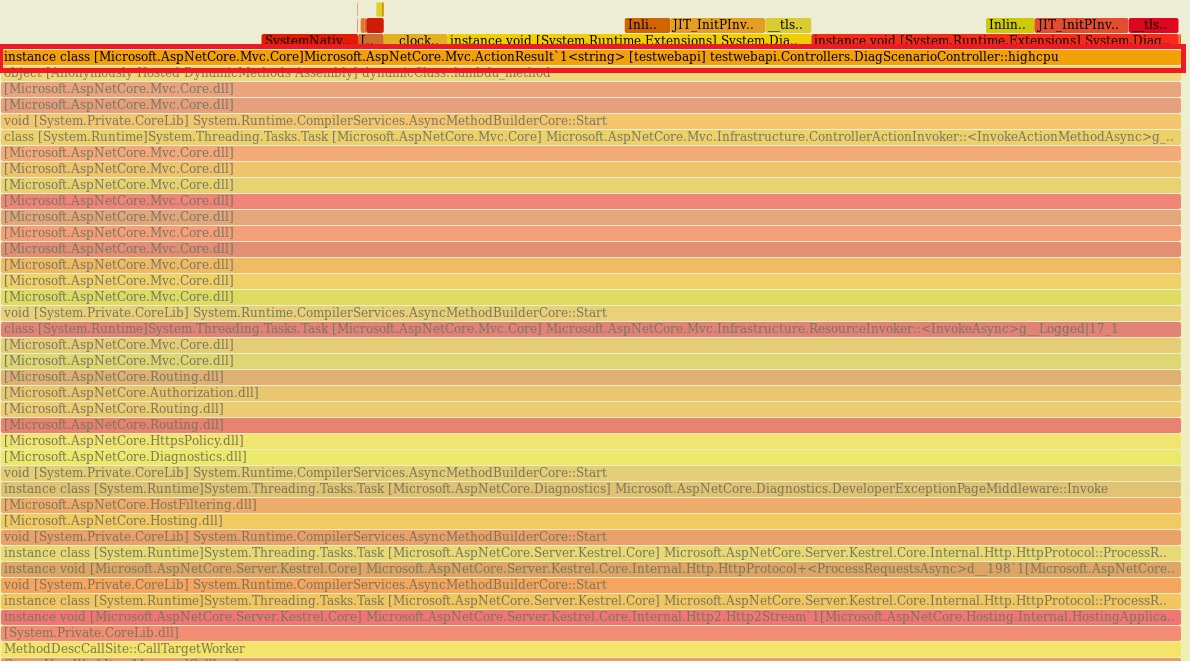
还可以使用以下命令生成 火焰图 :
git clone --depth=1 https://github.com/BrendanGregg/FlameGraph
sudo perf script | FlameGraph/stackcollapse-perf.pl | FlameGraph/flamegraph.pl > flamegraph.svg
此命令生成一个 flamegraph.svg 可在浏览器中查看以调查性能问题:
使用 Visual Studio 分析高 CPU 数据
可以在 Visual Studio 中分析所有 *.nettrace 文件。 若要在 Visual Studio 中分析 Linux *.nettrace 文件,请将 *.nettrace 文件(除了其他必要文档)传输到 Windows 计算机,然后在 Visual Studio 中打开 *.nettrace 文件。 有关详细信息,请参阅 分析 CPU 使用情况数据。
另请参阅
- 用于列出进程的 dotnet-trace
- dotnet-counters 用于检查托管内存使用情况
- dotnet-dump 用于收集和分析转储文件
- dotnet/diagnostics
