NotebookUtils 支持通过 Microsoft Spark Utilities 包进行文件的挂载和卸载操作。 可以使用mount、unmount、getMountPath() 和 mounts() API 将远程存储(ADLS Gen2、Azure Blob 存储、OneLake)附加到所有工作节点(驱动程序节点和工作节点)。 存储装入点就位后,使用本地文件 API 访问数据,如同数据存储在本地文件系统中一样。
装载操作在以下情况下特别有用:
- 使用那些需要本地文件路径的库。
- 需要跨云存储的一致文件系统语义。
- 高效访问 OneLake 的快捷方式(S3/GCS)。
- 生成适用于多个存储后端的可移植代码。
API 参考
下表汇总了可用的装载 API:
| 方法 | Signature | 说明 |
|---|---|---|
mount |
mount(source: String, mountPoint: String, extraConfigs: Map[String, Any] = None): Boolean |
将远程存储装载到指定的装入点。 |
unmount |
unmount(mountPoint: String, extraConfigs: Map[String, Any] = None): Boolean |
卸载并删除挂载点。 |
mounts |
mounts(extraOptions: Map[String, Any] = None): Array[MountPointInfo] |
列出所有现有挂载点及其详细信息。 |
getMountPath |
getMountPath(mountPoint: String, scope: String = ""): String |
获取装入点的本地文件系统路径。 |
身份验证方法
装载操作支持多种身份验证方法。 根据存储类型和安全要求选择该方法。
Microsoft Entra 令牌(默认值和建议)
Microsoft Entra 令牌身份验证使用笔记本执行程序(用户或服务主体)的标识。 它不需要在挂载调用中使用显式凭据,这使得它成为最安全的选择。 使用这个选项用于湖屋安装和Fabric工作区存储。
# Mount using Microsoft Entra token (no credentials needed)
notebookutils.fs.mount(
    "abfss://mycontainer@mystorageaccount.dfs.core.windows.net",
    "/mydata"
)
小窍门
尽可能使用 Microsoft Entra 令牌身份验证。 它消除了凭据泄露风险,无需为 Fabric 工作区存储设置额外的设置。
账户密钥
如果存储帐户不支持Microsoft Entra 身份验证,或者访问外部或第三方存储,请使用帐户密钥。 在 Azure 密钥保管库 中存储帐户密钥,并使用 API 检索它们 notebookutils.credentials.getSecret 。
# Retrieve account key from Azure Key Vault
accountKey = notebookutils.credentials.getSecret("<vaultURI>", "<secretName>")
notebookutils.fs.mount(
    "abfss://mycontainer@<accountname>.dfs.core.windows.net",
    "/test",
    {"accountKey": accountKey}
)
共享访问签名 (SAS) 令牌
使用 共享访问签名 (SAS) 令牌进行时间限制的权限范围访问。 如果需要向外部方授予临时访问权限,此选项非常有用。 将 SAS 令牌存储在 Azure 密钥保管库 中。
# Retrieve SAS token from Azure Key Vault
sasToken = notebookutils.credentials.getSecret("<vaultURI>", "<secretName>")
notebookutils.fs.mount(
    "abfss://mycontainer@<accountname>.dfs.core.windows.net",
    "/test",
    {"sasToken": sasToken}
)
重要
出于安全考虑,请避免直接在代码中嵌入凭据。 笔记本输出中显示的任何机密都会自动进行修订。 有关详细信息,请参阅 机密修订。
装载 ADLS Gen2 帐户
以下示例演示如何装载 Azure Data Lake Storage Gen2。 装载 Blob 存储和 Azure 文件共享的工作方式类似。
此示例假定你有一个名为 storegen2 的 Data Lake Storage Gen2 帐户,该帐户具有一个名为 mycontainer 的容器,你希望在笔记本 Spark 会话中装载到 /test 。
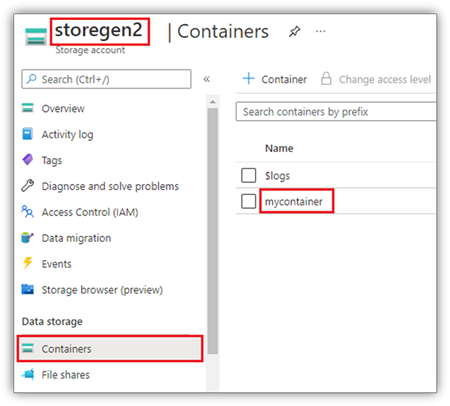
若要装载名为 mycontainer 的容器,NotebookUtils 首先需要检查你是否有权访问容器。 目前,Fabric 支持触发器装载操作的三种身份验证方法: Microsoft Entra 令牌 (默认)、 accountKey 和 sasToken。
出于安全原因,Azure 密钥保管库 中存储帐户密钥或 SAS 令牌(如以下屏幕截图所示)。 随后可以使用 notebookutils.credentials.getSecret API 检索它们。 有关 Azure 密钥保管库 的详细信息,请参阅关于 Azure 密钥保管库 托管存储帐户密钥。
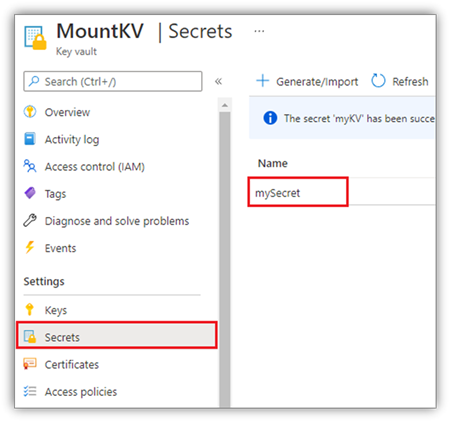
accountKey 方法的示例代码:
# get access token for keyvault resource
# You can also use the full audience, such as https://vault.azure.net.
accountKey = notebookutils.credentials.getSecret("<vaultURI>", "<secretName>")
notebookutils.fs.mount(
    "abfss://mycontainer@<accountname>.dfs.core.windows.net",
    "/test",
    {"accountKey":accountKey}
)
sasToken 的示例代码:
# get access token for keyvault resource
# You can also use the full audience, such as https://vault.azure.net.
sasToken = notebookutils.credentials.getSecret("<vaultURI>", "<secretName>")
notebookutils.fs.mount(
    "abfss://mycontainer@<accountname>.dfs.core.windows.net",
    "/test",
    {"sasToken":sasToken}
)
装载参数
您可以使用以下可选参数在 extraConfigs 地图中调整装载行为。
- fileCacheTimeout:默认情况下,Blob 在本地临时文件夹中缓存 120 秒。 在此期间,blobfuse 不会检查文件是否是最新的。 可以将此参数设置为更改默认超时时间。 当多个客户端同时修改文件时,为了避免本地文件和远程文件之间的不一致,请缩短缓存时间或将其设置为 0,以便始终从服务器获取最新文件。
- timeout:默认情况下,装载操作超时为 30 秒。 可以将此参数设置为更改默认超时时间。 如果执行器过多或加载超时,请增加参数值。
可以使用如下所示的这些参数:
notebookutils.fs.mount(
   "abfss://mycontainer@<accountname>.dfs.core.windows.net",
   "/test",
   {"fileCacheTimeout": 120, "timeout": 30}
)
缓存配置建议
根据访问模式选择缓存超时值:
| 情景 | 推荐 fileCacheTimeout |
备注 |
|---|---|---|
| 读取密集型单一客户端 |
120(默认值) |
性能和新鲜度的良好平衡。 |
| 管理多客户端访问 |
30–60 |
降低过时数据的风险。 |
| 多个客户端修改文件 | 0 |
始终从服务器提取最新数据。 |
| 文件很少更改 | 300+ |
优化读取性能。 |
零缓存模式
当多个客户端同时修改文件时,请使用零缓存配置始终从服务器提取最新版本:
# For scenarios with multiple clients modifying files
# Use zero cache to always fetch the latest from the server
notebookutils.fs.mount(
    "abfss://shared@account.dfs.core.windows.net",
    "/shared_data",
    {"fileCacheTimeout": 0}
)
注释
在使用许多执行程序进行装载或遇到超时错误时,请增加timeout参数。
湖屋山
Lakehouse 装载仅支持Microsoft Entra 令牌身份验证。 将湖屋装载到 /<mount_name> 的示例代码:
notebookutils.fs.mount(
 "abfss://<workspace_name>@onelake.dfs.fabric.microsoft.com/<lakehouse_name>.Lakehouse",
 "/<mount_name>"
)
使用 notebookutils fs API 访问装入点下的文件
如果要通过本地文件系统 API 访问远程存储中的数据,请使用装载操作。 还可以使用具有已装载路径的 notebookutils.fs API 访问已装载的数据,但路径格式不同。
假设已使用装载 API 将 Data Lake Storage Gen2 容器 mycontainer 装载到 /test。 当你使用本地文件系统 API 访问数据时,路径格式如下所示:
/synfs/notebook/{sessionId}/test/{filename}
若要使用 notebookutils fs API 访问数据,请使用 getMountPath() 获取准确的路径:
path = notebookutils.fs.getMountPath("/test")
列出目录。
notebookutils.fs.ls(f"file://{notebookutils.fs.getMountPath('/test')}")读取文件内容。
notebookutils.fs.head(f"file://{notebookutils.fs.getMountPath('/test')}/myFile.txt")创建目录。
notebookutils.fs.mkdirs(f"file://{notebookutils.fs.getMountPath('/test')}/newdir")
通过本地路径访问装载点下的文件
可以使用标准文件系统在装入点中读取和写入文件。 以下 Python 示例显示了此模式:
#File read
with open(notebookutils.fs.getMountPath('/test2') + "/myFile.txt", "r") as f:
    print(f.read())
#File write
with open(notebookutils.fs.getMountPath('/test2') + "/myFile.txt", "w") as f:
    print(f.write("dummy data"))
检查现有装入点
使用 notebookutils.fs.mounts() API 检查所有现有装入点信息:
notebookutils.fs.mounts()
小窍门
在创建新挂载点之前,请始终检查现有挂载 mounts() ,以避免冲突。
在装载前检查是否存在挂载
existing_mounts = notebookutils.fs.mounts()
mount_point = "/mydata"

if any(m.mountPoint == mount_point for m in existing_mounts):
    print(f"Mount point {mount_point} already exists")
else:
    notebookutils.fs.mount(
        "abfss://container@account.dfs.core.windows.net",
        mount_point
    )
    print("Mount created successfully")
卸载挂载点
使用以下代码卸载挂载点(在本示例中是/test):
notebookutils.fs.unmount("/test")
重要
卸载机制不会被自动应用。 应用程序运行完成后,若要卸载装入点并释放磁盘空间,需要在代码中显式调用卸载 API。 否则,应用程序运行完成后,装入点仍存在于节点中。
挂载-处理-卸载 工作流
对于可靠的资源管理,请将挂载操作包含在 try/finally 块中,以确保即便出现错误时,清理得以执行。
def process_with_mount(source_uri, mount_point):
    """Complete workflow: mount, process, unmount."""

    try:
        # Step 1: Check if already mounted
        existing = notebookutils.fs.mounts()
        if any(m.mountPoint == mount_point for m in existing):
            print(f"Already mounted at {mount_point}")
        else:
            notebookutils.fs.mount(source_uri, mount_point)
            print(f"Mounted {source_uri} at {mount_point}")

        # Step 2: Process data using local file system
        mount_path = notebookutils.fs.getMountPath(mount_point)

        with open(f"{mount_path}/data/input.txt", "r") as f:
            data = f.read()

        processed = data.upper()

        with open(f"{mount_path}/output/result.txt", "w") as f:
            f.write(processed)

        print("Processing complete")

    finally:
        # Step 3: Always unmount to release resources
        notebookutils.fs.unmount(mount_point)
        print(f"Unmounted {mount_point}")

process_with_mount(
    "abfss://mycontainer@mystorage.dfs.core.windows.net",
    "/temp_mount"
)
已知的限制
- 装载是作业级配置。
mounts使用 API 检查装入点是否已存在或可用。 - 卸载过程不会自动进行。 应用程序运行完成后,在代码中调用卸载 API 以释放磁盘空间。 否则,在应用程序运行完成后,装入点将保留在节点上。
- 不支持装载 ADLS Gen1 存储帐户。