Power BI 嵌入式 主题 API 定义调色板和其他样式并将其应用于 Power BI 报表。 使用主题功能为不同的报表用户应用自定义主题,或让用户选择自己的外观。
自定义报表颜色和模式 在 Power BI 嵌入式分析操场中展示 使用主题 API 让用户在查看 Power BI 嵌入式分析报表时选择不同的颜色和背景模式。
展示报表使用主题功能来:
- 定义报表颜色主题和背景模式。
- 在报表加载时应用特定颜色主题。
- 让用户在报表查看会话期间更改主题和后台模式。
有关报表主题的详细信息,请参阅 在 Power BI Desktop中使用报表主题。
主题展示体验
在 自定义报表颜色和模式 展示中,名为 Contoso 的虚构集团使用 Power BI 嵌入式报表向利益干系人显示业务数据。 嵌入报表加载 默认 颜色主题和默认背景模式。 报表中的所有视觉对象都使用主题颜色。
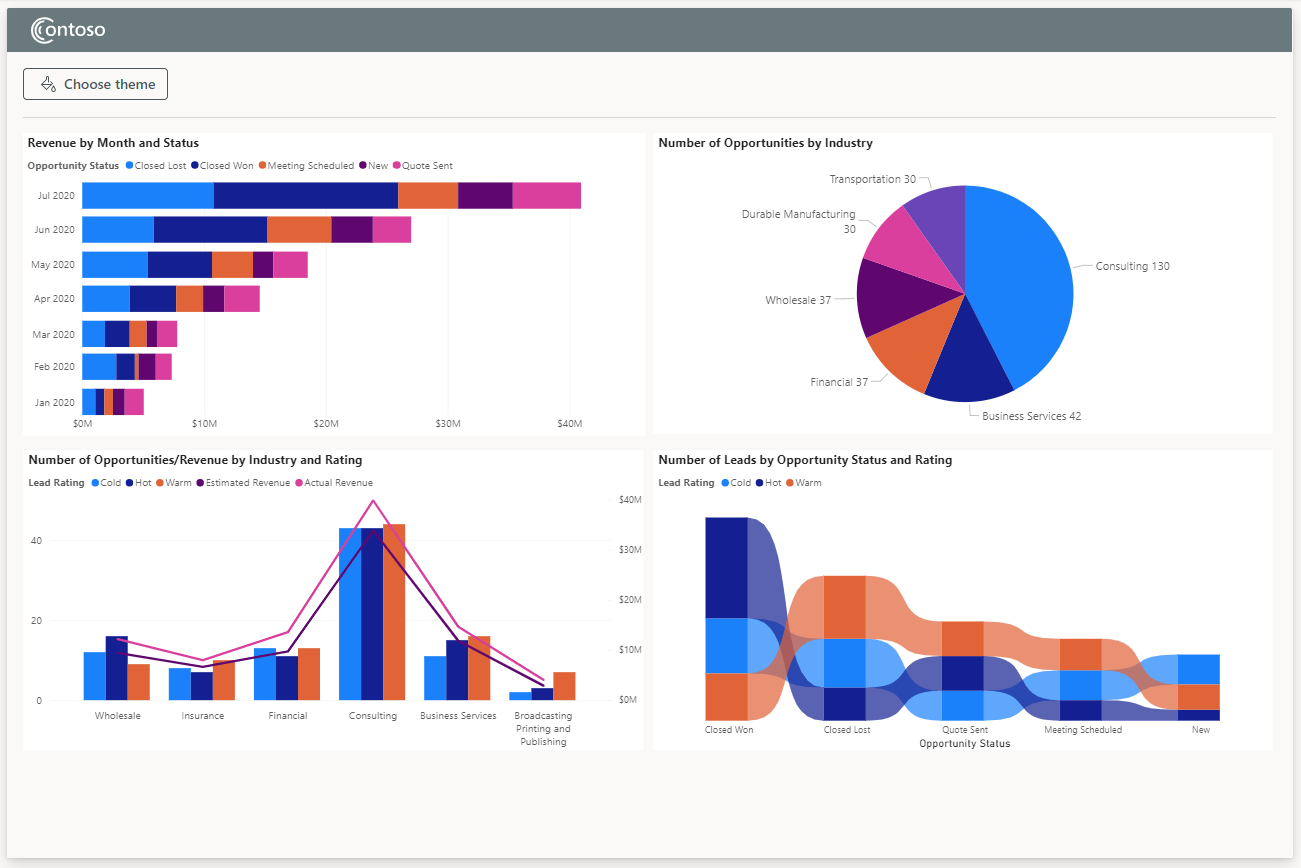
选择主题和模式
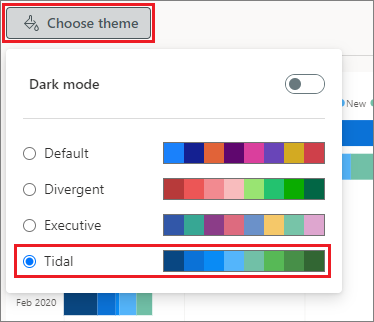
报表查看器可以选择 “选择主题”按钮来应用不同的颜色主题或模式。 选择主题 下拉框随即打开,其中列出了可用的主题名称和调色板,其中选择了当前主题。
查看者可以从列表中选择不同的主题,并查看数据、标签和其他元素颜色的即时更改。 所选主题会影响报表中的所有嵌入视觉对象。
查看者还可以切换 深色模式 以生成带有浅色文本的深色报表背景,与颜色主题选择无关。
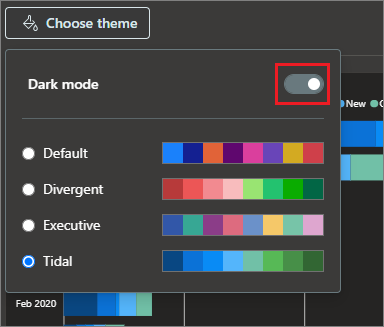
选择 “选择主题” 再次关闭下拉列表框。 新的所选主题和后台模式在报表查看会话期间仍然有效,除非查看器再次更改它们。
主题展示代码
实现展示应用程序的代码位于 PowerBI-Embedded-Showcases GitHub 存储库中。
HTML 页 生成报表容器,选择主题 按钮和对话框,并加载 主题 JSON 对象。
报表 JavaScript 嵌入报表、加载默认主题并实现主题切换体验。
使用报表主题 JSON 对象定义主题
可以通过 报表主题 JSON 对象自定义几乎所有 Power BI 格式元素。 展示 themes.js 文件定义指定可用颜色主题名称和属性的 jsonDataColors 对象。
以下 jsonDataColors 对象定义展示 Tidal 主题。 星号 * 全局应用于报表中的所有视觉对象。
const jsonDataColors = [
    ...
{
    "name": "Tidal",
    "dataColors": ["#094782", "#0B72D7", "#098BF5", "#54B5FB", "#71C0A7", "#57B956", "#478F48", "#326633"],
    "tableAccent": "#094782",
    "visualStyles": {
        "*": {
            "*": {
                "background": [{ "show": true, "transparency": 3 }],
                "visualHeader": [{
                    "foreground": { "solid": { "color": "#094782" } },
                    "transparency": 3
                }]
            }
        },
        "group": { "*": { "background": [{ "show": false }] } },
        "basicShape": { "*": { "background": [{ "show": false }] } },
        "image": { "*": { "background": [{ "show": false }] } },
        "page": {
            "*": {
                "background": [{ "transparency": 100 }],
            }
        }
    }
}
    ...
]
有关报表主题 JSON 对象文件格式和属性的详细信息,请参阅 报表主题 JSON 文件格式。
定义后台模式
themes.js 文件还定义了描述浅色和深色背景模式的 themes 对象。 若要定义浅色和深色背景模式,themes 对象指定一个具有白色背景的主题,另一个主题具有对比度、深色背景。 深色背景对象还设置其他结构和文本颜色的值,以便它们对深色背景可见。
使用嵌入配置应用主题并应用Theme
展示 themeJson 参数定义了多个颜色主题。 嵌入报表 JavaScript 使用 Report 类 applyTheme 方法在报表加载和报表运行时期间应用主题。
若要启用主题,报表 嵌入配置 指定 theme 属性,themeJson 参数指向主题 JSON 对象。 展示嵌入配置在报表加载时应用具有数据颜色 ID 0的 Default 主题:
let config = {
    ...
    theme: { themeJson: jsonDataColors[0] },
    };
如果查看器在其会话期间选择其他主题或模式,则 applyTheme 函数根据所选数据颜色和模式定义并应用新的主题对象。 以下代码显示了展示 applyTheme 函数:
async function applyTheme() {

    // Get active data-color ID
    activeDataColorId = Number($("input[name=data-color]:checked", "#theme-dropdown")[0].getAttribute("id").slice(-1));

    // Get the theme state from the slider toggle
    let activeThemeSlider = $("#theme-slider").get(0);

    // Get the index of the theme based on the state of the slider
    // 1 => Dark theme
    // 0 => Light theme
    const themeId = (activeThemeSlider.checked) ? 1 : 0;

    // Create new theme object
    let newTheme = {};

    // Append the data colors and the mode
    $.extend(newTheme, jsonDataColors[activeDataColorId], themes[themeId]);

    // Apply the theme to the report
    await themesShowcaseState.themesReport.applyTheme({ themeJson: newTheme });
}