Table of Contents
LinkedIn Learning Requirements
Integration Process Overview: Step-by-Step Instructions
Step 1: Creating Custom Reports in Workday
Step 2: Generate SSH Key for Secure Transfer in Workday
Step 3: Set up SFTP User in LinkedIn Learning
Step 4: Configure LinkedIn Learning Integration
Step 5: Create EIB for Outbound Data Transfer per Custom Report
Purpose: This guide provides step-by-step instructions for configuring a secure data integration between Workday HCM and LinkedIn Learning Career Hub using SFTP-based file transfer. It is intended for HR, IT, and system administrators.
At a Glance:
- Goal: Sync job architecture and (optionally) employee-level data from Workday to LinkedIn Learning
- Security: Encrypted SFTP delivery with SSH authentication
- Output Format: JSON via custom Workday reports and EIB
- Setup Time: ~60–90 minutes
- Outcome: Scalable, intelligent talent architecture customization and career development enablement
Guide Overview
This guide outlines the technical steps to configure the secure data integration between Workday HCM and LinkedIn Learning Career Hub. Using Workday custom reports and secure SFTP transfers, this connection enables you to ingest job architecture data—and optionally employee-level career data—into LinkedIn Learning to power scalable, personalized career development experiences.
Designed for HR, IT, and system administrators, this guide ensures your talent architecture is seamlessly reflected across the employee experience and prepared for future skill-based personalization features.
Integration Overview
LinkedIn Learning’s Workday HCM integration allows your organization to align your talent data job with LinkedIn’s unique and unparalleled wealth of skills knowledge. By syncing job families, titles, levels, descriptions, and (optionally) employee data via custom reports, you unlock personalized, AI-powered learning and career development opportunities.
Whether you’re looking to enhance an existing job architecture or build one from the ground up, this integration offers flexibility, scale, and continuous improvement through LinkedIn data insights.
Integration Benefits
- Customize Career Development at Scale: Tailor LinkedIn Learning career development experiences using your org’s architecture data to create personalized career journeys for every employee, based on your source of truth.
- Accelerate Architecture Creation: Quickly build and refine your talent architecture with AI-powered data suggestions for descriptions and skills from LinkedIn to streamline and enhance your talent management process.
- Maintain & Evolve Your Architecture with Insights: Leverage unique insights from LinkedIn to keep your job and skill architecture fresh over time and aligned with evolving market trends.
- Future-Ready Employee Personalization (Optional): Uploading employee-level data now sets the stage for upcoming features like personalized career paths and skill-based content recommendations.
System Requirements
LinkedIn Learning Requirements
- Access to LinkedIn Learning Hub account
- Admin permission to configure integrations
Workday HCM Requirements
- Workday access with:
- Permission to create/export custom reports
- Enterprise Interface Builder (EIB) access
- Note: If “Create Only Temporary Reports” is enabled, remember that access may expire after one week
SFTP Server Setup
- Secure SFTP server for transferring data between Workday and LinkedIn Learning.
- SSH Key for authentication (steps detailed in this guide)
- Valid SFTP credentials (username, host, etc.) from LinkedIn Learning (details in guide)
Integration Workflow Overview
- Create Custom Reports in Workday
- One report for job architecture data
- (Optional) A second report for employee-level data
- Generate an SSH Key in Workday
- Set Up SFTP in LinkedIn Learning
- Create an SFTP user and upload the Workday public SSH key
- Configure LinkedIn Learning Integration
- Collect SFTP Credentials from LinkedIn Learning
- Create an EIB in Workday
- Use your custom reports as the data source
- Set the output to JSON
- Deliver via SFTP
- Schedule regular syncs
Integration Process Overview: Step-by-Step Instructions
Step 1: Creating Custom Reports in Workday
To send data to LinkedIn Learning, you need to create custom reports in Workday. Get started by creating two custom reports in Workday: one for job architecture data, and another for employee-level data (optional).
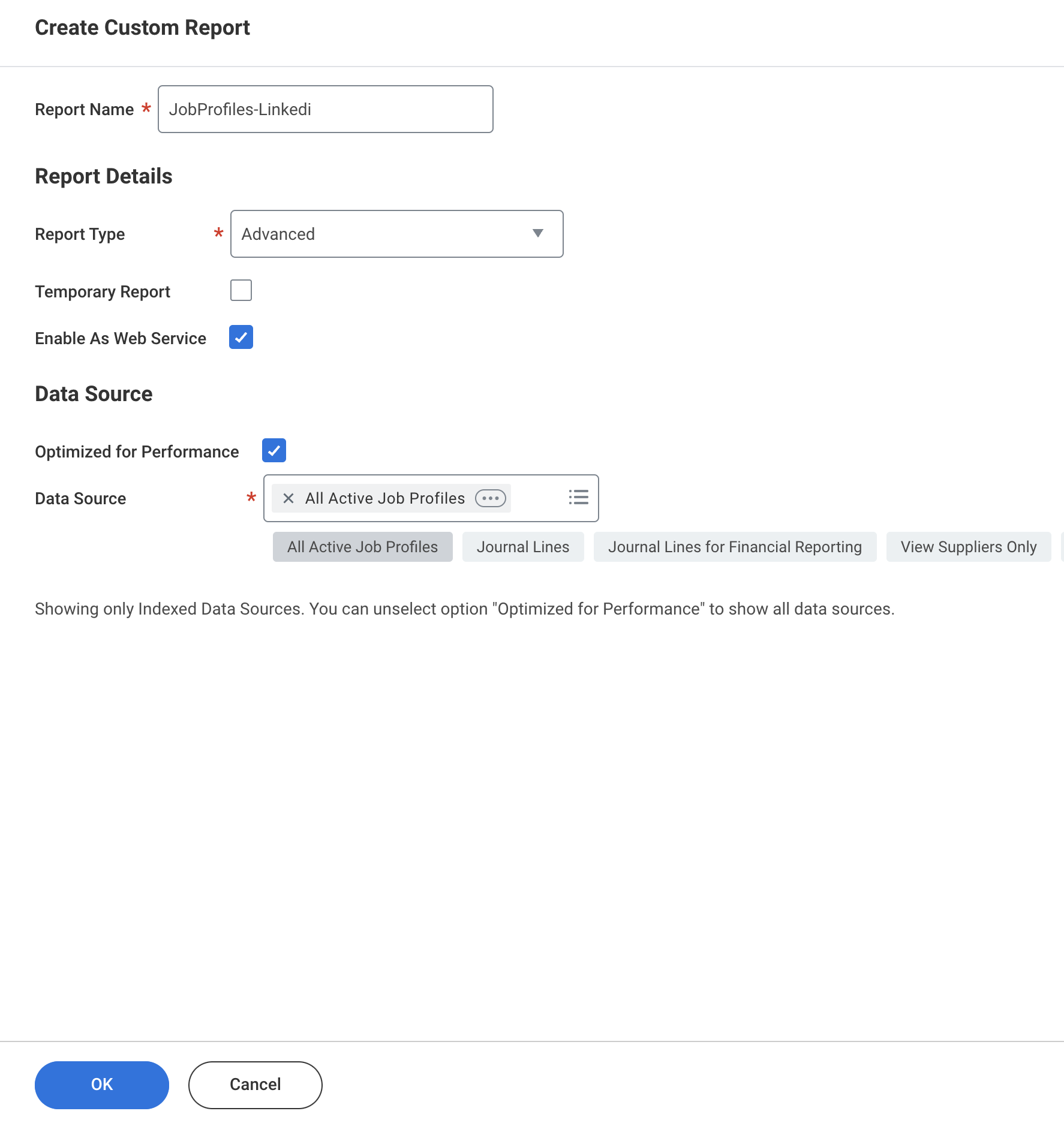
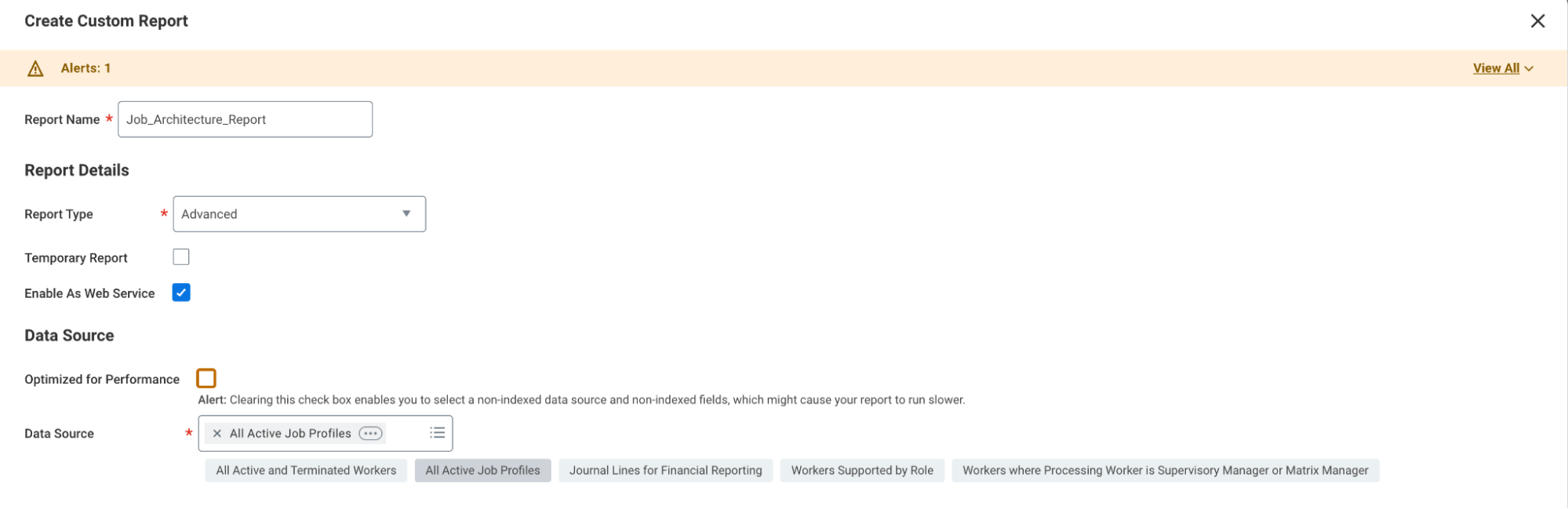
- Search for “Create Custom Report” in Workday
- Fill in the Report Details:
- Report Name: Customize name (ex. Job_Architecture_Report)
- Report Type: Select "Advanced"
- Enable As Web Service: Check to enable report access via SFTP.
- Do not select Optimized for Performance (this will restrict some fields selection)
- Select the Data Source
- For Job Architecture Report this is typically “All Active Job Profiles,” that contains your Job Titles, Job Families, Job Levels, Job Descriptions, Job Skills,
- For Employee Data Report this is typically ‘Workers for HCM Reporting’ and Data Source filter as ‘All Active Workers (All Types)’, containing: Employee Job Title, Manager, Team, Career Goals
- Format & Map Fields:
- Ensure fields are in text format. If no text type is available for the corresponding fields below, please use the available type and add the field.

- Add & Map the fields using the below charts to guide you on what fields to add and how you should modify values in ‘Column Heading Override XML Alias.’ (Job Data; Employee Data)
- Add Group Column Headings: For employee data, since you’re adding fields from other business objects as well. you need to add those business objects in the below section "Group Column Headings" and map Column heading name according to this table.
- Ensure fields are in text format. If no text type is available for the corresponding fields below, please use the available type and add the field.
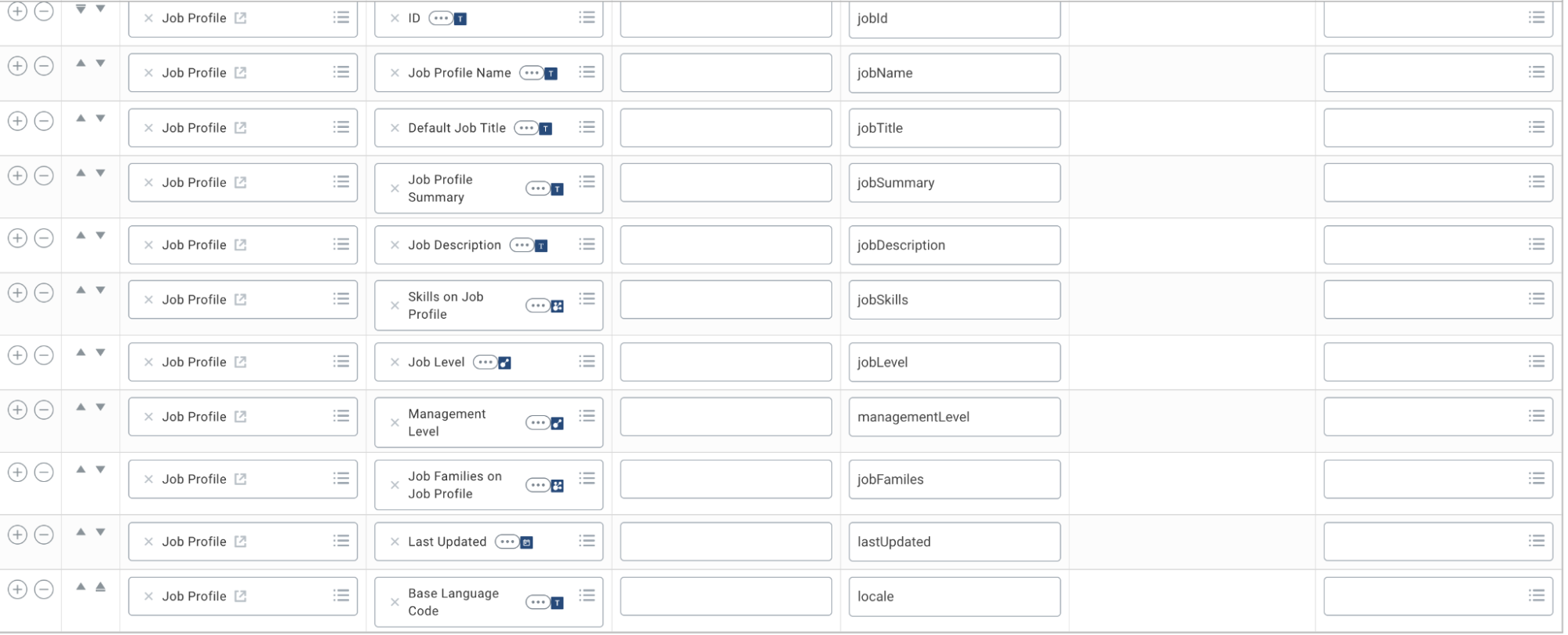 Image: JobProfiles Field Names and Column Heading Names
Pro Tip: Field names in Workday need to match LinkedIn Learning's formatting guidelines in order to flow through. Below are instructions on how to do this.
Organizational Talent Architecture Data Mapping Guide
Please reference this chart for how LinkedIn requires you to map your data fields when creating custom reports for Talent Architecture, role and skill data.
| Business Object | Field (* indicates required field to set up the integration) | Column Heading Override XML Alias |
|---|---|---|
| Job Profile* | ID* | jobId* |
| Job Profile* | Job Profile Name* | jobName* |
| Job Profile | Default Job Title | jobTitle |
| Job Profile | Job Profile Summary | jobSummary |
| Job Profile | Job Description | jobDescription |
| Job Profile | Skills on Job Profile | jobSkills |
| Job Profile | Job Level | jobLevel |
| Job Profile | Management Level | managementLevel |
| Job Profile | Job Families on Job Profile | jobFamilies |
| Job Profile | Last Updated | lastUpdated |
Note: Employee-level data upload is optional. We won’t leverage this data until later in the year, but uploading it now will help streamline future integrations, so manual updates to the integration won’t be needed down the line.
Employee-Level Data Mapping Guide
Please reference this chart for how LinkedIn requires you to map your data fields when creating custom reports for Employee data.
| Business Object | Field (* indicates required field to set up the integration) | Column Heading Override XML Alias |
|---|---|---|
| Worker* | Employee ID* | workerId* |
| Worker* | Email - Primary Work* | workerEmail* |
| Worker | Supervisory Organization | supervisoryOrg |
| Worker | Last Functionally Updated | lastUpdated |
| Job Interests | ID | jobInterestId |
| Job Interests | Job Profile Name | jobInterestName |
| Worker | Career Preferences | careerPreference |
| Worker | Skill Interests | skillInterests |
| Worker | Career Interests | careerInterests |
| Skill for Worker | Created Moment | skillAddedAt |
| Skill for Worker | Skill Item | skillItem |
| Skill for Worker | Skill Level | skillLevel |
| Skill for Worker | Standard Workday ID | skillId |
| Preferred Name | First Name | firstName |
| Preferred Name | Last Name | lastName |
| Manager - Level 01 | Employee ID | managerId |
| Manager - Level 01 | Email - Primary Work | managerEmail |
| Goals | Goal Name | goalName |
| Goals | Goal Description | goalDescription |
| Goals | Created Moment | goalCreatedAt |
| Goals | Goal Archived | goalArchived |
| Goals | Due Date | goalDueDate |
| Goals | Completed On | goalCompletedOn |
| Direct Reports (Employees)* | Employee ID* | directReportId* |
| Direct Reports (Employees)* | Email - Primary Work* | directReportEmail* |
| Job Profile* | ID* | workerJobId* |
| Job Profile* | Job Profile Name* | workerJobName* |
Group Column Heading Mapping Guide
| Business Object (* is required) | Group Column Heading XML Alias |
|---|---|
| Direct Reports (Employees)* | workerDirectReports* |
| Goals | workerGoals |
| Manager - Level 01* | workerManagers* |
| Preferred Name | workerPreferredNames |
| Skill for Worker* | workerSkills* |
| Job Profile* | workerJobProfiles* |
| Job Interests | careerJobInterests |
- Save the Report: Click OK to save the custom report.
Step 2: Generate SSH Key for Secure Transfer in Workday
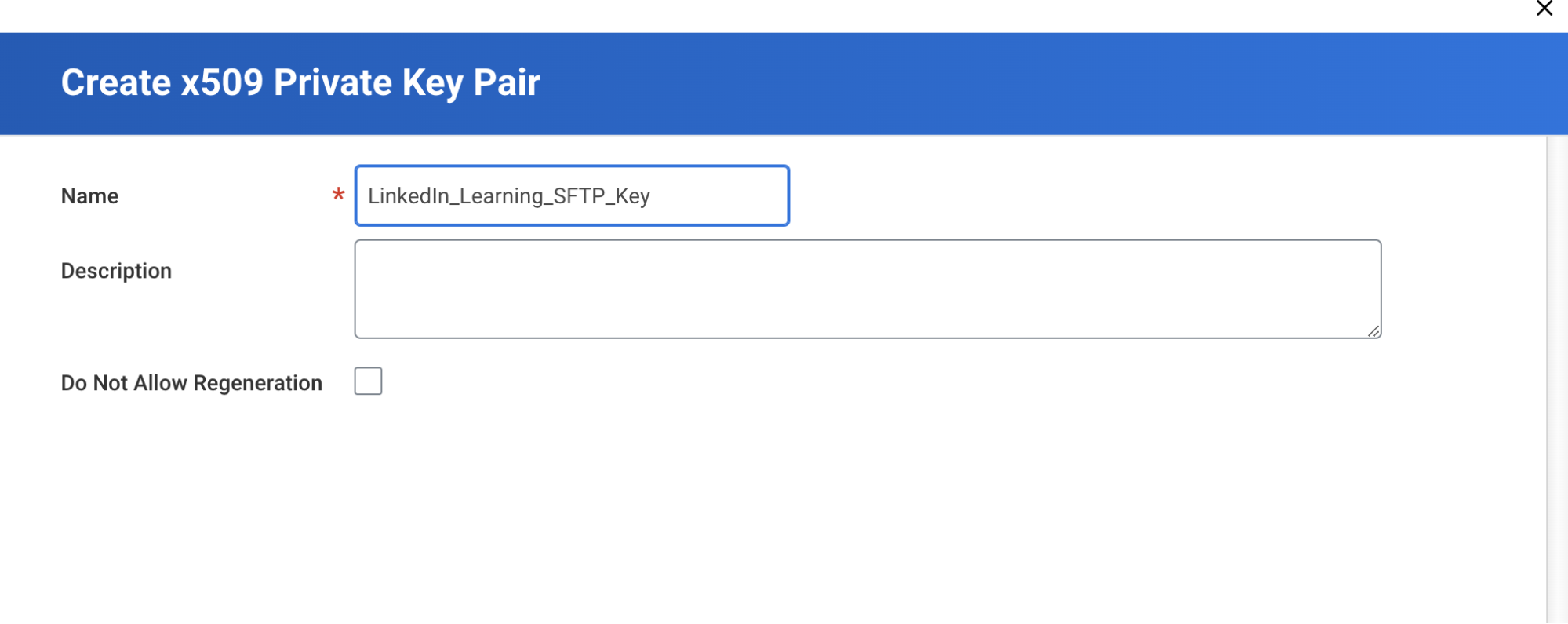
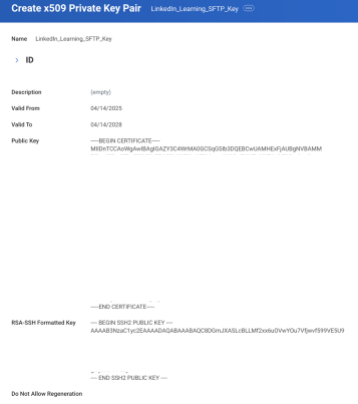
- Search for 'Create x509 Private Key Pair' in Workday
- Enter Key Details:
- Name: We recommend you use ‘LinkedIn_Learning_SFTP_Key’
- Description of your choice or the key pair
- Hit OK
- On the next screen, copy the Public Key (RSA-SSH Formatted) by copying the information that lives between (---- BEGIN SSH2 PUBLIC KEY ---- and ---- END SSH2 PUBLIC KEY ----) and save someplace to enter into LinkedIn Learning settings later on.
Step 3: Set up SFTP User in LinkedIn Learning
No matter how many reports you’re creating in Workday, you only need to complete SFTP user set-up once in LinkedIn Learning, and it can be applied to all!
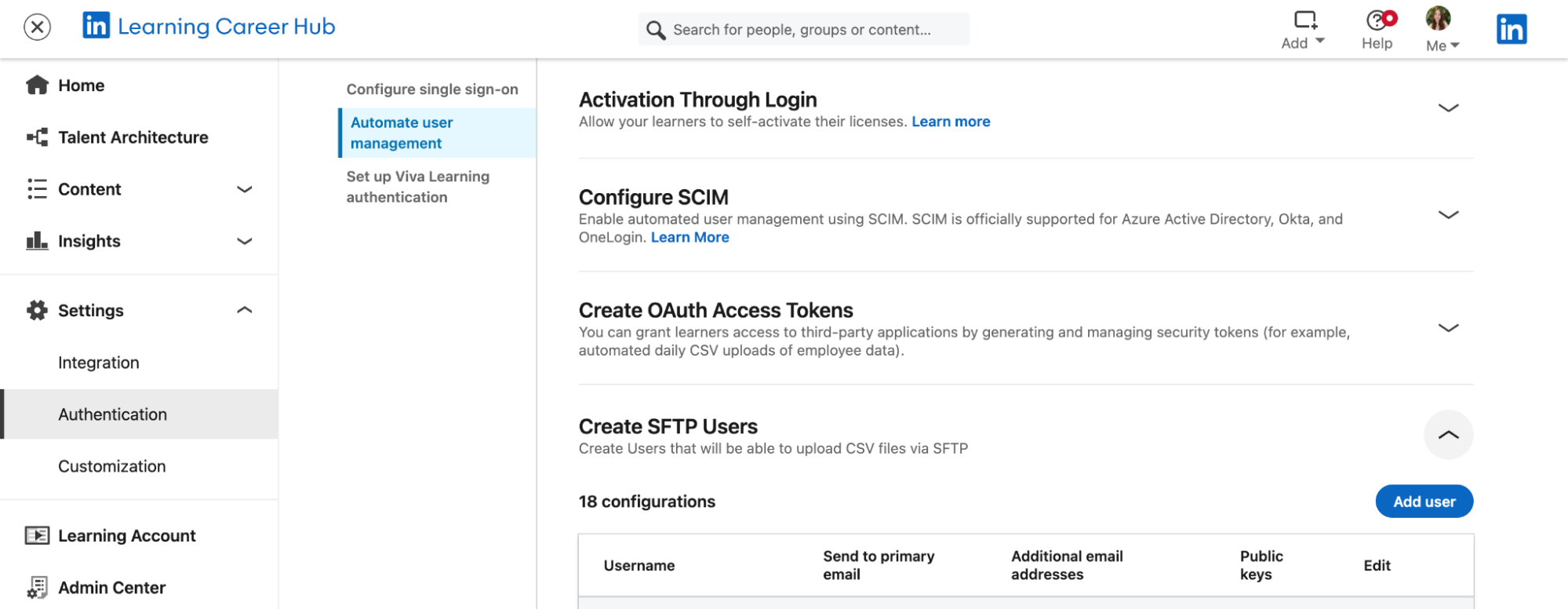
- Navigate to Admin Settings: Authenticate → Automate User Management
- Navigate to Create SFTP Users → Add User
- Create an SFTP username and store somewhere safe to use later in Workday
- Create a public SSH Key name of your choosing
- Format the public SSH key you just got from Workday in Step 2, making sure to:
- Copy the content
- Remove the following parts: ----- BEGIN SSH2 PUBLIC KEY --- and ---- END SSH2 PUBLIC KEY ----
- Remove all spaces and linebreaks
- Add a prefix ssh-rsa <value copied>
- Paste the newly formatted public key into LinkedIn Learning
- Click Create User
Pro Tip: Format the key accordingly BEFORE you paste into LinkedIn Learning. Attempts to format in the platform after pasting can lead to potential errors.
Example:
---- BEGIN SSH2 PUBLIC KEY ---
WqsjdHwd      123445
8728637213
---- END SSH2 PUBLIC KEY \---
should be entered in the setting as ssh-rsa WqsjdHwd1234458728637213
Step 4: Configure LinkedIn Learning Integration
No matter how many reports you’re creating in Workday, you only need to configure the integration in LinkedIn Learning once time!
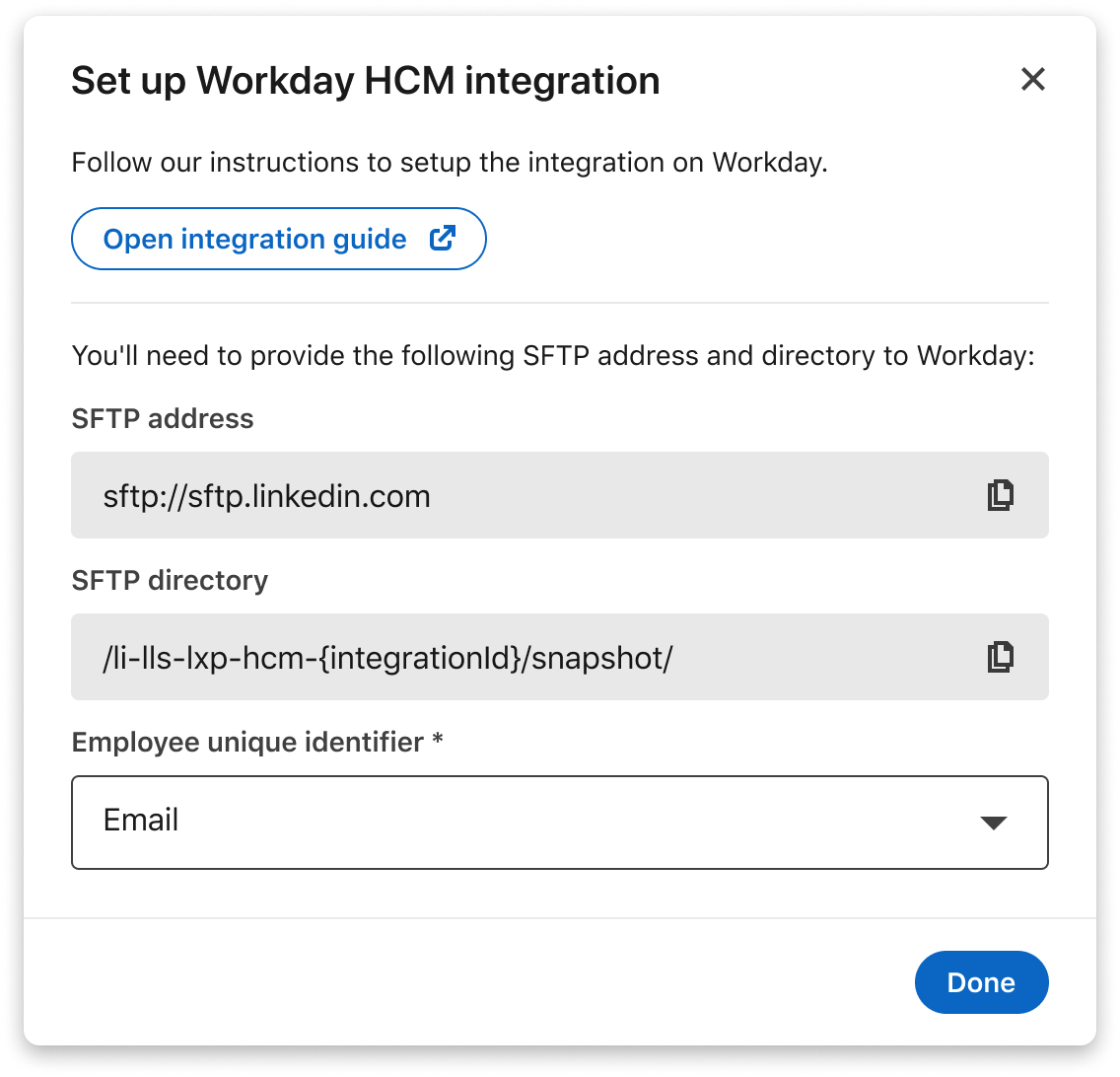
- In Admin Settings: Integrate → Configure HCM Setting → Workday HCM
- Click Set up integration
- Ensure that whatever metric - ID or Email - that is selected for Employee Unique Identifier matches the format for which you have employees identified within your Workday source of truth.
- Retrieve the following details from LiL to establish the connection from Workday and save someplace safe:
- SFTP Address
- SFTP Directory
Step 5: Create EIB for Outbound Data Transfer per Custom Report
You’ll need to create a separate EIB connection per each custom report you set up.
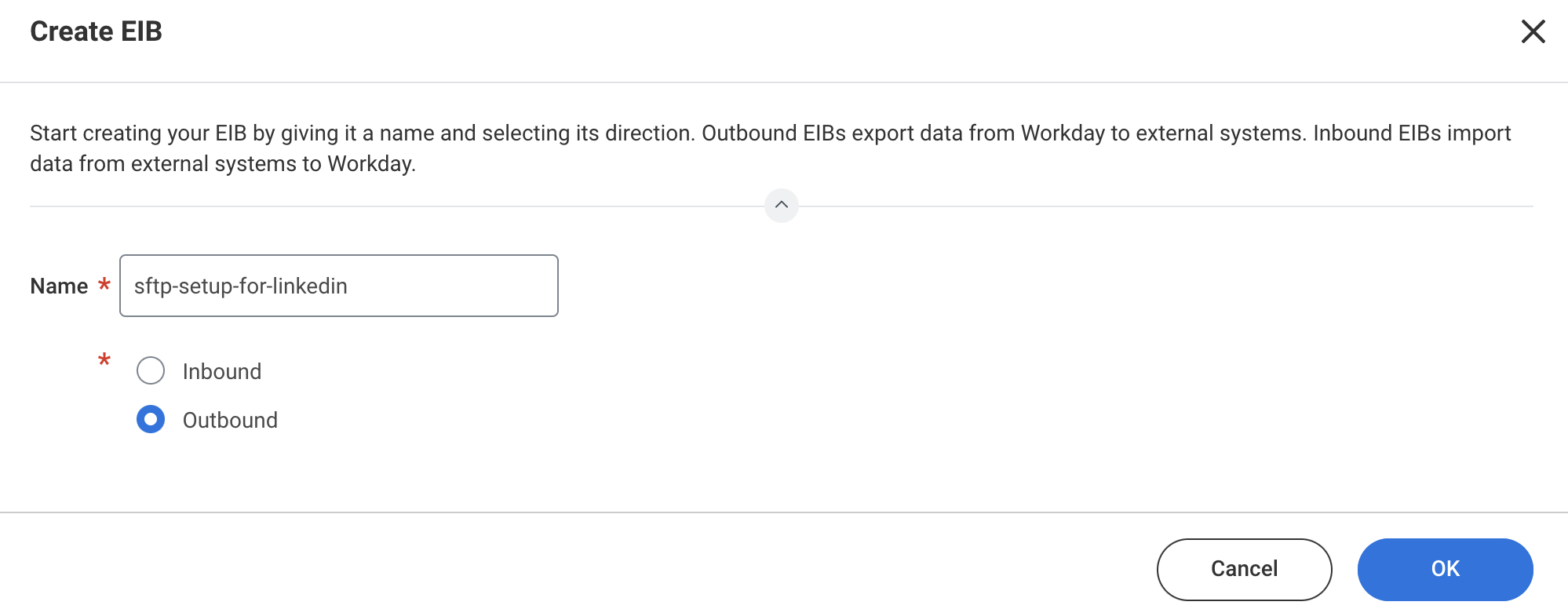
- Navigate to Workday and search for ‘Create EIB’ (Enterprise Interface Builder).
- Enter EIB Details:
- Name: Choose unique names per each report you need a connection for
- Job Arch Data, we recommend you use Job_Data_Transfer
- Employee Data, we recommend you use Employee_Data_Transfer
- Outbound Direction: Select Outbound to send data to LinkedIn
- Name: Choose unique names per each report you need a connection for
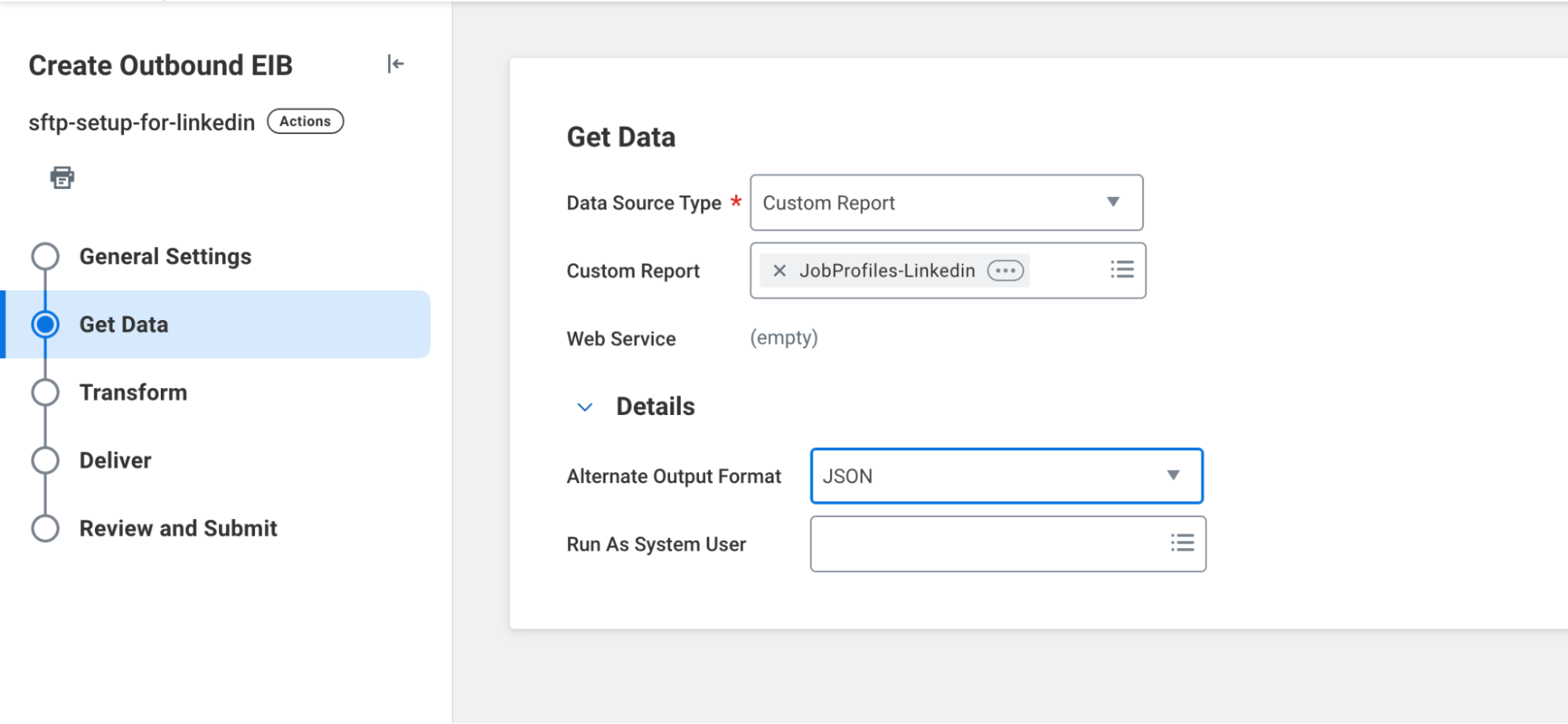
- Get Data:
- Choose the custom report you made in Step 1 (eg. Job_Architecture_Report or Employee_Career_Data_Report)
- Output format: Set to JSON
- Set Up Transformation (Optional, as needed)
- Select None if no transformation is required.
- Add any necessary transformations for formatting or adjustments as needed
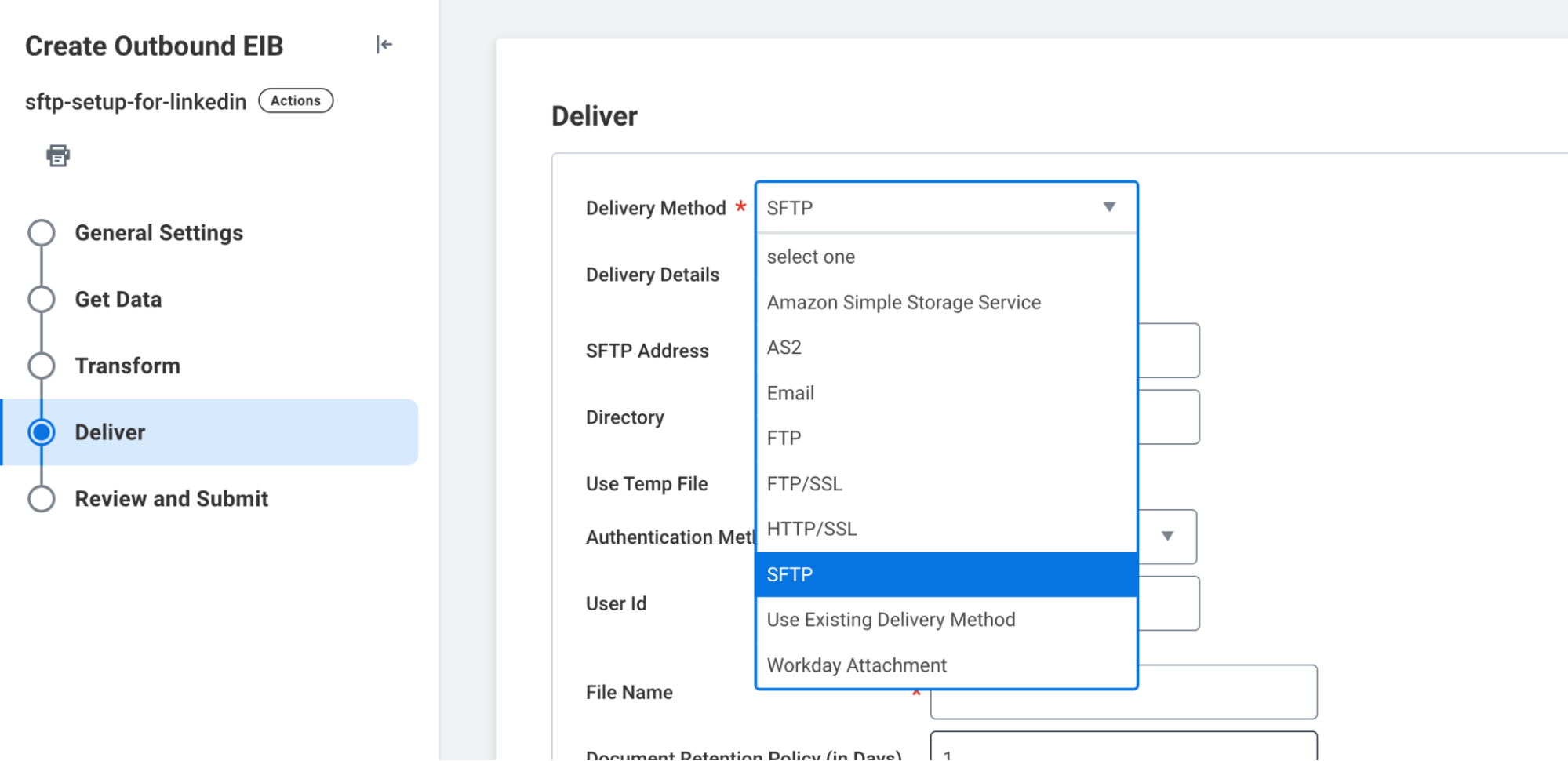
- Delivery Settings:
- Delivery Method: Choose SFTP.
- Enter SFTP Address and Directory you got from LinkedIn In Step 4
- Authentication Method: Select SSH Authentication
- User ID for access: Add the SFTP username created in Step 3
- File Name:
- If you’re sending job arch data, set the file name to jobProfiles.json
- If you’re sending employee data, set the file name to workers.json
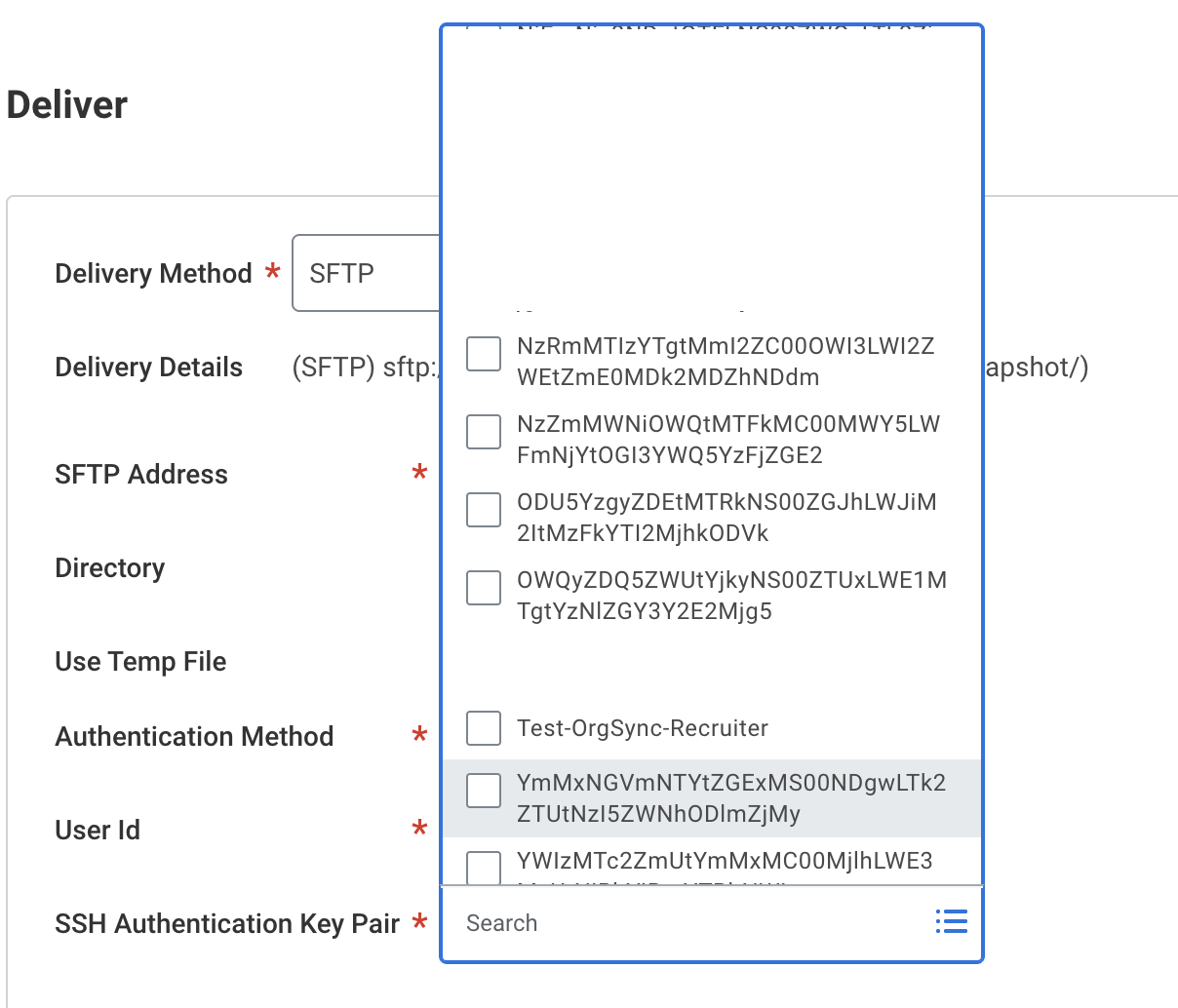
- SSH Authentication Key Pair: Scroll through the list of key pairs and select the key pair name that you generated in Step 2
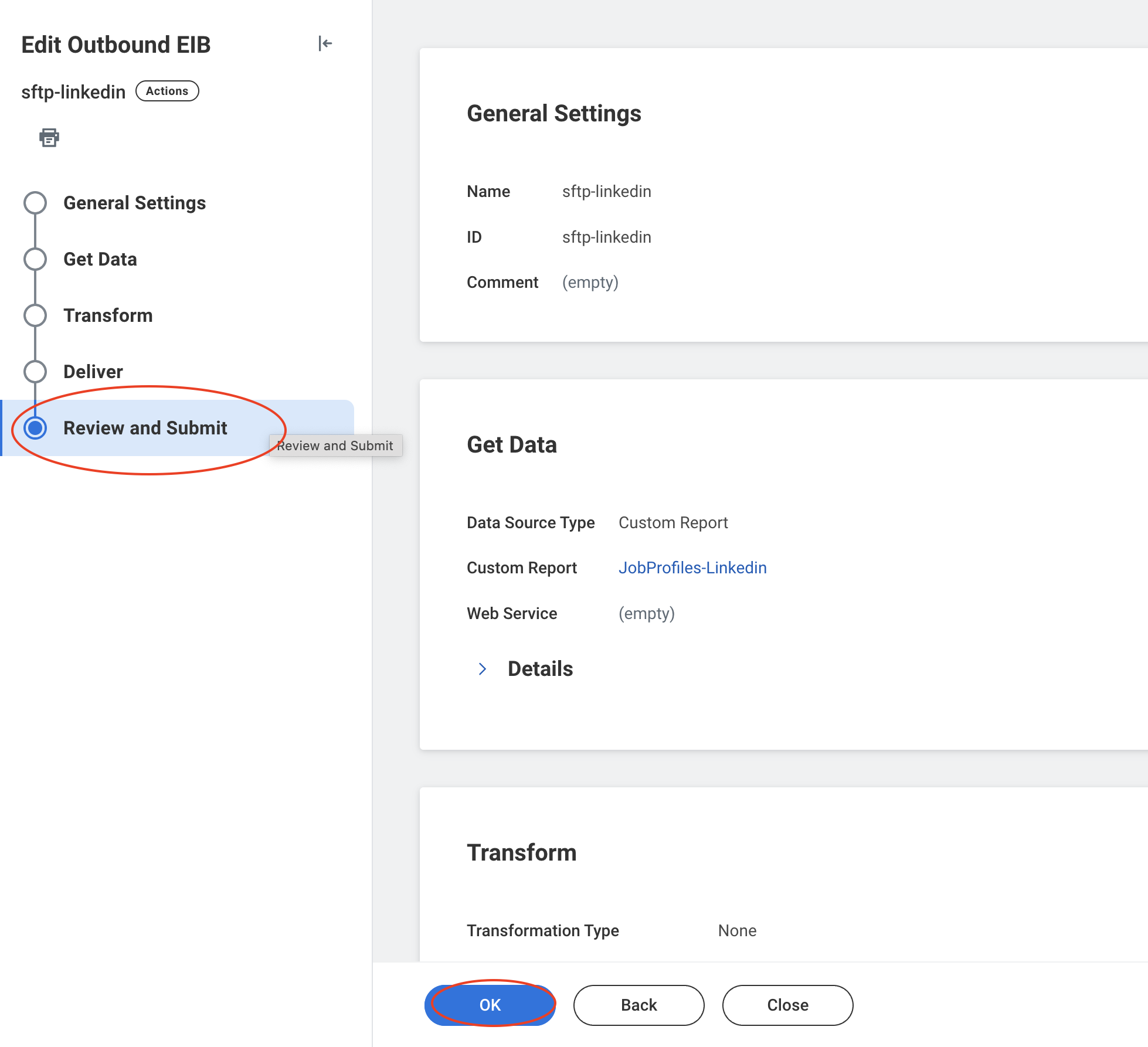
- Review & Submit: Finalize the EIB
- Review your settings, click Done, then OK.
- Test the Integration Set-Up: Before you schedule data syncs to LinkedIn Learning, you test that the integration connection has been successfully set-up in Workday.
- After creating the EIB, click on the three dots
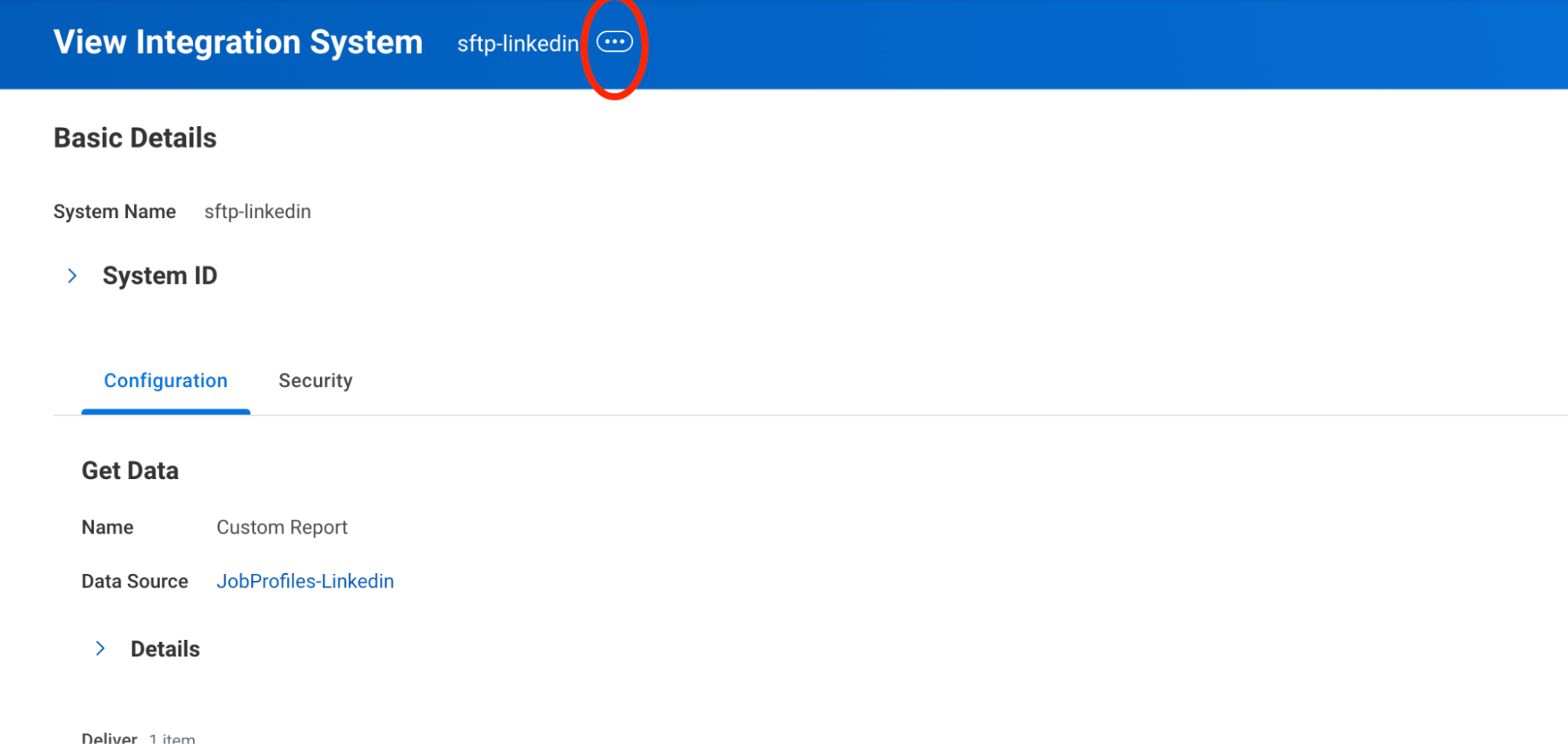
- Navigate to Integration → Test Transport
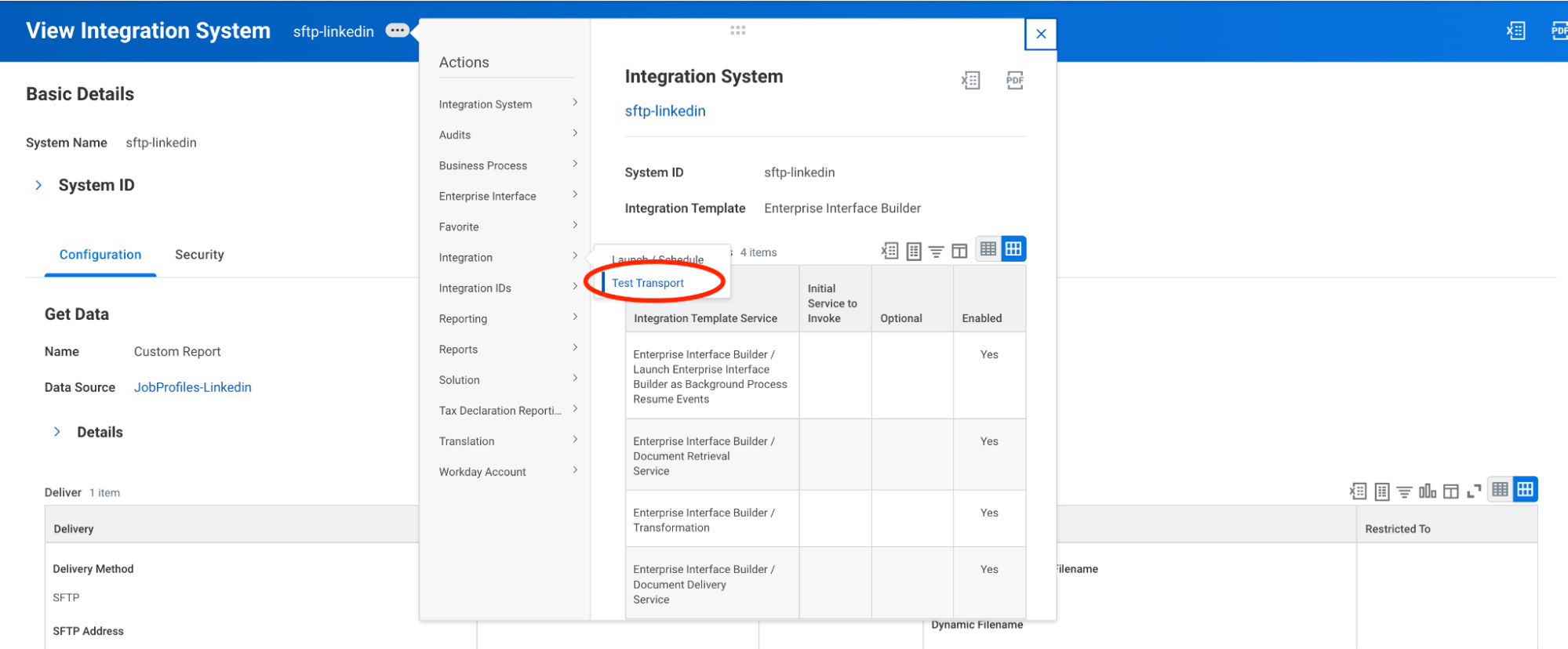
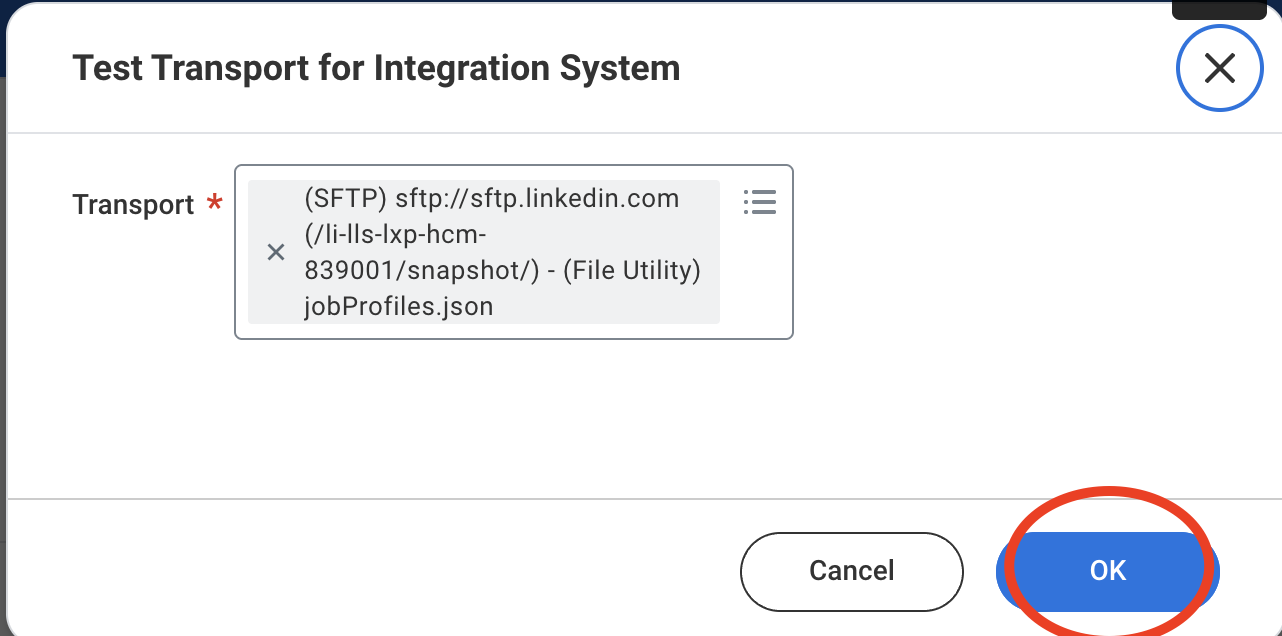
- A new pop up window appears with EIB SFTP details, click on Ok
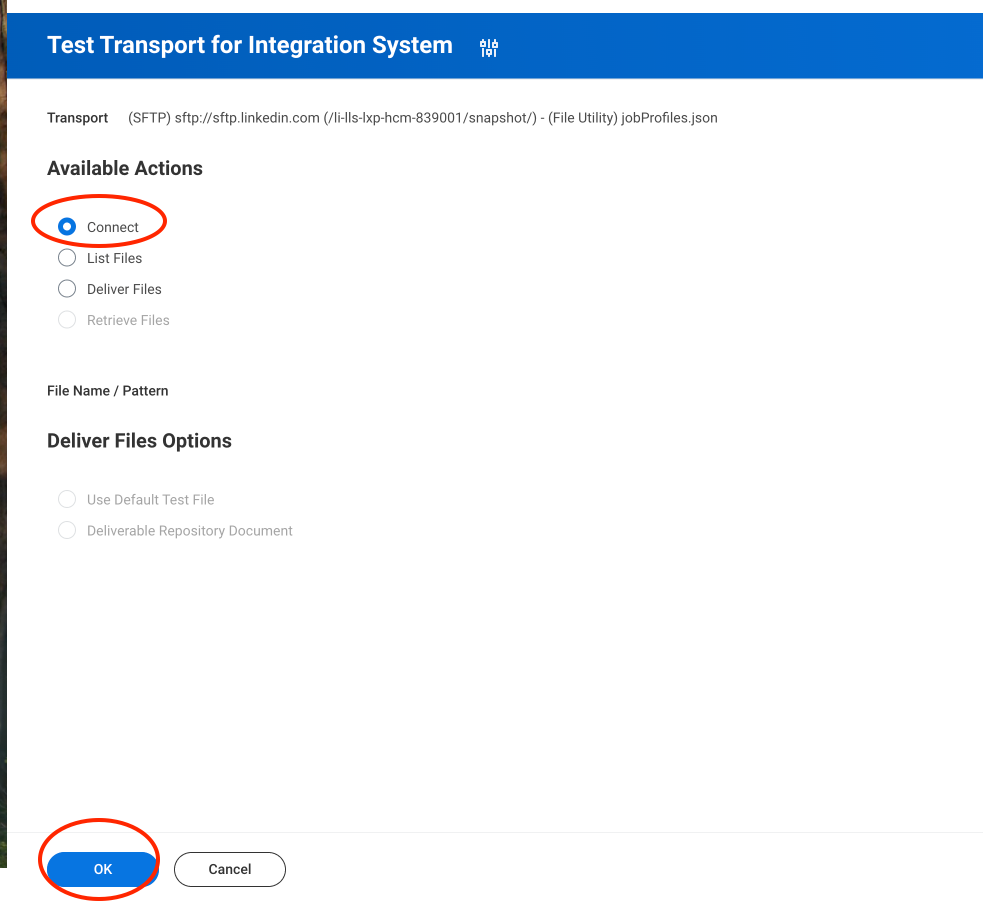
- Select Connect and click on ok
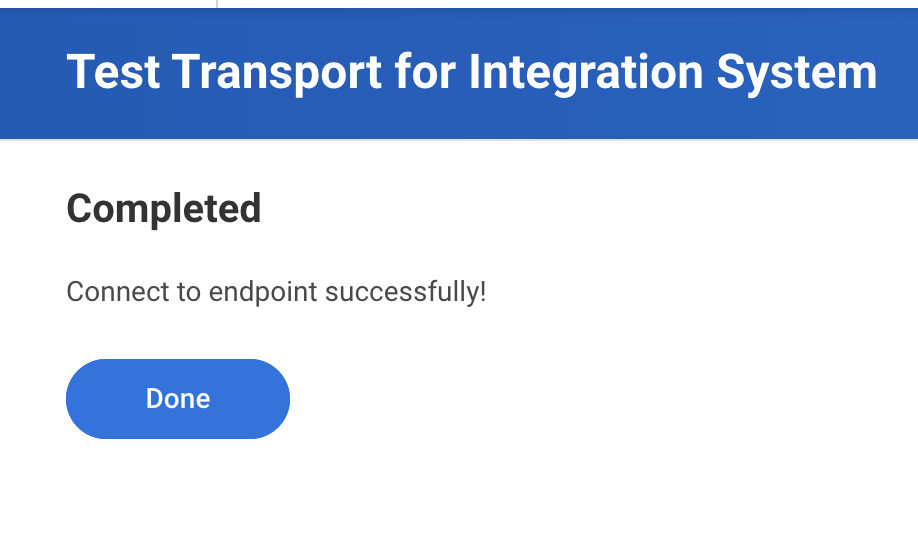
- If the connection was successful, you should see the following screenshot
- Launch / Schedule the Integration: Now that you’ve confirmed the connection was set-up correctly, you can launch the integration and choose how often data should sync to LinkedIn learning. LinkedIn recommends setting this to sync to weekly.
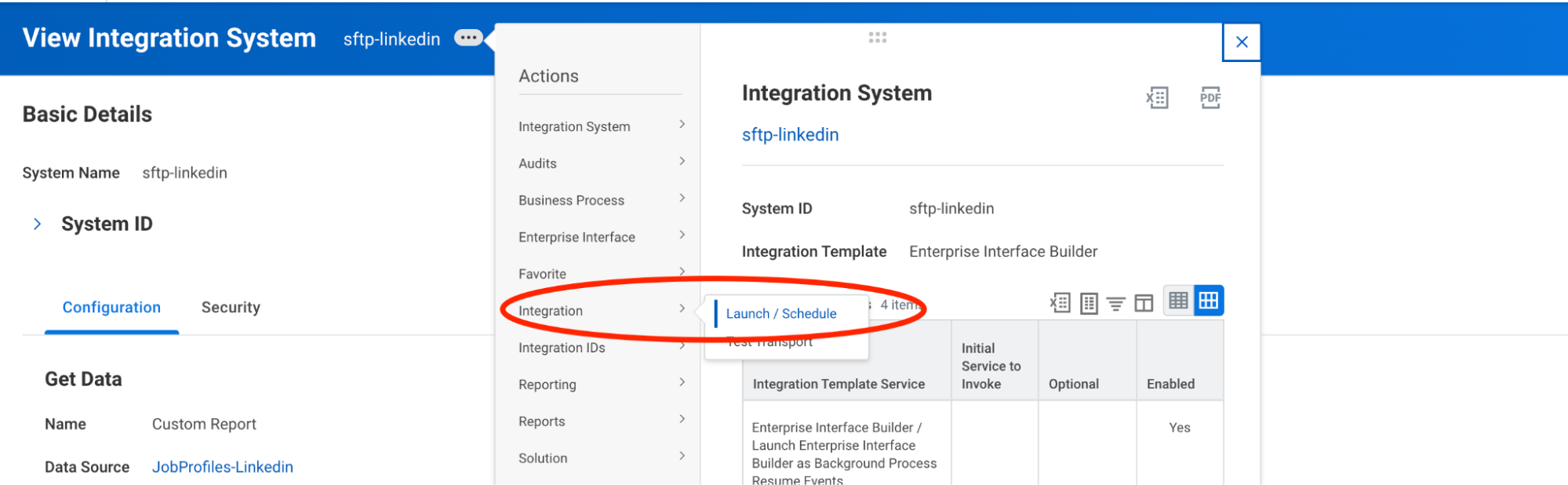
- Once again, click on the 3 dots at the top of the page to initiate the scheduling module
- Navigate to Integration on the left side menu and select Launch / Schedule
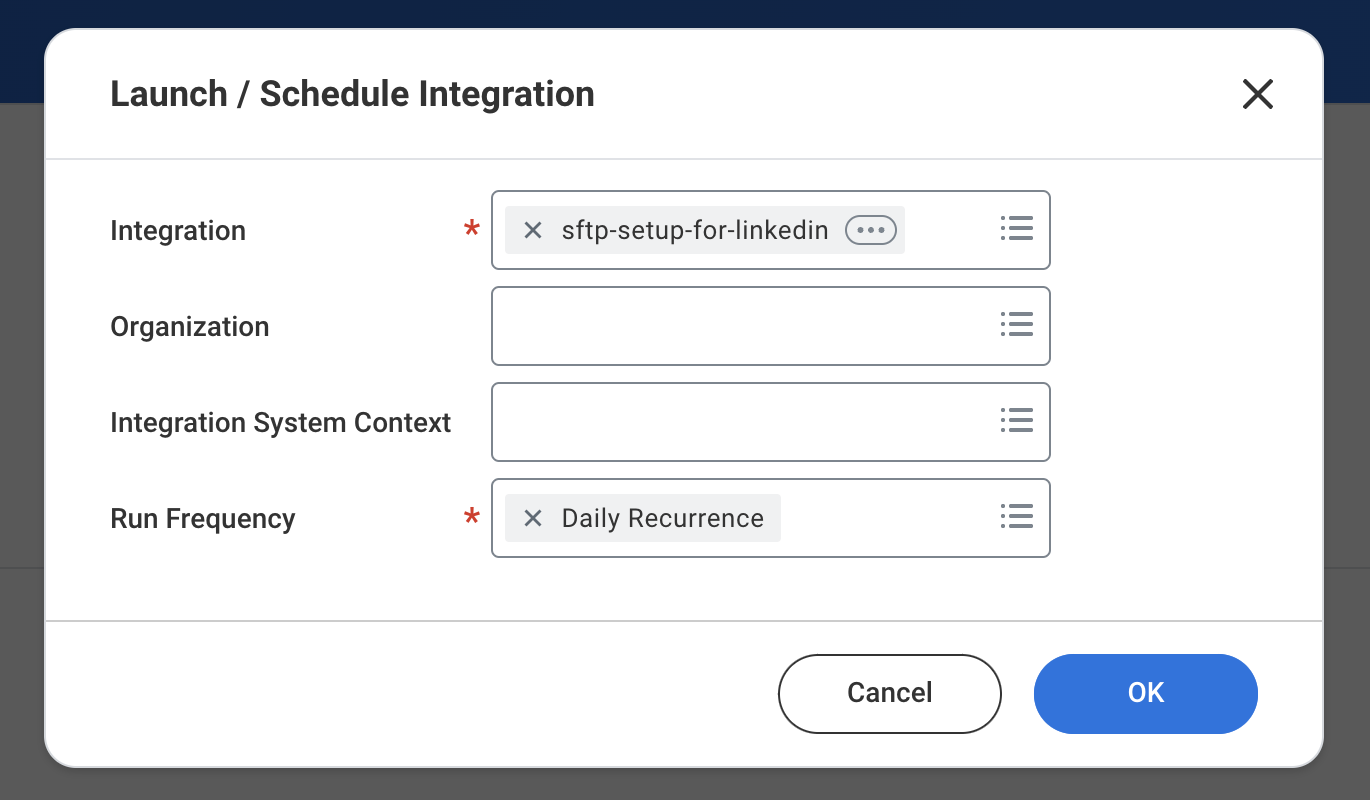
- Ensure the right integration and daily run frequency are selected. LinkedIn recommends setting this to sync to weekly.
- Hit OK to launch the integration!
Pro Tip: If you want to quickly verify the integration is working as expected, run it once and then go back and schedule following syncs to be weekly.
Data Flow and Mapping
- Data Flow: Data will flow from Workday HCM to LinkedIn Learning via SFTP, including:
- Organizational Data: Job titles, skills descriptions, families, and levels
- Employee-Level Data (Optional for Now): Employee skills, career goals, team structure, and development preferences, to be leveraged later for more personalized experiences.
- Mapping Organizational Role Data
- Ensure correct mapping of job role data for customized employee career pathing and development experiences, organizational insights.
- Mapping Employee-Level Data
- When employee-level data is uploaded, map key details (e.g., career preferences, skill interests) to LinkedIn Learning for future personalization.
Troubleshooting
- Failed SFTP Connection: Verify credentials and firewall settings.
- Data Format Issues: Ensure report output is in the correct format and follows LinkedIn Learning’s data structure.
- Testing the SFTP Credentials configured: Details here
Security and Data Privacy
- Data Encryption: All data transferred via SFTP is encrypted in transit using standard encryption protocols (e.g., AES-256) to ensure data security.
- Compliance: The integration complies with relevant data protection regulations (e.g., GDPR, CCPA) to ensure the privacy of employee and organizational data. LinkedIn Learning and Workday maintain industry-standard data security practices to protect user information
Support and Resources
Getting Help
- LinkedIn Learning Support: Reach out to LinkedIn Learning’s support team for any integration-related issues.
Additional Documentation
FAQs
What data will be sent from Workday to LinkedIn Learning?
- Job Architecture Data: Includes job families, job titles, job levels, job descriptions, and skills
- Employee Career Data: Includes employee title, manager, team, skills, and career goals
How frequently will data be synced between Workday and LinkedIn Learning?
The data sync can be scheduled based on your requirements (e.g., daily, weekly). It is recommended to sync the data on a weekly basis to ensure that LinkedIn Learning has the latest job architecture and employee career data.
What happens if the data transfer fails
If the data transfer fails, check the EIB logs for error messages and troubleshooting suggestions. Common issues include:
- Incorrect field mappings or missing data.
- Data formatting issues (e.g., incorrect file structure).
- Connectivity problems with the SFTP server.
After identifying the issue, resolve it and re-run the integration.
Can I modify the custom reports after they are created?
Yes, custom reports can be edited at any time by searching for the report and selecting 'Edit Custom Report' under Actions. Just make sure the Enable as Web Service option is still checked to allow the report to be used for SFTP transfers.
How do I secure the SSH keys used for the SFTP transfer?
The public key should only be shared with LinkedIn Learning for the connection setup. Regularly rotate the SSH keys for added security and compliance.
Do I need special permissions to create custom reports and EIBs in Workday?
Yes, you will need the appropriate Workday permissions to create custom reports and Enterprise Interface Builders (EIBs). Ensure you have the System Integrator or Administrator role assigned in Workday to perform these tasks.
What if the data formats from Workday don’t match LinkedIn Learning’s requirements?
If there is a mismatch, you can modify the field mappings in the custom report creation process (under Column Heading Override). Ensure the field names in Workday are mapped correctly to LinkedIn Learning’s expected field names.
How do I test the integration before going live?
To test the integration:
- Run the custom reports in Workday manually to check if the data aligns with expectations.
- Perform a dry-run of the EIB integration to ensure that the data flows correctly to LinkedIn Learning via SFTP.
- After the first successful test, verify the data sync by reviewing the transfer logs and ensuring accuracy on LinkedIn Learning.
Can I customize the fields being sent to LinkedIn Learning?
Yes, you can choose the fields you want to send by adding/removing columns when creating the custom reports in Workday. You can also use filters to send a specific subset of the data, such as employees in certain job families or those with specific skills.
How will LinkedIn Learning use the data received from Workday?
The data received will be used to create personalized learning paths for employees, tailored to their job role and career goals. Job architecture data helps LinkedIn Learning offer recommendations for relevant skills and learning content, while career data supports the creation of customized career development plans. Your ingested data will NOT be used to power other customers' LinkedIn Learning instances - only your own.
What happens if I need to update or add new data fields in Workday?
If new data fields need to be added (e.g., new job families or skills), you’ll need to update the custom reports in Workday. After making the necessary updates, reconfigure the EIB to ensure that the new data is sent correctly via SFTP to LinkedIn Learning.
Can I add more than one file to the SFTP transfer?
Yes, you can create multiple EIB integrations for different reports. Each report can be sent as a separate file. Ensure the correct file name and report mapping are configured for each EIB.
How do I manage access and permissions for the SFTP connection?
Ensure that only authorized personnel have access to the SSH private key and the SFTP credentials. Regularly review and manage access permissions in Workday to prevent unauthorized access to sensitive data.