HTML 小组件是机器人和代理可以在 Teams 消息中发送的一种新型丰富内容。 小组件建立在 MCP 应用标准之上。 本指南演示使用 Teams SDK 使用 TypeScript 编写的 Teams 机器人如何:
- 在聊天中发送交互式 HTML 小组件。
- 正确调整小组件大小,以便 Teams 始终显示其所有内容。
-
处理
callTool小组件发送回机器人的请求。
先决条件
- 使用 Teams SDK 生成的工作 TypeScript 机器人。
- 机器人的公共 HTTPS 终结点。
注意
HTML 小组件是一项预览功能。 Teams SDK 将相关 API 标记为实验性,它们可能会更改。
示例:掷骰子
本指南中的每个步骤都会生成相同的小小组件:
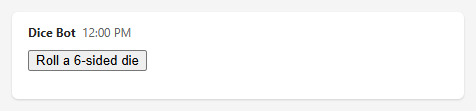
- 机器人发送一个小组件,其中包含 “掷出 6 面骰子 ”按钮。
- 当用户选择该按钮时,小组件会要求机器人掷骰子。 机器人选取并返回该号码。
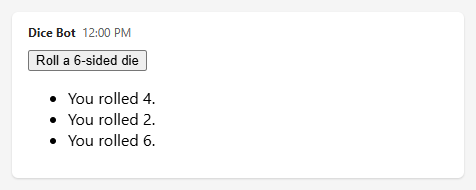
- 构件将每个结果添加到列表中。 小组件会随着每次滚动而增长,因此该示例还显示了小组件如何调整大小。
当机器人发送它时,构件如下所示:
滚动三次后,小组件已成长以适合其结果列表:
你写的内容
小组件是 Teams 在聊天中的沙盒 iframe 内呈现的 HTML 文档。 你编写两段代码:
| 件 | 作用 | 责任 |
|---|---|---|
| 小组件 | 一个包含内联 CSS 和纯 JavaScript 的 HTML 文件。 无框架。 | 与 Teams 执行握手,报告其高度,并调用工具。 |
| Bot | 现有 Teams SDK 机器人中的 TypeScript 代码。 | 在扩展的 Markdown 消息中发送小部件,并应答其工具调用。 |
项目布局
widgets/
  dice-widget.html     # The widget: HTML, CSS, and JavaScript in one file
src/
  bot/
    widget-markdown.ts # Puts a widget in a fenced code block, for extended markdown messages
    dice-widget.ts     # Builds the dice widget's payload from dice-widget.html
    dice-tool.ts       # Handles tool calls from the widget
    correlation.ts     # Optional: identifies which widget made a tool call
    mcp-widgets.ts     # Optional: shows widgets from MCP servers
步骤 1:创建构件文件
创建 widgets/dice-widget.html. 这是 Teams 显示的完整页面。 末尾的 <script> 元素暂时为空;按步骤 3、4 和 5 填充。
<!doctype html>
<html lang="en">
  <head>
    <meta charset="utf-8" />
    <meta name="viewport" content="width=device-width, initial-scale=1" />
    <title>Dice roller</title>
    <style>
      /* No margins outside the root element, so that the root's height is
         the widget's full height (Step 4). */
      html,
      body {
        margin: 0;
      }

      /* "flow-root" keeps the margins of the root's first and last children
         inside the root, where they are measured (Step 4). */
      #widget-root {
        display: flow-root;
        font-family: system-ui, sans-serif;
      }
    </style>
  </head>
  <body>
    <!-- All visible content goes inside this element. The widget measures
         it to report its height (Step 4). -->
    <div id="widget-root"></div>

    <script>
      // The code from Steps 3, 4, and 5 goes here, in that order.
    </script>
  </body>
</html>
所有内容都在一个文件中:CSS 和 JavaScript 是内联的,小组件不从其他来源加载任何内容。 有关创建小组件的更多详细信息,请参阅 Microsoft Teams 中 HTML 小组件的 UX 指南。
步骤 2:发送小组件
小部件在 扩展的 markdown 消息中发送:消息活动,其 textFormat"extendedmarkdown"is . 该小部件作为带有语言html-widget的围栏代码块进入消息的 text。 代码块的内容是小组件的有效负载,作为 JSON:
```html-widget
{"type":"widget/mcp-ui","name":"Dice roller","domain":"https://mybot.example.com","html":"<!doctype html>...", ...}
```
Teams 将代码块显示为小组件。 消息还可以在代码块周围包含普通 Markdown, text (参见 混合 Markdown 和小部件) 。
有效负载具有以下字段:
| 字段 | 必需 | 说明 |
|---|---|---|
type |
是 | 始终 "widget/mcp-ui". |
name |
是 | 小组件的显示名称。 |
description |
否 | 小组件的简短说明。 |
domain |
是 | 与构件关联的 HTTPS 源。 使用机器人的源。 |
html |
是 | Teams 在 iframe 中呈现的完整 HTML 文档。 |
securityPolicy |
否 | HTML 可能使用的源。
resourceDomains 涵盖外部脚本、样式、图像和字体。
connectDomains 涵盖 fetch、XHR 和 WebSocket 调用。 未列出的任何内容都将被阻止。 |
mcpUrl |
否 | 仅适用于由 MCP 工具生成的小组件,并始终为其设置:其工具生成小组件的 MCP 服务器的 URL。 Teams 使用它在作用域限定为机器人 ID 和 MCP URL 的专用域上运行构件。 请参阅 MCP 服务器中的小组件。 |
生成小组件的有效负载
创建 src/bot/dice-widget.ts:
import { readFileSync } from "node:fs";
import { resolve } from "node:path";
import type { IHtmlWidgetPayload } from "@microsoft/teams.api";

// The widget file from Step 1, read once when the bot starts. Adjust the
// path to where the file is deployed with your bot.
const DICE_WIDGET_HTML = readFileSync(
  resolve("widgets/dice-widget.html"),
  "utf8",
);

// Creates the payload of the dice widget.
//   botOrigin: your bot's public HTTPS origin, for example
//              https://mybot.example.com. Used as the widget's domain.
export function createDiceWidget(botOrigin: string): IHtmlWidgetPayload {
  return {
    // Always "widget/mcp-ui".
    type: "widget/mcp-ui",
    // Display name of the widget.
    name: "Dice roller",
    description: "Rolls dice on the bot.",
    // Origin associated with the widget. Use the bot's origin.
    domain: botOrigin,
    // The complete widget: HTML, CSS, and JavaScript.
    html: DICE_WIDGET_HTML,
    // Origins that the widget may use. Everything else is blocked. The dice
    // widget is self-contained, so every list is empty.
    securityPolicy: {
      // Targets of fetch, XHR, and WebSocket calls.
      connectDomains: [],
      // Sources of external scripts, styles, images, and fonts.
      resourceDomains: [],
      // Sources of nested iframes.
      frameDomains: [],
      // Allowed <base> URLs.
      baseUriDomains: [],
    },
  };
}
将小组件放入围栏代码块中
创建 src/bot/widget-markdown.ts. 它适用于任何小组件:
import type { IHtmlWidgetPayload } from "@microsoft/teams.api";

// Returns the "html-widget" fenced code block that displays a widget in an
// extended markdown message.
export function widgetMarkdown(widget: IHtmlWidgetPayload): string {
  return "```html-widget\n" + JSON.stringify(widget) + "\n```";
}
发送邮件
发送一条扩展的 markdown 消息,其 text 是小部件的围栏代码块:
import { createDiceWidget } from "./dice-widget";
import { widgetMarkdown } from "./widget-markdown";

// `send` comes from the context of the activity you are handling.
await send({
  type: "message",
  // Teams displays "html-widget" code blocks as widgets only in extended
  // markdown messages.
  textFormat: "extendedmarkdown",
  text: widgetMarkdown(createDiceWidget("https://mybot.example.com")),
});
重要
请勿使用 Pipeer 导出buildHtmlWidgetMessage的 @microsoft/teams.appsOR buildHtmlWidgetMarkdown 帮助程序。 他们将自己的握手和高度报告代码添加到小组件的 HTML,这与小组件自己的代码冲突 (步骤 3 和 4) 。
混合 Markdown 和小组件
扩展的 Markdown 消息可以包含围绕小组件的普通 Markdown。 从一组 Markdown 字符串和小组件构建消息, text 并用空白行联接:
import { createDiceWidget } from "./dice-widget";
import { widgetMarkdown } from "./widget-markdown";

await send({
  type: "message",
  textFormat: "extendedmarkdown",
  // Separate markdown and widgets with blank lines.
  text: [
    "**Feeling lucky?** Roll the die below.",
    widgetMarkdown(createDiceWidget("https://mybot.example.com")),
    "_The bot picks every number._",
  ].join("\n\n"),
});
该消息是 text :
**Feeling lucky?** Roll the die below.

```html-widget
{"type":"widget/mcp-ui","name":"Dice roller", ...}
```

_The bot picks every number._
要在一条消息中显示多个小组件,请为每个小组件的数组添加一个 widgetMarkdown(...) 条目。
每条消息都包含完整的小组件。 已发送的邮件将保留发送时所附带的 HTML。 更改为 dice-widget.html 仅适用于稍后发送的邮件。
警告
任何可以看到该消息的人都可以阅读该构件的 HTML。 切勿在其中放入机密、令牌或私人数据。
如果您的小组件从其他来源加载任何内容,请在安全策略中列出该来源。 在单元测试中使用 由 Teams SDK 的@microsoft/teams.apps包导出的,以validateSecurityPolicy捕获 HTML 使用但策略未列出的源:
import { validateSecurityPolicy } from "@microsoft/teams.apps";
import { createDiceWidget } from "./dice-widget";

const widget = createDiceWidget("https://mybot.example.com");

// Returns one warning for each origin that the HTML references but the
// security policy does not allow.
const warnings = validateSecurityPolicy(
  widget.html,
  widget.securityPolicy ?? {},
);
// Expect: warnings is an empty array.
小组件运行位置
Teams 以以下格式托管专用域上的每个小组件:
https://<hash>.widget-renderer.usercontent.microsoft
<hash> 取决于小组件的来源:
| 小组件 | 要在有效负载中设置什么 | 域范围限定为 | 要哈希的文本 |
|---|---|---|---|
| 机器人自己的小组件,例如掷骰子 | Nothing | 机器人的 ID | <bot id> |
| 由 MCP 工具生成的小组件 |
mcpUrl:MCP 服务器的 URL (详细信息) |
机器人的 ID 和 MCP URL | <bot id>-<mcp URL> |
发送由 MCP 工具生成的小组件时,请在小组件的有效负载字段中 mcpUrl 传递 MCP 服务器的 URL。 然后,Teams 从机器人的 ID 和该 URL 生成哈希,以便小组件获取自己的域。
若要让小组件调用你的某个服务 (例如,小组件) connectDomains 中列出的 API,请将该服务配置为接受来自小组件域的调用,例如在其 CORS 设置中。
要查找域,请使用 小组件域工具生成哈希。 在其框中,输入机器人的 ID 或格式 <bot id>-<mcp URL>为 .
警告
如果从 MCP 工具生成的小组件中省 mcpUrl 略,则该小组件将仅在作用域限定为机器人 ID 的域上运行。 然后,它可以调用接受来自该域的调用的任何服务,包括用于机器人自己的小组件的服务。 始终传 mcpUrl 入 MCP 工具生成的小组件的有效负载。
步骤 3:将构件连接到 Teams
在 Teams 接受来自小组件的其他内容之前,小组件必须完成握手:
- 发送
ui/initialize请求。 - 等待其响应。
- 发送
ui/notifications/initialized通知。
将以下代码添加到 中的元素dice-widget.html中<script>。 它定义了一个发送请求并等待其响应的帮助程序,以及 connect 执行握手的功能。
// How long to wait for a response before giving up, in milliseconds.
const REQUEST_TIMEOUT_MS = 15000;
// Used to give every request a unique id.
let requestCount = 0;
// A promise that completes when the handshake is done. Set by connect().
let connection;

/**
 * Sends a message to Teams.
 * @param {object} message The message, without the "jsonrpc" field.
 * @returns {void}
 */
function postToHost(message) {
  window.parent.postMessage({ jsonrpc: "2.0", ...message }, "*");
}

/**
 * Normalizes an incoming message. Responses can arrive either as objects or
 * as JSON strings.
 * @param {unknown} data The data of a "message" event.
 * @returns {object | undefined} The message, or undefined if it is not an object.
 */
function readMessage(data) {
  if (typeof data === "string") {
    try {
      return JSON.parse(data);
    } catch {
      return undefined;
    }
  }

  return typeof data === "object" && data !== null ? data : undefined;
}

/**
 * Sends a request to Teams and waits for its response.
 * @param {string} method The request's method name.
 * @param {object} params The request's parameters.
 * @returns {Promise<object>} The response's result. Rejects if the response
 *   is an error, or if no response arrives within REQUEST_TIMEOUT_MS.
 */
function sendRequest(method, params) {
  requestCount += 1;
  const id = "request-" + requestCount;

  return new Promise((resolve, reject) => {
    const timer = setTimeout(
      () => finish(new Error(method + " timed out.")),
      REQUEST_TIMEOUT_MS,
    );

    // Settles the promise exactly once and stops listening for responses.
    function finish(error, result) {
      clearTimeout(timer);
      window.removeEventListener("message", onMessage);

      if (error) {
        reject(error);
      } else {
        resolve(result ?? {});
      }
    }

    function onMessage(event) {
      // Only trust messages that come from Teams.
      if (event.source !== window.parent) {
        return;
      }

      const message = readMessage(event.data);

      // Ignore anything that is not the response to this request.
      if (message?.jsonrpc !== "2.0" || message.id !== id) {
        return;
      }

      if (message.error) {
        finish(
          new Error(method + " failed (code " + message.error.code + ")."),
        );
      } else {
        finish(undefined, message.result);
      }
    }

    // Start listening before sending, so the response cannot be missed.
    window.addEventListener("message", onMessage);
    postToHost({ id, method, params });
  });
}

/**
 * Performs the handshake with Teams. Call it once when the widget starts.
 * Calling it again returns the same promise. If the handshake failed, the
 * next call starts a new attempt.
 * @param {string} appName The widget's name, sent to Teams.
 * @returns {Promise<void>} Completes when the handshake is done.
 */
function connect(appName) {
  connection ??= sendRequest("ui/initialize", {
    // The protocol version that this code implements.
    protocolVersion: "2026-01-26",
    appInfo: { name: appName, version: "1.0.0" },
    // This widget declares no optional capabilities.
    appCapabilities: {},
  }).then(
    () => {
      // Tells Teams the widget is ready. Completes the handshake.
      postToHost({ method: "ui/notifications/initialized", params: {} });
    },
    (error) => {
      // Allow a later call to retry.
      connection = undefined;
      throw error;
    },
  );

  return connection;
}
第 4 步:报告小组件的高度
小组件的高度必须由其内容驱动。
Teams 会将小组件的 iframe 大小调整为小组件随通知一起 ui/notifications/size-changed 报告的高度。 小部件必须在握手后报告其高度,并且每次更改时都必须报告。
添加到reportHeight<script>元素:
/**
 * Reports the height of `root` to Teams now, and every time it changes.
 * @param {HTMLElement} root The element that contains all of the widget's content.
 * @returns {() => void} A function that stops reporting.
 */
function reportHeight(root) {
  let lastHeight;

  function report() {
    // The exact rendered height of the root, in CSS pixels. Can be fractional.
    const height = root.getBoundingClientRect().height;

    // Skip duplicates, unless the iframe is still too short to show everything.
    if (height === lastHeight && window.innerHeight >= height) {
      return;
    }

    lastHeight = height;
    // Teams resizes the iframe to this height. Send it unrounded.
    postToHost({
      method: "ui/notifications/size-changed",
      params: { height },
    });
  }

  // Calls report() whenever the root's size changes for any reason: new
  // content, loaded fonts or images, or text that wraps differently.
  const observer = new ResizeObserver(report);

  observer.observe(root);
  // Report the initial height right away.
  report();

  return () => observer.disconnect();
}
由于 iframe 是根据小组件调整大小的,因此无法根据 iframe 调整小组件的大小。 要保持控件的高度受其内容的驱动,请执行以下操作:
- 将所有内容放在一个根元素中,并使用
getBoundingClientRect().height. 不要度量document.documentElement.scrollHeightordocument.body.scrollHeight. 这些值从不小于 iframe,因此小组件可以增长但永远不会缩小。 - 报告确切的高度。 不要四舍五入。 向上舍入会在小组件下方留下一个条带,向下舍入会剪辑它。
- 不要调整小组件的大小以适应 iframe。 不要使用
100vh、 、height: 100%、htmlbody或根元素。 - 将所有内容保留在根目录内,在正常页面流中。 内容放置在根外部且边距为负,或者
position: fixed未测量,因此可以剪裁。 - 删除根周围的边距。 步骤 1 中的样式设置
html, body { margin: 0; }并给出根display: flow-root,以便测量其第一个和最后一个子级的边距。
骰子控件的高度由其内容驱动:它的按钮、它的掷骰列表和它的错误消息。
步骤 5:从小组件调用工具
小组件通过调用带有 a name 和 arguments 对象的工具来要求其机器人执行某些操作。 发送包含小组件消息的机器人程序处理 步骤 6 中的调用。
callTool 函数
添加到callTool<script>元素:
/**
 * Calls a tool on the bot and returns the bot's result.
 * @param {string} name The tool name that the bot's handler recognizes.
 * @param {object} args The tool's arguments. The bot receives them as
 *   activity.value.arguments.
 * @returns {Promise<{content?: Array<{type: string, text?: string}>,
 *   structuredContent?: object, isError?: boolean}>} The bot's result.
 *   Rejects if the call could not be completed. Resolves with isError: true
 *   if the bot ran the tool and reported a failure.
 */
async function callTool(name, args) {
  // Tool calls are only allowed after the handshake.
  if (!connection) {
    throw new Error("Call connect() before calling tools.");
  }

  await connection;

  return sendRequest("tools/call", { name, arguments: args });
}
结果是 callToolResult 机器人在 步骤 6 中返回的对象:
| 字段 | 说明 |
|---|---|
content |
内容项的数组。 用于 { type: "text", text } 可读的消息。 |
structuredContent |
包含要呈现的小组件的数据的对象。 |
isError |
true 该工具失败时。 中的 content 文本解释了原因。 |
处理 这两种 故障:
- 当无法完成调用时,承诺将被拒绝:调用超时或机器人的处理程序失败。
-
承诺解析为
isError: true机器人运行该工具并报告故障时。
骰子小组件
最后,在元素末 <script> 尾添加小组件自己的代码。 它构建 UI、连接到 Teams、报告其高度,并在选择按钮时进行调用 roll_dice :
// Number of sides on the die.
const SIDES = 6;
const root = document.getElementById("widget-root");

// Build the UI: a button, a list of results, and a place for errors.
const button = document.createElement("button");
const rolls = document.createElement("ul");
const errorMessage = document.createElement("p");

button.type = "button";
button.textContent = "Roll a " + SIDES + "-sided die";
// Screen readers announce errors as soon as they appear.
errorMessage.setAttribute("role", "alert");
root.append(button, rolls, errorMessage);

button.addEventListener("click", async () => {
  // Prevent a second roll while this one is in progress.
  button.disabled = true;
  errorMessage.textContent = "";

  try {
    // Ask the bot to roll. The bot handles "roll_dice" in Step 6.
    const result = await callTool("roll_dice", { sides: SIDES });
    // The bot's human-readable message, if any.
    const text = result.content?.find((item) => item.type === "text")?.text;

    // The bot ran the tool but reported a failure.
    if (result.isError) {
      throw new Error(text ?? "The dice could not be rolled.");
    }

    // Show the rolled value that the bot returned in structuredContent.
    // textContent (not innerHTML) keeps the value from being parsed as HTML.
    const roll = document.createElement("li");

    roll.textContent = "You rolled " + result.structuredContent?.value + ".";
    rolls.append(roll);
  } catch (error) {
    // The call failed or the bot reported an error.
    errorMessage.textContent =
      error instanceof Error ? error.message : String(error);
  } finally {
    button.disabled = false;
  }
});

// Complete the handshake, then start reporting the widget's height. Every
// later change to the root's content is reported automatically.
connect("Dice roller").then(
  () => reportHeight(root),
  () => {
    errorMessage.textContent = "This widget could not connect to Teams.";
  },
);
- 当呼叫进行时,该按钮将被禁用,因此快速双击不会滚动两次。
- 每次新滚动和每个错误消息都会使根变高。 从第 4 步报告
ResizeObserver新的高度。
步骤 6:在机器人程序中处理工具调用
当小组件调用工具时,机器人会收到调用 htmlwidget/calltool 活动。 在 Teams SDK 中,使用以下 widget.callTool 路由进行处理:
-
activity.value.name是工具名称。 -
activity.value.arguments是参数对象,键入为unknown.
处理程序返回:IHtmlWidgetCallToolResponse
{
  // Always "htmlwidget/calltoolresult".
  responseType: "htmlwidget/calltoolresult",
  // Returned to the widget as the result of callTool().
  callToolResult: { content, structuredContent, isError },
}
创建 src/bot/dice-tool.ts:
import { randomInt } from "node:crypto";
import type {
  IHtmlWidgetCallToolInvokeActivity,
  IHtmlWidgetCallToolResponse,
} from "@microsoft/teams.api";

// Builds a tool call response. Always sets all three result fields, because
// fields you omit can reach the widget as null.
//   text:              human-readable message, shown by the widget on errors.
//   structuredContent: data for the widget to render.
//   isError:           true when the tool failed.
function toolResult(
  text: string,
  structuredContent: Record<string, unknown> = {},
  isError = false,
): IHtmlWidgetCallToolResponse {
  return {
    responseType: "htmlwidget/calltoolresult",
    callToolResult: {
      content: [{ type: "text", text }],
      structuredContent,
      isError,
    },
  };
}

// The "roll_dice" tool. Expects arguments of the form { sides: number }.
function rollDice(args: unknown): IHtmlWidgetCallToolResponse {
  // `args` comes from the browser: check its shape before using it. Other
  // properties (such as Teams' reserved __msteams__) are ignored.
  const sides =
    typeof args === "object" && args !== null && "sides" in args
      ? args.sides
      : undefined;

  // Reject invalid input with an error result instead of throwing.
  if (
    typeof sides !== "number" ||
    !Number.isInteger(sides) ||
    sides < 2 ||
    sides > 100
  ) {
    return toolResult("sides must be a whole number from 2 to 100.", {}, true);
  }

  // A random whole number from 1 to `sides`, inclusive.
  const value = randomInt(1, sides + 1);

  // The widget reads `value` from structuredContent.
  return toolResult("You rolled " + value + ".", { value, sides });
}

// Entry point for every tool call from the widget. Dispatches by tool name.
export function handleWidgetTool(
  activity: IHtmlWidgetCallToolInvokeActivity,
): IHtmlWidgetCallToolResponse {
  // The name and arguments that the widget passed to callTool().
  const { name, arguments: args } = activity.value;

  switch (name) {
    case "roll_dice":
      return rollDice(args);
    default:
      // Unknown tools also get an error result, never an exception.
      return toolResult("Unknown tool: " + name, {}, true);
  }
}
在机器人的 App:
import type { IHtmlWidgetCallToolResponse } from "@microsoft/teams.api";
import { handleWidgetTool } from "./dice-tool";

// Receives every tool call from widgets that this bot sent.
// `app` is your bot's App.
app.on(
  "widget.callTool",
  async ({ activity }): Promise<IHtmlWidgetCallToolResponse> => {
    try {
      // The return value is sent back to the widget.
      return handleWidgetTool(activity);
    } catch (error) {
      // Safety net for unexpected failures: log the details on the bot, and
      // return an error result rather than letting the invoke fail.
      console.error("Widget tool failed.", error);

      return {
        responseType: "htmlwidget/calltoolresult",
        callToolResult: {
          content: [{ type: "text", text: "Something went wrong." }],
          structuredContent: {},
          isError: true,
        },
      };
    }
  },
);
在每个工具处理程序中遵循以下规则:
- 始终返回结果。 切勿让处理程序抛出。 报告失败时,其中包含
isError: true和 可读消息content。 如果处理程序抛出,则调用将失败,并且小部件仅收到一般错误。 -
始终设置所有三个字段:
content,structuredContent(在没有数据) 时使用{},以及isError。 省略的字段可以作为 小组件null访问,使用 MCP Apps SDK 生成的小组件会拒绝这些小组件。 - 验证
arguments. 它们来自浏览器。 将它们视为不受信任的输入,就像任何 HTTP 请求的正文一样。 - 忽略无法识别的属性。 Teams 可以将
arguments保留__msteams__属性添加到 ,因此不要拒绝意外的属性。 - 不要根据
activity.from. 调用可识别对话,但它不会可靠地携带用户的 Microsoft Entra 标识。 如果工具需要经过验证的用户,则小组件必须发送机器人验证的令牌,这超出了本指南的范围。 - 快速响应。 用户正在等待小组件中的结果。
可选:标识哪个小组件正在调用
如果将顶级 correlationId 字符串添加到小组件有效负载,Teams 会通过 中该小组件 arguments.__msteams__.correlationId的每个工具调用将其传回。 使用它来查找属于该特定小组件的服务器端状态。 例如,生成一个随机 UUID,将其与数据一起存储,并在调用工具时进行查找。
创建 src/bot/correlation.ts:
import type {
  IHtmlWidgetCallToolInvokeActivity,
  IHtmlWidgetPayload,
} from "@microsoft/teams.api";

// Use this type for payloads that include a correlationId. The field is not
// part of the published IHtmlWidgetPayload type yet.
type HtmlWidgetPayloadWithCorrelation = IHtmlWidgetPayload & {
  correlationId: string;
};

// Returns the correlationId of the widget that made this tool call, or
// undefined if the widget's payload had none.
export function correlationIdOf(
  activity: IHtmlWidgetCallToolInvokeActivity,
): string | undefined {
  const args = activity.value.arguments;

  // Teams adds the ID under the reserved __msteams__ property of the arguments.
  if (typeof args !== "object" || args === null || !("__msteams__" in args)) {
    return undefined;
  }

  const metadata = args.__msteams__;

  // Accept the value only if it is a string.
  return typeof metadata === "object" &&
    metadata !== null &&
    "correlationId" in metadata &&
    typeof metadata.correlationId === "string"
    ? metadata.correlationId
    : undefined;
}
相关 ID 标识小组件。 它不能证明用户是谁。 在使用前,请检查该 ID 是否存在于商店中并且属于其中的对话 activity.conversation.id 。
其他可用于小组件的 API
MCP 应用标准定义了小组件可用于与周围聊天交互的其他请求:
| 请求 | 使用它来 | 使用前检查 |
|---|---|---|
ui/open-link |
在小组件外部打开 URL,例如在浏览器选项卡中。 | hostCapabilities.openLinks |
ui/message |
代表用户将消息发布到聊天。 | hostCapabilities.message |
ui/update-model-context |
无声地告诉模型小部件的状态,以便稍后转动。 | hostCapabilities.updateModelContext |
ui/request-display-mode |
请求显示内联、全屏或画中画。 | hostContext.availableDisplayModes |
这四个都是请求,例如 tools/call。 握手后发送它们并等待回复。 下面的示例是高级示例;将它们适应小组件。
Teams 支持上述所有请求。 不过,对于小部件来说,在使用某项功能之前始终检查其主机是否支持该功能,并在不支持时优雅地回退,这是一种很好的做法。 主机对请求的 ui/initialize 响应说出它支持的内容:
-
hostCapabilities对于主机支持的每个可选请求都有一个属性:openLinksforui/open-link、 formessageui/message和updateModelContextui/update-model-contextfor 。 如果属性缺失,请不要发送请求。 -
hostContext.availableDisplayModes列出主机支持ui/request-display-mode的显示模式。hostContext.displayMode是小组件的当前模式。
握手完成后保留这两个对象。 在此示例和以下示例中,向 Teams postMessage 发送 JSON-RPC 请求,sendRequest(method, params)并返回响应的result承诺:
// Set when the handshake completes. The examples below use them.
let hostCapabilities = {};
let hostContext = {};

const result = await sendRequest("ui/initialize", {
  protocolVersion: "2026-01-26",
  appInfo: { name: "My widget", version: "1.0.0" },
  // The display modes that the widget supports, if it uses more than inline.
  appCapabilities: { availableDisplayModes: ["inline", "fullscreen"] },
});

hostCapabilities = result.hostCapabilities ?? {};
hostContext = result.hostContext ?? {};
// Then send ui/notifications/initialized to complete the handshake.

if (hostCapabilities.openLinks) {
  // The host accepts ui/open-link requests from this widget.
}
例如 tools/call,这些请求可能以两种方式失败。 处理两者:
- 当 Teams 返回错误 (例如,请求被拒绝或不受支持) 或未及时回复时,承诺将被拒绝。
-
承诺解析为
isError: true当 Teams 接受请求但无法完成它时。ui/open-link并且ui/message可以通过这种方式报告故障。
打开链接: ui/open-link
小组件在沙盒 iframe 中运行,因此普通链接, target="_blank"并且 window.open 可以被阻止。 若要打开页面,请让 Teams 打开它,如以下示例所示:
/**
 * Asks Teams to open a URL outside the widget, for example in a browser tab.
 * @param {string} url An absolute URL.
 * @returns {Promise<void>} Rejects if Teams can't or won't open the URL.
 */
async function openLink(url) {
  if (!hostCapabilities.openLinks) {
    throw new Error("Teams can't open links from this widget.");
  }

  const result = await sendRequest("ui/open-link", { url });

  if (result.isError) {
    throw new Error("The link could not be opened.");
  }
}

// For example, open the widget's links through Teams.
link.addEventListener("click", (event) => {
  event.preventDefault();
  openLink(link.href).catch(() => {
    // Fall back, for example by showing the URL so that the user can copy it.
  });
});
- 仅打开链接以响应用户操作,例如选择链接或按钮。
- 使用绝对
https://URL。 Teams 可以拒绝其他 URL,或者在打开之前要求用户进行确认。 - 无需在 中列出 URL 的来源
securityPolicy。 Teams 将在小组件外部打开页面;securityPolicy仅控制小组件本身加载和调用的内容。
支持的 Teams 深层链接
HTML 小组件仅支持以下 Teams 深层链接:
| 链接类型 | 支持的 URL 模式 |
|---|---|
| 聊天 | https://teams.microsoft.com/l/chat/... |
| 邮件 | https://teams.microsoft.com/l/message/... |
| 加入会议 | https://teams.microsoft.com/l/meetup-join/... |
| 按会议 ID 加入会议 | https://teams.microsoft.com/meet/... |
这些深度链接必须满足以下所有要求:
- 使用 HTTPS。
- 指向与小组件相同的云环境,并在小组件自己的帐户中打开。
- 不包含 URL 片段 (
#) 。 - 既不包含 the 参数
fqdn也不homeCloud包含 query 参数。
使用与小组件关联的帐户打开 Teams 深层链接。
注意
Teams 将忽略不受支持的 Teams 深度链接,并且请求 ui/open-link 将返回错误。 这些限制不适用于常规 Web 链接。
若要了解有关 Teams 深度链接的详细信息,请参阅 浏览和配置指向应用的深层链接。
将消息发布到聊天: ui/message
ui/message 将消息添加到对话中, 就像用户发送了它一样,代理会回复它。 当小组件中的选择应继续对话时使用它,例如, 预订此航班 或 告诉我有关此按钮的更多信息 。
参数包括:
-
role,这始终"user"是 。 -
content,它是 MCP 内容块的数组。
使用文本块,除非列出其他类型,例如 hostCapabilities.messageimage.
/**
 * Posts a message to the chat on the user's behalf. The agent responds to it.
 * @param {string} text The message's text.
 * @returns {Promise<void>} Rejects if Teams doesn't post the message.
 */
async function sendMessage(text) {
  if (!hostCapabilities.message) {
    throw new Error("Teams can't post messages from this widget.");
  }

  const result = await sendRequest("ui/message", {
    role: "user",
    content: [{ type: "text", text }],
  });

  if (result.isError) {
    throw new Error("The message could not be posted.");
  }
}

// For example, when the user selects a flight in the widget:
bookButton.addEventListener("click", () =>
  sendMessage("Book flight " + flight.number + " on " + flight.date + "."),
);
- 仅为了响应显式用户操作而发送消息。 消息作为用户自己的消息显示在聊天中,因此其文本必须是用户明确要求的内容。
- 为代理和用户编写文本。 这是一条正常的聊天消息:保持简短易读,切勿包含机密。
- Teams 可以要求用户在发布消息之前对其进行批准。
更新代理的上下文: ui/update-model-context
ui/update-model-context 告诉代理小部件中发生的情况, 无需 发布消息或开始新轮次。 使用它表示代理需要回答用户下一个问题的状态。 示例包括用户选择的项、应用的筛选器或窗体中的值。
参数为 content内容块数组和 structuredContent具有机器可读数据的对象。 两者都是可选的。 回复为空对象。
/**
 * Replaces the widget's context for the agent. Teams sends it to the
 * agent, which decides how to use it.
 * @param {string} text A short description of the widget's current state.
 * @param {object} [structuredContent] The same state, as data.
 * @returns {Promise<void>}
 */
async function updateModelContext(text, structuredContent) {
  // Context updates are optional: skip them if Teams doesn't accept them.
  if (!hostCapabilities.updateModelContext) {
    return;
  }

  await sendRequest("ui/update-model-context", {
    content: [{ type: "text", text }],
    structuredContent,
  });
}

// For example, when the user selects a laptop configuration:
updateModelContext(
  "The user is viewing the Contoso 14 laptop, in silver, with 16 GB of memory.",
  { productId: "contoso-14", color: "silver", memoryGb: 16 },
);
- 每次发送完整的当前状态。 每次更新都会替换上一个更新;不会添加它。
- 不要为每个小更改都发送更新。 Teams 将每个更新发送给代理。 等到更改完成(例如,通过取消输入)更改完成。
- 始终在 中
content包含文本说明。 模型可能不会收到structuredContenthostCapabilities.updateModelContext除非列表。structuredContent - 将上下文视为可见。 模型会读取它,Teams 可以向用户显示它。 切勿包含机密。
告诉代理某些行为不同的两种方法:
| 行为 | ui/message |
ui/update-model-context |
|---|---|---|
| 显示在聊天中 | 是,作为来自用户的消息 | 否 |
| 使代理响应 | 是的,马上使用 | 不正确。 代理决定如何使用它。 |
| 重复调用 | 每次调用都会发布一条新消息 | 每次调用都会替换以前的上下文 |
处理机器人程序中的上下文更新
在 Teams 中,小组件的代理接收每个 ui/update-model-context 请求。 与来自自适应卡的 一样Action.Submit,它作为包含请求的value消息活动到达:
{
  "method": "ui/update-model-context",
  "params": {
    "content": [{ "type": "text", "text": "The user is viewing the Contoso 14 laptop..." }],
    "structuredContent": { "productId": "contoso-14", "color": "silver", "memoryGb": 16 }
  }
}
代理有责任以任何方式处理更新。 Teams 不会将上下文添加到对话中,也不会将其传递给模型。 例如,代理可以存储对话的最新上下文,并在下一回合将其包含在模型的提示中,或者忽略它。
在 Teams SDK 中,使用 tryGetWidgetModelContext from @microsoft/teams.apps检查处理程序开message头的更新。 它返回请求,或者 undefined 如果活动不是上下文更新:
import { tryGetWidgetModelContext } from "@microsoft/teams.apps";

// The latest widget context for each conversation. Use your own storage.
const widgetContexts = new Map<string, unknown>();

app.on("message", async ({ activity }) => {
  const update = tryGetWidgetModelContext(activity);

  if (update) {
    // A context update from a widget, not a message from the user. Each
    // update replaces the previous one. Don't reply: a reply would appear in the chat.
    widgetContexts.set(activity.conversation.id, update.params);
    return;
  }

  // Your normal message handling. For example, add the stored widget context
  // to the model's prompt.
});
- 在正常邮件处理之前处理更新,以免将其视为来自用户的邮件。
- 将上下文视为不受信任的输入。 它来自浏览器。 验证它,并记住传递给模型的文本可能会尝试更改模型的指令。
- 不要回复更新。 小组件不会等待代理:Teams 会自行回答小组件的请求。
更改显示模式: ui/request-display-mode
小组件可以在以下三种模式之一下显示:
| 模式 | 说明 | 在 Teams 中受支持 |
|---|---|---|
inline |
默认:小组件显示在聊天消息中。 | 是 |
fullscreen |
该构件显示在 Teams 主窗口内的一个大型模式对话框中。 | 是 |
pip |
画中画:小组件在对话上浮动。 | 否 |
Teams 不支持 pip. 在 Teams 中, fullscreen 在 Teams 主窗口内显示的大型模式对话框中显示构件。
若要使用除以下模式以外的 inline其他模式:
-
声明小组件支持的每个模式,包括
inline请求中的appCapabilities.availableDisplayModesui/initialize。 Teams 仅将构件切换到已声明的模式。 - 在请求之前,请先检查 Teams 是否支持该模式
hostContext.availableDisplayModes。 - 在回复中使用该模式。 回复是
mode小部件的实际模式,可能与您请求的模式不同。 - 侦听
ui/notifications/host-context-changed. Teams 无需请求即可更改模式,例如,当用户退出时fullscreen。
/**
 * Asks Teams to show the widget in another display mode.
 * @param {"inline" | "fullscreen" | "pip"} mode The requested mode.
 * @returns {Promise<string>} The mode that the widget is in afterward.
 */
async function requestDisplayMode(mode) {
  // Don't request a mode that Teams doesn't support.
  if (!hostContext.availableDisplayModes?.includes(mode)) {
    return hostContext.displayMode ?? "inline";
  }

  const result = await sendRequest("ui/request-display-mode", { mode });

  return result.mode;
}

// Teams sends changes to the host context, such as a new display mode.
window.addEventListener("message", (event) => {
  const message = event.data;

  if (
    event.source !== window.parent ||
    message?.method !== "ui/notifications/host-context-changed"
  ) {
    return;
  }

  // An update contains only the fields that changed: merge it.
  hostContext = { ...hostContext, ...message.params };
  // Let CSS adapt the layout, with selectors like [data-display-mode="fullscreen"].
  document.body.dataset.displayMode = hostContext.displayMode ?? "inline";
});

// For example, an "Expand" button.
expandButton.addEventListener("click", async () => {
  const mode = await requestDisplayMode("fullscreen");

  document.body.dataset.displayMode = mode;
});
报告小组件的高度仅 适用于 inline 模式,在该模式下,小组件的高度由其内容驱动。 在 fullscreen 模式下,Teams 设置小组件的高度。 例如,让小组件填充该高度 (, height: 100vh 在其根元素上) 而不是根据其内容调整大小,并在小组件返回 inline 模式时返回到内容驱动的大小。
将它们放在一起
现有机器人需要添加两个内容:
<script>中的widgets/dice-widget.html元素按该顺序包含步骤 3、步骤 4 和步骤 5 中的代码。
要显示来自 MCP 服务器的小组件,请同时在 MCP 客户端上声明小组件支持,使用 callMcpTool调用 MCP 工具,并将工具调用从 MCP 小组件发送到 handleMcpWidgetTool (MCP 服务器的小组件) 。
若要试用,请执行以下操作:
- 运行机器人,并使其在 Teams 聊天中发送小组件。
- 选择掷几次 6 面骰子 。 每次滚动都会出现在列表中,并且 Widget 会在没有滚动条的情况下扩展以适应它。
- 在 iOS 和 Android 版 Teams 中以纵向和横向测试小组件。 检查主要内容是否未被剪裁,以及操作是否可通过触摸使用,而无需依赖悬停。 请参阅 响应式缩放。
注意
HTML 小组件内容目前无法通过导出 API 导出。 为具有内容导出要求的组织开发机器人时,请考虑此限制。 如果此限制不满足其要求,组织可以禁用可发送 HTML 构件的机器人。
清单
发送小组件
- [ ] 该小组件是一个包含内联 CSS 和 JavaScript 的 HTML 文件。
- [ ] 该小组件以扩展的 Markdown 消息形式发送, (作为包含有效负载的
html-widget围栏代码块)textFormat: "extendedmarkdown"。 消息不是使用 OrbuildHtmlWidgetMarkdown生成的buildHtmlWidgetMessage。 - [ ] HTML 从中加载的任何原点都位于其中
resourceDomains;它调用的任何原点位于connectDomains中。 - [ ] HTML 不包含任何机密。
- [ ] 小组件调用的服务接受来自小组件域的调用,
https://<hash>.widget-renderer.usercontent.microsoft.
握手和大小
- [ ] 握手 (
ui/initialize,然后ui/notifications/initialized) 先于其他任何操作完成。 - [ ] 小部件的高度由其内容驱动:小部件使用 , never
scrollHeight测量一个根元素getBoundingClientRect().height,并且大小不适合 iframe (100vh,height: 100%或 上 ,body或html根) 。 - [ ] 高度准确地报告,没有四舍五入,从 .
ResizeObserver - [ ]
html并且body没有边距,则根使用display: flow-root,并且所有内容都保留在根目录内,在正常页面流中。
工具调用
- [ ] 小组件调用工具以响应用户操作。
- [ ] 该小部件处理被
callTool拒绝的承诺和结果。isError: true - [ ] 机器人的处理程序始终返回
content和structuredContent,isError并且从不引发。 - [ ] 机器人验证
arguments,忽略未知属性__msteams__,例如 ,并且不根据activity.from进行授权。
其他 API
- [ ]
ui/open-link、 、ui/messageui/update-model-context和ui/request-display-mode仅在握手后发送,并且仅当 Teams 在其响应中ui/initialize声明支持它们时。 - [ ]
ui/open-link并且ui/message仅在响应用户操作时发送,并且小组件在它们失败时具有回退。 - [ ] 每个
ui/update-model-context请求都包含小部件的完整当前状态,并在 .content - [ ] 小部件使用的每种显示模式都在 中声明
appCapabilities.availableDisplayModes,并且小部件在回复中使用ui/notifications/host-context-changed该模式,并在 .
来自 MCP 服务器的小组件
- [ ] MCP 客户端声明
io.modelcontextprotocol/ui扩展。 - [ ] 每个 MCP 小组件的有效负载包括
mcpUrl,其工具生成它的 MCP 服务器的 URL,因此该小组件在作用域限定为机器人 ID 和该 URL 的专用域上运行。 - [ ] 每个 MCP 小组件都有一个唯一
correlationId,它与其 MCP 服务器和对话一起存储。 - [ ] 仅针对同一对话中的已知小组件和工具调用进行转发,并且仅针对小组件可能调用的工具进行转发。
- 转发前从参数中删除 [ ]。
__msteams__
参考:消息
| 代码 | 消息 | Kind | 有效负载 | 答复 |
|---|---|---|---|---|
| 小组件 | ui/initialize |
请求 | { protocolVersion, appInfo: { name, version }, appCapabilities } |
可包含 hostContext的对象,例如当前主题 |
| 小组件 | ui/notifications/initialized |
通知 | {} |
无 |
| 小组件 | ui/notifications/size-changed |
通知 |
{ height } in CSS 像素 |
无 |
| 小组件 | tools/call |
请求 | { name, arguments } |
机器人的 callToolResult |
| 小组件 | ui/open-link |
请求 | { url } |
{} 或者 { isError: true } 如果无法打开 URL |
| 小组件 | ui/message |
请求 |
{ role: "user", content },其中 content 是方块数组 |
{} 或者 { isError: true } 如果未发布消息 |
| 小组件 | ui/update-model-context |
请求 | { content?, structuredContent? } |
{} |
| 小组件 | ui/request-display-mode |
请求 |
{ mode }: "inline"、 "fullscreen"或 "pip" |
{ mode }:小组件的实际显示模式 |
| Teams | ui/notifications/host-context-changed |
通知 | 已更改的 hostContext 字段,例如 displayMode |
无 |
| Bot |
message 活动 (tryGetWidgetModelContext) |
处理程序 |
activity.value:请求ui/update-model-context |
无 |
| Bot |
widget.callTool 路由 (htmlwidget/calltool) |
处理程序 |
activity.value: { name, arguments } |
{ responseType: "htmlwidget/calltoolresult", callToolResult } |
请求等待回复。 通知不会。