注意
基于 API 的消息扩展仅支持搜索命令。
基于 API 的消息扩展是一种Microsoft Teams 应用功能,可将外部 API 直接集成到 Teams 中,从而增强应用的可用性并提供无缝的用户体验。 基于 API 的消息扩展支持搜索命令,可用于从 Teams 中的外部服务提取和显示数据,通过减少在应用程序之间切换的需要来简化工作流。
注意
代理提供更灵活、更智能且面向未来的体验,可实现更丰富的推理、更简单的开发,并更好地与不断发展的 Teams 和 Microsoft 365 平台保持一致。 建议浏览和生成代理。
有关详细信息,请参阅在 Teams 中 生成声明性代理 和 生成代理。
如果有现有的基于机器人的消息扩展,也可以 将其扩展为代理 。
在开始之前,请确保满足以下要求:
1. OpenAPI 说明 (OAD)
确保遵循以下有关 OpenAPI 说明 (OAD) 文档的准则:
- 支持 OpenAPI 版本 2.0 和 3.0.x。
- JSON 和 YAML 是支持的格式。
- 请求正文(如果存在)必须为 application/Json。
- 为
servers.url属性定义 HTTPS 协议服务器 URL。 - 仅支持 POST 和 GET HTTP 方法。
- OpenAPI 说明文档必须具有
operationId。 - 仅允许一个不带默认值的必需参数。
- 具有默认值的必需参数被视为可选参数。
- 用户不得为标头或 Cookie 输入参数。
- 作不得具有不带默认值的必需标头或 Cookie 参数。
- 确保 OpenAPI 说明文档中没有远程引用。
- 不支持为请求构造数组;但是,支持 JSON 请求正文中的嵌套对象。
- Teams 不支持
oneOf、、anyOfallOf和not(swagger.io) 构造。
以下代码是 OpenAPI 说明文档的示例:
openapi: 3.0.1
info:
title: OpenTools Plugin
description: A plugin that allows the user to find the most appropriate AI tools for their use cases, with their pricing information.
version: 'v1'
servers:
- url: https://gptplugin.opentools.ai
paths:
/tools:
 get:
   operationId: searchTools
   summary: Search for AI Tools
   parameters:
     - in: query
       name: search
       required: true
       schema:
         type: string
       description: Used to search for AI tools by their category based on the keywords. For example, ?search="tool to create music" will give tools that can create music.
   responses:
     "200":
       description: OK
       content:
         application/json:
           schema:
             $ref: '#/components/schemas/searchToolsResponse'
     "400":
       description: Search Error
       content:
         application/json:
           schema:
             $ref: '#/components/schemas/searchToolsError'
components:
schemas:
 searchToolsResponse:
   required:
     - search
   type: object
   properties:
     tools:
       type: array
       items:
         type: object
         properties:
           name:
             type: string
             description: The name of the tool.
           opentools_url:
             type: string
             description: The URL to access the tool.
           main_summary:
             type: string
             description: A summary of what the tool is.
           pricing_summary:
             type: string
             description: A summary of the pricing of the tool.
           categories:
             type: array
             items:
               type: string
             description: The categories assigned to the tool.
           platforms:
             type: array
             items:
               type: string
             description: The platforms that this tool is available on.
       description: The list of AI tools.
 searchToolsError:
   type: object
   properties:
     message:
       type: string
       description: Message of the error.
有关详细信息,请参阅 OpenAPI 结构。
2.应用清单
确保遵循以下应用清单指南:
将应用清单版本设置为
1.17。设置为
composeExtensions.composeExtensionTypeapiBased。定义为
composeExtensions.apiSpecificationFile文件夹中 OpenAPI 说明文件的相对路径。 这会将应用清单链接到 API 规范。定义为
apiResponseRenderingTemplateFile响应呈现模板的相对路径。 这将指定用于呈现 API 响应的模板的位置。每个命令都必须具有指向响应呈现模板的链接。 这会将每个命令连接到其相应的响应格式。
Commands.id应用清单中的 属性必须与 OpenAPI 说明中的 匹配operationId。如果所需的参数没有默认值,则应用清单中的命令
parameters.name必须与 OpenAPI 说明文档中的 匹配parameters.name。如果没有必需的参数,则应用清单中的命令
parameters.name必须与 OpenAPI 说明中的 可选parameters.name匹配。确保每个命令的参数与 OpenAPI 规范中为作定义的参数名称完全匹配。
必须为每个命令定义 响应呈现模板 ,该命令用于转换来自 API 的响应。
完整说明不得超过 128 个字符。
{
"$schema": "https://developer.microsoft.com/json-schemas/teams/v1.17/MicrosoftTeams.schema.json",
+  "manifestVersion": "1.17",
"version": "1.0.0",
"id": "04805b4b-xxxx-xxxx-xxxx-4dbc1cac8f89",
"packageName": "com.microsoft.teams.extension",
"developer": {
    "name": "Teams App, Inc.",
    "websiteUrl": "https://www.example.com",
    "privacyUrl": "https://www.example.com/termofuse",
    "termsOfUseUrl": "https://www.example.com/privacy"
},
"icons": {
    "color": "color.png",
    "outline": "outline.png"
},
"name": {
    "short": "AI tools",
    "full": "AI tools"
},
"description": {
    "short": "AI tools",
    "full": "AI tools"
},
"accentColor": "#FFFFFF",
"composeExtensions": [
    {
+      "composeExtensionType": "apiBased",
+      "authorization": {
+        "authType": "apiSecretServiceAuth ",
+        "apiSecretServiceAuthConfiguration": {
+            "apiSecretRegistrationId": "9xxxxxxx-7xxx-4xxx-bxxx-1xxxxxxxxxxx"
+        }
+      },
+      "apiSpecificationFile": "aitools-openapi.yml",
       "commands": [
       {
          "id": "searchTools",
          "type": "query",
          "context": [
             "compose",
             "commandBox"
          ],
          "title": "search for AI tools",
          "description": "search for AI tools",
          "parameters": [
             {
             "name": "search",
             "title": "search query",
             "description": "e.g. search='tool to create music'"
             }
          ],
+          "apiResponseRenderingTemplateFile": "response-template.json"
       }
       ]
    }
],
"validDomains": []
}
参数
| 名称 | 说明 |
|---|---|
composeExtensions.composeExtensionType |
Compose扩展类型。 将值更新为 apiBased。 |
composeExtensions.authorization |
基于 API 的消息扩展的授权相关信息 |
composeExtensions.authorization.authType |
可能授权类型的枚举。 支持的值为 none、 apiSecretServiceAuth和 microsoftEntra。 |
composeExtensions.authorization.apiSecretServiceAuthConfiguration |
对象捕获执行服务身份验证所需的详细信息。仅当身份验证类型为 apiSecretServiceAuth时适用。 |
composeExtensions.authorization.apiSecretServiceAuthConfiguration.apiSecretRegistrationId |
开发人员通过开发人员门户提交 API 密钥时返回的注册 ID。 |
composeExtensions.apiSpecificationFile |
引用应用包中的 OpenAPI 说明文件。 类型为 apiBased时包括 。 |
composeExtensions.commands.id |
分配给搜索命令的唯一 ID。 用户请求包含此 ID。 ID 必须与 OpenAPI 说明中提供的 匹配 OperationId 。 |
composeExtensions.commands.context |
定义消息扩展入口点的数组。 默认值为 compose 和 commandBox。 |
composeExtensions.commands.parameters |
定义命令的参数的静态列表。 名称必须映射到 parameters.name OpenAPI 说明中的 。 如果要引用请求正文架构中的属性,则该名称必须映射到 properties.name 或 查询参数。 |
composeExtensions.commands.apiResponseRenderingTemplateFile |
用于格式化从开发人员 API 到自适应卡片响应的 JSON 响应的模板。 [必需] |
有关详细信息,请参阅 composeExtensions。
3. 响应呈现模板
- 在 属性中
$schema定义架构引用 URL,以建立模板的结构。 -
支持的值
responseLayoutgrid和list,确定响应的视觉呈现方式。 -
jsonPath当自适应卡片的数据不是根对象时,建议对数组使用 。 例如,如果数据嵌套在 下productDetails,则 JSON 路径为productDetails。 -
定义为
jsonPathAPI 响应中相关数据或数组的路径。 如果路径指向数组,则数组中的每个条目都与自适应卡片模板绑定,并作为单独的结果返回。 [可选] - 获取 用于验证响应呈现模板的示例响应。 这可用作一个测试,以确保模板按预期工作。
- 使用 Fiddler 或 Postman 等工具 调用 API 并确保请求和响应有效。 此步骤对于排查和确认 API 正常运行至关重要。
- 可以使用自适应卡片Designer将 API 响应绑定到响应呈现模板并预览自适应卡片。 在 卡片有效负载编辑器 中插入模板,并在示例 数据编辑器中插入示例响应条目。
以下代码是响应呈现模板的示例:
响应呈现模板示例
{
"version": "1.0",
"jsonPath": "repairs",
"responseLayout": "grid",
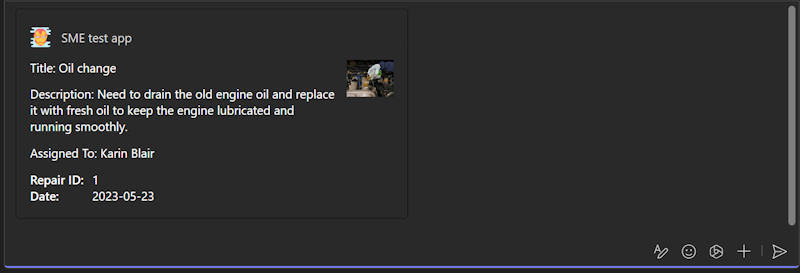
"responseCardTemplate": {
  "$schema": "http://adaptivecards.io/schemas/adaptive-card.json",
  "type": "AdaptiveCard",
  "version": "1.4",
  "body": [
    {
      "type": "Container",
      "items": [
        {
          "type": "ColumnSet",
          "columns": [
            {
              "type": "Column",
              "width": "stretch",
              "items": [
                {
                  "type": "TextBlock",
                  "text": "Title: ${if(title, title, 'N/A')}",
                  "wrap": true
                },
                {
                  "type": "TextBlock",
                  "text": "Description: ${if(description, description, 'N/A')}",
                  "wrap": true
                },
                {
                  "type": "TextBlock",
                  "text": "Assigned To: ${if(assignedTo, assignedTo, 'N/A')}",
                  "wrap": true
                },
                {
                  "type": "Image",
                  "url": "${image}",
                  "size": "Medium",
                  "$when": "${image != null}"
                }
              ]
            },
            {
              "type": "Column",
              "width": "auto",
              "items": [
                {
                  "type": "Image",
                  "url": "${if(image, image, '')}",
                  "size": "Medium"
                }
              ]
            }
          ]
        },
        {
          "type": "FactSet",
          "facts": [
            {
              "title": "Repair ID:",
              "value": "${if(id, id, 'N/A')}"
            },
            {
              "title": "Date:",
              "value": "${if(date, date, 'N/A')}"
            }
          ]
        }
      ]
    }
  ]
  },
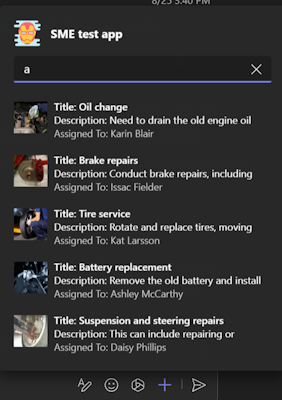
  "previewCardTemplate": {
  "title": "Title: ${if(title, title, 'N/A')}",
  "subtitle": "Description: ${if(description, description, 'N/A')}",
  "text": "Assigned To: ${if(assignedTo, assignedTo, 'N/A')}",
  "image": {
    "url": "${image}",
    "$when": "${image != null}"
    }
  }
 }
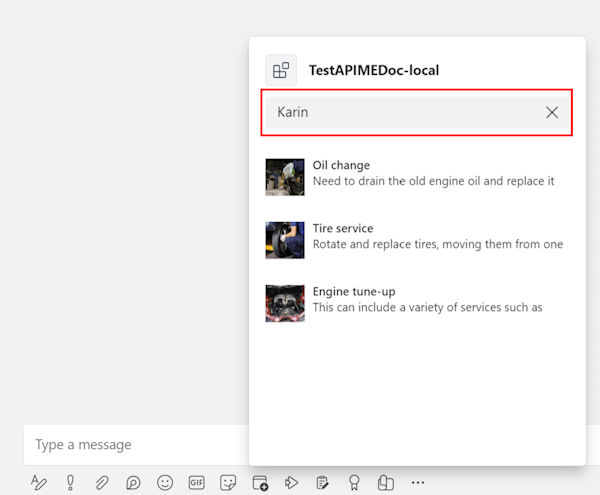
预览卡
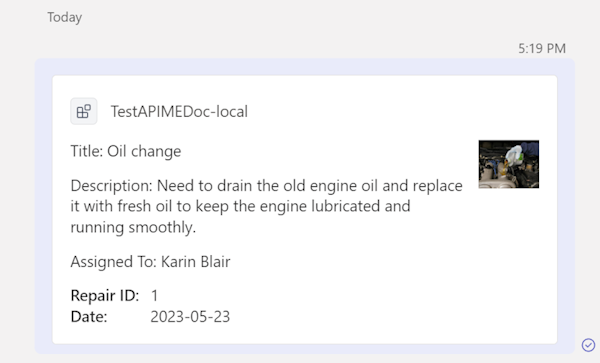
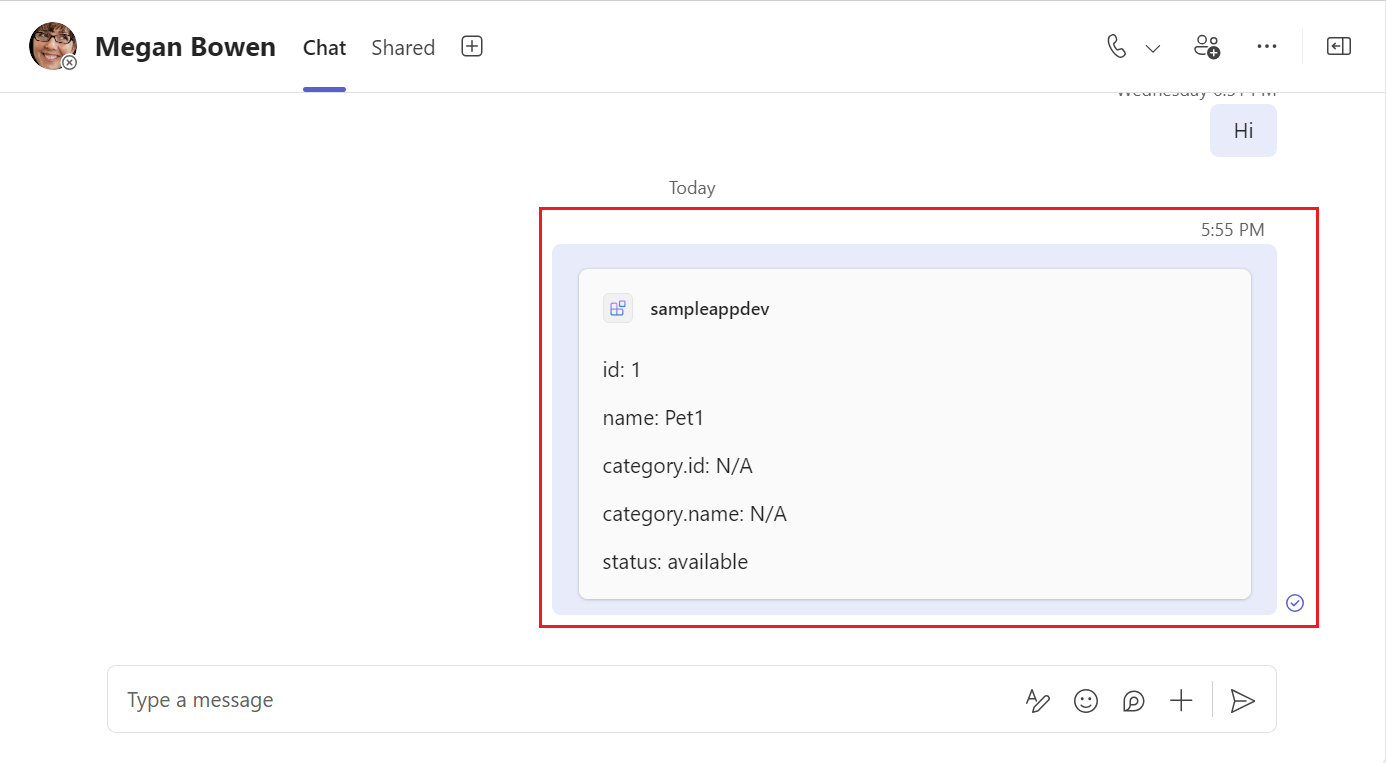
扩展的自适应卡片
参数
| 属性 | 类型 | 说明 | 必需 |
|---|---|---|---|
version |
string |
当前响应呈现模板的架构版本。 | 是 |
jsonPath |
string |
responseCardTemplate 和 previewCardTemplate 应应用到的结果中相关节的路径。 如果未设置,则根对象被视为相关部分。 如果相关部分是数组,则每个条目将映射到 responseCardTemplate 和 previewCardTemplate。 | 否 |
responseLayout |
responseLayoutType |
指定消息扩展浮出控件中结果的布局。 支持的类型为 list 和 grid。 |
是 |
responseCardTemplate |
adaptiveCardTemplate |
用于从结果条目创建自适应卡片的模板。 | 是 |
previewCardTemplate |
previewCardTemplate |
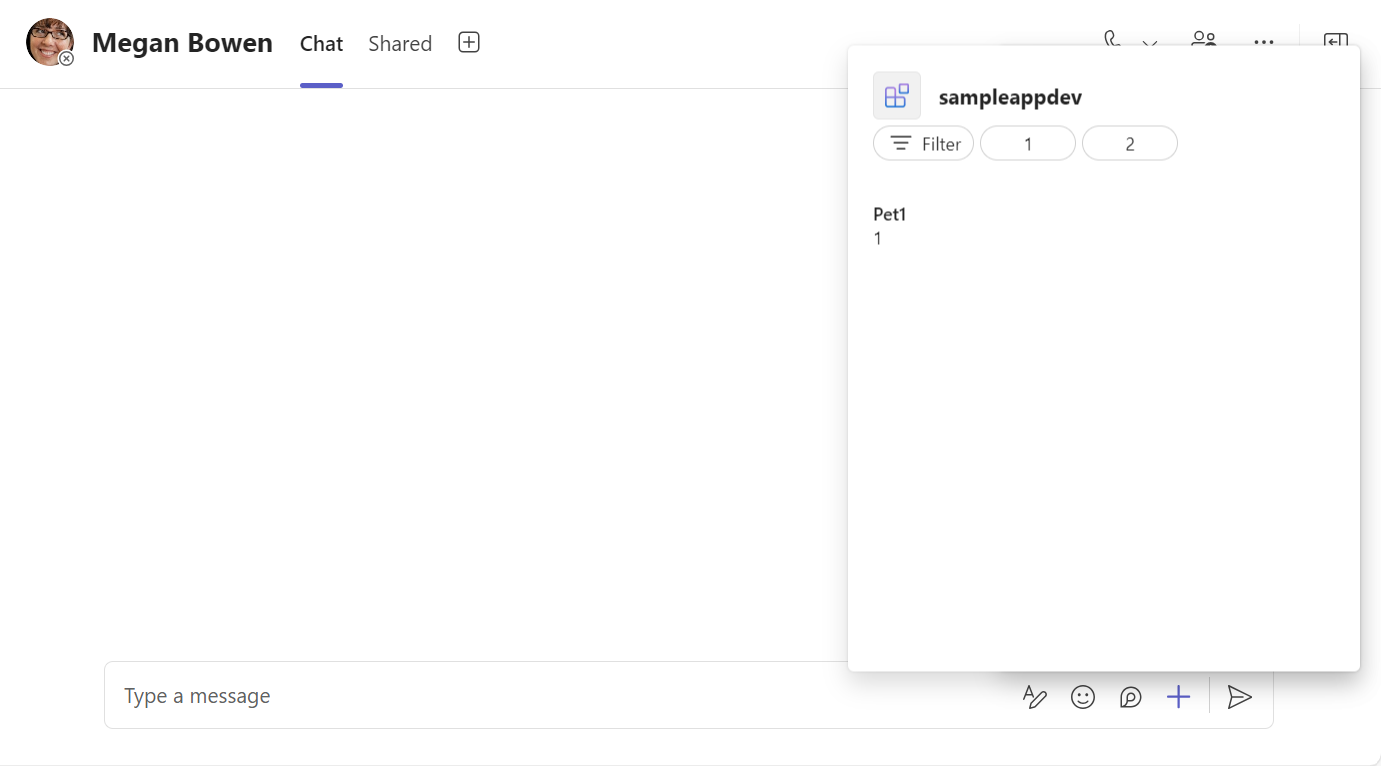
用于从结果条目创建预览卡的模板。 生成的预览卡显示在消息扩展浮出控件菜单中。 | 是 |
JSON 路径
JSON 路径是可选的,但可用于数组,或者用作自适应卡片数据的对象不是根对象。 JSON 路径必须遵循 Newtonsoft 定义的格式。 如果 JSON 路径指向数组,则该数组中的每个条目都与自适应卡片模板绑定,并返回为单独的结果。
例子假设你具有以下产品列表的 JSON,并且你希望为每个条目创建卡结果。
{
   "version": "1.0",
   "title": "All Products",
   "warehouse": {
      "products": [
        ...
      ]
   }
}
可以看到,结果数组位于“products”下,嵌套在“warehouse”下,因此 JSON 路径为“warehouse.products”。
通过将模板插入卡片有效负载编辑器,使用自适应卡片Designer预览自适应卡片。 从数组或 对象获取示例响应条目,并将其插入示例数据编辑器中。 确保卡正确呈现,并且是你喜欢的。
架构映射
OpenAPI 说明文档中的属性映射到自适应卡片模板,如下所示:
string、number、integer类型boolean将转换为 TextBlock。例子
源架构:
string、number、integer和booleanname: type: string example: doggie目标架构:
Textblock{ "type": "TextBlock", "text": "name: ${if(name, name, 'N/A')}", "wrap": true }
array:数组转换为自适应卡内的容器。例子
源架构:
arraytype: array items: required: - name type: object properties: id: type: integer category: type: object properties: name: type: string目标架构:
Container{ "type": "Container", "$data": "${$root}", "items": [ { "type": "TextBlock", "text": "id: ${if(id, id, 'N/A')}", "wrap": true }, { "type": "TextBlock", "text": "category.name: ${if(category.name, category.name, 'N/A')}", "wrap": true } ] }
object:对象转换为自适应卡片中的嵌套属性。例子
源架构:
objectcomponents: schemas: Pet: category: type: object properties: id: type: integer name: type: string目标架构:自适应卡片中的嵌套属性
{
  "type": "TextBlock",
  "text": "category.id: ${if(category.id, category.id, 'N/A')}",
  "wrap": true
},
{
  "type": "TextBlock",
  "text": "category.name: ${if(category.name, category.name, 'N/A')}",
  "wrap": true
}
image:如果属性是图像 URL,则它将转换为自适应卡片中的 Image 元素。例子
源架构:
imageimage: type: string format: uri description: The URL of the image of the item to be repaired目标架构:
"Image"{ "type": "Image", "url": "${image}", "$when": "${image != null}" }
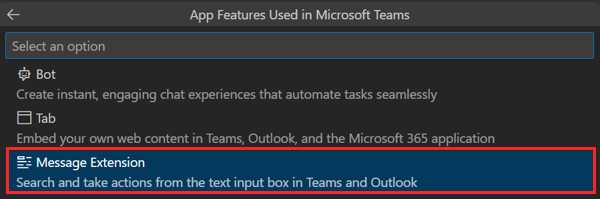
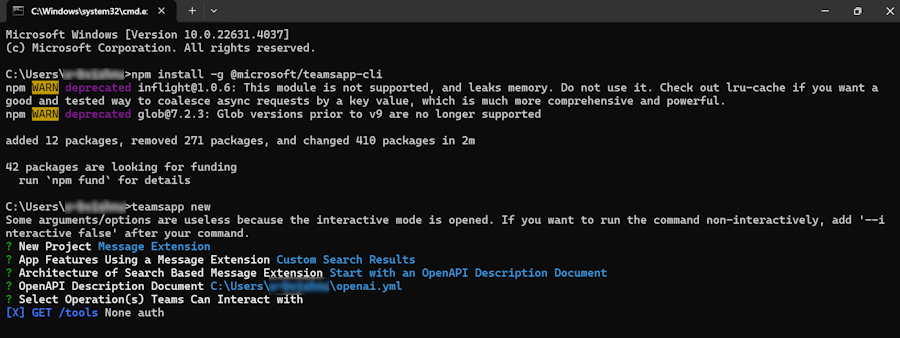
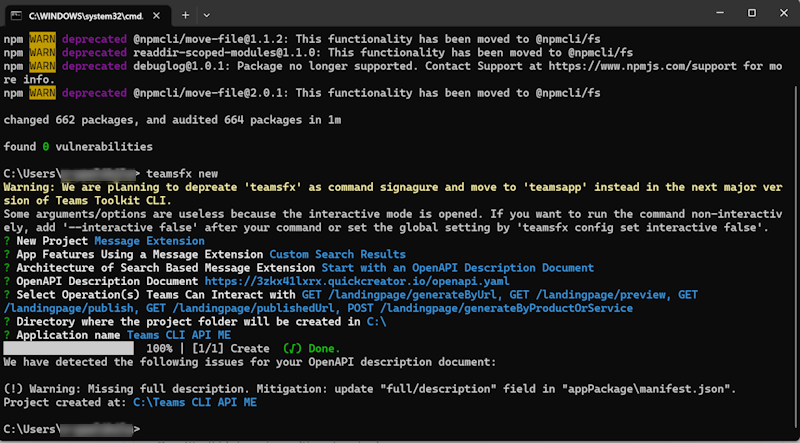
可以使用开发人员门户 for Teams 创建基于 API 的消息扩展,Microsoft 365 代理工具包 (以前称为 Teams Toolkit) for Visual Studio Code、命令行接口 (CLI) 或 Visual Studio。
若要使用开发人员门户创建基于 API 的消息扩展,请执行以下步骤:
转到 开发人员门户。
转到 “应用”。
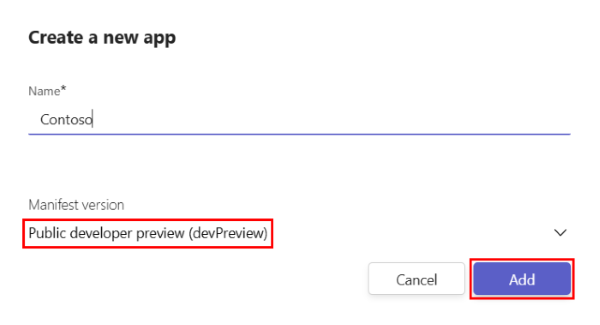
选择“ + 新建应用”。
输入应用的名称,并选择 “清单版本 ”作为 “公共开发人员预览版” (devPreview) 。
选择“添加”。
在左窗格中的 “配置”下,更新以下 “基本信息”:
- 全名
- 简短说明
- 较长说明
- 开发人员或公司名称
- 网站 (必须是有效的 HTTPS URL)
- 隐私策略
- 使用条款
选择“保存”。
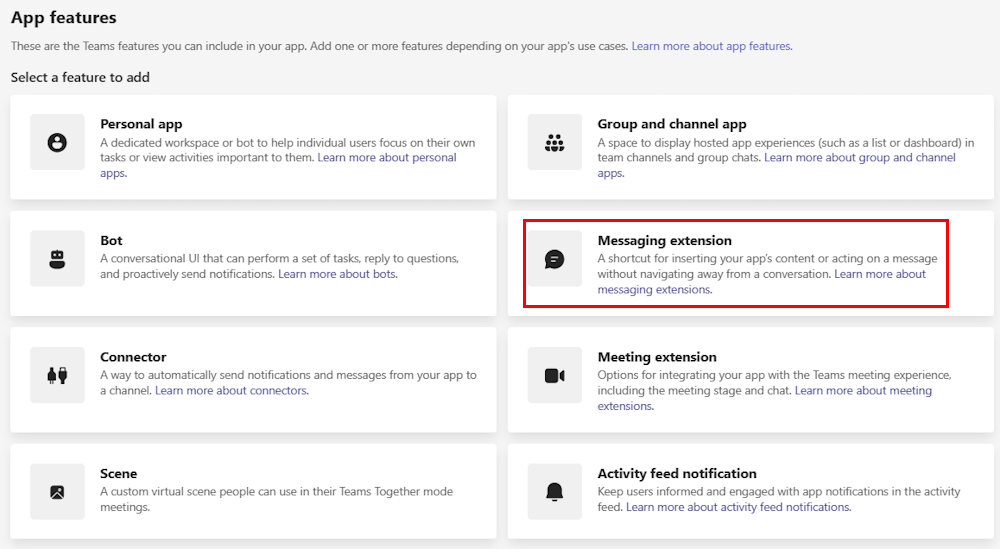
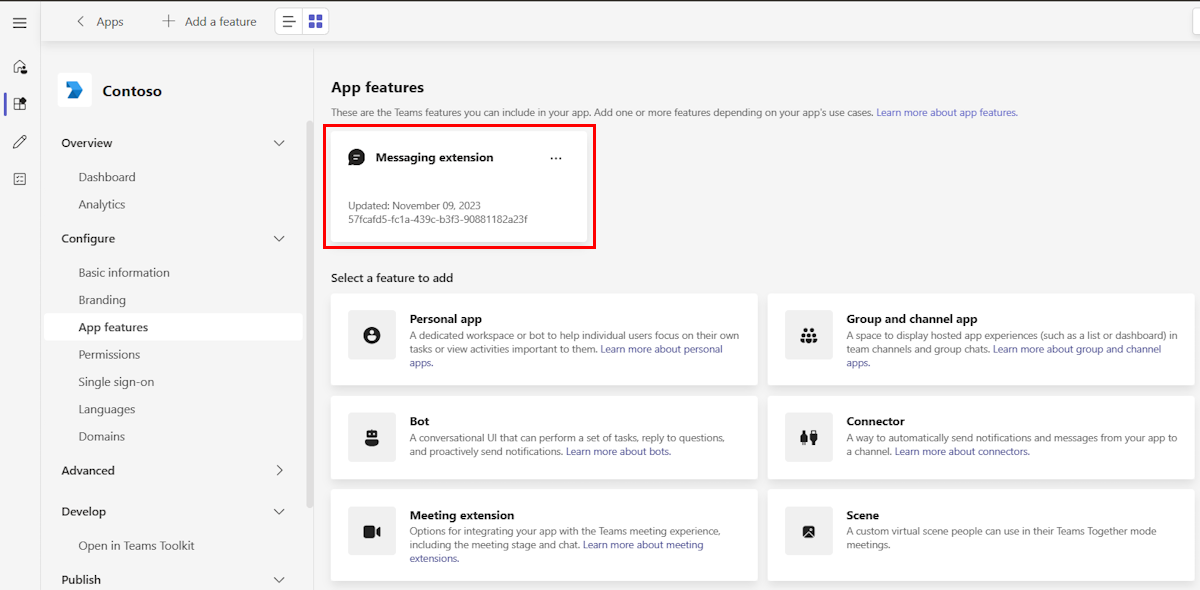
选择“ 应用功能”。
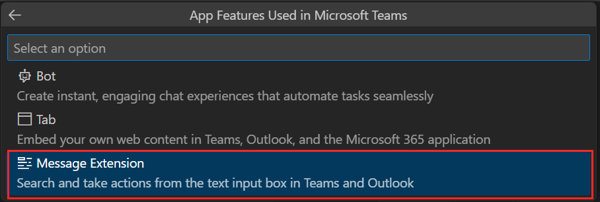
选择 “消息扩展”。
在 “消息扩展类型”下,选择“ API”。
- 如果收到一个免责声明,指出 机器人消息扩展已被用户使用。是否要将消息扩展类型更改为 API?,请选择“ 是,更改”。
在 “OpenAPI 规范”下,选择“ 立即上传”。
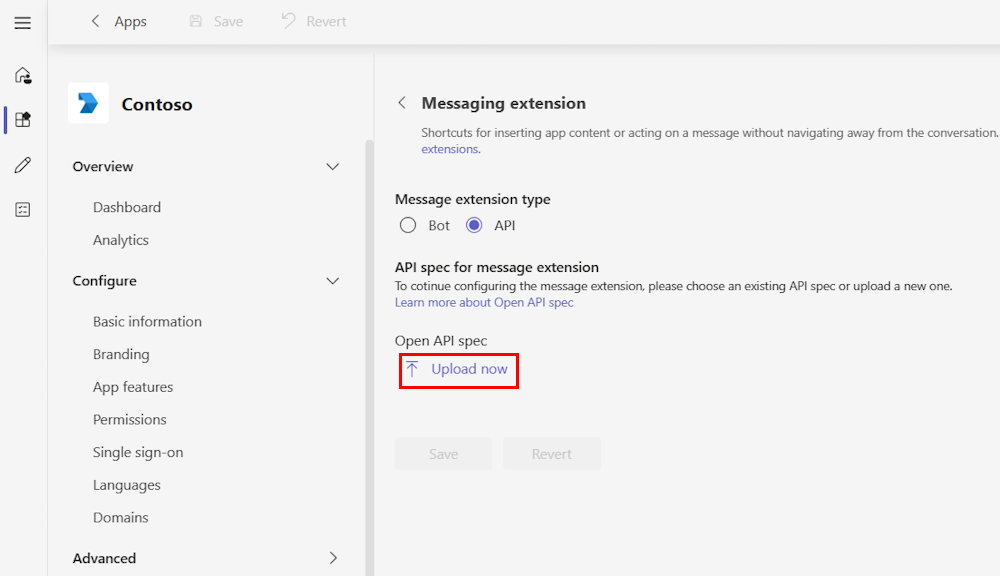
选择 JSON 或 YAML 格式的 OpenAPI 说明文档,然后选择“ 打开”。
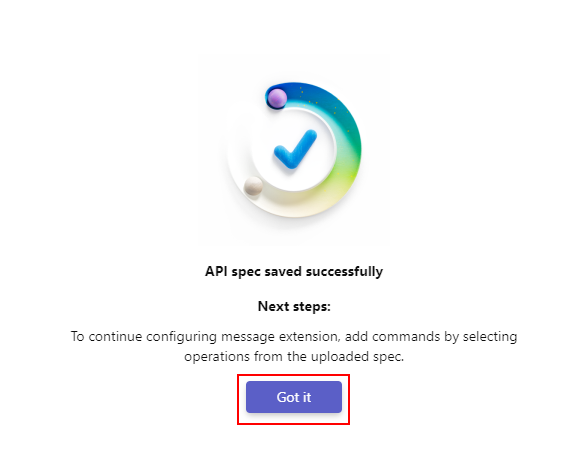
选择“保存”。 此时会显示一个弹出窗口,其中包含 已成功保存的消息 API 规范。
选择“ 已获取”。
添加命令
注意
从 API 生成的消息扩展仅支持单个参数。
可以将命令和参数添加到消息扩展,以添加命令:
在 “消息扩展类型”下,选择“ 添加”。
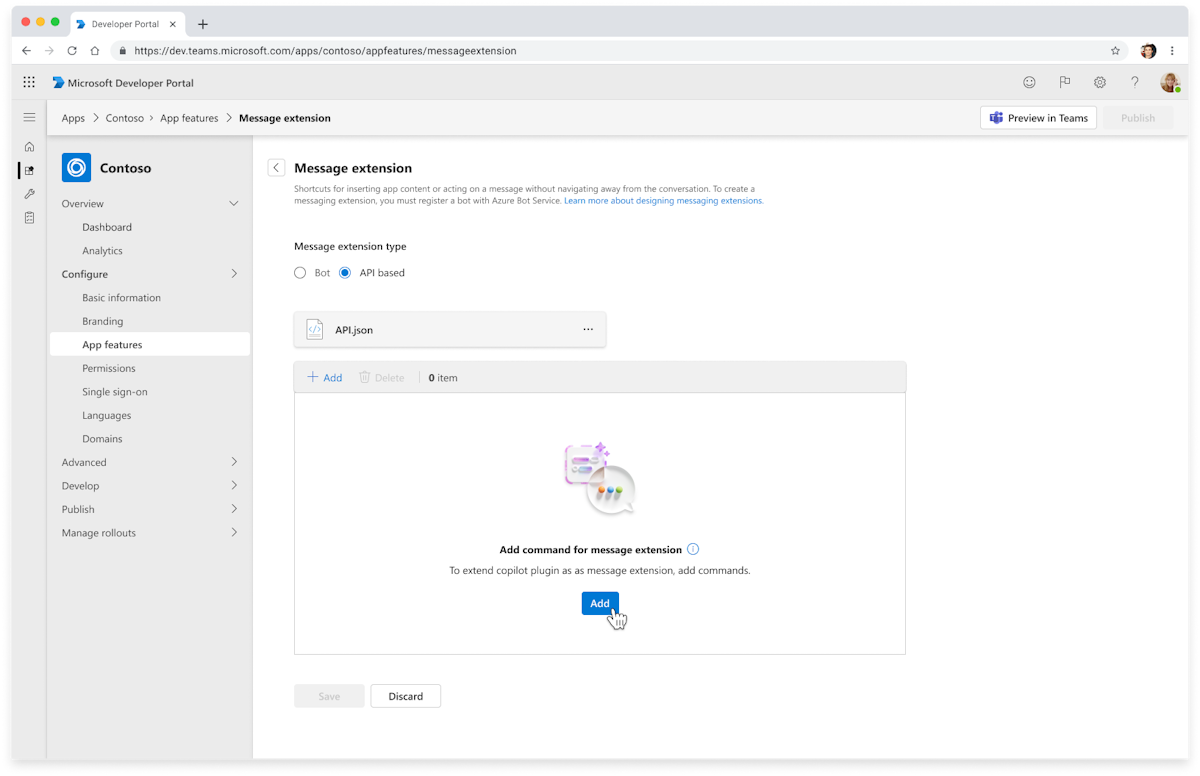
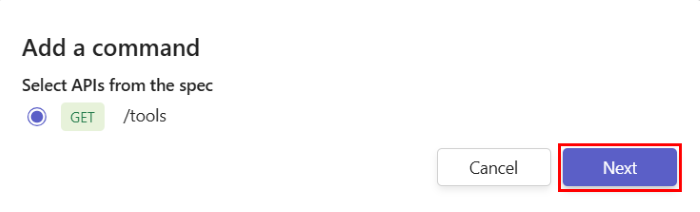
此时将显示 “添加命令 ”弹出窗口,其中包含 OpenAPI 说明文档中所有可用 API 的列表。
从列表中选择一个 API,然后选择“ 下一步”。
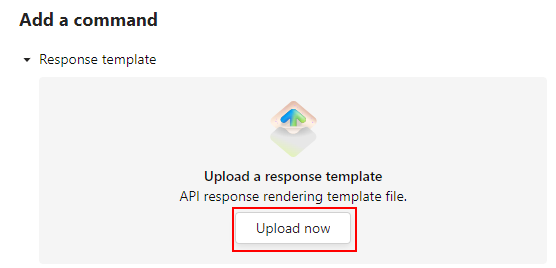
在 “响应模板”下,选择“ 立即上传”。
注意
如果有多个 API,请确保为每个 API 上传自适应卡片响应模板。
选择 JSON 格式的自适应卡片响应模板文件,然后选择 “打开”。
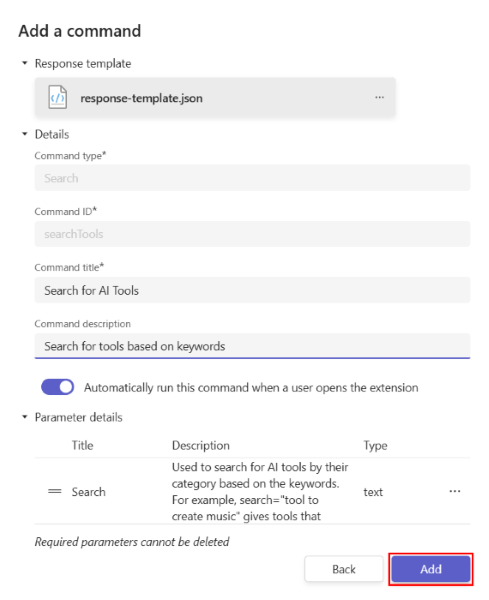
从自适应卡片模板自动更新以下属性:
- 命令类型
- 命令 ID
- 命令标题
- 参数名称
- 参数说明
在 “详细信息”下,更新 命令说明。
如果要使用 智能 Microsoft 365 Copilot 副驾驶® 中的触发器启动命令,请打开“当用户打开扩展时自动运行此命令”开关。
选择“添加”。 已成功添加命令。
选择“保存”。
在 “身份验证和授权”下,选择以下任一选项:
- 不建议使用身份验证 ()
- API 密钥
- OAuth
创建基于 API 的消息扩展。
若要测试在开发人员门户中创建的基于 API 的消息扩展,可以使用以下方法:
在 Teams 中预览:打开邮件扩展,然后选择右上角的“ 在 Teams 中预览 ”。 你将重定向到 Teams,可在其中将应用添加到 Teams 以预览应用。
下载应用包:在消息扩展页上,从左窗格中选择 “应用包 ”,然后在窗口左上角选择“ 下载应用包”。 应用包在 .zip 文件中下载到本地计算机。 可以将应用包上传到团队并测试消息扩展。



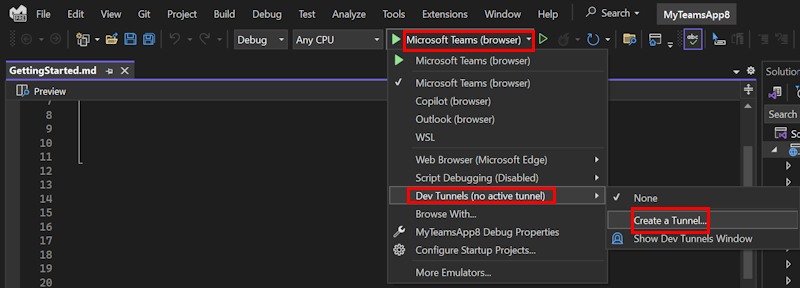
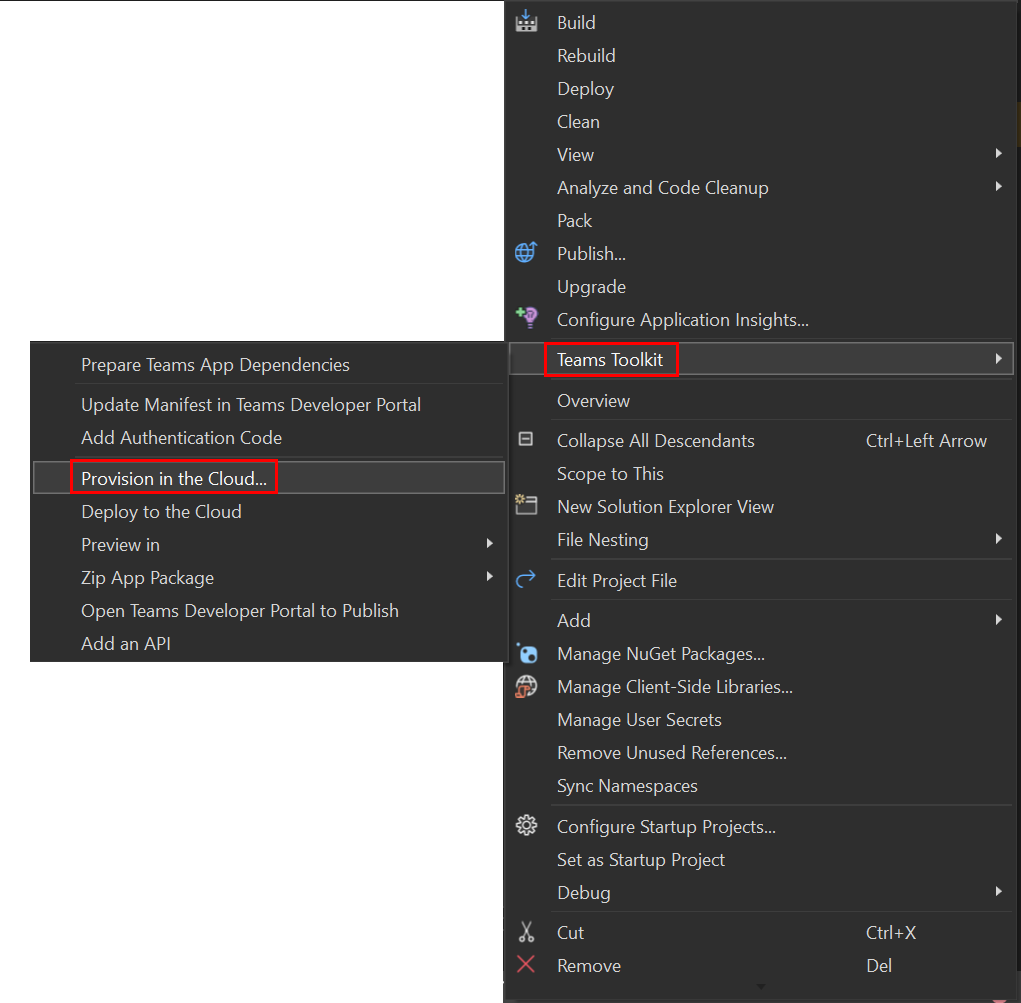
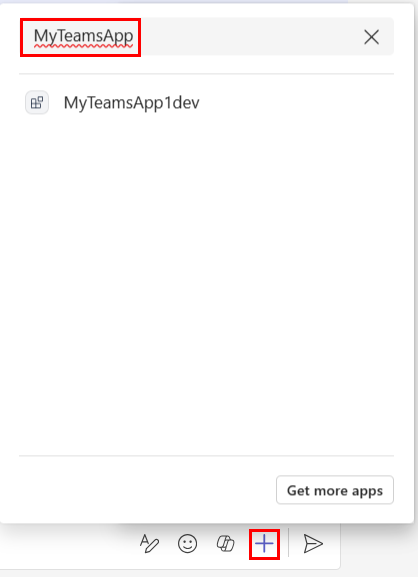
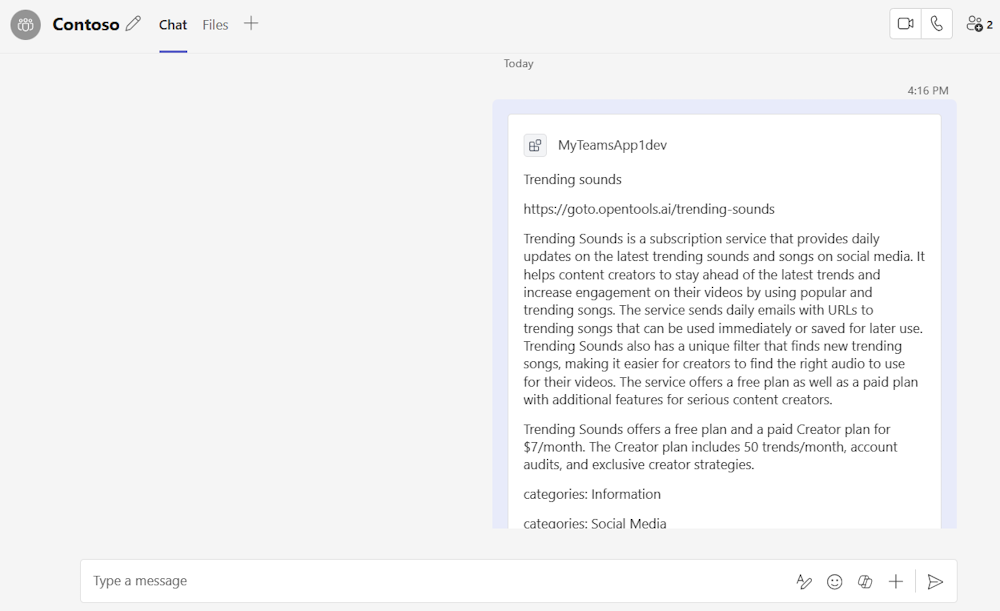
多个参数
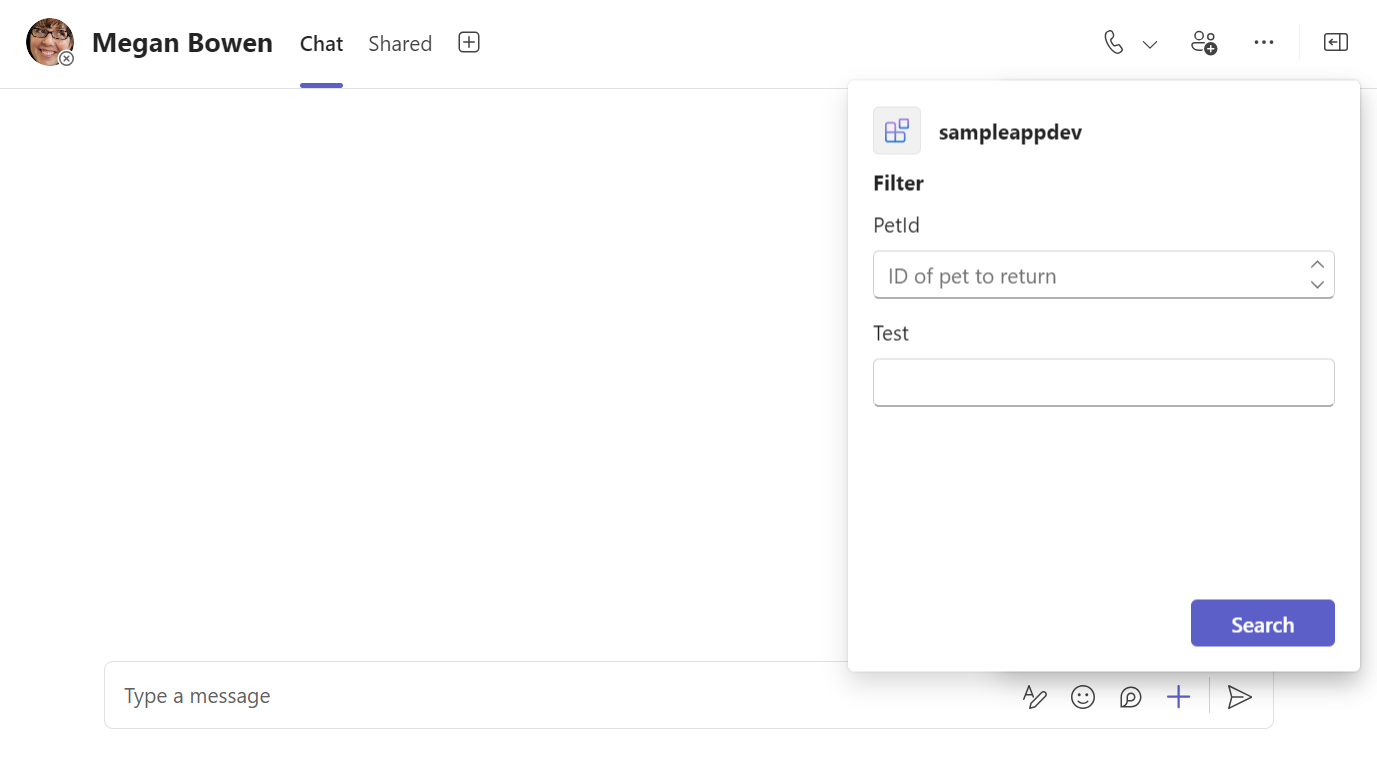
多个参数允许基于 API 的消息扩展具有多个查询命令的输入类型。 例如,可以按流派、分级、状态和日期搜索动漫。
可以为清单中的参数指定输入类型、标题、说明和必填字段。
- 参数
isRequired字段中的 属性指示查询命令是否需要参数。 -
name应用清单中 字段的parameters属性必须与 OpenAPI 说明文档中对应参数的 字段匹配id。
示例
"composeExtensions": [
{
"composeExtensionType": "apiBased",
"apiSpecificationFile": "apiSpecificationFiles/openapi.json",
"commands": [
{
"context": [
"compose"
],
"type": "query",
"title": "Search Animes",
"id": "getAnimeSearch",
"parameters": [
{
"name": "q",
"title": "Search Query",
"description": "The search query",
"isRequired": true
},
{
"name": "type",
"inputType": "choiceset",
"title": "Type",
"description": "Available anime types",
"choices": [
{
"title": "TV",
"value": "tv"
},
{
"title": "OVA",
"value": "ova"
},
{
"title": "Movie",
"value": "movie"
},
{
"title": "Special",
"value": "special"
},
{
"title": "ONA",
"value": "ona"
},
{
"title": "Music",
"value": "music"
}
]
},
{
"name": "status",
"inputType": "choiceset",
"title": "Status",
"description": "Available airing statuses",
"choices": [
{
"title": "Airing",
"value": "airing"
},
{
"title": "Completed",
"value": "complete"
},
{
"title": "Upcoming",
"value": "upcoming"
}
]
},
{
"name": "rating",
"inputType": "choiceset",
"title": "Rating",
"description": "Available ratings",
"choices": [
{
"title": "G",
"value": "g"
},
{
"title": "PG",
"value": "pg"
},
{
"title": "PG-13",
"value": "pg13"
},
{
"title": "R",
"value": "r17"
},
{
"title": "R+",
"value": "r"
},
{
"title": "Rx",
"value": "rx"
}
]
}
],
"description": "Search animes",
"apiResponseRenderingTemplateFile": "response_json/getAnimeSearch.json"
},
{
"context": [
"compose"
],
"type": "query",
"title": "Search mangas",
"id": "getMangaSearch",
"parameters": [
{
"name": "q",
"title": "Search Query",
"description": "The search query",
"isRequired": true
},
{
"name": "type",
"inputType": "choiceset",
"title": "Type",
"description": "Available manga types",
"choices": [
{
"title": "Manga",
"value": "manga"
},
{
"title": "Novel",
"value": "novel"
},
{
"title": "Light Novel",
"value": "lightnovel"
},
{
"title": "One Shot",
"value": "oneshot"
},
{
"title": "Doujin",
"value": "doujin"
},
{
"title": "Manhwa",
"value": "manhwa"
},
{
"title": "Manhua",
"value": "manhua"
}
]
},
{
"name": "status",
"inputType": "choiceset",
"title": "Status",
"description": "Available manga statuses",
"choices": [
{
"title": "Publishing",
"value": "publishing"
},
{
"title": "Complete",
"value": "complete"
},
{
"title": "Hiatus",
"value": "hiatus"
},
{
"title": "Discontinued",
"value": "discontinued"
},
{
"title": "Upcoming",
"value": "upcoming"
}
]
},
{
"name": "start_date",
"title": "Start Date",
"description": "Start date of the manga",
"inputType": "date"
},
{
"name": "end_date",
"title": "End Date",
"description": "End date of the manga",
"inputType": "date"
}
],
分步指南
若要生成基于 API 的消息扩展,请参阅 生成基于 API 的消息扩展。