在某些情况下,不使用 共享运行时 的自定义函数需要对用户进行身份验证才能访问受保护的资源。 不使用共享运行时的自定义函数在 仅限 JavaScript 的运行时中运行。 因此,如果加载项具有任务窗格,则需要在仅限 JavaScript 的运行时与任务窗格使用的支持 HTML 的运行时之间来回传递数据。 为此,可以使用 OfficeRuntime.storage 对象和特殊的对话框 API。
重要
请注意,以下平台上可以使用 Excel 自定义函数。
- Office 网页版
- Windows 版 Office
- Microsoft 365 订阅
- 零售永久 Office 2016 及更高版本
- 批量许可的永久/LTSC Office 2021及更高版本
- Mac 版 Office
以下各项当前不支持 Excel 自定义函数:
- iPad 版 Office
- Windows 上批量许可的 Office 2021 或更早版本的永久版本
注意
Microsoft 365 的统一清单目前不支持自定义函数项目。 必须对自定义函数项目使用仅外接程序清单。 有关详细信息,请参阅 Office 外接程序清单。
注意
建议对 共享运行时使用自定义函数,除非有特定原因不使用共享运行时。 有关运行时的详细信息,请参阅 Office 外接程序中的运行时。
OfficeRuntime.storage 对象
仅限 JavaScript 的运行时在全局窗口中没有 localStorage 可用的对象,你通常在其中存储数据。 相反,代码应通过使用 OfficeRuntime.storage 在自定义函数和任务窗格之间共享数据来设置和获取数据。
建议的用法
当需要从不使用共享运行时的自定义函数加载项进行身份验证时,代码应检查OfficeRuntime.storage,以查看是否已获取访问令牌。 如果没有,请使用 OfficeRuntime.displayWebDialog 对用户进行身份验证,检索访问令牌,然后将令牌存储在 中 OfficeRuntime.storage 以供将来使用。
对话框 API
如果令牌不存在,则应使用 OfficeRuntime.dialog API 要求用户登录。 用户输入凭据后,生成的访问令牌可以存储为 中的 OfficeRuntime.storage项。
注意
仅限 JavaScript 的运行时使用对话框对象,该对象与任务窗格使用的浏览器运行时中的对话框对象略有不同。 它们都称为“对话框 API”,但使用 OfficeRuntime.displayWebDialog 在仅限 JavaScript 的运行时( 而不是Office.ui.displayDialogAsync)中对用户进行身份验证。
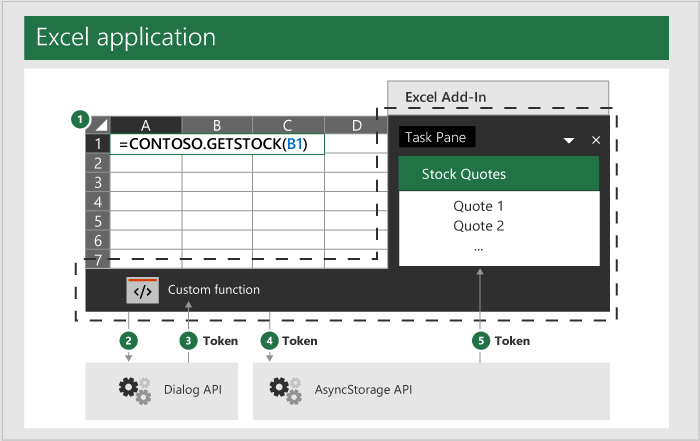
下图概述了此基本过程。 虚线表示自定义函数和外接程序的任务窗格作为一个整体都是外接程序的一部分,尽管它们使用单独的运行时。
- 你可以从 Excel 工作簿中的单元格发出自定义函数调用。
- 自定义函数使用
OfficeRuntime.dialog将你的用户凭据传递给网站。 - 然后,此网站会将访问令牌返回到对话框中的页面。
- 对话框中的 JavaScript 调用 Office.ui.messageParent 函数,以将访问令牌发送到自定义函数。 有关此函数的详细信息,请参阅 将信息从对话框发送到主机页。
- 然后,自定义函数将此访问令牌设置为 中的
OfficeRuntime.storage项。 - 加载项的任务窗格将从
OfficeRuntime.storage访问该令牌。
存储令牌
以下示例来自在自定义函数中使用 OfficeRuntime.storage 代码示例。 有关在不使用共享运行时的外接程序中的自定义函数和任务窗格之间共享数据的完整示例,请参阅此代码示例。
如果使用自定义函数进行身份验证,则它会收到访问令牌,并且需要将其存储在 OfficeRuntime.storage 中。 以下代码示例演示如何调用 storage.setItem 方法来存储值。 函数 storeValue 是一个自定义函数,用于存储用户的值。 你可以对其进行修改以存储所需的任何令牌值。
/**
 * Stores a key-value pair into OfficeRuntime.storage.
 * @customfunction
 * @param {string} key Key of item to put into storage.
 * @param {*} value Value of item to put into storage.
 */
function storeValue(key, value) {
  return OfficeRuntime.storage.setItem(key, value).then(function (result) {
      return "Success: Item with key '" + key + "' saved to storage.";
  }, function (error) {
      return "Error: Unable to save item with key '" + key + "' to storage. " + error;
  });
}
当任务窗格需要访问令牌时,它可以从项中 OfficeRuntime.storage 检索令牌。 以下代码示例演示如何使用 storage.getItem 方法来检索令牌。
/**
 * Read a token from storage.
 * @customfunction GETTOKEN
 */
function receiveTokenFromCustomFunction() {
  const key = "token";
  const tokenSendStatus = document.getElementById('tokenSendStatus');
  OfficeRuntime.storage.getItem(key).then(function (result) {
     tokenSendStatus.value = "Success: Item with key '" + key + "' read from storage.";
     document.getElementById('tokenTextBox2').value = result;
  }, function (error) {
     tokenSendStatus.value = "Error: Unable to read item with key '" + key + "' from storage. " + error;
  });
}
一般指导
Office 加载项基于 Web,你可以使用任何 Web 身份验证技术。 使用自定义函数实施自己的身份验证时,不必遵循特定的模式或方法。 你可能希望查阅有关各种身份验证模式的文档,请先参阅这篇关于通过外部服务进行授权的文章。
在开发自定义函数时,避免使用以下位置存储数据:
-
localStorage:不使用共享运行时的自定义函数无权访问全局window对象,因此无权访问 中localStorage存储的数据。 -
Office.context.document.settings:此位置不安全,任何使用该加载项的人都可以提取信息。
对话框 API 示例
在以下代码示例中,函数 getTokenViaDialog 使用 OfficeRuntime.displayWebDialog 函数显示对话框。 此示例用于演示 方法的功能,而不是演示如何进行身份验证。
/**
 * Function retrieves a cached token or opens a dialog box if there is no saved token. Note that this isn't a sufficient example of authentication but is intended to show the capabilities of the displayWebDialog method.
 * @param {string} url URL for a stored token.
 */
function getTokenViaDialog(url) {
  return new Promise (function (resolve, reject) {
    if (_dialogOpen) {
      // Can only have one dialog box open at once. Wait for previous dialog box's token.
      let timeout = 5;
      let count = 0;
      const intervalId = setInterval(function () {
        count++;
        if(_cachedToken) {
          resolve(_cachedToken);
          clearInterval(intervalId);
        }
        if(count >= timeout) {
          reject("Timeout while waiting for token");
          clearInterval(intervalId);
        }
      }, 1000);
    } else {
      _dialogOpen = true;
      OfficeRuntime.displayWebDialog(url, {
        height: '50%',
        width: '50%',
        onMessage: function (message, dialog) {
          _cachedToken = message;
          resolve(message);
          dialog.close();
          return;
        },
        onRuntimeError: function(error, dialog) {
          reject(error);
        },
      }).catch(function (e) {
        reject(e);
      });
    }
  });
}
后续步骤
了解如何 调试自定义函数。