[本主题是预发行文档,有可能会有所更改。]
GitHub Copilot 对话助手 for Visual Studio Code 架构支持 Visual Studio Code (VS Code) 扩展将其工具与 GitHub Copilot 对话助手 体验无缝集成。 这种集成是通过创建使用 GitHub Copilot 对话助手 扩展 API 的聊天扩展,将聊天参与者添加到 VS 代码环境中来实现的。
此功能允许 @powerpages 成为 Power Platform Tools VS Code 扩展的参与者。 用户现在可以在 GitHub Copilot 聊天中添加 ,从而利用 @powerpages,而无需离开他们当前的工作环境。 这种集成确保用户可以充分利用 Copilot 的两种功能。
Important
- 这是一项预览功能。
- 预览功能不适合生产使用且功能可能受限。 这些功能在正式发布之前已经可用,以便客户可以抢先体验并提供反馈。
Prerequisites
在开始将 Power Platform Tools VS Code 扩展用于 GitHub Copilot 对话助手 之前,请验证以下先决条件:
- 您已在机器上安装了 VS Code。
- Power Platform Tools VS Code 扩展已安装。
- GitHub Copilot聊天扩展已安装并配置。
在 VS Code 的 GitHub Copilot 对话助手中使用 @powerpages 参与者
在 Power Platform Tools VS Code 扩展与 GitHub Copilot Chat 扩展一起安装后,您就可以开始使用 GitHub Copilot 聊天中的 @powerpages 参与者来接收针对 Power Pages 的针对性编码帮助。
要将 @powerpages 参与者添加到聊天中:
在 VS Code 中打开网站内容:
使用 Power Platform CLI 下载网站内容。 要针对 Microsoft Dataverse 环境进行身份验证和下载网站内容,请参阅教程将 Microsoft Power Platform CLI 与 Power Pages 结合使用 - 下载网站内容。
Power Platform Tools 扩展通过 Visual Studio 代码集成终端,自动支持从 Visual Studio Code 内使用 Microsoft Power Platform CLI 命令。
激活 GitHub Copilot 对话助手:
选择左侧导航栏中的聊天图标,打开 Copilot 聊天界面。

验证 Copilot 聊天已激活。

添加 @powerpages 参与者:
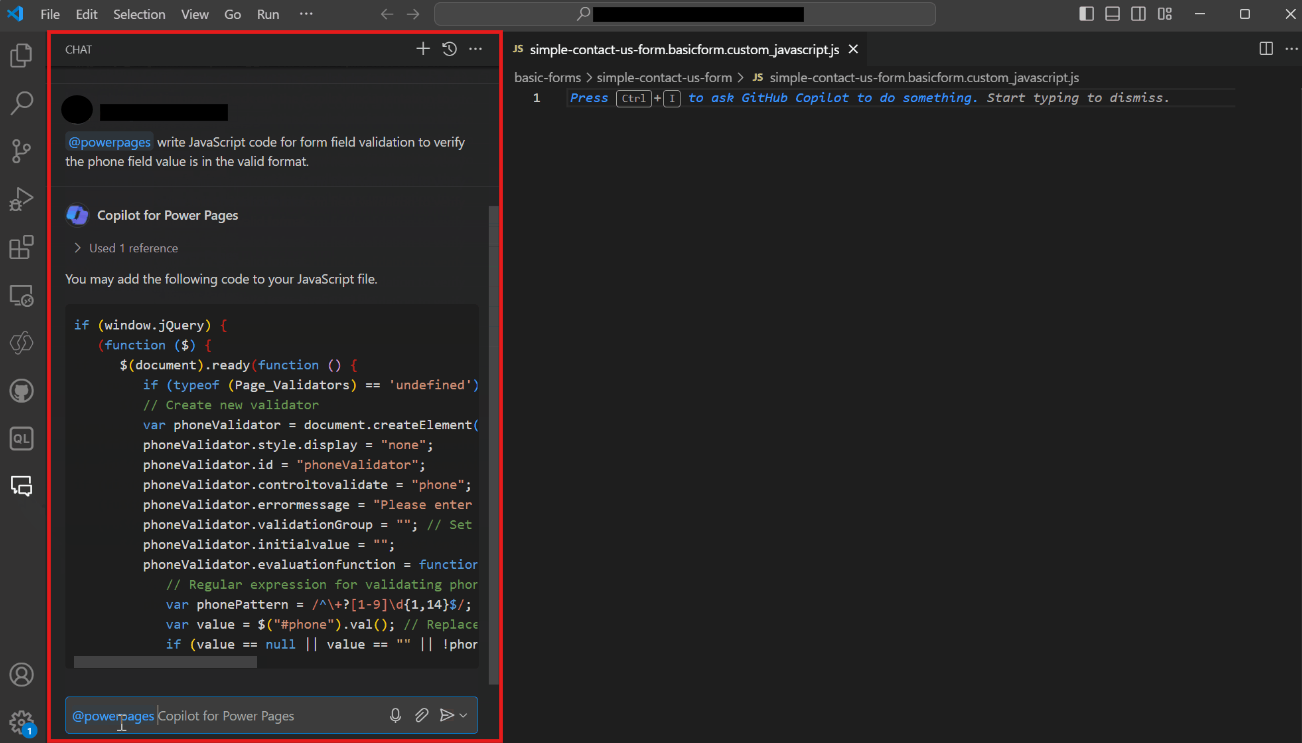
在 Copilot 聊天中,键入 @powerpages,然后输入您的请求。 例如,您可以说
@powerpages write JavaScript code for form field validation to verify the phone field value is in the valid format或问@powerpages explain the following code {% include 'Page Copy'%}。 Copilot 为 Power Pages 提供专门定制的回答,帮助您编写或解释代码。