Xamarin.FormsMap 控件允许使用 Pin 对象标记位置。 Pin 是一个地图标记,在点击时打开信息窗口:
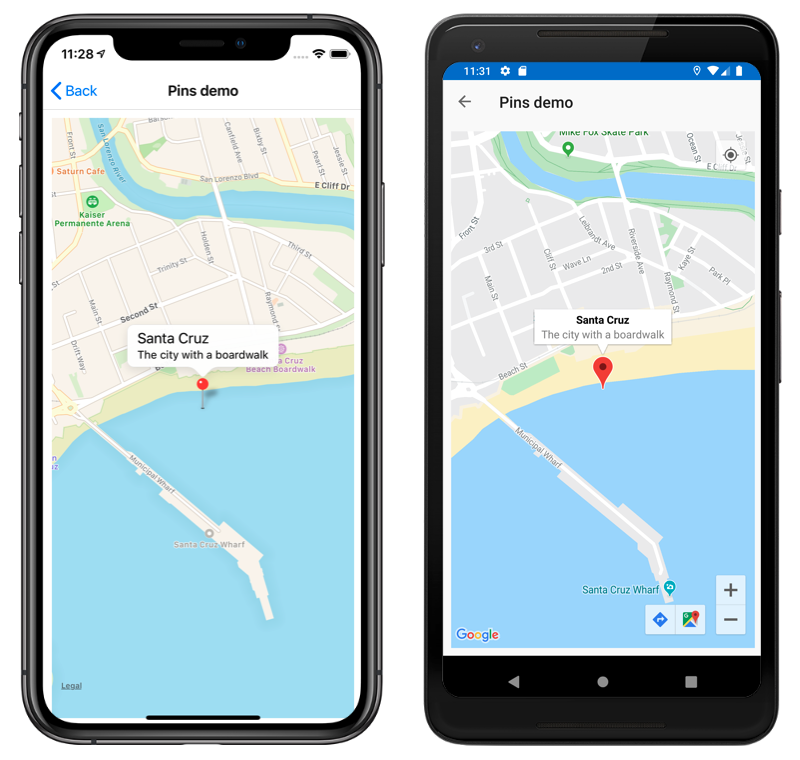
将 Pin 对象添加到 Map.Pins 集合中时,将在地图上呈现图钉。
Pin 类具有以下属性:
Address,类型为string,通常表示图钉位置的地址。 但是,它可以是任何string内容,而不仅仅是地址。Label的类型为string,通常表示图钉标题。Position的类型为Position,表示图钉的纬度和经度。Type的类型为PinType,表示图钉的类型。
这些属性都由 BindableProperty 对象提供支持,这意味着 Pin 可以作为数据绑定的目标。 要详细了解数据绑定 Pin 对象,请参阅显示图钉集合。
此外,Pin 类还定义 MarkerClicked 和 InfoWindowClicked 事件。 点击图钉时会触发 MarkerClicked 事件,而点击信息窗口时会触发 InfoWindowClicked 事件。 两个事件随附的 PinClickedEventArgs 对象具有一个 HideInfoWindow 属性,类型为 bool。
显示图钉
<ContentPage ...
             xmlns:maps="clr-namespace:Xamarin.Forms.Maps;assembly=Xamarin.Forms.Maps">
     <maps:Map x:Name="map"
               IsShowingUser="True"
               MoveToLastRegionOnLayoutChange="False">
         <x:Arguments>
             <maps:MapSpan>
                 <x:Arguments>
                     <maps:Position>
                         <x:Arguments>
                             <x:Double>36.9628066</x:Double>
                             <x:Double>-122.0194722</x:Double>
                         </x:Arguments>
                     </maps:Position>
                     <x:Double>0.01</x:Double>
                     <x:Double>0.01</x:Double>
                 </x:Arguments>
             </maps:MapSpan>
         </x:Arguments>
         <maps:Map.Pins>
             <maps:Pin Label="Santa Cruz"
                       Address="The city with a boardwalk"
                       Type="Place">
                 <maps:Pin.Position>
                     <maps:Position>
                         <x:Arguments>
                             <x:Double>36.9628066</x:Double>
                             <x:Double>-122.0194722</x:Double>
                         </x:Arguments>
                     </maps:Position>
                 </maps:Pin.Position>
             </maps:Pin>
         </maps:Map.Pins>
     </maps:Map>
</ContentPage>
此 XAML 会创建一个 Map 对象,该对象显示由 MapSpan 对象指定的区域。 MapSpan 对象以 Position 对象表示的经纬度为中心,该对象延伸 0.01 个经纬度值。 将 Pin 对象添加到 Map.Pins 集合中,并在 Map 上由其 Position 属性指定位置处绘制。 有关 Position 结构的信息,请参阅地图位置和距离。 若要了解如何在 XAML 中将自变量传递给缺少默认构造函数的对象,请参阅在 XAML 中传递自变量。
等效 C# 代码如下:
using Xamarin.Forms.Maps;
// ...
Map map = new Map
{
  // ...
};
Pin pin = new Pin
{
  Label = "Santa Cruz",
  Address = "The city with a boardwalk",
  Type = PinType.Place,
  Position = new Position(36.9628066, -122.0194722)
};
map.Pins.Add(pin);
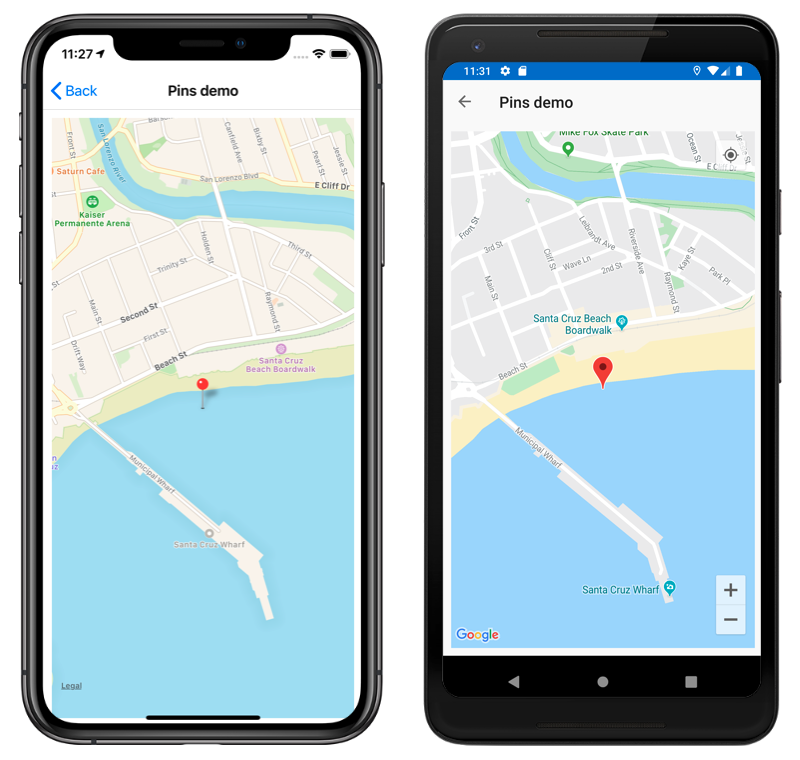
此示例代码会生成在地图上呈现的单个图钉:
与图钉交互
默认情况下,点击 Pin 时,会显示其信息窗口:
点击地图上的其他地方会关闭信息窗口。
Pin 类定义 MarkerClicked 事件,点击 Pin 时会触发该事件。 无需处理此事件即可显示信息窗口。 相反,当需要通知已点击特定图钉时,应处理此事件。
Pin 类还定义 InfoWindowClicked 事件,在点击信息窗口时会触发该事件。 当需要通知已点击特定信息窗口时,应处理此事件。
下方代码演示了处理这些事件的示例:
using Xamarin.Forms.Maps;
// ...
Pin boardwalkPin = new Pin
{
    Position = new Position(36.9641949, -122.0177232),
    Label = "Boardwalk",
    Address = "Santa Cruz",
    Type = PinType.Place
};
boardwalkPin.MarkerClicked += async (s, args) =>
{
    args.HideInfoWindow = true;
    string pinName = ((Pin)s).Label;
    await DisplayAlert("Pin Clicked", $"{pinName} was clicked.", "Ok");
};

Pin wharfPin = new Pin
{
    Position = new Position(36.9571571, -122.0173544),
    Label = "Wharf",
    Address = "Santa Cruz",
    Type = PinType.Place
};
wharfPin.InfoWindowClicked += async (s, args) =>
{
    string pinName = ((Pin)s).Label;
    await DisplayAlert("Info Window Clicked", $"The info window was clicked for {pinName}.", "Ok");
};
两个事件随附的 PinClickedEventArgs 对象具有一个 HideInfoWindow 属性,类型为 bool。 当此属性在事件处理程序中设置为 true 时,信息窗口将被隐藏。
图钉类型
Pin 对象包括 Type 属性,类型为 PinType,该属性表示图钉的类型。 PinType 枚举定义以下成员:
Generic,表示泛型图钉。Place,表示位置的图钉。SavedPin,表示已保存位置的图钉。SearchResult,表示搜索结果的图钉。
但是,将 Pin.Type 属性设置为任何 PinType 成员均不会更改呈现图钉的外观。 你必须改为创建自定义呈现器来自定义图钉外观。 有关详细信息,请参阅自定义地图图钉。
显示 Pin 集合
Map 类定义以下属性:
ItemsSource,类型为IEnumerable,指定要显示的IEnumerable项的集合。ItemTemplate,类型为DataTemplate,指定要应用于显示项集合中的每一项的DataTemplate。ItemTemplateSelector,类型为DataTemplateSelector,指定将用于在运行时为项选择DataTemplate的DataTemplateSelector。
重要
同时设置 ItemTemplate 和 ItemTemplateSelector 属性时,ItemTemplate 属性将优先。
可以使用图钉填充 Map,方法是使用数据绑定将其 ItemsSource 属性绑定到 IEnumerable 集合:
<ContentPage xmlns="http://xamarin.com/schemas/2014/forms"
             xmlns:x="http://schemas.microsoft.com/winfx/2009/xaml"
             xmlns:maps="clr-namespace:Xamarin.Forms.Maps;assembly=Xamarin.Forms.Maps"
             x:Class="WorkingWithMaps.PinItemsSourcePage">
    <Grid>
        ...
        <maps:Map x:Name="map"
                  ItemsSource="{Binding Locations}">
            <maps:Map.ItemTemplate>
                <DataTemplate>
                    <maps:Pin Position="{Binding Position}"
                              Address="{Binding Address}"
                              Label="{Binding Description}" />
                </DataTemplate>
            </maps:Map.ItemTemplate>
        </maps:Map>
        ...
    </Grid>
</ContentPage>
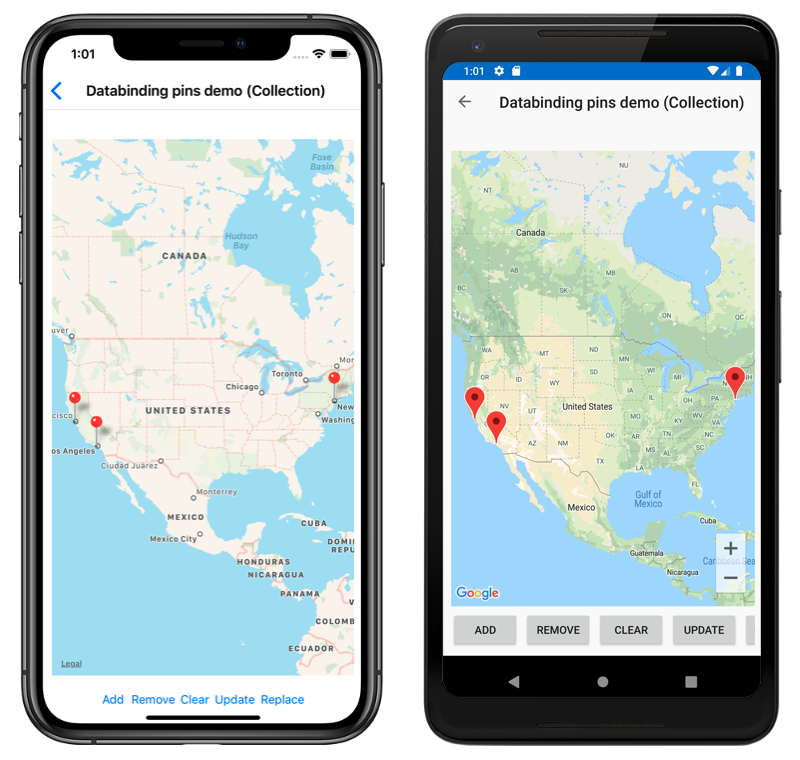
ItemsSource 属性数据绑定到连接视图模型的 Locations 属性,该属性返回 Location 对象的 ObservableCollection(一个自定义类型)。 每个 Location 对象都定义类型为 string 的 Address 和 Description 属性,以及类型为 Position 的 Position 属性。
可以定义 IEnumerable 集合中每个项的外观,方法是将 ItemTemplate 属性设置为包含数据绑定到相应属性的 Pin 对象的 DataTemplate。
以下屏幕截图显示了一个 Map,其中显示了一个使用数据绑定的 Pin 集合:
在运行时选择项外观
可通过将 ItemTemplateSelector 属性设置为 DataTemplateSelector,在运行时根据项值选择 IEnumerable 集合中每个项的外观:
<ContentPage ...
             xmlns:local="clr-namespace:WorkingWithMaps"
             xmlns:maps="clr-namespace:Xamarin.Forms.Maps;assembly=Xamarin.Forms.Maps">
    <ContentPage.Resources>
        <local:MapItemTemplateSelector x:Key="MapItemTemplateSelector">
            <local:MapItemTemplateSelector.DefaultTemplate>
                <DataTemplate>
                    <maps:Pin Position="{Binding Position}"
                              Address="{Binding Address}"
                              Label="{Binding Description}" />
                </DataTemplate>
            </local:MapItemTemplateSelector.DefaultTemplate>
            <local:MapItemTemplateSelector.XamarinTemplate>
                <DataTemplate>
                    <!-- Change the property values, or the properties that are bound to. -->
                    <maps:Pin Position="{Binding Position}"
                              Address="{Binding Address}"
                              Label="Xamarin!" />
                </DataTemplate>
            </local:MapItemTemplateSelector.XamarinTemplate>
        </local:MapItemTemplateSelector>
    </ContentPage.Resources>

    <Grid>
        ...
        <maps:Map x:Name="map"
                  ItemsSource="{Binding Locations}"
                  ItemTemplateSelector="{StaticResource MapItemTemplateSelector}" />
        ...
    </Grid>
</ContentPage>
以下示例显示了 MapItemTemplateSelector 类:
public class MapItemTemplateSelector : DataTemplateSelector
{
    public DataTemplate DefaultTemplate { get; set; }
    public DataTemplate XamarinTemplate { get; set; }

    protected override DataTemplate OnSelectTemplate(object item, BindableObject container)
    {
        return ((Location)item).Address.Contains("San Francisco") ? XamarinTemplate : DefaultTemplate;
    }
}
MapItemTemplateSelector 类定义 DefaultTemplate 和 XamarinTemplate DataTemplate 属性,这些属性设置为不同的数据模板。 OnSelectTemplate 方法返回 XamarinTemplate,点击 Pin 时,后者将“Xamarin”显示为标签,此时项的地址包含“San Francisco”。 如果项的地址不包含“San Francisco”,OnSelectTemplate 方法将返回 DefaultTemplate。
注意
此功能的用例是基于 Pin 子类型将子类化 Pin 对象的属性绑定到其他属性。
有关数据模板选择器的详细信息,请参阅创建 Xamarin.Forms DataTemplateSelector。