重要
新式化工具和所有其他 PnP 组件均为开源工具,由一个活跃社区提供支持服务。 没有来自 Microsoft 的官方支持渠道的开放源代码工具支持的 SLA。
SharePoint 从 SharePoint 2010 开始通过博客网站模板支持经典博客,如今,这些博客网站及其博客页面可在 SharePoint Online 中正常工作。 然而,与现代通信网站中的新式页面相比,整个博客创建和发布体验已经过时了。 因此,我们建议您使用现代通信网站来满足您未来的博客需求。 如果您现在的博客网站带有您希望“升级”到现代通信网站中的新式页面,请按照本文中概述的步骤进行操作。
除了上述经典博客页面之外,SharePoint Online 用户还可以使用 Delve 博客。 Delve 博客即将弃用,因此强烈建议您将与业务相关的 Delve 博客页面转换为新式通信网站中的新式页面。
重要
Delve 博客已停用。
步骤 1:了解租户中何处有活跃使用的博客
在开始对博客网站进行现代化改造之前,回答以下问题很重要:
- 我的租户中的博客网站在哪里? 在博客网站中获得见解将帮助您评估可能的现代化影响
- 哪些博客网站仍在积极使用? 最初 () 只对主动维护的博客网站进行现代化改造是有意义的
运行 Microsoft 365 评估工具的经典 SharePoint 页面评估 ,以发现经典博客页面并查看其使用情况。 如果需要解释现有 SharePoint 现代化扫描程序运行的输出,请参阅 旧版博客报告文档。
第 2 步:准备目标通信网站以接收现代化的博客页面
经典和 Delve 博客文章位于经典博客网站或 Delve 博客的列表中,当您对这些博客文章进行现代化改造时,它们将是新式网站(通常是通信网站)中的新式页面。 因此,在开始博客现代化之前,您首先需要有一个可用的通信网站。 根据复制博客元数据 (例如博客文章类别) 的愿望,您需要相应地配置 SitePages 库。
步骤 2.1:创建通信网站
若要创建通信网站,可以使用 SharePoint 用户界面或使用 PnP PowerShell。 使用 SharePoint 用户界面,可以:
- 导航到左上角的 SharePoint 主页 (华夫饼图标 --> SharePoint)
- 单击“创建网站”
- 单击 “通信网站”
- 为站点命名,然后单击“ 完成”
使用 PnP PowerShell 时,请执行以下步骤:
# Connect to a site in your tenant
Connect-PnPOnline -Url https://contoso.sharepoint.com

# Create a new communication site based upon an English template
New-PnPSite -Type CommunicationSite -SiteDesign Topic -Url https://contoso.sharepoint.com/sites/modernblog -Title "Blog site" -Lcid 1033
注意
PnP PowerShell 是一种开放源代码解决方案,其中包含为其提供支持的活动社区。 没有用于 Microsoft 开放源代码工具支持的 SLA。
步骤 2.2:配置通信网站
注意
如果要使 Delve 博客现代化,则可以跳过此步骤。
经典博客文章可以有一个或多个元数据字段,您想要在现代博客页面上接管这些字段。 如果是这种情况,则需要在新式通信网站的 SitePages 库中定义所需的元数据字段。 可通过以下方式使用 SharePoint 用户界面完成此操作:
- 点击顶部导航中的页面
- 单击“ + 添加列 ”,然后定义所需的列 ()
最常用的元数据字段是 PostCategory 用于对创建的博客文章进行分类的字段。 在经典博客中,这是一个查找列,但在现代博客网站中,它应该创建为 多值选择字段:
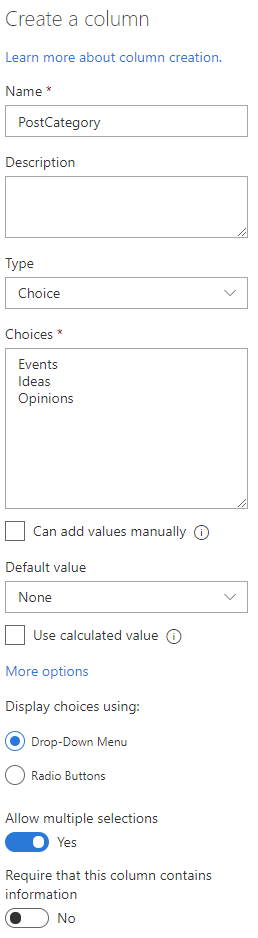
使用 PnP PowerShell 时,请执行以下步骤:
# Connect to the communication site you created in the previous step
Connect-PnPOnline -Url https://contoso.sharepoint.com/sites/modernblog

# Add the field to the SitePages library
Add-PnPField -List "SitePages" -DisplayName "PostCategory" -InternalName "PostCategory" -Type MultiChoice -AddToDefaultView -Choices "Events","Ideas","Opinions"
步骤 3a:将经典博客页面转换为现代页面
注意
如果要使 Delve 博客现代化,请参阅步骤 3b。
博客现代化过程的最后一步是将经典博客文章转换为现代页面。 这可以使用 SharePoint 页面转换来完成,它允许 你在 SharePoint 2010、SharePoint 2013、SharePoint 2016、SharePoint 2019 或 SharePoint Online 中读取 wiki、web 部件、博客或发布页面) 的任何经典 (页面,并在 SharePoint Online 中将页面创建为新式页面。 在指南中,我们将演示如何将 SharePoint Online 中的经典博客页面转换为 SharePoint Online 中的新式页面,但可以应用相同的逻辑将经典本地博客转换为 SharePoint Online 中的新式通信网站。
若要运行博客页面转换,确实需要使用 PnP PowerShell。 下面的代码段演示如何在新式页面中转换一篇经典博客文章。
# Connect to the classic blog site
Connect-PnPOnline -Url https://contoso.sharepoint.com/sites/classicblog

# Convert the blog post with title 'Financial results Q1 2019'
ConvertTo-PnPPage -BlogPage -Identity "Financial results Q1 2019" -Overwrite -TargetWebUrl https://contoso.sharepoint.com/sites/modernblog -LogType File -LogVerbose -LogFolder "c:\temp" -KeepPageCreationModificationInformation -PostAsNews -SetAuthorInPageHeader -CopyPageMetadata
上面 ConvertTo-PnPPage 的 cmdlet 将读取标题为“2019 年第 1 季度财务业绩”的经典博客页面,并将其创建为新式页面, (https://contoso.sharepoint.com/sites/modernblog 以前创建的新式博客网站) 。 博客页面转换将:
- 保留经典博客页面作者、编辑、创建和修改信息 (
-KeepPageCreationModificationInformation) - 将经典博客页面作者设置为新式博客页面标题中的作者 (
-SetAuthorInPageHeader) - 如果新式博客 (
-CopyPageMetadata中存在相同的字段,请复制经典博客页面元数据) - 将创建的博客作为新闻发布在网站上 (
-PostAsNews)
上面的脚本片段演示了如何使单个博客页面现代化,但您通常希望对博客网站中的所有文章进行现代化改造。 如果需要,可以使用以下脚本。
<#

.Synopsis

    Converts all blog pages in a site. Uses PnP PowerShell: https://pnp.github.io/powershell/

    Sample includes:
        - Conversion of blog pages
        - Connecting to MFA or supplying credentials
        - Includes Logging to File, log flushing into single log file

.Example

    Convert-BlogPages.ps1 -SourceUrl "https://contoso.sharepoint.com/sites/classicblog" -TargetUrl "https://contoso.sharepoint.com/sites/modernblog"

.Notes

    Useful references:
        - https://aka.ms/sppnp-pagetransformation
#>

[CmdletBinding()]
param (

    [Parameter(Mandatory = $true, HelpMessage = "Classic blog site url")]
    [string]$SourceUrl,

    [Parameter(Mandatory = $true, HelpMessage = "Target modern communication site url")]
    [string]$TargetUrl,

    [Parameter(Mandatory = $false, HelpMessage = "Supply credentials for multiple runs/sites")]
    [PSCredential]$Credentials,

    [Parameter(Mandatory = $false, HelpMessage = "Specify log file location")]
    [string]$LogOutputFolder = "c:\temp"
)
begin
{
    Write-Host "Connecting to " $SourceUrl

    if($Credentials)
    {
        Connect-PnPOnline -Url $SourceUrl -Credentials $Credentials -Verbose
        Start-Sleep -s 3
    }
    else
    {
        Connect-PnPOnline -Url $sourceUrl -Interactive -Verbose
        Start-Sleep -s 3
    }
}
process
{

    Write-Host "Modernizing blog pages..." -ForegroundColor Cyan

    $posts = Get-PnPListItem -List "Posts"

    Write-Host "pages fetched"

    Foreach($post in $posts)
    {
        $postTitle = $post.FieldValues["Title"]

        Write-Host " Processing blog post $($postTitle)"

        ConvertTo-PnPPage -Identity $postTitle `
                            -BlogPage `
                            -Overwrite `
                            -TargetWebUrl $TargetUrl `
                            -LogType File `
                            -LogVerbose `
                            -LogSkipFlush `
                            -LogFolder $LogOutputFolder `
                            -KeepPageCreationModificationInformation `
                            -PostAsNews `
                            -SetAuthorInPageHeader `
                            -CopyPageMetadata

    }

    # Write the logs to the folder
    Save-PnPPageConversionLog

    Write-Host "Blog site modernization complete! :)" -ForegroundColor Green
}
步骤 3b:将 Delve 博客页面转换为新式页面
Delve 博客现代化过程的最后一步是将 Delve 博客文章转换为新式页面。 这可以使用 SharePoint 页面转换来完成,它允许 你在 SharePoint 2010、SharePoint 2013、SharePoint 2016、SharePoint 2019 或 SharePoint Online 中读取 wiki、web 部件、博客或发布页面) 的任何经典 (页面,并在 SharePoint Online 中将页面创建为新式页面。
重要
若要运行 Delve 博客页面转换,确实需要使用 2019 年 12 月 (3.16.1912.*) 或更高版本的 PnP PowerShell。
下面的代码段演示如何在新式页面中转换 Delve 博客文章。
# Connect to the Delve blog site
Connect-PnPOnline -Url https://contoso.sharepoint.com/portals/personal/joedoe

# Convert the Delve blog post with title 'Financial results Q1 2019'
ConvertTo-PnPPage -DelveBlogPage -Identity "Financial results Q1 2019" -Overwrite -TargetWebUrl https://contoso.sharepoint.com/sites/modernblog -LogType File -LogVerbose -LogFolder "c:\temp" -KeepPageCreationModificationInformation -PostAsNews -SetAuthorInPageHeader -DelveKeepSubTitle
上面 ConvertTo-PnPPage 的 cmdlet 将读取标题为“2019 年第 1 季度财务业绩”的 Delve 博客页面,并在之前创建的新式博客网站中将其创建为新式页面 (https://contoso.sharepoint.com/sites/modernblog) 。 博客页面转换将:
- 保留 Delve 博客页面 创作、编辑、创建和修改信息 (
-KeepPageCreationModificationInformation) - 将 Delve 博客页面作者设置为新式博客页面标题中的作者 (
-SetAuthorInPageHeader) - 将创建的博客作为新闻发布在网站上 (
-PostAsNews) - 将 Delve 博客副标题转换为新式页面的主题标题 (
-DelveKeepSubTitle)
上面的脚本片段演示了如何实现单个 Delve 博客页面的现代化,但您通常需要对 Delve 博客网站中的所有文章进行现代化改造。 如果需要,可以使用以下脚本。