练习 - Power Apps 中的“在 MR 中度量”和筛选功能
在本单元中,你将使用 Power Apps 的某些关键功能组件。 其中包括“在 MR 中度量”和“筛选方式”。 用户可以使用 Power Apps 的 MR 组件 度量实际中的距离、面积和音量。
使用 MR 中的度量值进行空间筛选
“在 MR 中度量”功能用于根据通过测量会话收到的度量值,在空间上筛选可轻松放置在现实世界中的产品。 某些基本公式用于执行筛选。
导航到 主页。 在 “插入 ”选项卡上,展开 “混合现实 ”下拉列表,然后选择 “MR 中的度量值”。

根据图中所示,将 Measure in MR 按钮定位,并配置以下属性:
- 文本:按维度筛选
- 度量单位:厘米
- 度量类型:自由格式

在主页上,通过选择图库>垂直来添加图库。 将 画廊 的名称更改为 Measure_gallery。

将 垂直库 置于“ 按维度筛选 ”按钮下方。 通过选择“标题”、“副标题”和“正文”配置 Layout 属性。

通过添加以下行来配置Measure_gallery的 Items 属性:
MeasureInMR1.Measurements
删除 分隔符 和 NextArrow。 将 标题、副标题和 正文 等距排列,如图所示。

按如下所示配置三个标签的 Text 属性:
标题:
"Unit: "&ThisItem.Unit
副标题:
"Area: "&ThisItem.Area&"cm²"
正文:
"Height: "&ThisItem.Height&"cm"
让我们添加一个刷新图标,以便在用户对测量结果不满意时重新进行测量。 在 “插入 ”选项卡上,展开 “图标 ”下拉列表,然后选择 “重载 ”图标。
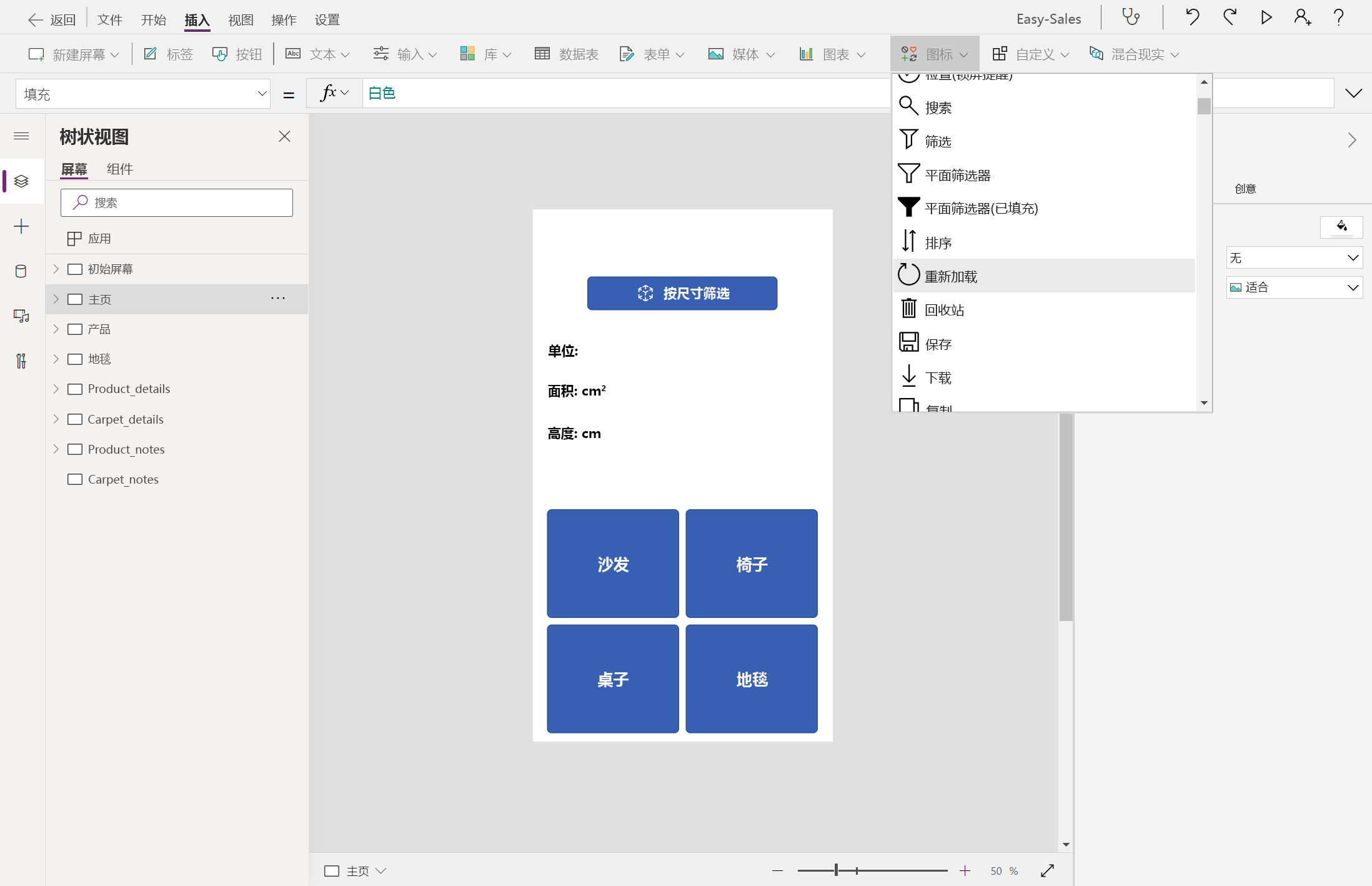
按图像中所示放置图标,并按如下所示配置 OnSelect 属性:
UpdateContext({galleryvisible:false});
小窍门
可以自定义字体、字号和字体样式,以匹配应用程序的设计。 但是,为了获得更好的用户体验,在整个应用程序中保持一致的字体。
一旦 MR 度量 组件完全配置后,我们将转到 空间筛选。 在这里,我们根据 MR 会话中“度量值”中收到的宽度、深度和高度值对产品进行空间筛选。
导航到“产品”页,然后配置Gallery_products的 Items 属性,如下所示:
If(
ID = 1 And Measure_gallery.Selected.Height = 0,
(Filter('Easy Sales',(ProductCategory = "Sofa") And ((Depth < Measure_gallery.Selected.BoundingDepth And Width < Measure_gallery.Selected.BoundingWidth) Or (Depth < Measure_gallery.Selected.BoundingWidth And Width < Measure_gallery.Selected.BoundingDepth)))),
ID = 1 And Measure_gallery.Selected.Height > 0,
(Filter('Easy Sales',(ProductCategory = "Sofa") And ((Depth < Measure_gallery.Selected.BoundingDepth And Width < Measure_gallery.Selected.BoundingWidth And Height <= Measure_gallery.Selected.Height) Or (Depth < Measure_gallery.Selected.BoundingWidth And Width < Measure_gallery.Selected.BoundingDepth And Height <= Measure_gallery.Selected.Height)))),
ID = 1,
Filter('Easy Sales',ProductCategory = "Sofa"),

ID = 2,
Filter('Easy Sales',ProductCategory = "Chair"),
ID = 2 And Measure_gallery.Selected.Height = 0,
(Filter('Easy Sales',(ProductCategory = "Chair") And ((Depth < Measure_gallery.Selected.BoundingDepth And Width < Measure_gallery.Selected.BoundingWidth) Or (Depth < Measure_gallery.Selected.BoundingWidth And Width < Measure_gallery.Selected.BoundingDepth)))),
ID = 2 And Measure_gallery.Selected.Height > 0,
(Filter('Easy Sales',(ProductCategory = "Chair") And ((Depth < Measure_gallery.Selected.BoundingDepth And Width < Measure_gallery.Selected.BoundingWidth And Height <= Measure_gallery.Selected.Height) Or (Depth < Measure_gallery.Selected.BoundingWidth And Width < Measure_gallery.Selected.BoundingDepth And Height <= Measure_gallery.Selected.Height)))),

ID = 3,
Filter('Easy Sales',ProductCategory = "Table"),
ID = 3 And Measure_gallery.Selected.Height = 0,
(Filter('Easy Sales',(ProductCategory = "Table") And ((Depth < Measure_gallery.Selected.BoundingDepth And Width < Measure_gallery.Selected.BoundingWidth) Or (Depth < Measure_gallery.Selected.BoundingWidth And Width < Measure_gallery.Selected.BoundingDepth)))),
ID = 3 And Measure_gallery.Selected.Height > 0,
(Filter('Easy Sales',(ProductCategory = "Table") And ((Depth < Measure_gallery.Selected.BoundingDepth And Width < Measure_gallery.Selected.BoundingWidth And Height <= Measure_gallery.Selected.Height) Or (Depth < Measure_gallery.Selected.BoundingWidth And Width < Measure_gallery.Selected.BoundingDepth And Height <= Measure_gallery.Selected.Height))))
)
重要
为 SharePoint 列表和 库 提供适当的名称,以避免将来出现错误。 维护公式中组件的名称以避免混淆。
注释
“地毯”页面不包含空间筛选,因为添加了特定于产品的其他功能。 MR 会话中测量的区域将用于估算所选地毯的价格。
小窍门
选择顶部的“ 文件 ”选项卡并选择“ 保存 ”选项,以频繁保存应用程序。 如果出现提示,请选择 “云 ”选项,然后选择“ 保存”。


基于区域计算价格
转到 “Carpet_details ”页,然后添加 标签,然后将其重命名 为Area_carpets。

在Area_carpets标签旁边添加另一个空标签,然后按如下所示配置空白标签的 Text 属性以显示计算区域:
Measure_gallery.Selected.Area&"cm²"
按如下所示配置 价格 标签旁边的标签以显示计算价格:
"$"&Measure_gallery.Selected.Area * content_carpets.'Price/cm2'


实现上述步骤后,应用程序将在空间上筛选出产品,并基于实际度量值计算地毯的准确价格。
