重要
InkCanvas、InkToolbar和InkPresenter是实验性 API。 墨迹书写支持是在 Windows 应用 SDK 2.4.1-experimental 中添加的。 本文介绍 Windows 应用 SDK 2.5.4 实验版,其更改了连接 InkToolbar 的方式。 这些 API 在稳定通道中不可用。 它们可能会在将来的版本中发生更改或被删除。 请勿在生产应用中使用它们。
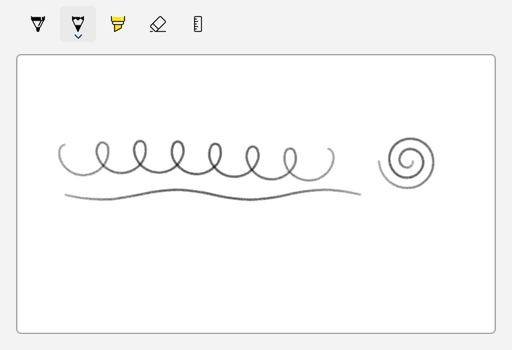
使用实验 InkCanvas 控件让用户使用笔、鼠标或触摸绘制墨迹。 添加一个 InkToolbar,为用户提供一个圆珠笔、铅笔、荧光笔和橡皮擦,以及颜色和大小选项。 每个画布都有一个 InkPresenter,用于收集和呈现墨迹输入。 演示器的 InkStrokeContainer 存储笔划,因此您可以在代码中保存、加载、复制,并通过代码创建墨迹。
若要尝试这些控件,请安装 Windows 应用 SDK 2.5.4 实验性包和匹配的运行时。 有关下载链接和设置信息,请参阅最新Windows 应用 SDK下载。
这是正确的控制吗?
当用户需要以下操作时,使用墨迹画布:
- 记手写笔记或批注内容。
- 绘制草图、图表,或签名。
- 创建可由应用保存的任意手写内容,并允许用户稍后编辑这些内容。
实验性墨迹 API 不包括手写或形状识别。 若要收集文本,请使用 文本框。
如果需要在生产应用中进行墨迹书写,请参阅 已知控件缺口 以了解这些控件在稳定通道中的状态和替代方案。
了解墨迹模型
墨迹 API 配合使用:
| API | Role |
|---|---|
InkCanvas |
显示墨迹并接收墨迹输入的 XAML 元素。 其 InkPresenter 属性返回画布的呈现器。 |
InkPresenter |
收集墨迹输入、呈现笔划并保存输入设置和默认绘图属性。 你不能自己创建一个InkPresenter。 从 InkCanvas.InkPresenter中获取它。 |
InkStrokeContainer |
存储笔画。 使用它保存、加载、选择、复制和粘贴墨迹。 从 InkPresenter.StrokeContainer中获取它。 |
InkToolbar |
一个可选工具栏,允许用户选择笔、铅笔、荧光笔或橡皮擦,并更改墨迹颜色和大小。 |
InkCanvas 没有 Background 属性。 若要为绘图区提供背景和边框,请将画布置于某个容器(例如 Border)中,并在容器上设置大小。 默认墨迹颜色为黑色,因此本文中的示例使用白色背景。
其中几个类型的名称与 Windows 运行时 Windows.UI.Input.Inking 命名空间中的类型相同,例如InkPresenter、InkStrokeContainer和InkHighContrastAdjustment。 墨迹控件使用 Microsoft.UI.Xaml.Controls 版本。 笔划和绘图属性仍使用Windows 运行时类型,例如InkStroke,InkDrawingAttributes和InkStrokeBuilder。 如果导入这两个命名空间并使用不明确的名称,C# 编译器将报告错误 CS0104。
本文中的示例导入 Microsoft.UI.Xaml.Controls,并为所需的 Windows.UI.Input.Inking 类型使用别名指令:
using Microsoft.UI.Xaml.Controls;
using InkDrawingAttributes = Windows.UI.Input.Inking.InkDrawingAttributes;
using InkStroke = Windows.UI.Input.Inking.InkStroke;
还可以导入这两个命名空间,并为不明确类型使用完全限定的名称,如 WinUI 3 Gallery 示例所示。
InkPresenter 还提供了本文未涵盖的较低级别的 API:
-
StrokeInput在笔划开始、继续、结束或取消时引发事件。 -
UnprocessedInput为呈示器不作为墨迹处理的输入引发指针事件。 -
InputConfiguration设置演示者是否处理笔橡皮擦和主笔杆按钮的输入。 -
InputProcessingConfiguration设置输入是绘制墨迹、擦除墨迹还是不处理该输入,以及演示者如何处理右拖动输入。 -
ActivateCustomDrying返回一个InkSynchronizer,供自行呈现已提交墨迹的应用使用。
设置您的项目
手写墨迹 API 被标记为实验性。 在 C# 项目中使用它们时,C# 编译器报告警告 CS8305,XAML 编译器报告警告WMC1501。 如果项目将警告视为错误,这些警告将导致构建停止。
决定使用实验 API 后,可以禁止显示这些警告。 将以下属性添加到 C# 项目文件(.csproj):
<PropertyGroup>
  <NoWarn>$(NoWarn);CS8305</NoWarn>
  <MSBuildWarningsAsMessages>$(MSBuildWarningsAsMessages);WMC1501</MSBuildWarningsAsMessages>
</PropertyGroup>
本文中的示例使用 C# 。 每个完整示例显示某个页面的 XAML 和该页面的代码隐藏类,MainPage。
创建墨迹画布

WinUI 3 示例库应用包含 WinUI 控件和功能的交互式示例。 从 Microsoft Store 或浏览 GitHub 上的源代码获取应用。
以下示例将画布置于白色区域 Border中。 代码隐藏设置输入设备类型,以便用户可以使用笔、鼠标或触摸进行绘制。
<Border
    Height="300"
    Background="White"
    BorderBrush="{ThemeResource SystemControlForegroundChromeHighBrush}"
    BorderThickness="1">
    <InkCanvas x:Name="inkCanvas" AutomationProperties.Name="Drawing surface" />
</Border>
using Microsoft.UI.Xaml.Controls;
using Windows.UI.Core;

public sealed partial class MainPage : Page
{
    public MainPage()
    {
        InitializeComponent();

        // Mouse input doesn't draw ink by default. Choose every device type that can draw ink.
        inkCanvas.InkPresenter.InputDeviceTypes =
            CoreInputDeviceTypes.Pen | CoreInputDeviceTypes.Mouse | CoreInputDeviceTypes.Touch;
    }
}
为了保持简短,一些后续示例不会重复此代码。 在用户用鼠标绘制的每个页面中设置 InputDeviceTypes 。
连接到墨迹工具栏
将一个 InkToolbar 放置在靠近画布的位置,并设置其 TargetInkCanvas 属性以连接两者:
<StackPanel Spacing="8">
    <InkToolbar
        x:Name="inkToolbar"
        AutomationProperties.Name="Drawing tools"
        TargetInkCanvas="{x:Bind inkCanvas}" />
    <Border
        Height="300"
        Background="White"
        BorderBrush="{ThemeResource SystemControlForegroundChromeHighBrush}"
        BorderThickness="1">
        <InkCanvas x:Name="inkCanvas" AutomationProperties.Name="Drawing surface" />
    </Border>
</StackPanel>
从 Windows 应用 SDK 2.5.4-experimental 开始,可以通过设置 InkPresenter 属性将工具栏直接连接到 TargetInkPresenter。 在代码中设置它:
inkToolbar.TargetInkPresenter = inkCanvas.InkPresenter;
还可以在 XAML 中设置它: TargetInkPresenter="{x:Bind inkCanvas.InkPresenter}"。 仅设置两个目标属性中的一个。
默认情况下,工具栏显示圆珠笔、铅笔、荧光笔、橡皮擦和模板(标尺)按钮。 若要更改显示的按钮,请参阅“自定义墨迹工具栏”。
选择输入设备
该 InputDeviceTypes 属性使用来自 Windows.UI.Core 命名空间的 CoreInputDeviceTypes 标志枚举。 默认情况下,鼠标输入不会绘制墨迹。 组合值以选择哪些设备进行墨迹输入:
// Add mouse input and keep the other device types.
inkCanvas.InkPresenter.InputDeviceTypes |= CoreInputDeviceTypes.Mouse;

// Stop accepting ink from touch input.
inkCanvas.InkPresenter.InputDeviceTypes &= ~CoreInputDeviceTypes.Touch;

// Check whether pen input is enabled.
bool isPenEnabled = inkCanvas.InkPresenter.InputDeviceTypes.HasFlag(CoreInputDeviceTypes.Pen);
若要停止从每个设备收集墨迹,例如,若要显示用户无法更改的绘图,请将 IsInputEnabled 设置为 false:
inkCanvas.InkPresenter.IsInputEnabled = false;
若要让用户在工具栏中打开或关闭输入设备,请参阅 添加自定义切换按钮。
设置绘图属性
绘制属性(如颜色、大小和笔尖形状)可控制笔划的外观。 它们使用 Windows 运行时 InkDrawingAttributes 类。 若要更改新笔划的属性,请调用 CopyDefaultDrawingAttributes、更改副本并将其传递给 UpdateDefaultDrawingAttributes:
InkDrawingAttributes attributes = inkCanvas.InkPresenter.CopyDefaultDrawingAttributes();
attributes.Color = Colors.DarkBlue;
attributes.Size = new Size(4, 4);
inkCanvas.InkPresenter.UpdateDefaultDrawingAttributes(attributes);
Colors 位于 Microsoft.UI 命名空间中,Size 位于 Windows.Foundation 命名空间中。 新属性适用于用户在通话后绘制的笔划。 现有笔划保留其属性。
当您连接一个 InkToolbar 时,活动工具及其颜色和大小设置决定了绘图属性。 若要读取当前属性,请使用工具栏的 InkDrawingAttributes 属性。
创建笔预设
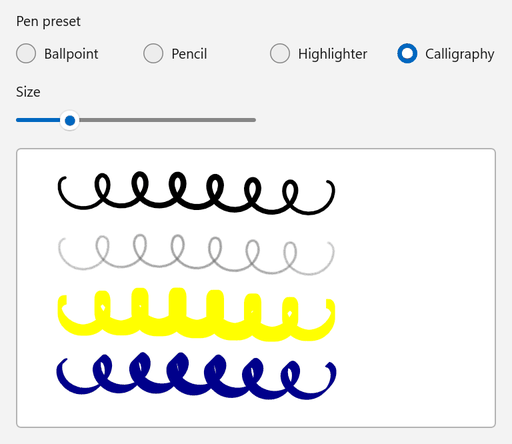
如果不使用工具栏,可以提供自己的笔预设。 以下示例在用户选择预设或更改大小时应用圆珠笔、铅笔、荧光笔或书法属性。
<StackPanel Spacing="12">
    <RadioButtons
        x:Name="presetButtons"
        Header="Pen preset"
        MaxColumns="4"
        SelectedIndex="0"
        SelectionChanged="PresetButtons_SelectionChanged">
        <x:String>Ballpoint</x:String>
        <x:String>Pencil</x:String>
        <x:String>Highlighter</x:String>
        <x:String>Calligraphy</x:String>
    </RadioButtons>
    <Slider
        x:Name="sizeSlider"
        Width="240"
        HorizontalAlignment="Left"
        Header="Size"
        Maximum="16"
        Minimum="1"
        Value="4"
        ValueChanged="SizeSlider_ValueChanged" />
    <Border
        Width="480"
        Height="280"
        HorizontalAlignment="Left"
        Background="White"
        BorderBrush="{ThemeResource SystemControlForegroundChromeHighBrush}"
        BorderThickness="1">
        <InkCanvas x:Name="inkCanvas" AutomationProperties.Name="Drawing surface" />
    </Border>
</StackPanel>
using System;
using System.Numerics;
using Microsoft.UI;
using Microsoft.UI.Xaml.Controls;
using Microsoft.UI.Xaml.Controls.Primitives;
using Windows.Foundation;
using Windows.UI.Core;
using InkDrawingAttributes = Windows.UI.Input.Inking.InkDrawingAttributes;
using PenTipShape = Windows.UI.Input.Inking.PenTipShape;

public sealed partial class MainPage : Page
{
    public MainPage()
    {
        InitializeComponent();

        inkCanvas.InkPresenter.InputDeviceTypes =
            CoreInputDeviceTypes.Pen | CoreInputDeviceTypes.Mouse | CoreInputDeviceTypes.Touch;
        ApplyPreset();
    }

    private void PresetButtons_SelectionChanged(object sender, SelectionChangedEventArgs e) => ApplyPreset();

    private void SizeSlider_ValueChanged(object sender, RangeBaseValueChangedEventArgs e) => ApplyPreset();

    private void ApplyPreset()
    {
        // SelectionChanged and ValueChanged can occur while the page is still loading.
        if (inkCanvas is null || presetButtons is null || sizeSlider is null)
        {
            return;
        }

        double size = sizeSlider.Value;
        InkDrawingAttributes attributes;

        switch (presetButtons.SelectedItem as string)
        {
            case "Pencil":
                // CreateForPencil returns attributes for pencil-style strokes.
                attributes = InkDrawingAttributes.CreateForPencil();
                attributes.Color = Colors.DimGray;
                attributes.Size = new Size(size, size);
                break;

            case "Highlighter":
                attributes = new InkDrawingAttributes
                {
                    Color = Colors.Yellow,
                    DrawAsHighlighter = true,
                    PenTip = PenTipShape.Rectangle,
                    Size = new Size(size, size * 3),
                };
                break;

            case "Calligraphy":
                attributes = new InkDrawingAttributes
                {
                    Color = Colors.DarkBlue,
                    PenTip = PenTipShape.Rectangle,
                    Size = new Size(Math.Max(1, size / 2), size * 2),
                    // Rotate the nib 45 degrees so the stroke width changes with the stroke direction.
                    PenTipTransform = Matrix3x2.CreateRotation(MathF.PI / 4),
                };
                break;

            default:
                attributes = new InkDrawingAttributes
                {
                    Color = Colors.Black,
                    PenTip = PenTipShape.Circle,
                    Size = new Size(size, size),
                };
                break;
        }

        // The new attributes apply to strokes that the user draws after this call.
        inkCanvas.InkPresenter.UpdateDefaultDrawingAttributes(attributes);
    }
}
-
InkDrawingAttributes.CreateForPencil返回铅笔划的属性。 该Kind属性是只读的,因此请使用此方法创建画笔属性。 -
DrawAsHighlighter将笔划呈现为荧光笔叠加效果。 -
PenTip设置笔尖的形状,并PenTipTransform旋转或缩放它。 旋转的矩形笔尖生成书法样式的笔画。
响应墨迹变更
呈示器在用户绘制笔划后引发 StrokesErased,并在用户擦除笔划后引发 StrokesCollected。 每个事件参数中的 Strokes 属性都包含受影响的笔划。 以下代码使名为TextBlock的strokeCountText中的笔画计数保持最新:
inkCanvas.InkPresenter.StrokesCollected += (sender, args) => UpdateStrokeCount();
inkCanvas.InkPresenter.StrokesErased += (sender, args) => UpdateStrokeCount();
private void UpdateStrokeCount()
{
    int count = inkCanvas.InkPresenter.StrokeContainer.GetStrokes().Count;
    strokeCountText.Text = $"{count} strokes";
}
当用户绘制或擦除墨迹时,会发生这些事件。 在代码中更改笔划时,例如使用 Clear、LoadAsync 或 AddStroke,请在调用后更新 UI。
保存并加载墨迹
InkStrokeContainer 将墨迹以墨迹序列化格式(ISF)保存。 若要选择数据的存储方式,请将 InkPersistenceFormat 值传递给 SaveAsync:
| Format | Output |
|---|---|
GifWithEmbeddedIsf |
包含墨迹数据的 GIF 图像。 图像查看器可以显示该文件,你的应用可以再次加载墨迹数据进行编辑。 |
Isf |
仅墨迹数据,不带图像。 这是最紧凑的格式。 |
将以下方法添加到包含名为 inkCanvas 的 InkCanvas 的页面的代码隐藏中。
SaveInkAsync 将墨迹写入文件,并且 LoadInkAsync 将画布上的墨迹替换为文件中的墨迹。
LoadAsync 在添加加载的笔划之前删除现有笔划,因此无需先调用 Clear 。
using System;
using System.IO;
using System.Threading.Tasks;
using Microsoft.UI.Xaml.Controls;
using Windows.Storage.Streams;
using InkPersistenceFormat = Windows.UI.Input.Inking.InkPersistenceFormat;

public sealed partial class MainPage : Page
{
    private async Task SaveInkAsync(string path)
    {
        InkStrokeContainer container = inkCanvas.InkPresenter.StrokeContainer;

        // File.Create replaces any existing file, so the file contains only the new ink.
        using FileStream fileStream = File.Create(path);
        using IOutputStream output = fileStream.AsOutputStream();

        // GifWithEmbeddedIsf writes a GIF image that also contains the editable ink data.
        await container.SaveAsync(output, InkPersistenceFormat.GifWithEmbeddedIsf);
        await output.FlushAsync();
    }

    private async Task LoadInkAsync(string path)
    {
        InkStrokeContainer container = inkCanvas.InkPresenter.StrokeContainer;

        using FileStream fileStream = File.OpenRead(path);
        using IInputStream input = fileStream.AsInputStream();

        // LoadAsync removes the current strokes before it adds the loaded strokes.
        await container.LoadAsync(input);
    }
}
AsOutputStream和AsInputStream将 .NET 流转换为LoadAsync和SaveAsync使用的 Windows 运行时 流类型。 若要等待这些Windows 运行时方法,该文件需要using System;指令。 如果没有它,编译器将报告错误 CS4036。
若要允许用户选择文件,请使用Windows 应用 SDK文件选取器,这将返回所选文件的路径。 有关详细信息,请参阅使用Windows 应用 SDK选取器保存文件,并使用Windows 应用 SDK选取器打开文件和文件夹。
若要将墨迹保留在内存中,例如若要在同一会话中稍后还原墨迹,请将其保存到 InMemoryRandomAccessStream 中。 将流的 GetOutputStreamAt(0) 结果传递给 SaveAsync,并将其 GetInputStreamAt(0) 结果传递给 LoadAsync。 WinUI 3 Gallery 示例使用此方法。
复制和粘贴墨迹输入
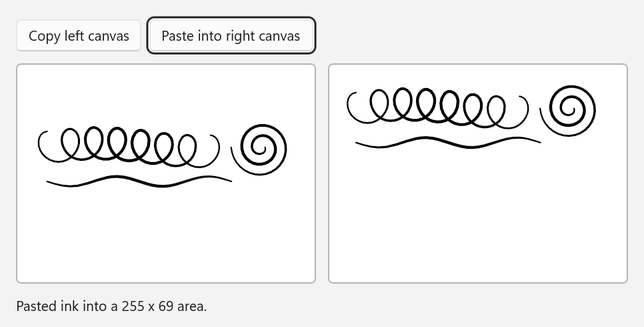
InkStrokeContainer 可以将笔划复制到剪贴板,并从中粘贴书写内容。
CopySelectedToClipboard 仅复制选定的笔画,因此以下示例在复制之前,先选中左侧画布上的每一笔画。
CanPasteFromClipboard 检查剪贴板是否包含墨迹。
PasteFromClipboard 在你传入的位置添加墨迹,并返回已更改区域的边界矩形。
<StackPanel Spacing="12">
    <StackPanel Orientation="Horizontal" Spacing="8">
        <Button Click="CopyButton_Click" Content="Copy left canvas" />
        <Button
            x:Name="pasteButton"
            Click="PasteButton_Click"
            Content="Paste into right canvas"
            IsEnabled="False" />
    </StackPanel>
    <StackPanel Orientation="Horizontal" Spacing="12">
        <Border
            Width="300"
            Height="220"
            Background="White"
            BorderBrush="{ThemeResource SystemControlForegroundChromeHighBrush}"
            BorderThickness="1">
            <InkCanvas x:Name="sourceCanvas" AutomationProperties.Name="Source drawing surface" />
        </Border>
        <Border
            Width="300"
            Height="220"
            Background="White"
            BorderBrush="{ThemeResource SystemControlForegroundChromeHighBrush}"
            BorderThickness="1">
            <InkCanvas x:Name="targetCanvas" AutomationProperties.Name="Target drawing surface" />
        </Border>
    </StackPanel>
    <TextBlock x:Name="statusText" Text="Draw on the left canvas, then copy it." TextWrapping="Wrap" />
</StackPanel>
using System.Collections.Generic;
using Microsoft.UI.Xaml;
using Microsoft.UI.Xaml.Controls;
using Windows.Foundation;
using Windows.UI.Core;
using InkStroke = Windows.UI.Input.Inking.InkStroke;

public sealed partial class MainPage : Page
{
    public MainPage()
    {
        InitializeComponent();

        foreach (InkCanvas canvas in new[] { sourceCanvas, targetCanvas })
        {
            canvas.InkPresenter.InputDeviceTypes =
                CoreInputDeviceTypes.Pen | CoreInputDeviceTypes.Mouse | CoreInputDeviceTypes.Touch;
        }
    }

    private void CopyButton_Click(object sender, RoutedEventArgs e)
    {
        InkStrokeContainer source = sourceCanvas.InkPresenter.StrokeContainer;
        IReadOnlyList<InkStroke> strokes = source.GetStrokes();
        if (strokes.Count == 0)
        {
            statusText.Text = "Draw on the left canvas first.";
            return;
        }

        // CopySelectedToClipboard copies only selected strokes, so select all strokes first.
        foreach (InkStroke stroke in strokes)
        {
            stroke.Selected = true;
        }

        source.CopySelectedToClipboard();

        foreach (InkStroke stroke in strokes)
        {
            stroke.Selected = false;
        }

        pasteButton.IsEnabled = targetCanvas.InkPresenter.StrokeContainer.CanPasteFromClipboard();
        statusText.Text = $"Copied {strokes.Count} stroke(s) to the clipboard.";
    }

    private void PasteButton_Click(object sender, RoutedEventArgs e)
    {
        InkStrokeContainer target = targetCanvas.InkPresenter.StrokeContainer;
        if (!target.CanPasteFromClipboard())
        {
            statusText.Text = "The clipboard doesn't contain ink.";
            return;
        }

        // Place the pasted ink near the upper-left corner of the target canvas.
        Rect pasted = target.PasteFromClipboard(new Point(16, 16));
        statusText.Text = $"Pasted ink into a {pasted.Width:0} x {pasted.Height:0} area.";
    }
}
若要处理某些笔划,请设置所需每个笔划的 Selected 属性,或调用 SelectWithLine 或 SelectWithPolyLine。 若要删除或移动所选笔划,请调用 DeleteSelected 或 MoveSelected。
在代码中创建描边
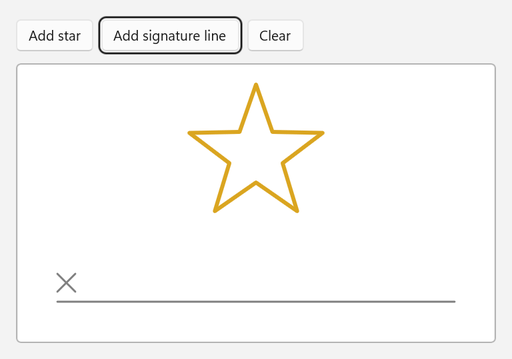
使用 Windows 运行时 InkStrokeBuilder 类从点创建笔划,并将其添加到画布中AddStroke。 以下示例添加星形和签名行。
<StackPanel Spacing="12">
    <StackPanel Orientation="Horizontal" Spacing="8">
        <Button Click="AddStarButton_Click" Content="Add star" />
        <Button Click="AddSignatureLineButton_Click" Content="Add signature line" />
        <Button Click="ClearButton_Click" Content="Clear" />
    </StackPanel>
    <Border
        Width="480"
        Height="280"
        HorizontalAlignment="Left"
        Background="White"
        BorderBrush="{ThemeResource SystemControlForegroundChromeHighBrush}"
        BorderThickness="1">
        <InkCanvas x:Name="inkCanvas" AutomationProperties.Name="Drawing surface" />
    </Border>
</StackPanel>
using System;
using System.Collections.Generic;
using System.Linq;
using System.Numerics;
using Microsoft.UI;
using Microsoft.UI.Xaml;
using Microsoft.UI.Xaml.Controls;
using Windows.Foundation;
using Windows.UI;
using InkDrawingAttributes = Windows.UI.Input.Inking.InkDrawingAttributes;
using InkPoint = Windows.UI.Input.Inking.InkPoint;
using InkStroke = Windows.UI.Input.Inking.InkStroke;
using InkStrokeBuilder = Windows.UI.Input.Inking.InkStrokeBuilder;

public sealed partial class MainPage : Page
{
    public MainPage()
    {
        InitializeComponent();
    }

    private void AddStarButton_Click(object sender, RoutedEventArgs e)
    {
        // Alternate between outer and inner points to draw a five-pointed star.
        Point center = new(inkCanvas.ActualWidth / 2, 90);
        List<Point> points = new();
        for (int i = 0; i <= 10; i++)
        {
            double radius = i % 2 == 0 ? 70 : 28;
            double angle = -Math.PI / 2 + i * Math.PI / 5;
            points.Add(new Point(center.X + radius * Math.Cos(angle), center.Y + radius * Math.Sin(angle)));
        }

        AddStroke(points, Colors.Goldenrod, 4);
    }

    private void AddSignatureLineButton_Click(object sender, RoutedEventArgs e)
    {
        double left = 40;
        double right = inkCanvas.ActualWidth - 40;
        double baseline = inkCanvas.ActualHeight - 40;

        AddStroke(new[] { new Point(left, baseline), new Point(right, baseline) }, Colors.Gray, 2);
        AddStroke(new[] { new Point(left, baseline - 28), new Point(left + 18, baseline - 10) }, Colors.Gray, 2);
        AddStroke(new[] { new Point(left + 18, baseline - 28), new Point(left, baseline - 10) }, Colors.Gray, 2);
    }

    private void ClearButton_Click(object sender, RoutedEventArgs e)
    {
        inkCanvas.InkPresenter.StrokeContainer.Clear();
    }

    private void AddStroke(IEnumerable<Point> points, Color color, double size)
    {
        InkStrokeBuilder builder = new();
        builder.SetDefaultDrawingAttributes(new InkDrawingAttributes
        {
            Color = color,
            Size = new Size(size, size),
            // Keep straight segments and sharp corners instead of smoothing them into curves.
            FitToCurve = false,
        });

        // Give every point the same pressure so that the stroke has a uniform width.
        IEnumerable<InkPoint> inkPoints = points.Select(point => new InkPoint(point, 0.5f));
        InkStroke stroke = builder.CreateStrokeFromInkPoints(inkPoints, Matrix3x2.Identity);
        inkCanvas.InkPresenter.StrokeContainer.AddStroke(stroke);
    }
}
-
CreateStrokeFromInkPoints从InkPoint值创建笔划。 每个点都包含画布上的一个位置和一个压力值。 - Windows 运行时 文档建议对添加到墨迹呈现器的笔划使用
CreateStrokeFromInkPoints而不是CreateStroke。 - 当
FitToCurve是false时,笔划使用点之间的直线段,而不是曲线。
笔划只能属于一个容器。 若要将笔划复制到另一个画布,请添加笔划的克隆:
private void CopyStrokesTo(InkCanvas target)
{
    foreach (InkStroke stroke in inkCanvas.InkPresenter.StrokeContainer.GetStrokes())
    {
        target.InkPresenter.StrokeContainer.AddStroke(stroke.Clone());
    }
}
自定义墨迹工具栏
选择初始控件
该 InitialControls 属性确定工具栏创建的内置按钮:
| Value | 内置按钮 |
|---|---|
All(默认值) |
圆珠笔、铅笔、荧光笔、橡皮擦和模板(标尺) |
PensOnly |
球点笔、铅笔和荧光笔 |
AllExceptPens |
橡皮擦和模板(尺子) |
None |
None. 将所需按钮声明为工具栏的子级。 |
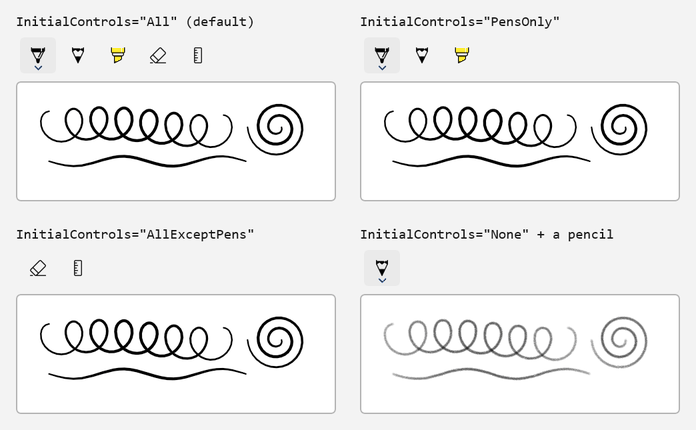
以下示例声明了与 WinUI 3 Gallery 示例相同的四个按钮,为每个按钮提供一个可访问的名称,并在工具栏加载时选择圆珠笔:
<StackPanel Spacing="8">
    <InkToolbar
        x:Name="inkToolbar"
        AutomationProperties.Name="Drawing tools"
        InitialControls="None"
        TargetInkCanvas="{x:Bind inkCanvas}">
        <InkToolbarBallpointPenButton x:Name="ballpointButton" AutomationProperties.Name="Ballpoint pen" />
        <InkToolbarPencilButton AutomationProperties.Name="Pencil" />
        <InkToolbarHighlighterButton AutomationProperties.Name="Highlighter" />
        <InkToolbarEraserButton AutomationProperties.Name="Eraser" />
    </InkToolbar>
    <Border
        Height="300"
        Background="White"
        BorderBrush="{ThemeResource SystemControlForegroundChromeHighBrush}"
        BorderThickness="1">
        <InkCanvas x:Name="inkCanvas" AutomationProperties.Name="Drawing surface" />
    </Border>
</StackPanel>
using Microsoft.UI.Xaml.Controls;

public sealed partial class MainPage : Page
{
    public MainPage()
    {
        InitializeComponent();

        // Select a starting tool after the toolbar loads.
        inkToolbar.Loaded += (sender, args) =>
        {
            if (inkToolbar.ActiveTool is null)
            {
                inkToolbar.ActiveTool = ballpointButton;
            }
        };
    }
}
若要显示可擦除所有墨迹的命令,请将橡皮擦按钮的 IsClearAllVisible 属性设置为 true。 当用户选择命令时,工具栏将引发 EraseAllClicked 事件。
自定义笔的颜色和宽度
每个笔按钮都有 Palette 一组画笔和笔画宽度设置。 在代码中设置 Palette 。 有关详细信息,请参阅已知限制。 以下示例将圆珠笔的调色板替换为四种品牌颜色,限制笔划宽度,并显示活动笔的属性。
<StackPanel Spacing="12">
    <InkToolbar
        x:Name="inkToolbar"
        AutomationProperties.Name="Drawing tools"
        InitialControls="AllExceptPens"
        TargetInkCanvas="{x:Bind inkCanvas}">
        <InkToolbarBallpointPenButton
            x:Name="brandPen"
            AutomationProperties.Name="Brand pen"
            MaxStrokeWidth="16"
            MinStrokeWidth="2"
            SelectedStrokeWidth="6" />
    </InkToolbar>
    <RadioButtons
        x:Name="colorButtons"
        Header="Pen color"
        MaxColumns="4"
        SelectedIndex="0"
        SelectionChanged="ColorButtons_SelectionChanged">
        <x:String>Blue</x:String>
        <x:String>Green</x:String>
        <x:String>Orange</x:String>
        <x:String>Purple</x:String>
    </RadioButtons>
    <TextBlock x:Name="penInfo" />
    <Border
        Width="480"
        Height="240"
        HorizontalAlignment="Left"
        Background="White"
        BorderBrush="{ThemeResource SystemControlForegroundChromeHighBrush}"
        BorderThickness="1">
        <InkCanvas x:Name="inkCanvas" AutomationProperties.Name="Drawing surface" />
    </Border>
</StackPanel>
using System.Linq;
using Microsoft.UI.Xaml.Controls;
using Microsoft.UI.Xaml.Media;
using Windows.UI;

public sealed partial class MainPage : Page
{
    private static readonly Color[] BrandColors =
    {
        Color.FromArgb(0xFF, 0x00, 0x78, 0xD4), // Blue
        Color.FromArgb(0xFF, 0x10, 0x7C, 0x10), // Green
        Color.FromArgb(0xFF, 0xD8, 0x3B, 0x01), // Orange
        Color.FromArgb(0xFF, 0x5C, 0x2D, 0x91), // Purple
    };

    public MainPage()
    {
        InitializeComponent();

        // Replace the pen's default palette and select the first color.
        brandPen.Palette = BrandColors.Select(color => (Brush)new SolidColorBrush(color)).ToList();
        brandPen.SelectedBrushIndex = 0;

        inkToolbar.InkDrawingAttributesChanged += (sender, args) => ShowPenInfo();

        // The toolbar sets up its buttons when it loads, so select the starting tool then.
        inkToolbar.Loaded += (sender, args) =>
        {
            inkToolbar.ActiveTool = brandPen;
            ShowPenInfo();
        };
    }

    private void ColorButtons_SelectionChanged(object sender, SelectionChangedEventArgs e)
    {
        // SelectionChanged can occur while the page is still loading.
        if (brandPen is null || colorButtons is null || penInfo is null || colorButtons.SelectedIndex < 0)
        {
            return;
        }

        // SelectedBrushIndex selects an entry in Palette, like choosing a color in the pen flyout.
        brandPen.SelectedBrushIndex = colorButtons.SelectedIndex;
        inkToolbar.ActiveTool = brandPen;
        ShowPenInfo();
    }

    private void ShowPenInfo()
    {
        // InkDrawingAttributes describes the ink that the active tool draws.
        if (inkToolbar.InkDrawingAttributes is { } attributes)
        {
            penInfo.Text = $"Color {attributes.Color}, width {attributes.Size.Width:0} (range {brandPen.MinStrokeWidth:0}-{brandPen.MaxStrokeWidth:0})";
        }
    }
}
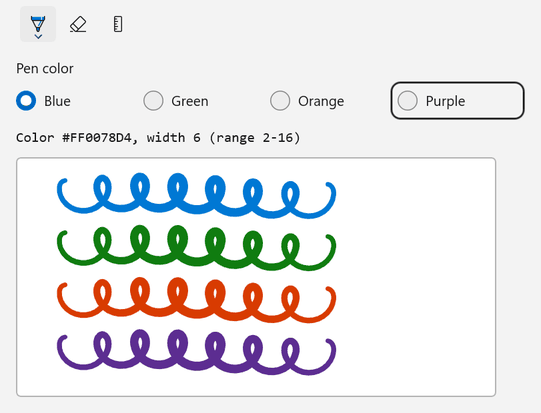
SelectedBrushIndex 从 Palette中选择颜色。
SelectedStrokeWidth、MinStrokeWidth 和 MaxStrokeWidth 设置当前笔画宽度,以及用户可选择的范围。 当活动工具的属性发生更改时,工具栏会引发 InkDrawingAttributesChanged。
选择当前工具
设置 ActiveTool 以选择一个工具,并处理 ActiveToolChanged,以在用户选择另一个工具时作出响应。
GetToolButton 返回所传递类型的内置工具按钮。 在工具栏加载之前,内置按钮可能不存在,因此请在工具栏的 Loaded 事件处理程序中选择一个起始工具。
<StackPanel Spacing="12">
    <InkToolbar
        x:Name="inkToolbar"
        AutomationProperties.Name="Drawing tools"
        TargetInkCanvas="{x:Bind inkCanvas}" />
    <TextBlock x:Name="toolInfo" />
    <Border
        Width="480"
        Height="280"
        HorizontalAlignment="Left"
        Background="White"
        BorderBrush="{ThemeResource SystemControlForegroundChromeHighBrush}"
        BorderThickness="1">
        <InkCanvas x:Name="inkCanvas" AutomationProperties.Name="Drawing surface" />
    </Border>
</StackPanel>
using Microsoft.UI.Xaml.Controls;

public sealed partial class MainPage : Page
{
    public MainPage()
    {
        InitializeComponent();

        inkToolbar.ActiveToolChanged += (sender, args) => ShowToolInfo();
        inkToolbar.InkDrawingAttributesChanged += (sender, args) => ShowToolInfo();

        // The toolbar creates its built-in buttons when it loads, so select the starting tool then.
        inkToolbar.Loaded += (sender, args) =>
        {
            inkToolbar.ActiveTool = inkToolbar.GetToolButton(InkToolbarTool.Pencil);
            ShowToolInfo();
        };
    }

    private void ShowToolInfo()
    {
        if (inkToolbar.ActiveTool is not { } tool)
        {
            toolInfo.Text = "No active tool";
            return;
        }

        toolInfo.Text = inkToolbar.InkDrawingAttributes is { } attributes
            ? $"{tool.ToolKind}: {attributes.Kind} ink, color {attributes.Color}, size {attributes.Size.Width:0}"
            : $"{tool.ToolKind}";
    }
}
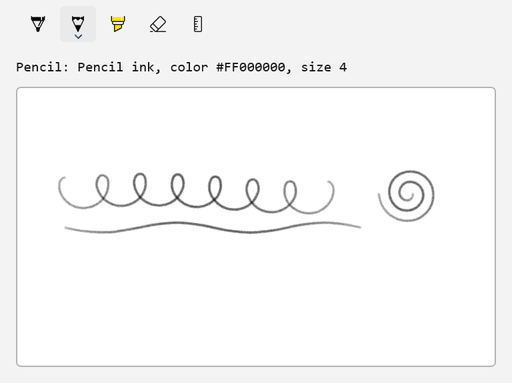
更改方向
若要垂直显示工具栏(例如显示在画布旁边),请将 Orientation 设置为 Vertical:
<Grid HorizontalAlignment="Left" ColumnSpacing="8">
    <Grid.ColumnDefinitions>
        <ColumnDefinition Width="Auto" />
        <ColumnDefinition Width="Auto" />
    </Grid.ColumnDefinitions>
    <InkToolbar
        VerticalAlignment="Top"
        AutomationProperties.Name="Drawing tools"
        Orientation="Vertical"
        TargetInkCanvas="{x:Bind inkCanvas}" />
    <Border
        Grid.Column="1"
        Width="440"
        Height="320"
        VerticalAlignment="Top"
        Background="White"
        BorderBrush="{ThemeResource SystemControlForegroundChromeHighBrush}"
        BorderThickness="1">
        <InkCanvas x:Name="inkCanvas" AutomationProperties.Name="Drawing surface" />
    </Border>
</Grid>
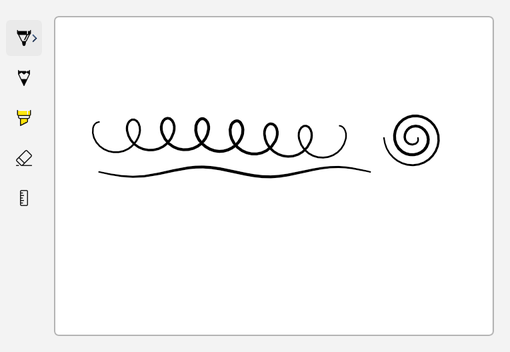
该 ButtonFlyoutPlacement 属性设置按钮浮出控件相对于工具栏的位置。 默认值 Auto允许工具栏选择位置。
添加自定义切换按钮
使用 InkToolbarCustomToggleButton 添加一个用户可从工具栏打开或关闭的设置项。 以下示例添加一个用于控制触摸输入的开关。 笔和鼠标输入始终书写墨迹。
<StackPanel Spacing="12">
    <InkToolbar AutomationProperties.Name="Drawing tools" TargetInkCanvas="{x:Bind inkCanvas}">
        <InkToolbarCustomToggleButton
            x:Name="touchWritingToggle"
            AutomationProperties.Name="Touch writing"
            Checked="TouchWritingToggle_Changed"
            ToolTipService.ToolTip="Touch writing"
            Unchecked="TouchWritingToggle_Changed">
            <SymbolIcon Symbol="TouchPointer" />
        </InkToolbarCustomToggleButton>
    </InkToolbar>
    <TextBlock x:Name="deviceInfo" />
    <Border
        Width="480"
        Height="280"
        HorizontalAlignment="Left"
        Background="White"
        BorderBrush="{ThemeResource SystemControlForegroundChromeHighBrush}"
        BorderThickness="1">
        <InkCanvas x:Name="inkCanvas" AutomationProperties.Name="Drawing surface" />
    </Border>
</StackPanel>
using Microsoft.UI.Xaml;
using Microsoft.UI.Xaml.Controls;
using Windows.UI.Core;

public sealed partial class MainPage : Page
{
    public MainPage()
    {
        InitializeComponent();

        // Pen and mouse input always draw ink. The custom toggle controls touch input.
        inkCanvas.InkPresenter.InputDeviceTypes = CoreInputDeviceTypes.Pen | CoreInputDeviceTypes.Mouse;
        ShowDevices();
    }

    private void TouchWritingToggle_Changed(object sender, RoutedEventArgs e)
    {
        if (touchWritingToggle.IsChecked == true)
        {
            inkCanvas.InkPresenter.InputDeviceTypes |= CoreInputDeviceTypes.Touch;
        }
        else
        {
            inkCanvas.InkPresenter.InputDeviceTypes &= ~CoreInputDeviceTypes.Touch;
        }

        ShowDevices();
    }

    private void ShowDevices()
    {
        deviceInfo.Text = $"InputDeviceTypes = {inkCanvas.InkPresenter.InputDeviceTypes}";
    }
}
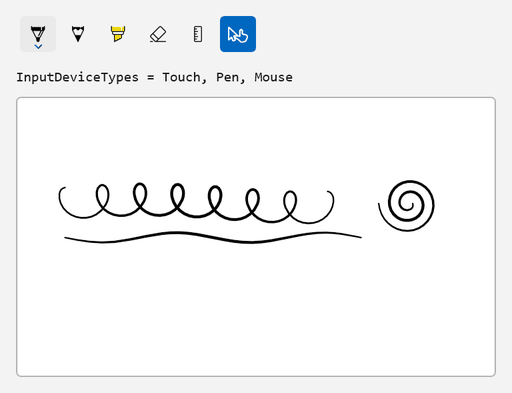
该开关仅显示一个图标,因此该示例为它提供可访问的名称和工具提示。 在此示例中,工具栏还会创建其默认按钮,自定义切换按钮显示在它们之后。
工具栏支持其他自定义按钮:
-
InkToolbarCustomToolButton添加了您自己的工具。 -
InkToolbarCustomPenButton添加一个具有自身绘图属性的笔。 将其CustomPen属性设置为派生自InkToolbarCustomPen并重写CreateInkDrawingAttributesCore方法的类的实例。
在代码中创建工具栏
还可以在代码中创建画布和工具栏。 以下示例将它们添加到名为Border的inkHost中,将工具栏与TargetInkPresenter连接,并在工具栏加载时选择铅笔。
<Border x:Name="inkHost" HorizontalAlignment="Left" />
using Microsoft.UI;
using Microsoft.UI.Xaml;
using Microsoft.UI.Xaml.Automation;
using Microsoft.UI.Xaml.Controls;
using Microsoft.UI.Xaml.Media;
using Windows.UI.Core;

public sealed partial class MainPage : Page
{
    public MainPage()
    {
        InitializeComponent();
        CreateInkingUI();
    }

    private void CreateInkingUI()
    {
        InkCanvas canvas = new();
        AutomationProperties.SetName(canvas, "Drawing surface");
        canvas.InkPresenter.InputDeviceTypes =
            CoreInputDeviceTypes.Pen | CoreInputDeviceTypes.Mouse | CoreInputDeviceTypes.Touch;

        InkToolbar toolbar = new() { TargetInkPresenter = canvas.InkPresenter };
        AutomationProperties.SetName(toolbar, "Drawing tools");

        // The toolbar creates its built-in buttons when it loads.
        toolbar.Loaded += (sender, args) => toolbar.ActiveTool = toolbar.GetToolButton(InkToolbarTool.Pencil);

        Border canvasFrame = new()
        {
            Width = 480,
            Height = 280,
            Background = new SolidColorBrush(Colors.White),
            BorderBrush = new SolidColorBrush(Colors.DarkGray),
            BorderThickness = new Thickness(1),
            Child = canvas,
        };

        StackPanel layout = new() { Spacing = 8 };
        layout.Children.Add(toolbar);
        layout.Children.Add(canvasFrame);

        inkHost.Child = layout;
    }
}
已知的限制
- 墨迹控件仅在 Windows 应用 SDK 的实验版本中可用。 它们在稳定通道中不可用。
- 墨迹书写 API 不包括手写或形状识别。
- 直到将
CoreInputDeviceTypes.Mouse添加到InputDeviceTypes,鼠标输入才会绘制墨迹。
以下问题是在 Windows 应用 SDK 2.4.1-experimental 中报告的。 2.5.4 实验性发行说明未将其列为已修复:
- 标尺和量角器模板不起作用。
-
RenderTargetBitmap不识别墨迹。 若要创建墨水的图像,请将其保存为GifWithEmbeddedIsf格式。 - 在 XAML 中设置笔按钮
Palette的属性会导致 XAML 解析错误。 改为在代码中设置Palette,如 自定义笔的颜色和宽度所示。 - 按钮浮出控件可能显示为空,更改
ButtonFlyoutPlacement可能不会更改它们打开的位置。
2.4.1-experimental 的更改
如果在 Windows 应用 SDK 2.4.1 实验版中使用了墨迹书写 API,请针对 2.5.4 实验版中的这些更改更新代码:
| 2.4.1-experimental 中的 API | 2.5.4-experimental 中的更改 |
|---|---|
InkToolbar.TargetInkPresenter (类型 Object) |
属性类型为 InkPresenter. |
InkPresenter.GetHighContrastAdjustment 和 InkPresenter.SetHighContrastAdjustment 方法 |
被 InkPresenter.HighContrastAdjustment 属性取代。 |
InkStrokeInput.GetInkPresenter 和 InkUnprocessedInput.GetInkPresenter 方法 |
被每个类上的 InkPresenter 属性替代。 |
InkToolbarEraserButton.SelectedEraser、IsStrokeEraserVisible 和 InkToolbar.EraserFlyoutItemClicked 属性;InkToolbarEraserKind 事件;InkToolbarEraserFlyoutItemKind、InkToolbarEraserFlyoutItemClickedEventArgs 和 ArePrecisionErasersVisible 类型 |
删除。 |
| 不可用 |
InkPresenter.ActivateCustomDrying方法和InkSynchronizer类已添加。 |
辅助功能和高对比度
墨迹是视觉内容,因此请规划所有用户如何使用墨迹功能:
- 如本文中的示例所示,为每个画布和工具栏提供一个可访问的名称
AutomationProperties.Name。 为仅显示图标的自定义按钮提供名称和工具提示。 -
InkCanvasAutomationPeer向 UI 自动化 暴露该画布,但不描述笔划。 如果墨迹具有意义(如签名或带标签的图表),请提供文本替代项。 - 墨迹绘制需要指针输入。 不要使墨迹输入成为完成任务的唯一方法。 例如,允许用户键入其名称来代替签名。
- 内置工具按钮的自动化对等项支持 SelectionItem 和 ExpandCollapse 控件模式。 使用你的应用所用的工具栏配置测试键盘导航和按钮弹出菜单。
当对比度主题处于活动状态时,演示者可以将墨迹颜色替换为系统颜色。 若要选择此行为,请将 HighContrastAdjustment 属性设置为来自 Microsoft.UI.Xaml.Controls 命名空间的 InkHighContrastAdjustment 值。 关于同名枚举的 Windows 运行时 文档是这样描述这些值的:
| Value | 对比主题中的墨水颜色 |
|---|---|
UseSystemColorsWhenNecessary |
如果墨迹与背景的对比足够明显,则使用墨迹本身的颜色。 否则为系统颜色。 |
UseSystemColors |
系统颜色。 荧光笔墨迹使用系统的荧光显示颜色。 |
UseOriginalColors |
墨水本身的颜色。 |
inkCanvas.InkPresenter.HighContrastAdjustment = InkHighContrastAdjustment.UseSystemColorsWhenNecessary;
为了保持简短,本文中的示例直接设置了白色背景。 在你的应用中,在主题字典中定义画布背景,使其遵循当前主题,如 对比主题中所述。 然后使用每个对比度主题测试应用,并检查前景、背景和边框是否保持可区分。
有关详细信息,请参阅公开基本辅助功能信息和键盘辅助功能。
