FileDialog.Filter 屬性
定義
重要
部分資訊涉及發行前產品,在發行之前可能會有大幅修改。 Microsoft 對此處提供的資訊,不做任何明確或隱含的瑕疵擔保。
取得或設定過濾字串,決定從 或 SaveFileDialog中顯示OpenFileDialog哪些類型的檔案。
public:
 property System::String ^ Filter { System::String ^ get(); void set(System::String ^ value); };
public string Filter { get; set; }member this.Filter : string with get, setPublic Property Filter As String屬性值
String A,裡面有過濾器。 預設值為 Empty,表示不套用過濾器,所有檔案類型皆可顯示。
例外狀況
過濾字串無效。
範例
以下範例展示了利用該 Filter 特性可設定的多種濾波器字串。
OpenFileDialog dlg = new OpenFileDialog();

// Show all files
dlg.Filter = string.Empty;

dlg.ShowDialog();
Dim dlg As New OpenFileDialog()

' Show all files
dlg.Filter = String.Empty

dlg.ShowDialog()
OpenFileDialog dlg = new OpenFileDialog();

// Show all files
dlg.Filter = null;

dlg.ShowDialog();
Dim dlg As New OpenFileDialog()

' Show all files
dlg.Filter = Nothing

dlg.ShowDialog()
OpenFileDialog dlg = new OpenFileDialog();

// Filter by Word Documents
dlg.Filter = "Word Documents|*.doc";

dlg.ShowDialog();
Dim dlg As New OpenFileDialog()

' Filter by Word Documents
dlg.Filter = "Word Documents|*.doc"

dlg.ShowDialog()
OpenFileDialog dlg = new OpenFileDialog();

// Filter by Excel Worksheets
dlg.Filter = "Excel Worksheets|*.xls";

dlg.ShowDialog();
Dim dlg As New OpenFileDialog()

' Filter by Excel Worksheets
dlg.Filter = "Excel Worksheets|*.xls"

dlg.ShowDialog()
OpenFileDialog dlg = new OpenFileDialog();

// Filter by PowerPoint Presentations
dlg.Filter = "PowerPoint Presentations|*.ppt";

dlg.ShowDialog();
Dim dlg As New OpenFileDialog()

' Filter by PowerPoint Presentations
dlg.Filter = "PowerPoint Presentations|*.ppt"

dlg.ShowDialog()
OpenFileDialog dlg = new OpenFileDialog();

// Filter by Office Files
dlg.Filter = "Office Files|*.doc;*.xls;*.ppt";

dlg.ShowDialog();
Dim dlg As New OpenFileDialog()

' Filter by Office Files
dlg.Filter = "Office Files|*.doc;*.xls;*.ppt"

dlg.ShowDialog()
OpenFileDialog dlg = new OpenFileDialog();

// Filter by All Files
dlg.Filter = "All Files|*.*";

dlg.ShowDialog();
Dim dlg As New OpenFileDialog()

' Filter by All Files
dlg.Filter = "All Files|*.*"

dlg.ShowDialog()
OpenFileDialog dlg = new OpenFileDialog();

// Filter by Word Documents OR Excel Worksheets OR PowerPoint Presentations
//           OR Office Files
//           OR All Files
dlg.Filter = "Word Documents|*.doc|Excel Worksheets|*.xls|PowerPoint Presentations|*.ppt" +
             "|Office Files|*.doc;*.xls;*.ppt" +
             "|All Files|*.*";

dlg.ShowDialog();
Dim dlg As New OpenFileDialog()

' Filter by Word Documents OR Excel Worksheets OR PowerPoint Presentations
'           OR Office Files
'           OR All Files
dlg.Filter = "Word Documents|*.doc|Excel Worksheets|*.xls|PowerPoint Presentations|*.ppt" & "|Office Files|*.doc;*.xls;*.ppt" & "|All Files|*.*"

dlg.ShowDialog()
備註
若 Filter 是 null 或 Empty,則所有檔案都會顯示,資料夾則永遠顯示。
你可以透過設定 Filter 屬性來指定要顯示的檔案類型子集。 每種檔案類型都可以代表特定類型的檔案,例如以下幾種:
Word 文件(*.doc)
Excel 工作表(*.xls)
PowerPoint簡報(*.ppt)
或者,檔案類型也可以代表一組相關的檔案類型,例如以下幾種:
辦公室檔案(*.doc、*.xls、*.ppt)
所有檔案(*.*)
要指定顯示的檔案類型子集,你可以設定 Filter 一個字串值( 過濾字串),指定一種或多種檔案類型來篩選。 以下顯示濾波器字串的預期格式:
FileType1[[|FileType2]...[|FileTypeN]]
你使用以下格式來描述每種檔案類型:
Label|Extension1[[;Extension2]...[;ExtensionN]]
Label 部分是一個人類可讀的字串值,描述檔案類型,例如以下內容:
「Word 文件」
「Excel 工作表」
「PowerPoint簡報」
「辦公室檔案」
「所有檔案」
每種檔案類型都必須至少由一個 副檔名來描述。 若使用多個 擴充 ,每個 擴充 必須以分號(“;”)分隔。 例如:
「*.doc」
「*.xls;」
「*.ppt」
「*.doc;*.xls;*.ppt」
"*.*"
以下是有效 Filter 字串值的完整範例:
Word Documents|*.docExcel Worksheets|*.xlsPowerPoint Presentations|*.pptOffice Files|*.doc;*.xls;*.pptAll Files|*.*Word Documents|*.doc|Excel Worksheets|*.xls|PowerPoint Presentations|*.ppt|Office Files|*.doc;*.xls;*.ppt|All Files|*.*
篩選器中包含的每個檔案類型會作為獨立項目加入 檔案,該檔案類型為下拉選單,置於OpenFileDialogSaveFileDialog或 中,如下圖所示。
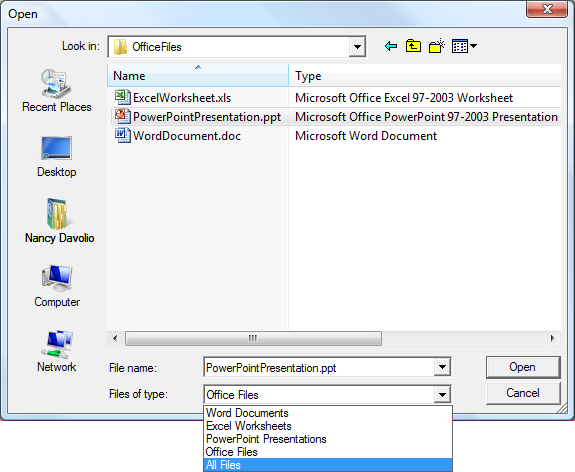 對話
對話
使用者可以從此列表中選擇一種檔案類型來篩選。 預設情況下,當 OpenFileDialog 顯示 or SaveFileDialog 時,會選擇列表中的第一個項目(例如第一個檔案類型)。 要指定要選擇另一種檔案類型,請先設定屬性 FilterIndex ,然後再顯示 OpenFileDialog 或 SaveFileDialog (透過呼叫 ShowDialog)。
